
An integration stores one set of credentials for an outside tool: a Slack incoming webhook, a PagerDuty integration key, your own HTTP endpoint. It also creates a matching contact. You route that contact to monitors like any other recipient, and per-service steps live in each channel's own article, linked from the table below.
Before You Start
- Only Owner and Admin seats can create, edit and delete integrations. An Editor can select an existing integration contact on a monitor, but never sees Alerting → Integrations. See User Roles and Permissions.
- You need permission inside the third-party tool to produce whatever the integration consumes: an incoming webhook, an API key, a service integration key.
Integration Types
Uptimia offers ten integration types. With the built-in Email and SMS contact types, they make up the 12 alert channels.
| Type | What it sends | What you supply | Setup guide |
|---|---|---|---|
| Slack | A Block Kit card in one Slack channel | Webhook URL on hooks.slack.com |
Slack Alerts Setup |
| Microsoft Teams | An Adaptive Card in one Teams channel | Webhook URL from Power Automate Workflows | Microsoft Teams Alerts Setup |
| Discord | A color-coded embed in one Discord channel | Webhook URL on discord.com |
Discord Alerts Setup |
| Mattermost | A message in one Mattermost channel | Webhook URL on your Mattermost server | Mattermost Alerts Setup |
| Telegram | A message in a Telegram channel or group | Channel ID, plus uptimia_bot added to the channel |
Telegram Alerts Setup |
| PagerDuty | A PagerDuty incident through Events API v2 | Integration Key | PagerDuty Alerts Setup |
| Atlassian Statuspage | An incident and a component update on your Statuspage | API Key, Page ID, optional Component ID | Atlassian Statuspage Integration |
| A WhatsApp message from Uptimia's business number | Phone Number in international format | WhatsApp Alerts Setup | |
| Twilio | An SMS through your own Twilio account | Account SID, Auth Token, Phone Number, Twilio Phone Number | Twilio SMS and Voice |
| Webhooks | A JSON HTTP POST to any endpoint you control | Webhook URL, optional Custom Headers, one per line as Name: value, never a JSON object |
Custom Webhooks Setup |
WhatsApp does not draw from your SMS credit balance, and it has no new-account waiting period. Both of those apply to the built-in SMS channel only. A Twilio integration bills your own Twilio account and spends no Uptimia credits either.
Adding an Integration
- Go to Alerting → Integrations.
- Click Add Integration.
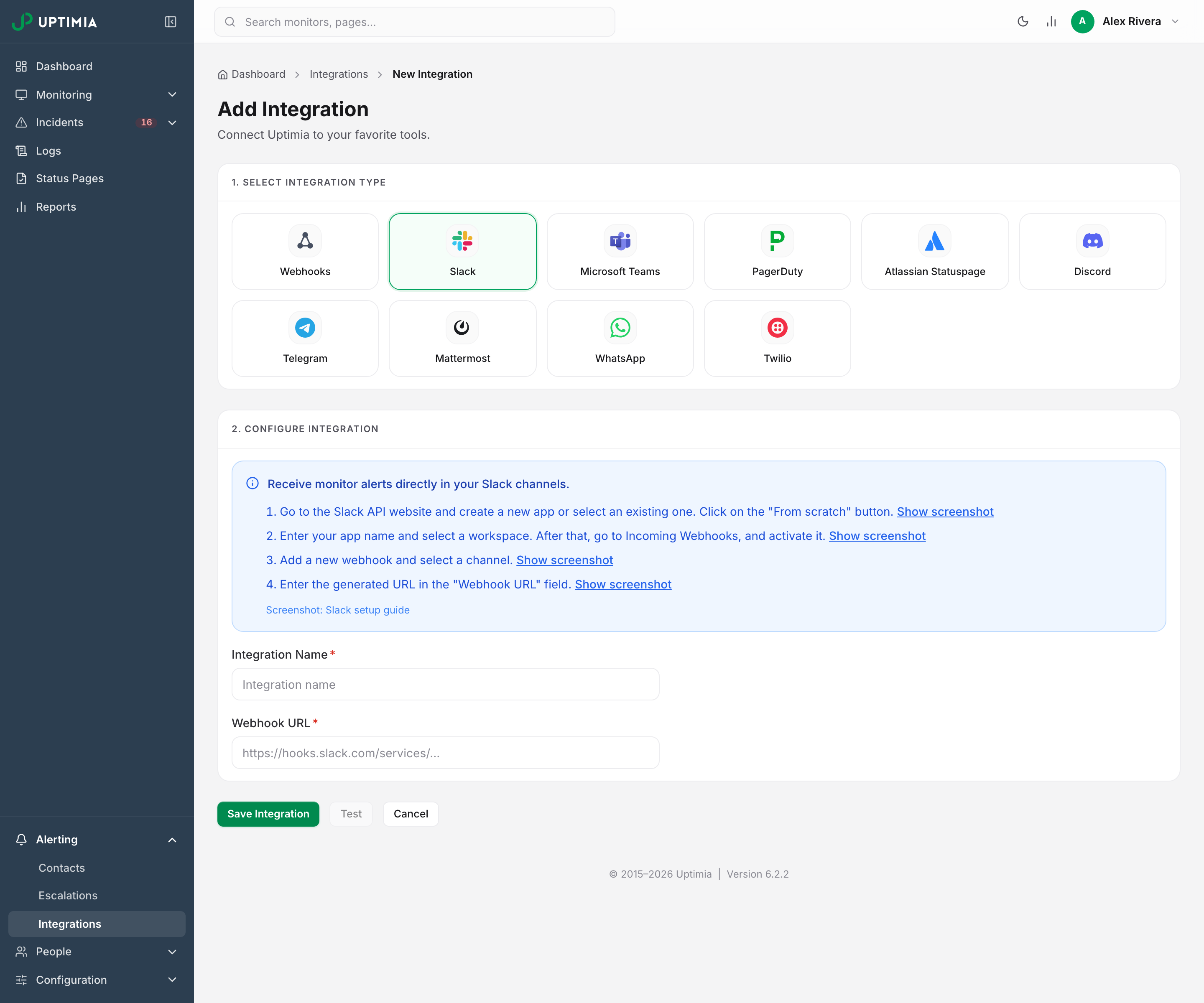
- Pick the type in the 1. Select Integration Type grid. A setup panel opens with the third-party steps, and most types carry a Show screenshot link on each step.
- Enter an Integration Name. Name it by purpose and destination: "Production alerts – #ops" is findable in a recipient picker, "Slack" is not.
- Fill in that type's fields.
- Click Save Integration. Uptimia creates the integration and a contact of the same name, already confirmed and immediately selectable on a monitor.
One integration can back several contacts, but they collapse. Two contacts pointing at the same integration profile produce one alert. Two contacts on two different profiles of the same channel, such as two Slack webhooks, are two alerts.
The type cannot be changed afterward: the grid is read-only in edit mode. To switch type, delete the integration and create a new one.
If the save is refused with The integration is missing required fields, the URL failed its outbound check. See Why a URL Can Be Refused. An empty required field never gets that far. The editor flags it on the field itself: This field is required on a credential field, Integration name is required on the name.
Routing an Integration to Monitors
The contact an integration creates reaches a monitor in one of three ways:
- Picked on that monitor. Open the monitor, choose Actions → Edit, scroll to the Alerting card at the bottom of the Main tab, select the contact in the left pane, and save. The right pane then shows the exact addresses and numbers Uptimia will alert.
- Covered by "All my contacts — current & future". A monitor set to this auto-include row alerts every contact on the account, resolved at alert time. A Slack integration you add today starts alerting on those monitors with no per-monitor edit.
- Named in a step of an escalation policy attached to the monitor.
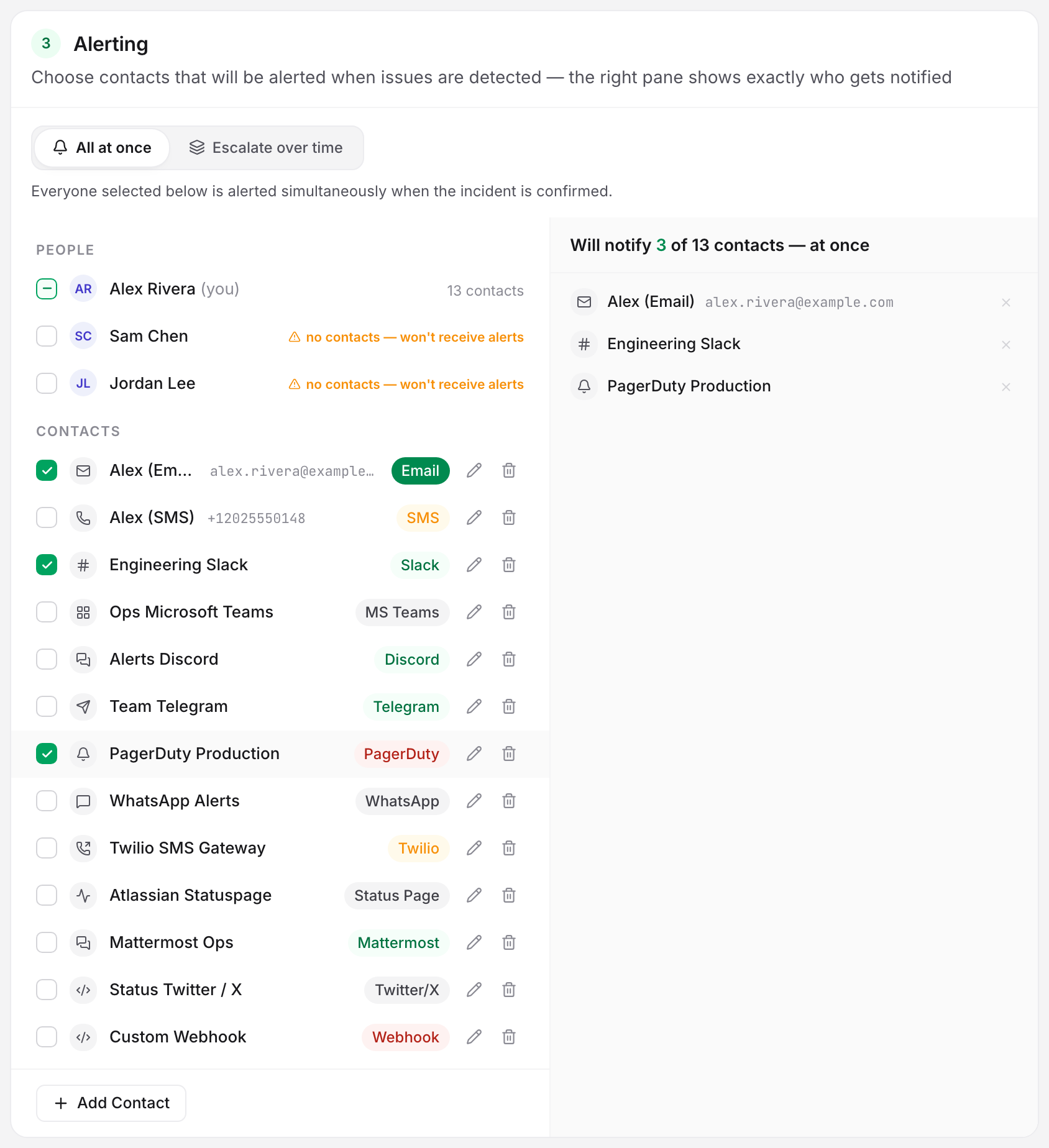
While a monitor is set to Escalate over time, the escalation policy decides who gets paged, taking precedence over the monitor's own recipient list. Each step resolves its people the moment it fires. That list is still required and still live. It is the fallback if the grouping and escalation layers cannot take the incident, and the account owner is paged if a whole ladder reaches nobody. While Escalate over time is on, the card shows the policy picker instead of the list. Switch back to All at once to see or change it. Escalation Policies covers the ladder. Who Gets Alerted covers recipient resolution, duplicates and opt-outs.
Testing an Integration
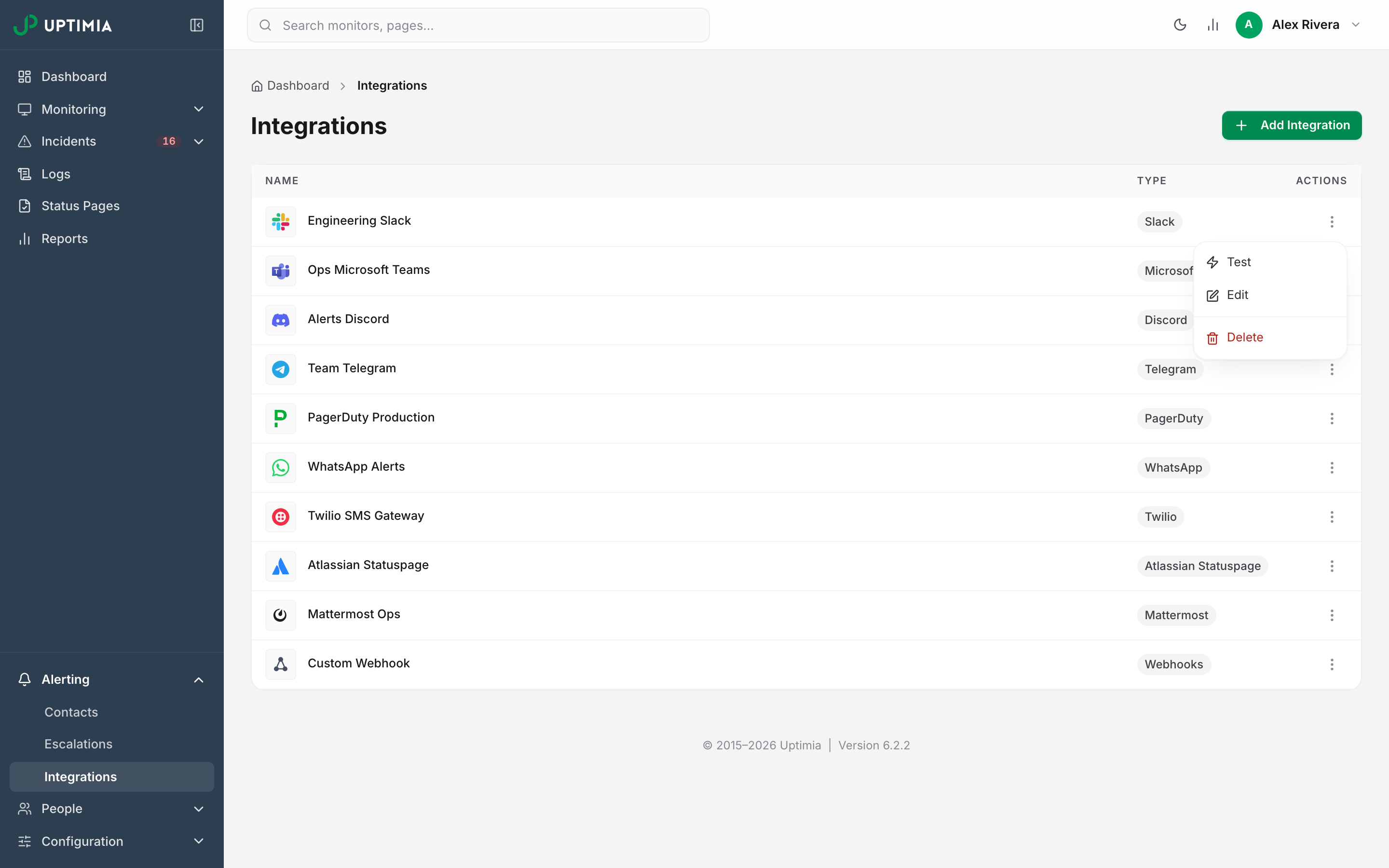
From the list, open the actions menu (three dots) on the row and select Test.
The editor has a Test button too. It runs against the saved row, so it appears in edit mode only. Unsaved edits disable it, and the page reads Save your changes to test the updated configuration.
A green Test notification sent successfully toast means Uptimia dispatched the call. It does not report what the destination answered, because Uptimia does not read the reply, so the toast can be green while the Slack channel stays silent. Twilio is the exception. It surfaces Test failed: invalid_phone_number or Test failed: test_failed. For every other type, confirm the test at the destination: the Slack channel, the PagerDuty board, your own receiver.
A passing test does not prove a real alert will land. The test is dispatched straight through the channel, while a real alert goes through the delivery queue, where an unverified account email, an unconfirmed or opted-out contact, or an alerting schedule can still stop it.
Editing and Deleting
Click a row (or actions menu → Edit) to change the name and the credential fields, then Save Integration.
Warning: Deleting an integration also deletes the contact it created, which removes it from every monitor, escalation policy and report that used it. The confirmation modal says the action cannot be undone, and it is right. Recreating the integration produces a new contact you must re-select everywhere.
How a Delivery Is Retried
Every channel shares one delivery queue, processed once a minute.
- Success is any 2xx. Your endpoint has to answer with one. A redirect (3xx) counts as a failure, and so do a timeout and a TLS certificate error. Uptimia waits 10 seconds to connect and up to 30 seconds in total on most channels. A custom webhook gets 10 seconds for the whole call.
- A failed delivery is retried up to five times. Each wait is one minute longer than the last (1, 2, 3, 4 then 5 minutes), so the final attempt lands 15 minutes after the first. After that the notification is dropped. A transient 5xx from a chat provider usually self-heals inside that window.
- Slack alone retries once in-process, two seconds after the failed attempt, before the queue's own waits begin.
- A failed delivery is never rerouted to another contact or another channel.
- Delivery is at-least-once. The same alert can arrive twice: if a send times out after your endpoint already handled it, Uptimia sends it again, so your endpoint has to ignore the repeat. Match on the monitor plus the incident's start time to spot them. See Webhook Payload Reference.
Some failures are never retried. Uptimia drops these alerts before it even tries to send them:
- a contact that is unconfirmed
- a contact that has used the unsubscribe link in an alert email
- an account whose email is not verified
- any contact on a retired channel type
Why a URL Can Be Refused
Five integration types are URL-based: Slack, Microsoft Teams, Discord, Mattermost and Webhooks. Uptimia checks the URL when you save it, and again immediately before each send. A change in DNS can block a channel that tested fine.
| Rule | Applies to | What it means |
|---|---|---|
| Host is pinned to the provider | Slack, Microsoft Teams, Discord | Slack must be on hooks.slack.com; Discord on discord.com, discordapp.com or any subdomain of either; Teams on outlook.office.com, *.office.com, *.webhook.office.com, *.logic.azure.com or *.environment.api.powerplatform.com |
| HTTPS required | Slack, Microsoft Teams, Discord | A host-pinned provider is rejected over plain HTTP |
| HTTP or HTTPS | Mattermost, Webhooks | Self-hosted targets cannot be host-pinned, so only the address checks apply |
| No credentials in the URL | All nine | https://user:pass@host/... is rejected |
| Host must resolve to a public address | All nine | Loopback, private ranges, link-local, carrier-grade NAT and other reserved ranges are refused, so an endpoint on your own LAN cannot be reached |
| Host must be plain ASCII, with no leading or trailing dot | All nine | A domain with non-English letters has to be entered in its plain-ASCII form (punycode), the version that starts with xn-- |
Creating an integration with a rejected URL surfaces The integration is missing required fields, and editing an existing one surfaces There was an error updating the integration. A rejection at send time is logged as a blocked notification. It still gets the full retry schedule: five attempts that cannot succeed, then the alert is dropped. If your Mattermost server or webhook receiver is only reachable inside your network, put a public HTTPS endpoint in front of it.
What Changes During an Alert Storm
When several monitors sharing an escalation policy fail together, they merge into one alert group and one escalation ladder instead of one alert per monitor. Most channels receive a single digest. It names every affected monitor. Two integration channels cannot carry a digest, and fall back to a per-monitor alert for the storm's anchor monitor only. Alert Groups has the per-channel table and the settings behind grouping.
Slack, Microsoft Teams, Discord, Telegram, Mattermost, Twilio, email and SMS carry a signed Acknowledge incident link, which pauses the escalation ladder without a login. Webhook and PagerDuty are machine pipelines: they get the acknowledgment facts, but never the link. See Acknowledging Incidents and MTTA.
Twitter/X Is Retired
Twitter/X is no longer an alert channel. You cannot create one, there is no sender behind it, and a queued alert on a legacy Twitter/X contact is logged once and deleted rather than delivered. An existing row still opens in the editor so it renders readably, and its Test fails with Test failed: unsupported_type.
Delete any Twitter/X integration you still have, and replace it by purpose:
- A public announcement: publish a status page and let people subscribe to it. That is what a status tweet was doing.
- A team channel: Slack, Discord, Microsoft Teams, Mattermost or Telegram.
- A machine feed: a custom webhook into whatever posts on your behalf.