
When several monitors that share an escalation policy fail within a few minutes of each other, Uptimia merges them into one alert group. That means one down digest, throttled join updates, one escalation ladder, and one recovery alert to everyone who was paged. Seven settings shape grouping and acknowledgment. They all live on one account-wide page, Alerting → Escalations → Grouping & acknowledgement. Taking ownership of a group with the Acknowledge button or the signed link in the alert is covered in Acknowledging Incidents and MTTA.
Before You Start
- Grouping only touches monitors that have an escalation policy attached. A monitor set to All at once keeps the ordinary per-monitor alert path, unchanged.
- Escalation policies are created on the Professional plan and above, so grouping is in practice a Professional and Enterprise feature. The trial runs at full capability. A policy created before a downgrade keeps working and keeps grouping.
- Changing the account-wide settings needs the Owner, Admin or Editor role. Read-only members can open the page and see the values. The page tells them so: Read-only — your role can view but not change these settings.
What an Alert Group Is
Every incident on a monitor with an escalation policy opens an alert group, even when it is the only monitor failing. A lone incident is a group of one: its alerts render in the ordinary per-monitor form, with one acknowledgment surface.
Two monitors merge into the same group when both of these match:
- The grouping key. By default that is the escalation policy, so monitors that would alert the same people merge. The stricter setting adds the monitor's group membership. Monitors on one policy then merge only when they belong to exactly the same monitor groups.
- The join window. The joining monitor's failure has to be confirmed inside the open group's window.
Because the key is the policy, grouping never mixes alerts that would reach different people.
The Join Window
All window arithmetic runs on confirmed time, not on the moment a check failed. A monitor's confirmed time is its detection plus its own alert delay. A monitor with a 5-minute delay joins the window 5 minutes after it started failing.
The first alert is never delayed. The window only decides who joins the group afterwards; Uptimia never holds the digest back to see whether more monitors fail.
| Window mode | When a monitor joins | Effect |
|---|---|---|
| rolling (default) | Its confirmed time is within the window of the most recent join | The window restarts with each join, so a rolling cascade stays one incident |
| fixed | Its confirmed time is within the window of the group's own start | The window is anchored at the first confirmation and never extends |
The window is 1, 2, 3, 5 or 10 minutes, and the default is 3 minutes.
A Single Digest Instead of Many Alerts
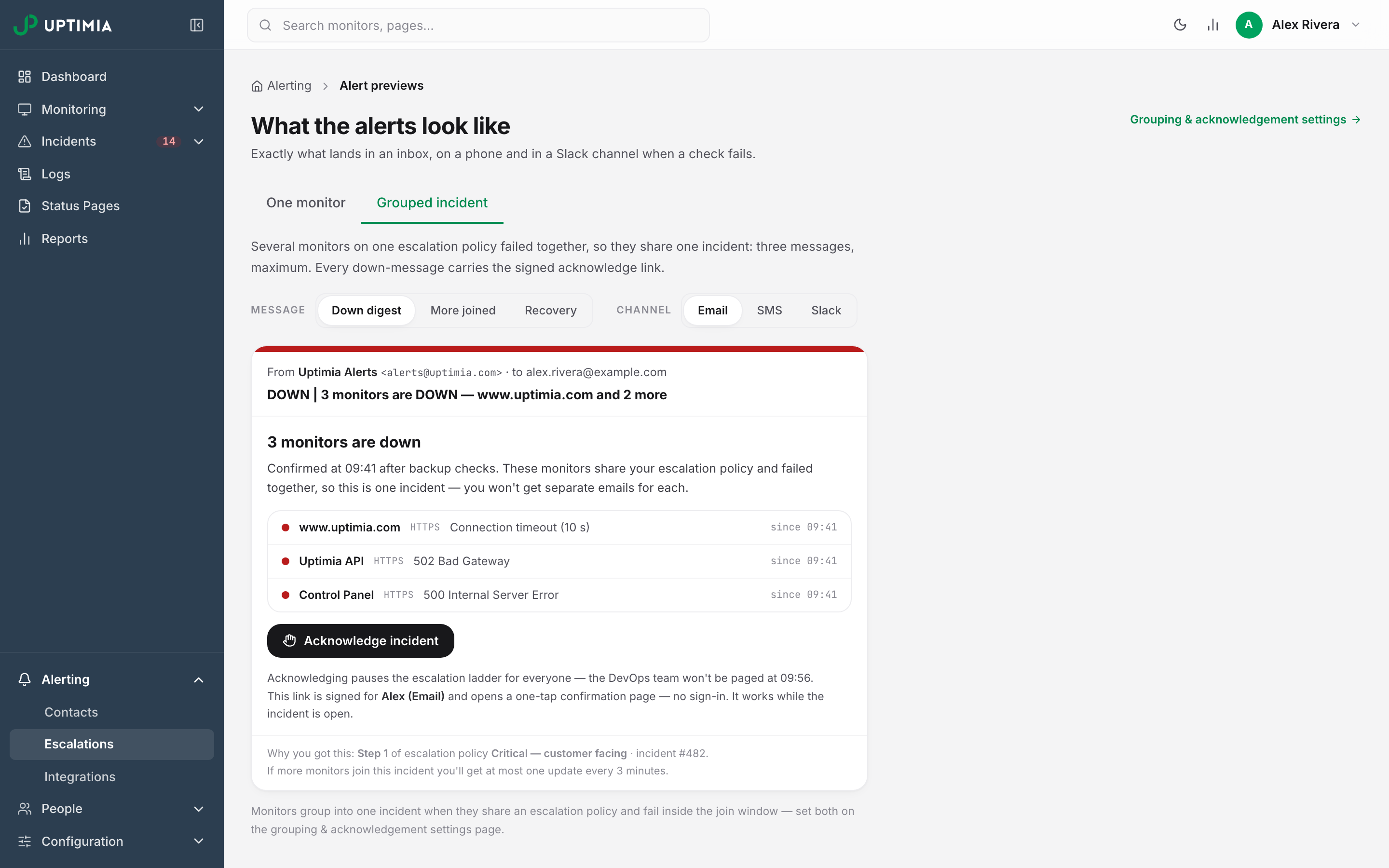
The first message for a multi-monitor group is the down digest. The email subject is DOWN | 5 monitors are DOWN — api.example.com and 4 more, and the body carries:
- a member table: monitor name, the error, and the time it went down, with recovered rows marked Back up · HH:MM
- an Acknowledge incident button, when the channel can carry one
- a footer naming the step and policy that paged you, the incident number, and the join-update cadence
Uptimia compresses an SMS to the same facts inside the 160-character budget: UPTIMIA: 5 monitors DOWN — api.example.com, cdn.example.com +3 more (09:41). Acknowledge: …. Names truncate before anything else is lost, and the acknowledgment URL is dropped whole rather than cut in half.
A single-monitor group gets the ordinary per-monitor alert instead of a digest, with one addition. If other monitors on the same policy are confirmed down when the alert composes, the message names them, as "N other monitors on this escalation policy are also down".
Join Updates, and the Throttle
Monitors that join after the digest went out are announced in a join update: DOWN | 3 more monitors joined — now 8 DOWN (incident #4821). It goes only to the people the group has already alerted.
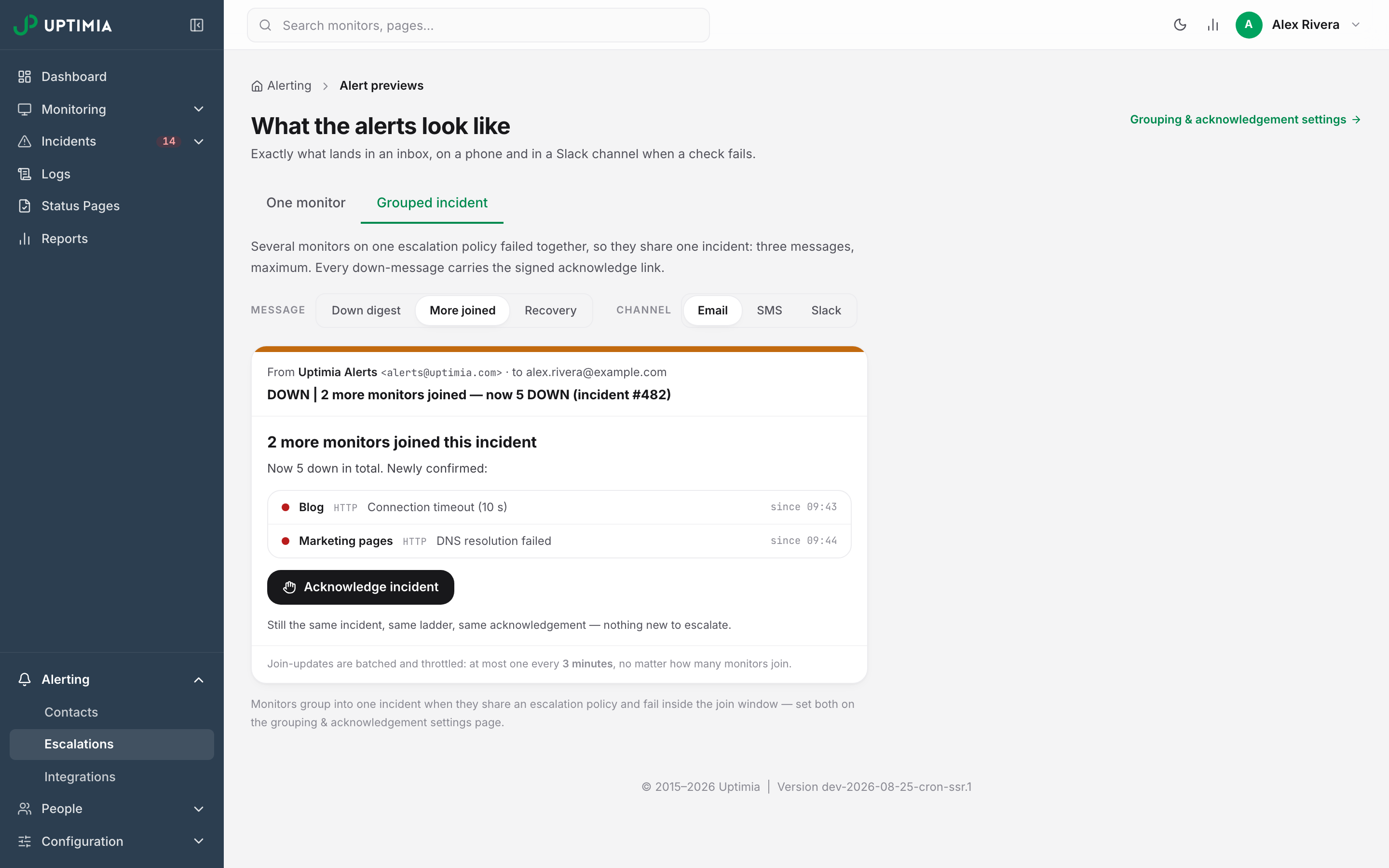
Uptimia sends at most one join update per throttle window, however many monitors joined inside it. A 20-site cascade is 2 or 3 messages, not 20. The throttle is 1, 3, 5 or 10 minutes, and the default is 3 minutes.
Batching also settles what a late reader sees. Recipients whose alerting hours defer a message all receive the same member list, and each member carries its current status, so nobody reads a different version of the same incident. If every monitor in a batch recovered before it was delivered, the message is reworded to say they are back up.
A Shared Ladder and a Single Recovery Alert
The group runs one escalation ladder: the steps, waits and repeat rounds of the attached policy, once, for the whole group. The card says so: One escalation ladder runs for this whole group — not 5. Step and repeat messages re-state the still-down members: DOWN | Still down: 3 of 8 monitors (incident #4821) — escalation step 2.
Uptimia sends at most one recovery alert per group:
- A member recovering while others are still down sends nothing.
- When the last member recovers, one recovery digest goes out to the union of everyone who was paged, whichever step reached them:
UP | RESOLVED — all 8 monitors are back up (incident #4821). - If the whole group recovered before any alert was delivered, nothing is sent. One exception is a digest that a recipient's alerting hours had already deferred. It still arrives when their window opens, reworded to say the monitors were down and are back up.
Which Channels Receive a Digest
Ten of the twelve alert channels can carry a digest. The other two fall back to a legacy per-monitor alert, and only for the group's anchor monitor, the first one that failed.
| Channel | What it receives during a storm |
|---|---|
| Full digest with the member table | |
| SMS | 160-character digest |
| Slack, MS Teams, Discord, Telegram, Mattermost | Digest with one bullet per monitor |
| Twilio | Same copy as SMS, uncapped |
| PagerDuty | A summary naming the count and the anchor |
| Webhook | The per-monitor payload plus an additive group block. See Webhook Payload Reference |
| One per-monitor alert for the anchor monitor only | |
| Status Page (Atlassian Statuspage) | One per-monitor update for the anchor monitor only |
On those two channels, monitors that join after the anchor are silent, and the recovery content is the anchor monitor's recovery. For a public announcement during an outage, use a status page instead.
A retired Twitter/X contact left on an account never posts at all. Delete it. See Integrations Overview.
Reading a Group in the Control Panel
Open Incidents → Active in the sidebar. Open groups render as cards above the flat incident table. A grouped incident appears once, on its card, not as N rows in the table below.
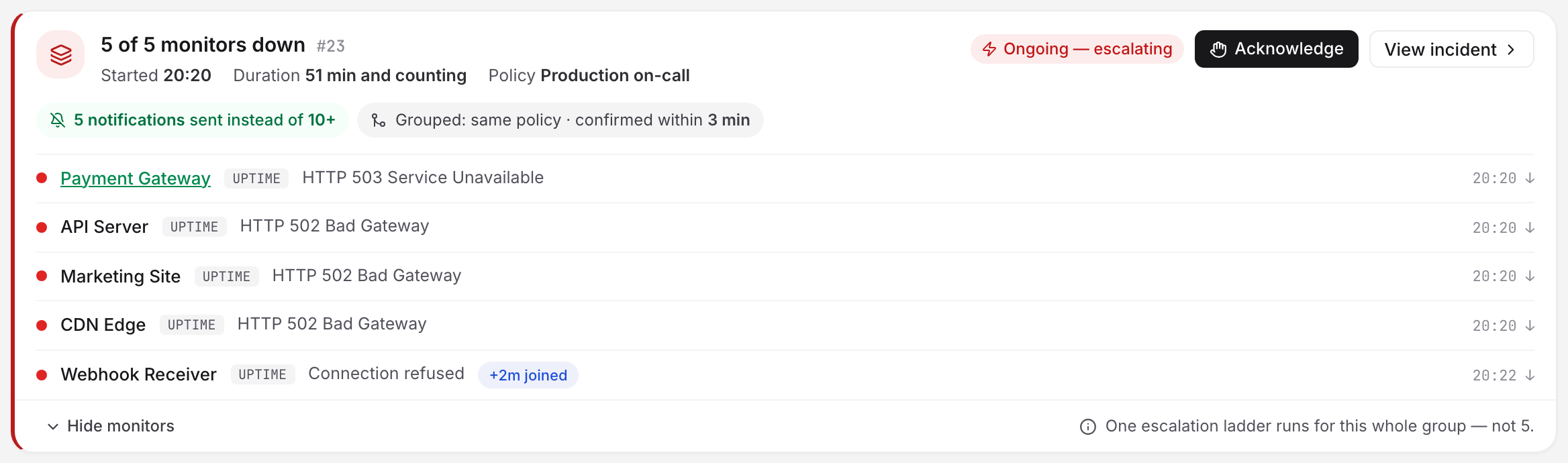
Each card carries:
- a status badge: Ongoing — escalating, Acknowledged or Resolved
- Started, Duration and Policy
- a chip reading 5 notifications sent instead of 10+
- Show monitors, which expands the member rows, each with its error, its down or recovery time, and a +2m joined pill for a monitor that joined after the group opened
- Acknowledge and View incident
A single-monitor group says so in its footer: Not grouped — no other monitors on this policy failed within the join window.
View incident opens the grouped incident page. It holds the full member list, with each monitor's root-cause detail inline, and a timeline of what fired, when, and what fires next. Incident records, filters and exports are covered in Incidents.
The Grouping and Acknowledgment Settings Page
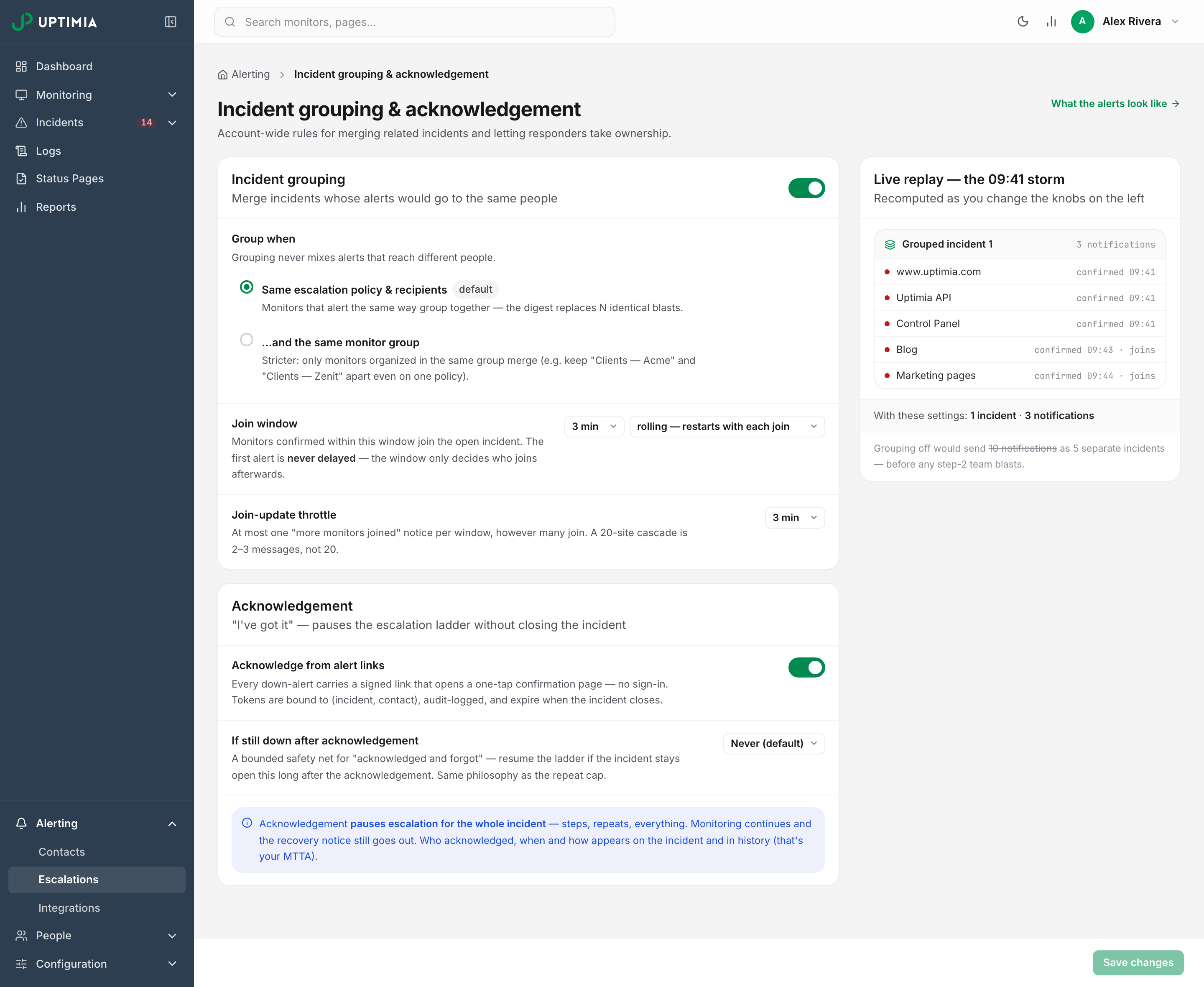
Go to Alerting → Escalations and click Grouping & acknowledgement. The page is titled Incident grouping & acknowledgement. Its settings are account-wide: they apply to every escalation policy you have.
| Setting | What it does | Default | Values |
|---|---|---|---|
| Incident grouping (header toggle) | Off means joins never happen: every incident stays its own incident. Acknowledgment keeps working. | On | On, off |
| Group when | Same escalation policy & recipients merges monitors that alert the same way. …and the same monitor group is stricter: monitors merge only when they belong to exactly the same monitor groups, so "Clients — Acme" and "Clients — Zenit" stay apart on one policy. Monitors in no group at all still merge with each other. | Same escalation policy & recipients | Either |
| Join window | How long an open group accepts new members, measured in confirmed time. | 3 min | 1, 2, 3, 5, 10 min |
| Window mode (the second dropdown in the Join window row) | rolling — restarts with each join or fixed — from the first confirmation. | rolling | Either |
| Join-update throttle | The minimum gap between "more monitors joined" notices. | 3 min | 1, 3, 5, 10 min |
| Acknowledge from alert links | Whether down alerts carry a signed one-tap acknowledgment link. Off leaves control-panel acknowledgment working. | On | On, off |
| If still down after acknowledgement | Restarts the paused ladder if the incident is still open this long after it was acknowledged. | Never (default) | Never, after 30 min, after 1 h, after 2 h |
Both acknowledgment settings are explained in Acknowledging Incidents and MTTA.
Nothing saves automatically. The floating bar at the bottom shows Unsaved changes and you commit with Save changes (or Ctrl+S / Cmd+S). Reloading or closing the tab with edits pending warns you first. Moving to another control-panel page discards them without a prompt, so save before you navigate away. A value outside those lists rejects the whole save, so none of your changes are stored.
The Live replay — the 09:41 storm panel on the right re-runs a five-monitor storm under the values you have selected, every time you change one. Use it to see what a 1-minute window would have done before you save it.
Choosing a Window and a Throttle
The 3-minute defaults hold for most fleets. Move them in these cases:
- A cascade that spreads slowly, such as a database or CDN failure that takes several minutes to reach every dependent monitor. Widen the join window to 5 or 10 minutes and keep it rolling, so late arrivals join the incident instead of opening a second one.
- A large fleet where the count matters more than the timing. Raise the join-update throttle to 5 or 10 minutes. You still learn that monitors joined, in fewer messages.
Lower the window to 1 or 2 minutes only when unrelated systems share a policy and you want them reported separately. Splitting them across two policies is the better fix.
Settings Are Snapshotted When a Group Opens
A group copies the join window, the window mode and the throttle at the moment it opens. It copies the acknowledgment resume deadline at the moment it is acknowledged. Editing the settings during a live incident leaves that incident alone: the new values apply to the next group that opens.
So widening the window mid-outage does not pull in the monitor that failed 30 seconds ago.
Turning Grouping Off
Set the Incident grouping toggle to off and save. Every escalated incident then stands alone: joins never happen, each monitor gets its own alert and its own ladder, and acknowledgment still works per incident.
Turning it off rarely fixes alert volume. The settings that cut noise without giving up the digest are compared in Getting Fewer, Better Alerts.
Why Five Failing Monitors Produced One Alert
That is grouping working. The five monitors share an escalation policy and were confirmed down inside the join window, so they merged into one group with one digest and one ladder. Open Incidents → Active and expand the group card to see all five member rows. A +Nm joined pill shows how far apart they were confirmed.
If you wanted them apart, either switch the scope to …and the same monitor group, or move them onto different escalation policies. If a monitor is missing from the group entirely, check its Alerting card. A monitor set to All at once has no policy and never joins a group.