
A status page is a public page that shows the live health of the monitors you publish on it, carries a 90-day history ribbon, and holds the incident and maintenance updates you write. Visitors read it without signing in. Each page has its own URL, its own sections and its own settings. Visibility, subscribers and custom-domain DNS each have their own article.
Before You Start
- Creating and editing status pages needs an Owner, Admin or Editor seat. Read-only seats see the list and can copy a public link. They get no Edit, Post status update, Manage subscribers or Delete action.
- Every plan includes status pages: Free 1, Basic 1, Professional 10, Enterprise unlimited, and the trial 10. See Plan Limits and Quotas.
- Only Uptime, SSL and Speed monitors can be published on a status page. See Monitor Type Coverage.
Creating a Status Page
- Go to Status Pages and click Create Status Page.
- Enter a Status Page Name, the name visitors see at the top of the page.
- Set the toggles in the Content and Appearance cards.
- Choose a Visibility: Public, Password protected or Private (IP allowlist).
- Set the URL Name.
- Build the Page structure: add sections and drop monitors into them.
- Click Create Status Page.
The page is live the moment it saves, with one exception. On the Free plan the public page is never served: every visitor gets a 404, on the Uptimia host and on a custom domain alike, and serving starts once the account is on a trial or a paid plan. You can set everything except the Subscribers section while creating. That section appears once the page exists.
Page Settings
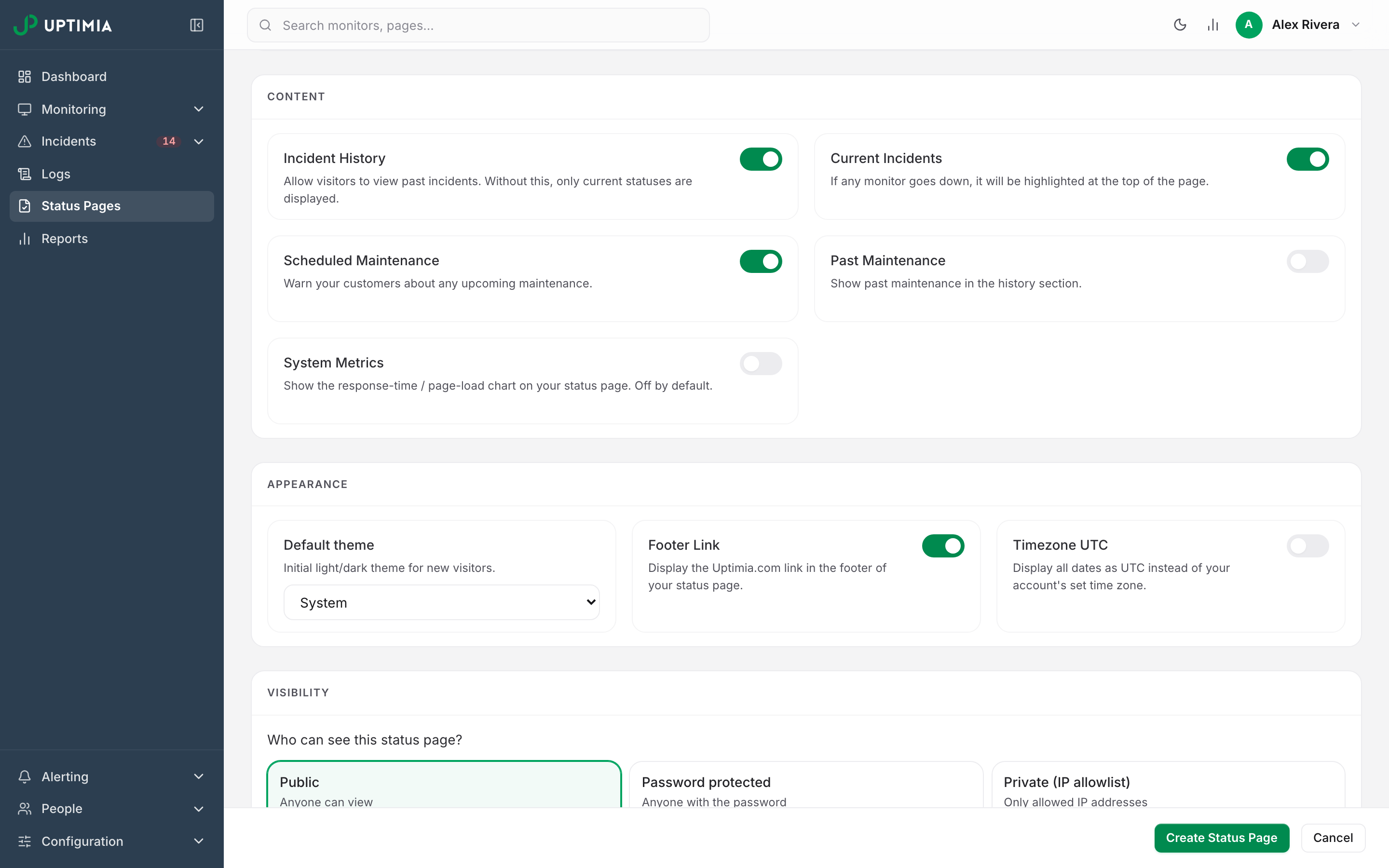
The seven toggles sit in two cards: Content decides what appears on the page, Appearance decides how it is presented.
Content
| Setting | What it does | Default |
|---|---|---|
| Incident History | Allows visitors to view past incidents. Without this, only current statuses are displayed. | On |
| Current Incidents | If any monitor goes down, it is highlighted at the top of the page. | On |
| Scheduled Maintenance | Warns your customers about any upcoming maintenance. | On |
| Past Maintenance | Shows past maintenance in the history section. | Off |
| System Metrics | Shows the response-time / page-load chart, with a legend and a value axis. | Off |
Turn System Metrics on if you want visitors to see response times rather than only up/down states. The "Avg response" figure in the summary row shows either way.
Appearance
| Setting | What it does | Default |
|---|---|---|
| Default theme | The initial light/dark theme for a new visitor. System, Light or Dark. Visitors can switch it themselves. | System |
| Footer Link | Displays the Uptimia.com link in the footer of your status page. | On |
| Timezone UTC | Displays all dates as UTC instead of your account's set time zone. | Off |
Timezone UTC is off by default, so the page renders timestamps in your account's configured time zone, and subscriber emails follow the same setting, labeling every time with its zone. Visitors get their own UTC / Local toggle in the header either way.
Switching Footer Link off removes the "Powered by Uptimia" badge from the page source, not just from view. The password gate screen honors the same setting. Turning the footer link off is not restricted by plan: white-labeling a page with the footer off, your own logo and your own domain works on every plan, Free included.
Visibility and Subscribers
The Visibility card offers three modes. Public lets anyone view the page, Password protected lets in anyone who has the password, and Private (IP allowlist) lets in only the IP addresses you list. Public is the default and works on every plan. The other two need a paid plan or the trial. The password needs at least 10 characters. Protection already in place keeps being enforced after a downgrade; you just cannot set a new one. For the rest of the password rules, the allowlist format and what each mode does behind a CDN, see Status Page Visibility.
The Email subscriptions card carries one toggle: Enable email subscriptions. It is off by default. Turning it on puts a Subscribe button on the public page. Visitors who confirm their address are emailed when you open or update any status thread: an incident, a maintenance window or a status update. Once the page is saved, a Subscribers section at the bottom of the editor lists them with a total / confirmed / pending count, and the list page's Manage subscribers action opens that section directly. For the opt-in flow and unsubscribing, see Status Page Subscribers.
The URL Name and a Custom Domain
The URL Name is the slug in your page's public URL: lowercase letters, numbers and dashes, starting with a letter, 3–51 characters, no spaces and no underscores. It must be unique across all Uptimia status pages. A clash is rejected with "The link name you are trying to use is already taken". The prefix beside the field is the host your account's pages are served from. The editor prints the finished URL underneath as you type.
Custom Domain (Optional) puts the page on a domain you own. For a subdomain such as status.yourcompany.com, point a CNAME at the platform host; for an apex domain such as statusofyourcompany.com, point A records at the platform IP addresses, because a CNAME cannot serve an apex. Uptimia's own zones are rejected as reserved.
Certificates are automatic. Uptimia checks the record and issues the Let's Encrypt certificate, and the domain moves from pending to issuing to active with no action from you. Uptimia re-checks an active domain every 6 hours; if it stops pointing at Uptimia, you get an email every 2 days, and Uptimia disables the domain only after 7 days. It returns to active by itself once the record is fixed. For the exact emails and what to restore if the record breaks, see Status Page Custom Domain.
Building the Page Structure
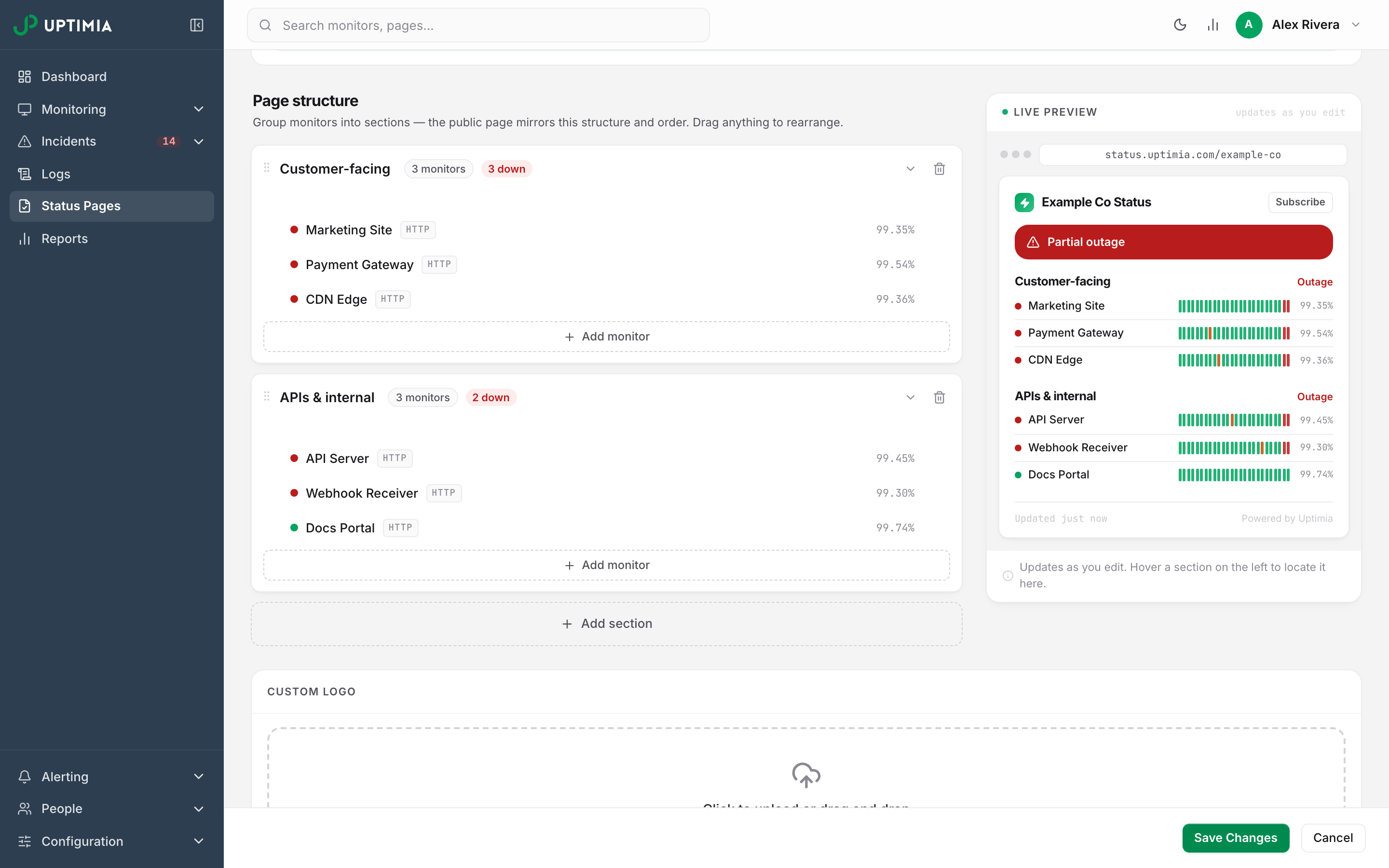
The Page structure area is a two-pane builder: sections on the left, a live miniature of the public page on the right that follows every edit.
Sections
Click Add section to create one; its name editor opens immediately. Click the name or the description to edit either inline: Enter commits, Escape cancels. Each section card shows a monitor-count pill. When something is wrong it also shows a health chip: N down, N degraded, or paused when every monitor in the section is paused. Drag a section by its grip handle to reorder it, and drag a monitor by its handle to move it inside a section or into another one.
Adding Monitors
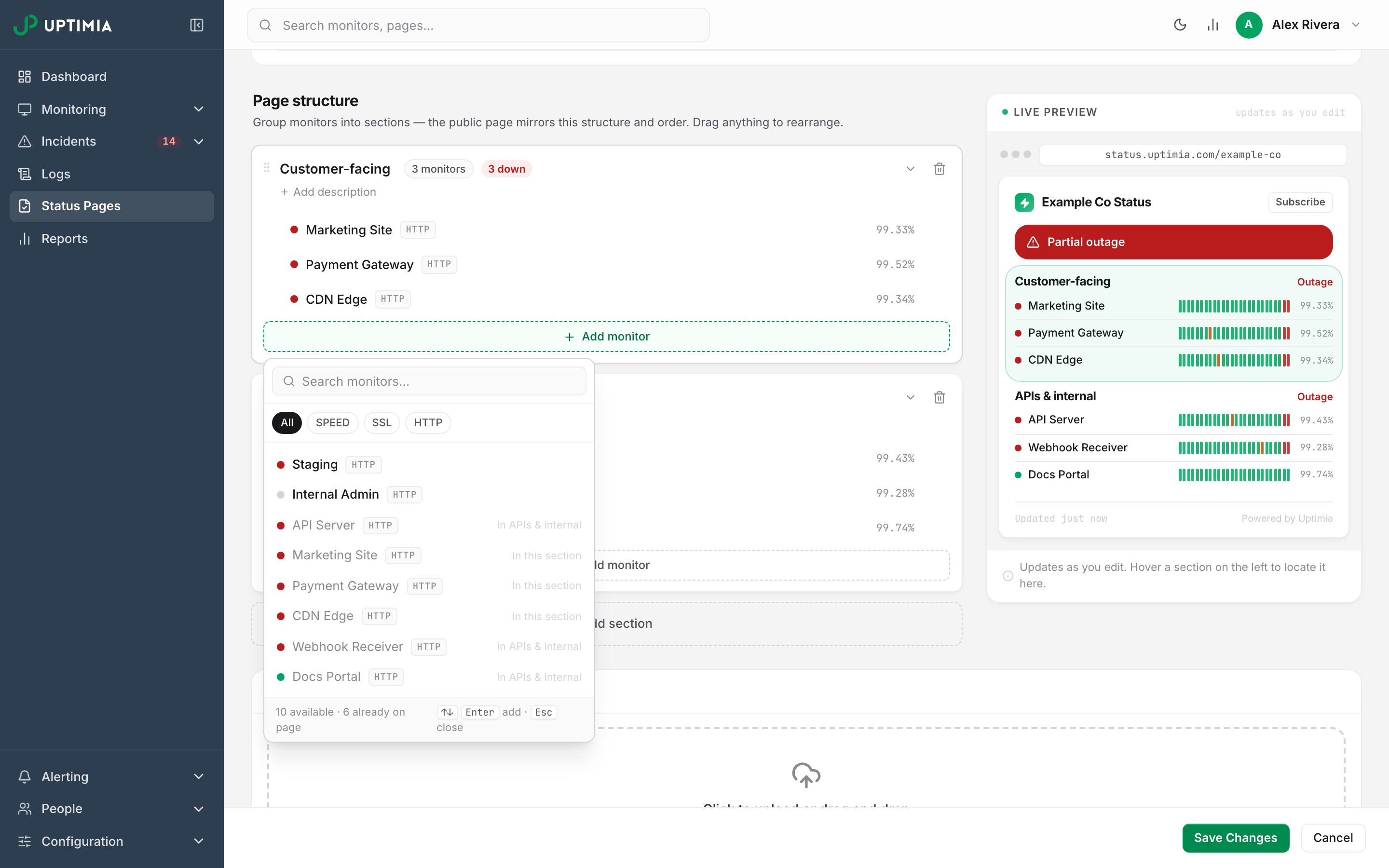
Click Add monitor inside a section, or browse monitors in an empty one, to open the picker, which has a search box, type-filter chips and keyboard navigation. It stays open, so you can add several monitors in one pass. A monitor already placed stays listed but disabled, labeled In this section or In {section name}. One you just added flips to Added.
The picker offers Uptime, SSL and Speed monitors only; no monitor of any other family appears in it, no matter how you search. Uptime monitors are tagged HTTP there and in the section rows, so you filter with an HTTP chip. No chip is labeled Uptime.
Back in the section, each monitor row shows a live status dot, a type tag and the monitor's uptime percentage. The picker's own rows show the dot, the name and the type tag, but no percentage. An entry whose monitor has since been deleted stays visible with a red deleted tag, so you can find and remove it.
Removing Things
Removing a monitor is one click on its row and shows an Undo toast. Deleting a section that still holds monitors asks first, inline on the card: "Delete name and remove its N monitors from the page?" It offers Undo afterwards, and Undo restores the last removal only.
A section with no monitors blocks the save. You get a message naming the section. The builder says the same thing in the empty drop target: "Empty sections don't appear on the public page." The builder also flags a section holding exactly one monitor: "Single monitor — shown standalone on the public page, without a section header". The editor's live preview drops the header for that section. The published page still draws the section header and its count.
Logo and Custom Code
Custom Logo takes a PNG or JPG up to 2 MB and replaces the Uptimia logo at the top of the page. Under it, Show page name next to logo is off by default: with your own logo, only the logo shows unless you turn this on, and with the Uptimia logo the page name always shows.
Custom Code has three fields: Custom CSS, Custom JavaScript and Custom HTML. Uptimia adds the HTML at the very end of the page, just before </body>, and cleans up CSS and HTML when you save, so what you get back is not always what you typed character for character. The editor has no theme picker: Branding Themes apply to alert emails and scheduled reports, not to status pages.
Status Updates
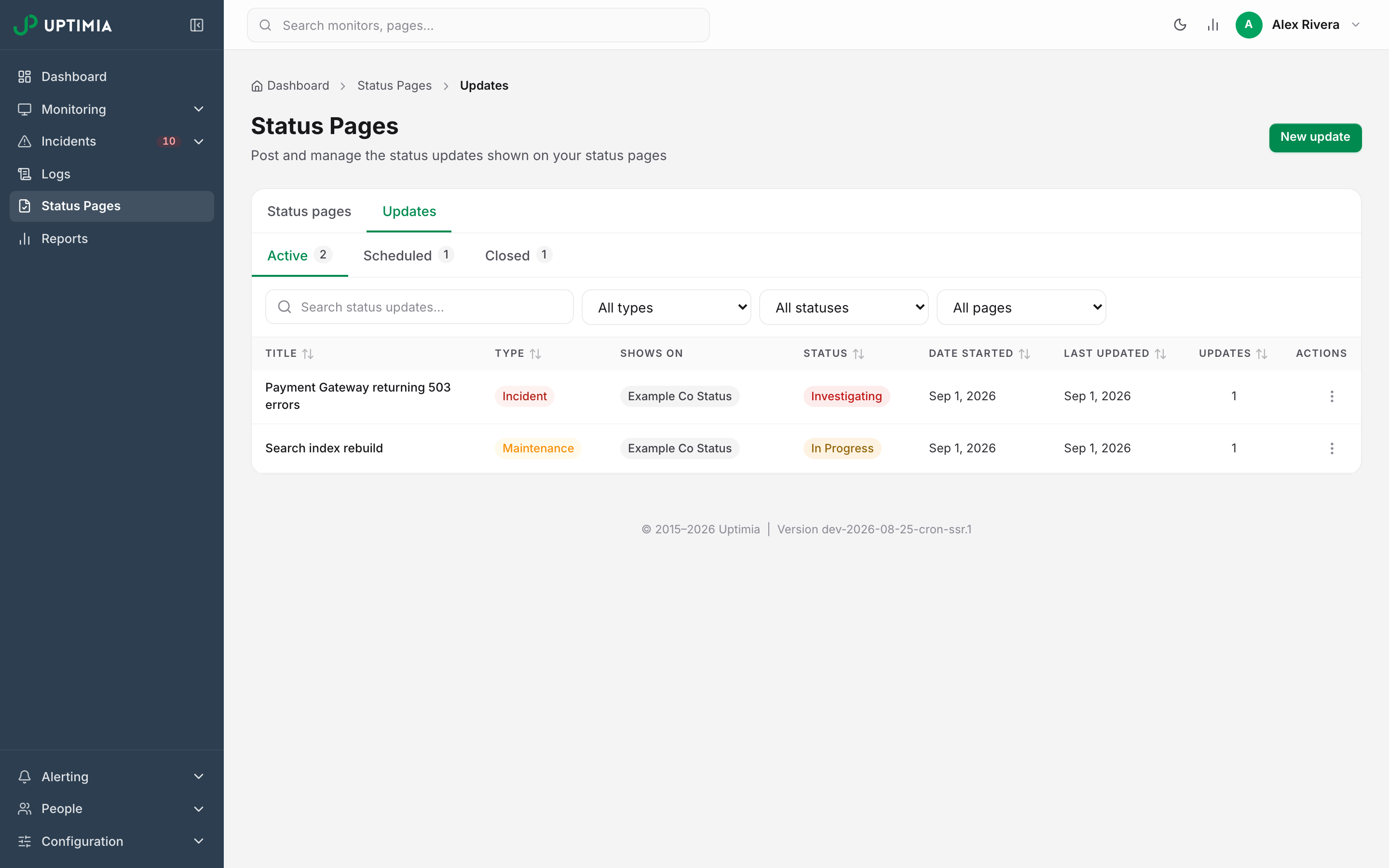
A status thread is the narrative visitors read on the page: a title, a summary and a timeline of dated updates. Go to Status Pages in the sidebar. Open the Updates tab. The list has three tabs, each with a count: Active, Scheduled (maintenance that has not started yet) and Closed. Above them sit a search box and filters for type, status and status page. The Active columns are Title, Type, Shows on, Status, Date Started, Last Updated, Updates and Actions. The Closed table drops Status and Last Updated, and adds Date Ended. Shows on names the pages a thread is publishing to.
Creating an Update
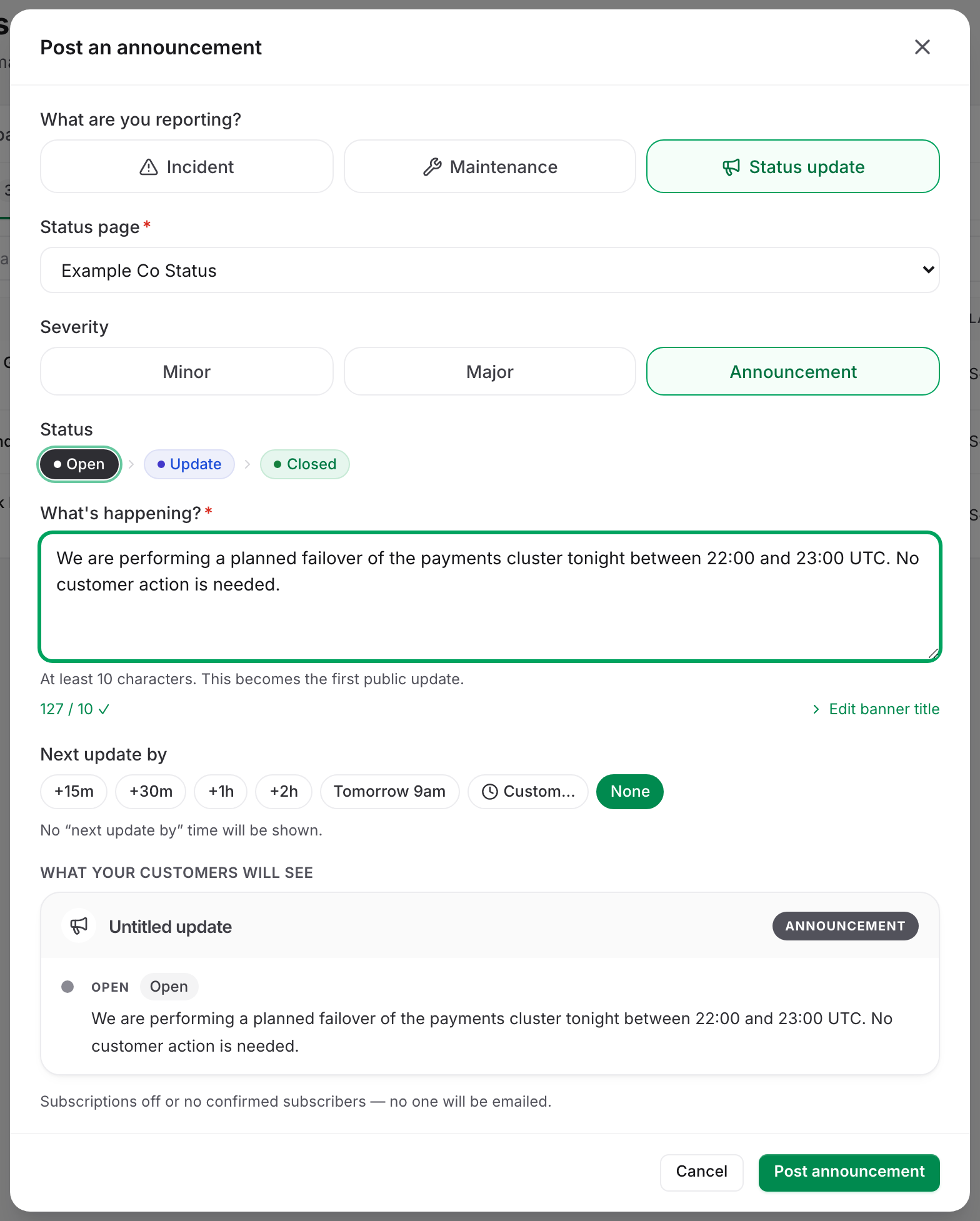
Click New update. Pick what you are reporting from the three chips:
| Type | What it needs | Where it appears |
|---|---|---|
| Incident | An ongoing incident, chosen from the active-incident picker. Only uptime, speed and transaction incidents can back an incident thread. | The pages you check under Publish to, or every page listing the affected monitor if you check none. |
| Maintenance | A maintenance window, chosen from the picker. Only one-time windows that do not already have a status update are eligible. | Same rule as an incident. |
| Status update | A status page, chosen from a dropdown. Nothing else is required. | That one page. |
A Status update also carries a Severity: Minor, Major or Announcement, defaulting to Announcement. Severity colors the public banner red for Major, amber for Minor and neutral gray for Announcement, and it applies to status updates only. An incident takes its severity from the monitor, and maintenance shows its window.
Then pick the opening Status on the stage stepper and write the message in What's happening?, a box that needs at least 10 characters and becomes the first public update. Edit banner title under it overrides the headline. Without it, the headline defaults to the monitor name or the first line of your message. Next update by sets the ETA visitors see, from a chip (+15m, +30m, +1h, +2h, Tomorrow 9am) or a custom time.
A live "What your customers will see" banner previews the result, and a line beneath it states how many confirmed subscribers the update will email. On a status update the preview headline reads "Untitled update" until you set a banner title. The published headline still falls back to the first line of your message.
Stages
Each thread type has its own stage list, in order:
| Thread type | Stages |
|---|---|
| Incident | Acknowledged → Investigating → Identified → In Progress → Monitoring → Resolved |
| Maintenance | Scheduled → In Progress → Monitoring → Completed |
| Status update | Open → Update → Closed |
An incident thread opens at Acknowledged, not "Open"; Open belongs to the status-update lifecycle. Stage colors match the public page: Investigating red, Acknowledged / Identified / In Progress amber, Scheduled / Monitoring / Update indigo, and only the terminal stages green.
Posting Updates and Closing a Thread
Click a row, or Post update in its actions menu, to open the thread. The stage defaults to the next one in the progression. Uptimia seeds the message box with neutral wording you can rewrite. You can edit or delete posted updates inline; either action works out the thread's stage and resolved state again from the newest update that is left.
A thread closes when you post its terminal stage: Resolved for an incident, Completed for maintenance, Closed for a status update. It then moves to the Closed tab with a Date Ended. Deleting a thread removes it and all its updates from the public page, and cannot be undone.
A monitor recovering does not close its thread. Uptimia posts one Monitoring update with no email and leaves the thread open, and the incident waits for you in the dashboard's "Needs attention" close-out feed. See Closing a Recovered Incident Thread.
What Visitors See
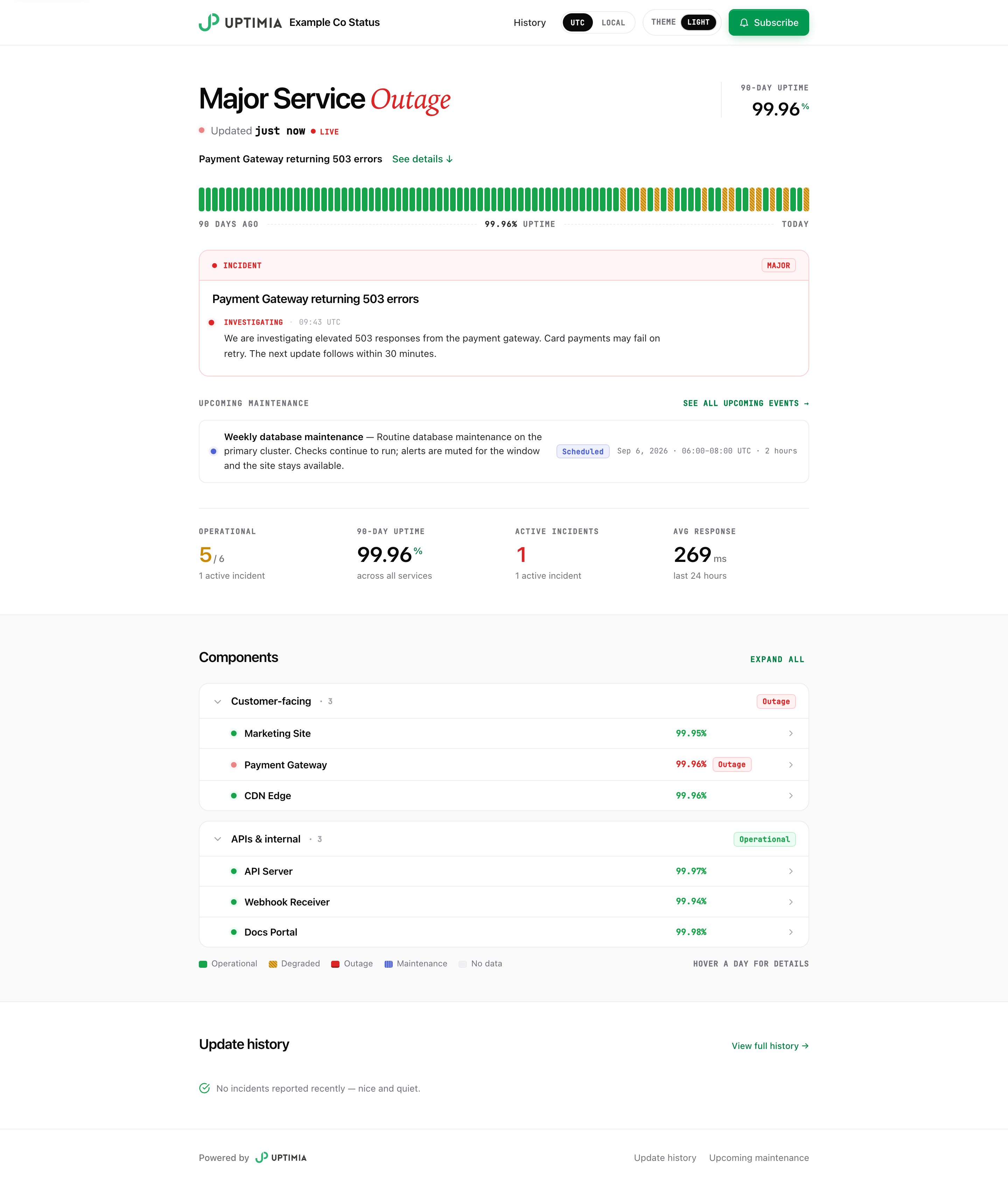
The header carries your logo, the UTC/Local toggle, a light/dark control, and the Subscribe button when subscriptions are on. Alongside them sits the overall verdict: All Systems Operational, Degraded Performance, Major Service Outage or Maintenance in Progress. The first three come from the worst monitor on the page, while Maintenance in Progress comes from an open maintenance thread and outranks Degraded, though an outage still outranks it.
Below the verdict sit notice cards for open incidents, maintenance and announcements, then a summary row: operational count, 90-day uptime, active incidents, and average response over the last 24 hours. Your sections follow. Each monitor reads Operational, Degraded, Outage or Maintenance, and its row expands to a 90-day timeline.
The ribbon always covers 90 days, but it measures only the days a monitor existed, so a two-week-old monitor does not read as 90 days of green.
The page-wide 90-day uptime figure appears in the summary row and under the ribbon. It ignores the seconds inside a planned maintenance window, so a suppressed window is not counted as time you were up. The percentage beside each individual component is a simpler number: that monitor's downtime over the full 90-day window, with no maintenance adjustment. It will not always match the monitor's availability figure in the control panel (see How Uptime Is Calculated).
Your edits appear at once. Posting, editing or deleting an update clears the page's cache instead of waiting for it to expire.
Managing Your Status Pages
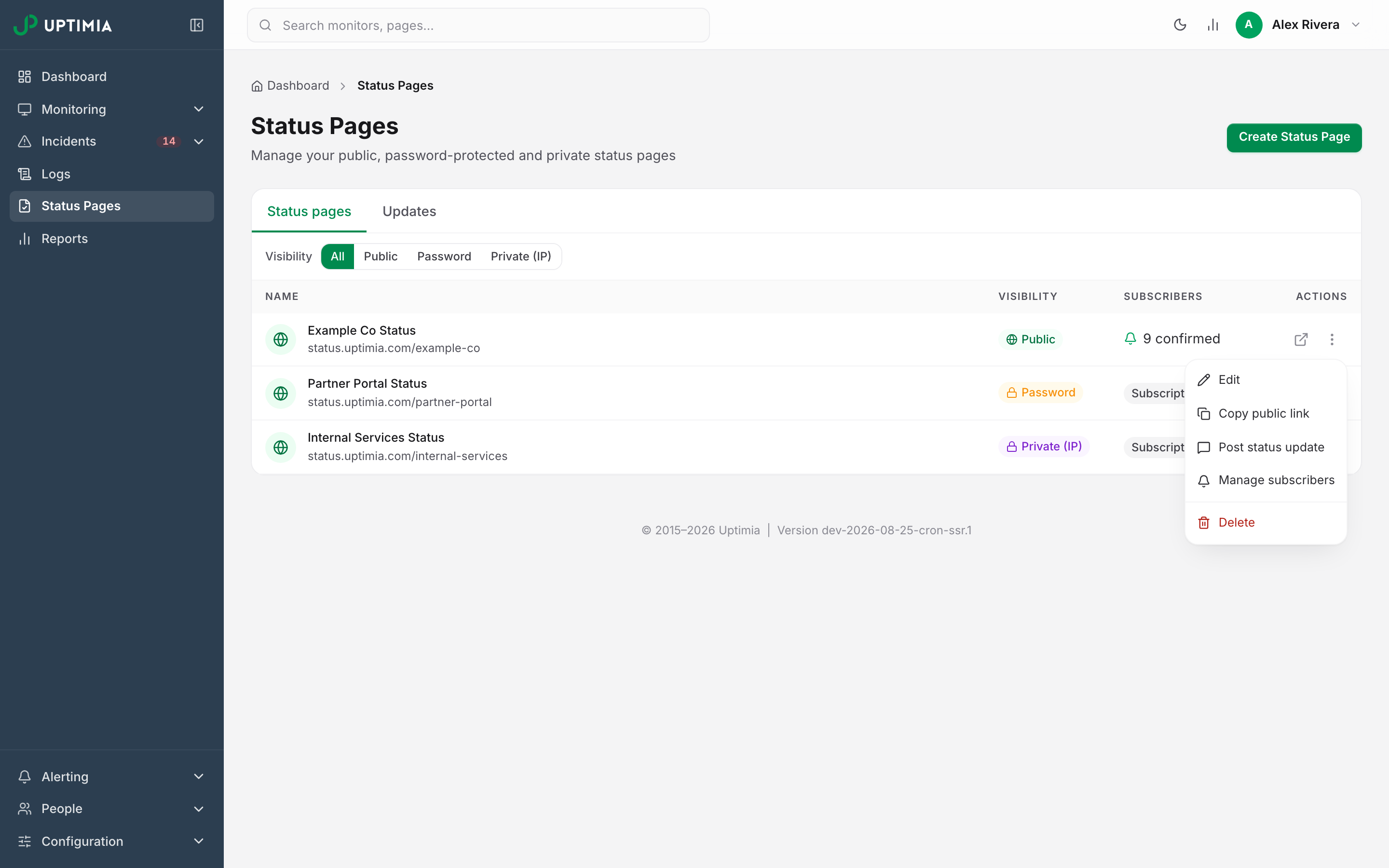
The list at Status Pages shows each page's name and public URL, plus a Visibility badge, and the Subscribers column reads either the confirmed count or a Subscriptions off badge. A visibility filter above the table narrows it to All, Public, Password or Private (IP). An account with no pages yet gets a short explainer in place of the table.
Each row's actions are Edit, Copy public link, Post status update, Manage subscribers and Delete. The external-link icon opens the live page in a new tab. Deleting a page removes it permanently and cannot be undone: it leaves the monitors that were on it untouched, but it does delete that page's own status updates and their history. Any custom domain pointed at the page is torn down too. Incident and maintenance threads survive: they belong to their monitors, not to the page.
Note: A member limited to monitor groups sees a picker filtered to their groups. A page publishing any monitor outside those groups returns "Status Page Not Found" for them, the same answer as another account's page. See Limiting a Member to Monitor Groups.