
A branding theme recolors the emails Uptimia sends and replaces the Uptimia logo with yours, across scheduled report emails and the down and up alerts for the monitors you assign it to. A theme is one name, one optional logo and 14 color fields. Keep as many as you need. Assign one per report or per monitor. White-labeling goes further than email: sender addresses, status-page domains and the limits of each are in White-Labelling Uptimia.
Before You Start
- Creating or duplicating a theme requires the Professional plan or above; the trial can create them too. Editing, re-logoing and deleting an existing theme are open on every plan.
- You need the Owner, Admin or Editor role. Read-only and Accounting / Billing seats never see Configuration → Branding Themes.
On Free or Basic the editor opens and lets you build a theme. Uptimia then rejects the save with White-label branding is available on the Professional plan and above. Themes created before a downgrade keep working, and Uptimia keeps applying them to reports and alerts. Full quota detail is in Plan Limits and Quotas.
What a Theme Changes
A theme paints two email surfaces and nothing else:
- Scheduled report emails, and the PDF and HTML attachments generated with them. See Scheduled Reports.
- Monitor alert emails: the DOWN alert and the UP recovery email, for the monitors the theme is assigned to.
A theme with a name also suppresses Uptimia's own branding inside those emails. In place of the Uptimia wordmark, the header carries your uploaded logo, or the theme name as plain text when you have not uploaded one. Uptimia drops its own footer and leaves only the per-contact unsubscribe link.
Themes apply to email. They do not change your public status page, which carries its own logo and custom domain settings. See Status Pages.
The Theme Gallery
Go to Configuration → Branding Themes.
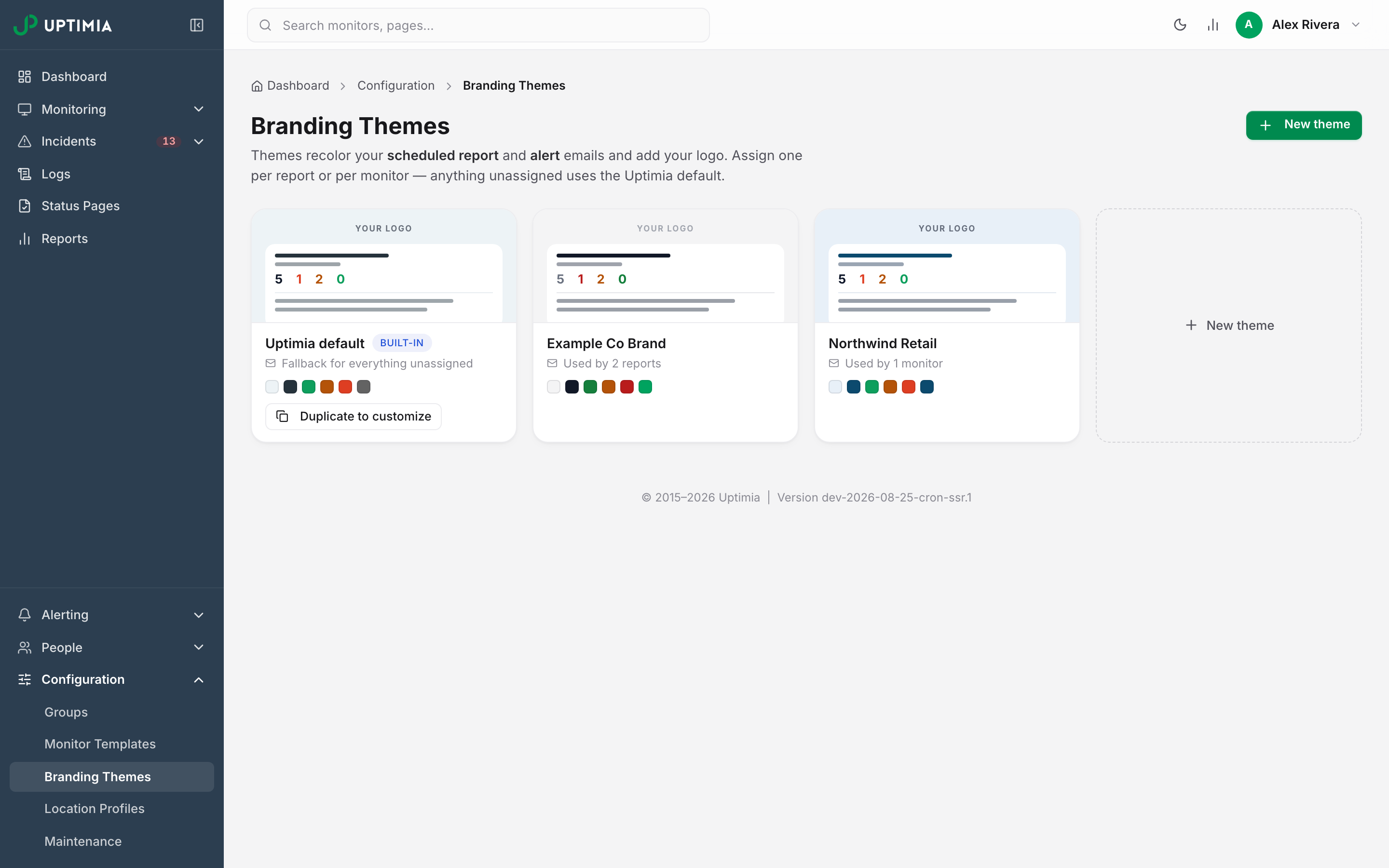
Each theme renders as one card in a grid:
| Card element | What it tells you |
|---|---|
| Mini email thumbnail | A live miniature of the email, painted in this theme's real colors and logo |
| Theme name | The name as it appears in the monitor and report dropdowns |
| Usage line | Used by 3 reports · 12 monitors, or Not in use yet |
| Palette strip | Six swatches: main background, subject, positive, warning, negative, footer link |
| Kebab menu (on hover) | Edit, Duplicate, Delete |
Clicking a card opens the editor.
The first card is always the pinned Uptimia default theme, badged Built-in, with the line Fallback for everything unassigned. You cannot edit or delete it. Its Duplicate to customize button opens the create editor loaded with the default palette.
The grid ends with a dashed New theme card. It does the same as the New theme button in the header. Even with no custom themes you still see the Uptimia default card and the New theme card, and there is no separate empty state.
Themes belong to the account, not to the person who made them. Every team member who can open Branding Themes sees the same list and can use it. Themes cannot be shared between accounts.
Creating a Theme
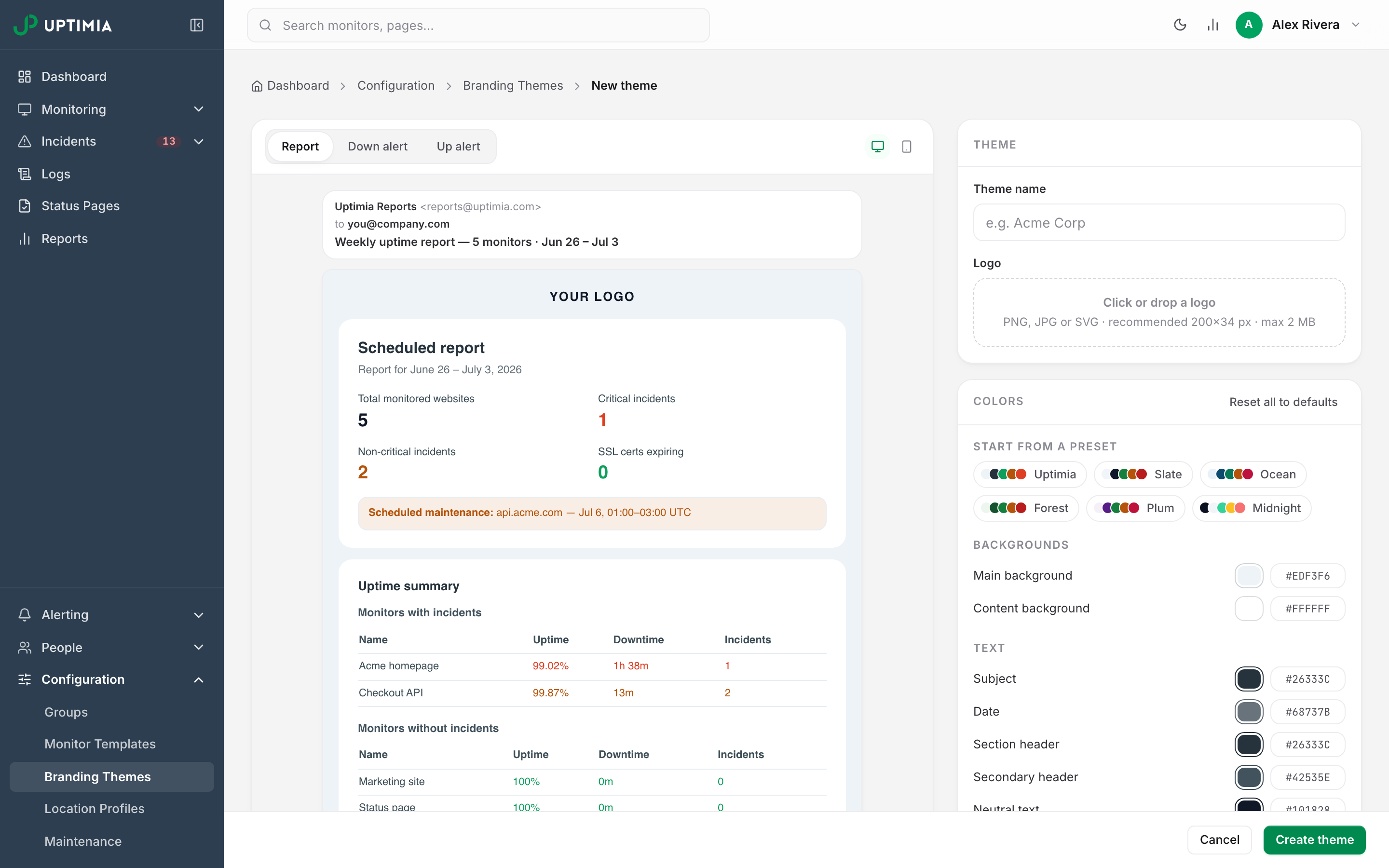
- In Configuration → Branding Themes, click New theme.
- Enter a Theme name. It is required and takes up to 60 characters.
- Upload a Logo, or skip it.
- Click a preset chip under Start from a preset, or set the 14 colors by hand.
- Check the Report, Down alert and Up alert previews on the left.
- Click Create theme in the bottom save bar.
The bottom bar also carries Cancel. On a new theme the logo uploads after the theme is created, so if the theme saves and the logo does not, you get Theme created but logo upload failed. Reopen the theme and upload it again.
The Logo
The upload area reads Click or drop a logo · PNG, JPG or SVG · recommended 200×34 px · max 2 MB.
| Rule | Value |
|---|---|
| Accepted formats | PNG, JPG/JPEG, SVG |
| Rejected | Everything else, including GIF and BMP |
| Maximum size | 2 MB |
| Recommended dimensions | 200 × 34 pixels |
A wrong format gets Only PNG, JPG, and SVG files are accepted, and an oversized file gets File size must be 2MB or less.
Uptimia checks the file's real bytes as well. A file that passes the name and type check without really being a PNG, JPEG or SVG gets Invalid file format detected. A file that really is one of the three but carries another accepted extension is stored under its detected type: a PNG named .jpg is accepted and stored as a PNG.
Any other file type never reaches that byte check: the editor stops it in the browser before it uploads, and Uptimia refuses it on arrival with We can only accept JPEG, PNG or SVG files.
Uptimia sanitizes an SVG logo before storing it, stripping anything in the file that could run code or load content from another site. If you open a stored logo by its own link, the browser downloads the file instead of showing it, so an SVG can never run code. It still renders normally inside the email and the preview.
Once a logo is set, the preview row offers Replace and Remove, with a Match colors to logo button below it.
The email header renders a logo 32 px tall and at most 200 px wide. Uptimia scales an oversized image to fit, never crops it, and does not validate dimensions. Upload at the recommended 200 × 34 px for a sharp result.
Color Fields
The Colors card holds 14 fields in four groups. Every field takes a 6-digit hex value: type it into the hex box, or click the swatch to open the picker. A malformed hex reverts on blur, so a bad value never gets saved.
Backgrounds
| Field | What it paints | Default |
|---|---|---|
| Main background | The area outside the content card, top to bottom | #EDF3F6 |
| Content background | The card the email body sits on | #FFFFFF |
Text
| Field | What it paints | Default |
|---|---|---|
| Subject | The report title line | #26333C |
| Date | The date-range line under the subject | #68737B |
| Section header | Section headings such as "Uptime summary" | #26333C |
| Secondary header | Sub-headings such as "Monitors with incidents" | #42535E |
| Neutral text | Primary data values, such as monitor counts | #101828 |
| Content text | Body text and table labels | #3D4E57 |
Status
| Field | What it paints | Default |
|---|---|---|
| Warning | Non-critical incident counts and warning values | #B45309 |
| Negative / down | Downtime values, critical incidents, the DOWN alert headline | #DE3E22 |
| Positive / up | Uptime values, healthy rows, the UP alert headline | #0E9F5D |
Structure
| Field | What it paints | Default |
|---|---|---|
| Separators | Lines between table rows and sections | #E8EDF1 |
| Footer links | Unsubscribe, privacy and terms links | #636363 |
| Footer text | Copyright and disclaimer text | #54656F |
The status defaults are dark enough to clear the legibility guard on a white content background. A lighter status palette trips it.
Presets
Six one-click presets sit at the top of the Colors card under Start from a preset: Uptimia (the defaults), Slate, Ocean, Forest, Plum and Midnight, each chip showing five palette dots. Click one and all 14 fields change at once. Midnight is the only dark preset: it changes the content background as well.
Match Colors to Logo
With a logo uploaded, Match colors to logo rebuilds all 14 fields from the logo's dominant hue, with four exceptions. The three status colors stay semantic: amber, red and green. A brand-matched theme therefore still reads as a status email. The fourth exception is the content background, which Uptimia resets to white, so applying the match on top of Midnight drops that preset's dark card.
Match colors to logo can fail in three ways, each with its own message. A logo with no strong color gets Couldn't find a strong brand color in this logo — try a preset instead. A logo whose pixels Uptimia cannot read gets Couldn't read the logo pixels — try a preset instead. A logo that will not load at all gets Couldn't load the logo image.
Like a preset, this is a bulk change. Undo it with Reset all to defaults, or fix one row at a time.
The Legibility Guard
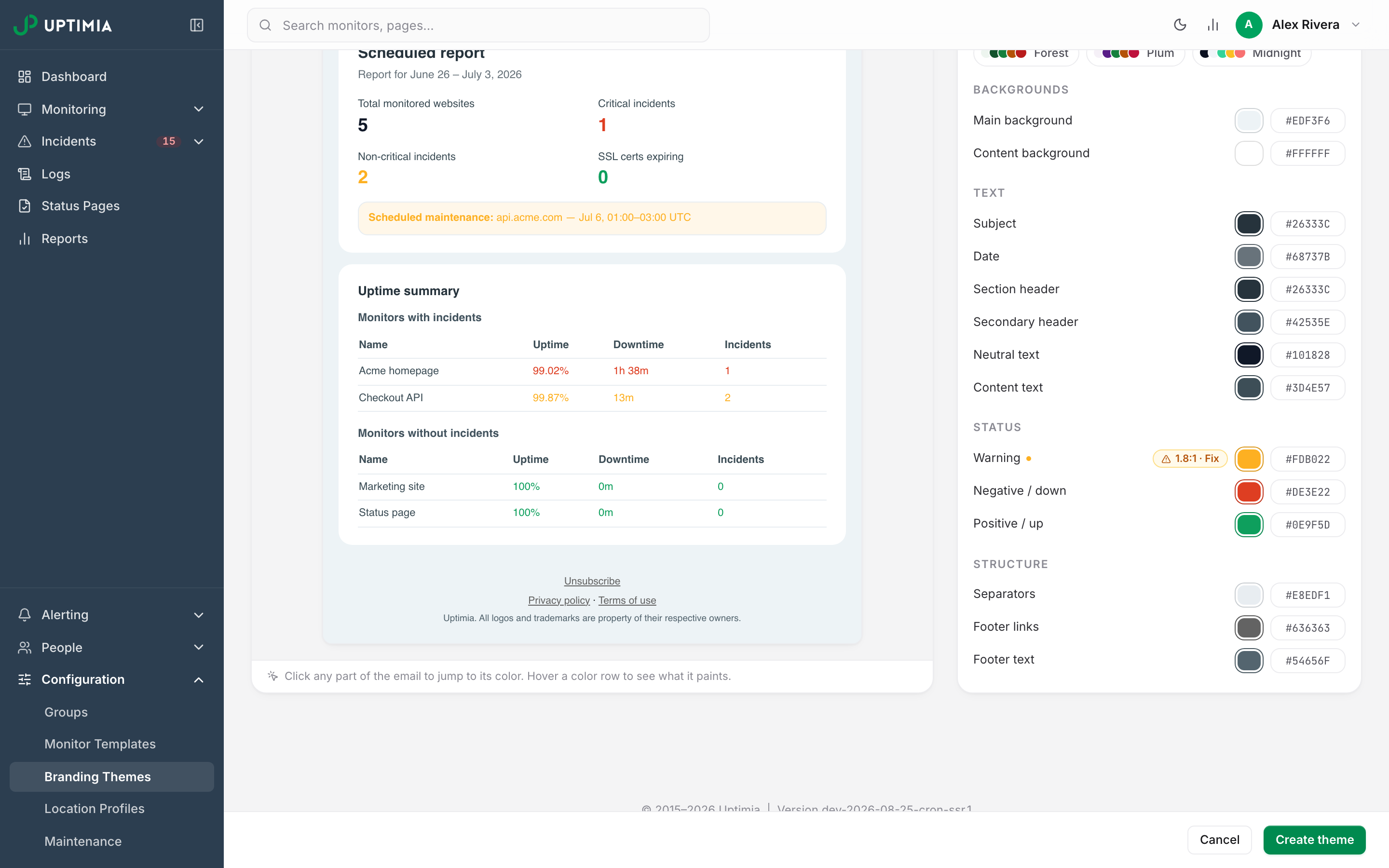
As you type, Uptimia compares each text color with the background behind it: content text against the content background, footer text against the main background. A pair below 2.5:1 gets a chip on that row showing the ratio, such as 1.8:1 · Fix. Clicking the chip nudges the color's lightness to 3:1 on that background and names the new value in a toast.
Every default clears the guard, so a fresh theme shows no chips, while a light amber such as #FDB022 sits near 1.8:1 on white and trips it immediately.
The Color Picker
Clicking a swatch opens a popover. It holds a 32-swatch grid, a hex field, a system color picker, and the field's default with a one-click Reset, and Uptimia promotes the colors you used recently to the front of that grid. Chromium browsers also get a screen eyedropper, hidden everywhere else.
Computed Maintenance Colors
Two colors are derived and cannot be set on their own:
- Maintenance background: your Warning color painted at 10% over the Content background.
- Maintenance border: the Separators color.
They paint the maintenance strip in report emails, and the preview renders that strip while you edit.
Resetting
Reset all to defaults in the Colors card header restores all 14 fields and leaves the theme name and logo alone. To reset one row, use the ↺ button that appears when you hover a changed row, or Reset in the picker popover. A changed row carries an amber dot.
Reading the Email Preview
The left column is a live preview. Because it is sticky, it stays in view while you scroll the color rows. The preview sits inside a fake email window: a From line of Uptimia Reports reports@uptimia.com, a sample To line and the subject. It renders in Helvetica/Arial, as real email does.
A segmented control switches modes:
| Mode | What it shows |
|---|---|
| Report | Header, subject, date line, a 2×2 grid of KPI cards (Total monitored websites, Critical incidents, Non-critical incidents, SSL certs expiring), the maintenance strip, an incident table, a healthy table and the footer |
| Down alert | The DOWN headline in the negative color, detection time, and a table of monitor, URL, reason and confirming locations |
| Up alert | The UP headline in the positive color, downtime duration and the locations that confirmed recovery |
The preview does not model the footer. It always draws the standard Uptimia footer, with Unsubscribe, Privacy policy, Terms of use and the Uptimia line. A real email sent under a named theme keeps only the unsubscribe link.
Two width toggles sit beside the mode switcher: desktop at 560 px and mobile at 340 px.
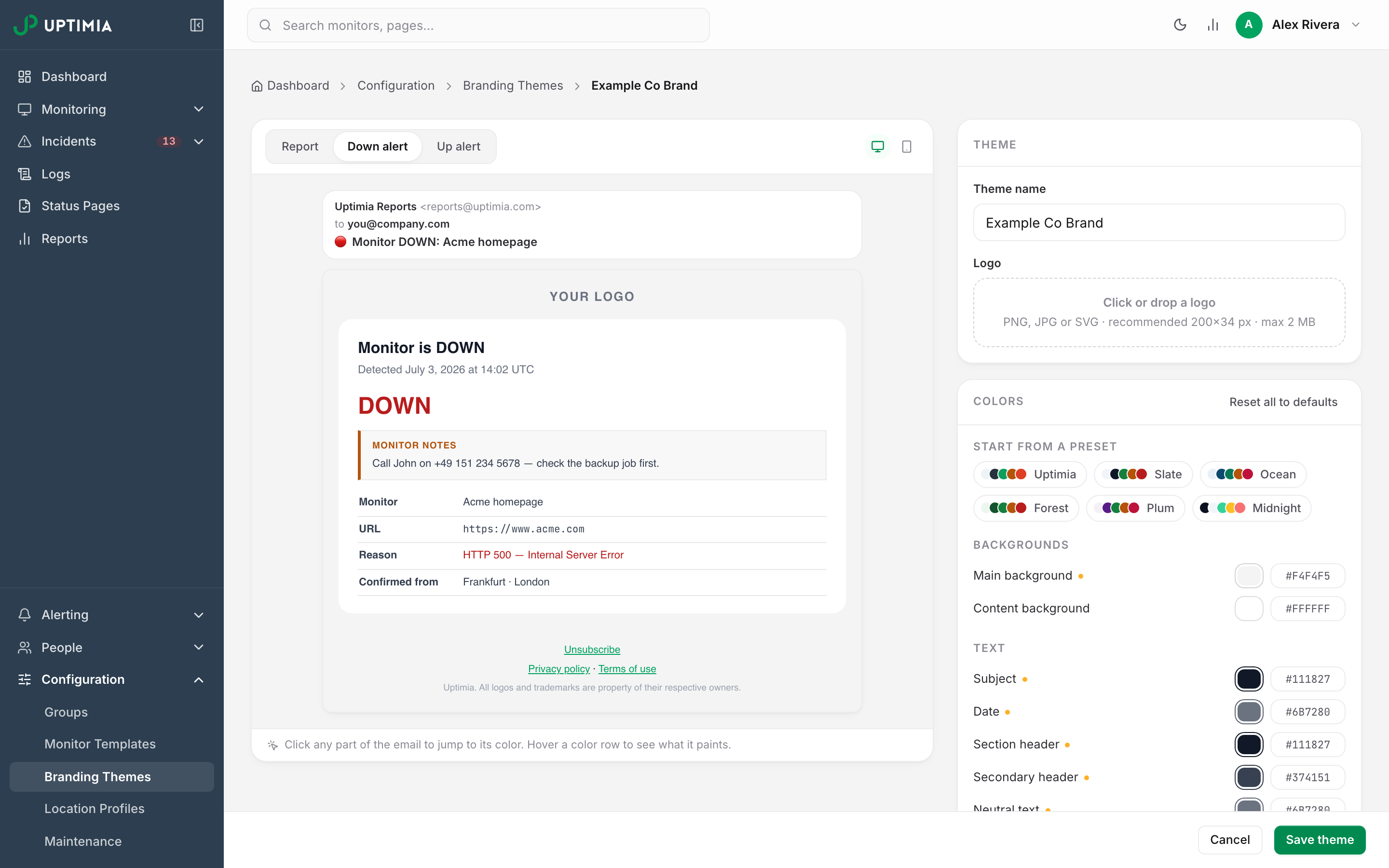
The preview is wired to the controls both ways. Hover a color row to outline every part of the email that color paints. Click a part of the email to scroll to its color row and flash it.
Assigning a Theme
To a Monitor
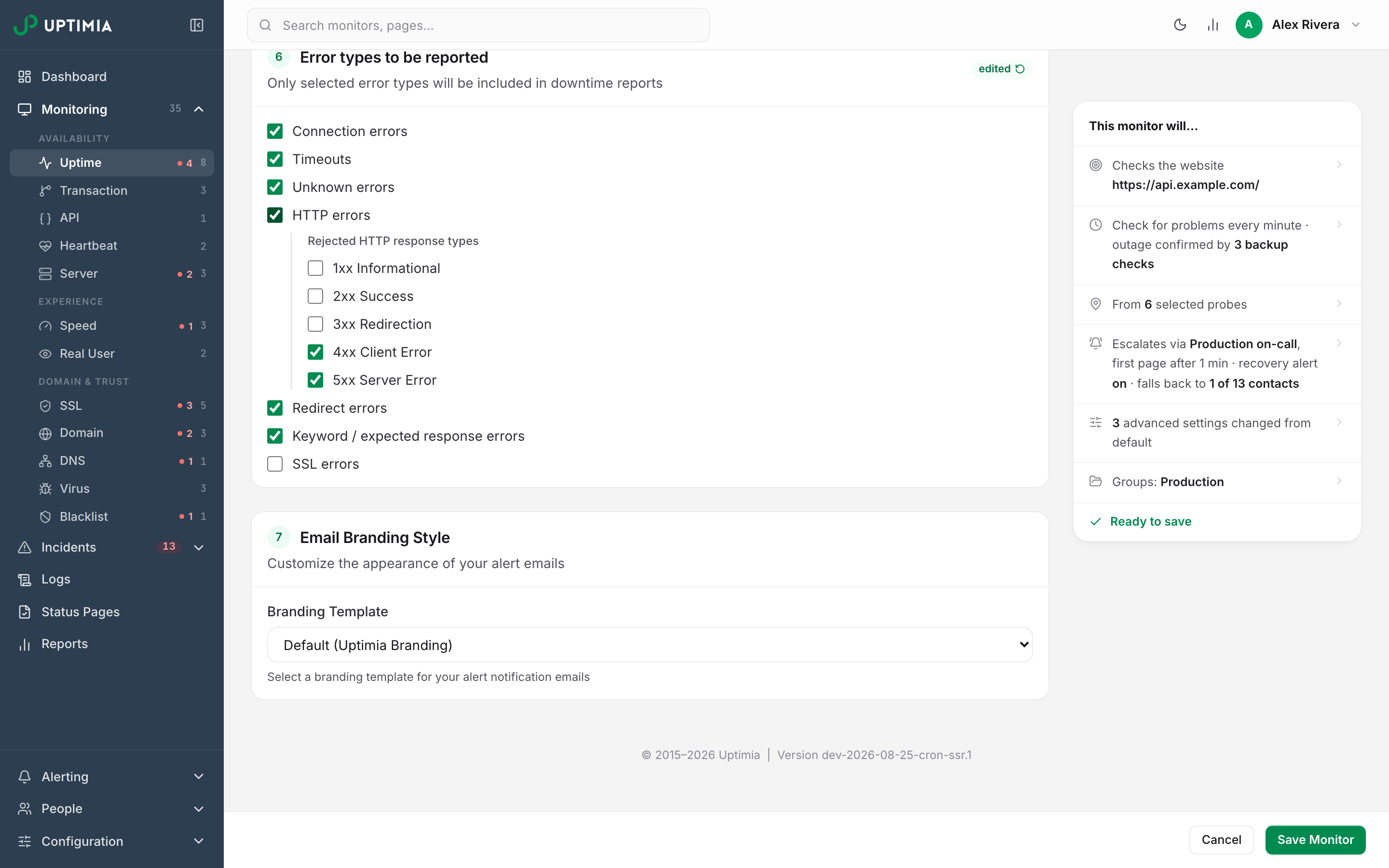
- Open the monitor editor and select the Advanced tab.
- In the Email Branding Style card, pick your theme in the Branding Template dropdown.
- Save the monitor.
The dropdown is on the Advanced tab for every monitor family. With no themes created it offers one option, Default (Uptimia Branding). See Uptime Monitoring for the rest of the editor.
Server monitors are the exception: the server editor has no Advanced tab, so no branding selector.
To a Scheduled Report
In the report editor, the Report card carries an Email theme select with a color swatch beside it and a Manage themes link. The default option is Default.
When Nothing Is Assigned
Reports and monitors with no theme use the built-in Uptimia default: the Uptimia logo and the default palette. Two shades differ. Sent email uses #C5341B for the negative color and #0B8449 for the positive one, slightly darker than the editor's own defaults.
Editing, Duplicating and Deleting
Editing. Open a theme from the gallery, change what you need, and click Save theme. On an existing theme a logo uploads immediately rather than on save, and every report and monitor pointing at the theme picks up the new colors on its next email.
Duplicating. Use Duplicate in a card's kebab menu, or Duplicate to customize on the built-in default. A duplicate copies all 14 colors and takes the source name with (copy) appended. It also gets its own copy of the logo file, so deleting one theme later never blanks the other's logo. Duplicating counts as creating, so it needs the Professional plan or above.
Deleting. Choose Delete in the kebab menu. If the theme is in use, the confirmation names what it takes with it: This theme is used by 3 reports · 12 monitors. They'll fall back to the Uptimia default theme. Confirming is permanent.
Note: The usage line and that warning both count reports plus uptime, SSL, domain, speed, transaction, virus, real-user, server and heartbeat monitors. A theme used only by DNS, API or blacklist monitors reads as Not in use yet. Those monitors still fall back to the default if you delete the theme.
What a Theme Cannot Do
- The layout is fixed. Colors and the logo are customizable; sections, structure and content are not.
- Fonts are fixed: family and size both.
- Maintenance colors are computed, never set directly.
- There is no test send. The preview is in-app only; to see a themed email in a real inbox, assign the theme and generate a report.
- Email only. No other alert channel reads a theme.