
A charge is rarely the plan price. An upgrade carries a credit, a failed payment starts a four-step email ladder, and SMS credits refill on the calendar rather than on your billing cycle. The mechanics of making a change (the buttons, the acknowledgment gate, the undo) are in Changing Your Plan.
Before You Start
- The billing area opens for the account Owner and for anyone on the free Accounting / Billing seat. No other role can reach it.
- Open the avatar menu (top right) and choose Plans & Billing. Four tabs run across the top of that area: Plans, Billing Info, Payment Methods, Billing History.
From Trial or Free to Paid
Your account starts on a 30-day trial. If the trial ends without an upgrade, the account drops to the Free plan, which allows 1 uptime monitor and 1 API monitor. When you upgrade to Basic, Professional or Enterprise, you get the new plan's limits.
If you had bumped against a lower limit, some monitors were suspended, held inactive because they exceeded what the plan allowed. Upgrading turns plan-suspended monitors back on up to the new limit, oldest first, for every type of monitor.
Paid, but a Monitor Is Still Quiet
An upgrade lifts a plan suspension, never a pause you set yourself. If a monitor stays quiet after an upgrade, check whether it is paused and resume it.
Monitors come back only when you move to a higher-priced plan than the one you are on (a real upgrade, or subscribing again after a downgrade). Renewing the same plan brings nothing back. Neither does a card-validation charge. If you renewed at the same tier and expected something to resume, upgrade or resume the monitor by hand.
Why the Charge Was Less Than the Plan Price
A Stripe upgrade costs the new plan's price minus a credit for the days you already paid for on the old plan. The credit is your unused time. Take what you paid, multiply it by the days left before your renewal, then divide by the number of days in the cycle.
- Uptimia posts the credit to your Stripe customer balance and applies it to the first invoice of the new plan, so you pay the price minus the credit.
- The credit is one-time: every renewal after this one bills the full amount.
- The invoice description names the credit:
(incl. credit for N unused <Plan> days). On a 3D Secure card the wording is(incl. X.XX <CUR> unused-time credit). - If the credit covers the whole charge, the checkout button reads Confirm upgrade — $0 today, covered by credit. The invoice settles at zero, and the leftover balance reduces your next renewal.
- If the card is declined, Uptimia reverses the credit, so no stray balance is left behind.
The credit applies to Stripe upgrades only. A PayPal upgrade is charged the full price today, with no proration. Downgrades and cycle switches never earn a credit.
Adding a card produces a separate 1.00 validation charge, shown as Uptimia.com credit card validation. It does not change your plan and it does not reactivate suspended monitors.
Why a Downgrade or Cycle Switch Charged Nothing
On a live Stripe subscription, a downgrade is scheduled rather than applied, so your plan and every monitor stay exactly as they are until the renewal date. Nothing is charged today. The Subscription page shows a banner: Downgrade to <Plan> scheduled for <date> — nothing changes until then, with an Undo button. The plan-change card states the same rule: "Starts at your renewal (<date>) — nothing charged today. Monitors over the new limits pause then, and you approve exactly which."
PayPal downgrades behave differently: they apply immediately at full price, with no proration.
You choose the billing cycle with the Monthly / Yearly toggle above the plan cards, and the plan button opens a checkout page showing the quote and the total payable today. Switching your current plan between monthly and yearly is itself a scheduled change: it takes effect at your renewal date and charges nothing today. On PayPal the cycle is fixed. A subscription that started monthly stays monthly, and one that started yearly stays yearly; a request to switch is refused.
Invoices and Billing History
Billing History lists every invoice with Date, Reference, Plan, Amount and Status, where Status is a Paid or Unpaid badge. For any invoice that has a stored PDF, the row menu holds Download PDF and Regenerate Invoice. An invoice with no generated PDF opens a single disabled No actions available entry instead.
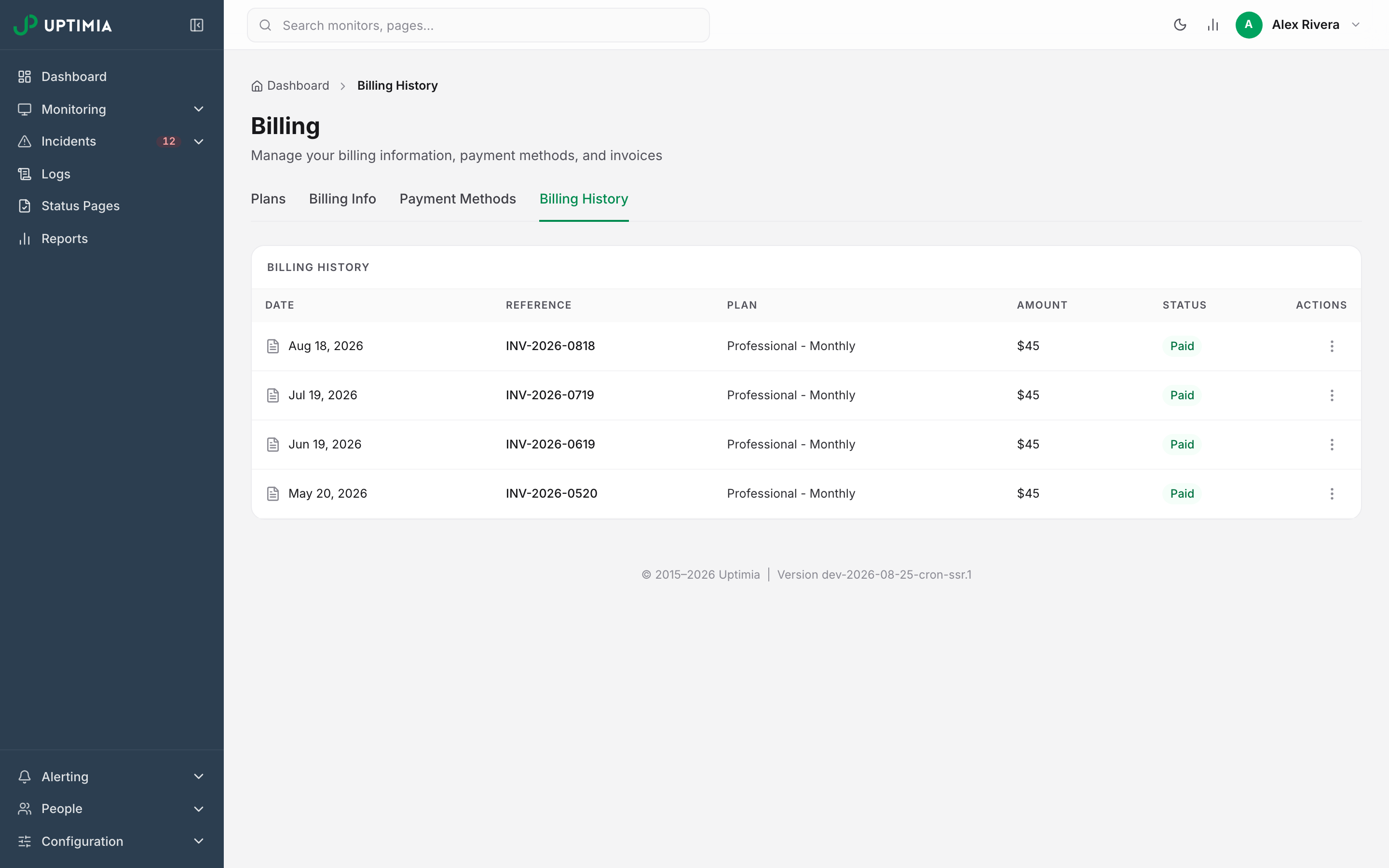
Regenerating rebuilds the PDF from your current billing details, so correct them under Billing Info first. Re-downloading on its own returns the same stored file. Regeneration is refused for any invoice dated before 1 January 2026: support has to reissue that invoice by hand.
Only support can issue a refund. Send them the invoice reference and the reason.
When a Payment Fails
A failed renewal does not cancel your subscription right away. Stripe retries the charge automatically over about three weeks, and each failure moves you one step further along a series of four emails. The emails go out one rung at a time, and a fifth or later failure repeats the final notice.
| Failure | Subject line | What it tells you |
|---|---|---|
| 1st | We couldn't process your payment | No action needed yet. The charge will be retried over the next few days |
| 2nd | Your payment is still failing | Update your payment method; retries continue for a few more days |
| 3rd | Action needed: your Uptimia subscription is at risk | If the next retry fails, monitors are paused and the plan starts coming down |
| 4th | Final notice: your Uptimia subscription is about to end | Last automatic retry; after it, the subscription is canceled and the account moves to Free within a few days |
The ladder moves forward only when the email actually reaches the owner. A notice that fails to send is sent again at the same step, so no step is skipped.
If a retry succeeds, Uptimia sends a payment-recovered email, and a second email when previously suspended monitors come back. If none of the retries succeeds, Uptimia cancels the subscription and downgrades the account to Free. Monitors above the Free limits are suspended, not deleted.
The most common cause of a silent failure is 3D Secure (SCA): your bank asks you to approve the charge, and the approval never happens. Open Payment Methods and confirm the saved card is current. Add a fresh card and set it as the default, then approve any pending verification in your banking app.
Card Expiry and Card Confirmations
Uptimia watches the expiry date on your saved card. Credit card expiry warning and Your credit card expires this week arrive before the date; Credit card expiration notice arrives after it. Each carries a button that signs you straight into the billing area.
Adding or removing a payment method also sends a confirmation. A duplicate re-save of a card you already have on file does not.
SMS Credits Refill Monthly, Not per Cycle
SMS credits are a calendar-monthly allowance, independent of your billing cycle: a yearly subscriber gets twelve refills a year, not one.
| Plan | Free SMS per month |
|---|---|
| Free | 0 |
| Trial | 20 (one-time) |
| Basic | 50 |
| Professional | 150 |
| Enterprise | 500 |
Free and trial accounts sit outside the refill cycle: the trial's 20 credits are granted once at signup and never renewed.
On Basic, Professional and Enterprise the refill runs at midnight on the 1st and overwrites the balance, so unused credits do not roll over. When your remaining balance falls to 20% or less of the allowance, Uptimia emails you once that month. Details of the channel itself are in SMS Alerts.
Downgrading Also Narrows Your Readable History
Your plan sets how far back charts, incident lists and exports reach, and a downgrade shortens that window. Ask for a longer range and the request is raised to the new plan's floor. Free serves 7 days, Basic 90, Professional 365 and Enterprise 730, and the trial 30.
Nothing is deleted the moment the window narrows. The rows stop being readable, and upgrading widens the window again on the very next request, retroactively and with no backfill. Every night, Uptimia deletes rows older than the window of the plan you are on that night, so staying on the lower plan costs you the oldest history for good. An upgrade cannot bring back rows that have already been deleted. Data and Log Retention carries the readable window for every plan.
Who Receives Billing Email
Every billing email goes to the account owner and to each activated Accounting / Billing seat on the account:
- invoices and receipts
- upgrade and scheduled-change confirmations
- cancellation and refund confirmations
- reminders that a payment failed
- card-expiry warnings
- card-added and card-removed confirmations
A seat with a pending invite is skipped. Uptimia never sends a billing document to an address that has not yet proven it controls the mailbox. The sign-in button in your accountant's copy signs in your accountant, never you.
Deleting Your Account Stops Billing
Deleting your account cancels any active Stripe or PayPal subscription first, so you are never billed again. If that cancellation fails, the deletion aborts and nothing is erased, so you can retry it.
Canceling first is optional. Cancel instead of deleting when you want to keep using Uptimia until the period you have already paid for runs out: cancellation takes effect at the end of that period, and monitors stay active until then. A Reactivate subscription button undoes it at any point before that date. Three days before access ends, Uptimia emails a reminder. The erasure itself is covered in Deleting Your Account.