
SMS is one of the 12 channels Uptimia can alert through. An SMS contact is a phone number you type into the Contacts page and attach to the monitors that should text you. Every text is paid for out of your account's SMS credit balance, verification codes included. To send through your own gateway instead, see Twilio SMS and Voice.
Before You Start
- Your account email must be verified. The delivery queue drops every alert on an unverified account, on every channel.
- Your account must be more than 5 minutes old. Uptimia sends no SMS from an account younger than that, neither alerts nor verification codes.
- You need at least 1 SMS credit. The Free plan grants none, so SMS alerting starts on the Trial (20 credits, granted once) and on the paid plans. See Plan Limits and Quotas.
Adding an SMS Contact
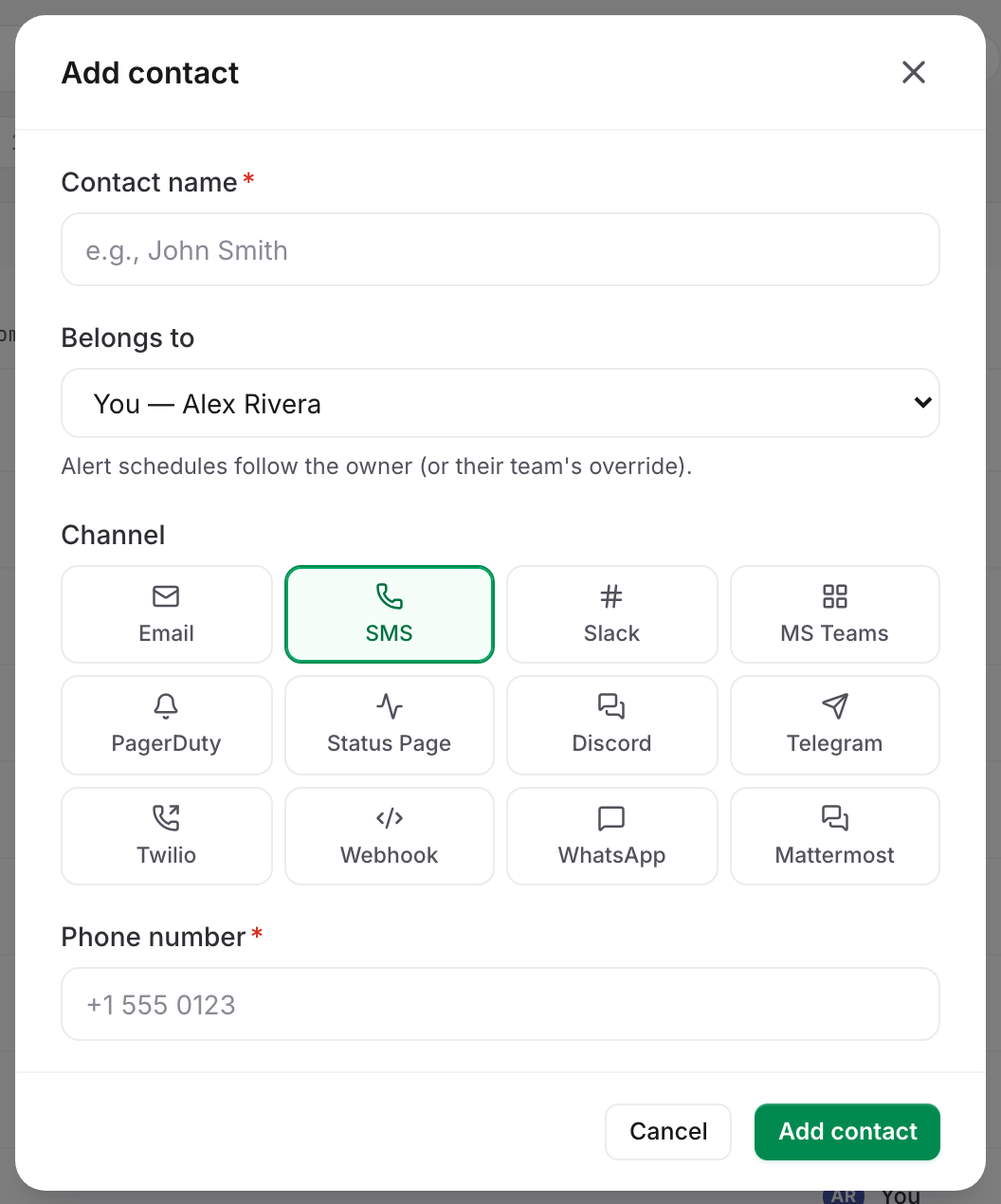
- Go to Alerting → Contacts and click + Add contact.
- Enter a Contact name. This is the label you pick from later, not the number.
- Set Belongs to to the team member who owns this contact. It defaults to the account owner.
- In the Channel grid, click SMS.
- Enter the number in the Phone number field, in international format with a leading
+. - Click Add contact.
Field Reference
| Field | What it does | Default | Limits |
|---|---|---|---|
| Contact name | The label shown in contact lists and in the recipients panel. | — | Required |
| Belongs to | The team member who owns the contact. Alert schedules follow the owner, or their team's override. See Alerting Schedules, Quiet Hours and Time Zones. | The account owner | An Accounting / Billing seat cannot own contacts |
| Channel | Which of the 12 channels this contact uses. Email and SMS take a typed value; the other ten attach an integration profile. | — | |
| Phone number | The destination number. | — | Must start with + and pass the country allowlist in Which Numbers Uptimia Accepts |
A number that does not start with + is rejected with Please enter an international phone number (starting with a "+" sign), and the country check never runs. Uptimia strips spaces and parentheses for you; it keeps dashes. Type the number as digits only. Uptimia stores +1-202-555-0148 with its dashes and counts it as a different contact from +12025550148. It would text both numbers.
Two contacts on the same channel entered with the same value, character for character, are refused with This contact has already been used. The check runs on what you type, before spaces and parentheses are stripped. So +1 202 555 0148 is accepted alongside an existing +12025550148, even though both end up stored as +12025550148.
Which Numbers Uptimia Accepts
Built-in SMS delivers only to an allowlist of country codes.
| Rule | Codes |
|---|---|
| Accepted: any number starting with | +1, +3, +4 (North America and most of Europe) |
| Accepted: these two-digit codes | +81, +82, +61, +64, +65, +91, +55, +56, +54, +63, +90 |
| Accepted: these three-digit codes | +968, +971, +973, +886, +852, +598 |
| Rejected by name | +375, +374 |
| Rejected: not on the list | every other code, +7 (Russia and Kazakhstan) included |
A number outside the list is refused when you save it, with Your phone number or country is not supported. For a destination Uptimia cannot reach, send through your own gateway instead: Twilio SMS and Voice. WhatsApp Alerts Setup is the other option, and it has no country allowlist of its own.
+7 is blocked a second time at send time, so a number that somehow got stored is still not dialed.
Attaching the Contact to a Monitor
A contact texts nobody until a monitor selects it.
- Open the monitor and scroll to the Alerting card.
- If your account has an escalation policy, set the mode segment to All at once.
- Tick the SMS contact in the left pane.
- Check the right pane. It reads Will notify N of M contacts, and your SMS contact must appear there without a red won't deliver badge.
- Save the monitor.
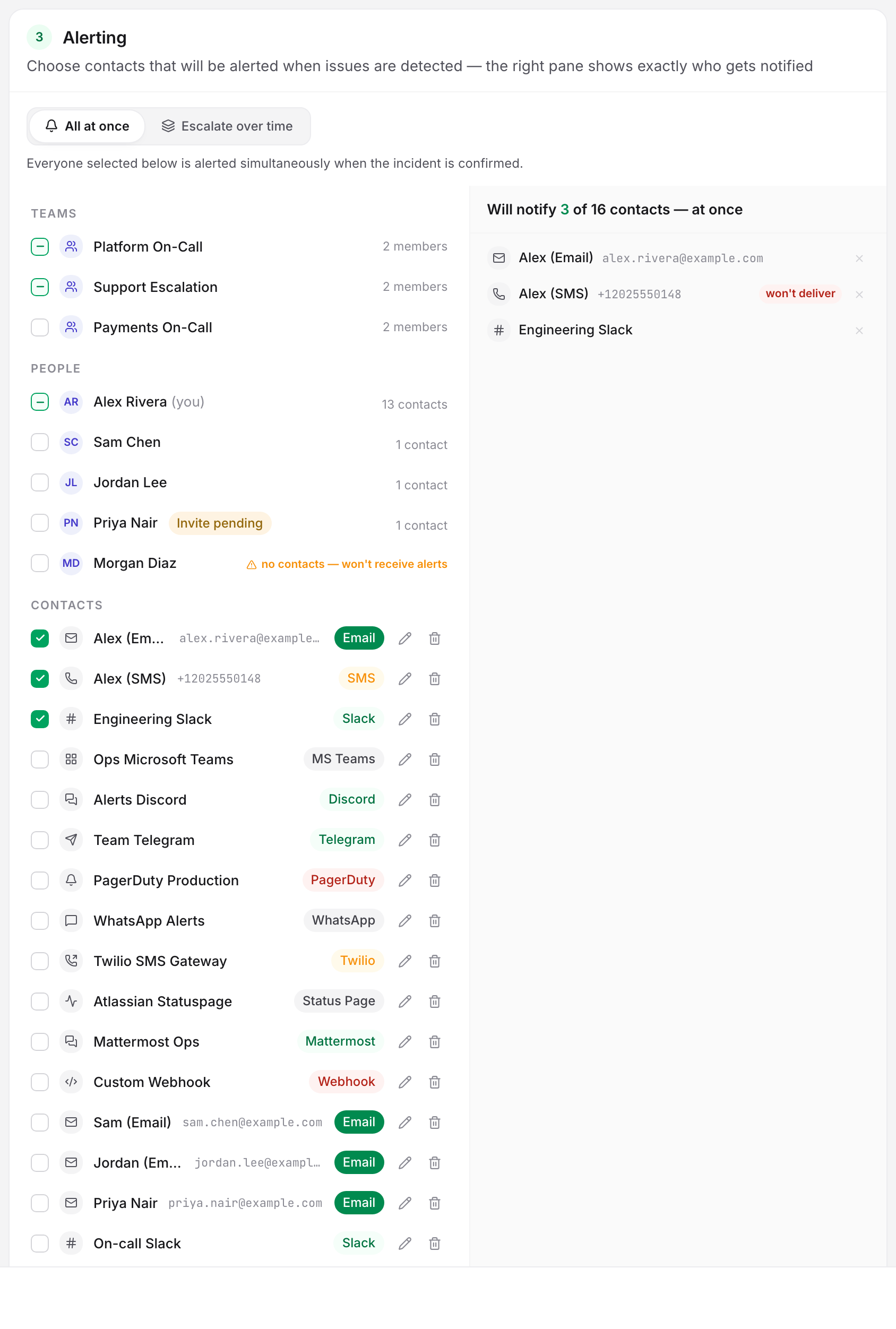
A monitor cannot be saved with an empty recipient list: the right pane turns into At least one recipient is required.
On an account with no teams and only one person, the left pane opens with an All my contacts row marked current & future. Tick that row instead of individual ones and any SMS contact you create later starts alerting on that monitor, with no further edit. Once the account has a team or a second person, the pane groups rows under Teams, People and Contacts instead. Ticking a person or a team there does the same thing: Uptimia alerts the contacts they add later.
With the mode set to Escalate over time, a policy selector replaces the recipient picker. The people texted then come from the policy's steps rather than from this list. The monitor's own list stays required either way, as the fallback. See Escalation Policies.
Verifying a Number
A new SMS contact is stored as Confirmed, so it can receive alerts right away. The verification flow applies to any contact whose Status column still shows Unconfirmed. The delivery queue drops an unconfirmed contact, and the recipients panel gives it the won't deliver badge.
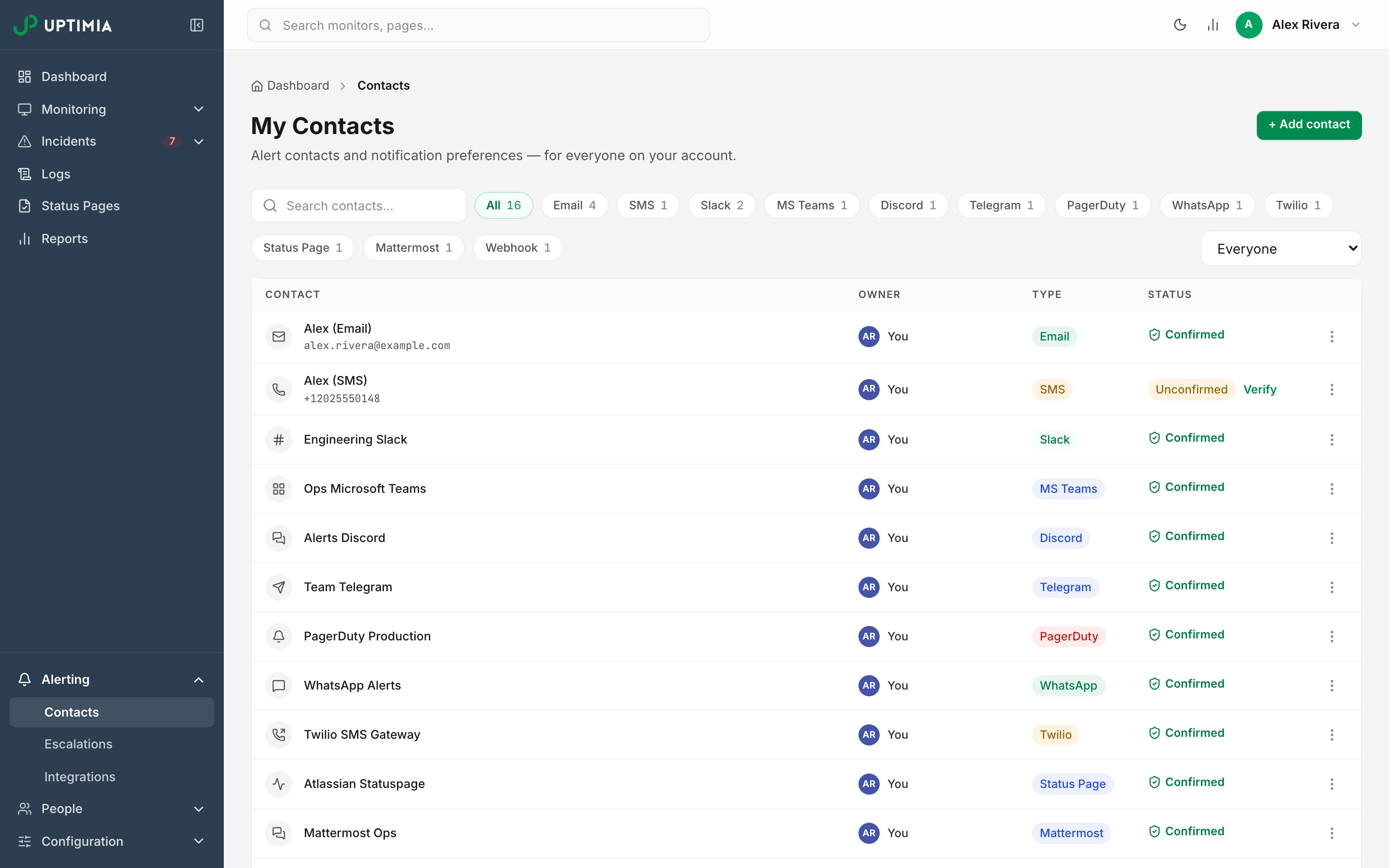
- Go to Alerting → Contacts and find the row.
- Click Verify next to the Unconfirmed badge. Uptimia texts a 6-digit code and the toast reads Confirmation code sent by SMS.
- Type the code into the box that replaces the badge and click OK. The toast reads Contact confirmed — it can now receive alerts.
- Each code is charged against your SMS credit balance. With a balance of 0 the request is refused outright: You have no SMS credits left. Confirmation codes are charged against your SMS credit balance.
- Codes are rate-limited per number. You can request 1 code a minute and 5 an hour to the same number, counted per account and destination. Past the first limit you get Please wait a moment before requesting another confirmation code. Past the second, you get Too many confirmation codes requested for this number. Please try again later. Both limits clear on their own, so a retry that was refused is only early, not blocked.
How SMS Credits Work
One credit is one text Uptimia sends on your behalf: a downtime alert, a recovery alert, a grouped-incident digest, or a verification code. Texts sent through your own Twilio account do not touch the pool. Neither does WhatsApp, which runs on a separate Meta account with no per-message allowance.
| Plan | SMS credits per month |
|---|---|
| Free | 0 |
| Trial | 20 |
| Basic | 50 |
| Professional | 150 |
| Enterprise | 500 |
The Free plan grants no allowance and receives no refill. The Trial's 20 credits are granted once at signup. Neither Free nor Trial accounts are on the refill cycle, so their credits are never renewed.
Refills follow the calendar month, not your billing cycle. At midnight on the 1st of each month, Uptimia sets your balance to your plan's monthly allowance. A yearly subscription gets 12 monthly refills, the same as a monthly one, rather than a year's worth up front.
Refills overwrite the balance instead of adding to it. 40 unused credits on the 31st become your plan allowance on the 1st, not allowance + 40. Nothing rolls over.
SMS Credits shows your consumption in the Plan Usage panel in the top bar and on the dashboard's Plan Usage card. The Subscription page shows the same figure as SMS used. All three count credits used against your monthly allowance, so your remaining balance is the difference. The caption under that Subscription figure reads "resets at renewal"; that reset is the calendar-monthly one.
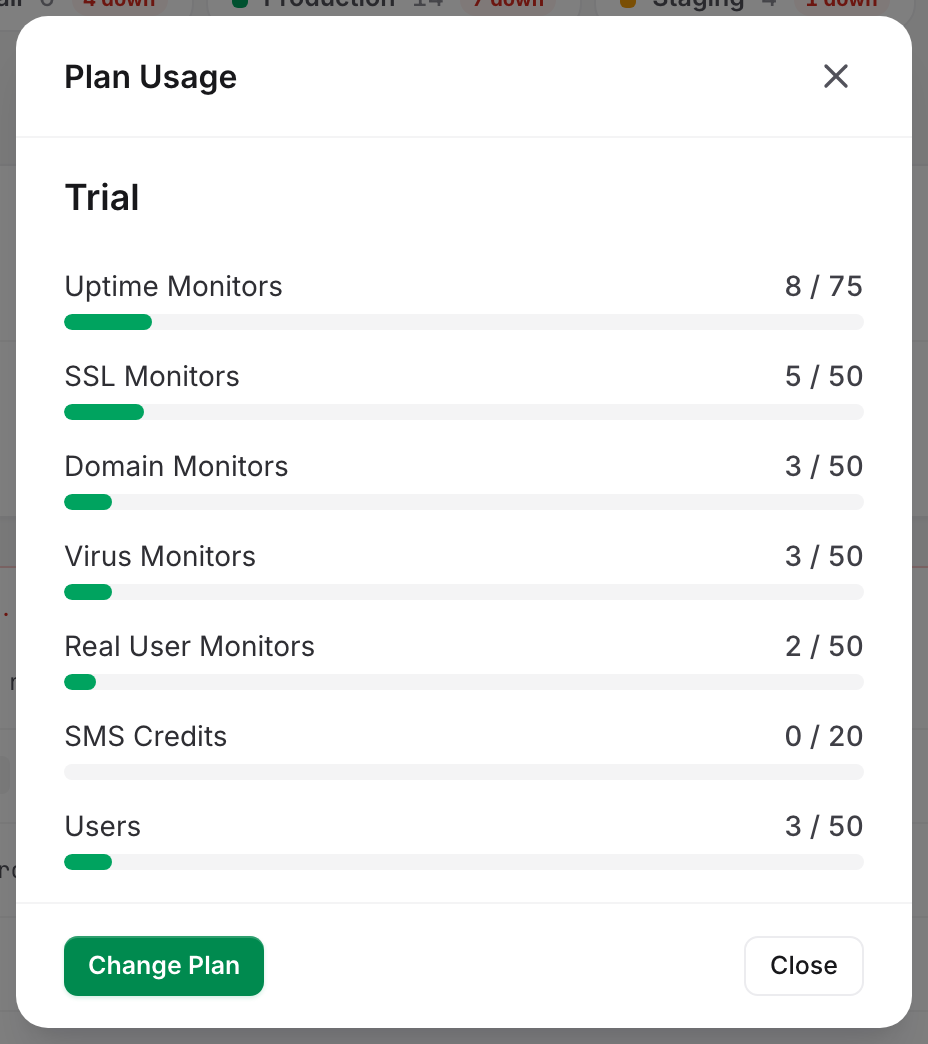
When Your Credits Run Out
Uptimia sends two warning emails, each at most once per calendar month:
| Email subject | When it is sent |
|---|---|
| Your SMS alert credits are running low | A daily sweep finds your balance at 20% or less of your monthly allowance |
| SMS alerts paused: you're out of credits | An alert text is dropped because the balance is 0 |
At zero, Uptimia drops the alert text without queuing, retrying or delivering it. The drop is recorded so support can confirm it, and every other channel on that monitor keeps working, email included. To restore SMS, wait for the 1st or move to a plan with a larger allowance.
What the Text Looks Like
Alert texts are capped at 160 characters, so they carry the monitor name, the status and the time and nothing else. A per-monitor down alert reads like UPTIMIA ALERT (DOWN): Uptime check Acme API DOWN since 2026-08-31, 14:02.
When several monitors on one escalation policy fail together, SMS gets a single grouped digest instead of one text per monitor. The down digest carries a signed Acknowledge: link that works without signing in. A link that will not fit inside 160 characters is dropped whole, never truncated. Recovery texts carry no acknowledgment link. See Alert Groups.
Texts show Uptimia as the sender where the destination country permits an alphanumeric sender ID. In 59 country codes, the United States and Canada among them, it does not. Texts to those destinations arrive from a US number instead.
Changing the Sender Name
On Professional, Enterprise and the Trial you can replace the sender name. Open the avatar menu (top right) → Settings, and on the Basic Info tab fill in Custom Sender. Leave it blank to keep Uptimia. The field is disabled on Free and Basic. See Account Settings.
When an SMS Doesn't Arrive
Work through these in order, then read Alert Emails or SMS Not Arriving for the full diagnosis path.
- Check the balance. The SMS Credits row counts credits used against your allowance. A row that has reached its limit, 150 / 150 on Professional, means you have spent every credit. That explains every missing text at once.
- Check the recipients panel on the monitor. A contact carrying won't deliver is unconfirmed, opted out of alerts through the unsubscribe link in an alert email, or a duplicate of another selected contact on the same channel and destination. Uptimia matches duplicates on the stored number character for character, and texts only the first of them.
- Check the owner's alerting schedule. Uptimia holds an alert raised outside the contact owner's alerting days or hours and sends it once the window opens. With all seven days blocked, that owner's contacts are never alerted on any monitor.
- Check the number's country. A number that saved passed the allowlist. Confirm nobody has since edited it to a code outside Which Numbers Uptimia Accepts.
- Check whether the monitor is in escalate mode. Recipients then come from the policy's steps, not from the monitor's own list.
The delivery queue retries a genuine transport failure up to 5 attempts before abandoning the message, on the same schedule as every other channel. See Integrations Overview. Running out of credits is not a transport failure, so Uptimia never retries a text it dropped for it.