
Your Uptimia plan sets how many monitors of each type you can run and how fast they check. It also caps team member seats and monthly SMS credits. How long your data stays readable is a plan limit too, and it lives in Data and Log Retention.
The plans sold today are Free, Basic, Professional and Enterprise, plus the 30-day Trial every new account starts on.
Monitor Limits by Family
Uptimia has 12 monitor families but only 11 separate pools, because Speed and Transaction share one. Pools do not draw on each other. Filling your Uptime allowance leaves the number of SSL or DNS monitors you can create exactly where it was.
| Pool | Free | Trial | Basic | Professional | Enterprise |
|---|---|---|---|---|---|
| Uptime | 1 | 500 | 10 | 100 | 1,000 |
| Advanced checks (Speed + Transaction, shared) | 0 | 50 | 1 | 10 | 100 |
| API | 1 | 50 | 1 | 10 | 100 |
| Heartbeat | 0 | 50 | 10 | 100 | 1,000 |
| Server | 0 | 50 | 1 | 10 | 100 |
| Real User (sites) | 0 | 50 | 1 | 10 | 100 |
| SSL | 0 | 50 | 1 | 10 | 100 |
| Domain | 0 | 50 | 10 | 100 | 1,000 |
| DNS (zones) | 0 | 50 | 1 | 10 | 100 |
| Virus | 0 | 50 | 1 | 10 | 100 |
| Blacklist | 0 | 50 | 1 | 10 | 100 |
A 0 means you cannot create that family on that plan. Server is the one family that also vanishes from the interface: with an allowance of 0 the Server row is hidden from the Monitoring section of the sidebar, and it returns once you are on a plan that includes it. For what each family does, start at Monitoring Overview.
The Trial counts are per family: 500 uptime monitors and 50 of every other type, rather than 500 monitors in total.
Speed and Transaction Share One Pool
Speed monitors and Transaction monitors draw from a single allowance the product calls Advanced checks. On Professional that is 10 checks split between the two families however you like: 7 speed monitors and 3 transactions, or 10 of either. The 10 is a combined total.
A monitor suspended by a downgrade still occupies its Advanced-checks slot, so suspending frees no room to create another. Editing is unaffected. You can change an existing Speed or Transaction monitor while sitting at the cap.
What the Free Plan Includes
A Free account gets 1 uptime monitor, 1 API monitor and 1 status page. Checks run no faster than every 5 minutes, and history stays readable for 7 days. Every other family is 0.
Seats, Credits and Other Quotas
| Quota | Free | Trial | Basic | Professional | Enterprise |
|---|---|---|---|---|---|
| Team member seats | 1 | 50 | 1 | 10 | 100 |
| SMS credits per month | 0 | 20 (one-time) | 50 | 150 | 500 |
| Status pages | 1 | 10 | 1 | 10 | Unlimited |
| Real User pageviews per month | 0 | 500,000 | 150,000 | 750,000 | 7,500,000 |
| Monitoring history | 7 days | 30 days | 90 days | 12 months | 24 months |
Team Member Seats
The seat count is the number of people you invite. The account owner lives outside the seat pool and is never counted, so Professional's 10 seats means 10 invited members alongside the owner.
Accounting / Billing seats are exempt from the cap. They cost nothing. Someone on that role sees only invoices, the plan and payment details, never your monitors, and never uses up a seat. Change that person to any other role and Uptimia re-checks the seat limit, refusing the change when you are already full. The five roles and what each one can do are in User Roles and Permissions.
Editor and Read-only members can also be limited to specific monitor groups, so a seat does not necessarily see your whole account. Adding a member past the cap returns "You exceeded the maximum number of users. Please upgrade your plan to create more users."
SMS Credits
SMS credits fund outbound SMS alerts. They refill on the calendar month rather than on your billing anniversary. The balance re-arms at midnight on the 1st of the following month, so a yearly subscriber gets 12 refills a year.
A refill overwrites the balance rather than adding to it. Unused credits do not roll over. Free accounts have no allowance, and the Trial's 20 credits are granted once at signup and never renewed.
Two things draw the balance down: an SMS alert message, and the confirmation code Uptimia texts when you ask to verify an SMS number. Adding an SMS contact is free, and new SMS contacts are stored already Confirmed. Ask for a code with an empty balance and it fails with "You have no SMS credits left. Confirmation codes are charged against your SMS credit balance." Delivery details are in SMS Alerts.
Note: WhatsApp alerts do not consume SMS credits. Uptimia sends them through the WhatsApp Business Cloud API on its own account.
Status Pages
Uptimia enforces the status-page count at creation. Past the cap, saving a new page fails with "The settings you are trying to create are ineligible for your plan". Editing your existing pages still works.
Custom domains, your own logo and the "Powered by Uptimia" footer toggle are available on every plan, Free included. Only two things are plan-bound: the page count, and password/private protection. Protection works on every plan except Free.
Real User Pageviews
Real User Monitoring is metered twice. One meter is the number of sites you monitor. The other is pageviews collected each calendar month across all of your Real User monitors together. Cross that allowance and those monitors show the status Pageview limit exceeded and stop counting until it resets.
Check Frequency
How often a monitor may check is itself a plan limit. The editor's frequency slider will not go below your floor.
| Family | Free | Trial | Basic | Professional | Enterprise |
|---|---|---|---|---|---|
| Uptime | 5 minutes | 30 seconds | 1 minute | 30 seconds | 30 seconds |
| Speed | 5 minutes | 30 seconds | 5 minutes | 30 seconds | 30 seconds |
| API | 5 minutes | 1 minute | 1 minute | 1 minute | 1 minute |
The Trial runs at the fastest speed on every family.
Speed is the one exception. The editor offers a 30-second position for Speed on the Trial, Professional and Enterprise. Uptimia resets a Speed monitor saved below 60 seconds back to 60 seconds the next time your subscription renews or changes plan, so a 30-second Speed setting lasts only until then. That is why the Subscription page's comparison table lists 1-min speed for those plans.
Five families have a floor that is the same on every plan.
| Family | How often it can check, on every plan |
|---|---|
| Transaction | Every 10 minutes |
| SSL | Every 10 minutes |
| DNS | Fixed at 5 minutes, not adjustable |
| Domain | Once a day to once every 9 days |
| Virus | Hourly to weekly |
Every per-minute family shares the same slow end: the slider runs up to 24 hours, and the steps get coarser above 60 minutes.
Monitoring History
The history window is how far back you can look at uptime, Speed and virus history. For the other families it sets how long the rows are kept, and a paid plan keeps them longer. Uptimia keeps every row that falls inside your window, and upgrading widens the window instantly and retroactively. Data and Log Retention covers it in full.
Capabilities Gated by Plan
The three capabilities below all require Professional or above, and the Trial clears them.
- Escalation policies, incident grouping and acknowledgment
- White-label branding on scheduled reports
- White-label branding on down and up alert emails
Each gate applies at creation time. An escalation policy or branding theme built on Professional, or during your trial, keeps working and keeps firing after a downgrade. You cannot create another until you are back on an eligible plan.
Where to See Your Usage
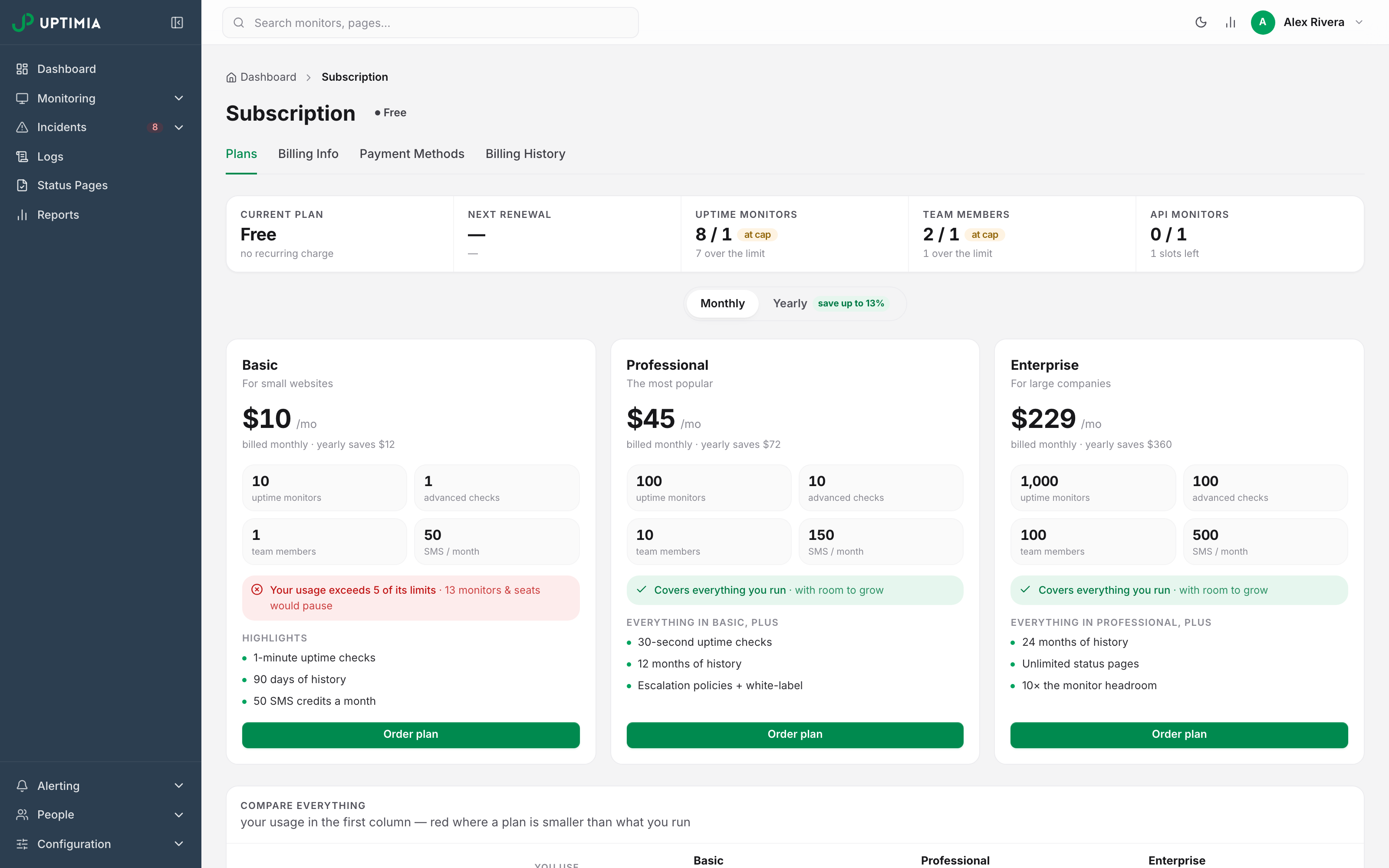
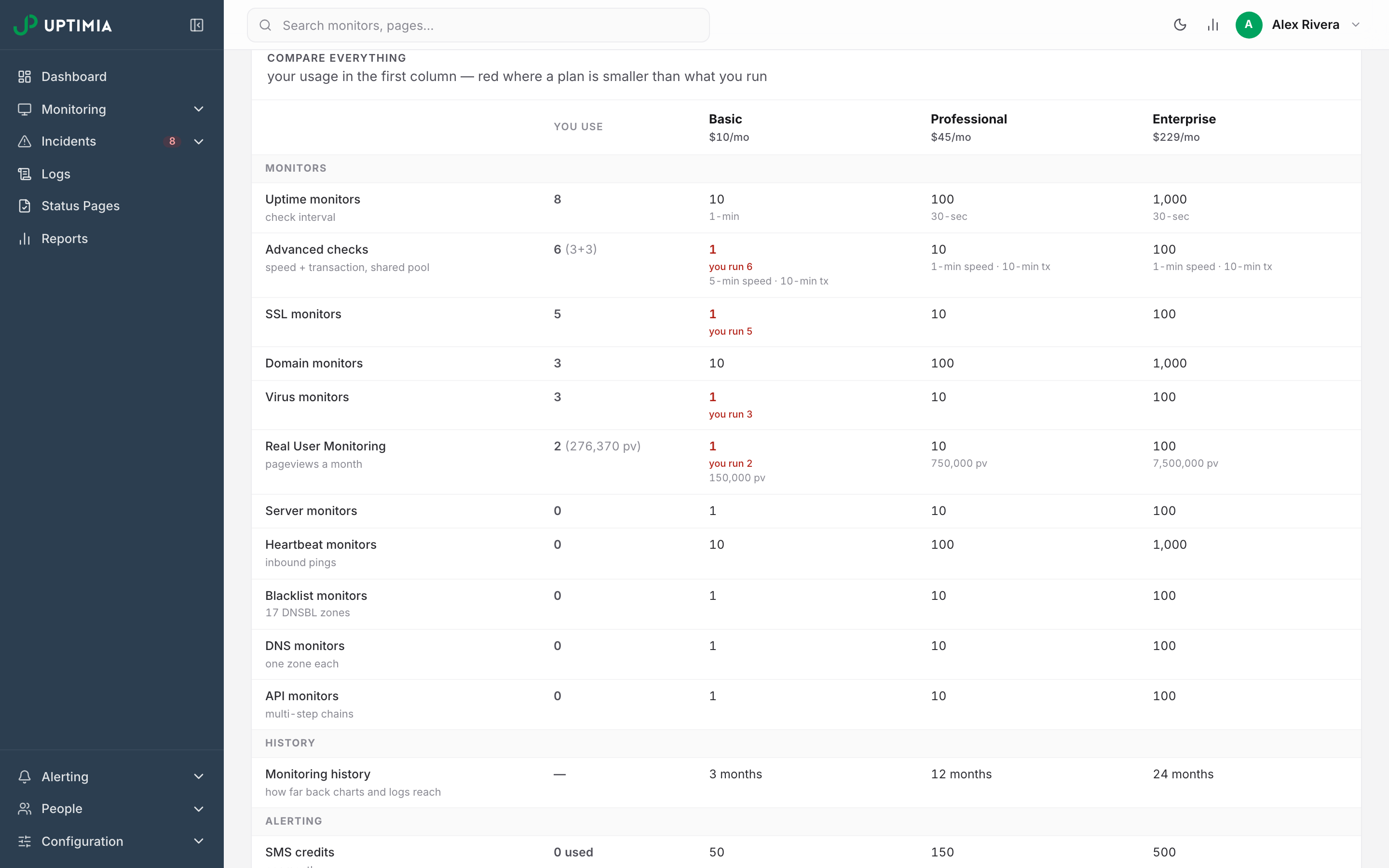
The Subscription page is the full picture. Open the avatar menu in the top right and choose Plans & Billing. A stat strip at the top shows your current plan, your next renewal and up to four pools closest to their cap. Each pool shows used-of-limit, with a line underneath saying how many slots are left, how many you are over, or when the count resets. A pool at 90% or more also gets an amber badge: the percentage, or at cap once you are at or over the limit. Below the plan cards, the Compare everything table puts your own usage in a You use column. A plan's cell turns red where that plan would be smaller than what you run, with a "you run N" line underneath. A footer appears when the Basic plan is smaller than what you run, saying how many of the 12 tracked pools Basic would not cover and how many monitors and seats that is.
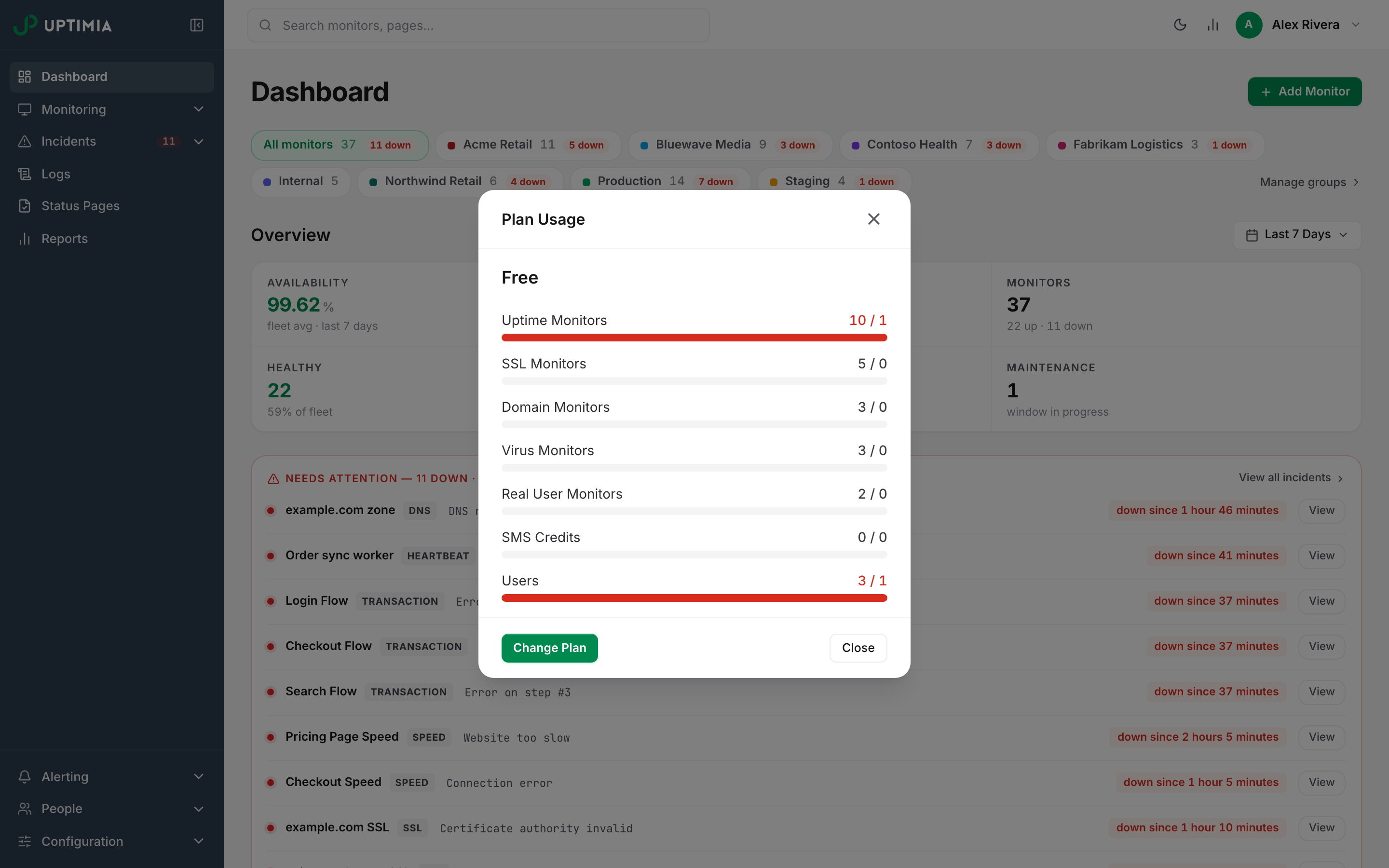
The Plan Usage modal is the quick check, and every role can reach it, unlike the Subscription page, which is limited to the owner and Accounting / Billing seats. Click the bar-chart Usage button in the top bar, next to the light/dark toggle. It shows your plan name and a trial-expiry line while the trial runs. Below that sits a used-of-limit bar for Uptime Monitors, SSL Monitors, Domain Monitors, Virus Monitors, Real User Monitors, SMS Credits and Users. The bar turns amber at 80% and red at 100%. A family your plan does not include reads N / 0 with an empty gray bar rather than a red one.
What Happens When You Reach a Limit
You cannot create another monitor of that family. The rest of the account is untouched: existing monitors keep checking and keep alerting.
| Family | Error you will see |
|---|---|
| Uptime, SSL, Speed, Transaction, Real User | "You have exceeded the maximum number of monitored sites." |
| Domain | "You have exceeded the maximum number of monitored domain names." |
| Virus | "You have exceeded the maximum number of monitored URLs." |
| Server, Heartbeat, Blacklist, DNS, API | "You have reached the maximum number of server monitors for your plan" (with the family name swapped in) |
| Team members | "You exceeded the maximum number of users. Please upgrade your plan to create more users." |
| Status pages | "The settings you are trying to create are ineligible for your plan" |
Either delete a monitor of that family to free a slot, or move to a plan with a larger pool. Uptime has one wrinkle. A monitor suspended by a downgrade does not count toward the total, so you can create a replacement without upgrading first.
If You Downgrade
A downgrade to a smaller plan deletes nothing. Monitors above the new limit are suspended, oldest kept first. A suspended monitor stops checking and stops alerting until you make room or upgrade again, and upgrading switches suspended monitors back on, up to your new limit, oldest first. Monitors you paused yourself stay paused. Why a Monitor Stopped Checking explains how to tell the two states apart.
Warning: on a live Stripe subscription, a downgrade is scheduled for your renewal date. Your plan and every monitor stay exactly as they are until then, and only at renewal does Uptimia apply the smaller plan and suspend the excess. If the target plan is smaller than what you currently run, Uptimia refuses the request first and asks you to acknowledge which pools would be affected and how many monitors that is. Undo a pending downgrade any time before the renewal date. PayPal works differently. A downgrade on a PayPal subscription takes effect the moment you approve it.
The full mechanics are in Changing Your Plan: credits, the acknowledgment gate, undoing a scheduled change and cancellation.
When Your Account's Cap Differs From the Table
Three things can change your real limit. The Subscription page reflects bonus grants and legacy pricing, but not the pre-1026 uptime ladder. It still shows the published uptime number for your plan, so check Plan Usage in the top bar to see the allowance Uptimia really enforces.
- Bonus grants. Uptime, Advanced checks, SSL, Domain, Virus, Real User and seats can each carry a per-account bonus that Uptimia adds on top of the plan limit. An SMS-credit grant is also possible and raises the monthly ceiling shown in Plan Usage. Uptimia grants grandfathered extras this way, so an account can sit above its plan's published pool and stay there through a downgrade.
- Accounts created before user id 1026. That id is an internal number you cannot see yourself, so ask support if you are unsure. Uptimia enforces these accounts against an uptime ladder that predates both pricing eras. Their uptime allowance is higher than the table on Basic, and lower on Professional and Enterprise, and the bonus grants do not apply to that uptime allowance.
- Retired tiers and legacy pricing. A small number of accounts remain on pricing that is no longer sold. Their ladders differ throughout, and the Subscription page marks the plan Legacy.