
Uptimia can send downtime and recovery alerts to WhatsApp, alongside email, SMS and the other channels in Integrations Overview. Each WhatsApp integration holds one recipient phone number, and saving it creates a matching contact that you then attach to the monitors that should alert that person. WhatsApp messages never draw on your SMS credit balance. That pool is covered in SMS Alerts.
Before You Start
- You need the Owner or Admin role. Only those two roles manage integrations.
- You need one phone number per recipient, in full international format.
- There is nothing to obtain from Meta. Uptimia holds the WhatsApp Business Cloud credentials; you supply only the destination number.
What a WhatsApp Alert Contains
WhatsApp carries no free-form text. Every message Uptimia sends references a pre-approved Meta message template by name, and those templates are registered in English only.
| Message | What the recipient sees |
|---|---|
| Down alert | The monitor name |
| Recovery alert | The monitor name and how long the incident lasted |
| Real User JavaScript-error recovery alert | The monitor name, the error-rate threshold, and the incident duration |
| Test | A fixed test message with no parameters |
- WhatsApp alerts stay in English whatever your account language is set to.
- The message never carries error detail, probe location or an incident id. Open the incident in Uptimia for those.
- WhatsApp never carries the one-click acknowledgment link. On a monitor with an escalation policy, the alert carries a signed acknowledge link while the incident is open and unacknowledged, whether one monitor is down or several are grouped. Email, SMS, Slack, Telegram, Discord, Mattermost, Microsoft Teams and Twilio all carry it. The WhatsApp message never does. Acknowledge from the control panel instead.
Adding a WhatsApp Recipient
- Go to Alerting → Integrations.
- Click Add Integration.
- Choose the WhatsApp tile.
- Enter an Integration Name. This name becomes the contact's name, so make it the person:
Dana (Ops). - Enter the recipient's number in Phone Number, in full international format as the
+1234567890placeholder shows. - Click Save Integration. Uptimia creates a matching WhatsApp contact with the same name.
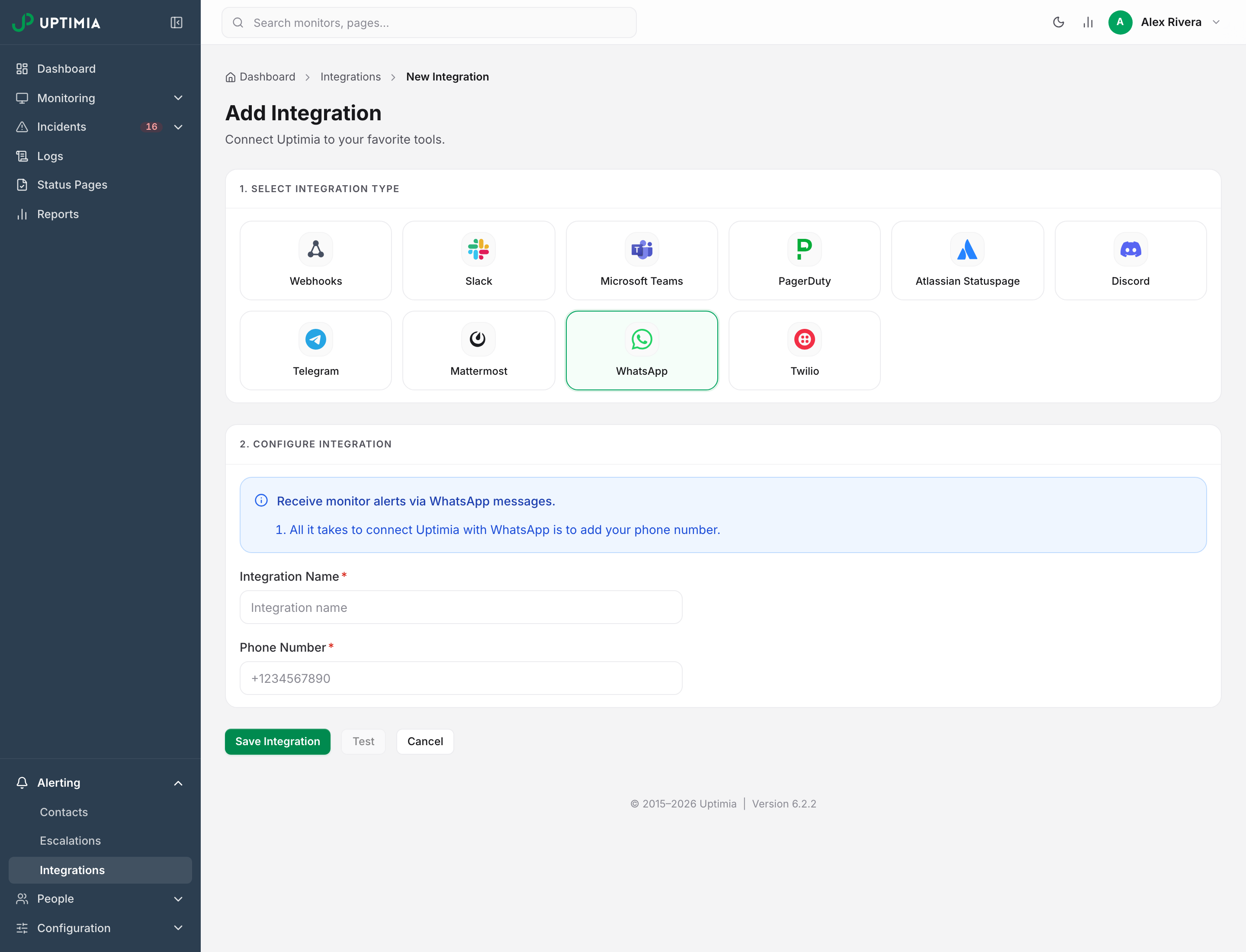
Repeat this for every person who should be alerted: one integration, holding one number, per recipient. Renaming the integration later renames its contact. Deleting it deletes the contact too, and every monitor stops alerting that number.
Uptimia does not check the format of the number you enter. A malformed number saves and tests green, and Meta rejects it at send time.
Sending a Test, and What the Test Does Not Prove
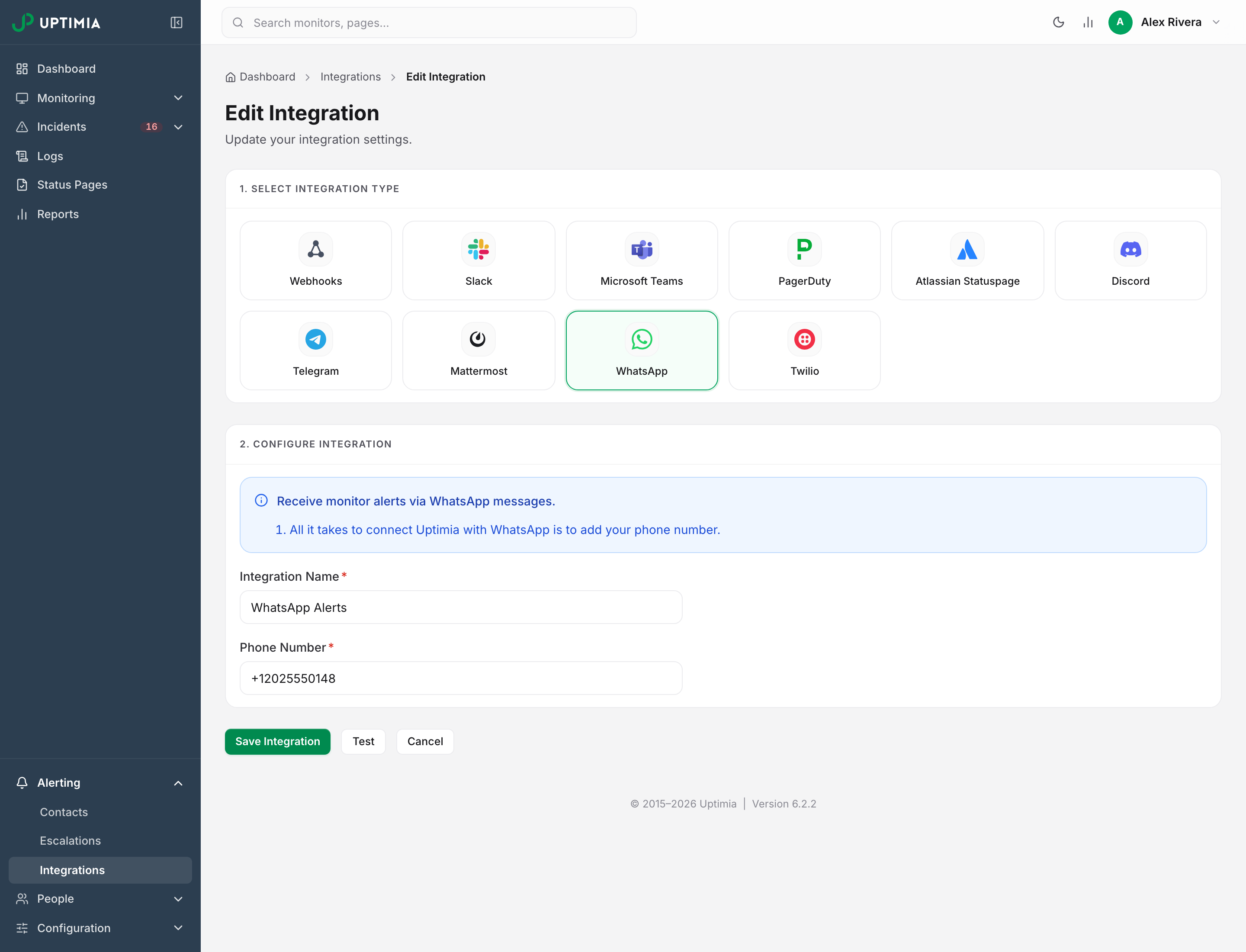
Find the Test button on the saved integration rather than on the contact. It stays disabled until the integration is saved with no edits pending. The test runs against the stored configuration, so while edits are pending the page tells you to Save your changes to test the updated configuration. The Integrations list runs it too, from the three-dot menu.
The green toast proves nothing about delivery. For WhatsApp, Uptimia posts the test to Meta and returns Test notification sent successfully without reading Meta's answer, so a rejected template, an expired credential or a number Meta will not message all produce that same success message. The Twilio integration surfaces its failures. WhatsApp does not.
The only test that counts is the phone. Confirm the message arrived on that handset before you rely on the number.
Attaching WhatsApp to Monitors
Saving the integration alerts nobody on its own. A monitor has to select the contact before Uptimia sends anything to that number.
- Open the monitor and choose Edit from its actions menu (the three dots). Scroll to the Alerting card at the bottom of the Main tab.
- If your account has an escalation policy, set the alerting mode to All at once.
- Tick the WhatsApp contact in the left pane of the recipients panel.
- Confirm it appears in the right pane, headed Will notify, with no red won't deliver badge.
- Save the monitor.
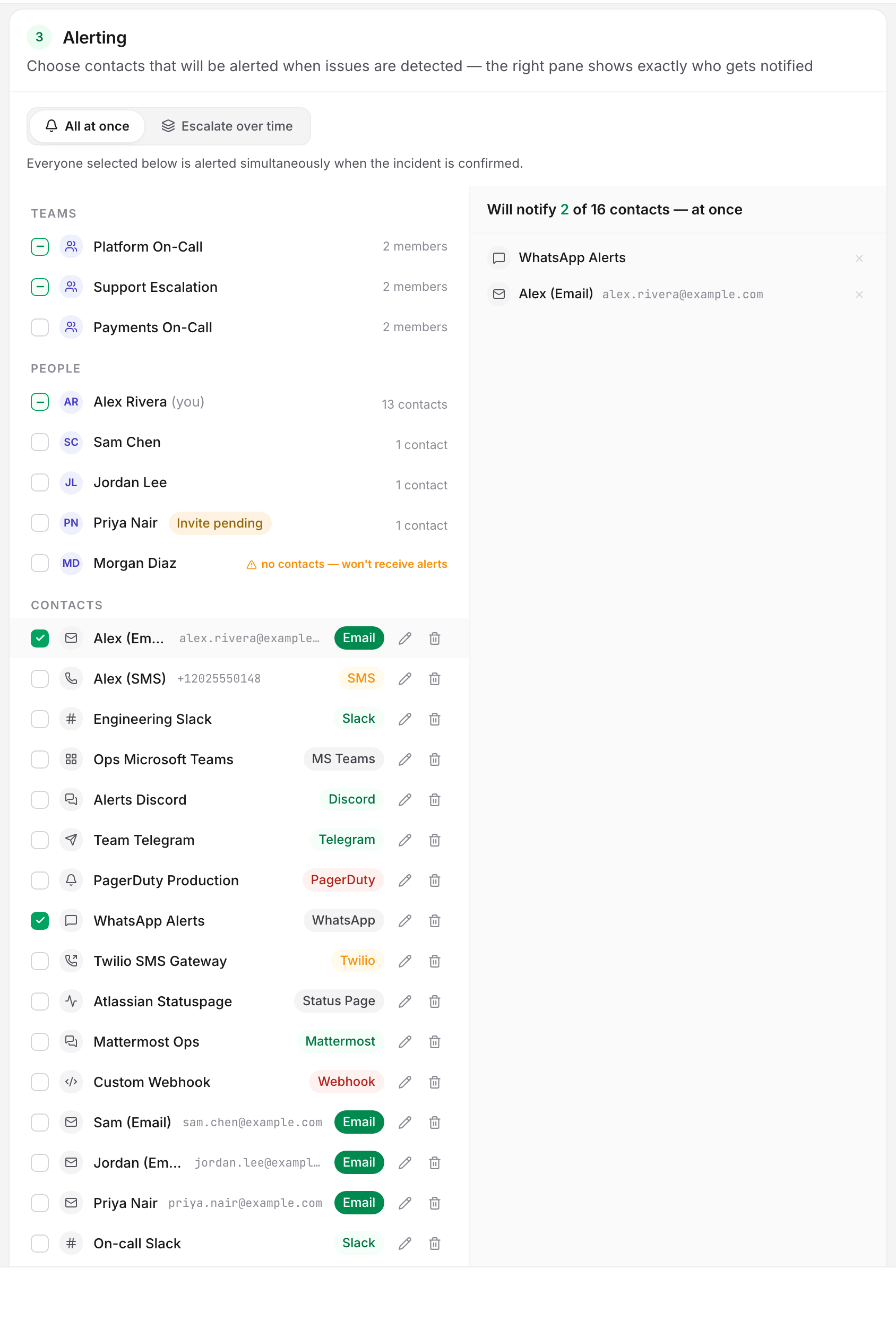
A monitor saved with an auto-include selection resolves its recipients at alert time. A WhatsApp contact created next month then starts alerting on that monitor with no edit. On a single-user account the auto-include selection is the All my contacts — current & future row at the top of the left pane. On an account with more than one seat the pane groups rows under Teams, People and Contacts instead, and ticking your own person row there does the same job. You have to add the new contact by hand only on monitors whose recipients were ticked as individual contacts. See Who Gets Alerted.
Escalate over time mode hides the recipient picker. Add the WhatsApp contact to a step of the attached escalation policy instead. The monitor still needs its own recipient list to save, and that list stays live as the fallback.
During an Alert Storm, WhatsApp Sees Less
When several monitors sharing one escalation policy fail together, Uptimia groups them and sends one digest per channel. WhatsApp cannot carry a digest. Its templates are fixed, and each one takes a single monitor name.
Uptimia alerts a WhatsApp recipient about the group's anchor monitor only, per-monitor as usual, and the anchor is the first failure that opened the group. Monitors that join the storm afterwards produce no WhatsApp message, while email, SMS and the chat channels get the full list. If WhatsApp is someone's only channel, give them a second one for storm coverage. See Alert Groups.
Which Monitor Families Deliver
A Meta template has to be registered and approved before Meta will accept a message that uses it. A family whose template is not registered is rejected on every send. The WhatsApp contact on that monitor stays silent through a real outage, even though setup and the Test both looked fine.
Uptimia has not yet registered the DNS and API templates with Meta. The heartbeat and blacklist templates are unconfirmed. The uptime, transaction, Speed, SSL, domain, virus and Real User templates are in long-standing production use. Server monitors have templates for the offline, CPU, memory, disk and load alerts only, and a server incident on swap, process count, inode usage or network throughput matches no template at all, so Meta rejects the send and nothing arrives.
If WhatsApp is your alerting channel for a DNS, API, heartbeat or blacklist monitor, attach a second channel to that monitor. Do the same if WhatsApp is the channel for a server monitor's swap, process, inode or network thresholds. Confirm that second channel end to end before you depend on it.
WhatsApp and SMS Credits
WhatsApp messages do not consume SMS credits. The two channels share nothing but a phone number. SMS runs on Uptimia's telephony account and its monthly credit pool, while WhatsApp runs on Uptimia's Meta WhatsApp Business account with no per-message allowance, so a Free account with 0 SMS credits still receives WhatsApp alerts. Credit pools and per-plan quotas are in Plan Limits and Quotas.
Adding a WhatsApp Contact From the Contacts Page
Choose WhatsApp in the Channel grid on Alerting → Contacts and no phone-number field appears. Uptimia shows a Connected WhatsApp integration picker instead, because the number lives on the integration. With no WhatsApp integration saved yet, the modal shows No WhatsApp integration connected yet — set one up under Integrations first.
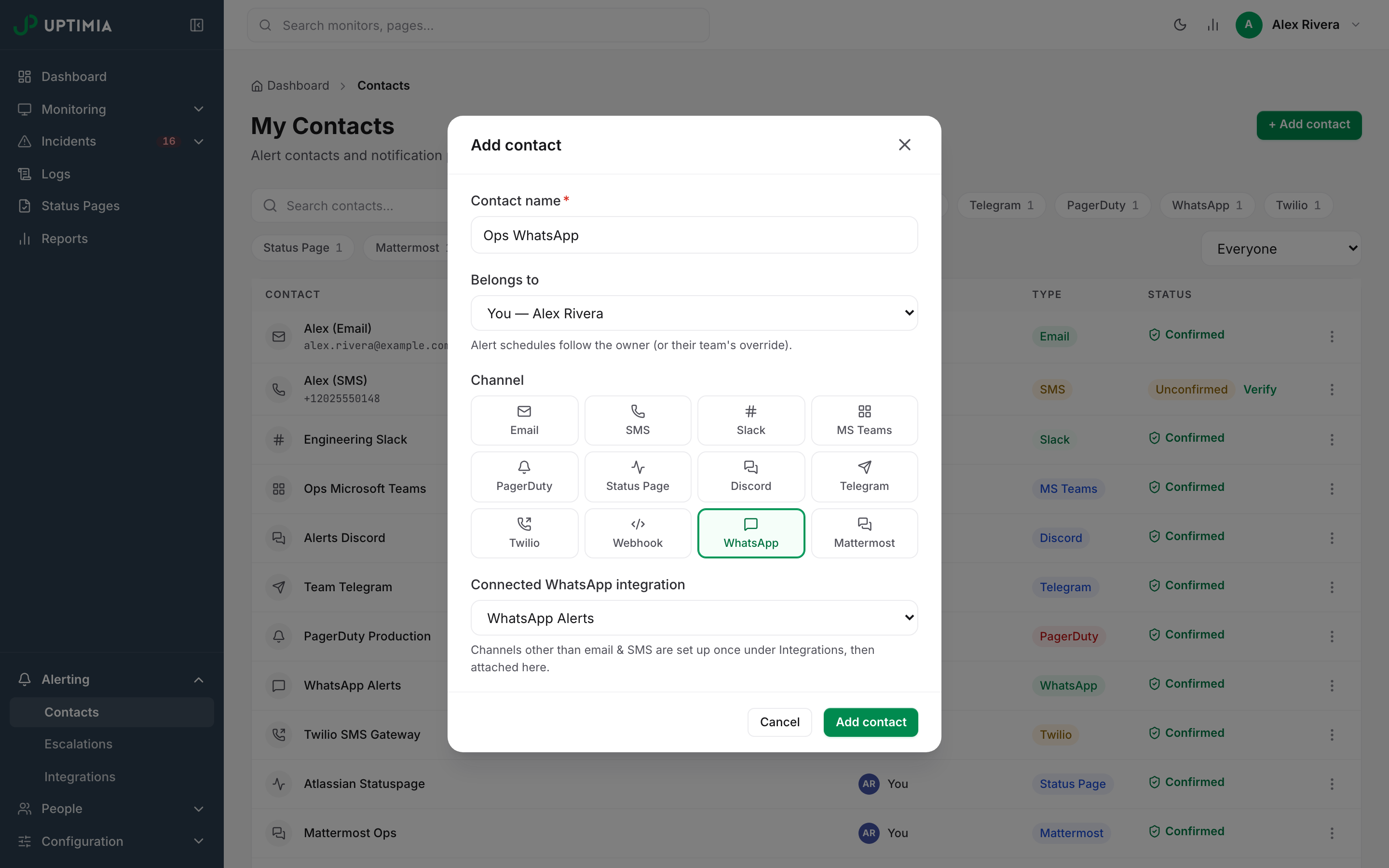
Uptimia collapses two selected contacts into one alert only when they are on the same channel and resolve to the same destination. A contact resolves to its own stored value when it has one, and otherwise to the integration behind it. The contact Uptimia creates with a WhatsApp integration stores that integration's name, while a contact you add here stores nothing, so a second contact aimed at the same WhatsApp integration sends a second message to the same handset instead of collapsing into the first. Attach the contact the integration already created rather than adding a duplicate. Two separate integrations, each with its own number, are always two separate alerts. Who Gets Alerted has the full resolution rules.
If Alerts Don't Arrive
- Send a test and watch the handset. The confirmation message says success either way. If nothing arrives, the number or the template is the problem, not Uptimia's routing.
- Check the monitor's family against the list in Which Monitor Families Deliver. A DNS, API, heartbeat or blacklist monitor is the likeliest silent case. So is a server monitor alerting on swap, process count, inode usage or network throughput.
- Check the recipients panel on the monitor. A won't deliver badge means the contact is unconfirmed, opted out, or a duplicate. A duplicate is another selected contact on the same channel with the same stored destination.
- Check the contact owner's alerting schedule. An alert raised outside that person's alerting days or hours is held and delivered when the window opens. With all seven days blocked, that owner's contacts are never alerted on any monitor.
- Check whether the incident joined an alert group. A monitor that joined a storm behind another anchor produces no WhatsApp message.
- Check your account email is verified. The delivery queue drops every alert on an unverified account, on every channel.
Uptimia suppresses repeat sends. The same incident, contact and transition never go out twice inside a 5-minute window, and Uptimia re-queues a genuine transport failure, retrying it up to 5 times on the schedule every channel shares.
When you contact support, include the integration name, the monitor, and the incident timestamp. Integrations Overview describes what the delivery record holds.