
Every person on an Uptimia account holds one of five roles: Owner, Admin, Editor, Read-only or Accounting / Billing. Each role decides what that person can see and change, the interface hides what the role cannot use, and the limit still applies to anyone who reaches the page another way. Of the five, two can be narrowed further, to specific monitor groups. To add someone, see Inviting Team Members.
Before You Start
- Assigning and changing roles requires the Owner or an Admin. Editors, Read-only members and Accounting / Billing seats cannot open the team roster.
- Monitor-group scoping needs at least one monitor group to already exist.
The Roles
The Owner is the account itself: exactly one per account, and it cannot be assigned to anyone. The other four are seat roles you pick when you invite someone, and change afterwards from the roster. An invite that does not specify a role becomes Read-only, the least-privileged seat.
| Role | What it is for | Seat cost |
|---|---|---|
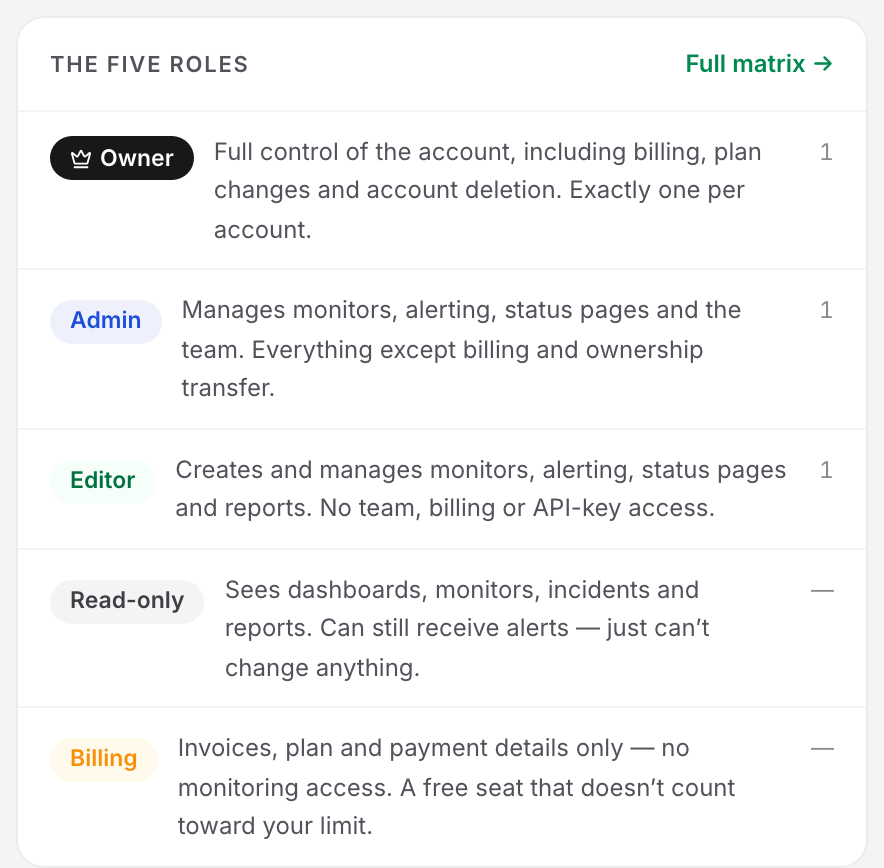
| Owner | Full control of the account, including billing, plan changes and account deletion. Exactly one per account. | The account |
| Admin | Manages monitors, alerting, status pages and the team. Everything except billing and ownership transfer. | 1 seat |
| Editor | Creates and manages monitors, alerting, status pages and reports. No team, billing or API-key access. | 1 seat |
| Read-only | Sees dashboards, monitors, incidents and reports. Can still receive alerts, but cannot change anything. | 1 seat |
| Accounting / Billing | Invoices, plan and payment details only. No monitoring access. | Free |
The roster at People → Users shows the Accounting / Billing seat with the shorter badge Billing. Its full name, Accounting / Billing, appears on the role cards in the invite and Edit access & profile modals.
The Permission Matrix
The Owner and Admins can read the live matrix in the product. Go to People → Users and click Full matrix → on the The five roles card. Clicking a role card spotlights its column.
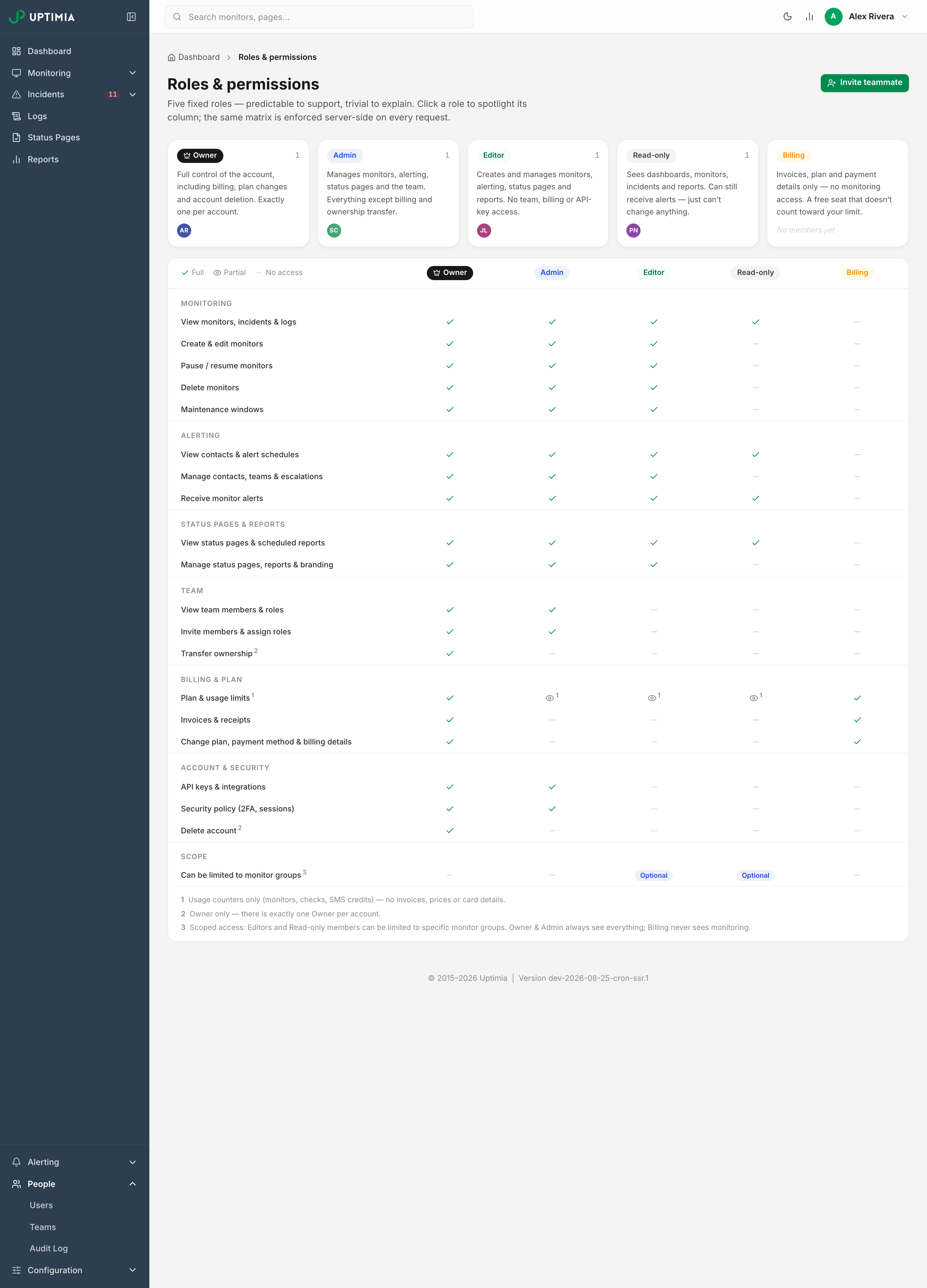
Rows are labeled exactly as they appear on that page.
| Capability | Owner | Admin | Editor | Read-only | Billing |
|---|---|---|---|---|---|
| View monitors, incidents & logs | ✓ | ✓ | ✓ | ✓ | — |
| Create & edit monitors | ✓ | ✓ | ✓ | — | — |
| Pause / resume monitors | ✓ | ✓ | ✓ | — | — |
| Delete monitors | ✓ | ✓ | ✓ | — | — |
| Maintenance windows | ✓ | ✓ | ✓ | — | — |
| View contacts & alert schedules | ✓ | ✓ | ✓ | ✓ | — |
| Manage contacts, teams & escalations | ✓ | ✓ | ✓ | — | — |
| Receive monitor alerts | ✓ | ✓ | ✓ | ✓ | — |
| View status pages & scheduled reports | ✓ | ✓ | ✓ | ✓ | — |
| Manage status pages, reports & branding | ✓ | ✓ | ✓ | — | — |
| View team members & roles | ✓ | ✓ | — | — | — |
| Invite members & assign roles | ✓ | ✓ | — | — | — |
| Transfer ownership 2 | ✓ | — | — | — | — |
| Plan & usage limits 1 | ✓ | Counters | Counters | Counters | ✓ |
| Invoices & receipts | ✓ | — | — | — | ✓ |
| Change plan, payment method & billing details | ✓ | — | — | — | ✓ |
| API keys & integrations | ✓ | ✓ | — | — | — |
| Security policy (2FA, sessions) | ✓ | ✓ | — | — | — |
| Delete account 2 | ✓ | — | — | — | — |
| Can be limited to monitor groups 3 | — | — | Optional | Optional | — |
1 Usage counters only (monitors, checks, SMS credits), never invoices, prices or card details. Admins, Editors and Read-only members read those counters from the bar-chart Usage button in the top bar. It opens the Plan Usage modal.
2 Owner only: there is exactly one Owner per account.
3 Scoped access: Editors and Read-only members can be limited to specific monitor groups. Owner and Admin always see everything; Billing never sees monitoring.
What Each Role Loses in the Sidebar
The sidebar hides what a role cannot reach, and drops a whole group when all of its children are hidden. An Editor keeps Alerting → Contacts and Escalations but loses Integrations, and their People group holds Teams alone. A Read-only member loses the entire Configuration group, because every item in it requires the ability to manage monitors. Hiding is cosmetic. Either way, the limit applies.
Read-Only Access
A Read-only member sees dashboards, monitors, incidents, logs, status pages and scheduled reports, and receives monitor alerts like anyone else. They cannot create, edit, pause or delete anything.
One capability is carved out: a Read-only member can acknowledge and un-acknowledge an incident. Acknowledging belongs to the on-call shift rather than to account setup, so it stays available to the people holding the pager.
The escalation pages stay visible. Without the ability to manage alerting, the policy editor and the Grouping & acknowledgement settings page open read-only. Edits do not apply, a note replaces the save bar, and the Grouping & acknowledgement page shows "Read-only — your role can view but not change these settings". In the policy editor, the message reads "Read-only — your role can view but not edit escalation policies". Each policy card's menu offers View policy instead of Edit policy, Duplicate and Delete. The New policy button is gone from the page head.
Limiting a Member to Specific Monitor Groups
Editors and Read-only members can be limited to one or more monitor groups. This is an enforced access boundary, not a display filter. A scoped member sees only in-scope monitors in the monitor list, monitor detail pages, logs, incidents, the dashboard and global search, and the same boundary covers report and CSV exports, maintenance windows, groups, status pages and scheduled reports. A direct link to an out-of-scope monitor behaves as if that monitor does not exist.
- A monitor that belongs to no group is invisible to a scoped member. A monitor a scoped member creates lands in whichever of their own groups they pick. If they pick none, Uptimia adds their groups for them, so a scoped author never creates a monitor they cannot then see.
- Adding a new group does not widen anyone's scope. The picker states it: "New groups aren't added automatically."
The Owner, Admins and Accounting / Billing seats are never scoped, and neither is an owner-minted API key.
- Go to People → Users.
- Open the member's row menu and click Edit access & profile.
- Set the role to Editor or Read-only. The Monitor access field turns into a choice; for other roles it only explains their access.
- Choose Only specific groups and click the groups the member should see.
- Save. The roster row now shows the group count instead of All monitors.
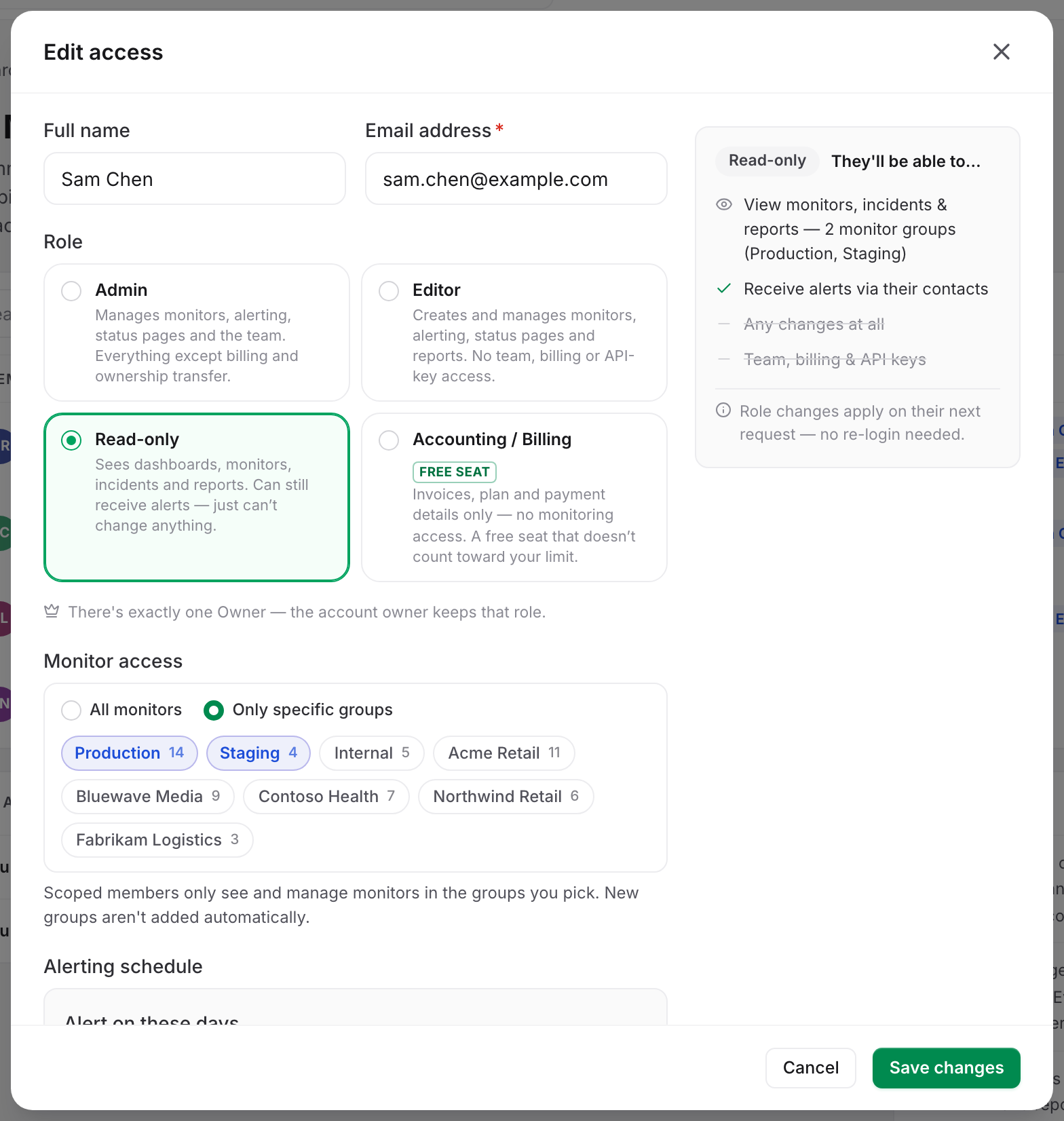
If you choose Only specific groups and pick no group, the save is refused. The picker shows "Pick at least one group — or switch back to all monitors." under the chips, and Uptimia rejects the save with "Pick at least one monitor group — or switch back to all monitors". The full procedure, including what a scoped member sees on each screen, is in Limiting a Member to Monitor Groups.
The Free Accounting / Billing Seat
The Accounting / Billing role lets an accountant see the billing side and no monitoring: invoices, receipts, the plan and payment details, and nothing else. It does not count against your plan's seat limit. The roster's seat meter says so under the count: "Billing seats are free."
A Billing seat signs in to a two-item sidebar, Plans and Billing, and lands on the subscription page rather than the dashboard. They can reach their own Settings for their name and password, but not the API Keys section. They never receive monitor alerts, cannot own alert contacts and cannot be added to a team.
Warning: Moving an existing member into the Accounting / Billing role deletes their alert contacts and removes them from every team. The confirmation says so: "Moving them back later does not restore either." Moving a Billing seat back to a paid role re-checks your plan's seat limit, and Uptimia refuses the move if you are already at the cap.
Full detail is in The Accounting and Billing Seat.
Two-Factor Authentication Is Per Person
Every member turns two-factor authentication on and off for themselves, from Settings → Security, under Two-Factor Authentication, using the checkbox Enable two-factor authentication by email. Codes go to that person's own mailbox. A member can never change the Owner's setting, and the Owner's setting applies to nobody else.
Disabling requires the current password. If a member loses access to the mailbox their codes go to, the Owner or an Admin can clear the factor for them: on People → Users, open that member's row menu and choose Reset two-factor auth. It is never offered for the Owner's own factor.
The one security setting that stays with the Owner is Email Preferences on the same page. A team member who tries to save it gets back "Operators cannot change account security settings."
Codes, attempt limits, the reset procedure and the sign-in flow are covered in Two-Factor Authentication.
What a Member Can Change About Themselves
Every role, including Accounting / Billing, keeps a small set of self-service actions: their own password, two-factor setting and profile name. A team member saving Settings → Basic Info writes their own full name and nothing else. The account email, time zone and custom SMS sender belong to the Owner, and that save leaves them untouched.
To change a member's email address or their alerting schedule, the Owner or an Admin edits it for them from Edit access & profile on the roster.
How Enforcement Works
What the matrix page shows is exactly what Uptimia applies to every action. Hiding a menu item or bouncing someone off a page is cosmetic; the limit holds either way.
- An unrecognized role gets the fewest permissions. If a seat has a role Uptimia does not recognize, Uptimia treats it as Read-only and limits it like a Read-only seat. The one exception is an empty role on a seat that predates the roles model, which keeps its documented legacy meaning of Admin.
- A deleted seat loses access immediately. A still-open session whose seat has been removed is refused with "Your team membership no longer exists. Sign in again." It does not fall back to owner authority.
- API keys carry the identity of the seat that minted them. A key created by an Editor or Read-only seat has that seat's role and the same monitor groups, checked fresh every time the key is used, so a demotion or a re-scope takes effect at once. If the seat is removed, the key stops working rather than reverting to owner access. Owner-minted keys carry full owner authority and are never scoped. Minting one deliberately is covered in Read-Only and Group-Limited API Keys.
A member who reaches a control their role does not hold gets a refusal message rather than a grayed-out button, and the message names the role and the fix: "Your role (Read-only) doesn't allow this. Ask the account owner or an Admin to do it, or to change your role."
The Access-Change Audit Trail
Uptimia records every access change: invites, role changes, scope changes, removals, revoked invites, resent invites and member 2FA resets. The Recent access changes card below the roster shows the latest 20. Entries are kept for 12 months. Only the Owner and Admins see that card, and it is the only place access changes are shown. People → Audit Log is a separate feed, recording monitor, maintenance-window, alerting-team and monitor-template changes rather than team access. See The Account Activity Log.
Current Limitations
- Ownership transfer is not implemented. The matrix row exists and is owner-only, but there is no action behind it yet. The Owner is the account row itself, structurally different from a seat.
- There is no "see what they see" preview. To check what a role reaches, read the matrix from People → Users.
- Roles are fixed. The five cannot be edited and no sixth can be created.