
A monitor template is a saved copy of one monitor's configuration: check interval, probe locations, alert recipients, escalation policy, groups, branding, notes and every type-specific threshold. Create a monitor from it and the only things you type are a name and a target. To create many monitors from a pasted list of URLs instead, see Bulk Operations.
Before You Start
- You need the Editor, Admin or Owner role. Read-only and Accounting / Billing seats do not see the page or the menu item.
- There is no plan gate. Templates are available on every plan, including Free.
- You need at least one existing monitor of a templatable family. A template always comes from a monitor, never from a blank form.
What a Template Stores
A template is a snapshot of the monitor's settings: the same values the monitor editor would save if you saved that monitor again today.
| Carried into the new monitor | Never carried |
|---|---|
| Check interval and alert delay | The target URL, hostname, domain or zone (you supply it) |
| Alert when back up, and the outage-confirmation threshold | The monitor name (you supply it) |
| Alert recipients (contacts, teams, people) | HTTP Basic Auth password |
| Escalation policy binding | API-monitor secret variable values |
| Probe locations, or the location profile in use | Unique ID (uptime), which must be unique per account |
| Monitor groups | The source monitor's incidents, logs and history |
| Email branding theme | |
| Notes | |
| Type-specific settings: HTTP method and body, custom headers, timeout, follow-redirects, reported error types, keyword checks, SSL and domain expiry thresholds, speed and RUM alert rules, API steps and assertions, DNS record sets |
The interval stored is the one the source monitor uses. If the source was created on a higher plan, Uptimia clamps the new monitor's interval to your current plan's floor. The monitor editor clamps it the same way.
Saving a Monitor as a Template
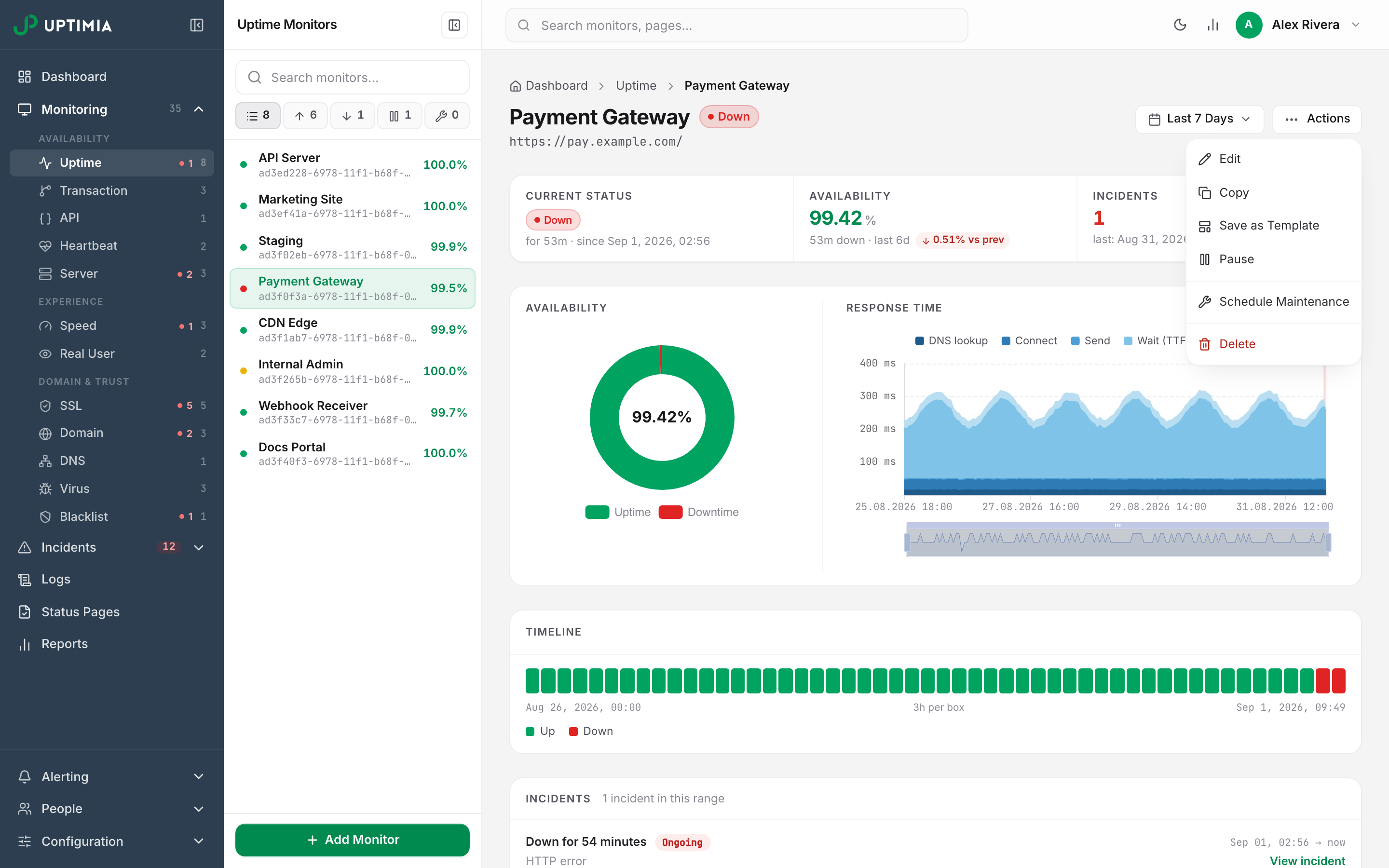
Save as Template appears in three places, all opening the same modal:
- The ⋯ menu on a monitor row on the dashboard (table, grid and graph views).
- The Actions menu on a monitor's detail page.
- The ⋯ menu on the Heartbeat, RUM, API, Blacklist and DNS monitor pages.
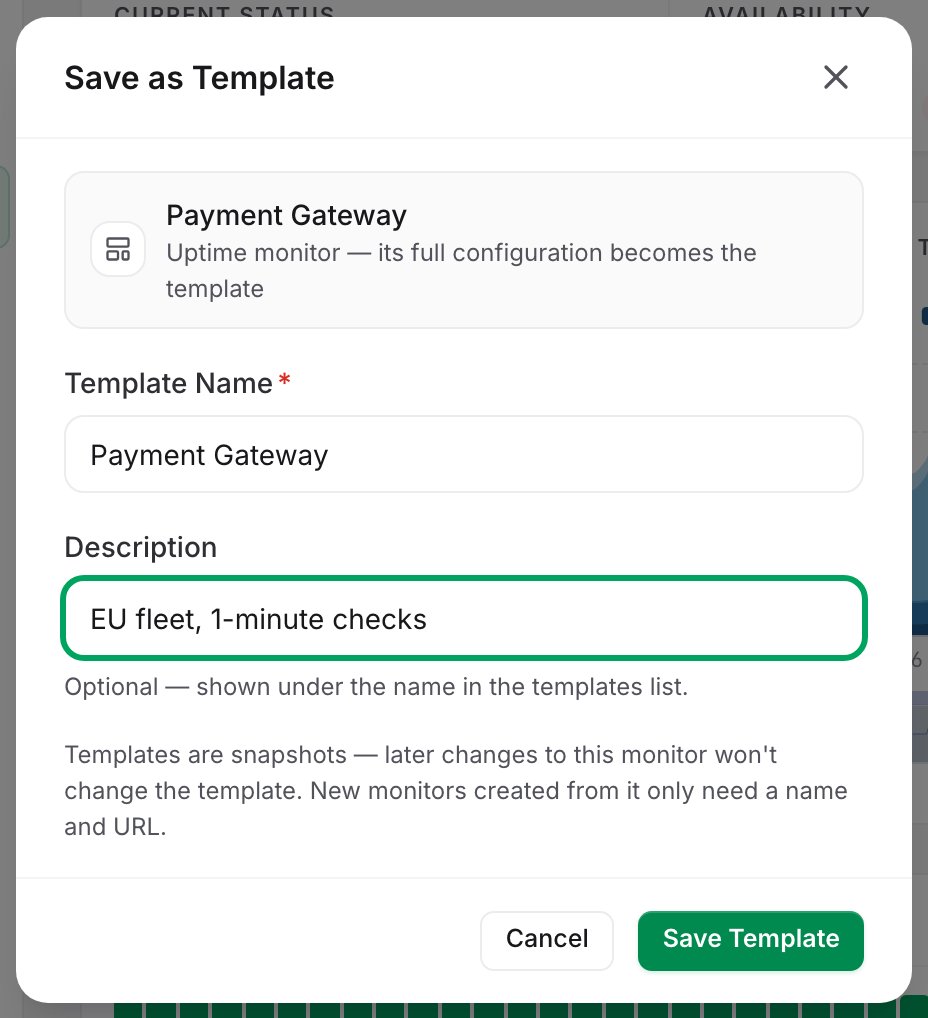
- Open the monitor's ⋯ or Actions menu and click Save as Template.
- Check Template Name. Uptimia prefills it with the monitor's name. It must be unique among your templates, up to 190 characters.
- Add a Description if the name alone will not tell another team member what the template is for. Up to 255 characters, shown under the name in the list.
- Click Save Template. A toast confirms the save and offers a View Templates link.
If you already hold 100 templates, Uptimia refuses the save with You can save up to 100 templates. Delete one first. No other name and no other source monitor gets past the cap.
Creating a Monitor From a Template
- Go to Configuration → Monitor Templates.
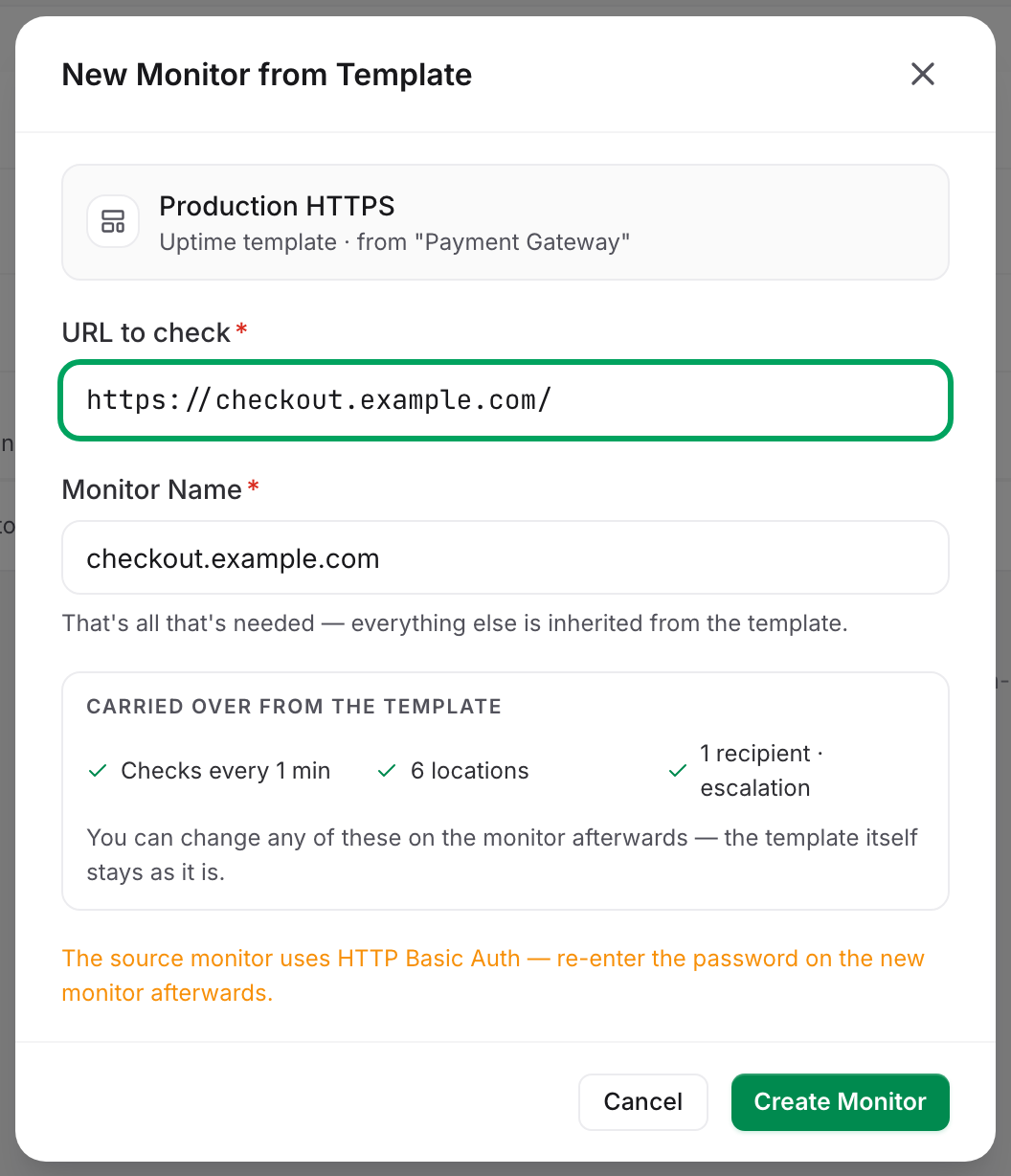
- Click Use on the template's row, or click the row itself. The New Monitor from Template modal opens.
- Enter the target. The label of this field depends on the template's family. See the table below. Heartbeat and API templates ask for no target.
- Check Monitor Name. Uptimia derives it from the URL as you type, until you edit the field yourself.
- Review the Carried over from the template checklist: the interval, the location count and the recipient count that this monitor will inherit.
- Click Create Monitor. Uptimia creates the monitor and takes you to its page.
The target field label depends on what the template's family watches:
| Template family | Target field label |
|---|---|
| Uptime (HTTP/HTTPS) | URL to check |
| Uptime (TCP, UDP, Ping) | Hostname or IP |
| Uptime (DNS record) | Hostname to resolve |
| Uptime (SMTP, POP3, IMAP) | Mail server hostname |
| SSL | URL to check |
| Speed | Page URL |
| Virus, Real User | Website URL |
| Domain | Domain name |
| Blacklist | Domain or IPv4 |
| DNS | DNS zone |
| Heartbeat, API | No target field |
While the monitor is being created, the modal ignores Cancel, Escape and a backdrop click.
The Monitor Templates Page
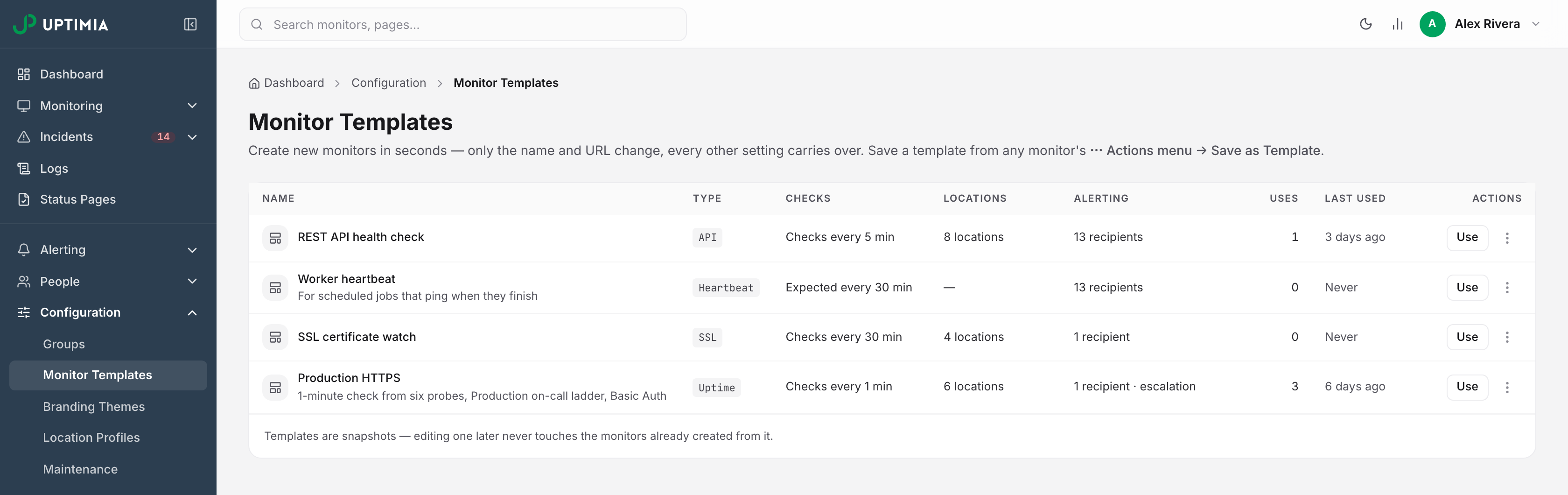
Configuration → Monitor Templates lists every template on the account, newest first.
| Column | What it shows |
|---|---|
| Name | The template name, with the description underneath |
| Type | The monitor family: Uptime, SSL, Speed, Domain, Virus, RUM, Heartbeat, Blacklist, DNS or API |
| Checks | The stored cadence, for example "Checks every 1 min" or "Expected every 5 min" |
| Locations | "All locations", or the probe count, with "(profile)" when a location profile is stored |
| Alerting | The recipient count, plus "· escalation" when an escalation policy is bound |
| Uses | How many monitors have ever been created from this template |
| Last used | When the last one was created |
| Actions | The Use button and a ⋯ menu holding Rename and Delete |
Until you save your first template, a three-step explainer of how templates work replaces the table.
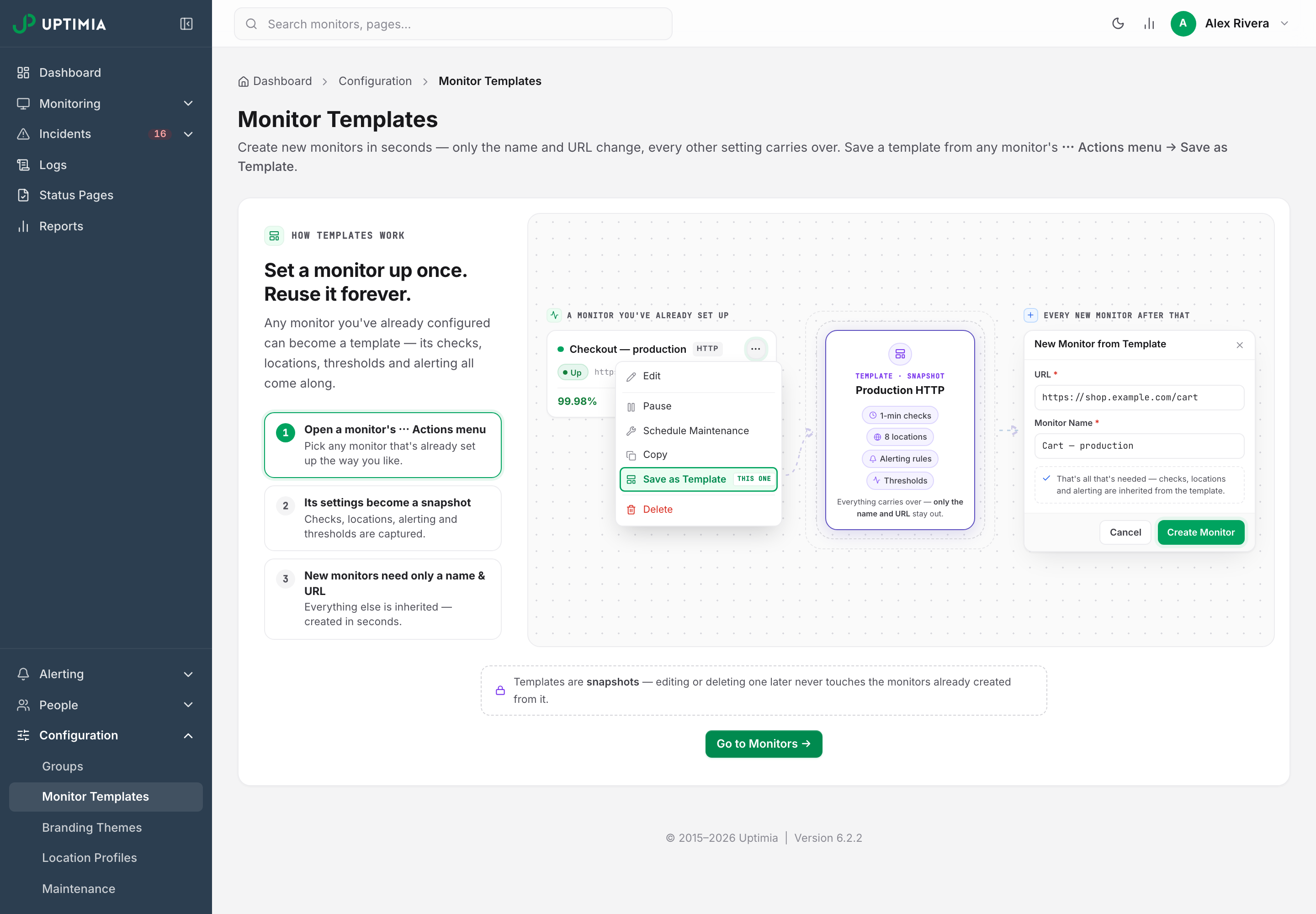
Uses is cumulative and never goes down. Deleting a monitor made from a template does not decrement it.
Rename opens Edit Template, where you can change Template Name and Description. Those two fields are all you can change. A template's settings are fixed at the moment you save it. To change what a template produces, save a new template from a monitor that already carries the configuration you want, then delete the old one.
Delete removes the template only. Monitors created from it keep running, unchanged.
Uptimia records creating, renaming and deleting a template in People → Audit Log as a Template entry. Using a template is not logged on its own. The monitor it creates is.
Templates Are Snapshots
- Editing the source monitor after you save does not update the template.
- Editing or deleting the template does not touch monitors already created from it.
- There is no live link between a template and its monitors, in either direction.
A location profile behaves differently: editing a saved profile's probe set rewrites the matching monitors. To push a probe-set change into monitors that already exist, put them on a location profile rather than a template.
Passwords and Secret Variables Are Never Copied
Uptimia masks the HTTP Basic Auth password and API-monitor secret variable values, so neither one can enter a template. Nothing else is masked. The template stores a token you typed into a custom request header or into the request body exactly as you typed it.
- Uptime with HTTP Basic Auth: the template stores the username, not the password. Uptimia creates the new monitor without a password.
- API monitors with secret variables: the variables exist on the new monitor, with empty values.
When either applies, the New Monitor from Template modal shows an amber note telling you what to re-enter. Open the new monitor's editor and set the secret before the first check runs, or the check will fail on authentication.
Which Monitor Types Can Be Templated
Ten of the twelve families:
| Can be templated | Cannot be templated |
|---|---|
| Uptime (all protocols), SSL, Speed, Domain, Virus, Real User, Heartbeat, Blacklist, DNS, API | Server, Transaction |
You create a Server monitor by installing an agent on the host, so there is no saved configuration to reuse. A Transaction monitor carries its destination inside the recorded steps rather than in a target field, so a template could only copy the source monitor's URL under a new name. Neither type shows the Save as Template item at all.
What Is Still Checked When You Use a Template
Creating from a template goes through the same validation as the monitor editor, so every create-time rule applies unchanged:
| Rule | What you see when it fails |
|---|---|
| Plan quota for that family | You have exceeded the maximum number of monitored sites (uptime, SSL, Speed, Real User). Domain says monitored domain names and Virus monitored URLs; Heartbeat, Blacklist, DNS and API say You have reached the maximum number of heartbeat / blacklist / DNS / API monitors for your plan |
| Duplicate monitor name within that monitor family (uptime, SSL, Speed, Domain, Virus, Real User) | You already use this site name. Please choose another one. API monitors report the clash as a name field error; Heartbeat, Blacklist and DNS allow duplicate names |
| Target URL is on Uptimia's blocked-domain list | Please enter a valid site URL (uptime, Speed, Real User) or The URL is blacklisted or invalid. (SSL, Domain, Virus) |
| Email address not verified (uptime, SSL, Speed, Domain, Virus, Real User) | Please verify your email address. |
| Custom probe selection below the 6-probe minimum | The create is refused. The template's probe set is fixed, so save a new template from a monitor that uses at least 6 probes |
| At least one alert recipient | The create is refused. A template with no recipients cannot produce a monitor |
A failed create leaves the template untouched. Fix the cause and click Create Monitor again.
Templates, Bulk Creation and Copy
| Use | When |
|---|---|
| Monitor Template | You add similar monitors one at a time, across any of the ten families, and you want interval, locations, recipients, escalation policy, groups and branding to come with them |
| Bulk Operations | You have a list of URLs to create in one batch, of one type, with one shared set of settings. Uptime, SSL, Domain, Speed and Virus only |
| Copy | You want a second monitor exactly like this one, in the same account, right now. Copy is offered for uptime monitors only |
For an agency onboarding client sites, use one template per client profile plus a group per client. Running Uptimia for Many Client Sites describes that structure.
Who Can Create and Use Templates
Only Owner, Admin and Editor seats can save, use, rename and delete a template.
An Editor limited to specific monitor groups sees only the templates whose source monitor is inside their scope. Uptimia hides the rest. A template's settings expose the source monitor's target URL, headers and request body. When a scoped Editor creates a monitor from a template, Uptimia leaves out any of the template's groups that fall outside that scope, and the new monitor lands in the Editor's own groups.