
A team is a named group of the people on your account. A monitor, a scheduled report or an escalation step can alert that team as a single recipient, and when the alert fires the team expands to every member's contacts. That resolution happens fresh each time. Add someone to the team and the next incident pages them, with no monitor edited. What each person is allowed to do in the account is separate: that is their role, covered in User Roles and Permissions.
Before You Start
- Teams live under People → Teams. Every role except Accounting / Billing can open the page; creating, editing and deleting a team needs Owner, Admin or Editor. A Read-only member sees the cards without the create and edit controls, and any change they try to send anyway is refused with
Your role doesn't allow managing teams — ask the account owner or an Admin. - Every member you plan to add needs at least one contact. A member with none is in the team and reaches nobody.
- Accounting / Billing seats cannot join a team: they never receive monitor alerts. See The Accounting and Billing Seat.
What a Team Is
A team is an alerting object. It groups people so a recipient list can name one entry instead of five. At alert time Uptimia reads the roster as it stands then, not the one you saved with the monitor.
| A team does | A team does not |
|---|---|
| Group members into one selectable recipient | Grant or remove any permission |
| Expand to every member's contacts when an alert fires | Own contacts of its own |
| Optionally impose one shared alerting schedule on its members | Change a member's personal schedule for alerts sent to them directly |
| Appear as a recipient on monitors, scheduled reports and escalation-policy steps | Limit which monitors a member can see |
Two other mechanisms decide access: the five roles, and monitor-group scoping for Editor and Read-only members. Neither runs through teams. See Limiting a Member to Monitor Groups.
Teams are not metered by your plan: create as many as you need. Team member seats are metered. The Team Members page shows a seat meter reading N of M seats with the note Billing seats are free. Adding seats is covered in Inviting Team Members.
Creating a Team
- Go to People → Teams.
- Click + Create team, or the dashed Create a team card at the end of the grid.
- Enter a Team name. Saving without one shows
Give the team a name. - In Members, click each person who belongs to the team. Each row shows their contact count, or a no contacts flag if they have none. Saving with nobody selected shows
A team needs at least one member. - Under Alerting schedule, choose Use members' personal schedules or Override with a team schedule.
- Click Create team.
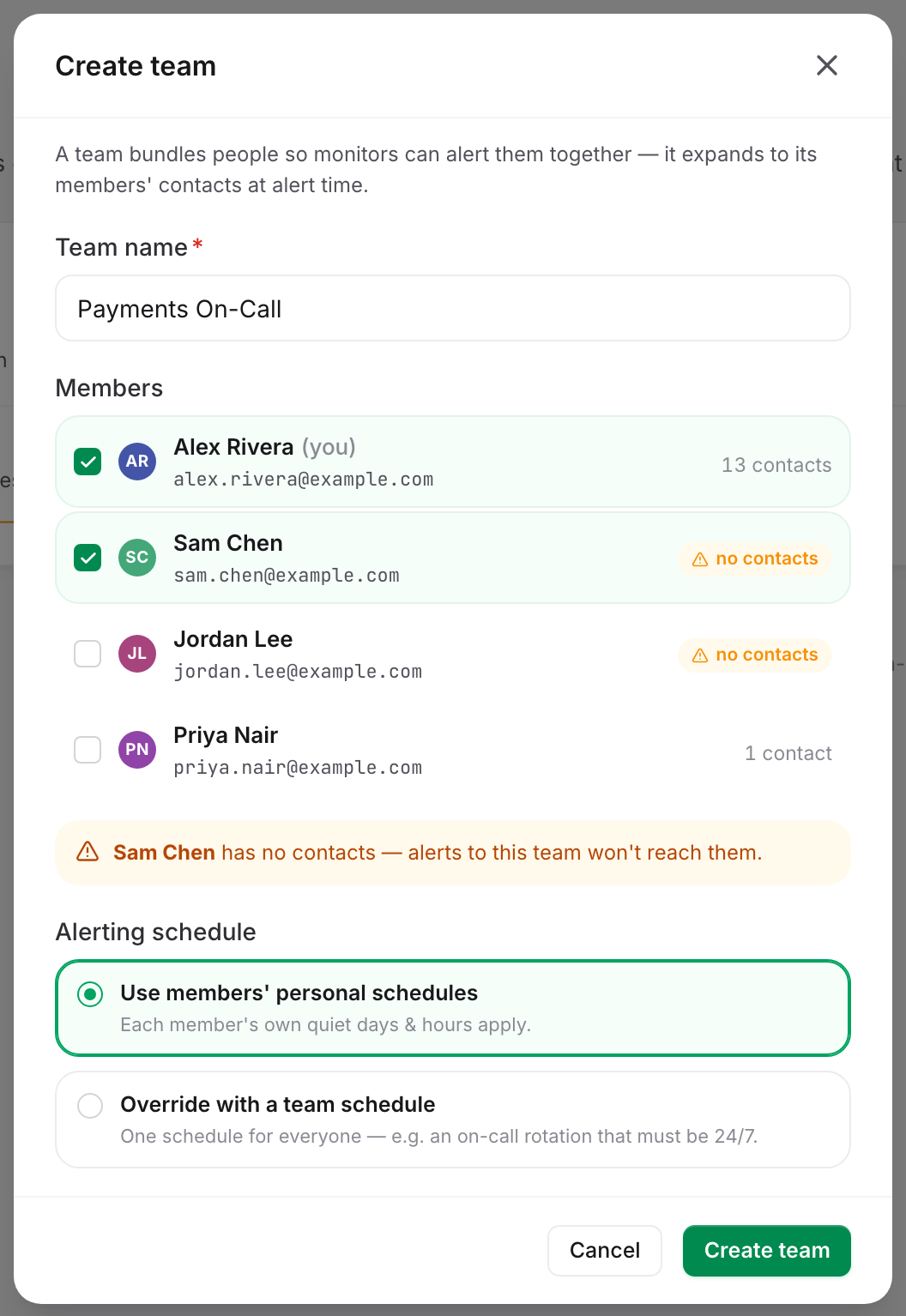
The account owner appears in the member list like anyone else, tagged (you). The tag always sits on the account owner's row, no matter who is signed in. Accounting / Billing seats are missing from the list entirely, so you cannot add one to a team. The check runs on save too. A save that names one is rejected.
If any selected member has no contacts, the modal shows a warning naming them: "…has no contacts — alerts to this team won't reach them." Fix it by adding a contact for that person. Owners and Admins can do it from the member's row on People → Users; Editors, who cannot open that page, add it on Alerting → Contacts and set Belongs to to that member. See Contacts and Alerting.
Choosing the Team's Alerting Schedule
| Option | On-screen description | Effect |
|---|---|---|
| Use members' personal schedules | "Each member's own quiet days & hours apply." | The team stores no schedule. Uptimia evaluates each member against their own days, hours and time zone. |
| Override with a team schedule | "One schedule for everyone — e.g. an on-call rotation that must be 24/7." | Uptimia evaluates every member against the team's days and hours instead of their own, for alerts routed through this team. |
Switching back to personal schedules clears the team's stored days and window.
The Day Pills Mark the Days Alerts Are Sent
The override editor's heading is Alert on these days, and the seven pills work positively: a highlighted day is a day the team is alerted, and a grayed-out day is a day it stays silent. Turning a pill off silences that day.
Warning: this is the opposite of what the old documentation said. If you followed the previous instructions and selected the days you wanted silenced, your teams are currently alerting only on those days. Open each team and check the pill colors.
Turning off all seven days means the team is never alerted, on any monitor.
Restricting the Hours
Set Only alert during specific hours to on to add a window. It opens at 09:00–18:00 and both selectors run on the hour, 00:00 to 23:00.
| Window | Meaning |
|---|---|
08:00 to 22:00 |
Alerts are sent between 08:00 and 22:00 |
22:00 to 06:00 |
A legal overnight window, running through midnight |
09:00 to 00:00 |
Runs from 09:00 until midnight |
| Same hour on both sides | Rejected. Alert hours: "from" and "to" can't be the same hour |
Under the controls, the editor prints the resulting rule in words, for example "Alerts are held on Sat & Sun and outside 08:00–22:00, and delivered when the window opens." Nothing is discarded. An alert that arrives outside the window is held and delivered when the window opens. The full behavior of windows, held alerts and days is in Alerting Schedules, Quiet Hours and Time Zones.
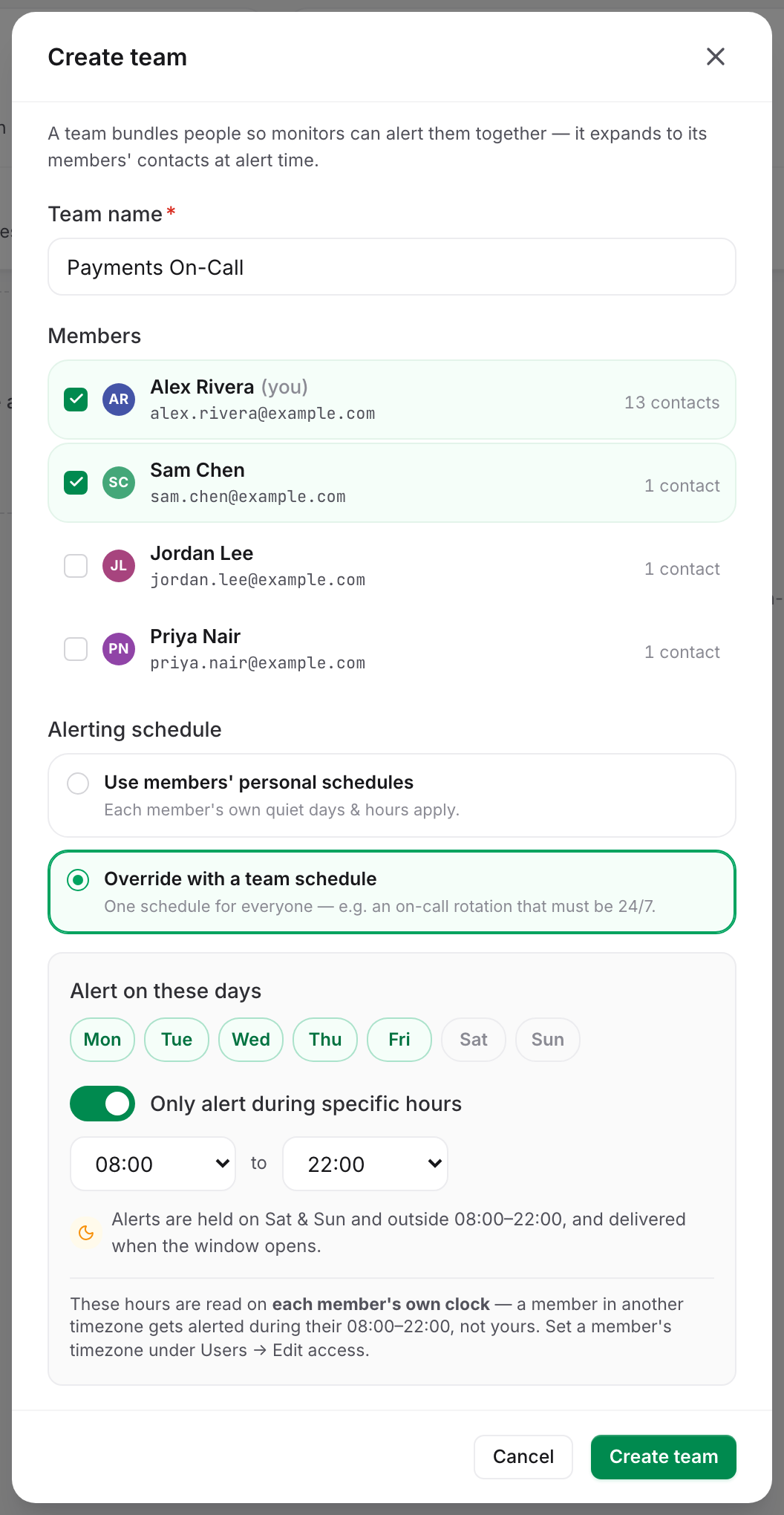
A Team Window Is Read on Each Member's Own Clock
A team override has no time zone of its own. Uptimia evaluates the window per member, in that member's own time zone, and the editor says so: a 09:00–17:00 team window means each member's local 09:00 to 17:00, not the account owner's.
Set a member's time zone with their alerting schedule on People → Users → the member's row → Edit access & profile. The picker appears once a time window is set, and defaults to Same as the account time zone. The account owner's own alert hours follow the account time zone, set under Settings.
Reading the Teams Page
The Teams page is a grid of cards, one per team, plus a dashed Create a team card. With no teams saved, a three-step explainer replaces the grid.
| Card line | What it means |
|---|---|
Team name and N members |
The roster size, counting every member including pending invites |
| Avatar stack and names | Who is in the team |
| Alerts N monitors / All monitors | Monitors that name this team as a recipient, counted across all 12 monitor families |
| Not assigned to any monitor | The team exists but nothing alerts it. Attach it to a monitor, report or escalation step |
| Members' personal schedules | No override; each member's own days and hours apply |
Team override: followed by a summary such as Mon–Fri · 08:00–22:00 or 24/7 |
The shared window in force for this team |
| Orange line naming members who "has no contacts — won't receive alerts" | Those members are in the roster but reach nobody. Add a contact for each named person |
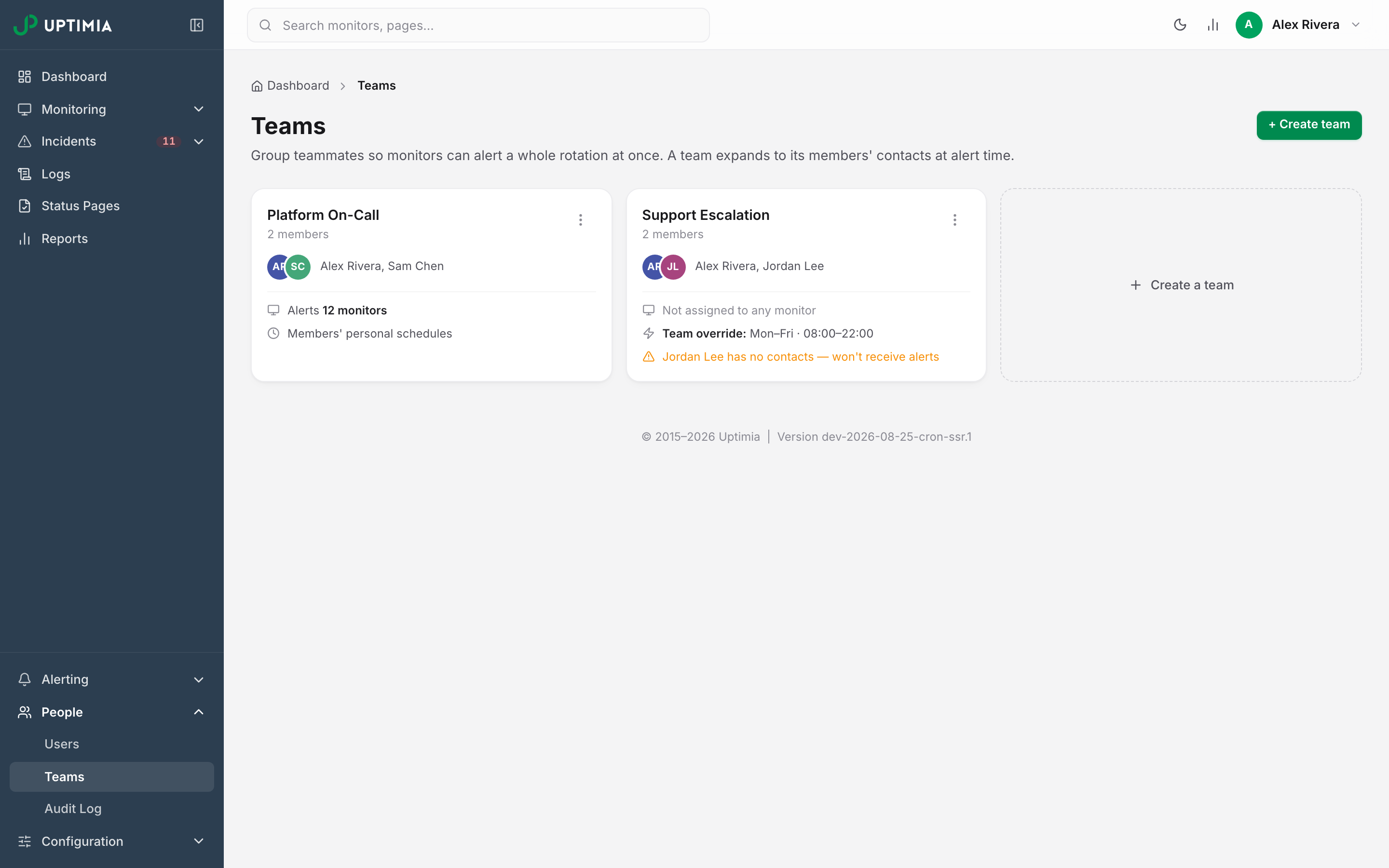
Click a card to open the editor. The card's kebab menu offers Edit team and Delete team.
Alerting a Team from a Monitor
- Open the monitor and scroll to its Alerting card.
- If the card shows an All at once | Escalate over time control, choose All at once. While a monitor runs on an escalation policy, the policy preview replaces the recipients picker.
- In the left pane of the recipients picker, find the Teams group.
- Click the team. It fills in as one entry, and the right pane lists the individual addresses it resolves to right now.
- Save the monitor.
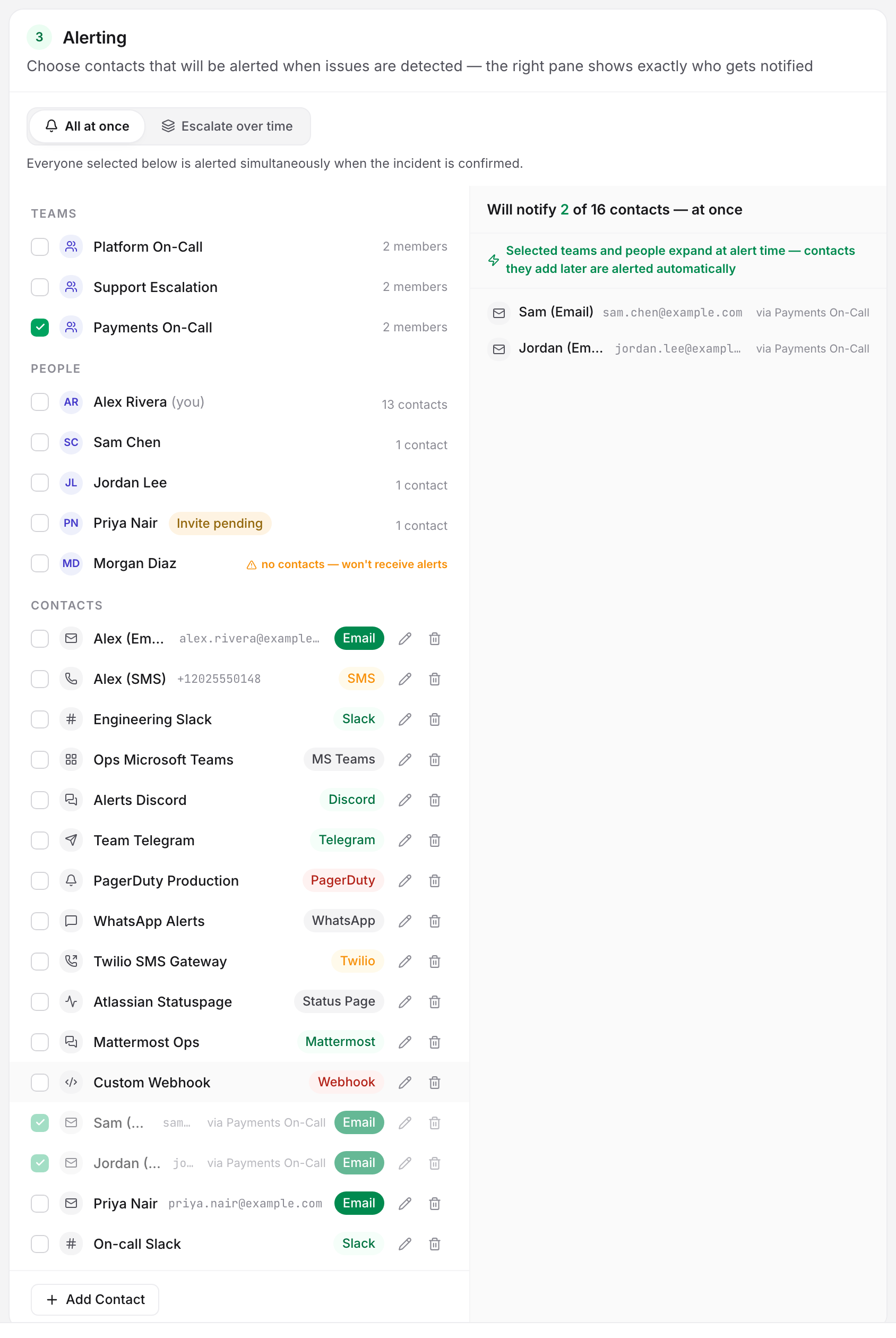
The picker states the consequence above the resolved list: "Selected teams and people expand at alert time — contacts they add later are alerted automatically."
You can also select a team as a recipient on a scheduled report and on each step of an escalation policy. A team pages everyone in it at the same moment. For an on-call rotation that has to page one person first and pull in more people as the incident runs, use an escalation policy.
How a Team Resolves When an Alert Fires
Uptimia expands the team at the moment the alert is produced:
- Each member is resolved to the contacts they own. A member with none contributes nothing.
- Each contact's send time comes from the team override if one is set, otherwise from that member's personal schedule, read in that member's time zone.
- Pending invites are alerted. A seat that was invited but never activated is a real target. Its contacts deliver like anyone else's, and it counts in the team's member total. Deselect the person if you do not want them paged before they accept.
- Teams are resolved before individually picked people. If someone is reached both through a team and as an individual recipient on the same monitor, the team's schedule applies.
- One destination gets one alert. Two contacts pointing at the same address or the same integration profile collapse into a single message.
The full recipient-resolution rules, including the three reasons a selected contact will not deliver, are in Who Gets Alerted.
Editing and Deleting a Team
Open a team card and change the name, the roster or the schedule, then click Save changes. A roster change takes effect on the next alert. No monitor needs editing.
Deleting is destructive. The confirmation modal states it: "Monitors that alert this team lose those recipients. The members themselves keep their accounts." After you confirm, a toast offers Undo for 6 seconds; the deletion is held until that window closes.
Warning: deleting a team removes it from every monitor's recipient list, from scheduled reports and from every escalation-policy step that named it. A monitor whose only recipient was that team is left alerting nobody. Re-open those monitors and pick new recipients.
Removing a person from the account works the same way: Uptimia strips them from every team's member list and deletes their contacts with them.