
Uptimia stores what you tick on a monitor as a selection, then resolves that selection into a list of destinations at the moment an alert fires. Duplicates collapse. Uptimia drops the recipients it is blocked from sending to. To create and manage the contacts themselves, see Contacts and Alerting.
Picking Recipients: The Two-Pane Panel
You choose recipients in the Alerting card at the bottom of the monitor editor's Main tab. The card holds a two-pane panel.
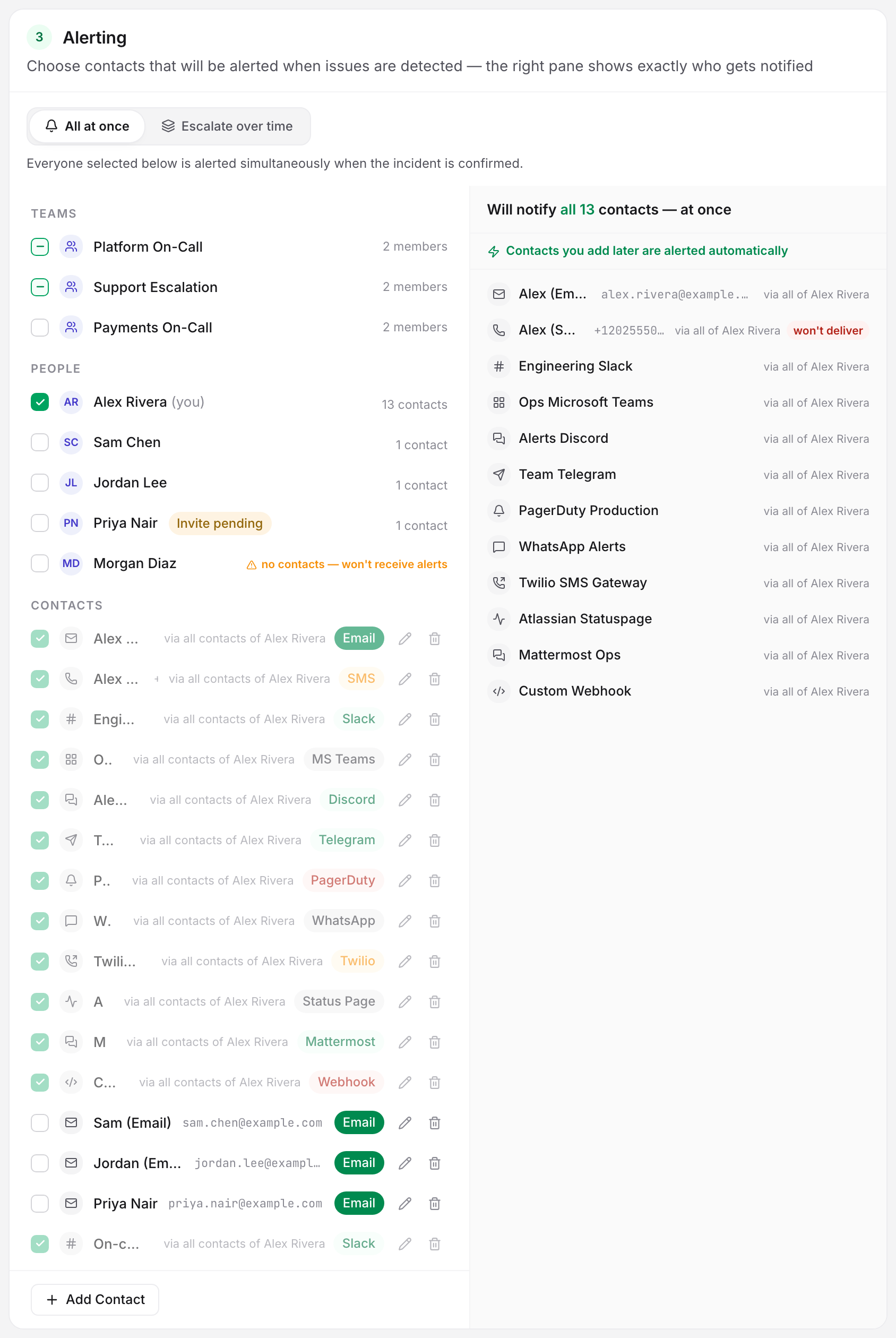
The left pane is the picker. On a single-user account it is an All my contacts row followed by one row per contact, while an account with more than one member gets up to three groups: Teams, People and Contacts. Teams appears once the account has at least one team. Picking a team or a person grays out the individual contacts they already cover, with a via <name> note on the row.
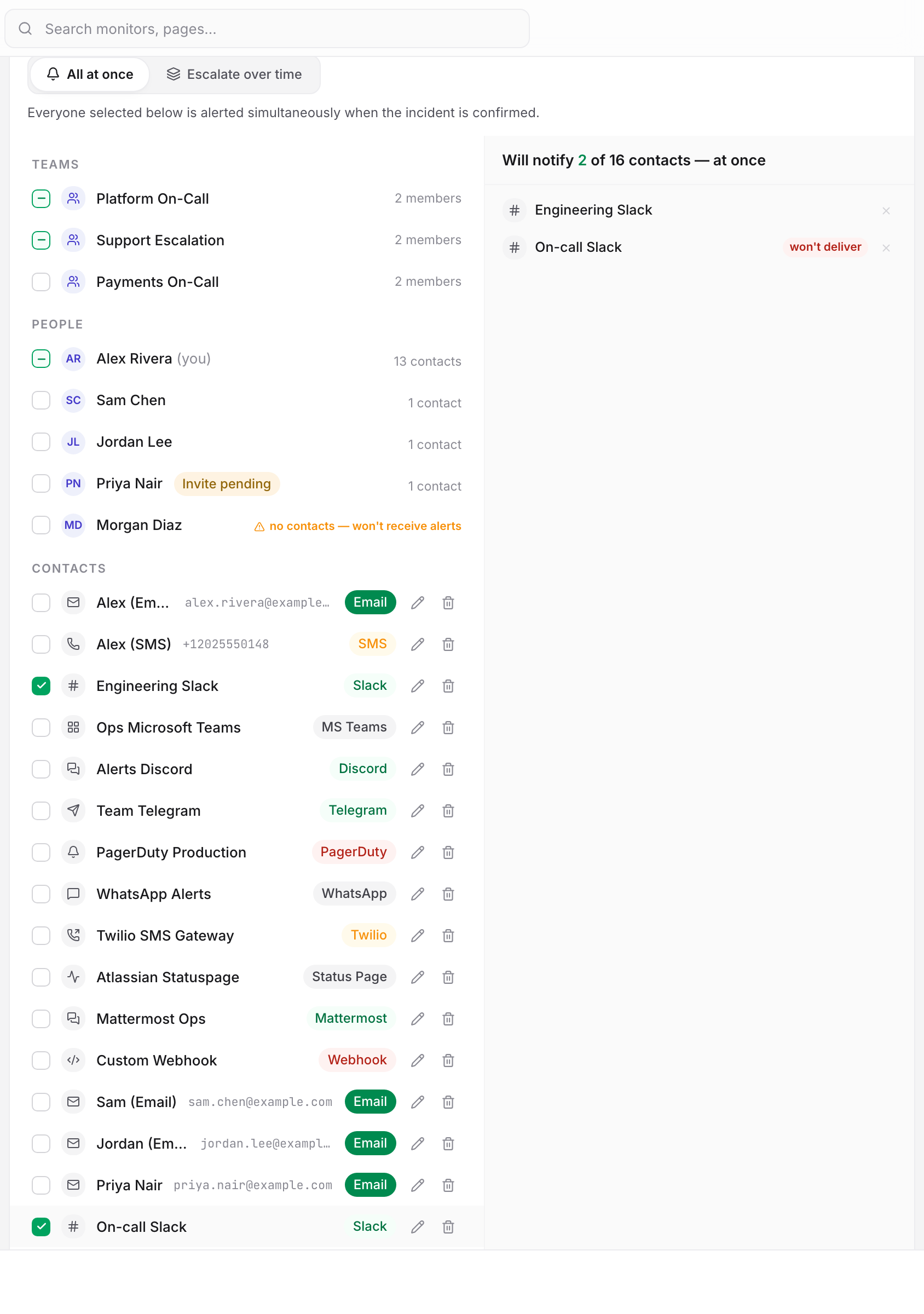
The right pane is the resolved list. It names the endpoints Uptimia will notify, and its header reads Will notify 2 of 3 contacts — at once. With the auto-include row on it reads Will notify all 4 contacts — at once. Rows that will not produce an alert carry a red won't deliver badge, and when your account has an account-wide alerting schedule, the pane closes with a footnote about it.
The editor's summary rail states the same thing in one line: Alerts 2 of 3 contacts after 5 min · 1 won't deliver · recovery alert on.
What Each Selection Expands To
| Selection | Expands to | Picks up new contacts later |
|---|---|---|
All my contacts (current & future) |
Every contact owned by the account owner | Yes |
| A team row | Every contact owned by every member of that team | Yes |
| A person row | Every contact owned by that person | Yes |
| An individual contact row | That one contact | No |
Only the first three are group selections. Pick one and the right pane shows a strip. It reads Contacts you add later are alerted automatically, or Selected teams and people expand at alert time — contacts they add later are alerted automatically.
Ticking every contact one at a time freezes the list at today's contacts. All my contacts keeps growing. On a single-user account the panel says so in a strip reading All 4 picked individually — contacts you add later will not be alerted, and the strip offers a Switch to auto-include button that converts the selection in place. An account with more than one member gets no such strip: ticking your own name under People is the same auto-include selection.
A person you select who owns no contacts stays in the list. Their row reads no contacts — won't receive alerts, and the resolved pane repeats it as a warning naming them.
Recipients Are Resolved When the Alert Fires
Uptimia stores your selection, not the list it produces, and expands teams, people and the All my contacts row at alert time, on every alert. Add an SMS contact to a team member this afternoon, and every monitor that selects that person or their team pages the new number tonight. No monitor needs editing.
Escalation policies work the same way. Uptimia resolves a policy step's recipients when that step fires, not when you save the policy. See Escalation Policies.
Duplicate Destinations Collapse
Uptimia collapses rows that point at the same place. Two selections that resolve to the same destination produce one message, not two.
The identity Uptimia collapses on is the channel plus the destination:
| Contact shape | What counts as the destination | Result |
|---|---|---|
| A contact that stores its own value (every Email and SMS contact) | The channel plus that value | Two email contacts on ops@example.com are one email |
| A contact backed by an integration profile, with no value of its own | The channel plus the integration profile | Two Slack contacts on the same Slack integration are one Slack message |
| An integration-backed contact with no profile attached | The contact itself | Never collapses |
Two contacts on one Slack integration are one message; two contacts on two different Slack integrations are two. The same-integration pair is reachable. Uptimia blocks duplicate addresses at creation time for email and SMS only, and the collapse stops that pair posting the same message twice on every incident, on every escalation step, and again on recovery.
Uptimia keeps one row of each channel-plus-destination group and drops the rest. Do not rely on which row survives: if it matters which contact is credited, point them at different destinations.
Why a Row Says "Won't Deliver"
One badge, three causes. Hover it in the panel and the tooltip names which one applies.
| Reason | What it means | What to do |
|---|---|---|
| Unconfirmed | The contact is not confirmed, so its alerts are dropped without being sent. | Verify it on the Contacts page. Contacts created today are confirmed on save, so this is almost always an older SMS contact whose code was never entered. |
| Opted out | The recipient used the unsubscribe link in an alert email. Every alert to that address is dropped, on every monitor and on every contact row of the account that carries it. The opt-out does not touch the same person's SMS or integration contacts. | Delete the contact and create it again. The opt-out cannot be cleared from the control panel. |
| Duplicate | Another selected contact already covers this exact channel and destination. One alert is sent, to that one. | Nothing, unless the collapse is a surprise. Then check whether two contacts share an integration profile |
Deliverability warnings never block saving. A monitor whose whole recipient list is unconfirmed or opted out saves normally, keeps checking, and records incidents. It pages nobody. The right pane and the summary rail are the only places that say so before the outage does.
How a Recipient Opts Out, and How to Put Them Back
Every alert email carries a footer link reading Do not send alerts to this e-mail address. Opening it shows a confirmation page. Confirming it sets the opt-out on every contact row of that account carrying that address.
That opt-out covers alert email to one address. It has nothing to do with the marketing unsubscribe, and it leaves everything else in place. The contact stays selected on every monitor, stays confirmed, and keeps appearing in every recipient list. The alerts stop, and this is the state behind "the contact is right there in the list and they get nothing".
Warning: the opt-out cannot be cleared from the control panel. To restore alerting to that address, delete the contact and create it again. A new contact row starts un-suppressed. Confirm with the recipient first; they clicked the link on purpose.
The opt-out applies to alerts only. Scheduled report delivery ignores it, which is why the badge does not appear when you use the same panel to pick report recipients.
Members With a Pending Invite Are Alertable
A seat that was invited but never activated shows an Invite pending chip in the picker. The chip labels the row and leaves it selectable. That person's contacts resolve and deliver like anyone else's, so selecting their team or their name pages them tonight whether or not they have ever signed in.
If you don't want that, de-select them.
Every Monitor Needs at Least One Recipient
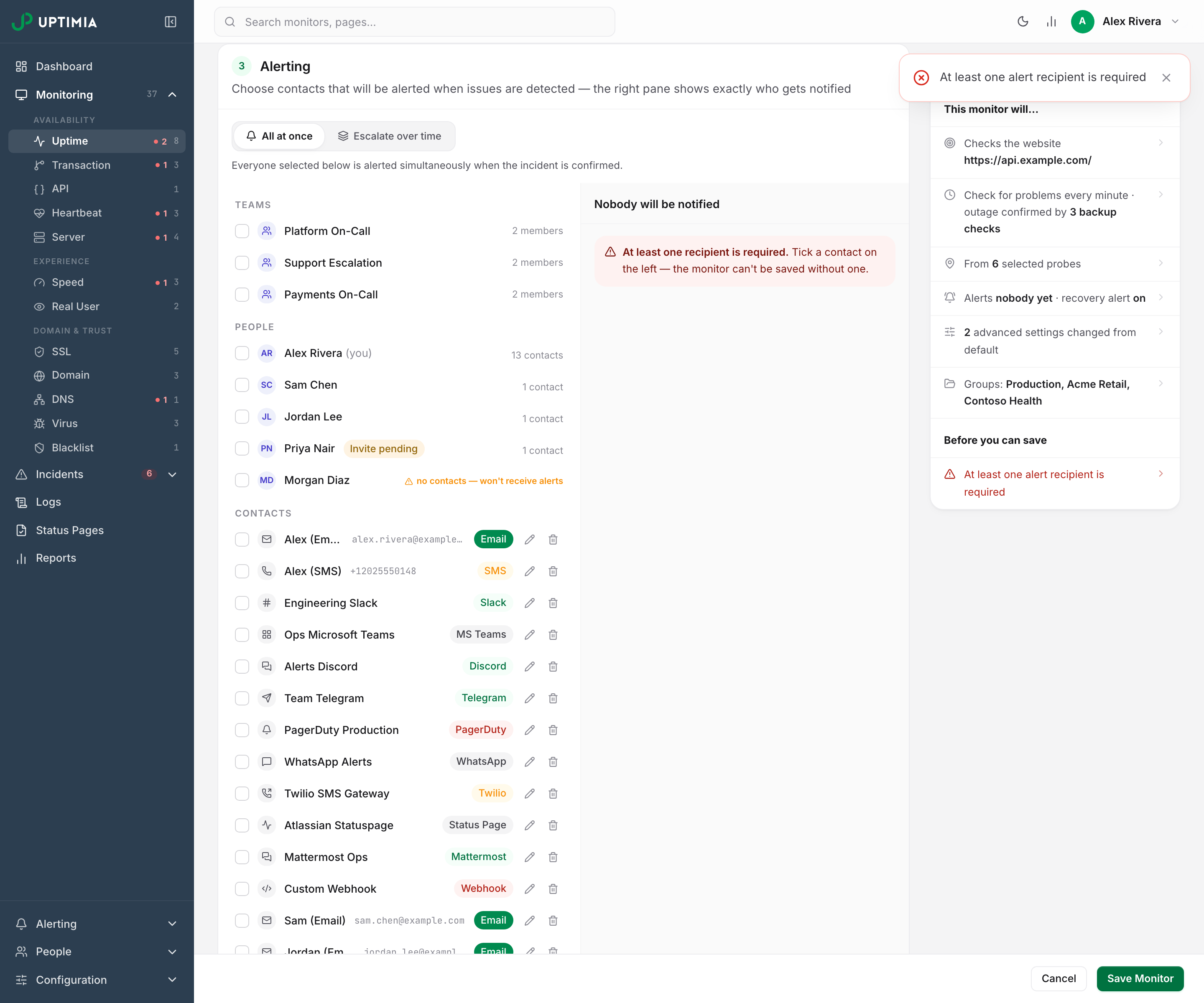
The editor refuses to save a monitor with an empty recipient list, and shows At least one alert recipient is required.
A selection that resolves to zero contacts is blocked too, such as a group row that expands to nothing on an account with no contacts at all. The editor refuses that save with The selected recipients resolve to no contacts — add a contact first. This check runs in the editor only, so a monitor created from a script can be stored with a selection that reaches nobody, and that monitor pages nobody.
This holds in both alerting modes, including a monitor attached to an escalation policy.
What the Monitor's List Is For When Escalation Is On
Setting a monitor to Escalate over time replaces the recipients panel with a policy picker and a read-only preview of the ladder. The card's note says recipients come from the policy. That holds for the ordinary path, and a fallback path sits behind it.
While a monitor is set to Escalate over time, Uptimia pages the people named by the escalation policy, resolved the moment each step fires. They do not come from the monitor's own recipient list. That list stays required and stays live. Uptimia falls back to it when the grouping and escalation layers cannot take the incident, and if a whole ladder reaches nobody, Uptimia pages the account owner as a last resort. Keep the list populated.
Checking Your Coverage
The dashboard's amber No alert recipients panel answers "which monitors are silent": the ones with no contacts, no teams and no escalation policy. It cannot answer "will this monitor reach a person". A monitor whose one contact has opted out has a recipient and still pages nobody.
For that second question, open the monitor and read the right-hand pane, or run the drill in Testing Your Alerts, which also documents the panel.
Questions This Model Raises
"Only one person got the alert." Two of your selections resolved to the same destination and collapsed. Open the monitor's Alerting card and hover the won't deliver badge. The tooltip that names the duplicate reads Another selected contact already covers this exact channel and destination, and the usual cause is two contacts on one Slack, Discord or Teams integration profile. To page both people, point the second contact at a different integration profile, or at a different channel.
"This contact is selected but silent." It is unconfirmed, or it opted out, and the resolved pane shows both causes on the same badge. If neither applies, an alerting schedule may have held the alert rather than dropping it; see Alerting Schedules, Quiet Hours and Time Zones. It may also have failed in transit, covered in Alert Emails or SMS Not Arriving.