
The 7 steps below test your alerting without waiting for a real outage. Each one catches a different way an alert goes nowhere, from an unverified account email to an escalation step with no recipients. If an alert has already fired and nobody received it, Alert Emails or SMS Not Arriving is the article for that.
Before You Start
- Integrations live at Alerting → Integrations; only Owner and Admin seats reach them. Contacts, escalations and the previews page are open to Owner, Admin, Editor and Read-only seats alike.
- Sending a heartbeat test ping needs an Owner, Admin or Editor seat.
- Escalation policies, alert grouping and acknowledgment require the Professional plan or above. The trial clears that gate.
Step 1: Verify Your Account Email
While the account email is unverified, Uptimia delivers nothing: no email, no SMS, no Slack message, no webhook. The delivery queue checks verification first. It deletes every queued notification that fails that check, with no retry, no bounce and no error anywhere in the interface.
An amber banner sits across the top of the control panel while the address is unconfirmed, reading Verify your email to receive alerts. followed by "Alert notifications are paused until you confirm" and the account's own address. Click Resend verification email. Open the link it sends. Uptimia allows 3 sends an hour; a fourth attempt answers "Please wait a moment before requesting another email."
Only the account owner sees the banner, because verification lives on the owner account, but the block is account-wide: until it clears, nobody can create an Uptime, SSL, Domain, Speed, Virus or Real User monitor.
Step 2: Find Monitors That Would Alert Nobody
Open the Dashboard. If any monitor has no contacts, no teams and no escalation policy, an amber panel headed No alert recipients — N monitors lists every one, and you cannot dismiss it; the panel clears when each listed monitor has at least one recipient. A silent monitor that is down right now sorts to the top with a Down now, nobody told badge.
Each row's Assign contacts button opens that monitor's editor at its Alerting card. The same state drives a No recipients filter chip and a No recipients badge on the monitor card.
The panel counts the recipients you selected, deliverable or otherwise. A monitor whose only contact is unconfirmed stays off this list; Step 3 catches that one. When a policy is attached, the count comes from the policy's steps rather than the monitor's own list.
Step 3: Read the "Won't Deliver" Badges
Open a monitor's editor and scroll to the Alerting card. The right pane resolves your selection into the endpoints that would be paged, under the heading Will notify N of M contacts — at once. Any row the delivery queue would drop carries a red won't deliver badge. Hover a badge to see which of the 3 reasons applies.
| Badge reason | What it means | What to do |
|---|---|---|
| Unconfirmed | The contact was never verified, so the delivery queue drops its alerts. Only older rows can be in this state: a contact you create or edit today is stored confirmed. | Confirm it on Alerting → Contacts. The Status column shows Unconfirmed, with a Verify action for SMS. |
| Opted out | Someone used the unsubscribe link in an alert email. The contact stays selected and is never delivered to. | The opt-out cannot be cleared from the control panel. Delete the contact and create it again (a new row starts un-suppressed), or select a different contact. See Who Gets Alerted. |
| Duplicate | Another selected contact already covers this channel and destination. One alert is sent, to that one. | Nothing; this one is informational. |
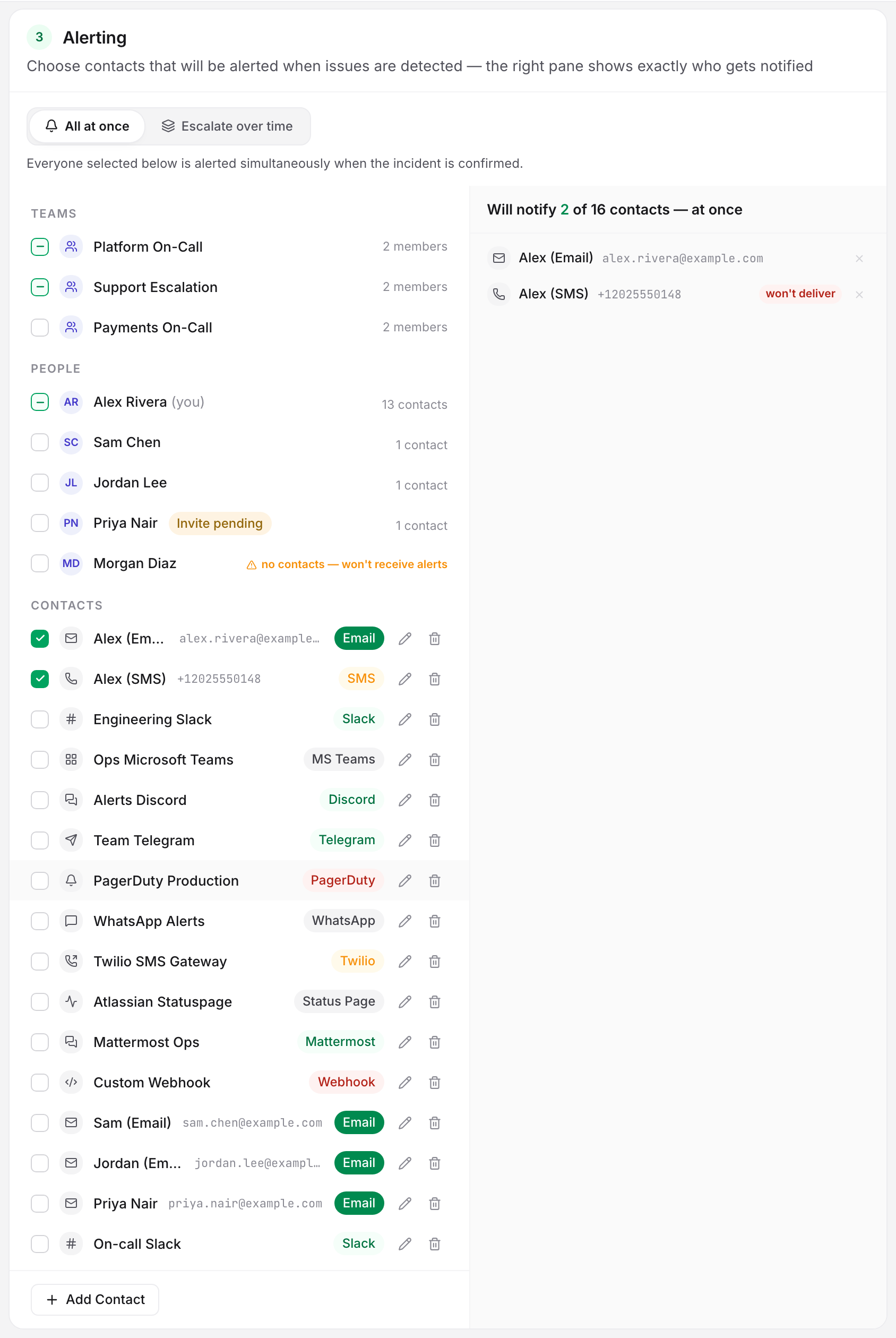
The editor's summary rail repeats the count in one line: "Alerts 2 of 3 contacts after 5 min · 1 won't deliver · recovery alert on". If it says nobody yet, Uptimia refuses to save the monitor until you pick at least one recipient. Who Gets Alerted explains how that resolved list is built.
Step 4: Test Each Integration
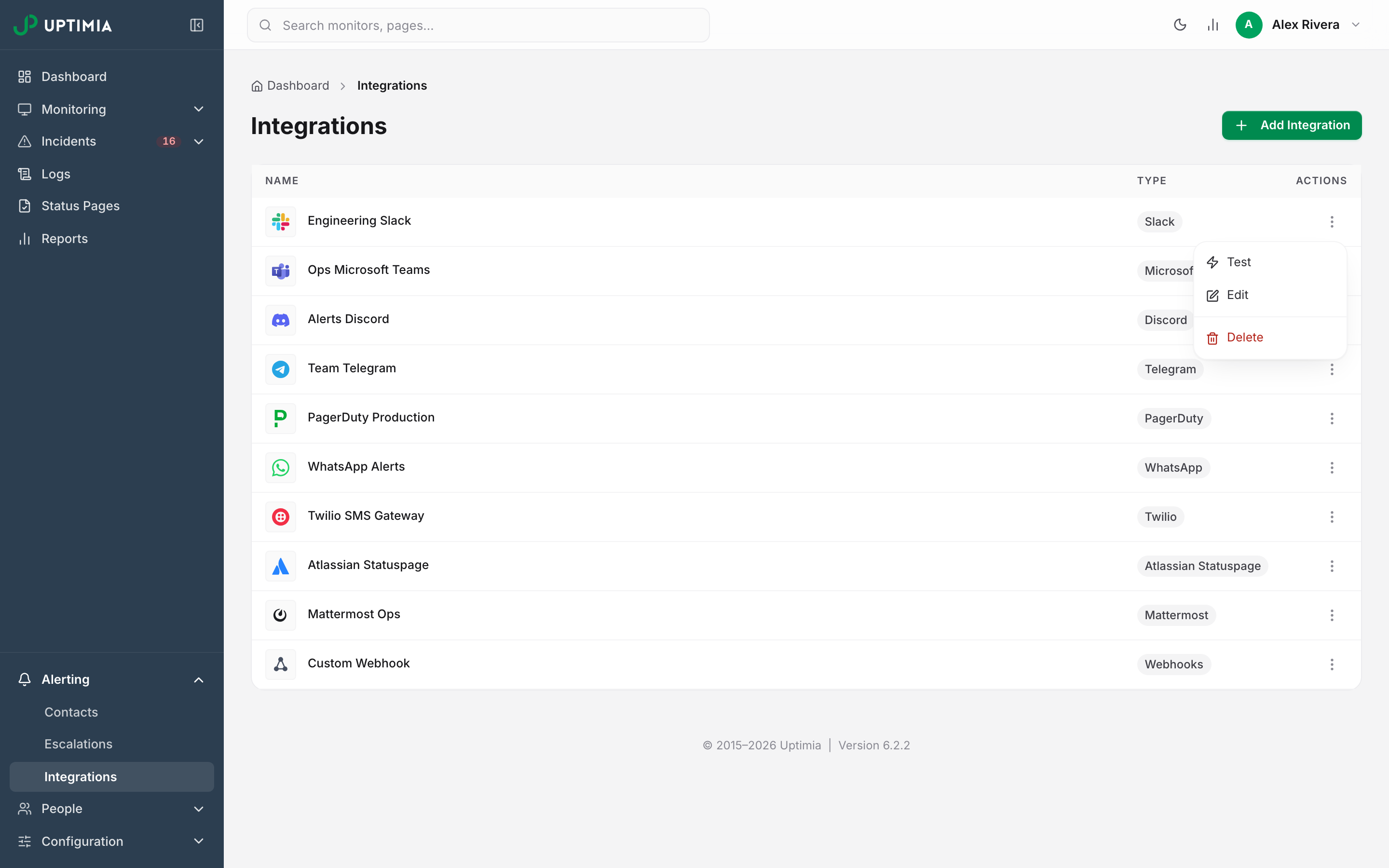
All 10 integration types can send a test: Slack, Discord, Telegram, Microsoft Teams, Mattermost, PagerDuty, Atlassian Statuspage, Twilio, WhatsApp and Webhook.
- Go to Alerting → Integrations.
- Open the row's actions menu and click Test. A success toast reads "Test notification sent successfully".
- Open the destination (the Slack channel, the phone, the receiver's log) and confirm the message arrived.
The toast says Uptimia dispatched the message; it doesn't read the channel's reply. Twilio is the exception: an invalid number fails the test and the toast reads "Test failed: invalid_phone_number". For every other type a dead webhook URL still produces the success toast.
The same Test button sits in the integration editor, grayed out while you have unsaved changes. The test uses the stored credentials, not the ones on screen: "Save your changes before sending a test notification".
The test bypasses the delivery queue. It goes out even while the account email is unverified, and even if no contact points at that integration. A passing test proves the credentials work and nothing more.
Step 5: Preview the Message Each Channel Sends
Go to Alerting → Escalations and click Alert previews in the page header. The page opens on What the alerts look like.
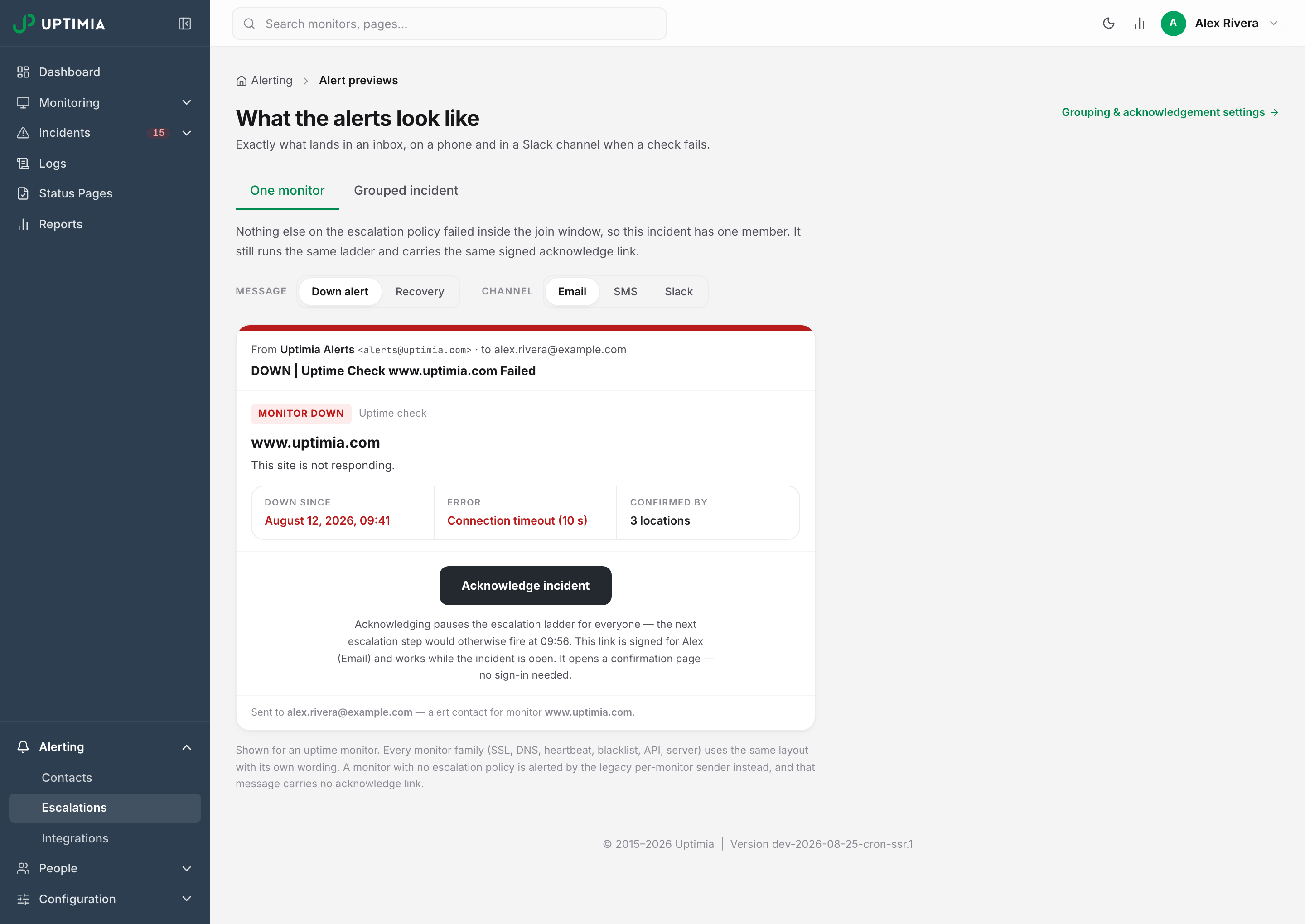
The incident shape comes from 2 tabs: One monitor or Grouped incident. Two segmented controls pick the Message and the Channel:
- Message, one monitor: Down alert, Recovery.
- Message, grouped incident: Down digest (the renamed down alert), Recovery, More joined.
- Channel: Email, SMS, Slack.
The preview shows the subject line, the three-fact strip, the acknowledge block and the SMS wording your runbook has to name.
The page renders sample content rather than your own monitors, and it sends nothing; read it as a reference to what a monitor with an escalation policy attached receives. A monitor with no policy gets the per-monitor message, which carries no acknowledge link.
Step 6: Send a Heartbeat Test Ping
A heartbeat monitor is the one family you can exercise from your own side.
- Open the heartbeat monitor and choose Ping setup from the Actions menu.
- Click Send a test ping. The toast reads "Test ping received — marked manual, schedule untouched."
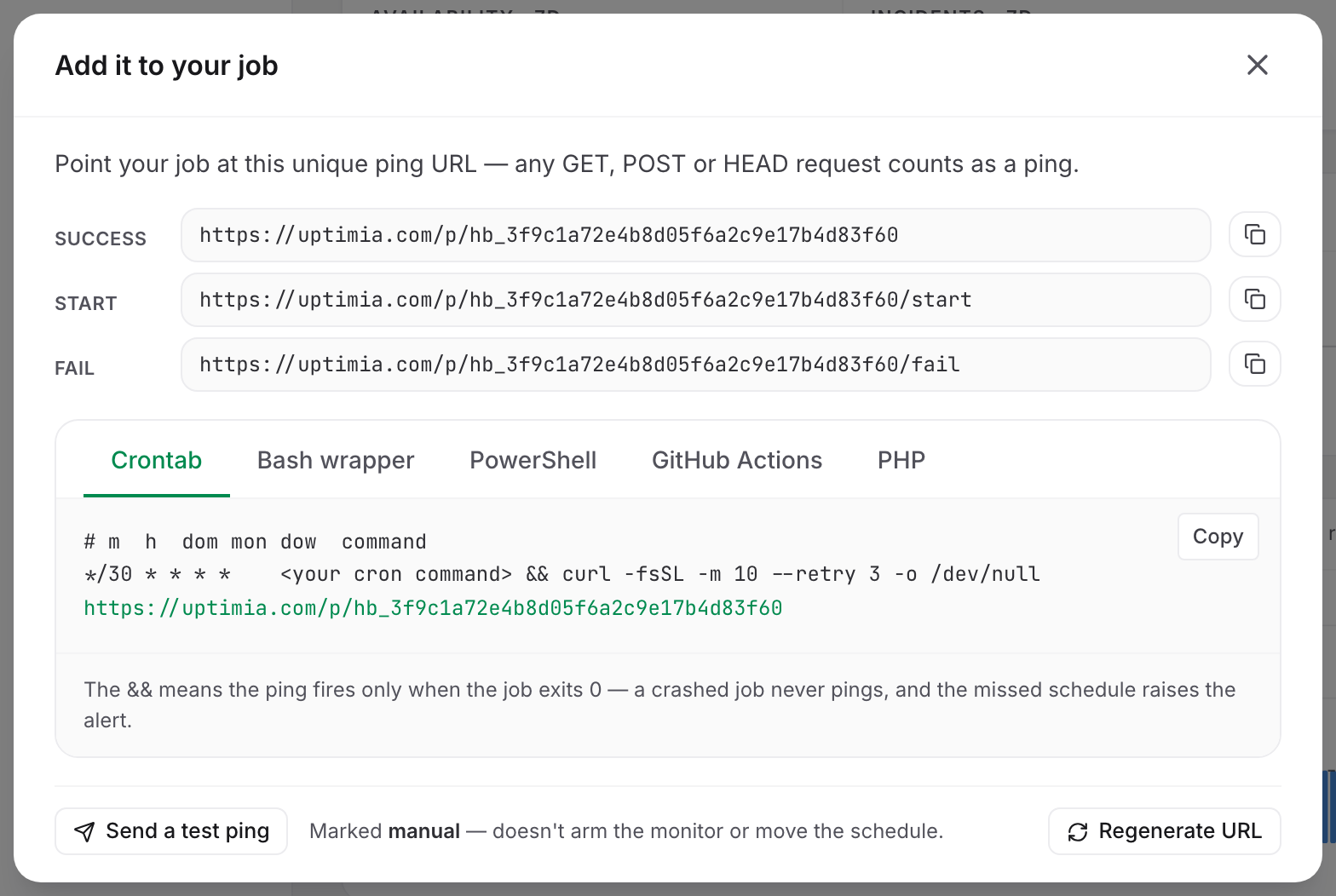
Uptimia records the ping with signal type manual and the user agent you · via dashboard. The ping shows in the ping log and the live feed, but it never arms the monitor and never moves the next expected ping, so a job that has stopped running is still caught. To prove your own cron reaches Uptimia, call the Success URL from the machine that runs the job. See Heartbeat Monitoring.
Step 7: Walk the Escalation Ladder
Open a policy at Alerting → Escalations. The sticky Dry run pane replays an example incident. It opens with "Incident confirmed" at t+0, then lists each step at its cumulative offset, with the contacts that step resolves to and the repeat rounds, and closes with "Monitor recovers — escalation stops". Hovering a step highlights its row.
Check the pane for:
- A step flagged in red with "Nobody is alerted at this step — it has no recipients".
- A selected person who owns no contacts.
- The footer total: "Escalates to 2 contacts across 2 people over 45 min, then repeats". Its warning suffix counts both unconfirmed contacts and selected people who own no contacts.
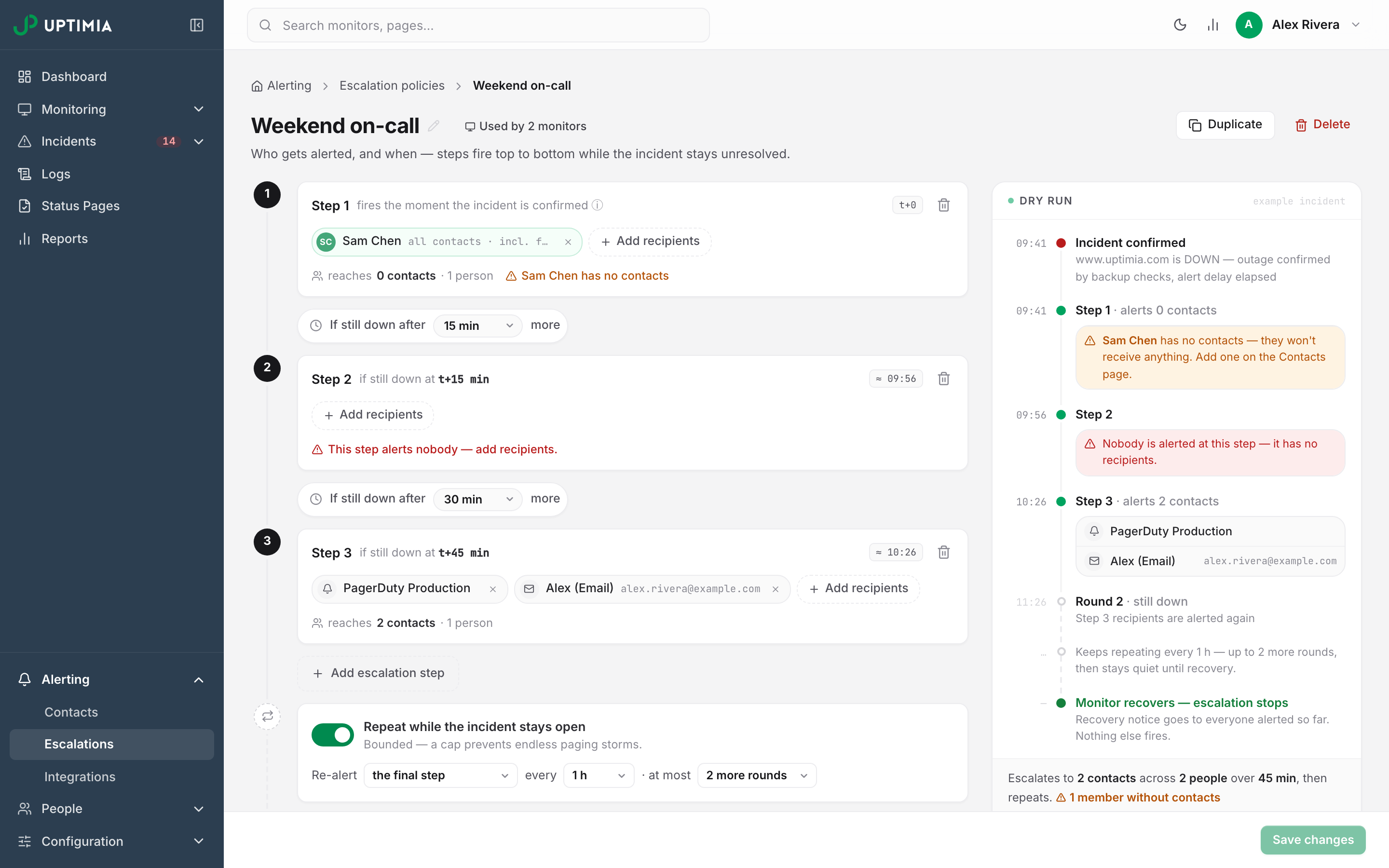
The same timeline appears read-only in the monitor editor's Alerting card once the mode is Escalate over time. There it is anchored to that monitor's alert delay: "t+0 = incident confirmed — after outage-confirmation checks and this monitor's alert delay (5 min, set above)". That timeline flags unconfirmed contacts only. Opted-out and duplicate rows show in the right pane from Step 3. Escalation Policies covers building the ladder.
Tests With Side Effects
Warning: Testing an Atlassian Statuspage integration posts a real incident on your public page, titled "Uptimia integration test", with the status Investigating, and if the integration carries a Component ID, the test also sets that component to Under maintenance. Nothing resolves them. Resolve the incident and restore the component in Statuspage by hand afterwards.
SMS confirmation codes draw on your SMS credit balance, the same pool alerts draw from, and Uptimia throttles each destination number to 1 code per minute and 5 per hour. At zero balance no code is sent. Verify a number once and leave it verified.
The Pre-Launch Checklist
- The account email is verified: no amber banner at the top of the control panel.
- The dashboard shows no No alert recipients panel and no No recipients chip.
- No monitor's Alerting card carries an unexplained won't deliver badge.
- Every integration was tested and the message was seen in the destination.
- Any Statuspage test incident is resolved and its component restored.
- Every escalation step in the Dry run reaches a real person.
- Each heartbeat monitor has received a real ping from its own job, beyond the manual test ping.