
Uptimia can drive the incidents on a status page you already run at Atlassian's hosted Statuspage service. When a monitor fails, Uptimia opens one Statuspage incident for it, updates that same incident as the situation changes, and sets it to resolved when the monitor recovers. If you want a status page hosted by Uptimia instead, no integration is needed. See Status Pages.
Before You Start
- An Atlassian Statuspage account and access to its API info page. Statuspage is a separate Atlassian product. Its free plan includes the API access this integration needs.
- An Uptimia seat that can manage integrations: the Owner or an Admin. Editor, Read-only and Accounting / Billing seats do not see the Integrations entry.
- A page you are willing to write to. Every step below, including the test, publishes to the live public page.
Atlassian Statuspage or Uptimia Status Pages
Two different products, and this integration only touches the first.
| Atlassian Statuspage | Uptimia Status Pages | |
|---|---|---|
| Who hosts it | Atlassian, on your Statuspage plan | Uptimia, on every plan including Free |
| How incidents appear | Uptimia posts them through this integration | Uptimia's own monitors drive the page directly |
| What you configure | An API key, a page ID and an optional component ID | Sections, monitor selection, branding, custom domain |
Use this integration when your public page already lives at Statuspage. With no Statuspage page of your own, build the page in Uptimia instead.
What You Need from Statuspage
| Field | Required | Where to find it |
|---|---|---|
| API Key | Yes | In Statuspage, click the user icon menu in the bottom-left corner and select API info. Copy the API key shown there. |
| Page ID | Yes | The same API info page. |
| Component ID | No | Go to Components, click Edit on the component you want Uptimia to drive, and copy the last segment of the page URL, for example kx8qx2y35lnl. |
Adding the Integration in Uptimia
- Go to Alerting → Integrations.
- Click Add Integration.
- Under 1. Select Integration Type, choose Atlassian Statuspage.
- In Integration Name, enter something that names the page, such as
Public Statuspage. - Paste your key into API Key and your page identifier into Page ID.
- Enter a Component ID if you want one component driven alongside the incident. Leave it empty otherwise.
- Click Save Integration. Uptimia creates the integration and a matching alert contact of type Status Page.
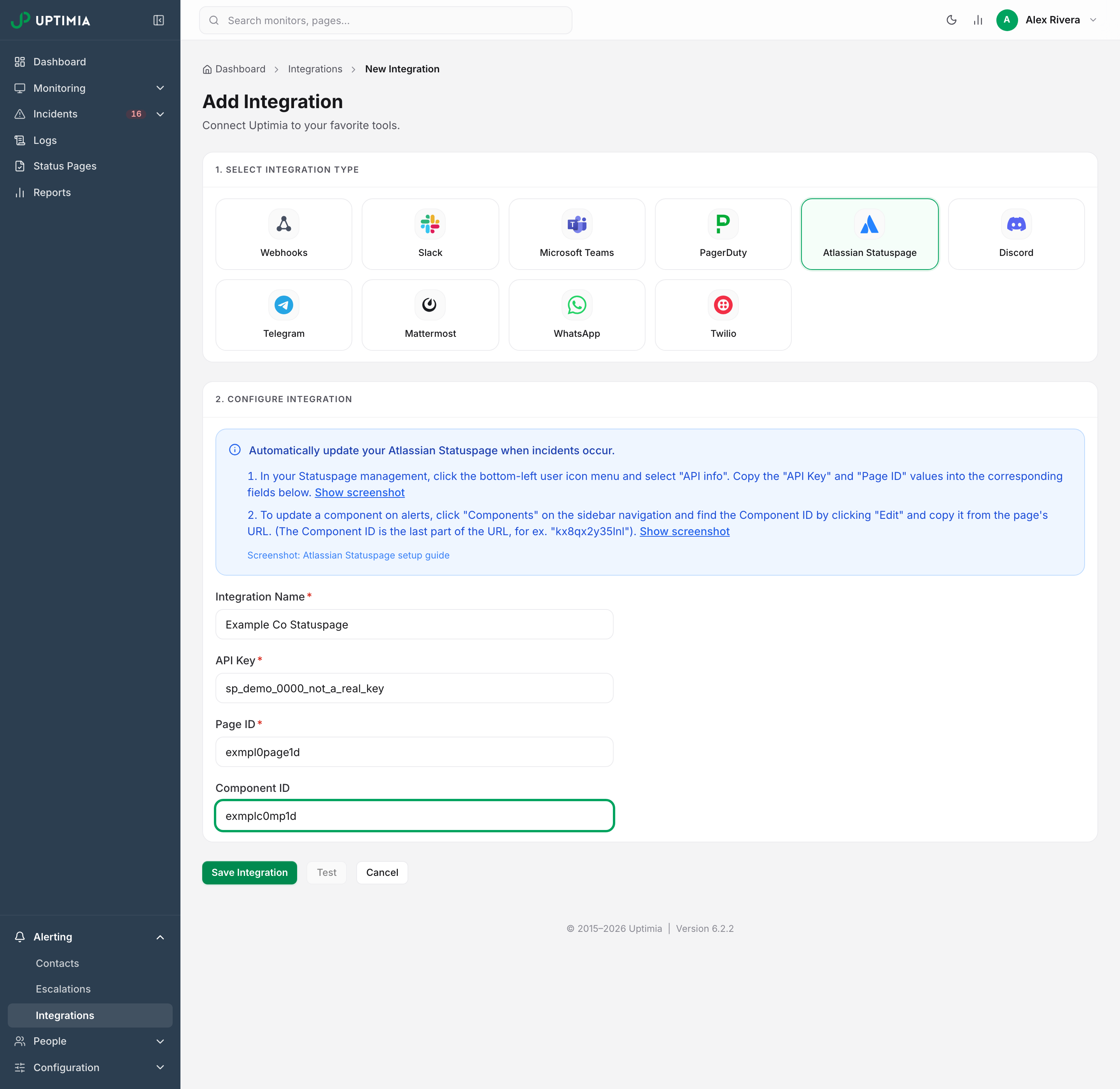
API Key and Page ID are both required. Leaving either blank blocks the save with an inline This field is required. Component ID is optional and never blocks a save.
Attaching the Contact to Your Monitors
The integration publishes nothing until you attach its contact to a monitor.
- Open a monitor whose failures belong on the public page, and go to its Main tab.
- Scroll past Notification Settings to the numbered Alerting card.
- Tick the Statuspage contact in the left pane. The right pane confirms it under Will notify.
- Save the monitor, and repeat for each monitor that should appear on the page.
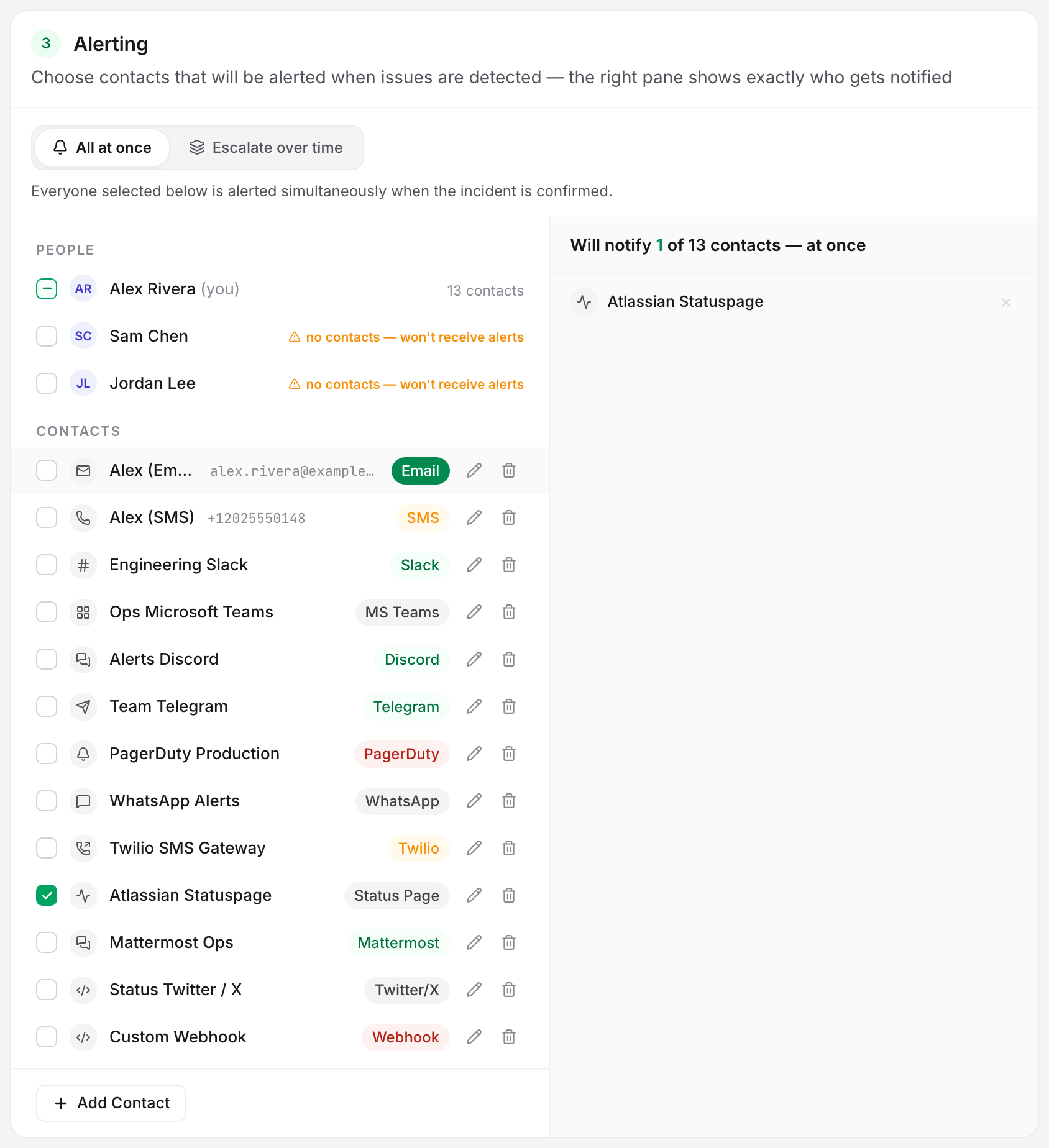
The Contacts page creates, edits and deletes contacts, but it cannot assign one to a monitor. Attaching a contact happens only in the monitor editor.
On a monitor set to Escalate over time, a policy selector replaces the recipients panel. On those monitors, add the Statuspage contact to one of the policy's steps instead. See Escalation Policies.
Attach this contact to public-facing monitors only. Every monitor you attach it to publishes its failures to your visitors.
What Uptimia Posts During an Incident
One Uptimia monitor incident produces one Statuspage incident, from open to resolved.
On the failure, Uptimia posts a new incident titled <Family> — <monitor name> (#<monitor id>), for example Website — Checkout (#412). The families are Website, Transaction, Website speed, Real user monitoring, SSL certificate, Domain, Malware scan, Server, Heartbeat, Blacklist monitor, DNS monitor and API check. The body is the same one-line alert text the chat channels receive, such as *ALERT*: Project Checkout is DOWN.
Monitor names are not unique inside an account, so the title carries the monitor id. Uptimia has nothing else to find that incident by later.
As the situation changes, Uptimia finds the still-open incident with that exact title and updates it in place instead of posting a second one. A severity change on the same incident rewrites the impact and the component status on the existing entry.
On recovery, Uptimia sets the same incident to Resolved, its impact goes back to None, and the component returns to Operational.
If the open incident cannot be found, a recovery closes nothing and posts nothing. That happens when you renamed or closed the incident by hand, or when Uptimia searched for the open incident and got an empty result or an error. Posting a fresh "resolved" incident would put an outage on your page that visitors never saw. Uptimia still returns the component to Operational.
If you rename an open Uptimia-posted incident on Statuspage, you own it. Uptimia will no longer find it, and you'll have to resolve it yourself.
What Your Visitors See, by Severity
| Uptimia event | Statuspage incident status | Incident impact | Component status |
|---|---|---|---|
| Critical failure: site down, transaction failed, certificate expired | Investigating | Critical | Major outage |
| Trouble-tier problem: certificate expiring soon, DNS record drift, a blacklist listing on a site that still serves, a speed budget breach | Investigating | Minor | Degraded performance |
| Recovery | Resolved | None | Operational |
| Test action | Investigating | None | Under maintenance |
A trouble-tier incident stays off the "major outage" banner. A domain registration 5 days from expiry, on the default 7-day alert window, is worth telling visitors about at that tier.
Leaving Component ID Blank
With Component ID left empty:
- Uptimia never touches any component on your page. It sends no component update at all.
- Statuspage rejects an incident that carries an empty component id, so Uptimia leaves the component out of the incident entirely rather than sending it empty.
- With no component in play, the incident itself is the only thing that can fail a delivery.
Fill it in when you want one component's color to track the monitor. Leave it out when the page-level incident is enough, or when you drive components from somewhere else.
Testing the Integration
The Test action publishes a real incident to your live page.
- Go to Alerting → Integrations.
- Open the three-dot Actions menu on the Statuspage row and choose Test.
- Open your public status page and confirm the test incident is there.
- Resolve the test incident in Statuspage, and set the component back to Operational if you configured one.
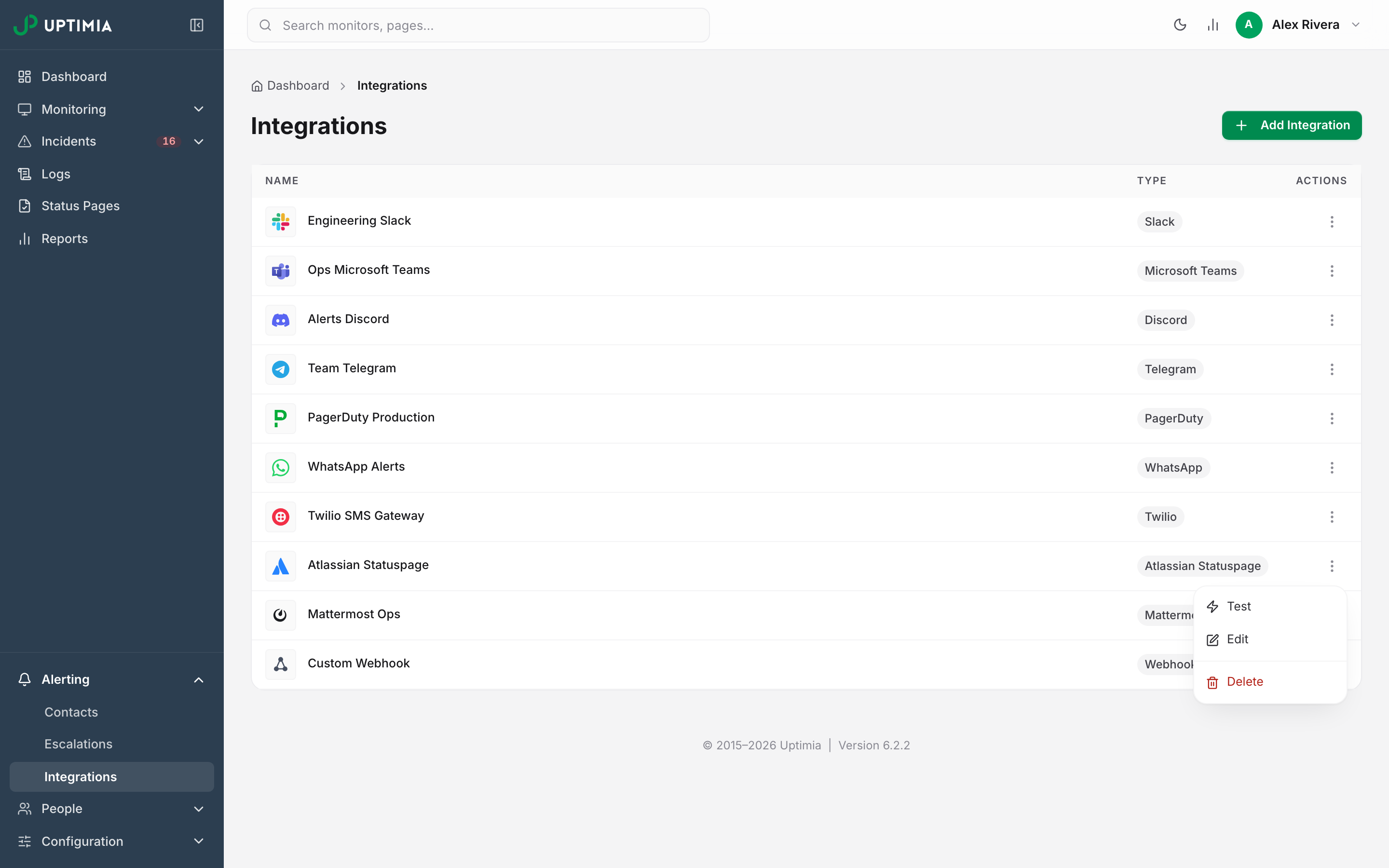
Warning: the test posts a live incident titled Uptimia integration test with the status Investigating, and if a Component ID is set it also puts that component into Under maintenance. Both stay on your public page until a person clears them. Uptimia never resolves the test incident, because its title does not match any monitor.
The success toast Test notification sent successfully only means Uptimia sent the incident. Uptimia never checks what Statuspage did with it, so a wrong API key or page ID still produces a success message. Your public page is the only proof.
The test posts a page-level incident and never exercises the title lookup that a real recovery depends on. A passing test proves nothing about recoveries.
The Test button inside the editor works only against the saved configuration. With unsaved edits it is disabled and the page reads Save your changes to test the updated configuration.
Alert Storms: One Incident for the Group's Anchor
Atlassian Statuspage cannot carry a multi-monitor digest. Uptimia keys each Statuspage incident to a single monitor through its title, so an alert naming several monitors has nowhere to go. When several monitors that share an escalation policy fail inside the join window, Uptimia groups them into one incident internally and posts to Statuspage for the anchor monitor only, in the ordinary per-monitor form.
The same storm reaches the digest-capable channels as one grouped alert instead. See Alert Groups for which channels those are and how the join window works. Grouping applies only to monitors with an escalation policy attached, which needs the Professional plan or above. The trial clears the gate too.
Renaming and Deleting the Integration
Renaming the integration renames the alert contact it created, so the new name appears in every monitor's recipients panel. The credentials are unaffected.
Warning: deleting the integration also deletes its alert contact, which removes it from every monitor that was reporting to the page. Any incident already open on Statuspage stays open, and nothing will resolve it. Close those by hand before you delete.
If Your Status Page Doesn't Update
- The contact is not attached. Open the monitor's Main tab and check the Alerting card. A monitor in Escalate over time mode needs the contact on a policy step instead.
- The credentials are wrong. Re-copy the API key and page ID from Statuspage's API info page. Confirm the key still has access to that page. The Uptimia test reports success either way, so check the page itself.
- The incident was renamed or closed by hand. Uptimia matches on the exact title it created. Once the title changes, updates and the resolve stop landing on it.
- The component id is stale. A deleted or replaced component makes the component update fail, and that fails the whole delivery even when the incident posted.
- The account email is unverified. Uptimia drops alerts on every channel while the owner's email is unverified. The control panel shows an amber banner reading Verify your email to receive alerts. with a Resend verification email button.
Retries and the delivery dedupe rule are the same on every channel and are documented once in Integrations Overview. The rules about which web addresses Uptimia may send alerts to do not apply here, because Uptimia sends every request to Atlassian's fixed api.statuspage.io host. There is no address of yours to check.