
A monitor went down and nothing reached you. There are two causes, and one screen tells you which: either Uptimia decided not to send the alert, or it sent one and your mail gateway or carrier stopped it. For a drill you run before an outage, see Testing Your Alerts.
First, Confirm Whether the Alert Was Sent
Go to Incidents in the sidebar, open Active or History, and click the incident.
On a monitor with no escalation policy, the incident page carries an Alerts sent counter and a Timeline card subtitled "Which contacts received which alerts, and when". Each row is one alert: the contact, the channel and the destination.
A monitor that escalates opens the group incident page instead. Its Timeline is subtitled "Everything that happened — and what fires next", and folds each step into one "Escalation alert sent" row listing the contacts that step resolved to.
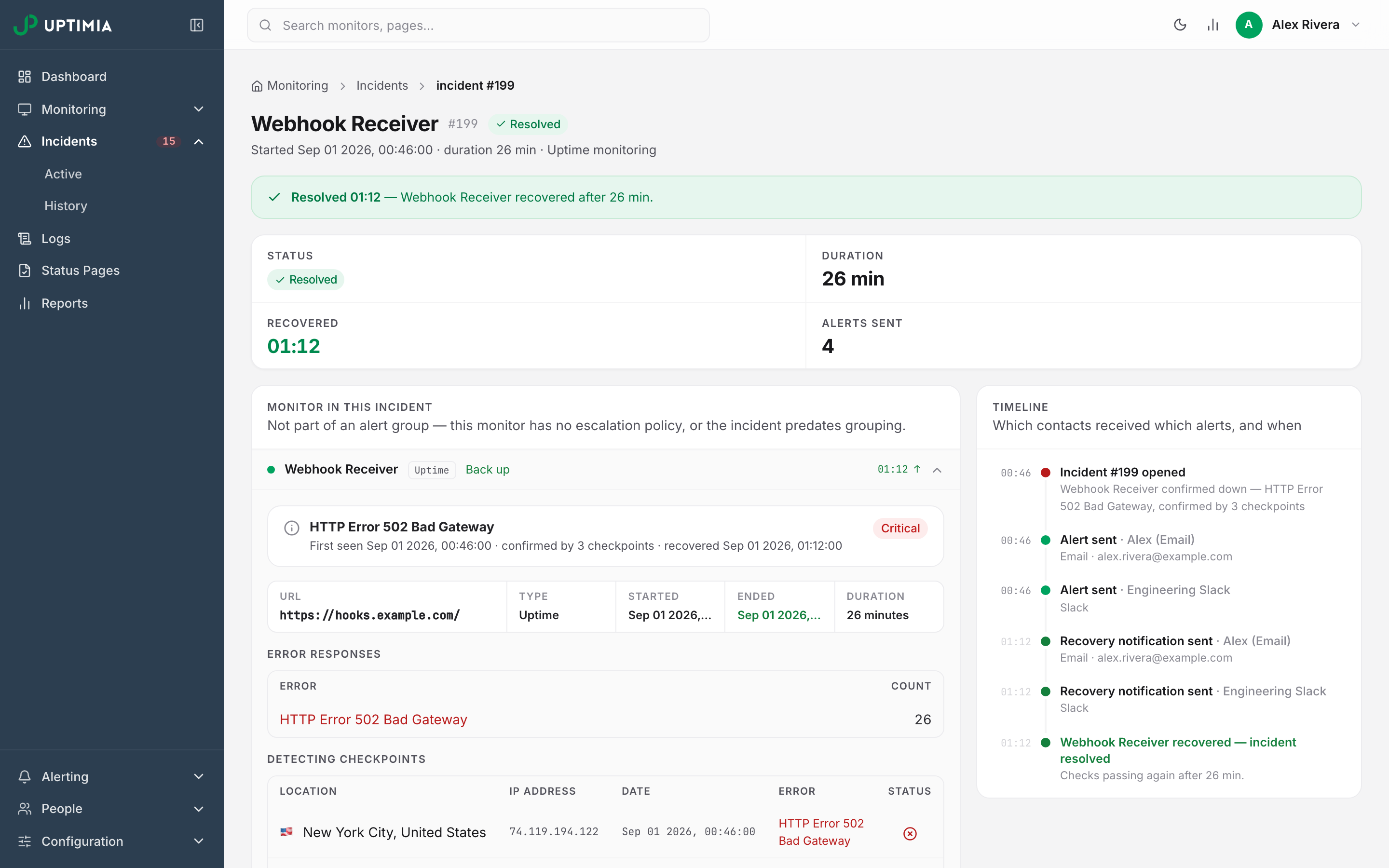
- Your contact is listed in the Timeline. Uptimia handed the message to the transport, so something after Uptimia stopped it. Skip to the delivery causes below, starting with suppression.
- The Timeline shows the incident but no alert to your contact. Uptimia dropped or held the alert on purpose. Work through the causes below, starting with an unverified account.
- There is no incident at all. The monitor never confirmed an outage, or it was not checking. How many backup probes must agree is a per-monitor setting: Confirmations required, in the Outage confirmation card on the editor's Advanced tab, 1 to 3, default 3. A short blip can end before that threshold is reached and page nobody. At 1, a single backup probe agreeing is enough to open the incident. If the monitor is paused, suspended or in a maintenance window, start with Why a Monitor Stopped Checking.
Your Account Email Address Is Unverified
An unverified account address silences every channel: no email, no SMS, no Slack. While the account's email address is unverified, the delivery queue deletes every queued notification for every contact, with no retry.
Check: the account owner sees an amber banner at the top of every control-panel page reading Verify your email to receive alerts, followed by "Alert notifications are paused until you confirm" and the address. The banner is hidden from team members, because verification lives on the owner account. The monitor editor states the same fact as a warning row: "Your account e-mail address is not verified, so the delivery queue drops every alert — on this and every other monitor."
Fix: click Resend verification email in the banner and open the link in the message. Only the owner can do this. If nothing arrives, the address itself is being filtered: work through the delivery causes below, starting with your mail gateway, then resend.
The Contact Used the Unsubscribe Link in an Alert Email
Every alert email carries a footer link reading Do not send alerts to this e-mail address, and the same URL sits in the message's List-Unsubscribe header. Confirming it suppresses that address: the delivery queue then drops every alert to it, while the contact stays selected on every monitor. That is the confusing part. The recipient list looks correct and nothing is delivered.
Two things trigger it. One is a person who clicks the footer link and confirms on the page that follows. The other is a mailbox provider's own Unsubscribe button next to the sender in Gmail or Yahoo, which posts to that same header URL. A security scanner that only follows links cannot trigger it: fetching the link only renders a confirmation page, and Uptimia writes the suppression only when somebody submits that page.
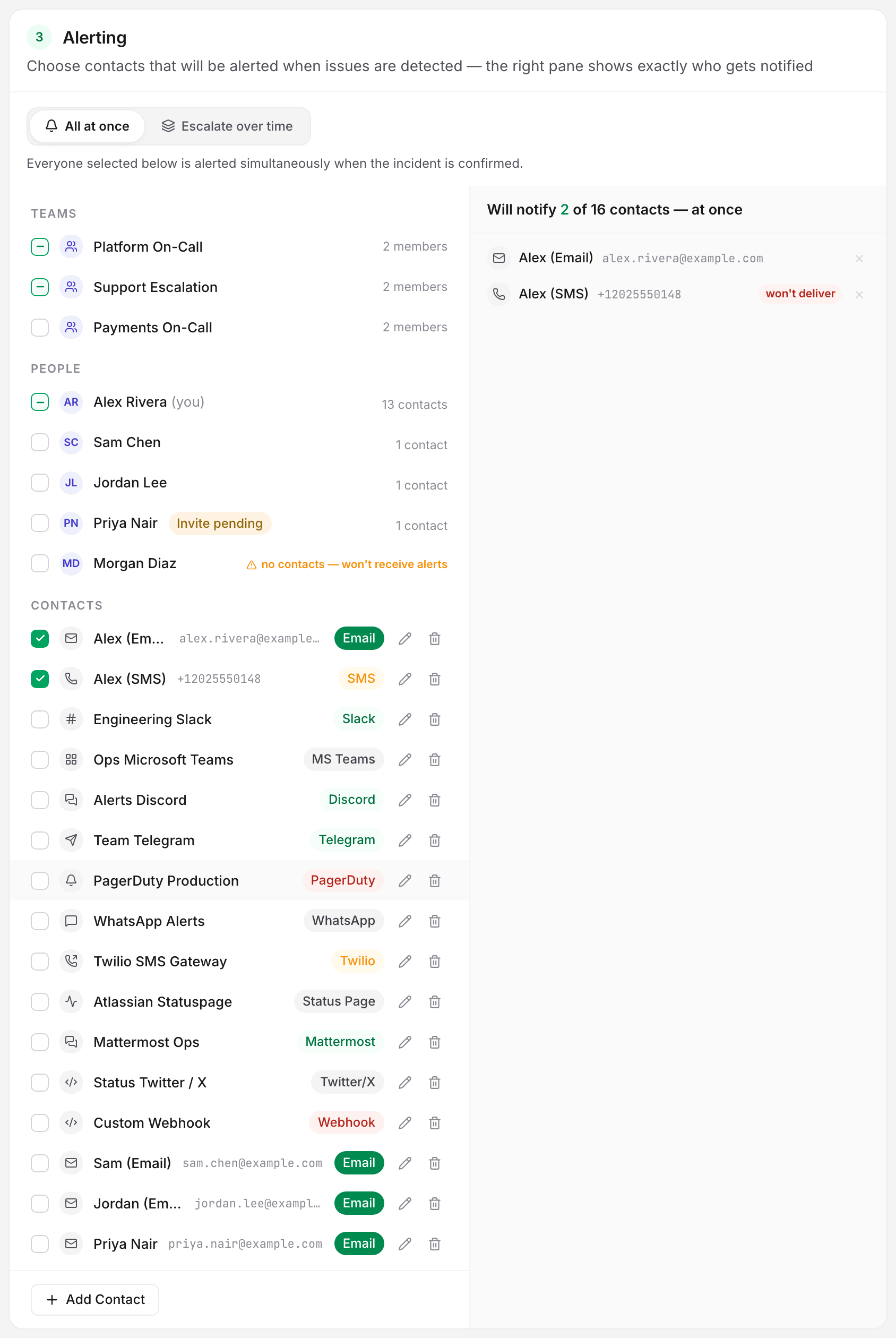
Check: open the monitor for editing, go to its Alerting card, and, with the card set to All at once, read the resolved recipient rows. The escalation preview counts unconfirmed contacts but does not flag opt-outs. A suppressed recipient carries a red won't deliver badge whose tooltip reads "This recipient used the unsubscribe link in an alert e-mail. The delivery queue drops every alert to them."
Fix: editing the contact does not clear the flag, so delete it and create it again at Alerting → Contacts, then re-select it on the monitors that need it. Adding the same address a second time is refused, because email and SMS contacts must be unique within an account. If you cannot delete and recreate it, ask support to clear the flag.
The Contact Is Unconfirmed
The delivery queue drops an unconfirmed contact the same way. Contacts are saved as confirmed today, so this only affects older rows left unconfirmed before that changed. On Alerting → Contacts such a row carries an Unconfirmed badge with the hint "Unconfirmed contacts never receive alerts — the delivery queue drops them", and the recipients panel gives it the won't deliver badge with the reason "Unconfirmed — the delivery queue drops alerts to this contact. Verify it on the Contacts page."
For an SMS contact, send yourself a code from the contact row and enter it. Confirmation codes are charged against your SMS credits, and limited to 1 per minute and 5 per hour to a given number. See SMS Alerts.
When Contacts Share a Destination
If you attached two contacts and got one message, that is the design. Uptimia collapses recipients that share a channel and a destination into one: the same address on two email contacts, or two contacts on the same Slack integration profile. Two contacts on two different Slack profiles stay two alerts. The collapsed row is badged won't deliver, with the reason "Another selected contact already covers this exact channel and destination — one alert is sent, to that one." Who Gets Alerted covers the full resolution order.
The Alert Was Held Until the Recipient's Next Alerting Window
Alerting schedules are per recipient and account-wide, never per monitor. An alert that fires outside a recipient's window is held and delivered when the window opens, not dropped, which is why "the alert arrived six hours late" and "nothing arrived" trace back to the same setting. A recipient with all 7 days blocked is never alerted. Uptimia reads each window in the recipient's own time zone. See Alerting Schedules, Quiet Hours and Time Zones.
The Monitor Escalates, So the Ladder Decides Who Is Paged
When a monitor is set to Escalate over time, the people paged come from the escalation policy, resolved the moment each step fires. A contact sitting on step 3 has not been reached yet, which is the ladder working rather than a delivery failure. A step that reaches nobody does not consume its wait. If a whole ladder completes without reaching anyone, Uptimia pages the account owner as a last resort. Escalation Policies has the timing.
Acknowledgment, Pause or Maintenance Canceled a Pending Alert
Each of these deletes an alert that was queued but not yet due:
- Acknowledging a grouped incident, one raised by a monitor that escalates, drops its held down alerts. A human owns it now, so the paging stops. Recovery alerts are never touched.
- Pausing the monitor deletes every not-yet-due down alert for it.
- A maintenance window does the same, and a check result that arrives during a window is discarded on receipt: no log row, no incident, no alert.
Check the incident Timeline and the monitor's status. Why a Monitor Stopped Checking covers all three.
Your Address Was Suppressed After a Bounce or Rejection
If your mail server rejects, bounces or defers one alert, the sending platform can add your address to its suppression list, and every later message to it is then dropped before it leaves. Suspect this when alerts worked for months and then stopped for one recipient while everyone else still gets theirs. You cannot clear a suppression entry yourself. Contact support to have the address removed, and fix the underlying rejection so it does not return.
Your Mail Gateway Is Blocking the Sender
Uptimia sends from one of two addresses, chosen by your account's billing region: [email protected] for North American accounts and [email protected] for European ones, and the reply address is always [email protected]. An allowlist that carries only uptimia.com loses every alert on an account that sends from the EU identity. Allowlist both.
Ask whoever runs your mail gateway to:
- Allowlist
[email protected]and[email protected], and both sending domains, at the gateway and the spam filter. - Add both to your personal safe-senders list, and mark any alert already in spam or quarantine as not spam.
- Allow Uptimia links through your link-scanning or safe-links policy, so the buttons in alert, password-reset and verification emails are not rewritten or stripped.
Then prove it end to end. There is no test send on a contact row, so confirm on the next real alert, or work through Testing Your Alerts, which lists every send the control panel can trigger.
A whole domain losing alerts at once points at the gateway, not at individual contacts. One recipient losing them while other recipients still get theirs points at suppression or an opt-out.
SMS Didn't Arrive but Email Did
SMS has its own gates. Three fail quietly rather than retrying:
- A zero SMS-credit balance.
- A number in a blocked country code (
+7). - A missing carrier configuration.
Each skips the send, and none is retried. Credits refill on the 1st of each calendar month and do not roll over. SMS Alerts has the credit and coverage detail.
What Happens After a Failed Send
Uptimia re-queues a genuine transport failure, such as a refused connection or a provider error, with escalating backoff and retries up to 5 attempts before dropping it. An alert can land minutes late. Nothing is lost. The drops above are deliberate: a suppressed address, an unconfirmed contact or an unverified account is never retried.
When to Contact Support
Open a ticket when:
- The address needs clearing from the suppression list.
- A contact needs its opt-out flag cleared and you cannot delete and recreate it.
- A whole domain is being filtered.
- The incident Timeline shows an alert sent to a contact that never received anything.
Include:
- The monitor name and the incident number from the incident page.
- The incident start time, with its time zone.
- The exact contact address or number, and its channel.
- Which of the two sender addresses your account uses, if your mail admin already checked their logs.
- What you observed: nothing at all, in spam, arrived late, or arrived with broken links.