
An escalation policy is a reusable, named ladder of alert steps you attach to monitors. Step 1 pages a first responder the moment an incident is confirmed, later steps pull in more people while the incident stays open, and recovery cancels everything still pending. You build one at Alerting → Escalations. Quiet hours are in Alerting Schedules, Quiet Hours and Time Zones.
Before You Start
- Creating a policy needs the Professional plan or above. The trial clears the gate; existing policies keep firing on every plan, including Free.
- Your role needs the Manage contacts, teams & escalations capability: Owner, Admin and Editor. A Read-only seat can open the policy list and read a ladder but gets no editing controls. An Accounting / Billing seat has no monitoring or alerting access at all.
- Everyone you put on a step needs at least one confirmed contact. A person with none is flagged in the editor and skipped at fire time.
What a Policy Is
A policy is an account-level object, like a monitor group or a location profile. Build it once and attach it to any number of monitors across all 12 families, and editing it changes every monitor using it, including monitors with an incident open right now, because Uptimia reloads the policy before it fires each rung. A policy sets who is paged and in what order. Detection speed stays with the monitor.
When Step 1 Fires
Step 1 always fires at t+0. t+0 means the incident is confirmed: outage-confirmation checks have agreed the monitor is down, and the monitor's Alert delay has elapsed on top of that. Attaching a policy does not remove that delay. A monitor with a 5-minute delay and a second rung set to 10 minutes pages the first responder at 5 minutes and the second rung at 15. Detection is covered in How Uptimia Monitoring Works.
Uptimia checks open ladders once a minute, so a rung after step 1 can land up to a minute late. It never lands early.
Creating Your First Policy
- Go to Alerting → Escalations.
- Click New policy. Uptimia creates it immediately: name New escalation policy, two empty steps (t+0 and after 15 minutes). The editor opens with the name selected.
- Type the real name over it and press Enter.
- On step 1, click Add recipients and pick who gets paged first.
- On the connector between the steps, set If still down after … more to the wait you want.
- Click Add recipients on step 2 and pick who the incident escalates to.
- Click Save changes in the bar at the bottom.
The editor never auto-saves. The bar reads Unsaved changes until you save, and refreshing or closing the tab with unsaved work prompts first. Navigating away inside the control panel, with the breadcrumb or a sidebar link, does not prompt, so save before you leave the page.
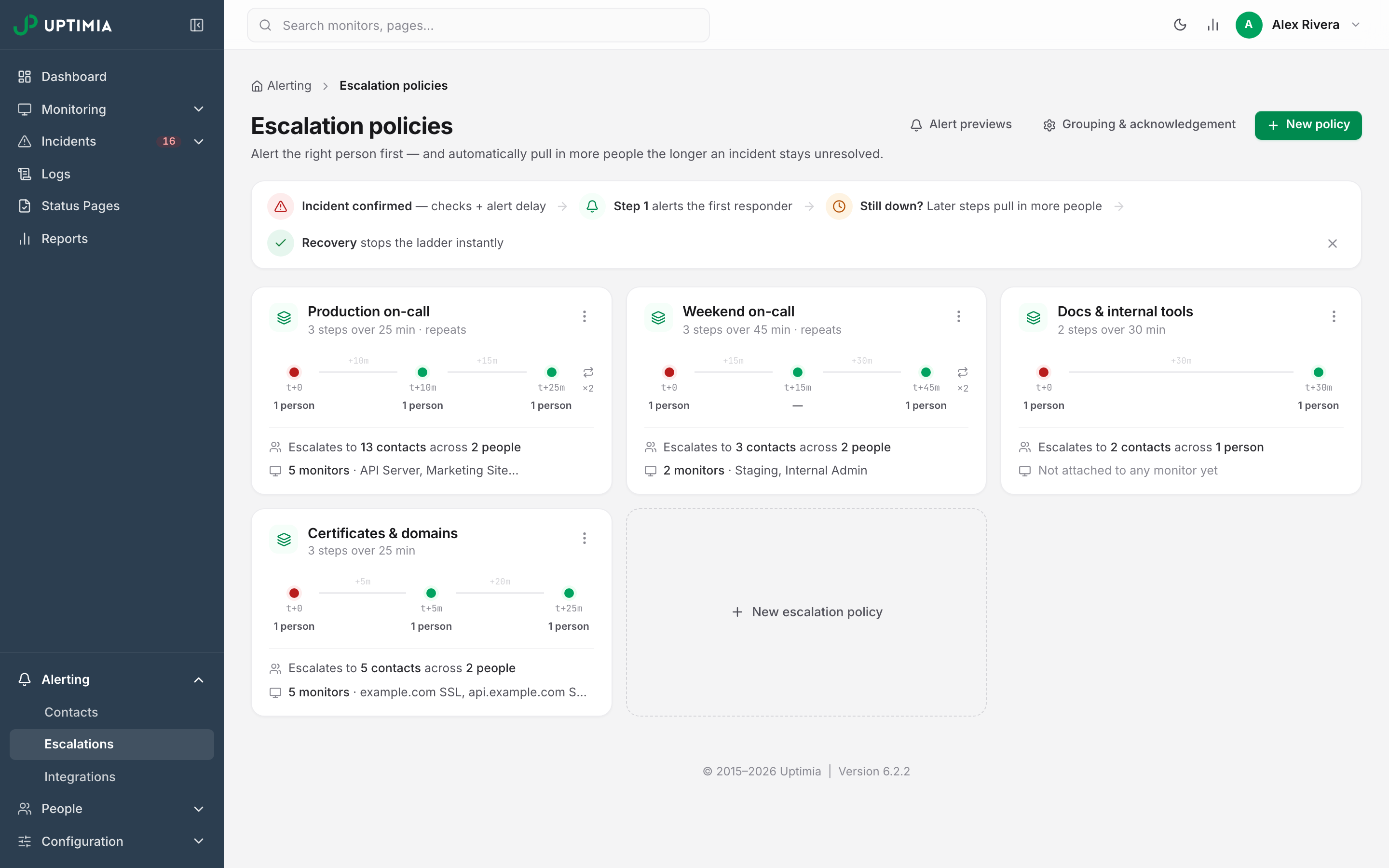
Steps, Waits and Recipients
| Field | What it does | Default | Limits |
|---|---|---|---|
| Policy name | Names the ladder in the list, the monitor's policy select and the delete confirmation. | New escalation policy | Up to 100 characters; the rename box accepts 80 |
| Steps | The rungs, fired top to bottom. Step 1 is always t+0. | 2 steps | 1–10 steps |
| If still down after … more | The wait before the next step, counted from when the previous step fired, not from t+0. | 15 minutes | A fixed list, 5 minutes up to 2 hours |
| Recipients (per step) | Who that rung pages. | none | Up to 30 entries per step |
A step with no recipients saves. The editor flags it ("This step alerts nobody — add recipients."), and at fire time the step pages nobody and moves on.
Choosing Recipients for a Step
Add recipients opens a picker:
- Teams: every member, through each member's own contacts.
- People — all their contacts, incl. future ones: one team member, across every contact they own now or add later. A seat marked Invite pending is still selectable and its contacts still deliver.
- Individual contacts: one address, phone number or integration profile. A contact already covered by a team or person you picked shows dimmed with a "via …" note rather than being counted twice.
Under each step the editor states what the selection resolves to today: how many contacts, across how many people. It also flags unconfirmed contacts ("won't deliver") and people with no contacts. Delivery rules are in Who Gets Alerted.
Recipients Are Resolved When the Step Fires
A step stores the selection. Uptimia resolves it into concrete contacts the moment the step fires, so the rung firing at 02:05 uses a phone number you added to the on-call engineer at 02:00. Add someone to a team and every step naming that team includes them, no policy edit needed.
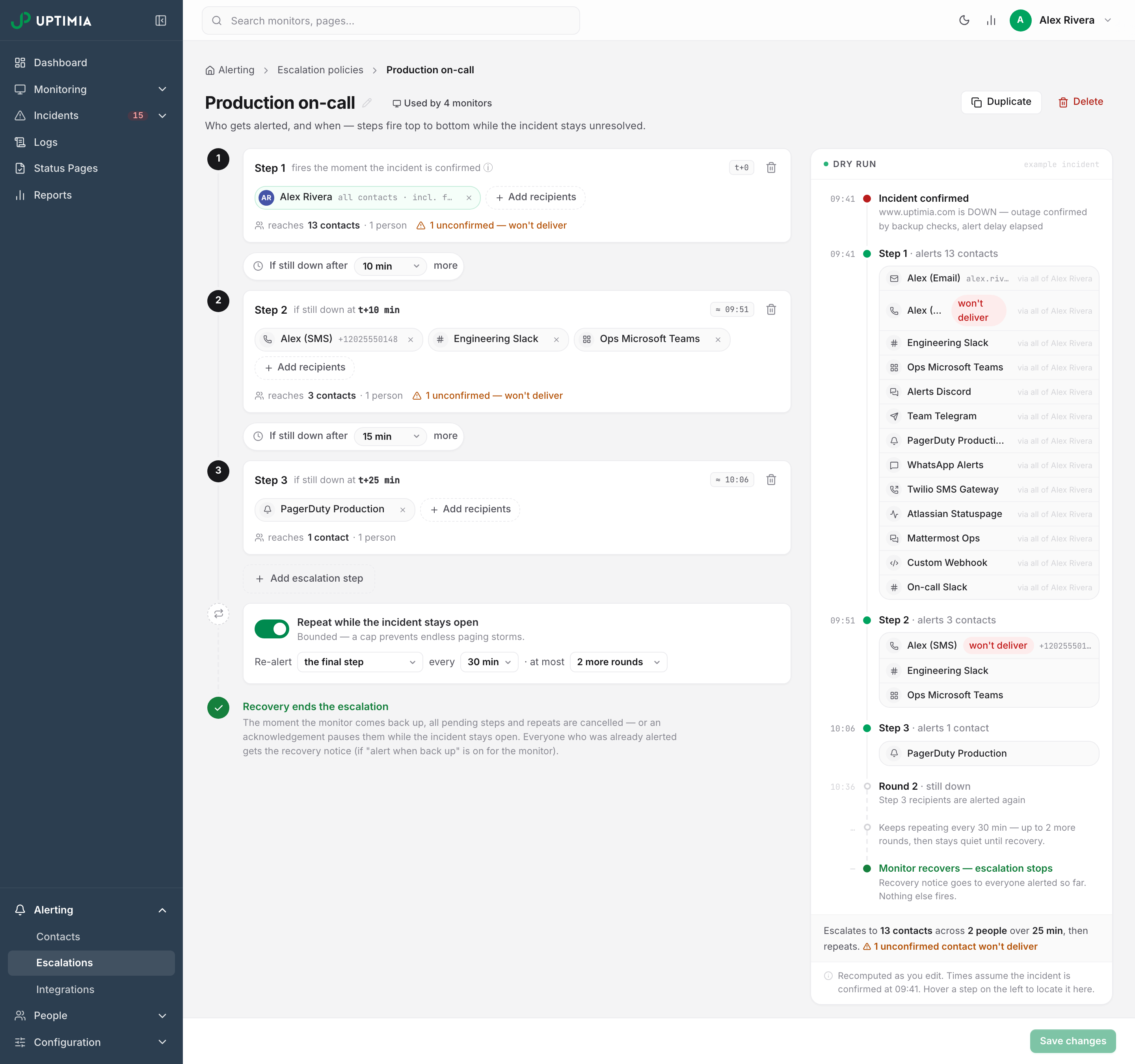
Repeating the Ladder While the Incident Stays Open
Once the last step has fired the ladder is finished, unless you turn on Repeat while the incident stays open. It is off by default. Each step fires once and the ladder goes quiet until recovery. Turn it on and the row reads Re-alert … every … · at most …:
| Control | What it does | Default | Limits |
|---|---|---|---|
| Re-alert | the final step re-pages the last rung's recipients. all steps, from the top re-pages every step's recipients at once. | the final step | Two choices |
| every | The gap between rounds, counted from the last thing the ladder fired. | 30 minutes | A fixed list, every 10 minutes up to every 2 hours |
| at most | Extra rounds after the initial ladder. When they run out, the policy goes quiet for that incident until it recovers. | 2 more rounds | 1, 2, 3, 5 or 10 |
There is no unlimited re-notification setting. If a ladder finishes without reaching anyone, the break-glass rule below pages the account owner.
The Dry-Run Pane
The right side of the editor is a Dry run against an example incident. It resolves every step to real contact names from your account, on a t+0 timeline, and shows the repeat rounds and the recovery row. The pane calls out unconfirmed contacts and people with no contacts where they sit. The footer totals the ladder: how many contacts, across how many people, over how long.
Read it before you save. It resolves the same selections Uptimia resolves at fire time, so it shows what the ladder will do with today's contacts.
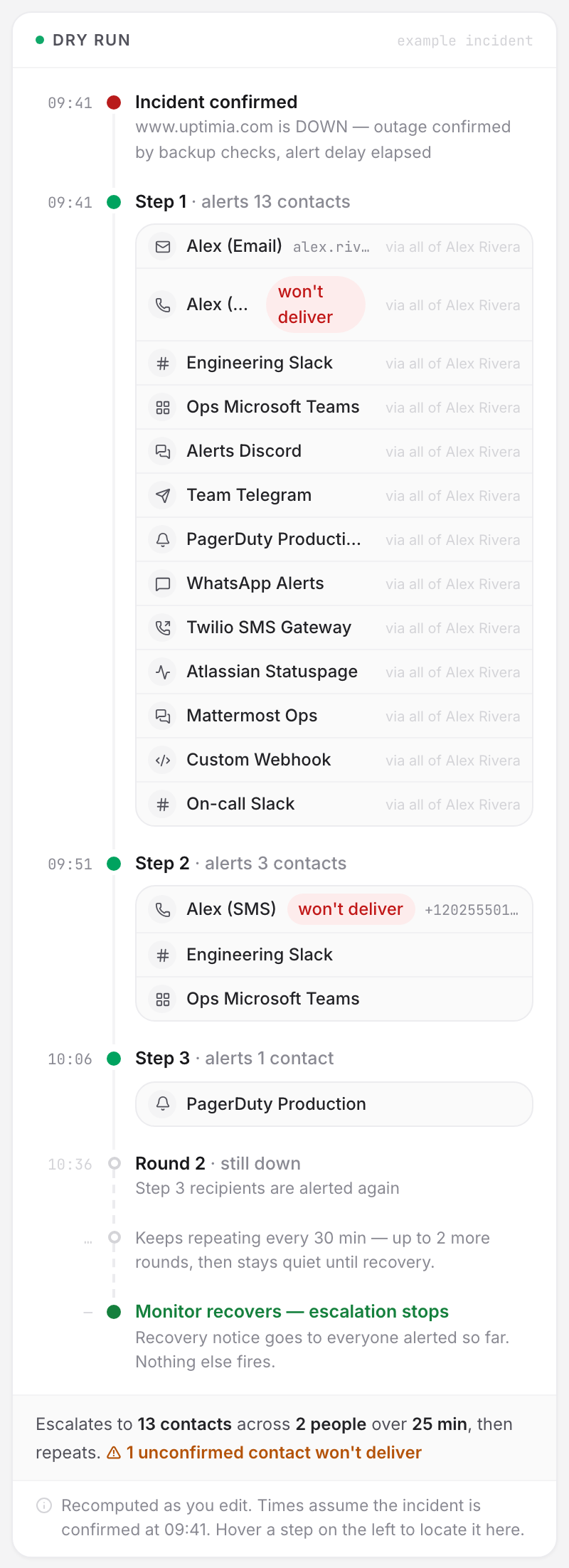
Attaching a Policy to a Monitor
- Open the monitor and go to its Alerting card.
- Set the mode switch to Escalate over time.
- Pick the policy in the Escalation policy select. Each option shows its step count and whether it repeats.
- Read the preview underneath: every step, with the contacts it resolves to now.
- Save the monitor.
The All at once | Escalate over time switch appears only once the account has at least one policy; until then the card shows the recipients panel and one nudge linking to the escalations page. Switching back to All at once restores the contacts you had selected. A monitor template can carry a policy into every monitor created from it.
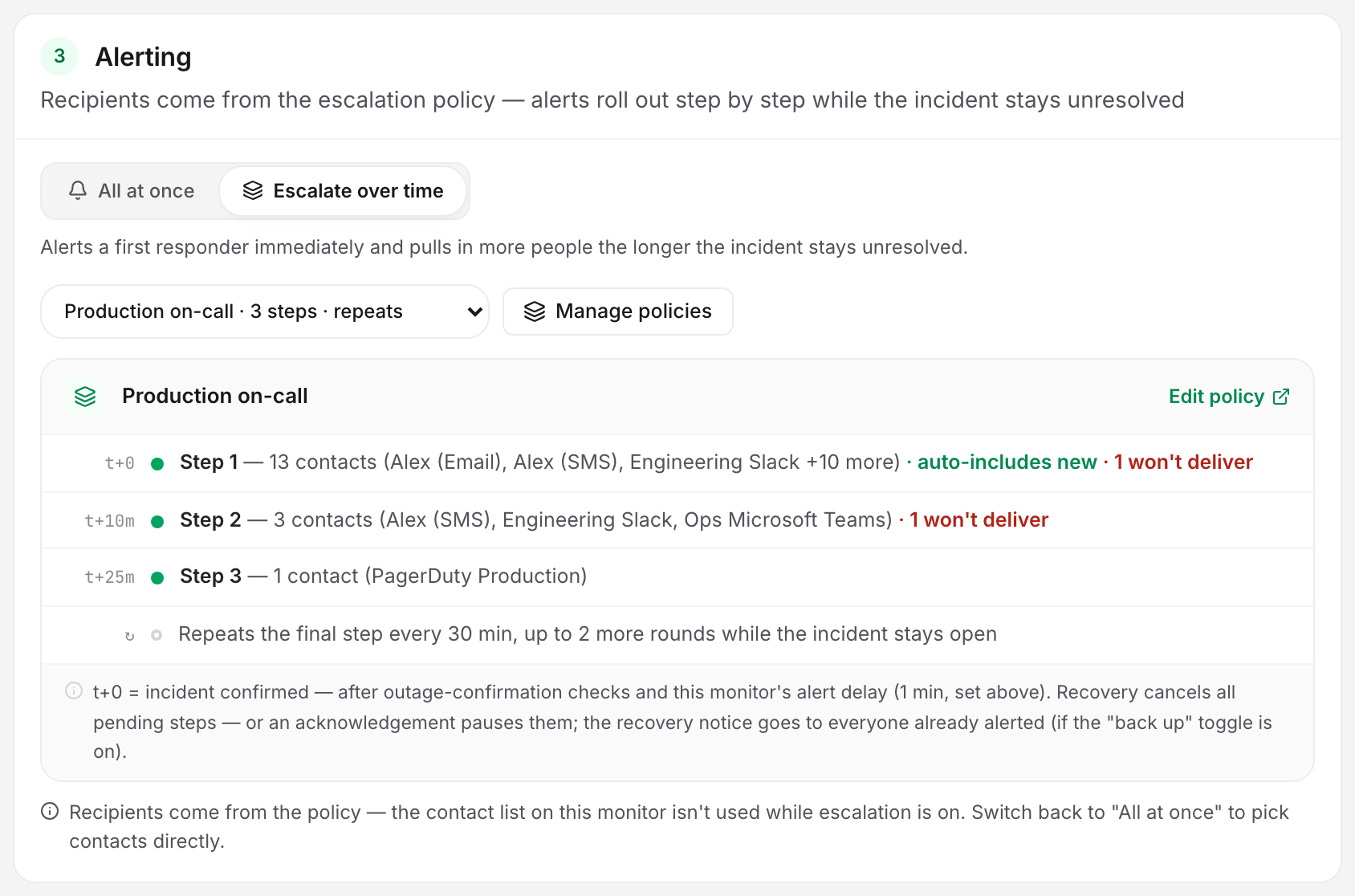
Why the Monitor Still Needs Its Own Recipient List
While a monitor is set to Escalate over time, the people paged come from the policy, not from the monitor's own recipient list. Uptimia resolves them as each step fires. That list is still required, and it is still live. Because the card hides it while escalation is on, switch back to All at once to see or change it. Uptimia falls back to that list when alert grouping or the escalation policy cannot handle the incident. A monitor whose policy was deleted, has no steps, or whose ladder could not start falls straight through to alerting its own recipients all at once.
That is why an empty selection blocks the save in both modes, with "At least one alert recipient is required". A monitor with no fallback recipients can go silent.
When a Step Reaches Nobody
A step's wait is time for the paged person to respond. If a rung pages nobody reachable right now, there is nothing to wait for, so it does not consume its wait. The next rung comes due a minute later, at the next once-a-minute check. Three cases count as reaching nobody:
- a step with no recipients
- a step whose recipients are all outside their alerting hours
- a step whose recipients all have that day blocked
Repeat rounds keep their configured pacing either way, so a quiet night does not burn the round budget.
Break-Glass: The Ladder Never Ends in Silence
A ladder can run out of steps and rounds having reached nobody: every recipient deferred, skipped or unresolvable. Uptimia then pages the account owner's contacts immediately, ignoring the owner's alerting hours and blocked days. The owner also joins the recovery list. Uptimia drops that incident's held "while you were away" messages for any contact the page reached, so that contact is not woken and then re-told in the morning.
Two exceptions. An owner with no usable contact leaves nothing to send. A ladder whose steps you deleted mid-incident closes quietly.
Note: If the owner is being paged regularly, a rung is reaching nobody. Check the dry run for unconfirmed contacts and for people with no contacts.
Recovery and Acknowledgment
Uptimia cancels every pending step and repeat round the moment the monitor recovers. The monitor's recovery toggle is Alert when the website comes back up, worded differently per family. With it on, the recovery alert reaches everyone the ladder paged. Nobody else hears it. Someone on step 3 of a ladder that only reached step 2 hears nothing at all. Recovery alerts respect each recipient's alerting hours, so a person whose down alert was held overnight gets the down alert and the recovery in order when their window opens.
Acknowledging pauses the ladder rather than ending it: no further rungs fire, the incident stays open, and un-acknowledging re-arms it where it stopped. See Acknowledging Incidents and MTTA. Pausing a monitor or putting it into maintenance cancels a first-round ladder outright and deletes its queued messages.
Monitors that share a policy and fail inside the join window merge into one incident with one ladder and one recovery alert. See Alert Groups. Alert previews, at the top of the escalations page, shows you a down alert, an update and a recovery as Email, SMS and Slack.
Limits and Plan Availability
Every plan can attach and edit an existing policy; creating a new one is the part that depends on the plan.
| Plan | Create a policy |
|---|---|
| Free | — |
| Basic | — |
| Professional | ✓ |
| Enterprise | ✓ |
| Trial | ✓ |
There is no cap on how many policies an account can hold. Below Professional, New policy returns "Escalation policies are available on the Professional plan and above. Your current alerts still notify everyone at once."
A Read-only seat sees no create or edit controls at all. There is no New policy button, only View policy in a card's menu. The editor carries the badge "Read-only — your role can view but not edit escalation policies" at the top, and upgrading the plan changes nothing here, because the limit comes from the role.
An Accounting / Billing seat never reaches the page at all. Every control-panel route outside billing and their own Settings redirects it to Subscription, and the same refusal applies wherever the page is reached: "Your role (Accounting / Billing) doesn't allow this."
After a downgrade, existing policies stay attached, stay editable and keep paging. You cannot create another.
Editing, Duplicating and Deleting a Policy
Edits apply as soon as you save, including to open incidents. Duplicate copies the name with " (copy)", the steps and the repeat block; monitor attachments are not carried over.
Deleting always asks first. If the policy is attached, the confirmation lists the monitors and what happens next: they fall back to alerting all their recipients at once, so no monitor goes silent. If it is attached to nothing, the toast offers a one-click Undo.
Warning: Deleting a policy cancels the ladders it is running right now. Rungs that had not fired never fire, and those monitors revert to their own recipient lists.
A Three-Tier Ladder for a Payments API
- Step 1, t+0: the on-call engineer, picked as a person so every contact they own is used. With a 2-minute alert delay this lands 2 minutes after the backup checks confirm the outage.
- Step 2, after 10 minutes: the platform team, picked as a team so joiners are covered without a policy edit.
- Step 3, after 15 more minutes: the engineering lead and the incident-response chat contact, at t+25.
- Repeat on, the final step, every 30 min, at most 2 more rounds: pages at t+55 and t+85, then quiet.
Attach it to the payments monitor and its dependencies, and leave every one of those monitors' own recipient lists populated.