
An alerting schedule belongs to the recipient, not to the monitor, and says when that person may be paged: which days, which hours, and on whose clock. Every monitor that notifies you obeys yours. At the same moment a team member's schedule may be different, and any alert that arrives outside a recipient's window is held and delivered when that window opens, never discarded. Who gets picked in the first place is Who Gets Alerted.
Who a Schedule Belongs To
A schedule can live in three places, and Uptimia reads exactly one of them per recipient, per alert.
| Schedule | Where it is set | Applies to |
|---|---|---|
| The account owner's own | Alerting → Contacts, the Your alerting schedule card | Every contact owned by the account owner |
| A team member's own | People → Users → the member's row → Edit access & profile | Every contact owned by that member |
| A team override | People → Teams → the team → Override with a team schedule | Every member of that team, while the alert is being sent to the team |
A monitor has no schedule of its own. When an alert fires, Uptimia expands the monitor's recipients into contacts and reads the schedule attached to each contact's owner. Ten contacts on one monitor can have ten different send times.
The Your alerting schedule card on the Contacts page edits the account owner's schedule only. To set a team member's schedule for them, an Owner or Admin uses People → Users. A member who saves that card gets Only the account owner can edit their own alerting preferences.
Held, Not Dropped
An alert whose recipient is outside their window still gets delivered. Uptimia moves its send time forward to the next moment the window opens, and sends it then.
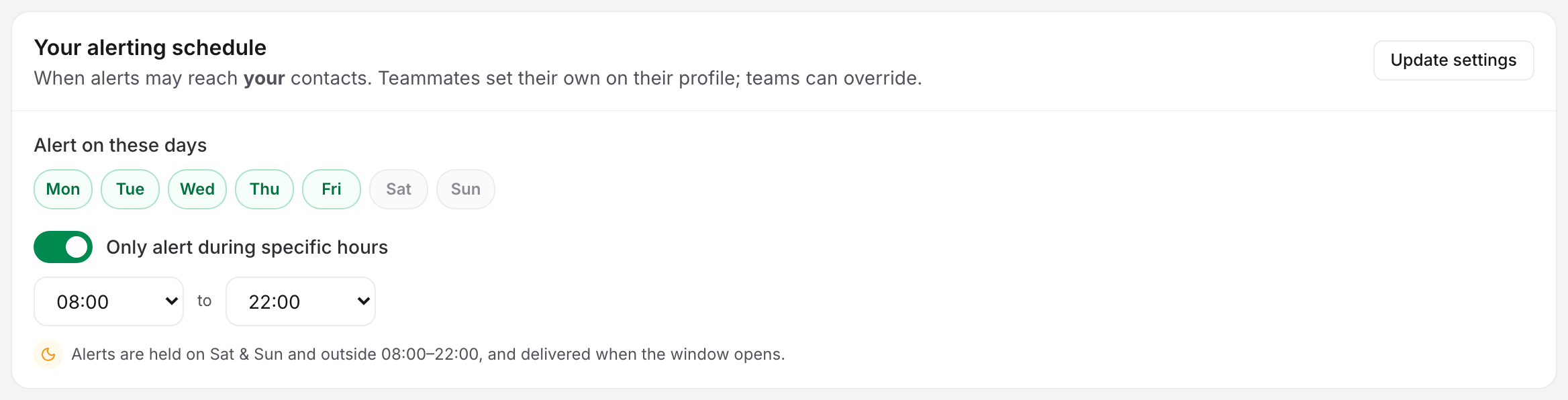
The card states your own settings: Alerts are held on Sat & Sun and outside 08:00–22:00, and delivered when the window opens.
In practice:
- A site that goes down at 02:00 and is still down at 08:00 pages an 08:00–18:00 recipient at 08:00.
- A site that goes down at 02:00 and recovers at 03:00 still pages them at 08:00, as a "was down / recovered" pair. The down alert and the recovery alert carry the same window-open send time and are delivered in that order.
- Recovery alerts obey the window too: a recipient on 09:00–18:00 does not get a 03:00 "recovered" message.
Setting Your Own Schedule
- Go to Alerting → Contacts.
- Scroll to the Your alerting schedule card.
- Click the day pills to set the days you do want alerts. A lit pill means alerts are on that day.
- Turn on Only alert during specific hours to add an hours window. It starts at 09:00–18:00.
- Pick the from and to hours. Both selects are whole hours, 00:00 to 23:00.
- Click Update settings. The card confirms with Alerting schedule saved.
The pills mark the days you are alerted, not the days you are muted. If you set your day pills in an older version of Uptimia, where a lit pill meant "do not alert", check them once now.
The Window Shapes
The two hour selects express more shapes than they appear to.
| What you set | What it means |
|---|---|
| Only alert during specific hours off | 24/7, no hours restriction |
| From 09:00, to 18:00 (from earlier than to, with from later than 00:00) | A daily window, 09:00 up to 18:00 |
| From 00:00, to 00:00 or 23:00 | 24/7: the scheduler reads either pair as "no hours restriction", so this is not a 23-hour window |
| From 09:00, to 00:00 | From 09:00 until midnight |
| From 22:00, to 06:00 (from later than to) | An overnight window: 22:00 to midnight, then midnight to 06:00 the next morning |
| From and to set to the same hour | Rejected, except the 00:00–00:00 pair covered by the row above. The team, member and profile modals refuse it with Alert hours: "from" and "to" can't be the same hour. The Your alerting schedule card on the Contacts page has no guard of its own, so it lets you click save and then answers Your selected alerting hours are incorrect |
The 00:00 row surprises people. Set 00:00–23:00 to keep the 23:00 hour quiet and you get the opposite. The scheduler reads a window that starts at 00:00 and ends at 00:00 or 23:00 as "all day", so that recipient is paged around the clock. There is no way to express "every hour except 23:00".
The team, member and profile modals refuse any same-hour pair, including 00:00–00:00, but the Your alerting schedule card on the Contacts page has no such guard. There, 00:00–00:00 saves without complaint, is stored as no window at all, and is read as 24/7. Any other same-hour pair set on that card is refused with Your selected alerting hours are incorrect.
For an overnight window, the day the window starts governs the whole span. With 22:00–06:00 and Friday switched off, the span from Friday 22:00 to Saturday 06:00 is closed. Saturday 22:00 to Sunday 06:00 is open, because Saturday is on.
Whose Clock the Window Is Read On
Uptimia evaluates each recipient's window in that recipient's own time zone, resolved at the moment the alert is queued.
- The account owner is read on the account Timezone, set in Settings. The Contacts card offers no time-zone control for that reason.
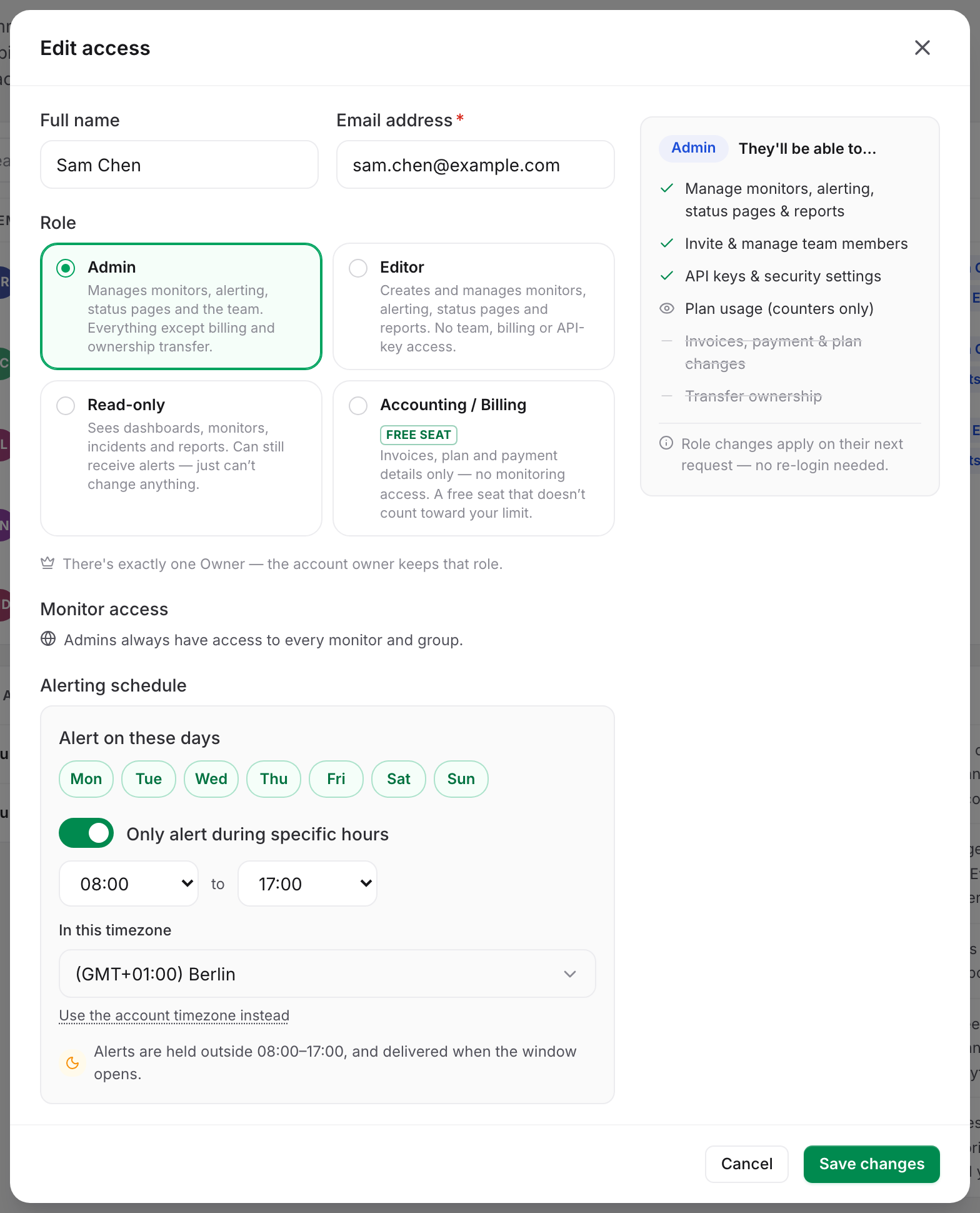
- A team member carries their own zone. Turn on Only alert during specific hours in People → Users → the member's row → Edit access & profile, and an In this timezone select appears. Leaving it on Same as the account — inherits the account time zone; picking a zone sets theirs. A Use the account timezone instead link clears it again.
- Turning the hours window off clears the member's time zone back to the account default, so a window you re-enable later starts from "same as the account" rather than reviving a zone nobody can see.
A member's In this timezone setting can also be changed from a script, through the user endpoints described in The Uptimia API v2 Endpoint Map.
Team Schedules: Personal or Overridden
A team is a named group of members used as one alert recipient. Its editor sets which schedule its alerts obey.
| Mode | What happens |
|---|---|
| Use members' personal schedules | Each member's own days, hours and time zone apply. Default for a new team. |
| Override with a team schedule | One set of days and hours applies to every member, in place of their personal schedule |
The override replaces the days and the hours. The clock stays personal. Read on each member's own time zone, a team window of 09:00–17:00 gives a three-continent team three staggered windows from one setting, and the modal says so under the editor: These hours are read on each member's own clock.
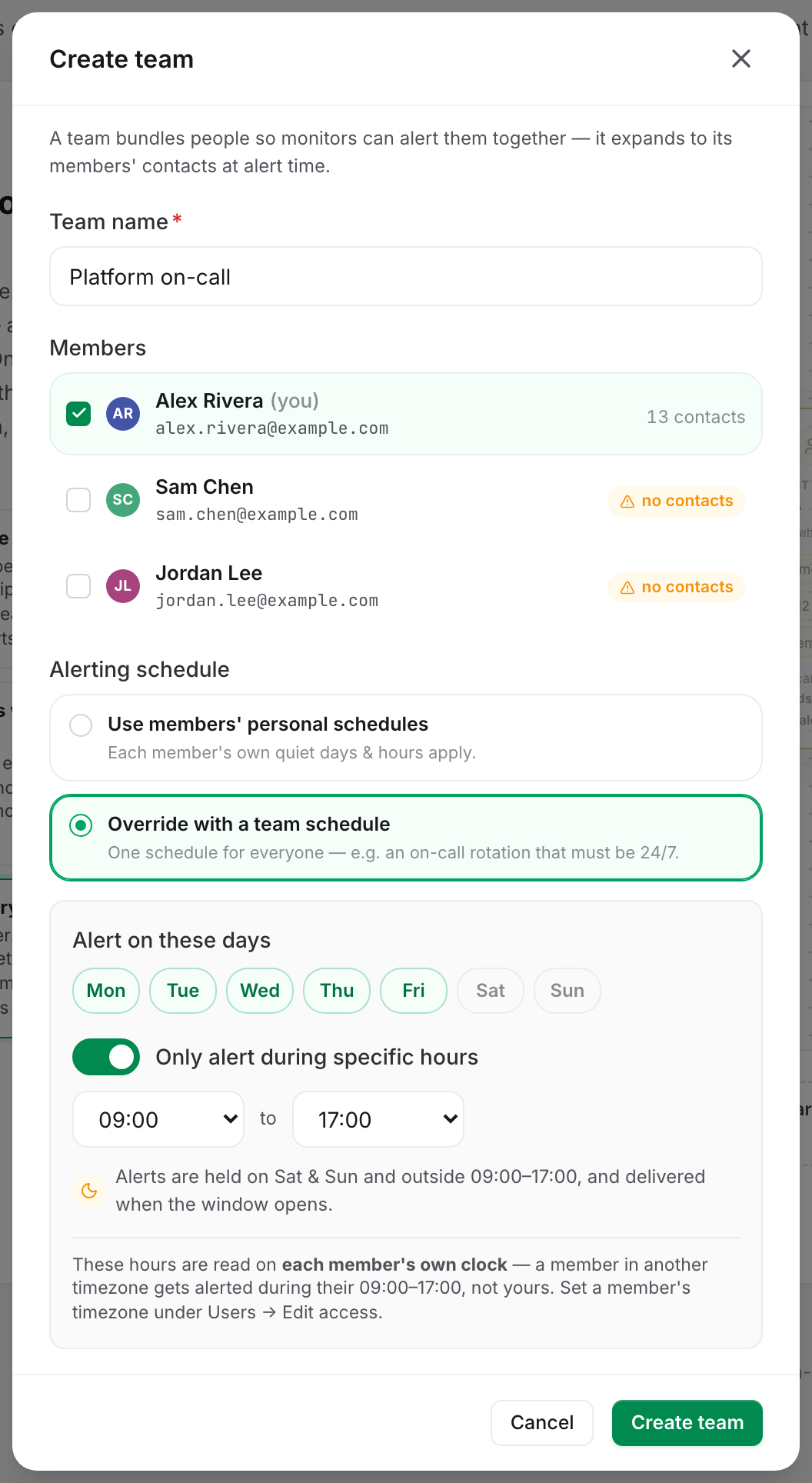
The override applies to team alerts. If the same person is also picked individually on the same monitor, they still get one alert: Uptimia resolves team recipients first, so the team's settings win and the override's days and hours decide when it arrives. Teams themselves, including members, contact counts and using a team as a recipient, are covered in Teams and Multi-User Access.
Blocking All Seven Days
Switching every day pill off means "never alert this recipient". On every monitor their contacts are skipped entirely: no down alert, no recovery alert, nothing held for later. The one exception is the last-resort page described below: when a whole escalation policy reaches nobody, the account owner's contacts are paged even with all seven days off.
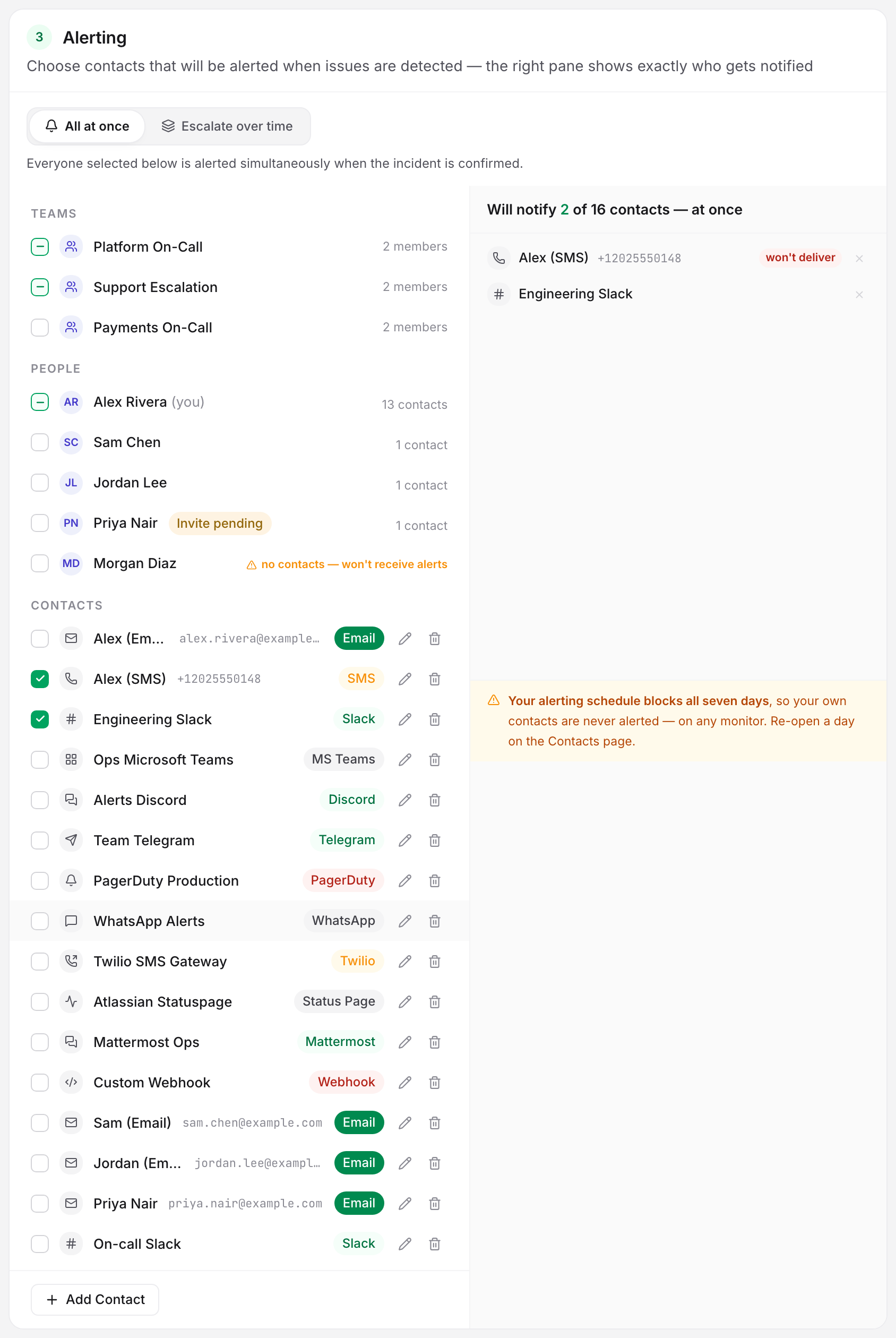
You do not have to discover that during an outage. In the monitor editor, the recipients panel carries a warning strip: Your alerting schedule blocks all seven days, so your own contacts are never alerted — on any monitor. Re-open a day on the Contacts page. Saving still works: the schedule is legal, only rarely what anyone means.
When every recipient of an incident is in this state, the incident records that nobody was deliverable.
Schedules and Escalation Policies
A schedule does not stop a ladder, and a ladder does not override a schedule.
A step that reaches nobody does not consume its wait. A step counts as reached only when at least one of its recipients is alerted right away. If every recipient on step 1 is off-hours, their alerts are held as usual, and the ladder moves on to step 2 at the next check instead of sitting out the configured wait.
A ladder that reaches nobody at all pages the account owner. A whole policy can run out, with every step deferred, skipped or unresolved. In that case Uptimia queues an immediate alert to the account owner's contacts as a last resort, ignoring the owner's alerting hours and blocked days. That is what wakes you at 03:00 when your own hours say 09:00–18:00: nobody else on the ladder was reachable. The last-resort page also cancels the owner's own held alerts for that incident, so the page does not arrive twice.
Attaching a policy does not change the schedule. Step 1 fires when the incident is confirmed, after outage confirmation and the monitor's alert delay, and each step's recipients are read and scheduled at the moment that step fires. The ladder itself is Escalation Policies.
When a Held Alert Is Discarded Instead
| What happened | What happens to the held alert |
|---|---|
| The monitor recovered before the incident was ever confirmed | Discarded. A blip that never crossed the alert delay is a flap, and nobody hears of it |
| The monitor recovered after the incident was confirmed | Kept. It delivers at window-open together with the recovery alert |
| You paused the monitor, or a maintenance window closed over it | Discarded. Pausing is a deliberate silence, so every not-yet-due down alert for that monitor is dropped |
| Someone acknowledged the alert group | Discarded. Acknowledgment means "stop paging me", so the group's deferred rows are dropped rather than arriving hours later as a stale outage |
Alerts already at or past their send time are being delivered and are left alone in every one of those cases. Maintenance scheduling is Maintenance Windows; acknowledgment is Acknowledging Incidents and MTTA.
Follow the Sun: A Worked Example
Three engineers, one on-call ladder, no 03:00 pages for anyone.
All three run Mon–Fri, 08:00–17:00, each on their own clock.
| Person | Time zone |
|---|---|
| Ana, Lisbon | Europe/Lisbon |
| Bo, Chicago | America/Chicago |
| Chen, Singapore | Asia/Singapore |
Set up:
- Go to People → Users, open each member's Edit access & profile, turn on Only alert during specific hours, set 08:00 to 17:00, and set In this timezone to their own zone.
- Go to People → Teams and create a team holding all three. Leave it on Use members' personal schedules: the personal windows already carry the zones.
- Create an escalation policy whose step 1 recipients are the team, and attach it to the monitors that need round-the-clock cover.
An incident confirmed at 02:00 UTC on a Tuesday reaches Chen, whose local clock reads 10:00 Tuesday, inside his window. At that moment Ana's clock reads 03:00 Tuesday and Bo's reads 21:00 Monday, so both are outside and their alerts are held: Ana's row opens at 08:00 Lisbon and Bo's at 08:00 Chicago. Chen is paged now. If the incident is still open when those two windows open, Ana and Bo receive it. If Chen acknowledges first, the held rows are dropped and their mornings stay quiet.
Check two things before relying on it. Every member needs at least one contact; a member with none is flagged in the team editor. And no member may have all seven days switched off. Tuning how much of this you actually hear is Getting Fewer, Better Alerts.
Symptoms This Explains
"We got the down alert hours late." The recipient was outside their window when the incident was confirmed, and the alert was held to window-open. Open Alerting → Contacts, or People → Users → the member's row → Edit access & profile, and read the sentence under the day pills. It states the exact hold. If the alert must arrive immediately, widen the window for that person, or put an always-on recipient on step 1 of an escalation policy and leave the office-hours people on step 2.
"Nobody was paged at all." Three causes, in order of frequency:
- Every day pill was off for that recipient, which means never alert.
- Every recipient was off-hours, so the alert is held until a window opens.
- The selected contacts were unconfirmed or opted out, which is a delivery-rules problem.
The monitor editor's recipients panel names all three before an incident happens: the amber strip for the seven-day block, the held-until footnote for a window, and a red won't deliver badge for the third.