
Uptimia gives you eight controls that change how much you hear, and each one costs you something in detection speed, a cost named in its section below. Detection itself does not change. This page tells you which one to reach for. Each control also has its own article with the full settings list. It assumes the alerts you are getting are correct: real outages, real degradations, real changes. If the alerts are wrong, see False-Positive and Flapping Alerts instead.
Before You Start
- Escalation policies, incident grouping and acknowledgment need the Professional plan or above. The trial includes them.
- Changing a monitor's settings needs the Owner, Admin or Editor role. The account-wide Incident grouping & acknowledgement page is view-only for a Read-only member.
- Every other control on this page works on every plan.
First, Decide Which Problem You Have
| What you are seeing | The lever |
|---|---|
| One real outage produced 30 messages across 12 monitors | Incident grouping, then acknowledgment |
| The same monitor alerts and recovers repeatedly, and each blip is real but brief | Alert delay, then outage confirmation |
| The alerts are right and rightly timed, but they reach everyone, at any hour | Escalation policies and alerting schedules |
| The monitor reports something other than an outage | Not this article: False-Positive and Flapping Alerts |
Outage Confirmation: How Many Probes Must Agree
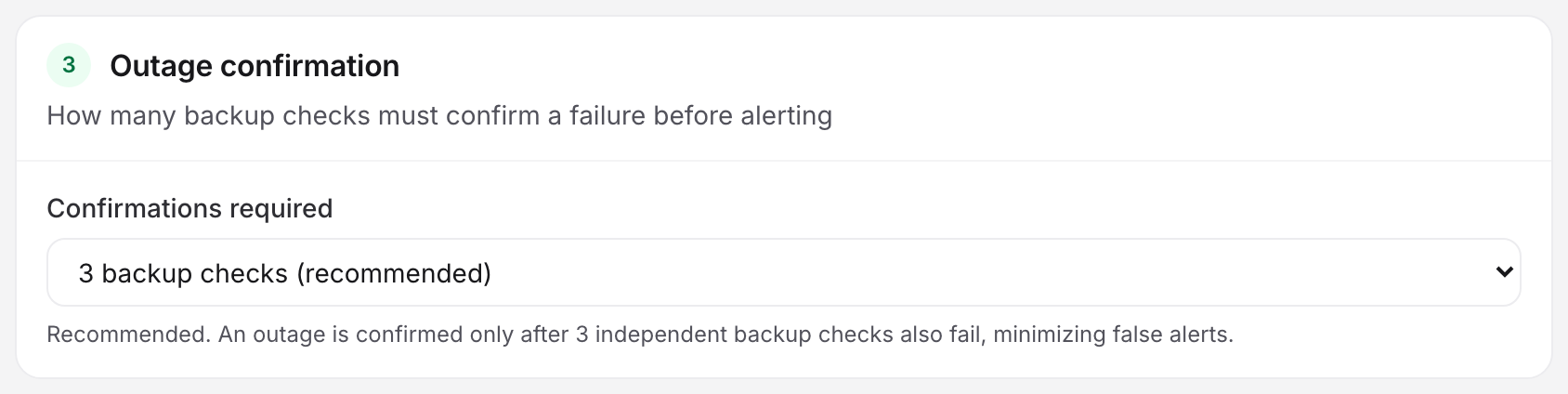
Before Uptimia opens an incident, a probe that saw a failure asks other probes to check the same target. Confirmations required sets how many of them must also report a failure: 3, 2 or 1, defaulting to 3 backup checks (recommended). It sits in the Outage confirmation card on the monitor editor's Advanced tab.
The setting is available on Uptime, SSL, Speed, Domain, Transaction, API and DNS monitors. API and DNS relabel the same three options as "3 checks total — primary + 2 other locations (recommended)" and "3 other vantages (recommended)".
Confirmations count distinct probes, not attempts. On Uptime, SSL, Speed, Domain and Transaction, 3 means three backup probes agreed on top of the first failure. On DNS it means three other probes (the option is labeled vantages) re-swept the zone and saw the same change. API counts the primary run inside the number, so 3 there is the primary plus 2 other locations. Lowering it to 1 makes the monitor page you off the first failed check with no second opinion: faster, and enough for one flaky network path to raise an alert on its own. Raising it back to 3 is the first thing to try when a single monitor produces short, self-resolving incidents from one region.
Recovery works differently: one probe answering "up" ends the backup round and marks the monitor up. Confirmation slows down how fast a failure reaches you, never how fast you are told it is over. The detection model behind all of this is How Uptimia Monitoring Works.
Alert Delay: The Grace Period Before You Are Paged
Alert delay is a slider on the monitor editor's Main tab, in the Notification Settings card. It runs from 0 to 30 minutes and defaults to 5, reading Notify after 5 minutes when problems occur. A failure that clears before the delay elapses never pages anyone: the queued alert is dropped before it is sent, and the incident itself is opened and closed as normal, so it stays visible in Incidents → History.
Use it when a target is genuinely down for 60 to 90 seconds at a time and you don't want to hear of it: a deploy, a container restart, a backup job. The cost is exact: you learn of a real outage that many minutes later.
A confirmed incident still sends its recovery alert, which the delay does not suppress. With an escalation policy attached, the delay comes before step 1 rather than being skipped, because step 1 fires when the incident is confirmed.
Real User, Heartbeat, Blacklist and DNS monitors have no alert-delay slider. A heartbeat's grace period plays the same role. Blacklist and DNS use the verification settings in the Per-Family Sensitivity Settings table below instead.
Incident Grouping: One Digest for a Storm
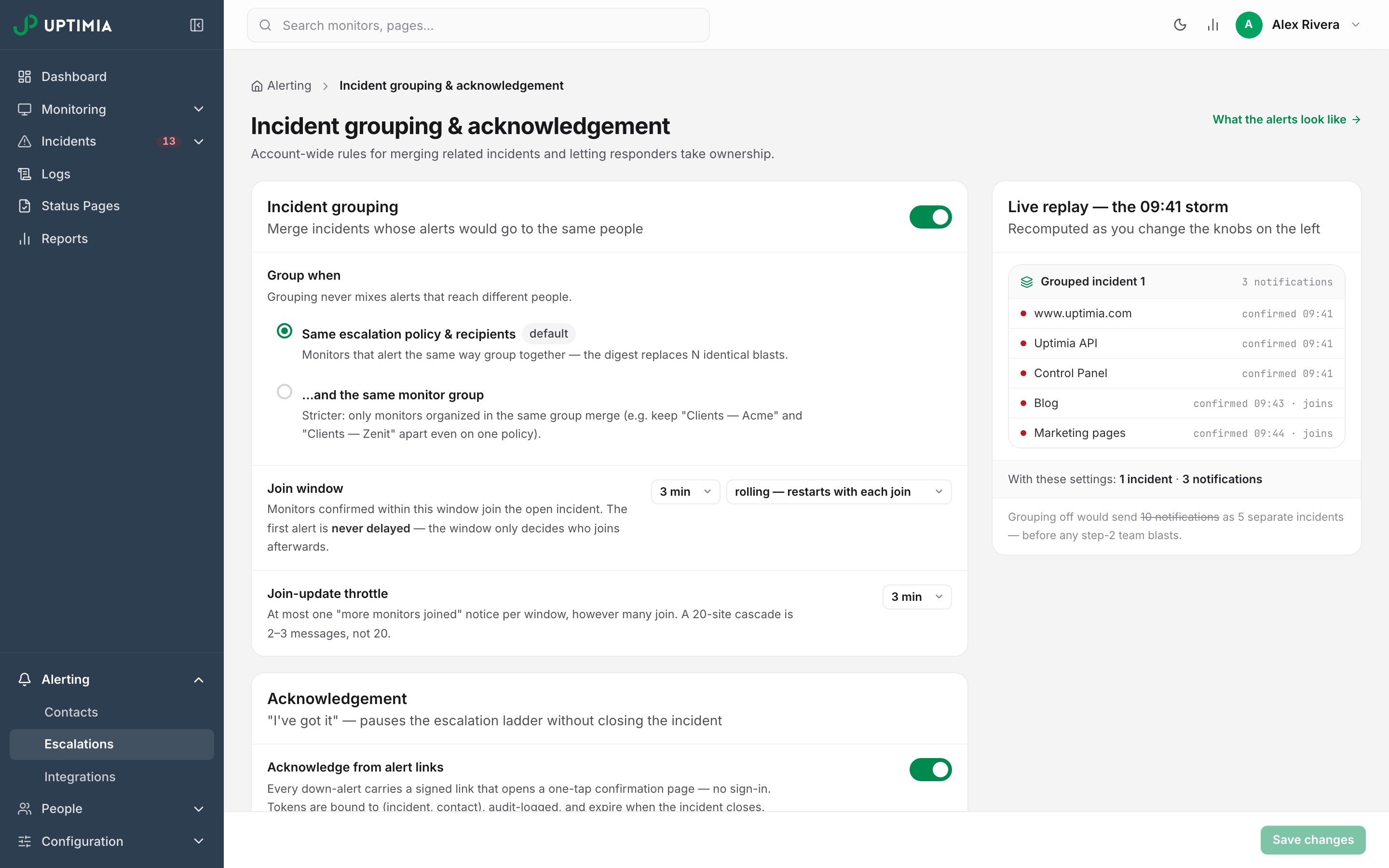
When one cause takes down many monitors, grouping merges their incidents into a single alert group. You get one digest instead of one message per monitor. Join updates are throttled, and the whole group gets one recovery alert at the end.
The defaults are on and conservative: grouping enabled, scope Same escalation policy & recipients, a 3-minute rolling join window, and a 3-minute join-update throttle. A longer join window puts slower cascades in one digest, holding the other alerts back longer.
Grouping only touches monitors that have an escalation policy attached. A monitor with no policy keeps the one-alert-per-monitor path unchanged, whatever the settings page says. That page and all seven of its settings are documented in Alert Groups.
Acknowledgment: Stop the Paging Without Closing the Incident
Acknowledging an alert group means "I've got it". The escalation ladder parks where it is, the group's deferred alerts are dropped, and the incident stays open until the monitor recovers. Nobody else on the ladder is paged while it is acknowledged.
Both settings live on the grouping page. Acknowledge from alert links is on by default and puts a signed acknowledge link in the alert itself, which works without signing in. If still down after acknowledgement is off by default, and switched on it resumes the ladder after 30, 60 or 120 minutes, for the case where someone acknowledges an alert and then forgets it. The workflow, the link and what MTTA measures are in Acknowledging Incidents and MTTA.
Acknowledgment is the lever for repeated messages about an incident you already know about. It leaves the incident count alone.
Escalation Ladders: Page One Person First
An escalation policy replaces "everyone at once" with an ordered ladder. Step 1 pages the on-call engineer. Step 2 pages the next group only if the incident is still unresolved after the configured wait. A policy holds up to 10 steps and up to 30 recipient entries per step.
In the policy editor you pick the wait before each later step from a fixed list, 5 minutes up to 2 hours. The optional bounded repeat runs on its own fixed list of intervals, every 10 minutes up to every 2 hours, for 1, 2, 3, 5 or 10 rounds. Switching it on starts at every 30 minutes for 2 rounds.
This is the lever for the complaint "eleven people got woken up for one alert". It reduces the number of people paged per incident rather than the number of incidents. Attaching one also switches the monitor's Alerting card to Escalate over time, after which recipients come from the policy, and each step looks up that list when it fires. Building one is Escalation Policies.
Alerting Schedules: Held, Not Dropped
Each recipient has a schedule: the days and hours they can be paged, read on their own clock. An alert that arrives outside someone's window is held and delivered when their window opens, never discarded. A schedule moves the message to a better hour without changing how many messages there are.
Use it to keep office-hours people out of the night. Pair it with an escalation ladder so somebody on duty still gets step 1. Do not use it as a mute button. Switching all seven days off means that recipient is never alerted on any monitor, and it is easy to forget. The window shapes, time zones and the team override are in Alerting Schedules, Quiet Hours and Time Zones.
Maintenance Windows: Planned Noise
A maintenance window is the right answer for scheduled noise: deploys, backups, migrations, a load test. Monitors in a window leave the check queue, and a result that arrives while the window is open is discarded, so it produces no check-log row, no incident and no alert. Held alerts for those monitors are dropped too.
That is stronger than raising a delay, and the trade is explicit. Nothing is recorded for that period, and the window is excluded from the availability calculation rather than counting as uptime. See Maintenance Windows.
Per-Family Sensitivity Settings
Blacklist, DNS, Speed and Heartbeat monitors carry their own noise controls, because their failure modes are not outages.
| Family | Control | Options and default |
|---|---|---|
| Blacklist | Treat a listing as resolved after | 1 clean answer, 3 or 5 consecutive clean answers. Default 3. Deeper verification means fewer premature "delisted" notices |
| DNS | Serial drift between servers, alert after | 30 minutes, 2 hours, 6 hours. Default 30 minutes |
| DNS | Treat a change as restored after | 1, 3 or 5 matching sweeps. Default 3 |
| DNS | Snooze change alerts for | off, 4 hours, 24 hours, 7 days. Default off. Changes are still recorded while snoozed, and server-health alerts are unaffected |
| Speed | Dead elements: a resource that fails this many checks in a row | 1, 2, 3, 5 or 10 consecutive failed checks. Plus an ignore list of URL patterns, one per line, for resources that fail by design |
| Speed | Web-vitals budgets: LCP (main content painted), FCP (first paint), TTFB (server response), CLS (layout shift) | Off by default; switching a budget on prefills Google's "good" threshold (LCP 2.5 s, FCP 1.8 s, TTFB 800 ms, CLS 0.10). A breached budget sets the monitor Degraded, never Down |
| Heartbeat | Grace period | Default 2 minutes; anything from 0 up to 30 days |
The DNS snooze is the one to remember before a planned migration: it silences change alerts for a fixed window without turning the monitor off. See DNS Monitoring and Speed Monitoring for the cards these controls live in.
What Not to Turn Down
- Outage confirmation, below 3, on a monitor that has never produced a false alert. You are buying a few seconds of detection speed with your confidence in every future alert.
- All seven days on a schedule. Seven days off means "never alert this person", on every monitor.
- The recovery alert. Turning off Alert when the website comes back up halves the message count and removes the only signal that tells you an incident ended.
- A monitor, by pausing it. A paused monitor records nothing, so the gap shows up later as missing history rather than as a quiet night.
Telling Whether a Change Worked
Give a change one full week, then read three things.
Open Incidents → History and compare the incident count for the same weekday range before and after. Grouping and acknowledgment do not change that count. What they change is how many messages each incident produced, visible in the group cards and in the acknowledgment chips. Outage confirmation does change it: a drop in short incidents is the change landing. Alert delay does not. A blip that clears inside the delay is still recorded as an incident even though it never paged anyone, so judge that lever by message volume rather than by the incident count.
Watch MTTA on acknowledged groups. If message volume fell but MTTA rose, you have quieted the alerts past the point where somebody notices them. The lever went one notch too far.
Then check the monitors that stayed quiet. A week with fewer alerts and one missed outage is worse than the week before it. Monitor Statuses covers the Degraded state, which is where a raised budget or a dead-element rule shows up instead of a page.