
A speed monitor loads one URL in a full Chrome browser from your chosen probe locations, and records how long the whole page took: every script, stylesheet, image and font. The same Chrome run records four lab Core Web Vitals, so the load time and the vitals always describe the same page load. For timings collected from your real visitors' browsers instead of from a probe, see Real User Monitoring (RUM).
Before You Start
- Speed monitors draw on the Advanced checks pool, shared with browser transaction monitors. Free accounts get 0, so the type is unavailable there.
- Creating and editing monitors is open to the Owner, Admin and Editor roles. A Read-only member can open a speed monitor but cannot change it.
- Creating a speed monitor requires a verified account email. Until you confirm the address the save is rejected, and the editor warns you about the unverified address before you press save.
What a Speed Check Measures
| Recorded | Detail |
|---|---|
| Full page load time | Navigation resolves as soon as the page's own HTML has been read, then the probe waits up to 10 seconds for the page to finish loading, plus a 600 ms paint settle. Late-finishing resources are inside the measured window. |
| LCP (Largest Contentful Paint) | When the biggest element above the fold finished rendering. |
| FCP (First Contentful Paint) | When the first text or image appeared. |
| TTFB (Time to First Byte) | How quickly the server started answering the main document, redirects included. |
| CLS (Cumulative Layout Shift) | How much the layout moved during the load. A unitless score, not a time. |
| Breakdown by content type | Requests, transferred bytes and time for script, html, text, css, image, redirect and other. |
| Own domain vs third parties | Request time attributed to your own host versus everything else, plus the number of distinct hosts contacted. |
| Dead elements | Every subresource that returned a 4xx or 5xx status, or never finished connecting. The monitored page's own URL is excluded. |
The vitals are lab measurements, recorded by the probe during that same page load. The probe is the only engine involved, with no Lighthouse run and no third-party scoring service behind it. A probe that could not measure a metric stores nothing for it rather than a zero. That is why a fleet of mixed probes never invents a good score.
INP is not collected. Interaction to Next Paint needs a real person clicking something, which a synthetic check cannot supply. For INP or any other field metric, use Real User Monitoring (RUM); Choosing Between Monitor Types compares the two families.
Creating a Speed Monitor
- Go to Monitoring → Speed.
- Click Create Speed Monitor → on the explainer.
- Enter a Monitor Name. Uptimia auto-fills it from the URL as you type, until you edit it.
- Enter the URL. Uptimia loads the full page in a browser, so point it at a page, not an API endpoint.
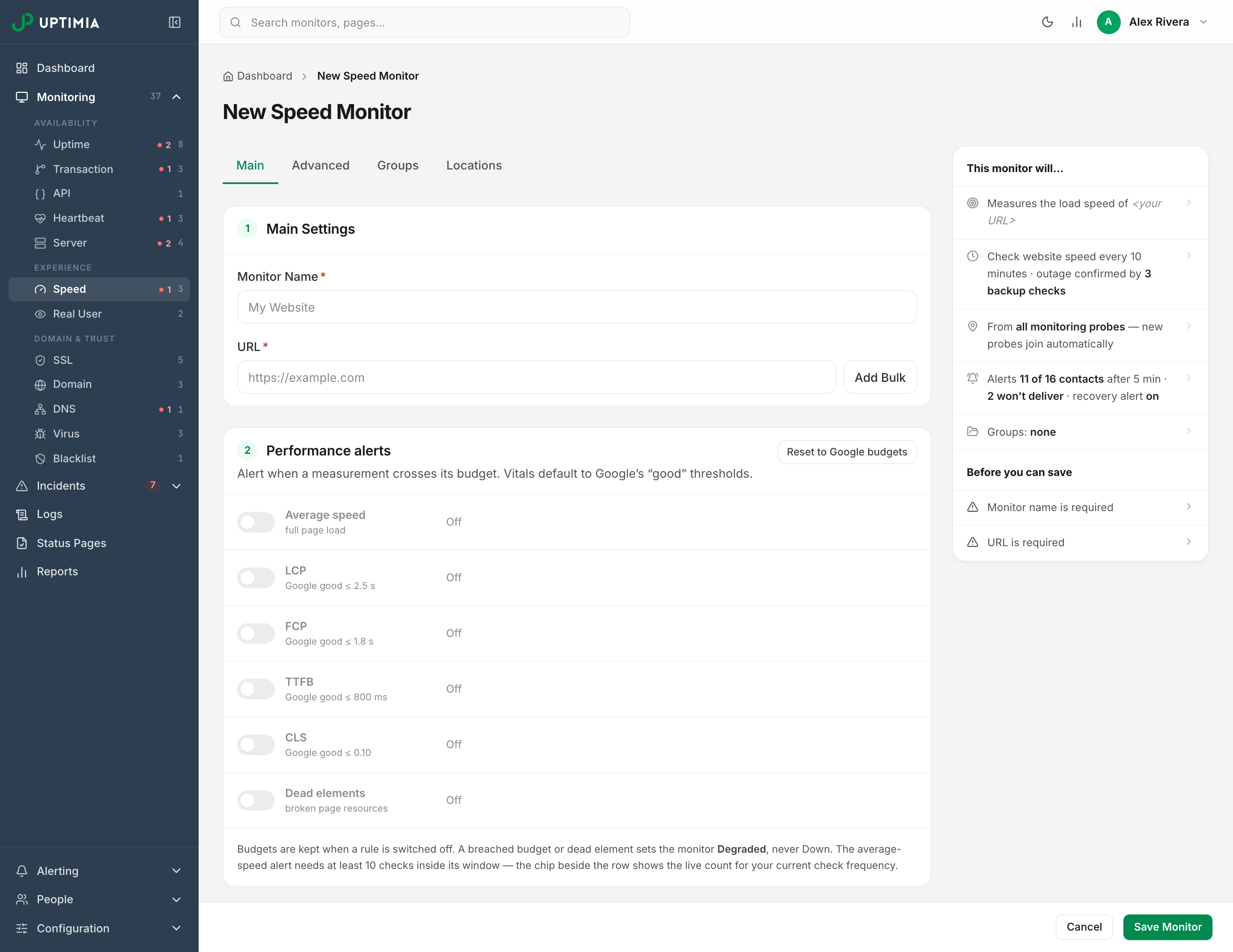
- Set the rules you want in the Performance alerts card.
- Set Check frequency with the slider in Notification Settings.
- In the Alerting card, choose the contacts to notify. At least one recipient is required, and the save is rejected without one.
- On the Locations tab, choose the probes. A hand-picked selection must contain at least 6.
- Click Save Monitor. Uptimia starts checking immediately.
With one or more speed monitors already saved, Monitoring → Speed opens the lowest-numbered one instead of the explainer. To add another, use Add Monitor on the dashboard and pick Speed. The editor has four tabs, Main, Advanced, Groups and Locations; Main holds the name, the URL, Performance alerts, Notification Settings and Alerting, in that order.
Check Frequency
The slider runs from the plan floor up to 24 hours, and the steps get coarser above an hour. The default is every 10 minutes. The slider floor is 5 minutes on Free and Basic, and 30 seconds on Professional, Enterprise and the trial, while 24 hours is the maximum on every plan.
A 30-second speed monitor does not stay at 30 seconds. Every time your subscription renews or is reactivated, speed checks faster than 1 minute are re-floored to 1 minute, and on Free anything under 10 minutes is re-floored to 10 minutes. Set 1 minute if you want the cadence to hold. See Plan Limits and Quotas.
Notifications and Recipients
Notification Settings carries Check frequency, Alert delay (0–30 minutes, default 5) and Alert when the website comes back up. The Alerting card below it holds the recipients. Once your account has at least one policy, it also carries an All at once / Escalate over time switch, which works the same way on every other monitor family. See Escalation Policies.
Performance Alerts
All speed alerting sits in one card of switch rows, Performance alerts. New monitors start with every rule off. Switching a rule off replaces its inputs with Off. The value is remembered for the session, except for a web-vitals budget: that is stored as "off" rather than as your number, so reopening the monitor puts the metric back at Google's default. Across a save, the average-speed threshold, its window and the dead-element settings are kept either way. The card header carries Reset to Google budgets, which restores the four vitals values without touching their switches.
| Rule | Opens an incident when | Evaluation window |
|---|---|---|
| Average speed | The average full page load is at or above the threshold and at least 70% of the checks in the window were over it | 20, 30, 45 or 60 minutes |
| LCP / FCP / TTFB / CLS | At least 70% of the checks carrying that metric are over its budget | Auto-sized to the longer of 30 minutes and 10 check intervals |
| Dead elements | A watched, non-ignored element has failed on N consecutive checks and is still failing | Continuous, from the sighting streak |
The average-speed rule and the four vitals budgets each need at least 10 usable checks in their window; below that, the current state holds. The dead-element rule has no such minimum. It fires on the consecutive-failure streak you set.
Average Speed
The row reads as a sentence: slower than N s over N min. The threshold is a typed number, 1–30 seconds; the window is a select offering 20, 30, 45 or 60 minutes. Defaults are 10 seconds over 30 minutes. The incident closes when the average is back under the threshold and no more than half the checks in the window are over, and at least 10 checks are present in the window.
A configuration that cannot produce 10 checks in its window is refused on save: "For speed alerts, we need to collect data from at least 10 speed checks in a 30-minute window. Right now, your settings will perform 3 checks. Please increase the frequency of checks or make the time window longer." The editor catches it first. A live chip beside the row reads green "18 checks in window ✓" or amber "only 3 checks in window — needs 10". The chip recomputes as you move the frequency slider.
Web Vitals Budgets
Each metric has its own switch row, labeled with the abbreviation and Google's "good" cut-off underneath. Turning one on reveals a budget input reading above N. LCP and FCP are edited in seconds, TTFB in milliseconds, CLS as the score.
| Metric | Budget prefill | Accepted range | Google good / poor |
|---|---|---|---|
| LCP | 2.5 s | 0.1–60 s | 2.5 s / 4.0 s |
| FCP | 1.8 s | 0.1–60 s | 1.8 s / 3.0 s |
| TTFB | 800 ms | 50–30,000 ms | 800 ms / 1.8 s |
| CLS | 0.10 | 0.01–10.00 | 0.10 / 0.25 |
A value outside its range is rejected.
There is no window setting here. The evaluation window sizes itself to the longer of 30 minutes and 10 check intervals. For example, a 10-minute monitor is judged over 100 minutes, and a 30-second monitor over 30 minutes. The incident reason names every breached metric with its median, its budget and the share of checks over: "Web vitals over budget in the last 100 minutes: LCP median 4.8 s vs budget 2.5 s (91% of 11 checks over)". It closes only when every enabled metric is back to half or fewer of its checks over budget.
A metric switched off is still measured, charted and scored, but never alerts.
Dead Elements
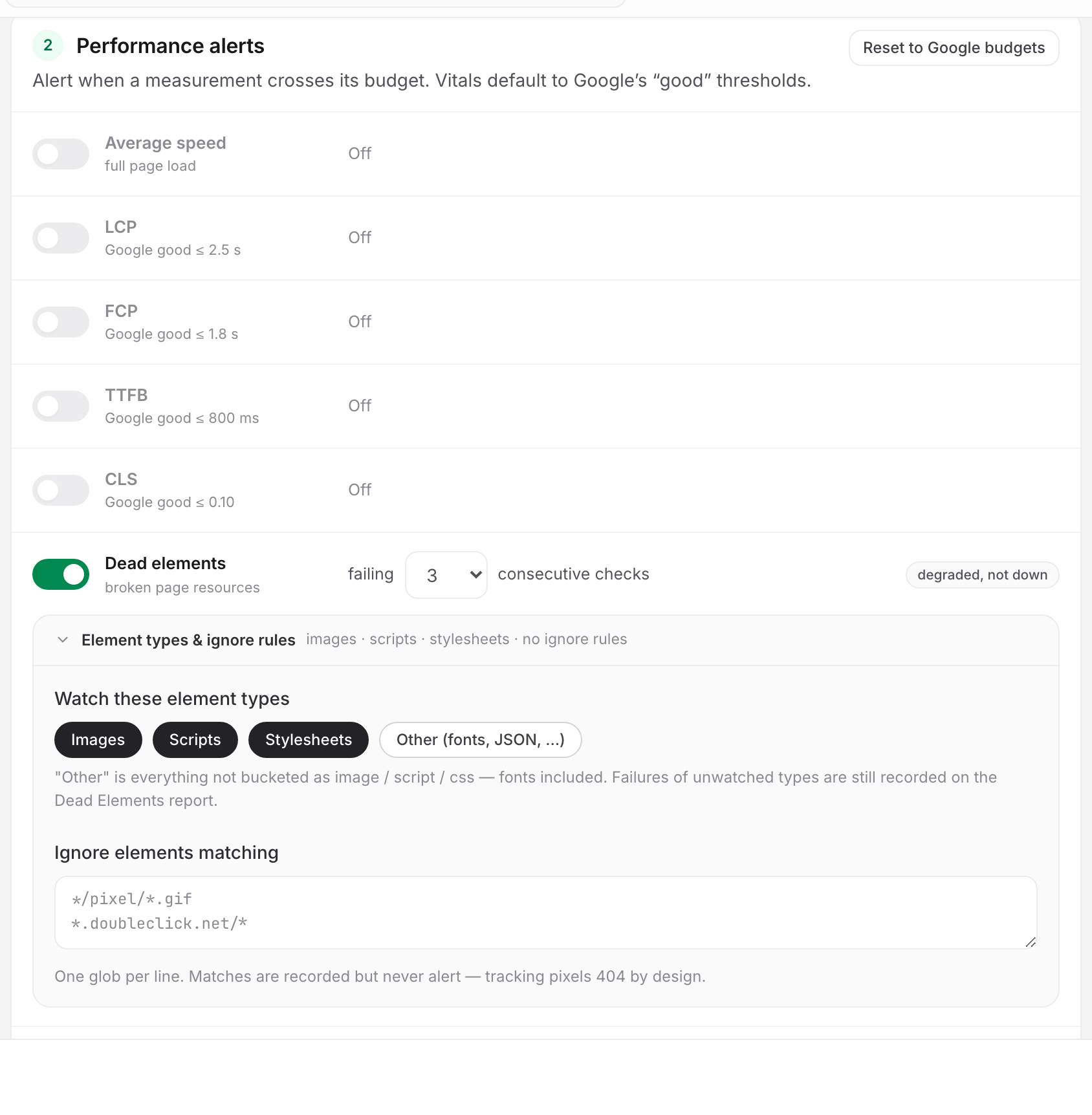
Detection runs on every check regardless; what you configure is the alert. Switch it on and choose how many consecutive checks an element must fail before it pages you: 1, 2, 3, 5 or 10, default 3.
Behind the Element types & ignore rules disclosure are two more controls:
- Watch these element types offers chips for Images, Scripts, Stylesheets and Other (fonts, JSON, …). The first three are on by default and at least one must stay selected. An unwatched type still appears on the report without ever alerting.
- Ignore elements matching takes one address pattern per line, capped at 50 lines and 2,000 characters. Matches are recorded and never alert, which is what you want for tracking pixels that 404 by design:
*/pixel/*.gif
*.doubleclick.net/*
The incident names the element, its type, the error and the streak: "https://cdn.example.com/hero.jpg (image) failing with "404" for 3 consecutive checks (+2 more failing elements) — the page itself stays up". It closes on the next sweep after the element loads again.
The Advanced Tab
| Card | What it does |
|---|---|
| Notes | Free text on this monitor, up to 500 characters. |
| Outage confirmation | How many backup probes must also see the page fail before an outage is confirmed. 1–3, default and recommended 3. |
| Email Branding Style | Which branding template alert emails use. Default (Uptimia Branding) unless you pick one. |
Outage confirmation governs a genuine page failure: the site not answering. It has no bearing on the three performance rules, which the sweep decides from many checks rather than one probe.
Reading the Detail Page
The speed detail page is a single scrolling page, not a set of tabs. The date-range picker in the header drives every section: Today, Yesterday, Last 7 Days, Last 30 Days, This Month, Last Month or a custom range. A range longer than your plan's history window is raised to that floor; see Data and Log Retention.
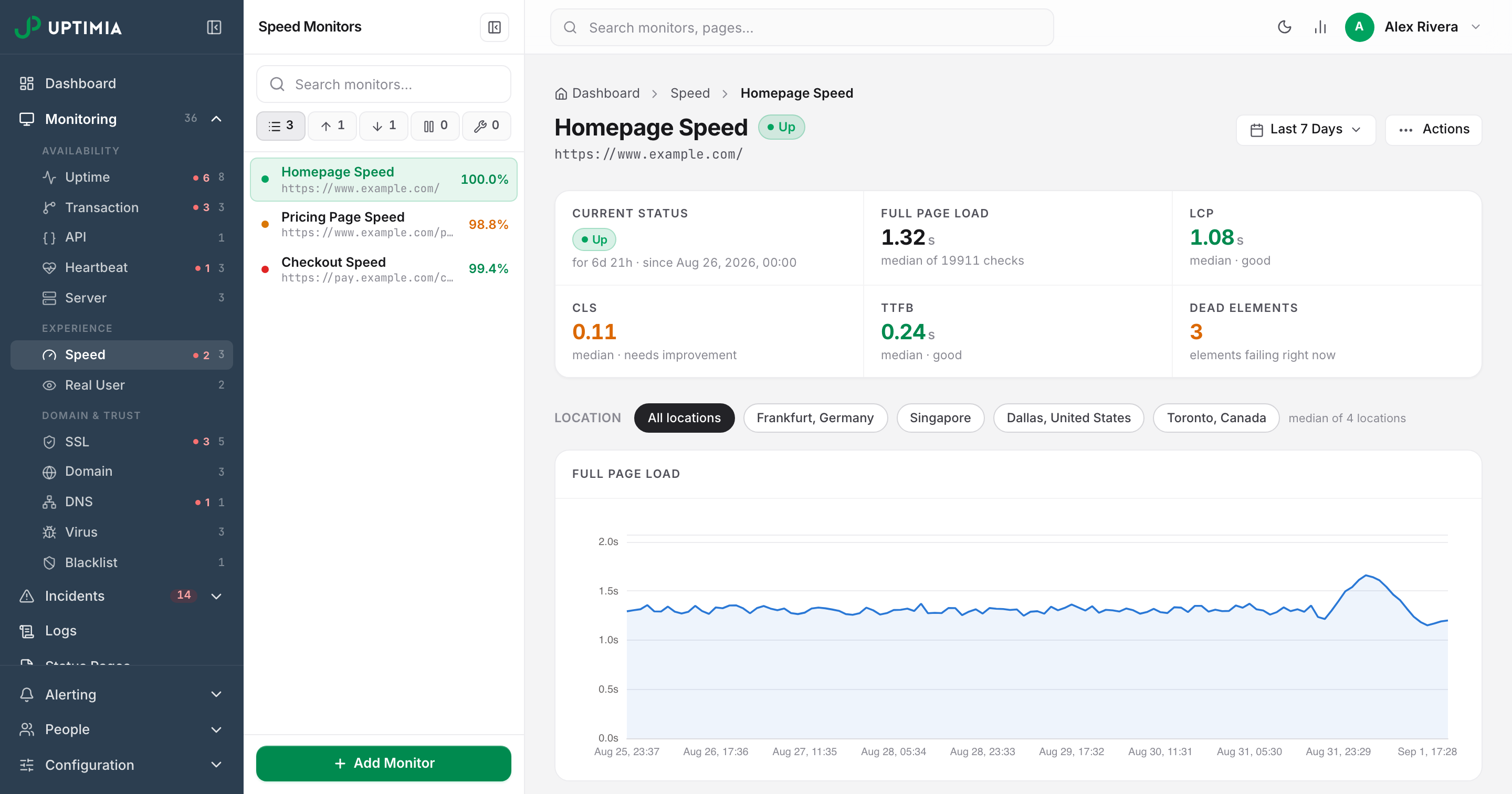
The Stat Strip
Every number is a median over the selected range, not a mean.
| Cell | Shows |
|---|---|
| Current Status | The status badge, with how long it has held and since when |
| Full Page Load | Median load time in seconds, over "median of N checks" |
| LCP | Median, scored good, needs improvement or poor against Google's cut-offs |
| CLS | ″ |
| TTFB | ″ |
| Dead Elements | How many elements are failing right now: amber if any, green if none |
A vitals cell with no data in the range reads — with "no vitals in range yet".
Location Chips
Under the strip sits a chip row: All locations plus one chip per reporting probe. All locations is a cross-location median and says "median of N locations" beside it. Picking a single probe redraws every chart below from that probe alone. The Locations tab, or a saved set, decides which probes report. See Location Profiles.
Full Page Load
Load-time history for the chosen location. With speed-drop alerting on, the header reads "alert over N s" and a dashed cut line across the chart marks the threshold.
Web Vitals — Lab
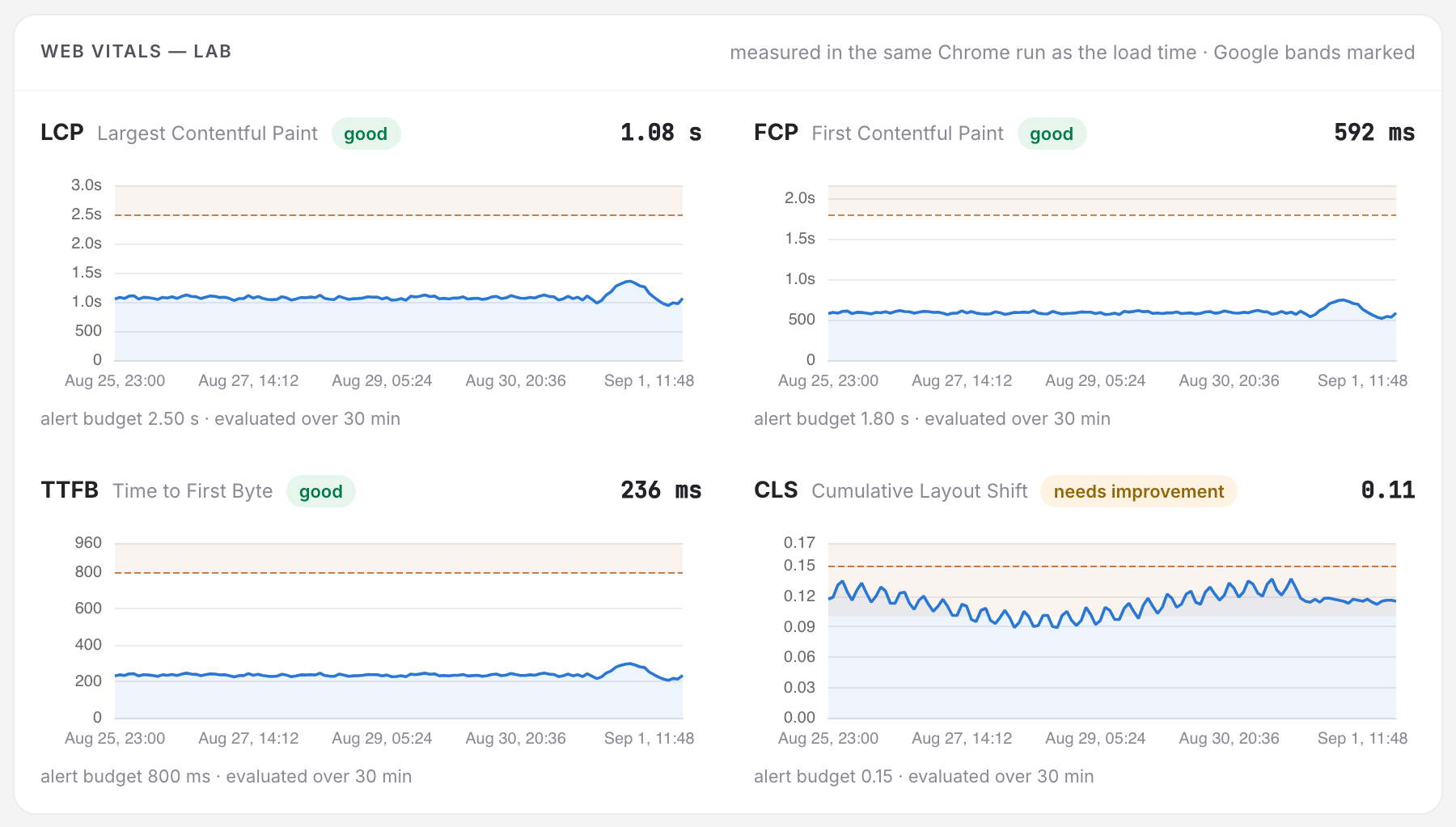
Four small charts in a 2×2 block: LCP, FCP, TTFB, CLS. Seconds, milliseconds and a unitless score never share an axis, so each has its own. Google's needs-improvement and poor bands are tinted behind each line, your budget is a dashed cut line, and a crosshair stays synchronized across all four, so one hover reads every metric at the same instant. Each header carries the range median and its scoreword. With no vitals in the range an information strip says so. Nothing is zero-filled.
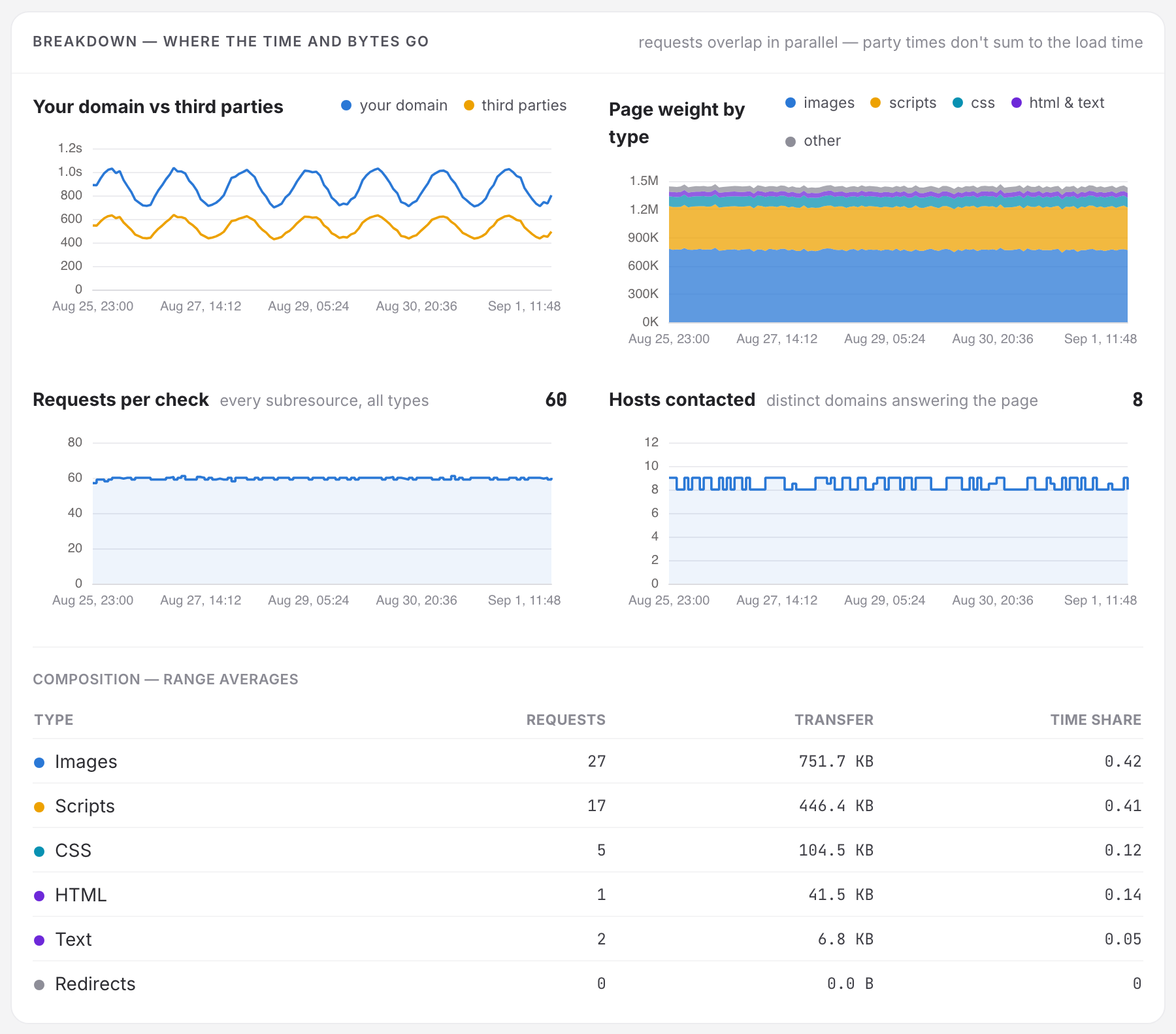
Breakdown — Where the Time and Bytes Go
- Your domain vs third parties plots two lines. Requests run in parallel, so these times overlap and do not sum to the load time. Read them as trends, not as shares of a whole.
- Page weight by type stacks bytes for images, scripts, css, html & text and other. Bytes do sum.
- Requests per check counts every subresource, all types.
- Hosts contacted counts the distinct domains that answered.
- Composition — range averages is a per-type table of requests, transfer and the average seconds that type accounted for. The column is headed Time share, but the figures are seconds. They add up to about the load time, not to 100%.
Dead Elements
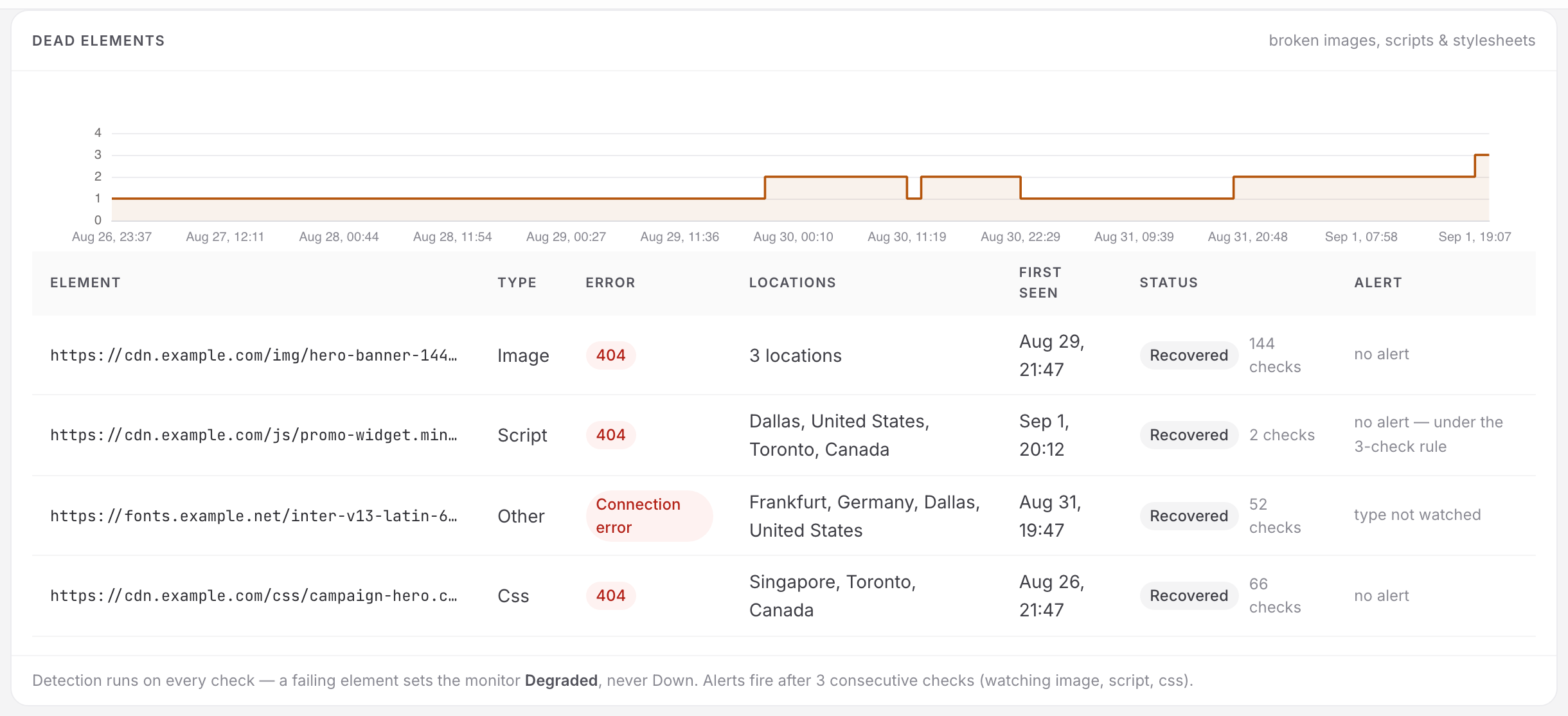
A failing-elements-over-time strip, then the report table.
| Column | Shows |
|---|---|
| Element | The resource URL |
| Type | image, script, css or other |
| Error | The HTTP status, or "Connection error" |
| Locations | Which probes saw it fail |
| First Seen | When the streak began |
| Status | Failing or Recovered, with the sighting count |
| Alert | alerting — N consecutive checks, under the N-check rule, type not watched, no alert (a recovered element), or alerts off |
The footer restates the rule in place: detection runs on every check, and a failing element sets the monitor Degraded, never Down. It also names your threshold, your watched types and how many elements the ignore list kept out of the table. With no dead elements recorded anywhere in the range you get No dead elements detected. Elements that failed earlier in the range and have since recovered still appear, marked Recovered.
Uptimia collects dead elements only when the page check itself succeeded, so a page that is down produces an uptime failure and no dead-element report.
Latest Check by Location
One row per probe from its most recent check: Location, Checked, Load, TTFB, FCP, LCP, CLS. Values past Google's good cut-off render amber, values past the poor cut-off render red, so read this table to tell a regional slowdown from a global one.
Timeline, Incidents and Check Log
The page ends with the three cards every monitor detail page has. The Timeline legend lists only the states present in the selected range, drawn from Up, Down, Trouble, Maintenance, Paused and Unknown. The Incidents card lists this monitor's incidents. The Check log card lists the latest checks newest first. A row click opens its drawer, and View all logs opens Monitoring Logs filtered to this monitor.
Degraded, Not Down
All three performance rules open a trouble incident, which the monitor page badges Trouble while the dashboard card and the incident list call the same state Degraded. None of the three ever marks the monitor Down, and the reason shown is Website too slow, Web vitals over budget or Page element failing. The whole vocabulary is in Monitor Statuses.
Degraded time still counts as downtime in the availability percentage. Uptimia adds the overlapping seconds of every incident, then classifies each incident as critical or non-critical afterwards. The classification changes the incident counts shown on the page, not the fraction, so a monitor that spent four hours over its LCP budget shows that in its availability figure. See How Uptime Is Calculated.
A fast check does not clear the incident. One good page load does not prove a 70%-of-checks budget breach or a dead-element streak is over, so only the sweep closes these. The sweep runs once a minute, so expect up to a minute of lag after the underlying condition clears.
When several rules would fire at once the monitor holds a single incident, and the priority is average speed, then vitals, then dead elements. The sweep skips monitors that are paused, suspended or inside a maintenance window. If speed alerts are producing more noise than signal, Getting Fewer, Better Alerts covers which knob to turn.
Limits and Plan Availability
Speed and transaction monitors share one allowance, Advanced checks, and you can split it between the two families however you like.
| Pool | Free | Basic | Professional | Enterprise | Trial |
|---|---|---|---|---|---|
| Advanced checks (Speed + Transaction) | 0 | 1 | 10 | 100 | 50 |
Creating a monitor past the pool is refused with an upgrade message. Editing an existing monitor never consumes a slot, so a downgraded account keeps working on what it already has. Full quota detail is in Plan Limits and Quotas.
Editing, Templating and Deleting
Open the monitor and use the Actions menu at the top right.
- Edit reopens the four-tab editor.
- Save as Template stores these settings as a reusable monitor template, performance alerts included.
- Pause / Resume stops and restarts checking. The alert sweep skips a paused monitor.
- Delete removes the monitor and its history.
A monitor's currently open incident cannot be deleted, so close it first or let the sweep close it.