
A transaction monitor drives a real browser through an ordered list of steps you write: open a page, fill in a field, click something, check the result. One failing step fails the whole check. Use it for a journey across several pages: signing in, searching, adding to a cart, completing a checkout. If your flow is a sequence of HTTP calls with no browser in it, API Monitoring is cheaper and faster.
Before You Start
- Transaction monitors draw on the Advanced checks pool, shared with Speed monitors: Free 0, Basic 1, Professional 10, Enterprise 100, Trial 50. On Free the family is unavailable. See Plan Limits and Quotas.
- Creating and editing monitors is an Owner, Admin or Editor action. A Read-only member can open a transaction monitor and read its results, but cannot change it.
What a Transaction Monitor Does on Each Check
A probe launches a real browser, runs your steps in order, and times each one. Uptimia captures screenshots only on the backup checks it runs to confirm a failure, so the per-step images you read on an incident all come from a confirming run.
The first failing step ends the run. Uptimia records the steps behind it as not run, the check counts as a failure, and an incident opens once your alert delay elapses.
A step marked Optional step is the exception: the run continues past it. Because the run stops at the first failure, the last screenshot is the page as it looked when the flow broke. That is the evidence you read in Why a Transaction Check Fails.
Transaction monitors check every 10 minutes at the fastest, on every plan, because each check drives a browser. There is no 1-minute tier.
Creating a Transaction Monitor
- Go to Monitoring → Transaction.
- Click Add Monitor at the bottom of the monitor panel, or Start monitoring on the explainer if this is your first transaction monitor.
- Enter a Monitor Name. It appears on the dashboard and in alerts, so name it after the journey ("Checkout", "Customer login"), not the site.
- In the Transaction builder card, pick a recipe or build the steps yourself.
- Click Test all steps in the Test & preview rail and fix anything that fails.
- Set Check frequency and Alert delay under Notification Settings, and choose recipients under Alerting.
- Open the Locations tab and choose where the check runs.
- Click Save Monitor. Uptimia queues the first check immediately.
The Transaction Builder
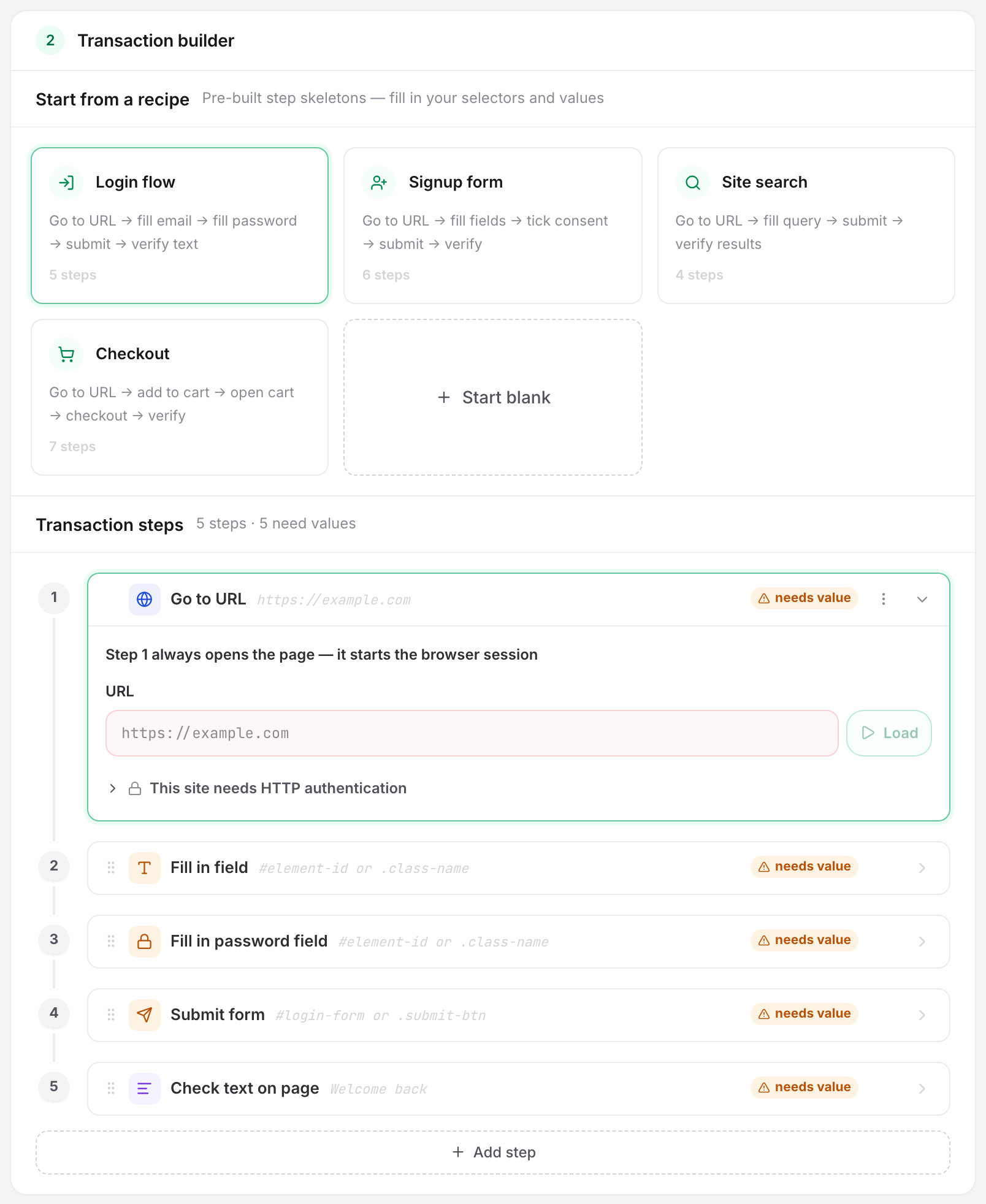
The builder is one numbered card, Transaction builder, sitting under the Main tab's basic settings. It holds two labeled blocks: Start from a recipe (new monitors only) and Transaction steps.
Starting From a Recipe
On a new monitor, Start from a recipe offers four skeletons. Each one lays the actions out in order with every field empty, so you fill in selectors instead of choosing actions.
| Recipe | Steps it lays out |
|---|---|
| Login flow | Go to URL → fill in field → fill in password field → submit form → check text on page |
| Signup form | Go to URL → two fill-in fields → check checkbox → submit form → check text on page |
| Site search | Go to URL → fill in field → submit form → check text on page |
| Checkout | Go to URL → three clicks → submit form → check URL → check text on page |
Applying a recipe to steps you have already edited raises a confirmation first: the recipe replaces them. Recipes are not offered when editing an existing monitor.
Adding and Ordering Steps
Each step is a one-line row that reads as a sentence: action, target, value. Click one to expand its inline editor. Only one row opens at a time, and any modifiers you have set show as chips on the collapsed row: a wait, an optional step, a run-only-if condition.
- Click Add step at the end of the rail. To insert in the middle, hover between two rows and use the Add step here zone.
- Drag a row to reorder it, or use Move up / Move down in the row's ⋮ menu. The drag grip also takes ↑ / ↓ from the keyboard.
- Duplicate copies a step with its fields; Delete removes it.
While a test run is going, Duplicate, Delete, Move, drag-reorder and Add step are grayed out and show why. Stop the run to get them back.
The 18 Actions
You pick an action from a searchable picker, opened from a step's Action button or from an Add-step button. The picker groups them under three headings: Navigate, Interact and Verify. Step 1 is pinned to Go to URL, and Go to URL is never offered to any other step.
| Group | Action | Primary field | Second field |
|---|---|---|---|
| Navigate | Go to URL | URL | — |
| Navigate | Wait | Duration (ms) | — |
| Interact | Click element | CSS Selector | — |
| Interact | Fill in field | CSS Selector | Text to Type |
| Interact | Fill in password field | CSS Selector | Password |
| Interact | Check checkbox | CSS Selector | — |
| Interact | Uncheck checkbox | CSS Selector | — |
| Interact | Select radio button | CSS Selector | Value to Select |
| Interact | Select dropdown option | CSS Selector | Option Value |
| Interact | Submit form | CSS Selector | — |
| Verify | Check URL | Expected URL | — |
| Verify | Check HTTP status | Expected Status Code | — |
| Verify | Check element exists | CSS Selector | Expected State: Exists / Does not exist |
| Verify | Check text on page | Text to Find | — |
| Verify | Check element text | CSS Selector | Expected Text |
| Verify | Check checkbox state | CSS Selector | Expected State: Checked / Unchecked |
| Verify | Check radio state | CSS Selector | Expected State: Should be selected / Should not be selected |
| Verify | Check dropdown value | CSS Selector | Option Value, plus Should be selected / Should not be selected |
A step carries an action, its fields and its conditions, nothing else. No action asserts anything on its own. To check a result, add a Verify step after it; selector fields on the Interact and Verify actions carry a Suggest button.
Conditions on Step 2 and Later
Steps from 2 onward carry a closed Conditions disclosure. Its summary line names only what you have set ("wait 500 ms · optional · if #banner does not exist", or "none set").
| Control | What it does | Default | Limits |
|---|---|---|---|
| Wait before this step | Pauses before the step runs, to give the page time to settle. | 0 ms | 0–300,000 ms (5 minutes) |
| Optional step | Continues the transaction if this step fails, instead of failing the check. | off | — |
| Run only if element | Runs the step only when a CSS selector exists or does not exist on the page. | empty (always run) | — |
| Run only if text | Runs the step only when text exists or does not exist on the page. | empty (always run) | — |
Run only if element is what handles a cookie banner or a promo overlay that appears some of the time.
A pre-step wait is capped at 300,000 ms (5 minutes). The wait does not count against the step's own 30-second budget, since that clock starts when the wait ends, but everything the step then does has to finish inside those 30 seconds, or the step times out and fails. Keep waits in the hundreds of milliseconds. Writing Stable Transaction Checks covers the timing strategy.
HTTP Authentication on Step 1
Step 1 carries a This site needs HTTP authentication disclosure instead of Conditions. Open it and enter Username and Password to send basic-auth credentials with the initial page load. Later steps do not have this control.
Testing a Flow Before You Save
The Test & preview card sits in the editor's right-hand workspace rail, behind a Summary | Test switch. Any run flips the rail to Test. It shows one live screenshot for the selected step, a thumbnail trail you can scrub, a run summary (passed / failed / not run and total seconds), and a session line telling you whether a browser session is open.
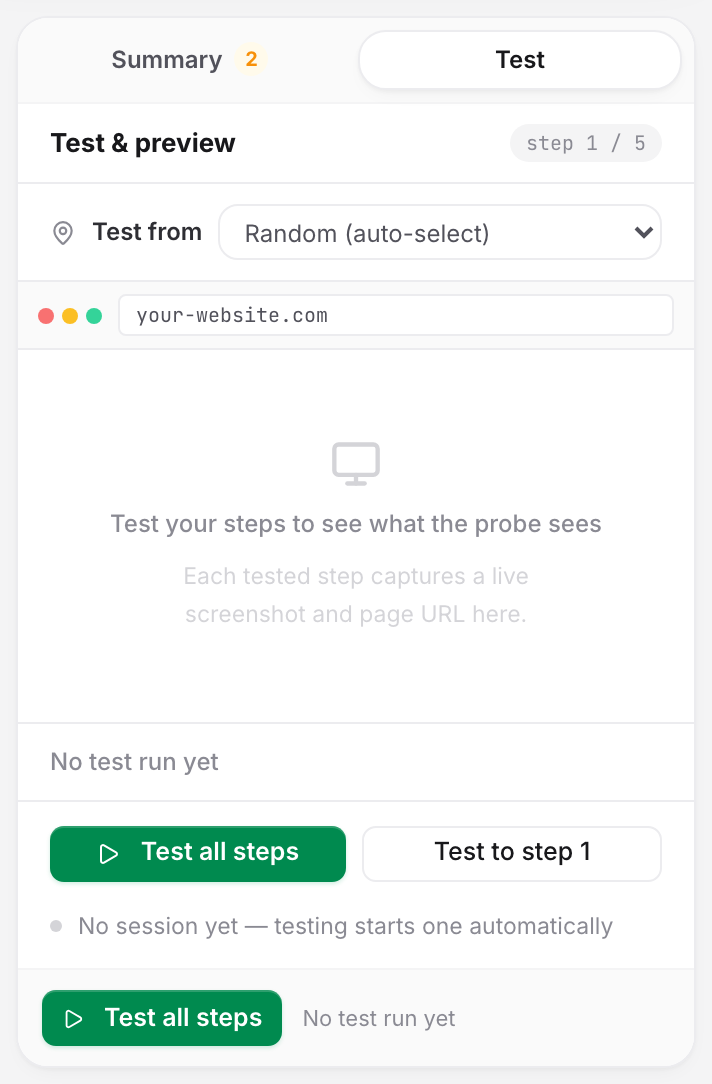
Test from selects the probe the builder's live session runs on: Random (auto-select), Toronto or Cologne. This applies to builder test runs only. Where the saved monitor checks from is set on the Locations tab.
The run controls:
- Load on step 1's URL field opens the page and starts the browser session. It reads Reload once a session is open.
- Run step on a step from 2 onward runs only that step, against the page the live session is already on. With no session open the same button reads Run to here and runs steps 1 to N instead.
- Test all steps runs the whole flow live. A failing step paints its row red, marks the steps behind it not run, and jumps the preview to the failing screenshot.
- Test to step N runs steps 1 to the step currently selected in the preview.
- Stop test replaces the run button while a run is in flight. A stopped run is not a failure. The step that was still running goes back to idle, no "not run" marks are written, and the toast reads "Test stopped".
A single-step re-run acts on the page as it is now. Uptimia drops the statuses and screenshots of the steps after it, so none of them are left reading as current. If the session has gone you get "Session expired — load the page again", and the next run starts from step 1.
Selector Suggestions
Suggest, on a selector field, reads the live page through the open session and lists candidate selectors that fit the step's action. Its filter box matches both the selector and the element description the probe sends with it, and Enter applies the top match. With no live session open, the panel offers to run steps 1 to N first, to load the page.
What Blocks a Save
Each of these blocks the save. The problem is reported per step, as an inline banner on the builder and as a counted issue on the tab.
| Rule | Message |
|---|---|
| Step 1 must be Go to URL | "The first step must be Go to URL — it opens the page and starts the browser session" |
| A Wait duration must be whole digits | "Step N: enter the wait duration as a whole number of milliseconds" |
| A Check HTTP status code must be 100–599 | "Step N: enter an HTTP status code between 100 and 599" |
| A step's primary field is empty | The row is flagged needs value |
At least one alert recipient is required, in both alerting modes. An empty selection is refused.
The Rest of the Editor
| Setting | Where | Default | Range |
|---|---|---|---|
| Check frequency | Main → Notification Settings | every 30 minutes | every 10 minutes to every 24 hours |
| Alert delay | Main → Notification Settings | 5 minutes | 0–30 minutes |
| Alert when the website comes back up | Main → Notification Settings | on | on / off |
| Recipients, or All at once / Escalate over time | Main → Alerting | All at once | — |
| Notes | Advanced | empty | ≤ 500 characters |
| Confirmations required | Advanced → Outage confirmation | 3 | 1–3 |
| Branding Template | Advanced → Email Branding Style | Default (Uptimia Branding) | — |
| Monitor groups | Groups | none | — |
| Probes | Locations | account default | All probes, a saved profile, or ≥ 6 hand-picked probes |
The Escalate over time mode appears once your account has at least one policy. While it is on, the people paged come from the policy, worked out again each time an escalation step fires, and the monitor's own recipient list stays required as the fallback. See Escalation Policies.
Outage confirmation sets how many backup probes must also report the failure before the incident is confirmed; How Uptimia Monitoring Works explains the mechanism. A Note appears on the incident page and in alert emails and webhooks. See Monitor Notes.
Editing a bound location profile later rewrites the monitors still using it. See Location Profiles.
Warning: step values are stored so the probe can type them into the page, and that includes the value of a Fill in password field step. Incident detail and last-run views show it behind a fixed-width mask. The stored value itself stays unencrypted at rest. Monitor a dedicated test account with limited privileges, never a real administrator login.
Reading the Monitor Page
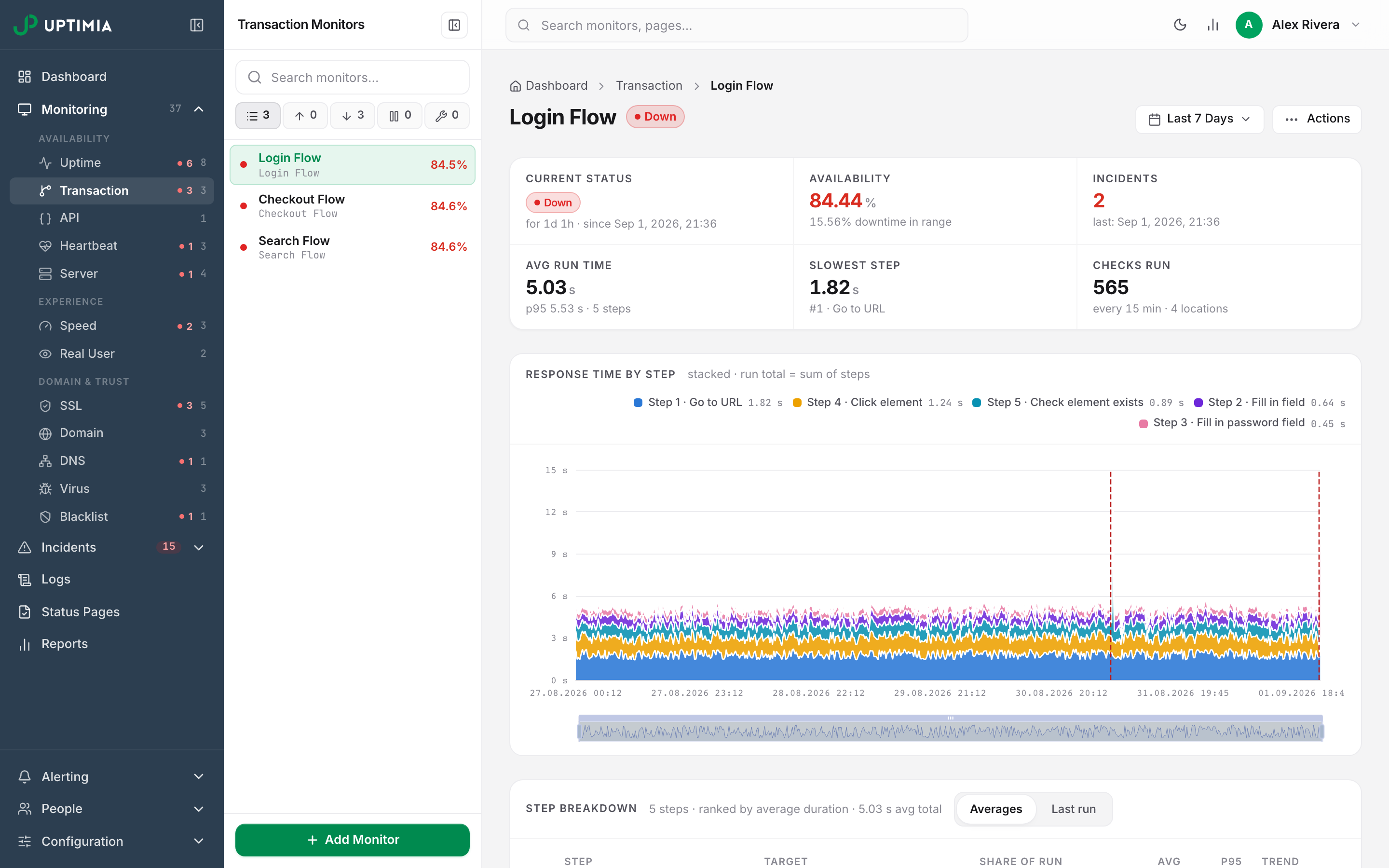
The page is one scrolling stack of cards. The status badge (Up, Down, Paused, Maintenance, Trouble, Suspended) sits beside the monitor name, with a date-range picker at the top right. A monitor in a window also carries a line reading "Under maintenance until <end> · <window name>", linking to the maintenance page.
The Stat Strip
| Cell | What it shows |
|---|---|
| Current Status | The status badge, plus "for X · since Y" |
| Availability | Percentage for the selected range, with the downtime share underneath. Green at 99% and above, amber 95–99%, red below 95% |
| Incidents | Count in range, plus when the last one started |
| Avg Run Time | Mean total run in seconds, plus "p95 … · N steps" |
| Slowest Step | That step's average, plus "#n · action" |
| Checks Run | Points in range, plus "every N min · M locations" |
Response Time by Step
One full-width chart, Response time by step, stacks the 5 slowest steps as their own colored bands, with the rest rolled into a single neutral Other (N steps) band. With 6 steps or fewer, every step keeps its own band. Legend chips carry each band's average for the range. Hovering the chart lists the steps from top to bottom with a total, and dashed red markers sit at incident starts. Values are seconds.
Step Breakdown
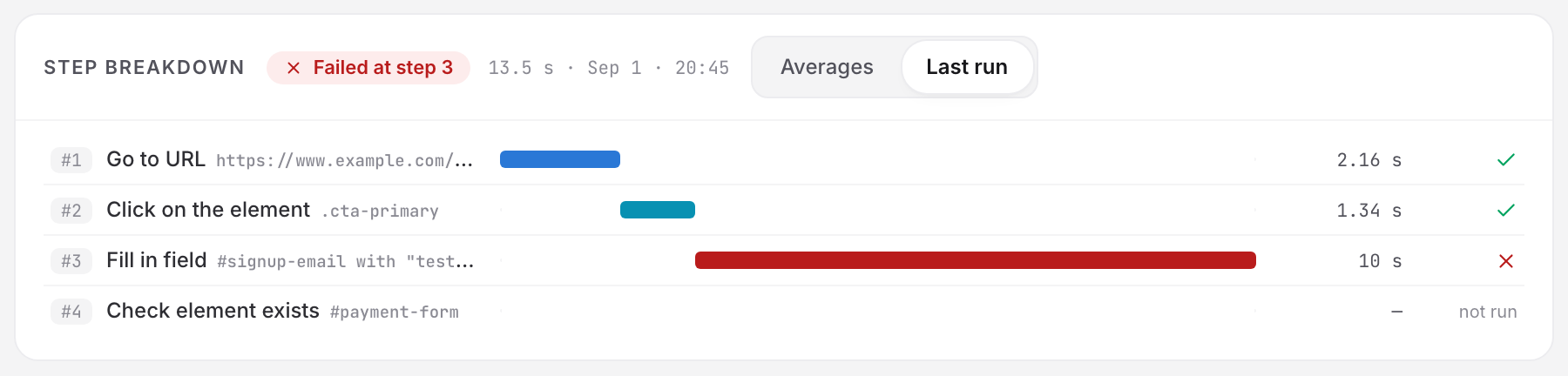
The Step breakdown card carries an Averages | Last run switch. This is where you diagnose a failure.
- Averages ranks every step by average duration. A row carries the chart swatch, the
#nchip, the action label, the target selector, a share-of-run bar and percentage, the average, the p95 and a trend sparkline. The top 10 show, with Show all N steps underneath. - Last run is a waterfall of the latest check: bars offset by start time, per-step durations, and the failed step in red. Every step gets a tick or a cross, and the steps the run never reached read not run. A camera button sits on any row whose step stored a screenshot. The header reads All N steps passed or Failed at step N, with the total and the time.
Timeline, Incidents and Check Log
Below the breakdown sit the Timeline bar for the selected range, the incidents feed and the Check log card. An incident row reads "Down for duration", with a red Ongoing pill while it is open, and View incident opens the incident page, which renders the run's steps and screenshots and exports as PDF or HTML. The Check log lists the latest checks newest first: location, time, duration and status. Clicking one opens the check detail drawer.
Limits and Plan Availability
| Free | Basic | Professional | Enterprise | |
|---|---|---|---|---|
| Advanced checks (Speed + Transaction, one pool) | 0 | 1 | 10 | 100 |
The trial carries 50 advanced checks and runs at the same 10-minute floor. The pool is shared: 10 advanced checks on Professional is any split you like between page-speed monitors and browser transactions.
If the pool is full, Uptimia refuses the new monitor with the message "You have exceeded the maximum number of monitored sites." Suspension works the other way round. When a plan change drops your allowance below the number you already have, Uptimia suspends the newest transaction monitors past the new limit. A suspended monitor still exists and is still editable, but Uptimia does not check it again until you free a slot or move back up a plan.
Editing, Pausing and Deleting
Open the monitor and use the Actions menu in the header: Edit, Pause / Resume, Post status update, Schedule Maintenance and Delete. A step's history is keyed to its position, so renumbering a flow changes what each series in the chart means.
Transaction is the one editor-created family with no Save as Template action. A transaction's destination lives inside its steps rather than in a target field.
Deleting a monitor also clears its group memberships and any queued backup checks. An incident cannot be deleted while it is the monitor's open incident.