
A location profile is a saved set of monitoring probes with a name and a color, applied to as many monitors as you like. Seven profiles are built in: six cover the seven geographic regions, with Middle East and Africa sharing one, plus an EU / GDPR set. Save your own from any probe selection. For what the probes can observe from where they sit, see Monitoring Locations and Coverage.
Before You Start
- Managing profiles needs an Owner, Admin or Editor seat. Read-only and Accounting / Billing seats do not see Configuration in the sidebar.
- Location profiles are available on every plan, including Free, and there is no cap on how many you save.
- Six of the twelve monitor families carry a probe selection. The other six have no Locations tab and no profile to apply.
What A Location Profile Is
A profile stores which probes to check from. It comes in three types, shown in the Type column on the profiles page:
| Type | What it holds | Where it comes from |
|---|---|---|
| Custom | A fixed, hand-picked list of probes | You pick the probes in the grid |
| Rule | A region or country rule, resolved to probes each time it is read | The seven built-ins (the create form saves hand-picked or all-probe profiles, not rules) |
| All probes | A "use every probe" setting (Uptimia stores no fixed list) | Turn on Use all monitoring probes while saving |
Applying a profile copies its resolved probe list onto the monitor, exactly as a hand-pick would. From then on the monitor checks from its own probe list, not from the profile. Uptimia also records which profile the monitor was given, so the Locations tab names it when you re-open it, and that record is only a name. It does not decide where checks run.
Built-In Profiles
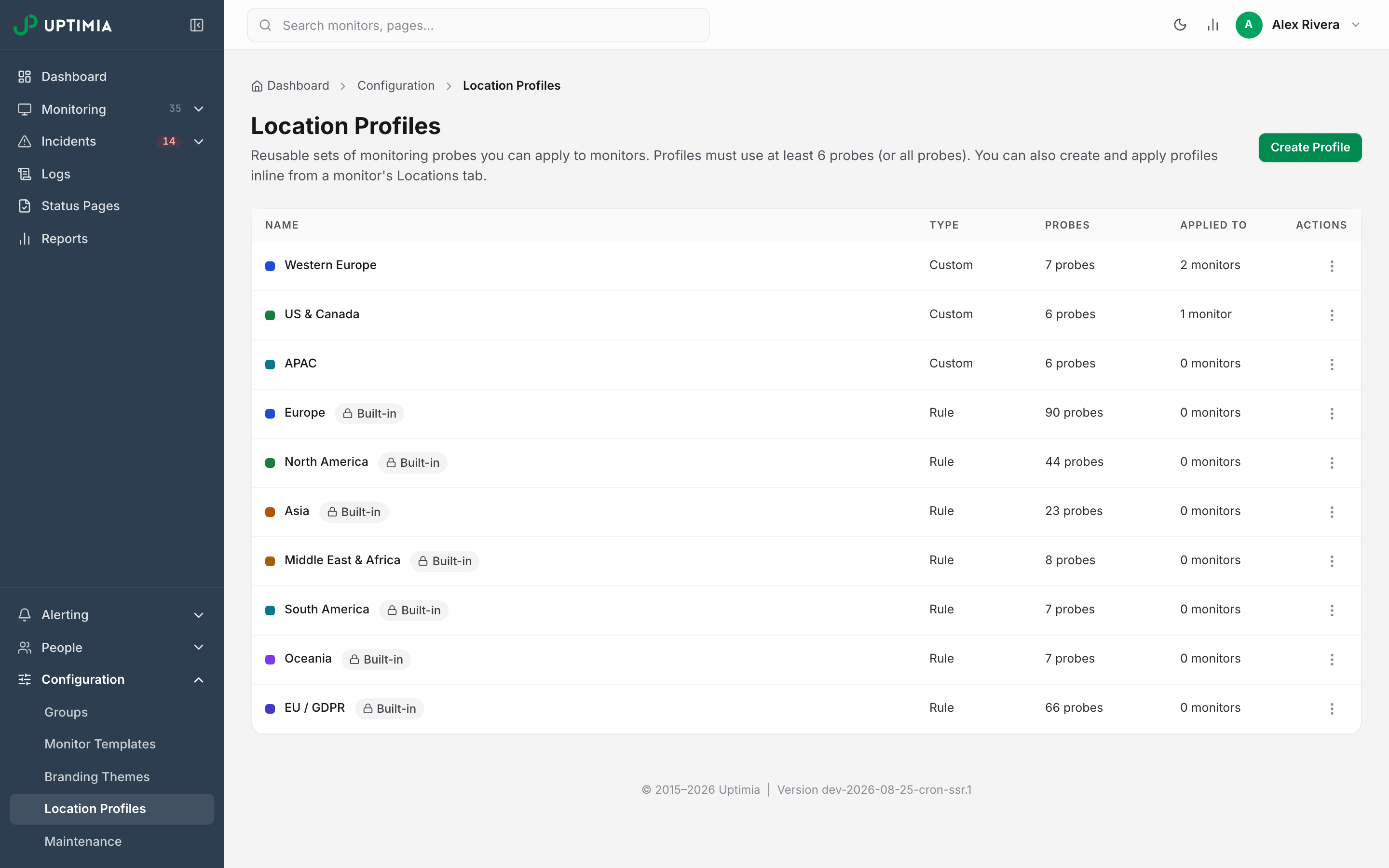
Every account has these, in every profile picker. They are read-only: you cannot edit or delete one, and each shows a Built-in badge.
| Profile | Covers | Probes on 2026-08-31 |
|---|---|---|
| Europe | The whole Europe region, UK, Switzerland, Turkey and the Balkans included | 90 |
| North America | The North America region | 44 |
| Asia | The Asia region | 23 |
| Middle East & Africa | Both regions in one profile | 8 |
| South America | The South America region | 7 |
| Oceania | The Oceania region | 7 |
| EU / GDPR | The EEA only (the 27 EU member states plus Iceland, Liechtenstein and Norway) | 66 |
Middle East & Africa is one profile rather than two because the Middle East has 5 probes and Africa has 3. Alone, neither clears the 6-probe minimum, so a separate profile for each could never be applied. EU / GDPR is a country rule, not a region rule: a strict subset of Europe that leaves out the UK, Switzerland, Serbia, Turkey, Ukraine and every other non-EEA European location. That makes it usable for data residency.
The Probes column on the profiles page always shows the current resolved number, which moves as the fleet changes.
Creating Your Own Profile
- Go to Configuration → Location Profiles.
- Click Create Profile.
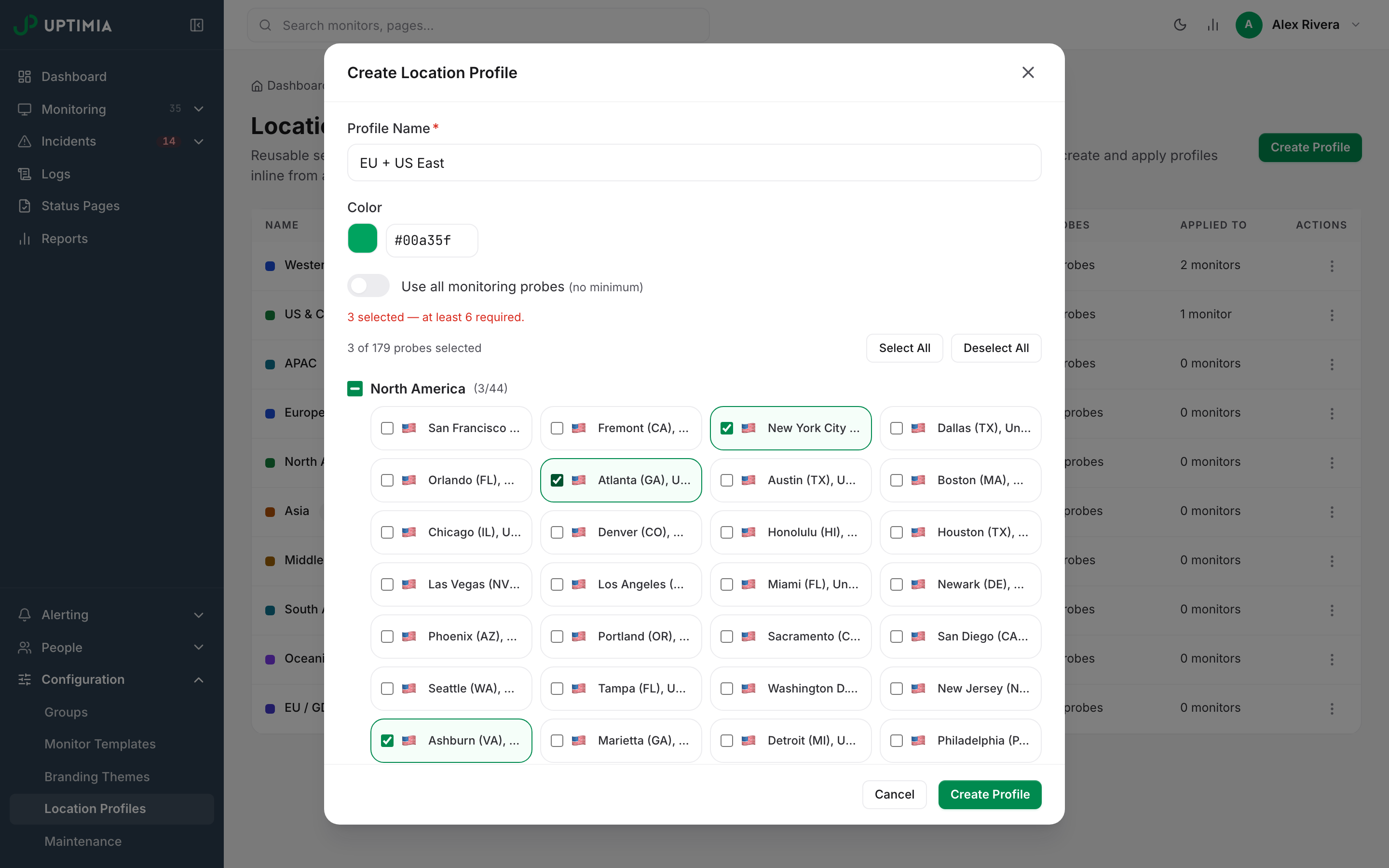
- Enter a Profile Name. It is required and capped at 100 characters.
- Pick a Color. It becomes the swatch beside the name in every list.
- Either turn on Use all monitoring probes, or leave it off and select probes in the region grid.
- Click Create Profile.
With the toggle off, the counter above the grid reads N selected — at least 6 required and turns red below the floor. Uptimia refuses a save under the floor with Please select at least 6 monitoring probes (or use all probes).
You do not have to work the grid every time:
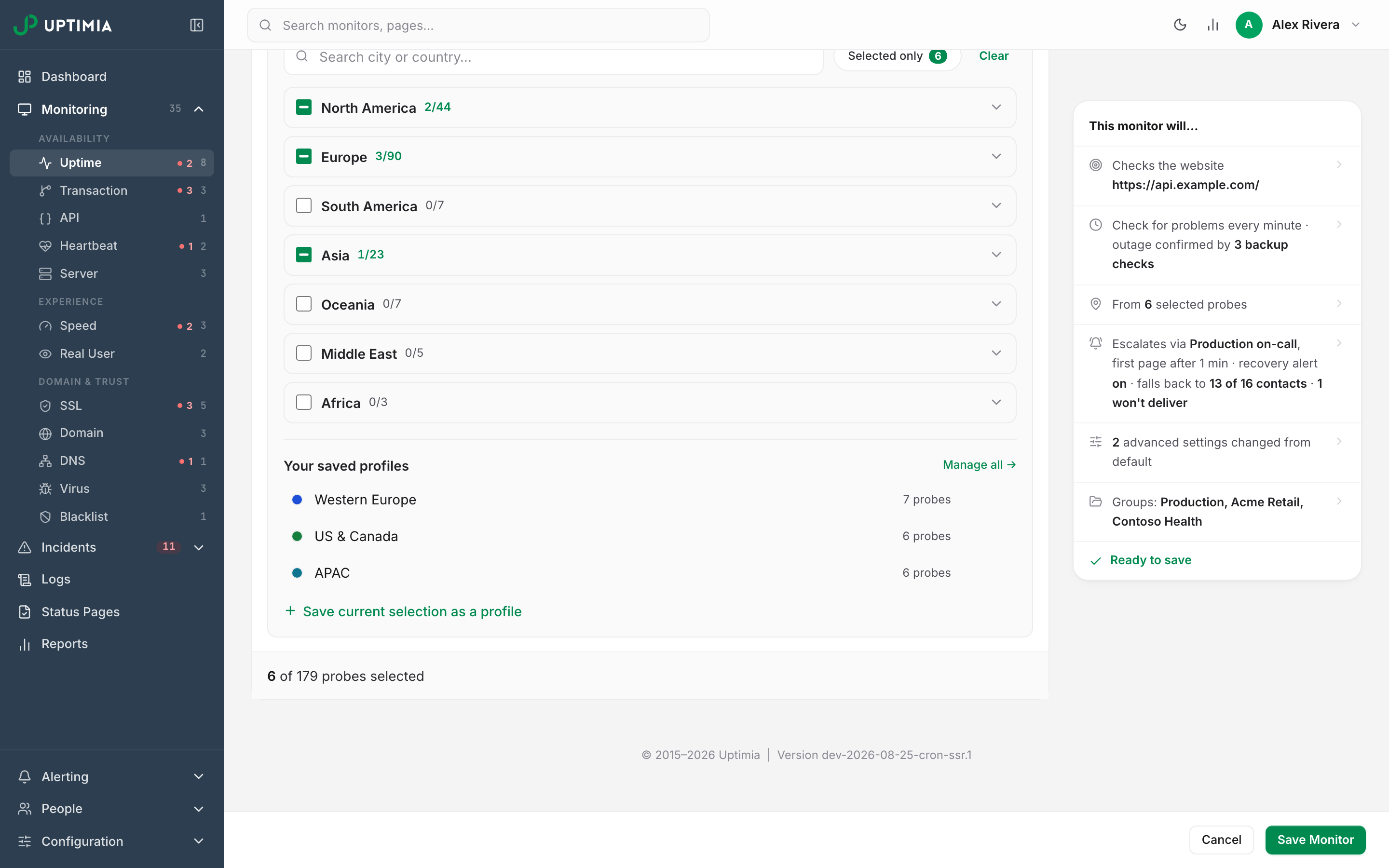
- Duplicate on any row, including a built-in, opens the create form pre-filled with that profile's resolved probes and its name plus " copy". A duplicated built-in becomes a Custom profile of your own, which is how you get an editable copy of, say, Europe minus two cities.
- In the monitor editor's Locations tab, with Custom selection active, click Save current selection as a profile under Your saved profiles. Name it and save; the monitor you are editing links to the new profile straight away. The same panel renames and deletes your profiles without leaving the editor.
Applying A Profile To One Monitor
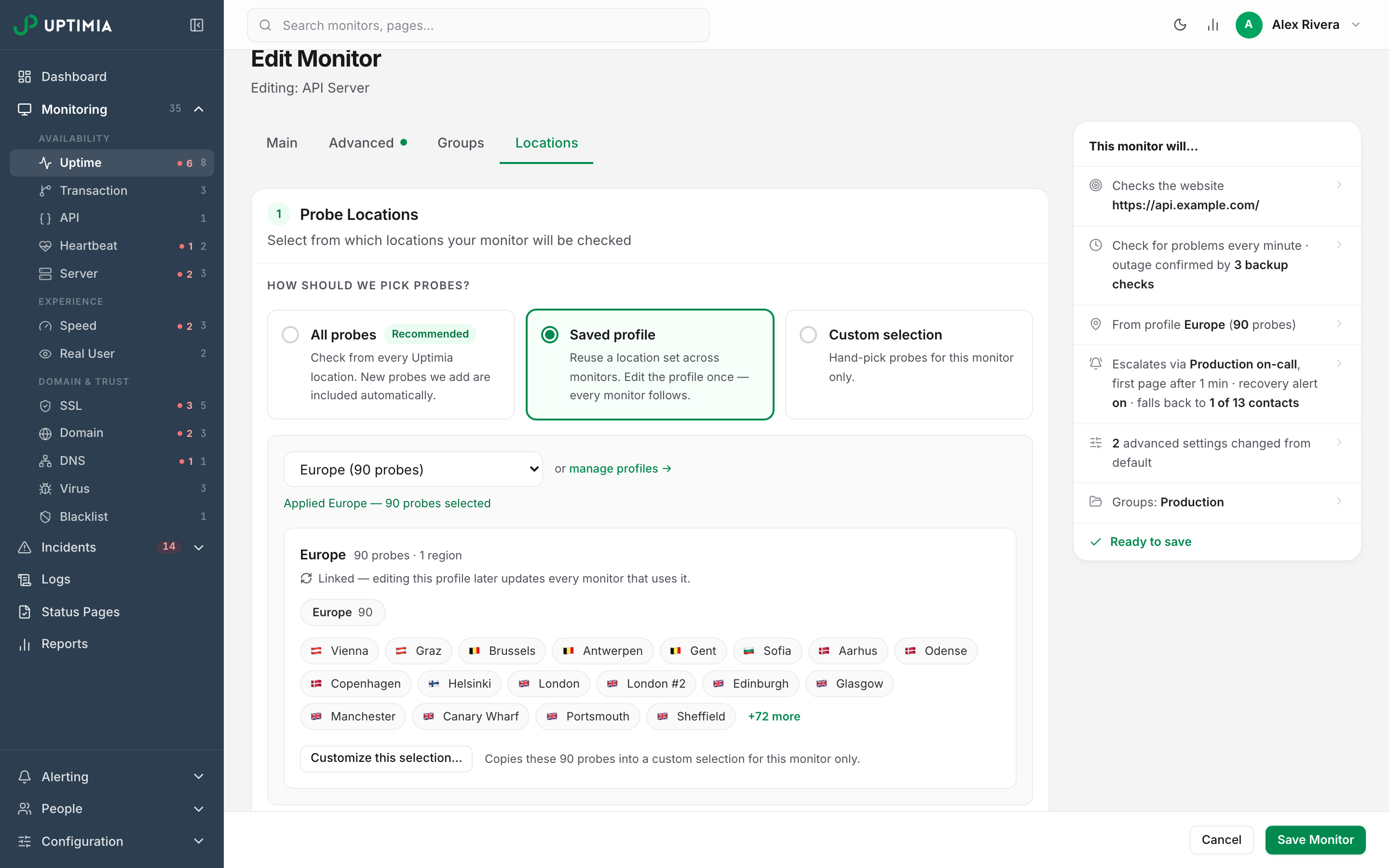
Open the monitor for editing and go to its Locations tab. Under How should we pick probes? there are three modes:
| Mode | What it does |
|---|---|
| All probes (recommended) | Check from every Uptimia location. New probes we add are included automatically. |
| Saved profile | Reuse a location set across monitors. Edit the profile once, and every monitor follows. |
| Custom selection | Hand-pick probes for this monitor only. |
Choose Saved profile and pick from the dropdown. It always has a Built-in group, gains a My profiles group once you have saved a profile of your own, and shows each option's probe count. A profile resolving below 6 is listed as — too few and cannot be chosen. The card below then summarizes the profile: probe count, region counts, and city pills capped at 18 with a +N more toggle.
Two controls on that card make and break the link between a monitor and a profile:
- Customize this selection… copies the profile's probes into a custom selection for this monitor only, and drops the link. A banner confirms it: Started from <name> — changes here apply to this monitor only; the saved profile is untouched.
- In Custom selection mode, if your hand-picked set happens to equal a saved profile exactly, the footer offers Matches "<name>" — link to profile.
Leaving Saved profile mode breaks the link too. Clicking the Custom selection or All probes mode card detaches the profile straight away, before you touch a single probe. The dropdown falls back to Choose a profile…, and the monitor saves with no profile recorded.
Bulk-Applying A Profile To Many Monitors
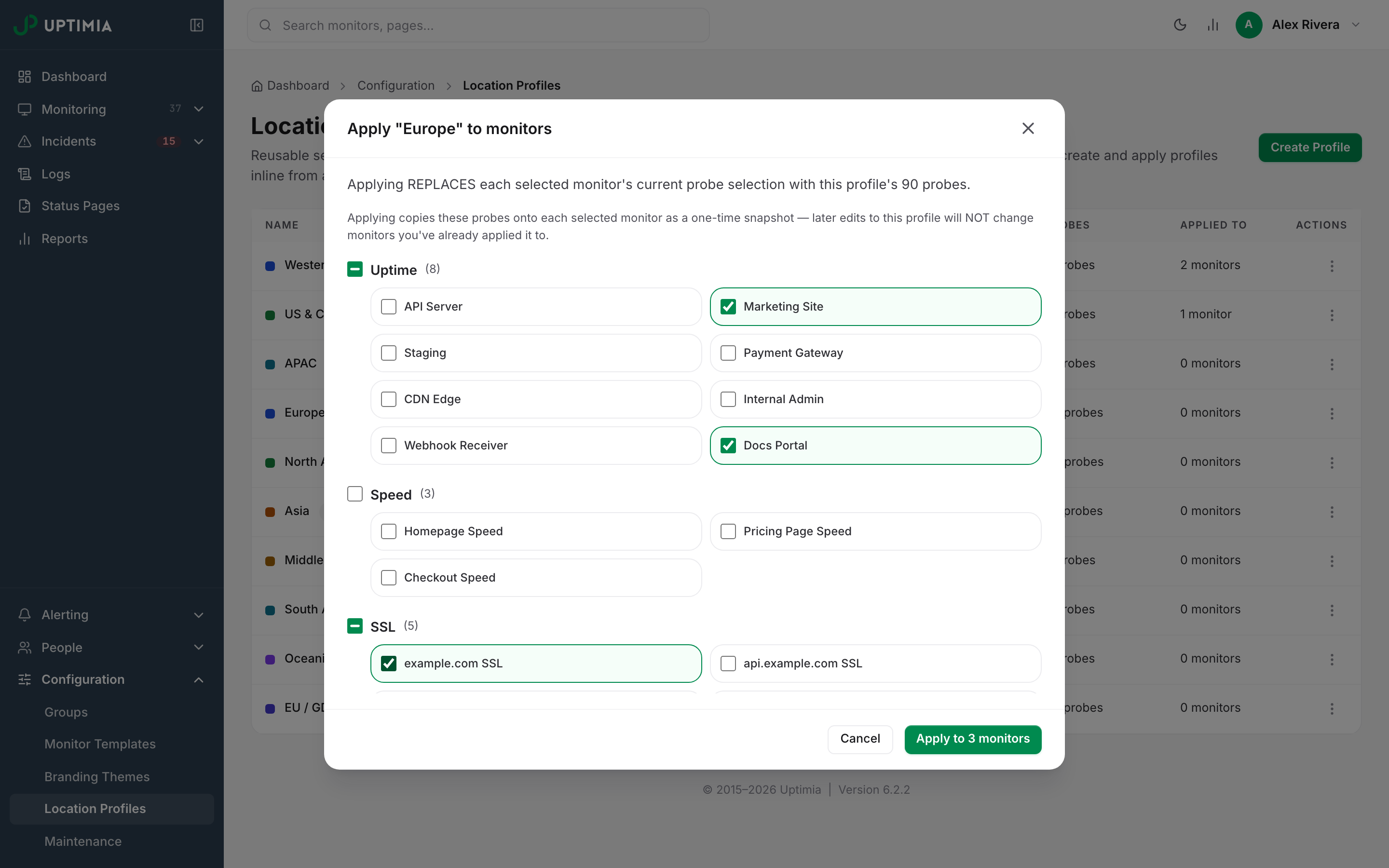
From the profiles page, open a row's actions menu and choose Bulk apply. The picker lists your monitors grouped by family, with a select-all checkbox per group. Select the monitors and click Apply to N monitors.
The picker covers four families: Uptime, Speed, SSL and Transaction. API and DNS monitors take profiles too, though not from this picker. Set those from the monitor's own Locations tab, or from a script, which can apply a profile to all six families. See Getting Started with the Uptimia API.
Applying replaces each selected monitor's current probe selection outright, and the modal says so before you commit. The result view then lists every monitor with an Applied badge or a failure reason: Monitor no longer exists, Too few probes for this monitor, or Unsupported monitor type.
Note: A bulk apply can fail for some monitors and succeed for others, and a batch where nothing applied ends on the same result view rather than an error. The toast reads All N failed — see details. Read the result list monitor by monitor, and check the Applied to count on the profiles page afterwards, rather than assuming the whole batch took the profile.
What Changes When You Edit Or Delete A Profile
Editing a profile that is already in use can rewrite monitors, including monitors it was never applied to.
| You do this | Monitors change? |
|---|---|
| Rename a profile, or change its color | No |
| Change a profile's probe set | Yes. Every monitor of yours whose probe set still exactly matches the profile's previous set is rewritten to the new set |
| Change the probe set of a profile whose previous set was All probes | No. Nothing propagates from the "all" state |
| Delete a profile | No. Monitors keep the probes they have and lose only the link |
| Uptimia adds a new probe to the fleet | No. A rule or built-in profile already applied does not grow on its own |
Uptimia decides which monitors to rewrite by comparing probe sets rather than by which profile is recorded on them. Picture a monitor you hand-picked to the profile's probes without ever applying the profile. Uptimia rewrites it along with the rest. A monitor you have since edited away from the profile's set stays as it is, because it no longer matches. Propagation covers all six location-capable families, the four in the bulk picker included.
To push a rule-based profile's new probes out after the fleet changes, re-apply it. A rule profile only re-reads the fleet when you edit or re-apply it; it does not pick up new probes on its own.
Reading The "Applied To" Column
Applied to N monitors counts the monitors whose probe set currently matches this profile exactly. Uptimia refreshes the count each time you open the page. It falls when someone changes a monitor's probes, and rises when another monitor is set to the same probes by any route. So a built-in always reports 0 monitors. An All probes profile reports every monitor that checks from all probes, whether or not that profile was ever applied to them.
Which Monitor Types Have A Locations Tab
| Family | Locations tab | Why |
|---|---|---|
| Uptime, Speed, SSL, Transaction, API | Yes | Each check runs from the probes you select |
| DNS | Yes | Each sweep queries your nameservers from one location, rotating through the selection |
| Heartbeat | No | Your job pings Uptimia; nothing is checked from anywhere |
| Server | No | The agent on your host reports in |
| Real User | No | Timings come from your visitors' browsers |
| Domain, Virus, Blacklist | No | These lookups have no probe dimension |
The 6-Probe Minimum
A profile that names specific probes must resolve to at least 6 of them. The All probes type is exempt, because it means every probe. The same floor applies to a hand-picked custom selection on a monitor: the editor counts it live and blocks the save below it.
A built-in that resolves below 6 is listed with a too few badge and cannot be applied. That is the state Middle East & Africa would be in if it were split.
DNS adds a second filter. A profile is built against the full probe catalog, but only DNS-capable hosts can run a DNS sweep. Applying a profile to a DNS monitor intersects the two sets first and tells you what it kept: N of M probes in this profile are DNS-capable — applied those. A profile that clears the general floor can still leave a DNS monitor short. Uptimia then refuses the save instead of quietly adding probes.
If Your Account Region Is EU
When an EU-region account creates a new Uptime, SSL, Speed, Transaction or API monitor, the Locations tab starts on the Europe probe set instead of all probes. A dismissible banner says so:
Defaulted to European probes based on your account region — switch to 'All probes' any time.
The banner sets a starting point you can override. Switch the mode card to All probes, pick a different saved profile, or edit the selection. Whatever you save is what runs. The default applies to monitor creation only, never to editing an existing monitor, and it skips DNS monitors too, whose sweeps run from a smaller DNS-capable fleet. If the Europe set ever resolves to fewer than 6 probes, the editor keeps the ordinary all-probes default instead.