
An SSL monitor reads the live TLS certificate served by one hostname, records what it finds, and alerts you when the certificate is close to expiring or is no longer trusted. Registration and WHOIS facts belong to Domain Monitoring. Zone records and nameserver health belong to DNS Monitoring.
Before You Start
- SSL monitors are not available on the Free plan. The pool is 1 on Basic, 10 on Professional, 100 on Enterprise, and 50 during the trial. See Plan Limits and Quotas.
- Creating an SSL monitor requires a verified account email. Until you confirm the address, Uptimia refuses the save.
- You need the Editor, Admin or Owner role. A Read-only seat can view SSL monitors but not create them.
What an SSL Check Records
Each check opens a TLS connection to the hostname and stores six facts from the certificate it is served:
- the issuer
- the protocol version
- the domain the certificate covers
- the certificate's valid from date
- the certificate's valid to date
- the handshake response time
Three fault conditions always raise an incident, and no setting turns them off:
- an invalid certificate chain
- a hostname the certificate does not cover
- a revoked certificate
The Certificate alerts card states this in its footer.
Uptimia does not record which cipher the two sides agreed on. It stores only the TLS version. For a cipher-by-cipher report, use the free TLS version checker on the public site.
Creating an SSL Monitor
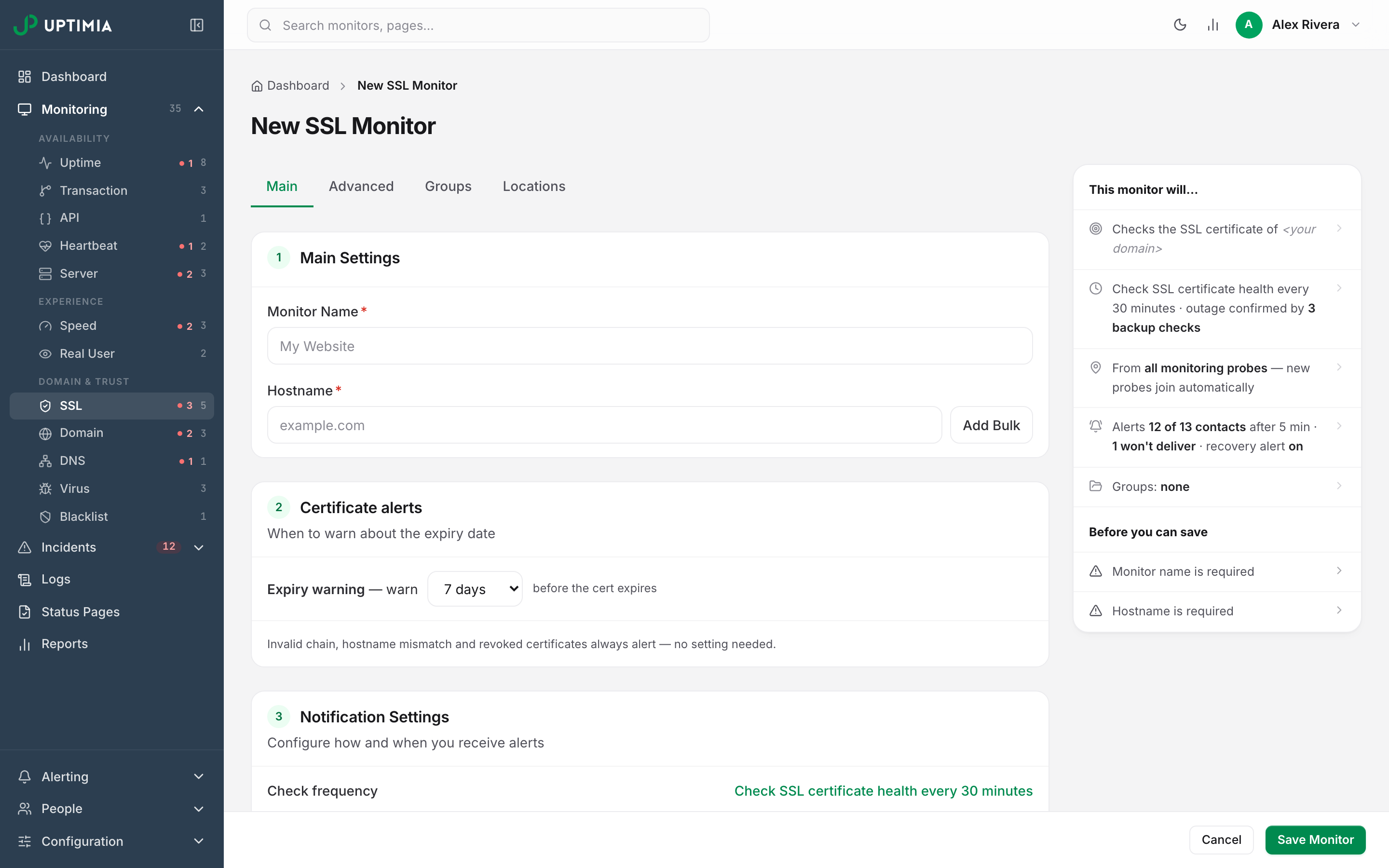
- Go to Monitoring → SSL.
- Click Start monitoring on the explainer, or Add Monitor in the monitors panel. Both open the SSL editor.
- Enter a Monitor Name. This label appears on the dashboard and in alert subjects.
- Enter the Hostname. The field takes a bare hostname such as
example.com, with nohttps://prefix and no path. - Set the expiry warning in the Certificate alerts card, then the check frequency and the alert delay in Notification Settings.
- Pick at least one recipient in the Alerting card. A monitor with no recipients cannot be saved.
- Click Save Monitor. Uptimia runs the first check immediately.
With one or more SSL monitors already saved, Monitoring → SSL opens the lowest-numbered one instead of the explainer.
To add many certificates at once, click Add Bulk beside the Hostname field. A textarea replaces the single input. Enter one hostname and name per line, comma-separated and quoted:
"example1.com","Website name 1"
"example2.com","Website name 2"
Notes and Unique ID stay per-monitor and are hidden in bulk mode. Every other setting on the form applies to the whole batch. See Bulk Operations.
Certificate Alerts: The Warning Window and the 45-Day Boundary
The Certificate alerts card on the Main tab holds one required setting.
Expiry warning is a dropdown that reads "warn N days before the cert expires". It offers seven presets (1, 3, 7, 14, 30, 60 and 90 days), and the default is 7 days. Any whole number from 1 to 90 days is a valid threshold, so a monitor can hold a value the dropdown does not list. Such a value appears in the list as its own option, in sorted position. Uptimia never rounds it.
Two numbers are at work, and mixing them up is the most common surprise in this family:
- Your threshold decides when alerting starts. Nothing fires while the certificate is further out than the number you picked.
- A fixed 45-day boundary decides how severe the incident is. Uptimia sets that number, and no setting changes it.
| Days until expiry | Severity | Error name on the incident | Status word |
|---|---|---|---|
| More than 45, and inside your warning window | Trouble | Certificate expires soon | Expires Soon |
| 45 or fewer, down to 1 | Critical | Certificate expires very soon | Expiring |
| 0 or already past Valid To | Critical | Certificate has already expired | Expired |
The consequence: on the default 7-day threshold the first alert you ever receive is already critical, and the Expires Soon tier never appears. Expires Soon is reachable only when you set the warning window above 45 days: 60 or 90.
The incident text counts down in plain words: This SSL certificate will expire in 12 days, or in 1 day on the last day, or This SSL certificate has already expired.
Error-level change is a second row of the same card, shown only when the monitor already holds a value other than 60. It reads "during an open incident, re-classify the error type every N min". It takes a whole number of minutes from 1 to 120, and carries a Reset to default (60) action. New monitors keep the 60-minute default and never show the row.
The row slows down changes in severity. While the monitor's last healthy check is newer than this many minutes, an open Trouble incident cannot be re-graded Critical, and that clock runs from the last check that found a healthy certificate outside the warning window. The setting delays an escalation; it does not move the 45-day boundary.
Check Frequency, Alert Delay and Recovery
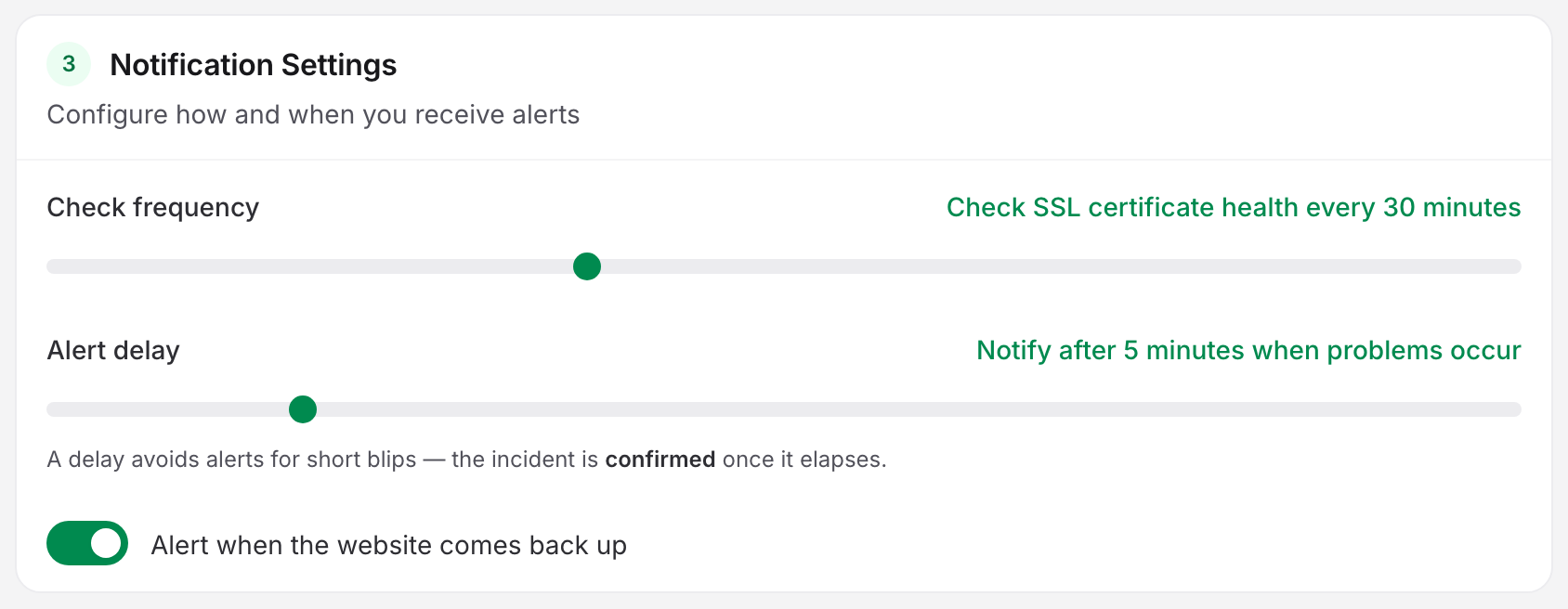
These three sit in the Notification Settings card, below Certificate alerts.
| Field | What it does | Default | Limits |
|---|---|---|---|
| Check frequency | A slider reading "Check SSL certificate health every …". How often a probe re-reads the certificate. | 30 minutes | 10 minutes to 24 hours. The same range on every plan. Certificate checks have no sub-minute tier. |
| Alert delay | A slider reading "Notify after N minutes when problems occur". How long a fault must persist before the incident is confirmed and alerts go out. | 5 minutes | 0–30 minutes. 0 reads "Instantly notify when problems occur". |
| Alert when the website comes back up | A toggle. Sends a recovery alert when the certificate problem clears. | on | on / off |
Above 60 minutes the frequency slider steps to fixed tiers: every 2, 3, 6, 12 and 24 hours. A certificate changes at most a few times a year, so the 30-minute default is already generous for renewal warnings; shorten it only if you also want fast notice of a chain or hostname fault.
Alerting Recipients
The Alerting card picks who is paged. In the default All at once mode, Uptimia notifies every selected contact together. If your account has at least one escalation policy, a switch appears with Escalate over time, which makes the monitor follow the steps of that policy.
On a monitor set to Escalate over time, recipients come from the policy rather than from the monitor's own list, so add the contact you want paged to a step of the policy. You must still pick recipients on the monitor itself. They are the fallback. Escalation policies require the Professional plan or above, and the trial clears the gate. See Escalation Policies and Who Gets Alerted.
Monitoring Locations
The Locations tab sets where SSL checks run from. It has three modes: All probes (recommended), Saved profile, and Custom selection.
A custom selection needs at least 6 probes, and the save is refused below the floor. All probes has no minimum, because it already uses every probe. See How Uptimia Monitoring Works.
If your account region is Europe, a new SSL monitor pre-selects the European probe set. A dismissible banner says so: "Defaulted to European probes based on your account region — switch to 'All probes' any time." Change it on the same tab. Location Profiles covers saved and built-in probe sets.
The Advanced Tab
SSL monitors carry no HTTP, timeout or error-type cards. Those are uptime-only. The Advanced tab holds:
- Notes: up to 500 characters of context for whoever picks up the alert. See Monitor Notes.
- Outage confirmation: how many backup checks must also fail before an outage is confirmed. The options are 3 (recommended), 2 and 1. SSL does not count the probe that reported the fault first, so 3 means three more, separate probes agreed. See How Uptimia Monitoring Works.
- Email Branding Style: the theme applied to this monitor's alert emails.
Reading the Detail Page
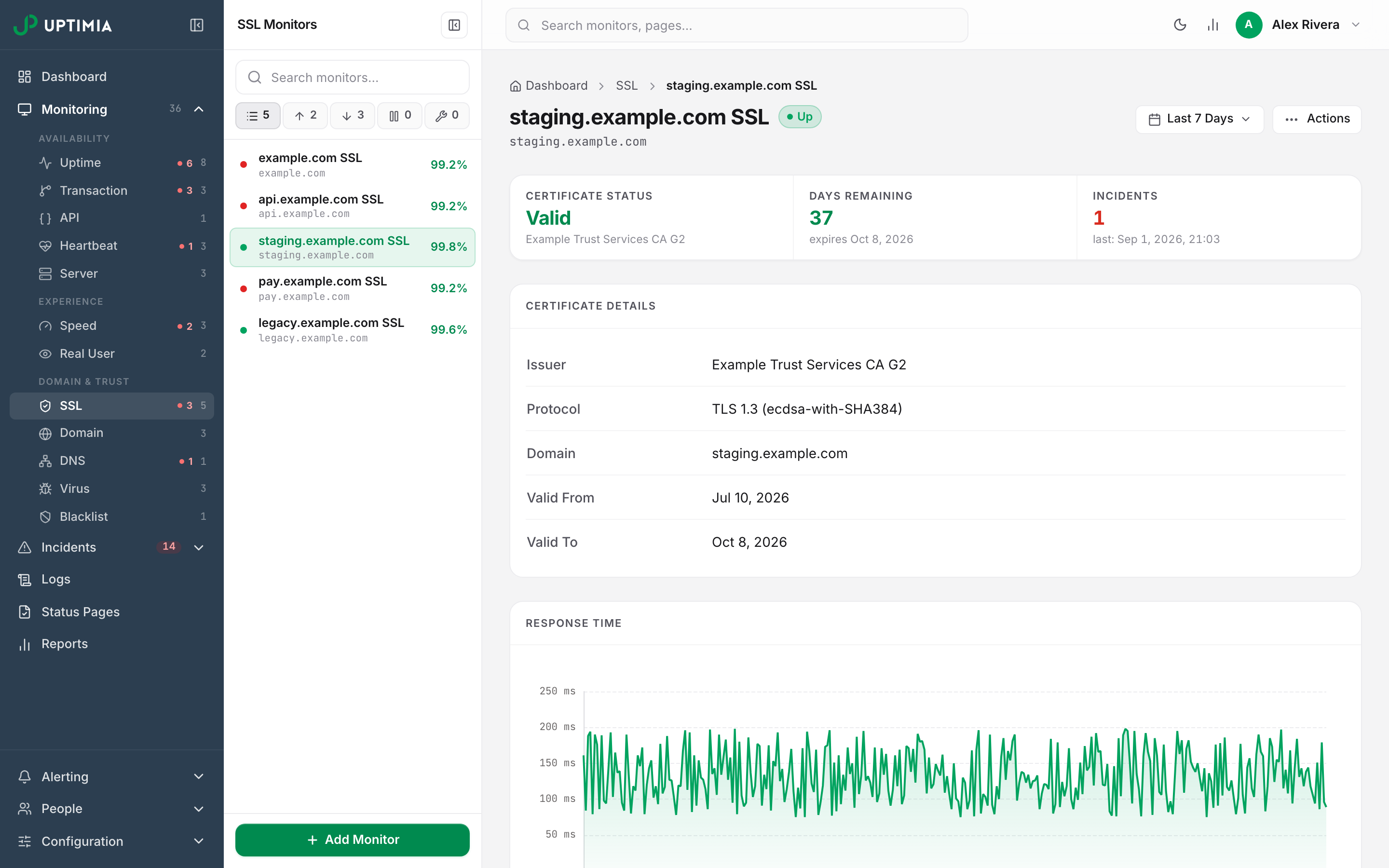
The SSL detail page is one scrolling stack of cards.
Stat strip: four cells across the top, each with a context sub-line. At mid window widths the strip drops Last Check to stay on one row, so a laptop screen shows the first three:
| Cell | Value | Sub-line |
|---|---|---|
| Certificate Status | Valid · Expires Soon · Expiring · Expired · Invalid · Unknown | the issuer |
| Days Remaining | the countdown, Expired when past the date, Unknown when there is no reading |
"expires date", or "expiry date unknown" |
| Incidents | the count in the selected date range | "last: time" |
| Last Check | how long ago the last check ran | — |
Days Remaining is colored in four bands: green above your warning threshold, amber inside it, red at 3 days or fewer, and red again once the certificate has expired.
Certificate Details lists Issuer, Protocol, Domain, Valid From and Valid To, and it omits a field with no value rather than showing it blank.
Response Time charts the measured TLS handshake time from the probe. When a probe returns no latency value, Uptimia stores 0, and the chart reads that as "no data". An occasional zero is not a fault.
Timeline shows up, trouble, down and maintenance segments across the selected range. Clicking a down or trouble segment opens that incident.
Incidents lists the eight most recent incidents. View all incidents links into the incident history pre-filtered to this monitor.
Check log lists the ten most recent checks under the columns When, Result, Location and Response time. Clicking a row opens the check-detail drawer, and "View all logs" opens Monitoring Logs.
Certificate Error Names
These are the names Uptimia prints on an SSL incident.
| Error name | What triggered it |
|---|---|
| Certificate expires soon | Inside the warning window, more than 45 days out |
| Certificate expires very soon | 45 days or fewer remaining |
| Certificate has already expired | Past the Valid To date |
| Certificate expired | The served certificate's dates are invalid |
| Certificate revoked | The issuing CA has revoked the certificate |
| Domain name invalid | The certificate does not cover the monitored hostname |
| Certificate authority invalid | The chain does not resolve to a trusted root |
| SSL version or cipher mismatch | The probe and the host could not agree on a TLS version or cipher |
| Website unreachable | The host did not answer, so no certificate could be read |
Editing, Templating and Deleting
Open the monitor and use the Actions menu at the top right, which offers Edit, Save as Template, Pause, maintenance scheduling and Delete. Saving a template snapshots this monitor's setup for reuse on the next certificate: frequency, expiry warning, locations, groups, escalation policy and branding. See Monitor Templates.
Warning: deleting an SSL monitor removes its check history and its incidents. Pause it instead if you only want the checks to stop.