
A domain monitor reads the registry's WHOIS record for one domain name, stores what it finds, and alerts you before the registration lapses. SSL Monitoring covers certificates. DNS Monitoring covers live nameserver behavior and record changes.
Before You Start
- Domain monitors are not available on the Free plan. The pool is 10 on Basic, 100 on Professional, 1,000 on Enterprise, and 50 during the trial. See Plan Limits and Quotas.
- Creating a domain monitor requires a verified account email. Uptimia refuses the save until you confirm the address.
- You need the Editor, Admin or Owner role. A Read-only seat can view domain monitors but not create them.
What a WHOIS Refresh Records
Each refresh queries the registry and stores:
- the expiry date, the creation date and the last updated date
- the TLD, and the domain zone, which can differ from the TLD label
- the registrar and the nameservers
- the WHOIS response time
Uptimia keeps the last known non-empty registrar and nameserver values, so a registry that stops publishing them never erases what you already had. Nothing compares them between refreshes. A registrar change or a nameserver swap raises no incident. To be alerted on record changes, use DNS Monitoring, which watches the authoritative servers.
Creating a Domain Monitor
- Go to Monitoring → Domain.
- Click Start monitoring on the explainer, or Add Monitor in the monitors panel. Both open the domain editor.
- Enter a Monitor Name. It labels the monitor on the dashboard and in alert subjects.
- Enter the Domain Name. The field takes a bare domain such as
example.com: no protocol, no subdomain path. - Set the expiry warning in the Expiration reporting card, then the refresh cadence and the alert delay in Notification Settings.
- Pick at least one recipient in the Alerting card. A monitor with no recipients cannot be saved.
- Click Save Monitor. Uptimia runs the first WHOIS refresh immediately.
With one or more domain monitors already saved, Monitoring → Domain opens the lowest-numbered one instead of the explainer.
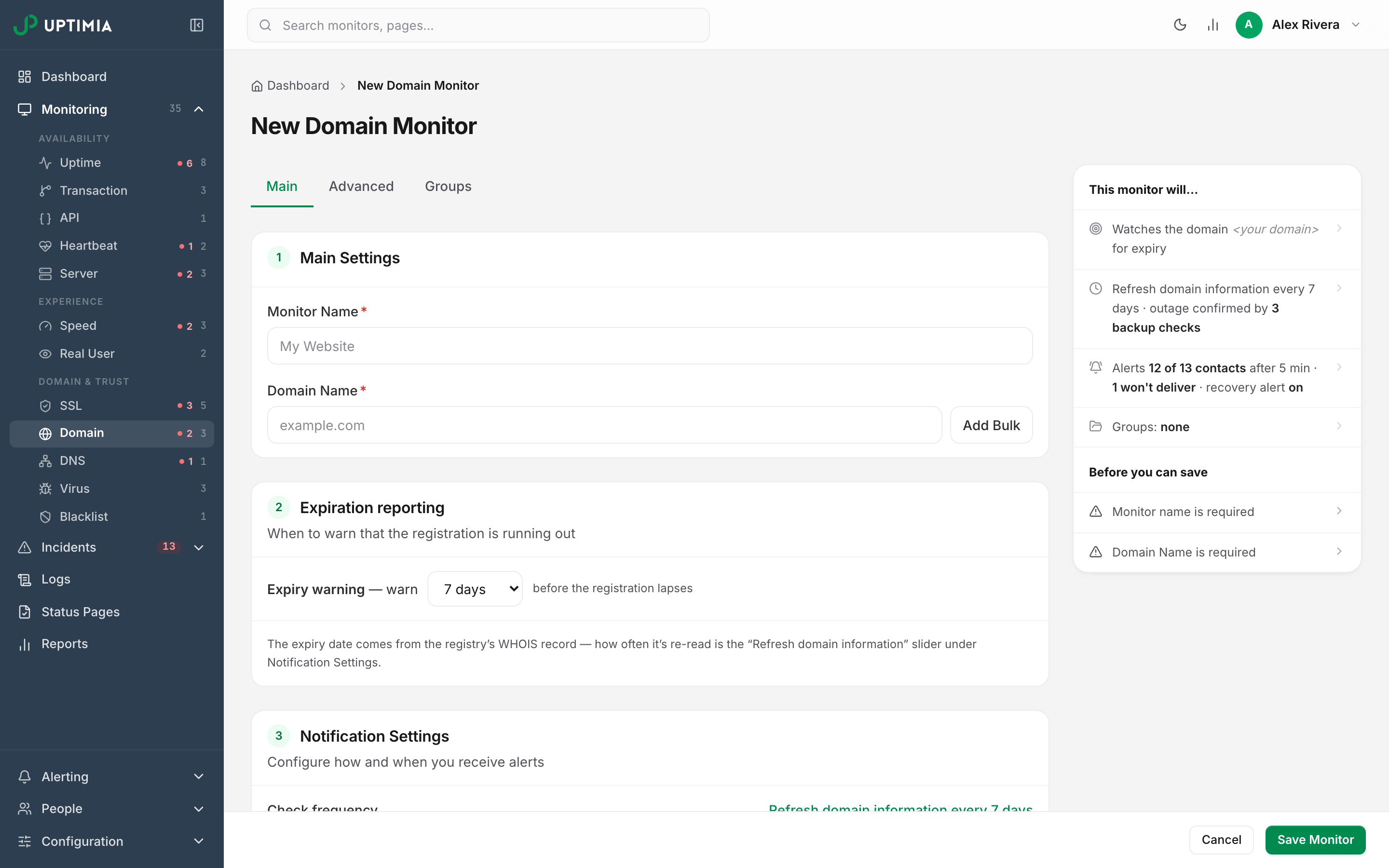
To add many domains at once, click Add Bulk beside the Domain Name field. A textarea replaces the single-domain input, taking one domain and its monitor name per line, comma-separated and quoted:
"example1.com","Website name 1"
"example2.com","Website name 2"
Every other setting on the form applies to the whole batch. Bulk Operations covers the per-row checks, the two fields bulk mode hides and what happens when part of a batch fails.
Expiration Reporting: The Warning Window and the 3-Day Boundary
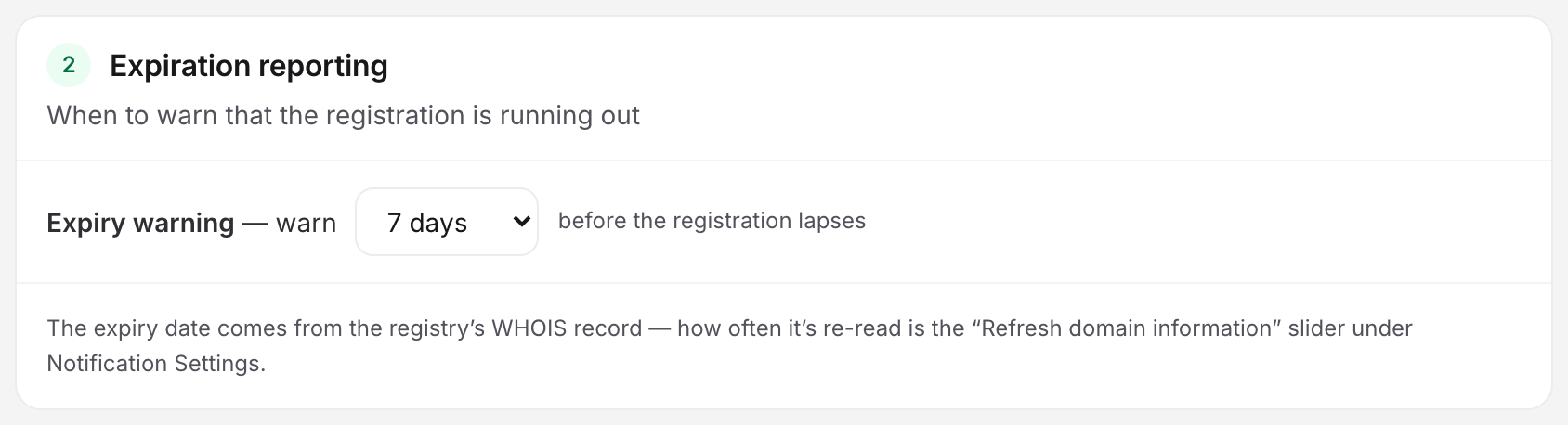
The Expiration reporting card on the Main tab holds the expiry settings.
Expiry warning is a select offering 1, 3, 7, 14, 30, 60 and 90 days, reading "warn N days before the registration lapses". The default is 7 days. In the editor you pick one of the listed values, though a monitor set up elsewhere can carry any whole number of days from 1 to 90, and anything outside that range is rejected. Such a number is never rounded to the nearest listed value: the select shows it as an extra option of its own, in sorted position.
Your threshold decides when alerting starts: nothing fires while the registration is further out than the number you picked. A fixed 3-day boundary you cannot change decides how severe the incident is.
| Days until expiry | Severity | Error name on the incident | Status word |
|---|---|---|---|
| More than 3, and inside your warning window | Trouble | Domain expires soon | Expires Soon |
| 3 or fewer, down to 1 | Critical | Domain expires very soon | Expiring |
| 0 or already past the expiry date | Critical | Domain has already expired | Expired |
The incident text counts down in plain words: This domain will expire in 12 days, or in 1 day on the last day, or This domain has already expired.
Pick the threshold from your renewal process rather than from the 3-day boundary. Registrar auto-renewal that you only want to verify is fine at 7 days, while renewal that needs internal approval, a budget line or a vendor is worth 30, 60 or 90 days. Any threshold above 3 days gives you the Expires Soon warning tier before the critical one. At 1 or 3 days, the first alert you get is already critical.
When the Registry Hides the Expiry Date
Some registries do not publish an expiry date at all. As you type the domain into the editor, Uptimia resolves its zone and checks whether that zone is one of them. When it is, an Expiry date row appears in the same card with the note "this registry hides the date — set it manually".
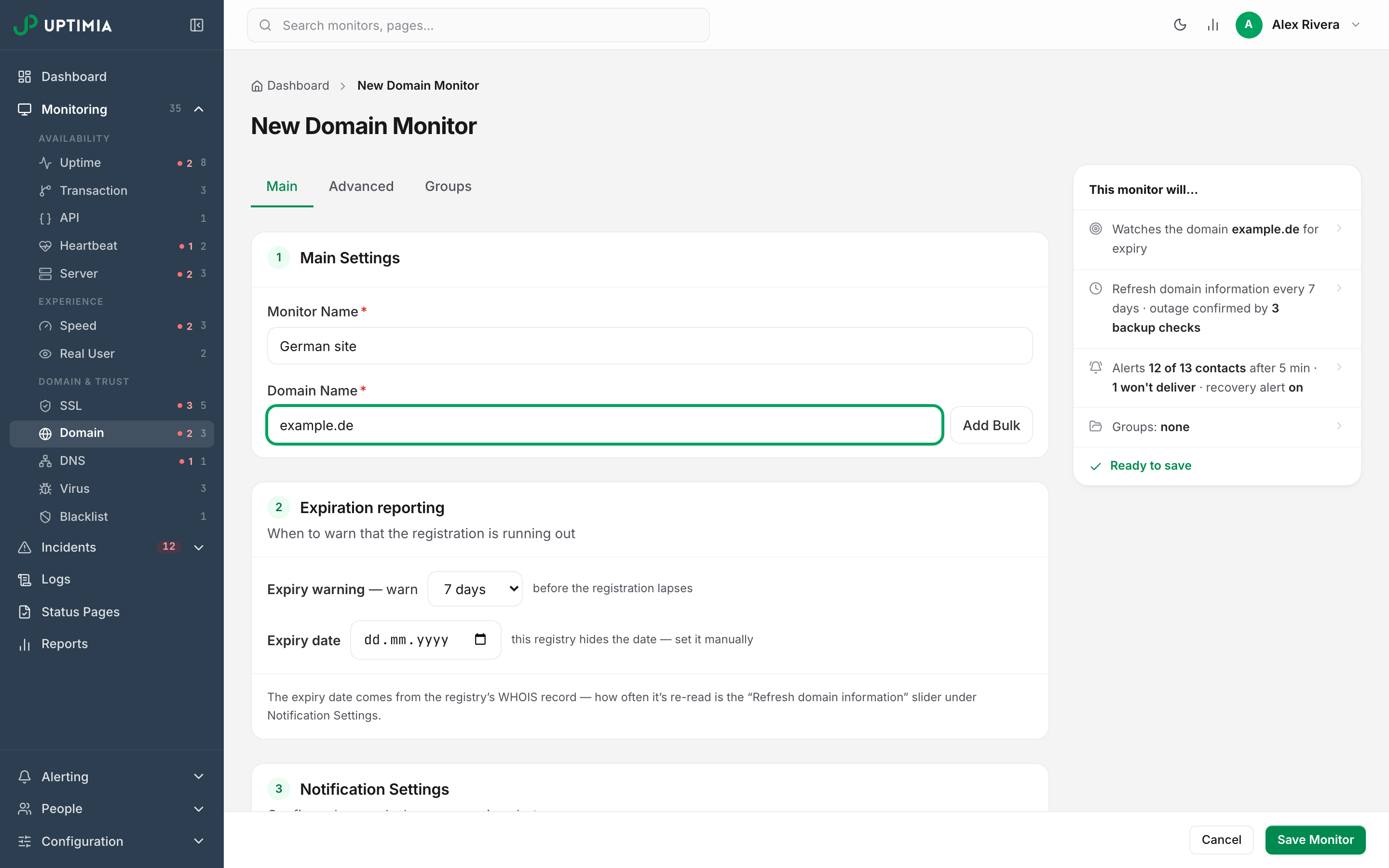
The row shows at create time as well as on edit. A monitor on such a zone therefore starts with a real countdown, instead of raising a "no expiry date" incident on its first refresh. On an existing monitor whose zone hides the date, the detail page shows a Manual Expiration Date Required banner, whose Update Expiration Date action opens the editor at the right card. The banner stays up while the monitor is on such a zone. Setting the date does not remove it.
Note: A manual expiry date is never re-derived. When you renew the domain, update the date by hand.
Refresh Cadence, Alert Delay and Recovery
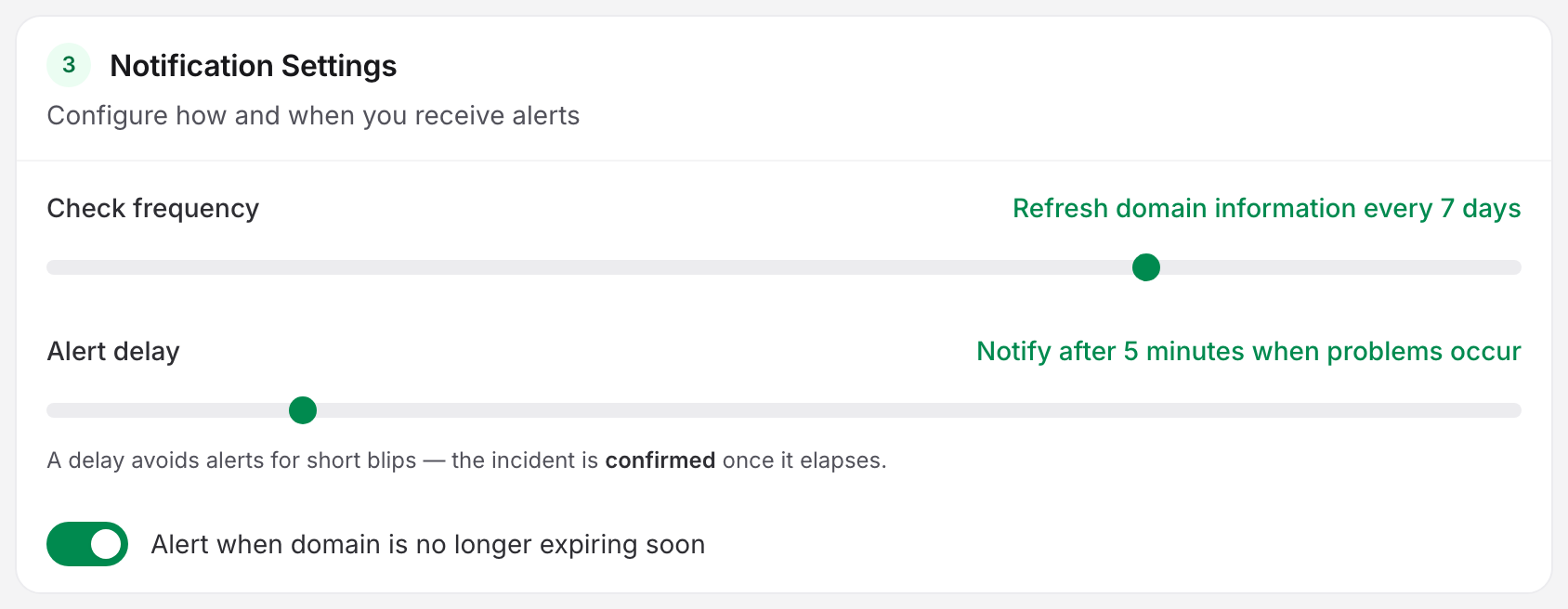
These three sit in the Notification Settings card, below Expiration reporting.
| Field | What it does | Default | Limits |
|---|---|---|---|
| Check frequency | A slider reading "Refresh domain information every N days". How often the WHOIS record is re-read. | 7 days | 1–9 days. There is no monthly option in the editor. |
| Alert delay | A slider reading "Notify after N minutes when problems occur". How long a fault must persist before the incident is confirmed and alerts go out. | 5 minutes | 0–30 minutes. 0 reads "Instantly notify when problems occur". |
| Alert when domain is no longer expiring soon | A toggle. Sends a recovery alert once the expiry problem clears, after a renewal for example. | on | on / off |
Alerting Recipients
You pick who is paged in the Alerting card. In the default All at once mode, every selected contact is notified together. If your account has at least one escalation policy, a second option appears, Escalate over time, which hands the monitor to that policy's ladder. Escalation policies require the Professional plan or above. Trial accounts have them too.
While a monitor is set to Escalate over time, the policy decides who is paged. You must still pick recipients on the monitor; they are the fallback. See Escalation Policies and Who Gets Alerted.
Why There Is No Locations Tab
Domain monitors have no Locations tab; the editor's tabs are Main, Advanced and Groups only. A WHOIS record is one answer from the registry rather than a per-region measurement, so the editor gives you no probe choice; every domain refresh uses all probes. Location Profiles explains how to choose probes for the monitor types that do use them.
The Advanced Tab
- Notes: up to 500 characters of context for whoever picks up the alert. See Monitor Notes.
- Outage confirmation: how many backup checks must confirm a failure before alerting, with options 3 (recommended), 2 and 1. A registry rate-limit or a timed-out WHOIS answer is exactly the kind of passing fault this setting exists to absorb. See How Uptimia Monitoring Works.
- Email Branding Style: the theme applied to this monitor's alert emails. See Branding Themes.
Reading the Detail Page
The domain detail page is one scrolling stack of cards with no tabs.
Stat strip: four cells across the top, each with a context sub-line. The fourth cell, Last Check, is hidden on mid-width browser windows; it shows on narrow and on wide ones:
| Cell | Value | Sub-line |
|---|---|---|
| Domain Status | Valid · Expires Soon · Expiring · Expired · Invalid · Unknown · Paused · Maintenance | ".tld · WHOIS" |
| Days Remaining | the countdown, Expired when past the date, Unknown when there is no reading |
"expires date", or "expiry date unknown" |
| Incidents | the count in the selected date range | "last: time" |
| Last Check | how long ago the last refresh ran | — |
Days Remaining is colored in four bands: green above your warning threshold, amber inside it, red at 3 days or fewer, and red once the registration has lapsed.
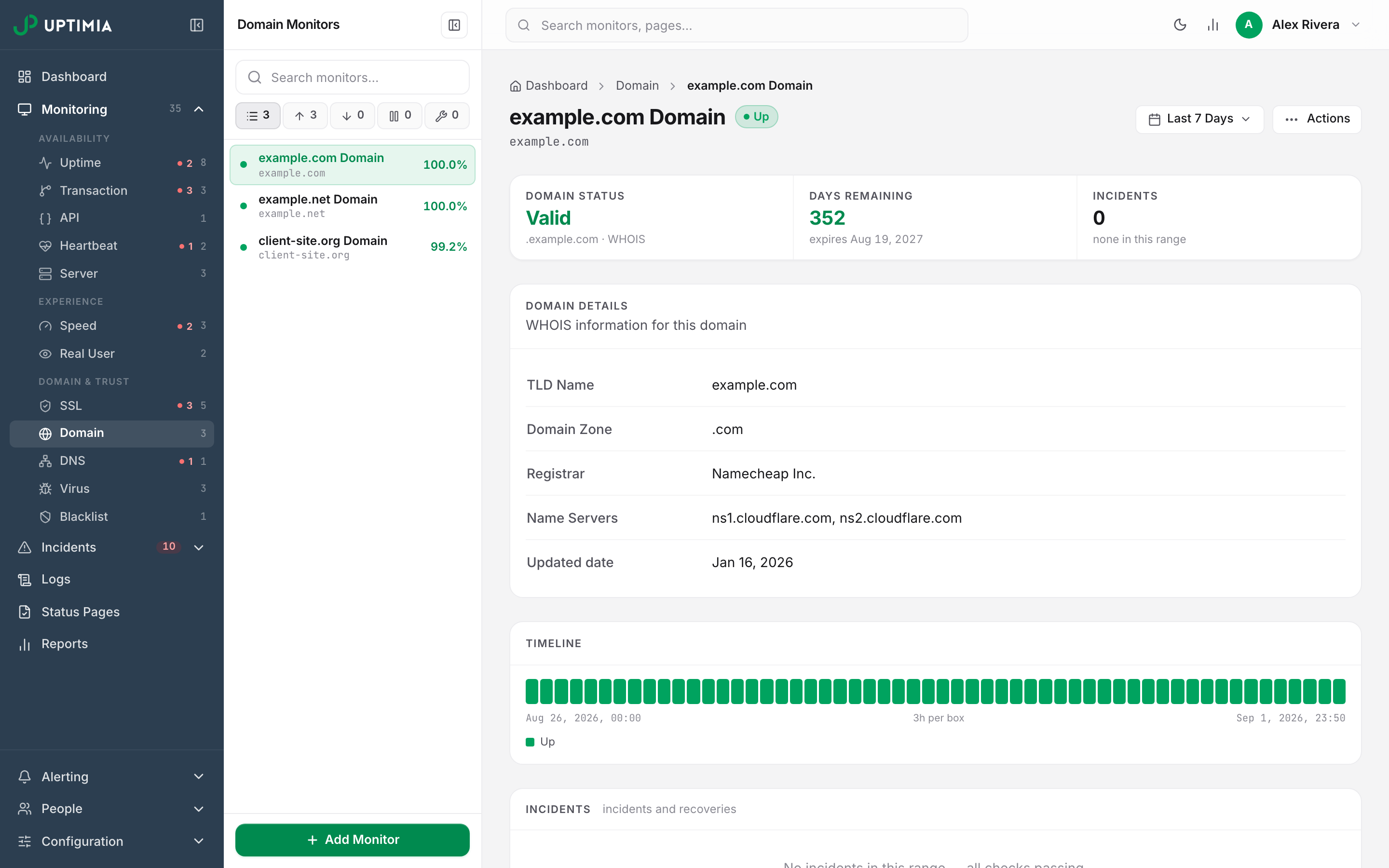
Domain Details, subtitled "WHOIS information for this domain", lists TLD Name, Domain Zone, Registrar, Name Servers and Updated date. Uptimia records the creation date but does not show it on this page, and leaves out a value it has not read rather than showing it blank. On monitors created some time ago, Registrar and Name Servers may be missing from this list even though the registry does publish them. The next refresh fills them in.
Timeline draws Up, Trouble, Down, Maintenance, Paused and Unknown segments across the selected range. Click a Down or Trouble segment to open that incident.
Incidents lists the eight most recent incidents, with a View all incidents link into the incident history pre-filtered to this monitor.
Check log lists the ten most recent refreshes under the columns When, Result, Location and Response time. Click a row to open the check-detail drawer. "View all logs" opens Monitoring Logs.
There is no response-time chart on the domain detail page. Per-refresh WHOIS response time appears only as the Check log column, though you can still pull the underlying series programmatically. See Getting Started with the Uptimia API.
Domain Error Names
The names Uptimia prints on a domain incident:
| Error name | What triggered it |
|---|---|
| Domain expires soon | Inside the warning window, more than 3 days out |
| Domain expires very soon | 3 days or fewer remaining |
| Domain has already expired | Past the expiry date |
| Domain expiry date not found | The WHOIS answer parsed, but carried no usable expiry date |
| Whois data not found | No WHOIS answer could be read for this domain |
| Domain zone not found | The registry zone could not be resolved |
| TLD not found | The top-level domain was not recognized |
What Editing Does Not Reset
Uptimia clears the fetched WHOIS data (expiry, creation and last-updated dates, TLD and zone) only when you change the monitored domain itself. Editing the monitor name, the expiry warning, the refresh cadence, the recipients, the groups or the branding leaves every fetched value intact. A working monitor keeps its countdown across a settings change.
Editing, Templating and Deleting
Open the monitor and use the Actions menu (the ··· button at the top right). It offers Edit, Save as Template, Pause, maintenance scheduling and Delete. Saving a template snapshots this monitor's setup for reuse on the next domain: refresh cadence, expiry warning, groups, escalation policy and branding. See Monitor Templates.
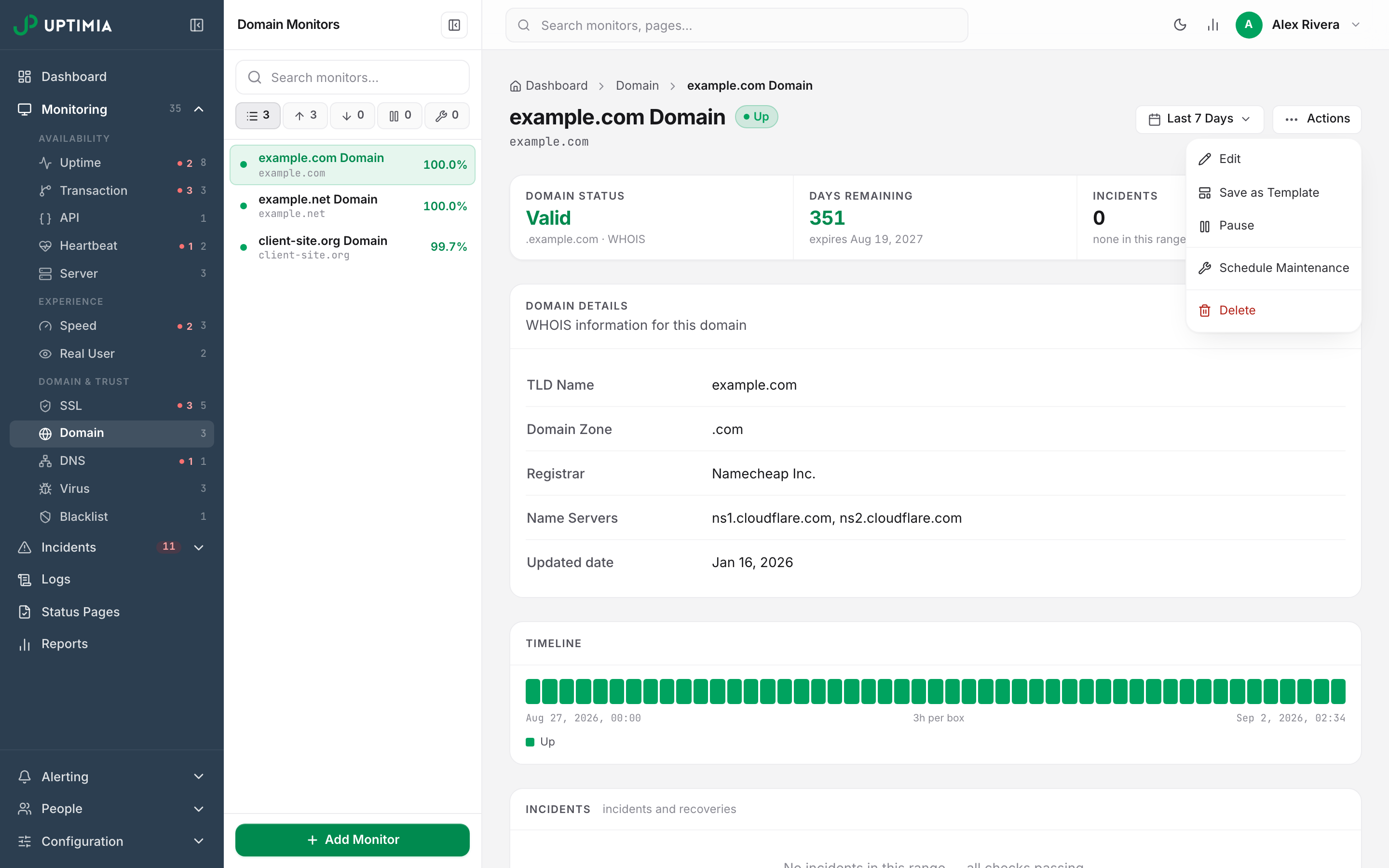
Warning: deleting a domain monitor removes its refresh history and its incidents. Pause it instead if you only want the refreshes to stop.