
Every monitor carries one free-text note, up to 500 characters of context for whoever picks up the alert at 03:00. Uptimia prints that note on the incident page, in every down and recovery alert email, and in the webhook payload. It reaches those three surfaces and no others.
Before You Start
- Editing a monitor requires the Owner, Admin or Editor role. A Read-only member can see the note on an incident page but cannot change it.
- Notes are available on every plan and on all 12 monitor families.
Adding a Note
The note lives on the monitor editor's Advanced tab. Every monitor type has that tab except Server (see Server Monitors below).
- Open the monitor and click Edit, or start a new monitor.
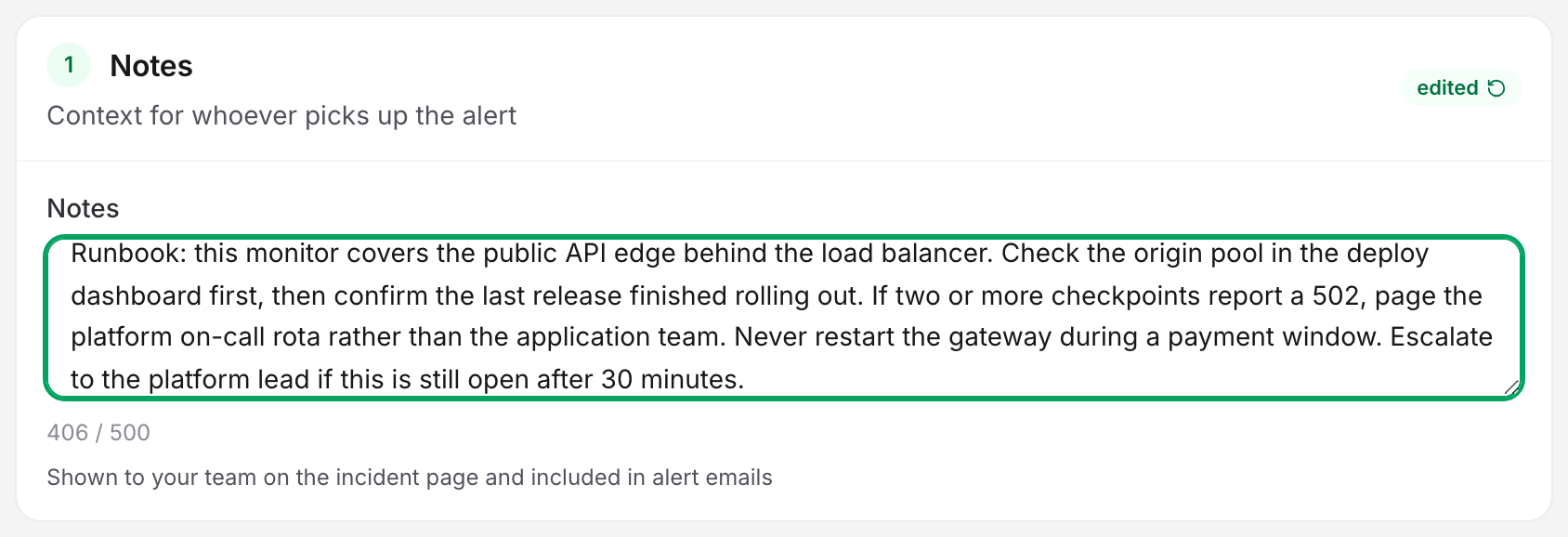
- Switch to the Advanced tab. Notes is the first card, subtitled "Context for whoever picks up the alert".
- Type the note into the Notes box. The hint under it reads "Shown to your team on the incident page and included in alert emails".
- Click Save. The note applies to the next alert this monitor sends; it does not change any alert already in flight.
Line breaks are preserved everywhere the note is displayed, so a three-line runbook stays three lines.
Server Monitors
Server monitors have their own editor with no Advanced tab. Their Notes box sits in the first card, Server Name, with the same 500-character limit and the same hint. Everything else on this page applies unchanged. See Server Monitoring.
The 500-Character Limit
The editor's box stops accepting input at 500 characters. From the 400th character onward it shows a live counter, in the form 412 / 500. An empty note stores nothing and renders nothing anywhere.
Notes are plain text. Uptimia never renders them as HTML, so a URL prints as text and cannot be clicked.
Where the Note Appears
| Surface | What you see | When |
|---|---|---|
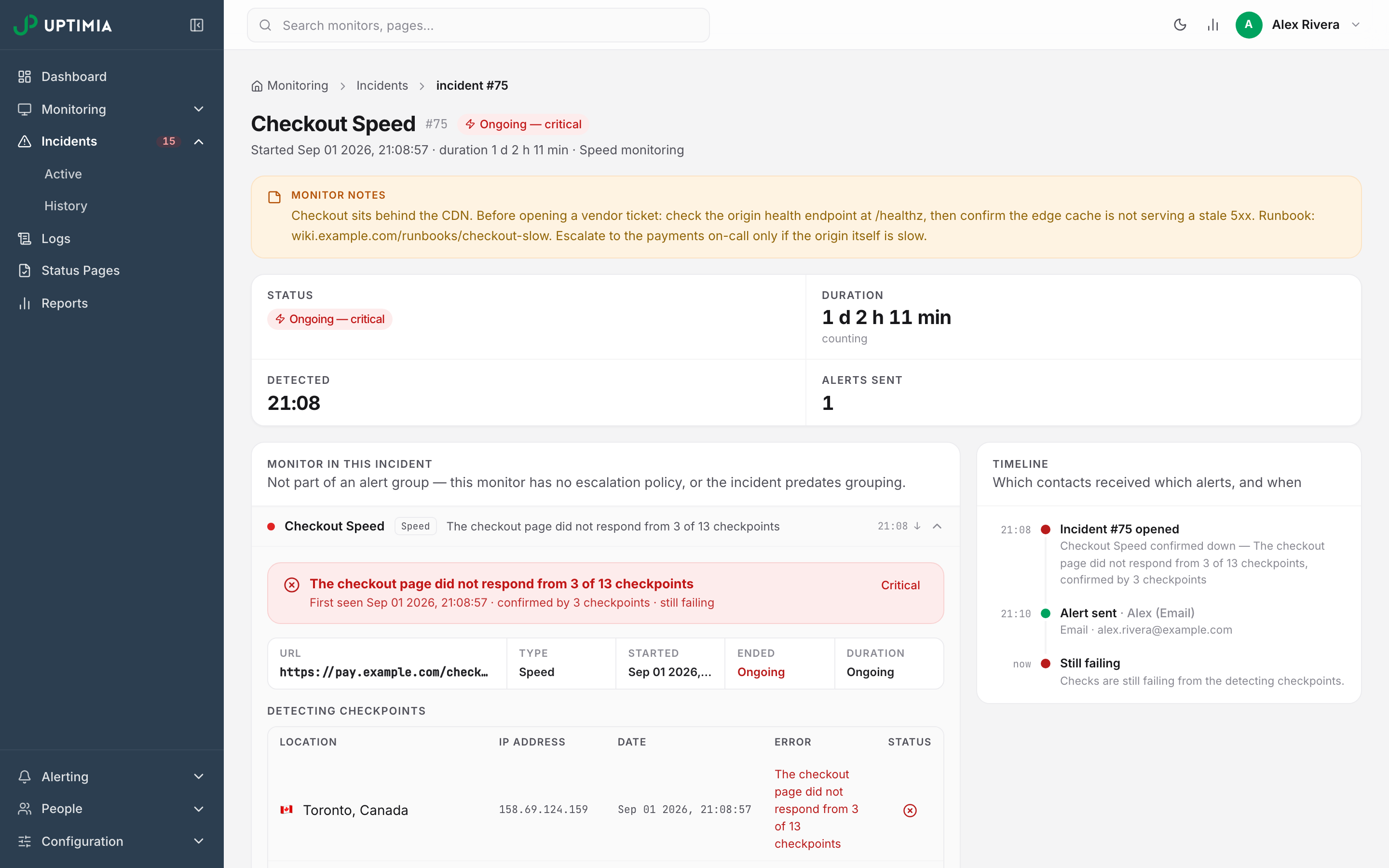
| Incident detail page | An amber Monitor notes callout between the incident header and the statistics strip | Every incident on a monitor that has a note |
| Root-cause panel | The same block inside a grouped incident's per-monitor panels | Grouped incidents only. A single incident carries the note in the callout instead |
| Alert email | A Monitor notes panel between the lead sentence and the key-facts strip, above the button, so it is readable without scrolling | Every down alert and every recovery alert, on every monitor type |
| Plain-text alert email | A first line reading Monitor notes: … |
″ |
| Webhook payload | The note, carried with the rest of the alert data | Every webhook alert. The test alert you send from the integration editor carries an empty note |
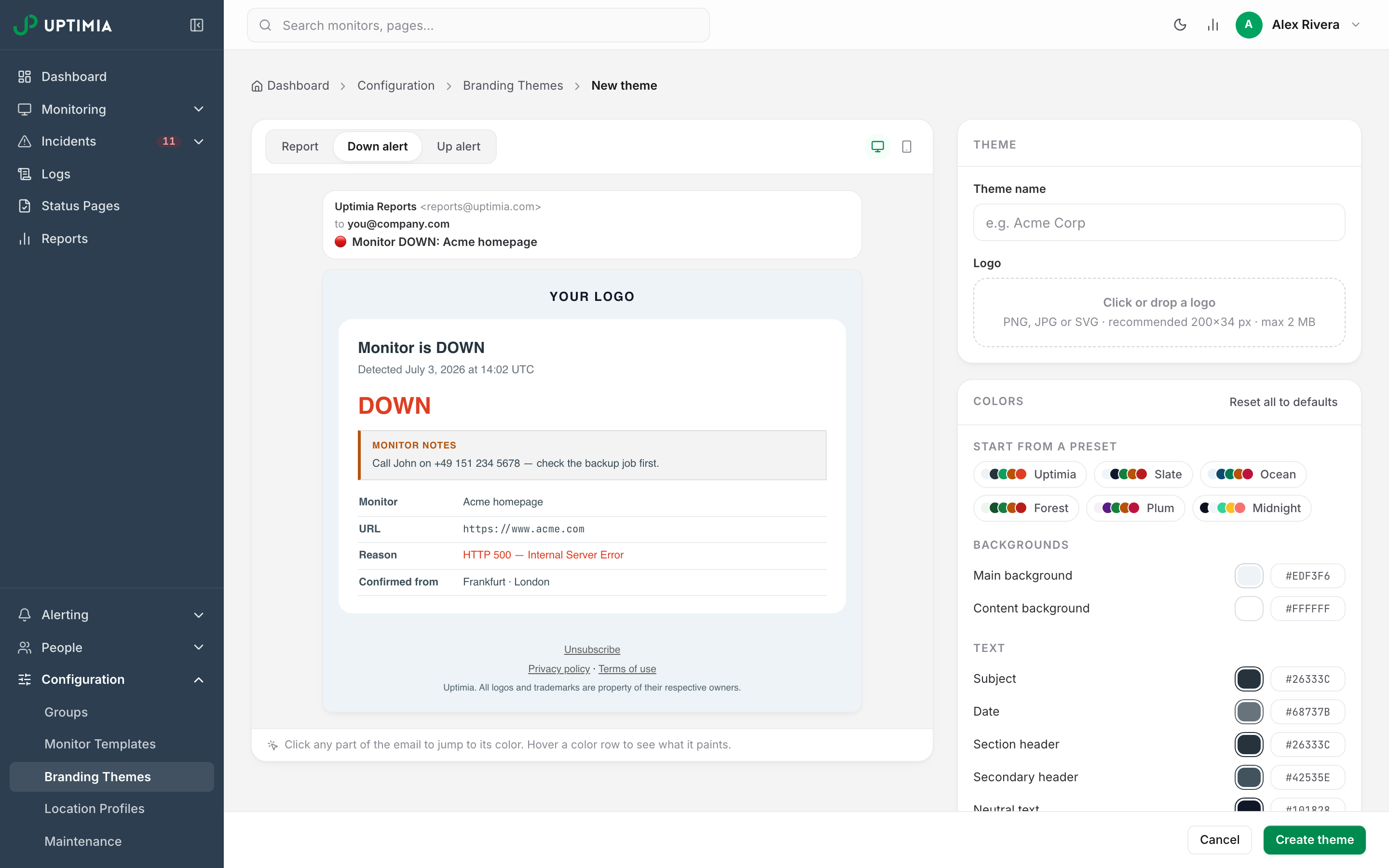
One email carries no note: the multi-monitor digest that an alert group sends when several monitors fail together. It covers several monitors, so there is no single note to print. If only one monitor in the group is down, Uptimia sends a normal single alert, note included.
Where the Note Deliberately Never Appears
- The monitor detail page header, the monitor list and the dashboard.
- Status pages, including private and password-protected ones.
- Every alert channel other than email and webhook: SMS, Slack, Discord, Microsoft Teams, Mattermost, Telegram, WhatsApp, Twilio, PagerDuty and Atlassian Statuspage all send their usual alert with no note attached.
- Scheduled reports and exports.
A note will not travel to Slack. If your on-call team works out of Slack, put the runbook link in the channel topic or on the incident page they open from the alert.
Notes and Bulk Creation
Bulk mode hides the Notes card. When you paste a list of URLs into the editor, the Advanced tab replaces it with one line: "Notes and Unique ID are per-monitor — add them after the batch is created. Every other setting on this tab applies to all monitors in the batch."
Bulk creation cannot take notes at all. A note sent with a batch is dropped without any warning, so create the batch first, then open each monitor and add its note. See Bulk Operations.
A note does travel into a monitor template. Saving a monitor as a template snapshots its note. Every monitor created from that template starts with the same text.
What to Write
The person reading this note has just been paged and does not know this system. Give them the first three decisions, and skip the description of the service:
Payments checkout, EU region. Page the payments on-call (+49 151 234 5678)
before any restart. A restart mid-batch loses the settlement queue.
Runbook: https://wiki.example.com/rb/checkout-down
Known false positive: our WAF rate-limits during the 02:00 batch window.
Three things earn their space in 500 characters: who to call, what not to do, and where the runbook is. Leave out anything the incident page already shows. The error, the probe, the duration and the response time sit on screen next to the note.
Anything on this page can also be done from a script (see Getting Started with the Uptimia API).