
"Our mail stopped being delivered" is rarely one failure. The mail host can be down. A sending IP can be sitting on a spam blacklist, an MX or SPF record can have been changed under you, or a record can have been wrong since the day it was published. Uptimia's monitors cover the first three. The fourth is your job: check the record before you publish it.
Before You Start
- The Free plan allows 0 blacklist and 0 DNS monitors. Basic includes 1 of each, Professional 10, Enterprise 100. Uptime monitors, including the Email sub-type, are on every plan. The full per-plan counts are in Plan Limits and Quotas.
- You need the Editor role or above to create monitors. Read-only members can see them and receive their alerts.
What Breaks Email Delivery
| What breaks | What you see | The check that catches it |
|---|---|---|
| The mail host stops answering | Queued mail, connection timeouts, no bounce | Uptime monitor, Email sub-type, on SMTP / POP3 / IMAP |
| A sending IP or your domain lands on a spam blacklist | Mail accepted by you, rejected or filed as spam by them | Blacklist monitor on the domain and every sending IP |
| An MX, SPF, DMARC or CAA record changes | Mail routed elsewhere, or suddenly failing authentication | DNS monitor on the zone, mail and policy groups |
| A record was wrong from the start | Nothing fires: the record never worked | No monitor catches this. Check the record itself, once, before you launch |
The first three run continuously. Nothing monitors the fourth: a record that was never right does not change, so a change detector has nothing to report. Read the record yourself before you publish it, and again after every edit. That is what catches an SPF record that needs more DNS lookups than the limit of 10 allows, or a DMARC policy set to p=none. Neither of those is a change.
Is the Mail Server Answering?
Create one Uptime monitor per mail host. On the Main tab, set What should we check? to Email, then pick the Protocol: SMTP, POP3 or IMAP. Enter the host in IP / Domain and the port in Port. Turn on Use StartTLS (SMTP) or Use SSL/TLS (POP3 and IMAP) if the port expects encryption.
Point the host at the MX hostname itself. Your web domain frequently resolves to a different machine, and a monitor on the web domain will stay green through a mail outage.
Two fields turn the check from "the port is open" into "the mail server itself answered". String to expect works on all three protocols. String to send is SMTP only. An SMTP greeting begins with 220, so 220 in String to expect proves a real server answered rather than a load balancer accepting the connection. The check log records both fields as String sent and String expected.
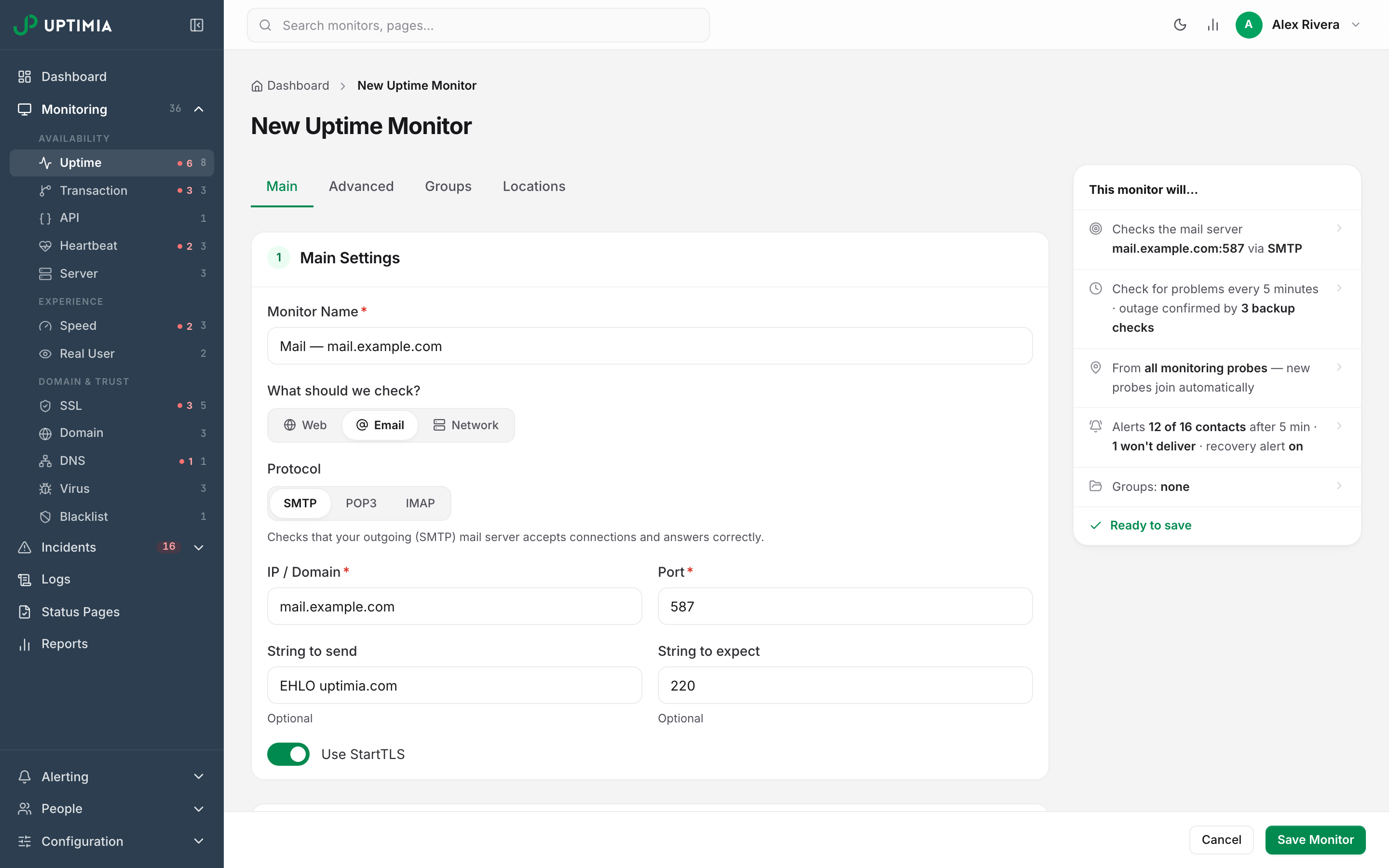
Everything else about this monitor is the ordinary uptime family: check frequency, alert delay, probe locations, alert recipients. All of it is documented in Uptime Monitoring. The keyword check is a Web sub-type control that does not render on Email, so String to expect is its equivalent here.
Are You Listed?
A Blacklist monitor sweeps 17 DNSBL zones for one domain and the addresses that send for it. Enter a naked domain in Domain or IPv4 and it discovers the rest on every sweep. The web IP comes from the A record, and the mail-server IP from your main MX record (the one with the lowest preference number) resolved to its A record.
The sweep misses any sending IP that lives outside your DNS, such as the dedicated address your email service provider (ESP) gave you. Add those under Dedicated sending IPs in the What we watch card, up to 5.
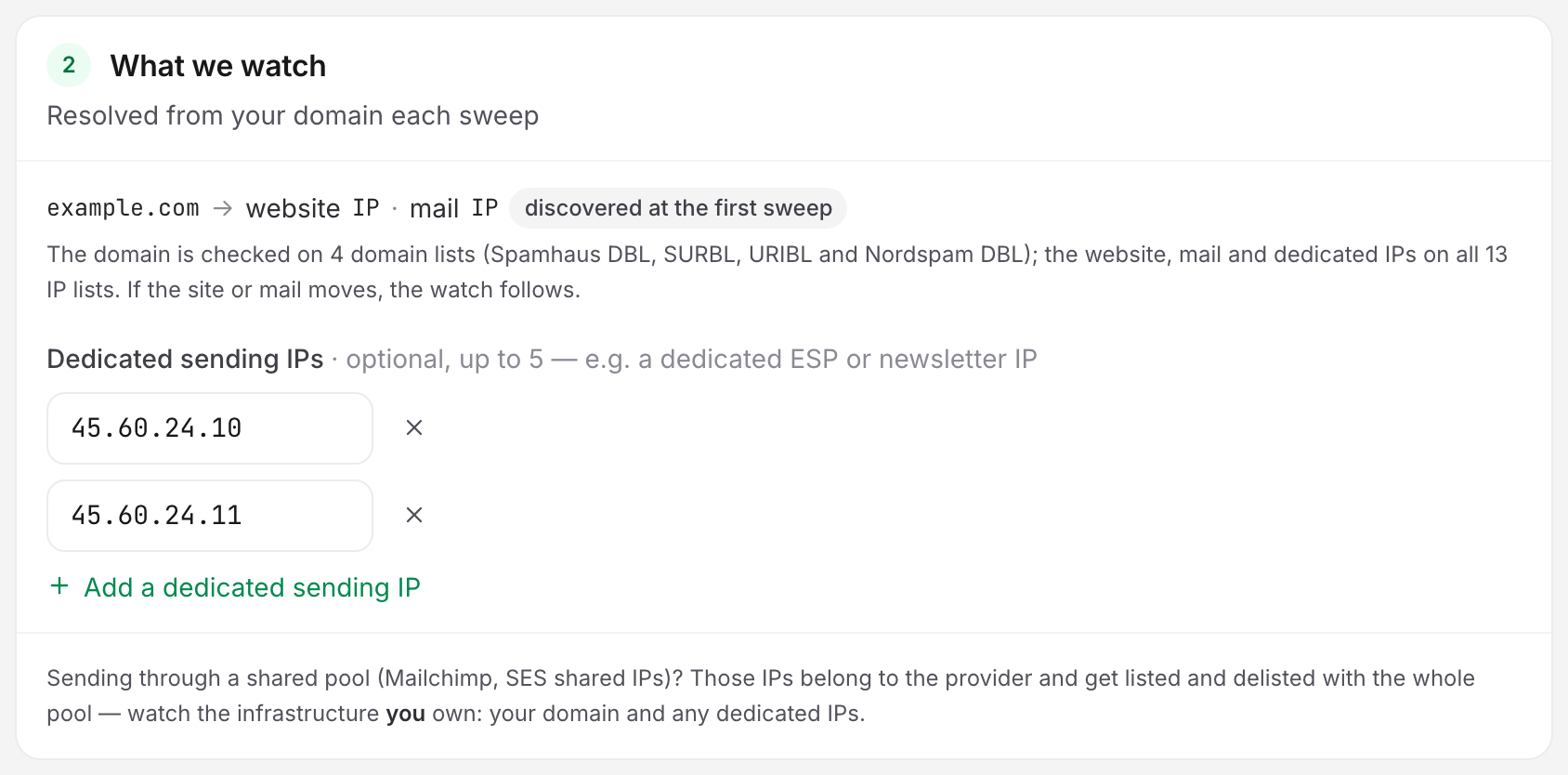
One monitor covers one domain. If you send from several domains, each needs its own. Accepted targets, sweep cadence and tier configuration are all in Blacklist Monitoring.
Reading a Listing: Major, Standard and Informational
The 17 lists sit in three tiers, and the tier decides how loudly a listing alerts.
| Tier | Lists | Default severity |
|---|---|---|
| Major | Spamhaus ZEN, Spamhaus DBL, Barracuda | Critical |
| Standard | 12 lists, including SpamCop, SURBL, URIBL, PSBL and SpamRats | Trouble |
| Informational | UCEPROTECT L1 and L3 | None (counted on the monitor, never opens an incident) |
Large providers and appliances consult the three Major lists directly, so a listing there bounces real mail. The Standard lists are scoring signals for SpamAssassin-class filters. One listing nudges a spam score; several compound.
Each tier has its own toggle and, for Major and Standard, a Critical / Trouble severity select in the Lists & alerts card.
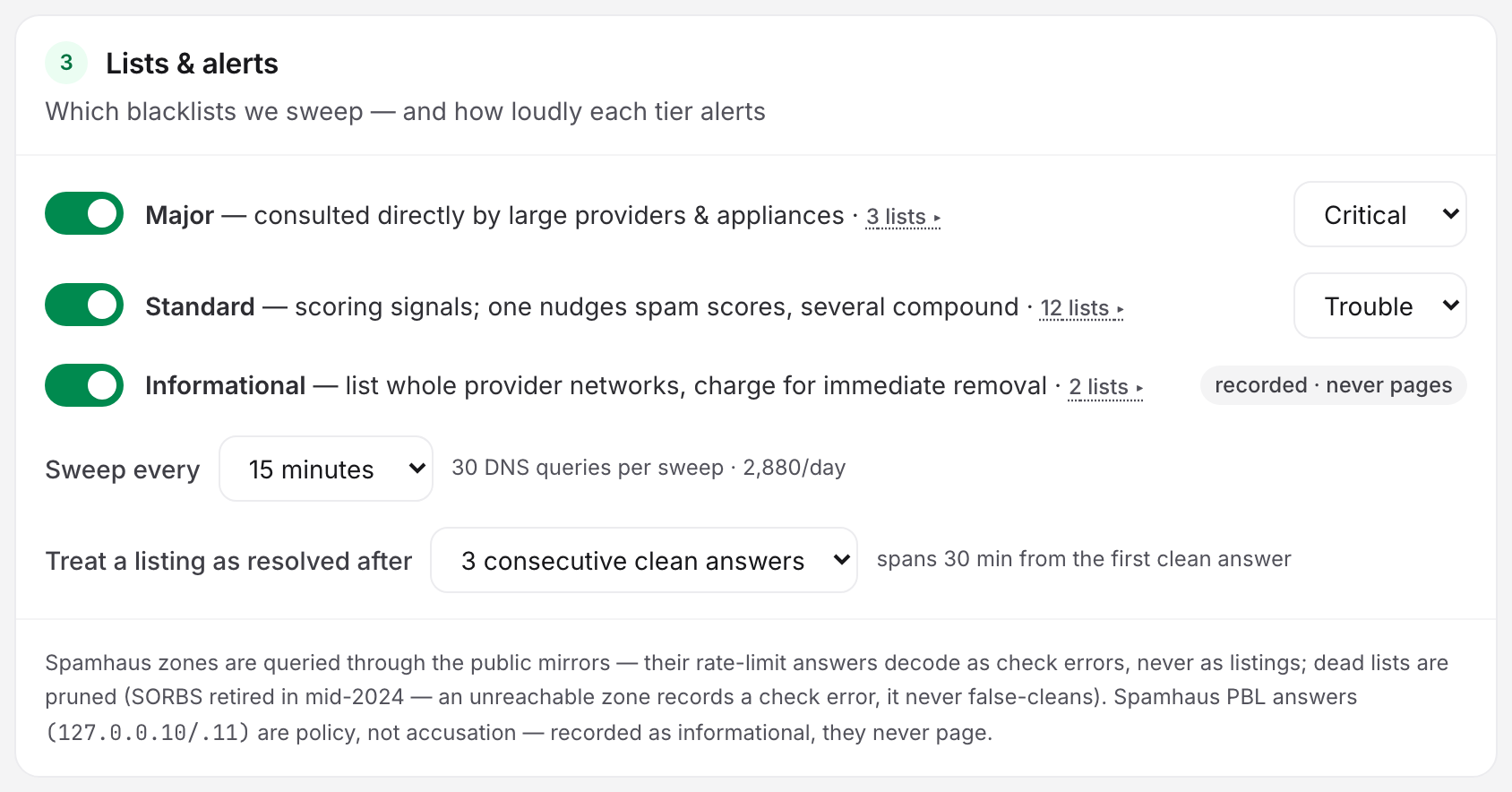
One clean answer does not clear a listing. Treat a listing as resolved after offers 1, 3 or 5 consecutive clean answers, and defaults to 3, which is 30 minutes of agreement at the default 15-minute sweep. Blacklist Listings and Delisting covers the lifecycle, the per-list delisting routes, and what happens when a listing closes without ever being verified.
Did Your Records Change?
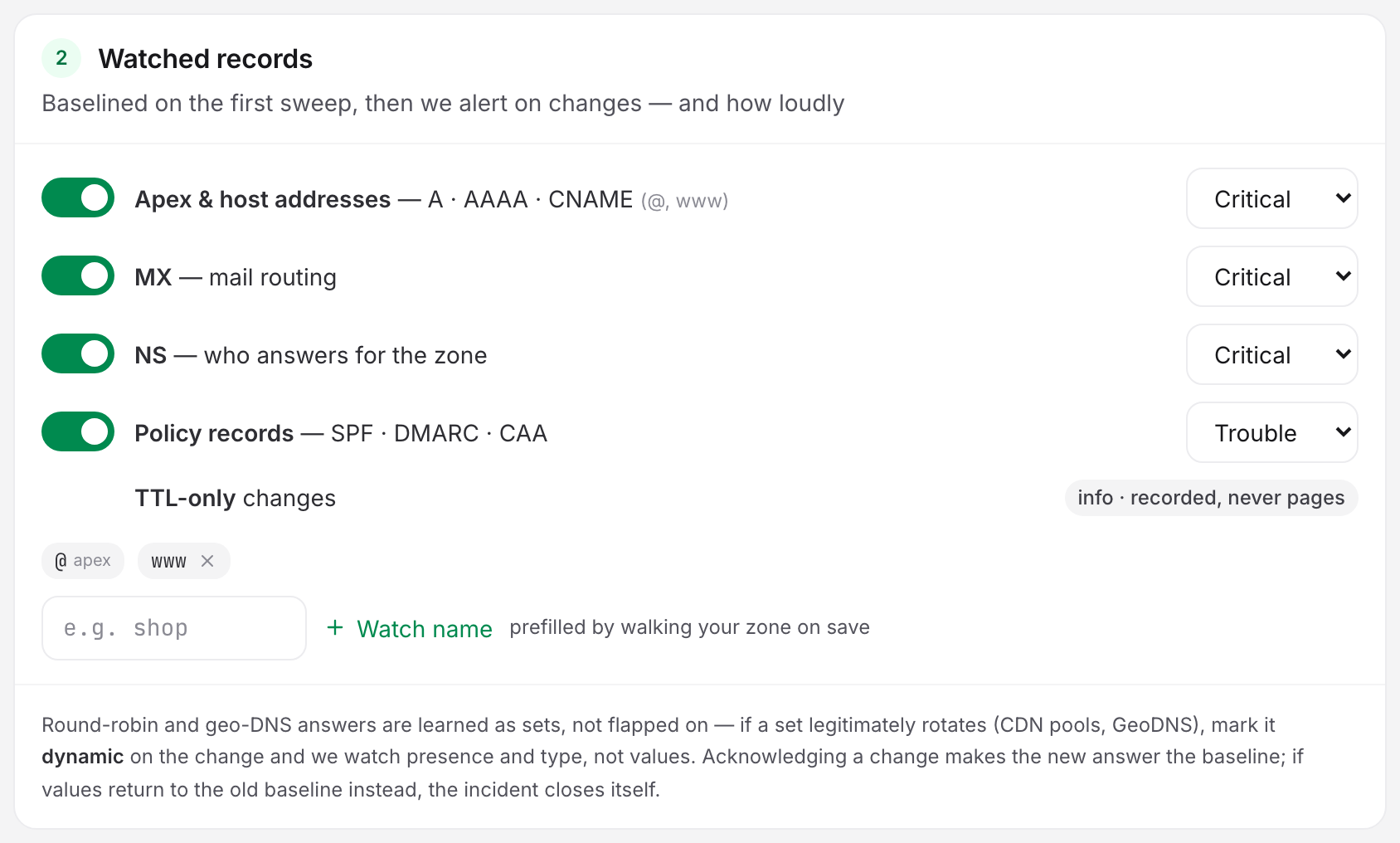
A DNS monitor watches one zone at its authoritative nameservers and compares every answer against a baseline. Two of its four record groups carry mail:
| Group | Records | Default severity |
|---|---|---|
| MX | @ MX (mail routing) |
Critical |
| Policy records | @ TXT (SPF), _dmarc TXT, @ CAA |
Trouble |
The other two groups, Apex & host addresses and NS, matter to mail indirectly. The blacklist monitor finds your web IP in the A record, and an NS change moves the whole zone.
An MX change reroutes live mail, so it pages at Critical. An SPF or DMARC edit degrades authentication over hours, so it opens a Trouble incident instead, and you can change either severity on the group itself. Setup, nameserver health and the change workflow are in DNS Monitoring.
IPv4 Only: What a DNSBL Cannot Tell You
DNSBLs are IPv4-only. A blacklist monitor accepts a naked domain or a bare public IPv4 address. It rejects everything else with the message "Enter a naked domain or a public IPv4 address": IPv6 addresses, RFC 1918 private ranges such as 10.0.0.5 and 192.168.1.1, loopback, CGNAT (addresses an ISP shares between customers) and the documentation ranges. When a watched address exists only as an IPv6 (AAAA) record, the monitor keeps the column in the results table. Every IP-list cell then reads not checked (IPv6) rather than an all-clear the monitor never measured.
If your mail host is IPv6-only, the blacklist monitor cannot answer for it, though the Uptime check and the DNS record watch still can. When a slot resolves to several IPv4 addresses, the monitor watches only the lowest one. Add the others as dedicated sending IPs if they send mail.
Who Gets Paged, and Where
A blacklist incident and a mail-server outage need different people, and different urgency. You set recipients per monitor, so keep the two apart.
- The Uptime monitor on the mail host is a page. Mail is queuing while it is down. Send it wherever your outage alerts go, and give it the alert delay you give any other production host.
- The Blacklist monitor alerts the moment the incident opens. There is no alert delay control: a listing is already a fact by the time a sweep sees it. Delisting is deliberate work, and it belongs to whoever owns sending reputation rather than whoever is on call at 03:00. Route it to that person or to a mail-ops channel.
- The Informational tier never opens an incident, so it never pages anyone. The monitor still counts it, so you can see it.
- A blacklist monitor cannot be added to a status page. There is no status-page selection on the family, so a listing is never published to your visitors.
The recovery alert, Alert when every listing is verified clean, is on by default and fires only after the clean-answer streak completes.
A Recommended Setup for a Small Mail Estate
One domain, mail on its own host, one dedicated sending IP from an email service provider:
- Verify the MX, SPF, DKIM and DMARC records themselves first, and fix anything wrong. The monitors then start from a healthy baseline.
- Create an Uptime monitor: Email, SMTP, host
mail.example.com, port587, Use StartTLS on,220in String to expect. - Create a Blacklist monitor on
example.comand add the ESP's sending IP under Dedicated sending IPs. - Create a DNS monitor on
example.com, leaving MX at Critical and Policy records at Trouble. - Point the uptime monitor's recipients at your on-call channel and the blacklist monitor's at whoever owns sending reputation.
Note: On Basic, steps 3 and 4 consume the entire blacklist and DNS allowance, 1 of each. A second sending domain needs Professional.