
An uptime monitor checks one target on a schedule from the probes you choose, and it opens an incident when enough of them agree the target is failing. The target can be a web URL, a mail server, or a network host and port.
For the detection mechanism itself (probes, backup checks, recovery), read How Uptimia Monitoring Works. Keyword Checks covers text matching on the page body.
Before You Start
- You need the Owner, Admin or Editor role. A Read-only member can open a monitor but not create or edit one.
- Your account email must be verified. Until it is, Uptimia blocks the create, and the editor tells you so before you press save.
- The Free plan allows 1 uptime monitor and a fastest check interval of 5 minutes. Both apply at once.
Creating an Uptime Monitor
- Click Add Monitor on the dashboard and pick Uptime. On an account with no uptime monitor yet, you can instead open Monitoring → Uptime in the sidebar and click Create Uptime Monitor. Once you have one, the Add Monitor button sits at the foot of the monitors panel beside any monitor page.
- On the Main tab, choose what to check with the What should we check? control: Web, Email or Network.
- Enter the target. For Web that is Website URL; for Email and Network it is IP / Domain plus Port.
- Check the Monitor Name. Typing the URL auto-fills the name from the hostname until you edit the field yourself.
- Set Check frequency and Alert delay in the Notification Settings card.
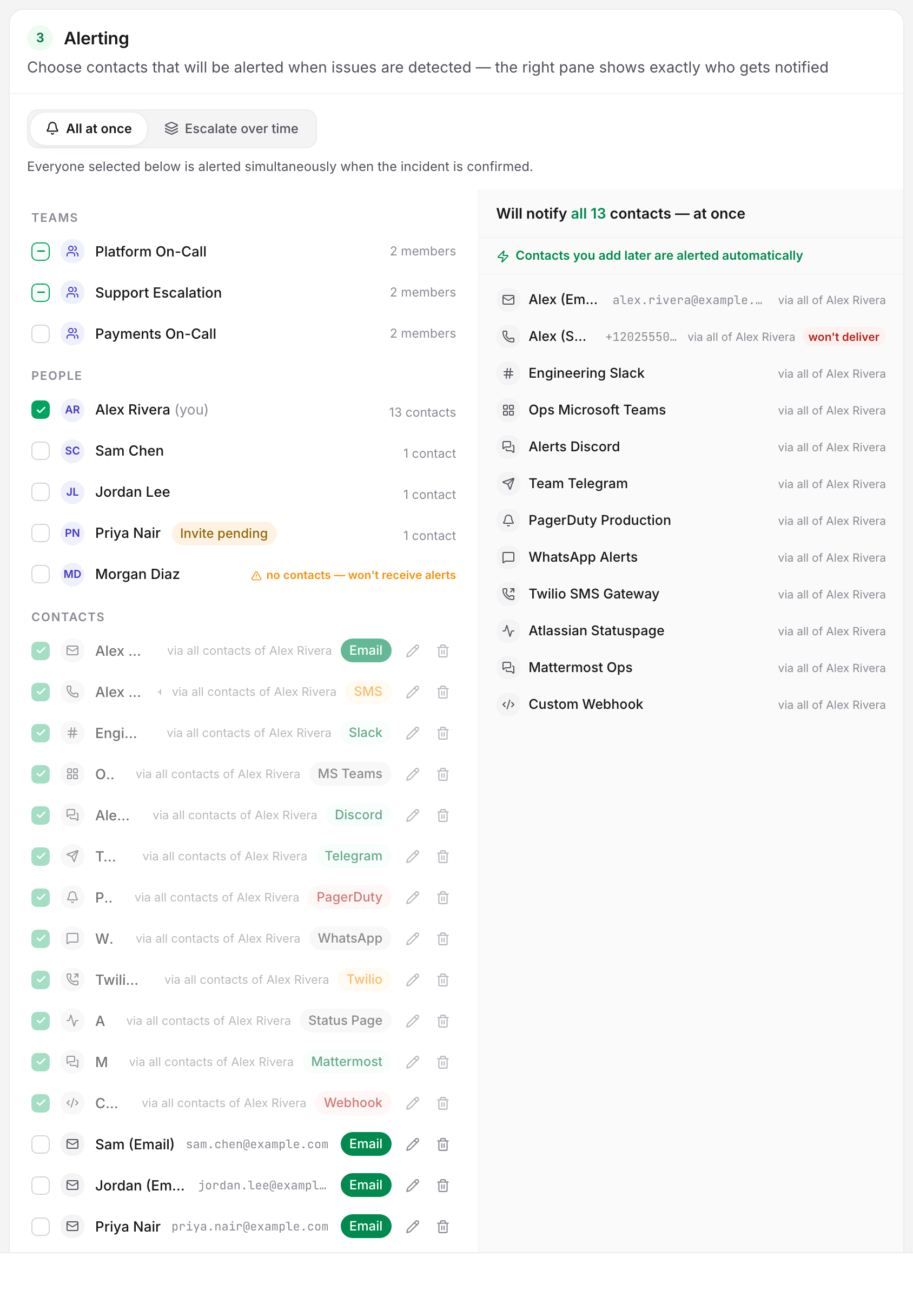
- Pick your recipients in the Alerting card. At least one is required.
- Open the Advanced, Groups and Locations tabs if you need anything beyond the defaults.
- Click Save Monitor. Uptimia begins checking immediately.
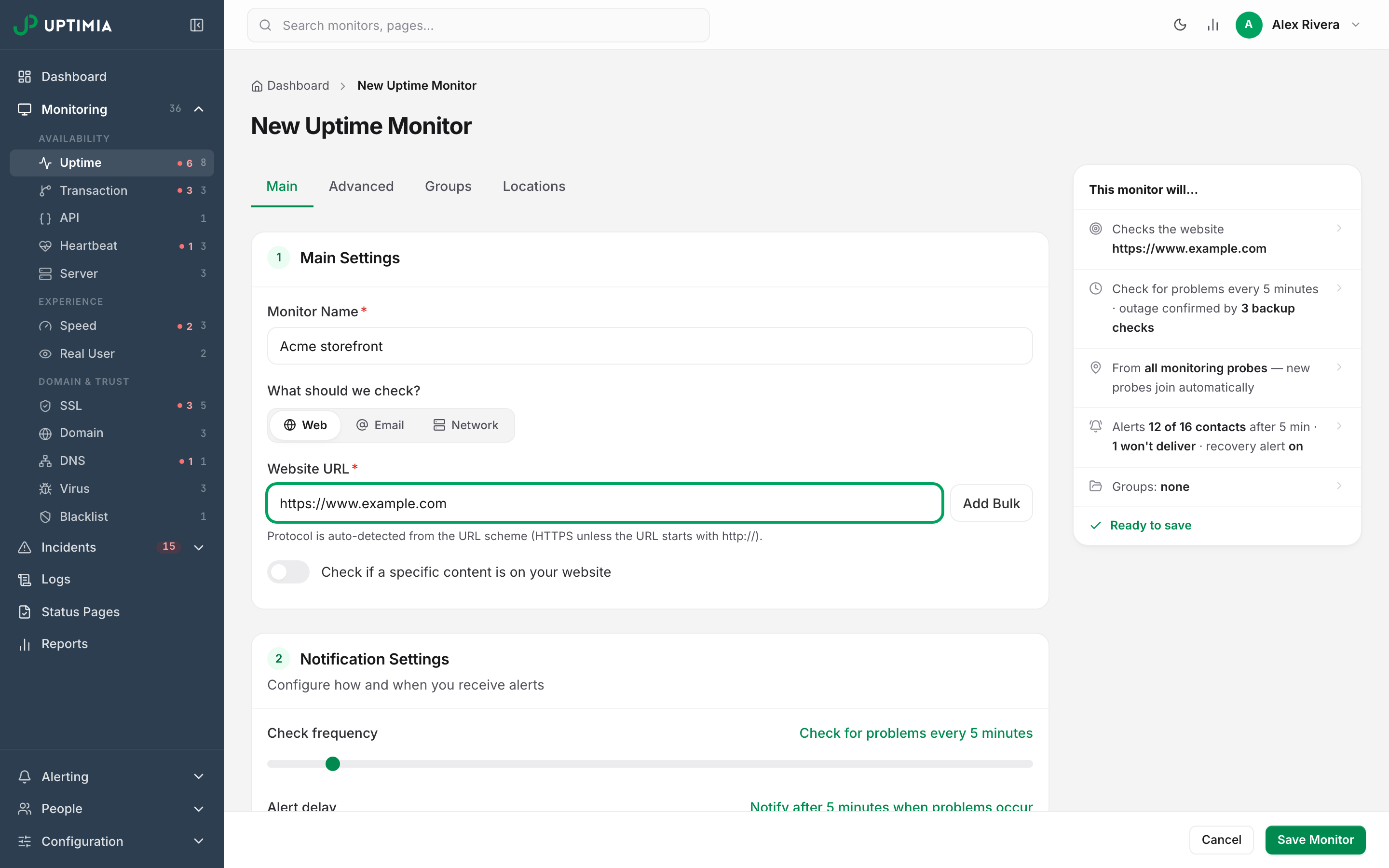
The editor has four tabs (Main, Advanced, Groups, Locations), but it saves as one form. The summary rail on the right reads the whole monitor back in plain language, and each line jumps to the section that owns it. Below the read-back, Before you can save lists every blocking issue live and turns into Ready to save when there are none; after a blocked save, each tab label also carries a red count. The save bar shows the dirty state. Leaving with unsaved edits prompts you first.
To create many monitors at once, click Add Bulk beside the target field. The textarea takes one quoted URL and name per line, comma-separated:
"https://www.website1.com/","Website name 1"
"https://www.website2.com/","Website name 2"
Add Single takes you back to the one-monitor form. Notes and Unique ID are per-monitor, so bulk mode does not send them. Every other setting applies to the whole batch.
Web, Email and Network
The What should we check? segment picks the sub-type. Web has no second picker: Uptimia reads the protocol from the start of the URL (http:// or https://). Email and Network each add a Protocol segment.
| Sub-type | Protocol | Target fields | What the check does |
|---|---|---|---|
| Web | — | Website URL | Requests the URL over HTTPS, or HTTP if the URL starts with http:// |
| SMTP | IP / Domain, Port, optional String to send / String to expect, Use StartTLS | Checks that your outgoing mail server accepts connections and answers correctly | |
| POP3 | IP / Domain, Port, optional String to expect, Use SSL/TLS | Checks that your POP3 mailbox server accepts connections and answers | |
| IMAP | IP / Domain, Port, optional String to expect, Use SSL/TLS | Checks that your IMAP mailbox server accepts connections and answers | |
| Network | TCP | IP / Domain, Port, optional String to send / String to expect | Opens a TCP connection to the port and optionally checks the response |
| Network | Ping | IP / Domain | Sends an ICMP ping to check the host is reachable |
| Network | DNS | IP / Domain, Expected Response | Resolves the domain and compares the answer to the expected response |
| Network | UDP | IP / Domain, Port, optional String to send / String to expect | Sends a UDP packet and checks the response |
The port placeholders name the usual values: SMTP 25, 465, or 587, POP3 110 or 995, IMAP 143 or 993.
Content matching (the Check if a specific content is on your website toggle) appears on the Web sub-type only. See Keyword Checks.
Notification Settings
| Field | What it does | Default | Limits |
|---|---|---|---|
| Check frequency | Slider setting how often the monitor runs. Reads back as a sentence: "Check for problems every 5 minutes". | 5 minutes | Plan-dependent floor (5 minutes on Free), up to every 24 hours |
| Alert delay | How long a confirmed failure must persist before the down alert is sent. The incident is confirmed once it elapses; with an escalation policy attached, the ladder's timers start from that moment. | 5 minutes | 0–30 minutes |
| Alert when the website comes back up | Sends a recovery alert when the monitor returns to up. | On | On / off |
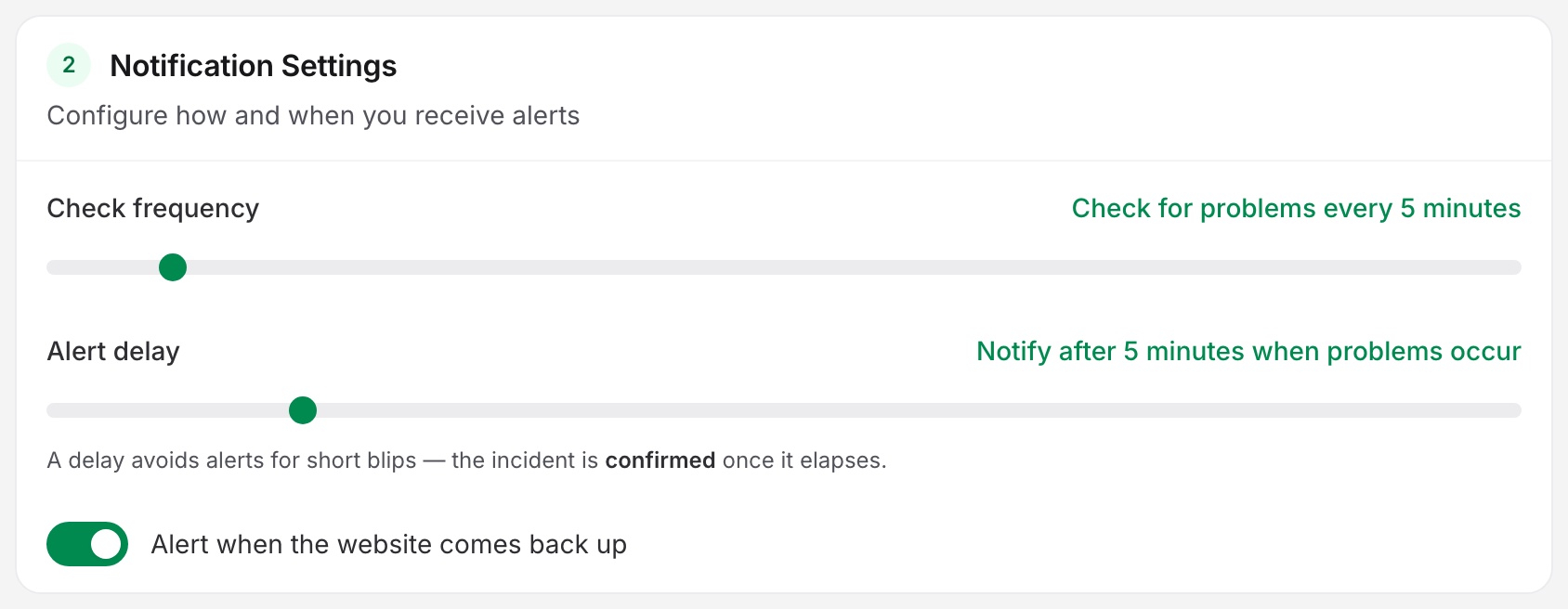
The fastest interval you can select is 5 minutes on Free, 1 minute on Basic, and 30 seconds on Professional, Enterprise and Trial. Every other family's floor is in Plan Limits and Quotas. Above 1 minute the slider steps through every whole minute to 60, and beyond an hour the steps get coarser until it reaches its ceiling of 24 hours.
The Alerting card sits last on the Main tab and holds the recipients. Once your account has at least one escalation policy, the card also shows a mode segment: All at once or Escalate over time. In escalate mode the people paged come from the policy, and Uptimia works out who they are at the moment each step fires. You must still fill in the monitor's own list. It is the fallback (see Escalation Policies).
Advanced Settings
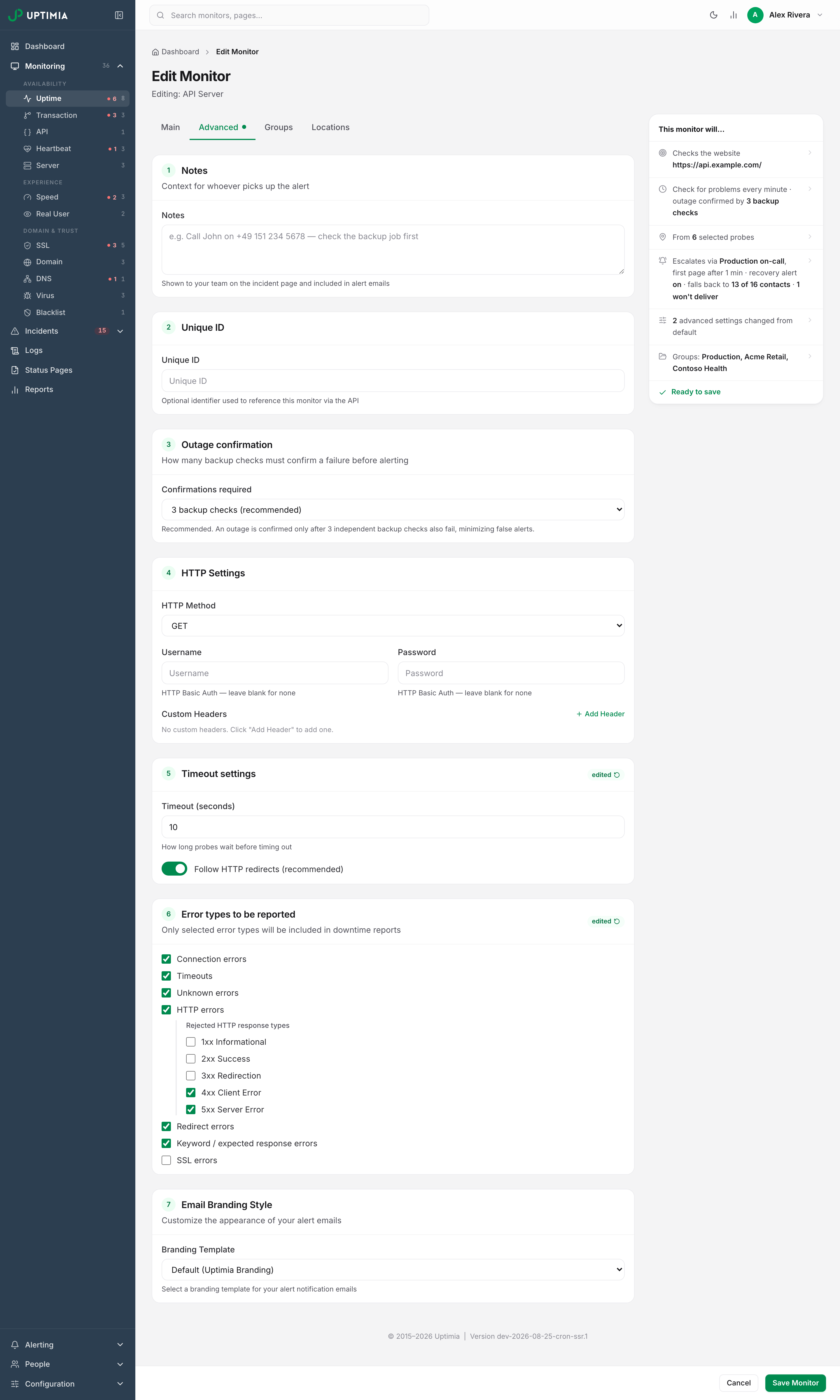
The Advanced tab is a stack of cards. Any card whose settings differ from the defaults carries an edited chip with a one-click reset.
Notes
A free-text note of up to 500 characters: "Context for whoever picks up the alert". Monitor Notes covers where it surfaces.
Unique ID
An optional identifier you choose yourself. It has to be unique inside the account, and it travels with the monitor into alert payloads (see Webhook Payload Reference), so your own systems can match an alert to their own record for this monitor.
Unique ID, HTTP Settings, Timeout Settings and Error Types to Be Reported are uptime-only cards, while Outage confirmation also appears on SSL, Speed, Domain, Transaction, API and DNS monitors. Notes appears on every family. Email Branding Style appears on every family except Server.
Outage Confirmation
Confirmations required sets how many distinct backup probes must also report the target down before Uptimia opens an incident and sends the alert. The origin probe is not counted.
| Option | Behavior |
|---|---|
| 3 backup checks (recommended) | The outage is confirmed only after 3 independent backup checks also fail |
| 2 backup checks | Faster, with one fewer independent opinion |
| 1 backup check | Fastest, and the most exposed to a single flaky probe |
Recovery is asymmetric: a single "up" backup recovers the monitor whatever the threshold is. Lowering the number speeds up down confirmation only.
HTTP Settings
These fields shape the HTTP request, so they apply to the Web sub-type.
| Field | What it does | Default | Limits |
|---|---|---|---|
| HTTP Method | The request method the probe sends | GET | GET, POST, HEAD |
| POST Body | Raw body content sent with the request. Appears when the method is POST. | empty | Free text, e.g. {"key": "value"} |
| Username / Password | HTTP Basic Auth credentials; leave blank for none | empty | — |
| Custom Headers | Header name and value pairs sent with every check. Click Add Header for each. | none | — |
Uptimia never shows a stored Basic Auth password back, and on edit the field hints "A password is set — leave blank to keep it, or type a new one to replace it." The editor has no control that clears it. Leaving it blank keeps the stored password, and typing a new one over it is the only change the editor can make. Put bearer tokens and API keys in Custom Headers instead of the Basic Auth pair.
Timeout Settings
| Field | What it does | Default | Limits |
|---|---|---|---|
| Timeout (seconds) | How long probes wait before timing out | 30 | 1–100 seconds |
| Follow HTTP redirects (recommended) | Follows 3xx redirects instead of treating the redirect as the answer | On | On / off |
Leaving the timeout box empty saves 30 seconds. A value outside 1–100 blocks the save with Timeout must be between 1 and 100 seconds.
Error Types to Be Reported
Downtime reports include only the error classes you tick. All seven are on by default.
| Error type | What it covers |
|---|---|
| Connection errors | Server unreachable, connection refused |
| Timeouts | No response inside the timeout |
| Unknown errors | Unclassified failures |
| HTTP errors | Status codes in the ranges you select under Rejected HTTP response types |
| Redirect errors | Unexpected redirect behavior |
| Keyword / expected response errors | A keyword or expected-response rule failed |
| SSL errors | Certificate and TLS handshake failures |
Note: Every uptime monitor reports SSL errors by default. This checkbox decides one thing: whether a TLS failure during an uptime check counts as downtime. Certificate expiry, chain and issuer tracking is a separate SSL monitor.
Ticking HTTP errors reveals Rejected HTTP response types:
| Range | Default |
|---|---|
| 1xx Informational | Off |
| 2xx Success | Off |
| 3xx Redirection | Off |
| 4xx Client Error | On |
| 5xx Server Error | On |
Email Branding Style
Selects the branding theme used for this monitor's alert emails. Every monitor family except Server has this card; server monitors have no Advanced tab.
Groups and Locations
On the Groups tab, tick the groups this monitor belongs to. Create new group adds one inline with a name and a color.
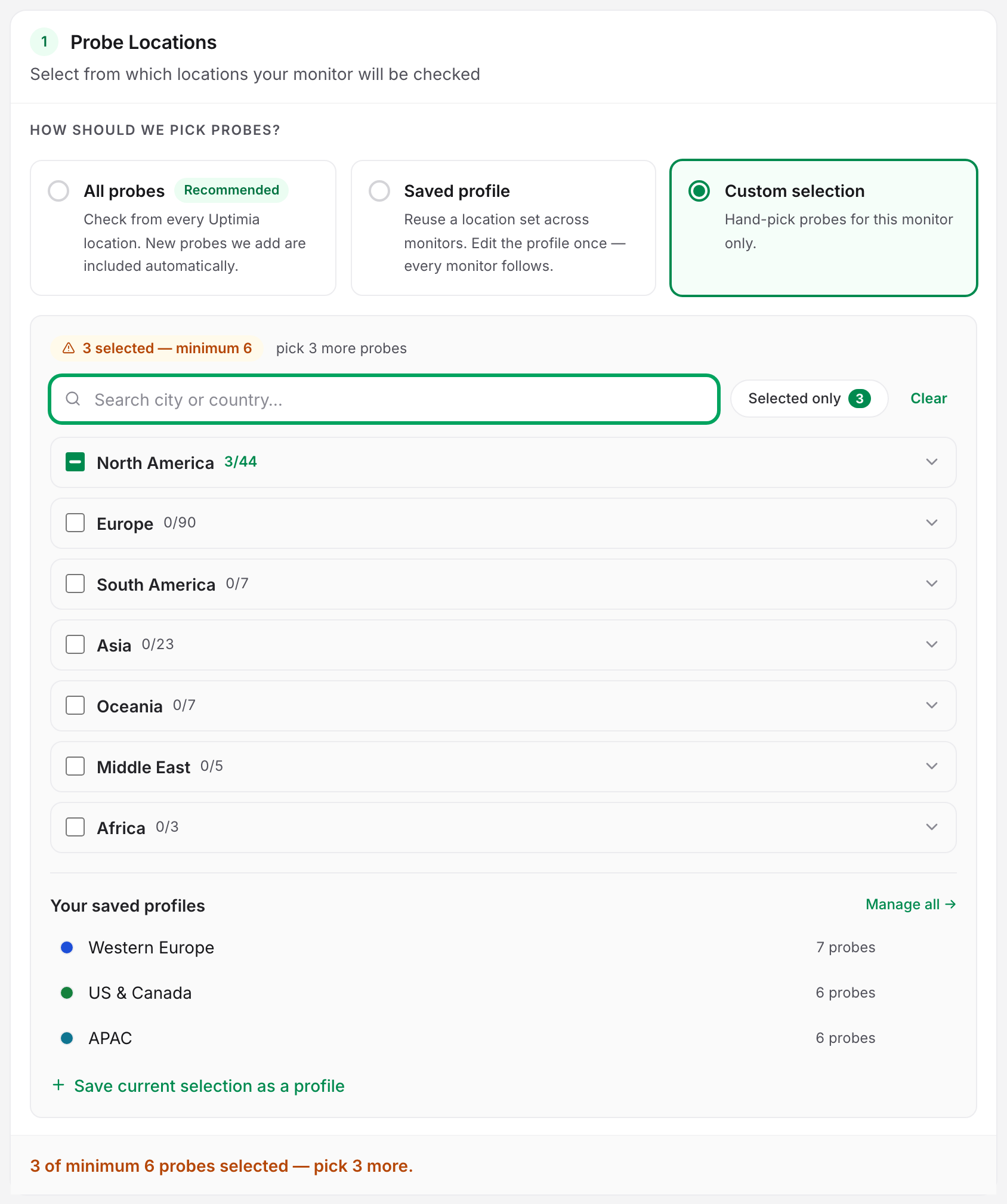
The Locations tab card is Probe Locations, with three modes: All probes (recommended), Saved profile and Custom selection. Location Profiles covers what each one does, the built-in profiles and how a profile edit propagates.
A custom selection needs at least 6 probes. The panel counts as you pick, and blocks the save below that floor. How Uptimia Monitoring Works explains why 6 is the minimum.
If your account region is Europe, Uptimia pre-selects the Europe probe set on a new uptime monitor. A dismissible banner says so and points at All probes. The pre-selection is a default; you can change it.
Reading the Monitor Page
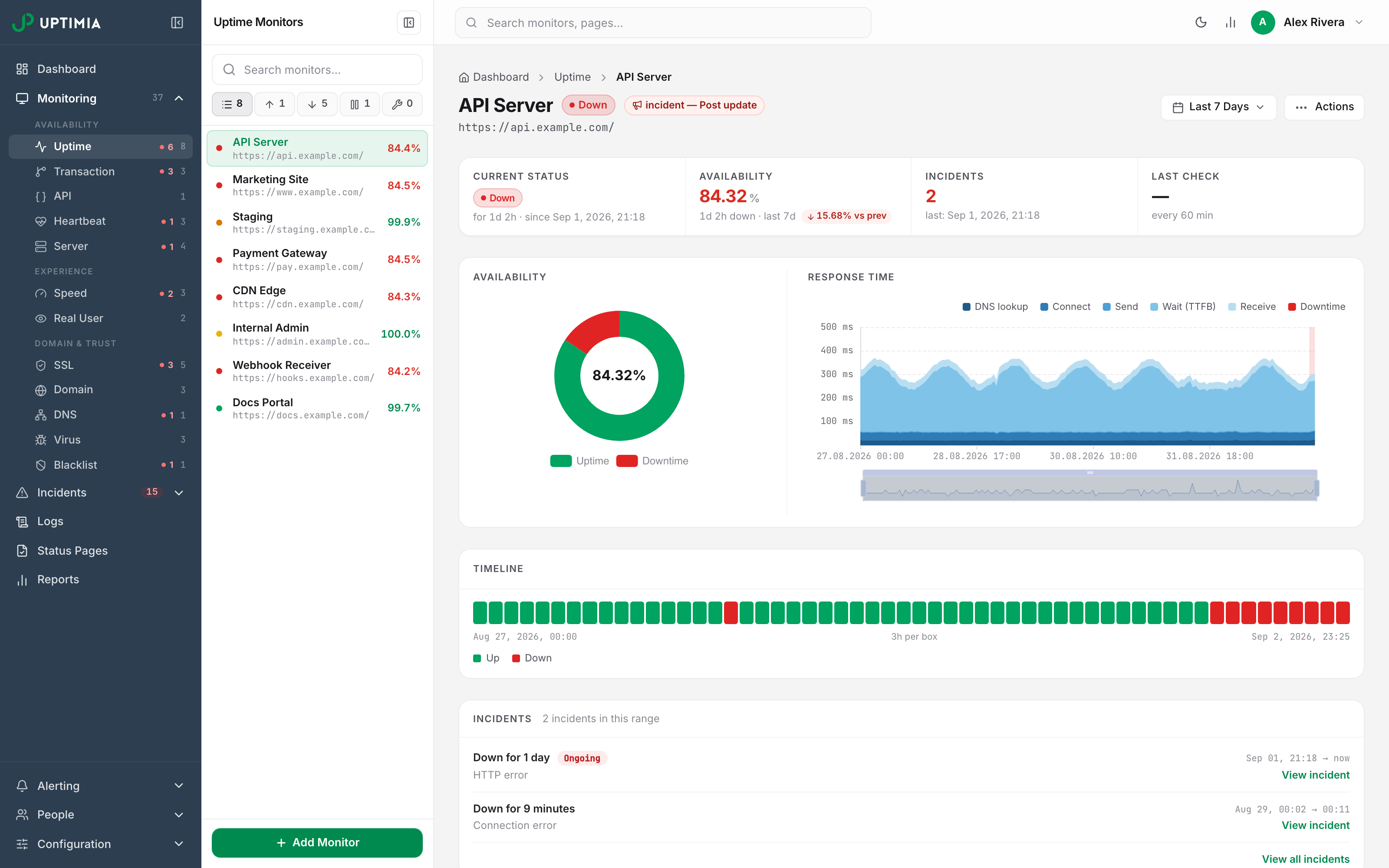
The monitor page is one scrolling card stack, with no tabs. Top to bottom:
Stat strip. Four cells, each with a context sub-line:
| Cell | Value | Sub-line |
|---|---|---|
| Current Status | The status badge | "for 3h 12m · since 04:18" |
| Availability | Percentage for the selected range | Downtime in the range, the range length, and a "±N% vs prev" chip against the previous period |
| Incidents | Count in the range | The latest incident's time, or "none in this range" |
| Last Check | How long ago | The configured interval. The cell hides at middling window widths so the other three fit on one row, and returns on narrow and very wide ones. |
The availability figure is green at 99% and above, amber from 95%, red below. How Uptime Is Calculated explains how it is computed, and why the number can differ between two screens.
Charts. An Availability donut beside a Response Time line chart split into DNS lookup, connect, send, wait and receive.
Timeline. A bar of up, down and maintenance segments. Clicking a down segment opens that incident.
Incidents card. The 8 most recent incidents in the range, with View all incidents linking into the history pre-filtered to this monitor.
Check log card. Captioned "latest checks, newest first", with columns When, Result, Location and Response time. A backup check reads Backup check in the Response time column. Clicking a row opens the check detail drawer. The drawer carries the probe, the status, the response time, the URL, any expected strings and the error text, and View all logs opens the full log page.
A brand-new monitor refreshes every 5 seconds until its first check lands, then every 60 seconds. Until the account has its first uptime monitor, Monitoring → Uptime shows a three-step explainer. Once one exists, that link opens the monitor itself, and the panel beside it lists the other monitors.
Saving a Monitor as a Template
A template snapshots a monitor's whole configuration, so the next monitor takes only a name and a URL.
- Open the monitor page, click the ⋯ Actions menu and choose Save as Template.
- Enter a Template Name and, if useful, a Description, then click Save Template.
- To use it, go to Configuration → Monitor Templates, click Use on the row, then Create Monitor.
Editing a template later never touches the monitors already created from it.
Editing, Copying, Pausing and Deleting
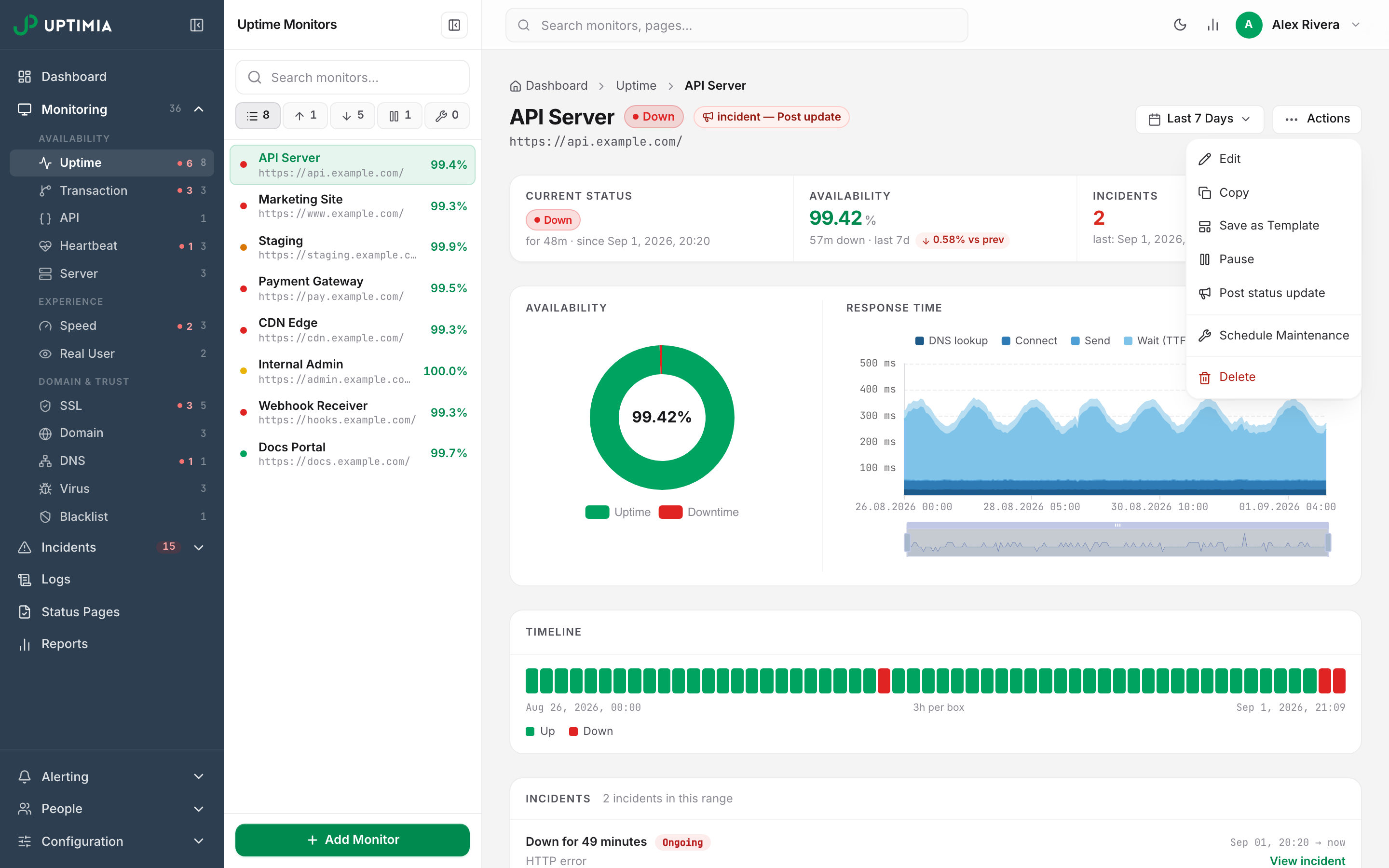
The same ⋯ Actions menu carries Edit, Copy, Pause / Resume, Schedule Maintenance and Delete. A paused monitor runs no checks and sends no alerts.
Warning: Deleting a monitor cannot be undone. Pause it instead if you only need the checks to stop.