
Uptime and availability are the same number under two labels: the share of the time you selected that a monitor was working. That number is the headline figure on the dashboard, on Uptime, Transaction, API and Heartbeat monitor pages, on public status pages and in scheduled reports. It is the figure that ends up in service-level agreement (SLA) conversations too. Retention policy lives in Data and Log Retention. To schedule a window, see Maintenance Windows.
The Formula
availability = (range − maintenance − downtime) ÷ (range − maintenance)
All three quantities are in seconds:
- range: the date range you selected, end minus start. If the monitor is younger than that range, the range starts at the monitor's creation date.
- maintenance: seconds this monitor spent inside a planned maintenance window during that range.
- downtime: seconds this monitor spent inside an open incident during that range, not counting any part that fell inside a maintenance window.
Uptime, downtime and maintenance seconds always add up to the range, so the downtime figure printed beside the percentage is consistent with it.
What Counts as Downtime
Uptimia measures downtime from incidents. A failed check on its own adds no seconds. For each incident that touches your range, Uptimia counts only the overlap:
- An incident that started before your range is counted from the start of the range.
- An incident that is still open is counted to the end of the range.
- Overlapping maintenance comes out of that overlap before it is added.
Because incidents are the unit, everything that shifts an incident's start also shifts the number. A monitor with an alert delay and outage confirmation does not open its incident on the first bad check. Read How Uptimia Monitoring Works for what has to happen before an incident exists.
Degraded Incidents Consume Downtime Too
Uptimia adds every incident's overlap to the downtime total first, and classifies the incident as critical or trouble only after that. A Degraded incident costs you availability exactly like a Down one. A speed monitor sitting amber over a web-vitals budget, a domain 5 days from expiry, a standard-tier blacklist listing: each one moves the percentage while it is open.
Check for an open Degraded incident before you go looking for a missing outage. The severity split only changes how the incident is counted in the critical / trouble incident counts and how loudly it pages you. See Monitor Statuses for which checks produce which severity.
Planned Maintenance Leaves the Calculation Entirely
A maintenance window is neither downtime nor free uptime. Uptimia removes its seconds from both sides of the fraction, so the window can neither damage nor flatter the percentage. Uptimia merges overlapping windows before it subtracts them, so time covered by two windows counts once.
- A check result that arrives while a monitor is in maintenance is dropped on arrival. Uptimia never logs it, opens no incident from it and sends no alert. The same is true for a paused or suspended monitor. The two inbound families are the exception. A paused or in-maintenance heartbeat still logs its pings, and a server keeps ingesting agent samples through a pause, a window or a suspension. In both cases only the alerting goes quiet.
- A monitor that spent your whole selected range in maintenance has no measured time left, so it reads 100%.
The public status page is the exception. Its per-monitor 90-day percentage divides incident seconds by the full 90-day window, with no maintenance term on either side, so a status page and a monitor page can disagree for a monitor that has had a maintenance window. Only the status page's aggregate day-by-day availability ribbon removes maintenance seconds, and it removes them from the denominator only. See Status Pages.
The Fleet Average on the Dashboard
The Availability cell at the top of the dashboard is the plain average of each monitor's own percentage, not a seconds-weighted total. Every monitor counts equally. A monitor checked every 30 seconds and one checked once a day move the fleet figure by the same amount, whatever their traffic. One noisy monitor can pull the number down as far as a genuinely critical one.
Three kinds of monitor are excluded from the average entirely:
| Excluded | Why |
|---|---|
| Paused monitors | Nothing is being measured. The Paused cell's own sub-line says "excluded from availability" |
| Suspended monitors | Nothing is being measured |
| Real User monitors | Real User Monitoring reports visitor timings, not availability, so it has no percentage to average |
Monitors in a maintenance window stay in the average. Their own percentage already has the window removed from both sides.
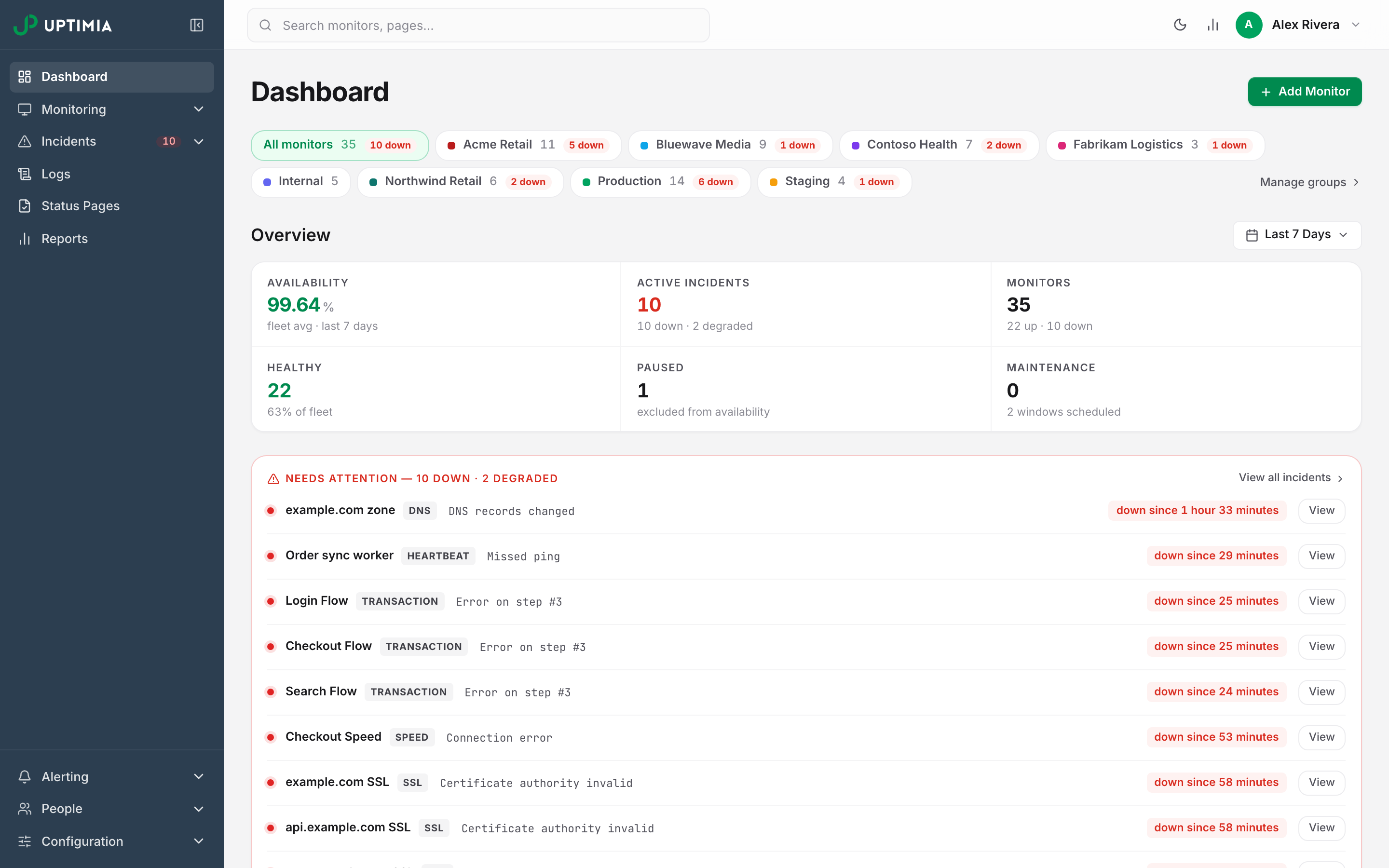
The cell is colored on the fleet figure: green at 99.5% and above, amber at 95% and above, red below that.
When the Availability Cell Shows an Em Dash
If nothing in view can produce an availability figure (every monitor is paused, suspended or a Real User monitor), the cell shows — with the sub-line no uptime monitors rather than 0.00%. A red 0.00% would read as a total outage, which is the opposite of the truth.
Rounding
Uptimia rounds the fleet figure to 4 decimal places, and then to 2 if it came out below 99.99. The dashboard's fleet Availability cell and a monitor's own Availability cell print 2 decimals, and so does the dashboard monitor list, except that an exact 100 prints there as 100%. The monitor rail beside a monitor page prints 1 decimal.
So 99.995% displays as 100.00% on the dashboard's fleet cell and in the dashboard monitor list. Uptime and Transaction monitor pages are the exception. When the range contained real downtime, these pages never round up to 100.00%; they print 99.99% instead, so a flat 100.00% on one of those pages means no measured downtime at all. Read the downtime seconds beside the percentage, or the incident count, when the distinction matters.
The Date Range Is Part of the Answer
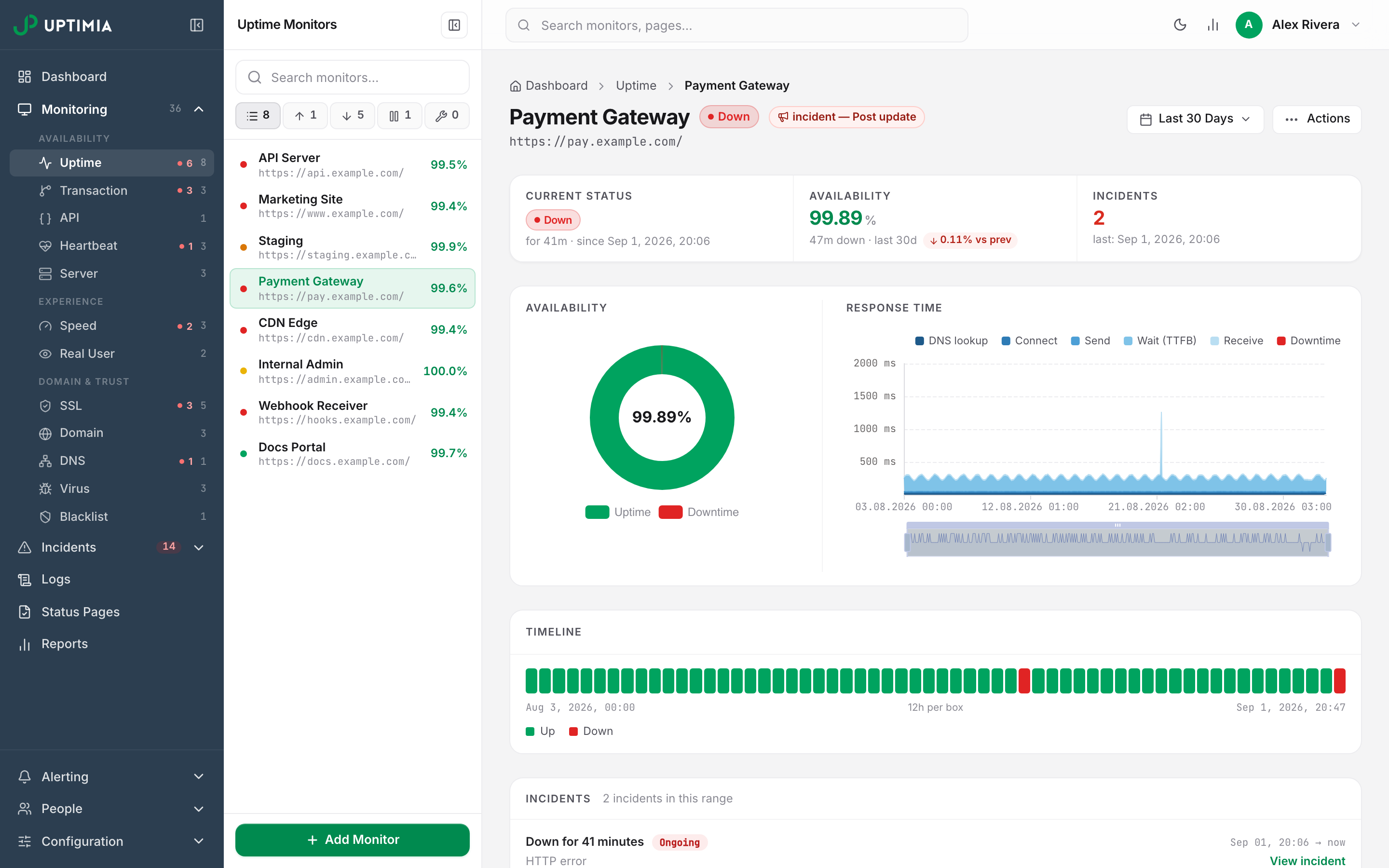
Uptimia computes every percentage over the range selected on that screen. The dashboard's range picker offers Today, Yesterday, Last 7 Days, Last 30 Days, This Month, Last Month and a custom range. Pick none and the dashboard answers for the last 7 days. Your choice sticks for the rest of the browser session.
There is no 90-day preset. For a quarter, pick a custom range, and check your plan's readable history first.
Why a Long Range Can Return a Short Answer
Monitoring history is readable for a fixed window per plan. Free gets 7 days, Enterprise 730 days. On the screens that apply the clamp, Uptimia raises a start date older than that window to the window's edge, and the answer comes back for a shorter range than you asked for. The full ladder is in Data and Log Retention.
- The clamp deletes nothing. The rows the clamp hides are still there; the query window is what moves.
- Upgrading widens the window instantly, with no backfill and no waiting, but only as far back as data still exists. A nightly housekeeping pass prunes old rows on whatever plan you were on at the time. On Free that removes resolved incidents older than 60 days. Upgrading a long-standing Free account does not bring back a year of history. The full picture is in Data and Log Retention.
- You cannot ask for "everything" by leaving the start date out. A screen asked for a range with no start date falls back to its own default window (24 hours, 7 days or 30 days, depending on the chart), and the clamp applies to that.
Why Two Screens Can Disagree
Three mechanisms make two screens disagree, and they stack.
The dashboard does not apply the retention clamp; Uptime, Speed and Virus monitor pages do. On the dashboard the fleet number covers exactly the range you picked. Your plan does not matter. An Uptime, Speed or Virus monitor's own Availability cells, its charts and its history list raise the start date to the plan window first. Transaction, Heartbeat, SSL, Domain, DNS, Blacklist, API and Server pages answer the range as asked. On a Free account, a custom 90-day range gives a 90-day fleet figure on the dashboard and a 7-day figure on an uptime monitor page.
The fleet average is unweighted. It will not equal the average you get by adding up seconds across your monitors, and it will not equal any single monitor's figure.
The ranges are separate. The dashboard range picker and a monitor page's own range are set independently. Confirm both before comparing two numbers.
Against an outside tool, add two more causes. The other tool has a different check interval and a different confirmation rule, so it sees different incident start times. And it knows nothing about your maintenance windows, which Uptimia removes from the denominator.
Where the Same Number Appears
| Surface | Range it covers | Clamped to plan history |
|---|---|---|
| Dashboard Availability cell | The dashboard range picker, default last 7 days | No |
| Monitor detail Availability cell and charts | The monitor page's range picker | Uptime, Speed and Virus only |
| Public status page timeline | Trailing 90 days | Not applicable (public page); maintenance is not excluded either |
| Scheduled reports | The report's own period | Not applicable; the report covers the period set in the report itself |
The dashboard, monitor pages and scheduled reports all run the same calculation, including the maintenance exclusion. The public status page runs its own 90-day timeline code, and its per-monitor percentage does not exclude maintenance.
Answering an SLA Question
Quote the monitor's own Availability figure for the exact contractual period, not the dashboard fleet average. The fleet average is a health summary across unrelated monitors and means nothing in a contract.
To produce the evidence behind it:
- Open the monitor and set its date range to the contractual period.
- Read the Availability percentage and the downtime duration in the same cell.
- Go to Incidents → History, set the same range, filter to the monitor, and click Export CSV for the incident list.
- State whether maintenance windows are excluded. They are, in every Uptimia figure. If your contract counts planned maintenance as downtime, add it back from the maintenance schedule.
Wider export options are in Exporting Your Data. The report that mails this out on a schedule is in Scheduled Reports.