
Signing in lands you on the dashboard. It is also the one place every monitor on the account appears together: all 12 families, from uptime and transaction checks to DNS, heartbeat and blacklist. The arithmetic behind the availability figure is in How Uptime Is Calculated. What each status badge means is in Monitor Statuses.
What Is on the Page
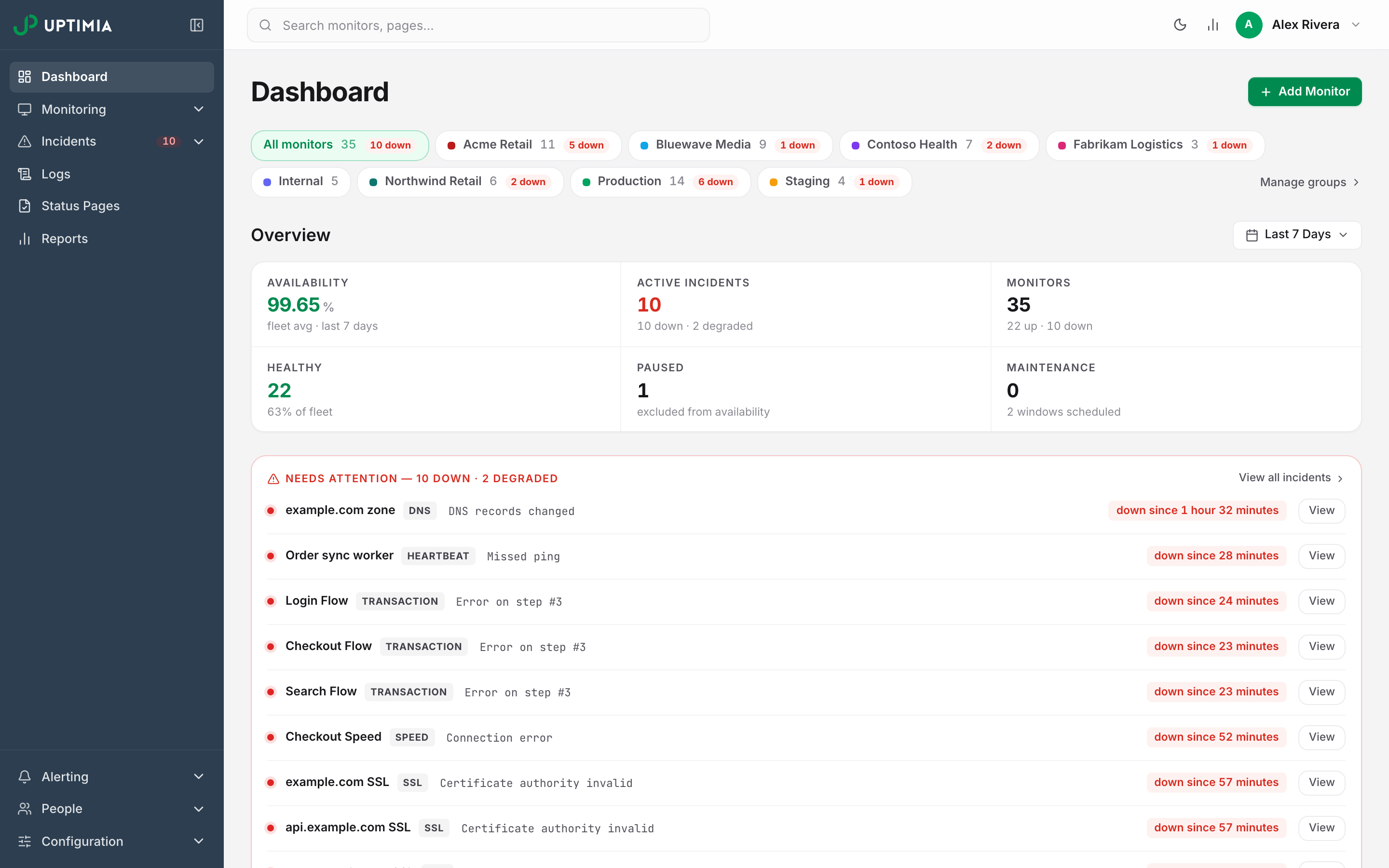
The dashboard is laid out in a fixed order:
- Dashboard heading and the Add Monitor button.
- The Finish setting up rail, while the setup journey is incomplete.
- The group scope tabs, if any monitor is in a group.
- The Overview strip, with its six summary cards and the date range picker.
- Needs attention, when something is down or degraded.
- No alert recipients, when a monitor would page nobody.
- The list toolbar: search, status chips, type dropdown, view switcher.
- The monitor list, in grid, table or graph mode.
- Recent activity, the incident feed.
Panels 2, 3, 5 and 6 appear only when they apply, so a healthy account with no groups sees just the heading, the Overview, the list and Recent activity.
The Overview: Six Summary Cards
The Overview strip carries six cards. Clicking Active Incidents, Healthy, Paused or Maintenance switches on the matching status filter and dims the other five, and clicking the same card again clears the filter. So does clicking Availability or Monitors, which have no filter of their own. Healthy maps to the Up chip, so the degraded monitors it counts drop out of the filtered list.
| Card | What the number is | Sub-line |
|---|---|---|
| Availability | Fleet availability average over the selected date range | fleet avg · last 7 days, or the group name in place of fleet |
| Active Incidents | Monitors that are down right now | 3 down · 1 degraded, or no open incidents |
| Monitors | Total monitors in scope | 12 up · 1 down |
| Healthy | Monitors currently up, degraded ones included | 92% of fleet |
| Paused | Monitors you have paused | excluded from availability, or nothing paused |
| Maintenance | Monitors inside a running window | window in progress, 2 windows scheduled, or no windows scheduled |
Availability leaves monitors out. Real User monitors have no uptime metric. Paused and suspended monitors are excluded too, which is what the Paused card's excluded from availability sub-line tells you, and when nothing uptime-bearing is in scope the card shows a neutral — with no uptime monitors rather than a red 0.00%. The figure is a plain average of each monitor's own percentage: a 30-second uptime check and a daily domain check count equally.
Degraded monitors count as healthy. A monitor is in the trouble state when it is slow but still answering, when an SSL certificate is expiring soon, or when a DNS policy record (SPF, DMARC or CAA) changes. Such a monitor is counted in Healthy, and surfaces in the Active Incidents sub-line as n degraded. Severity belongs to the incident rather than the monitor family: Uptimia records an uptime failure as critical, and an SSL expiry warning as degraded.
The Maintenance card counts two things. The card's number is monitors in a window right now, while the sub-line counts non-expired windows, running and future both, so a window booked for next Tuesday already reads as scheduled. See Maintenance Windows.

The Date Range
The date range picker sits at the right of the Overview heading, not in the page header. It offers Today, Yesterday, Last 7 Days, Last 30 Days, This Month, Last Month, and a Custom Range with two date fields. The default is Last 7 Days, and your choice follows you across control-panel pages for the rest of the session.
The range drives the Availability card, each monitor's uptime percentage and average response time, and the uptime-trend strip. It never affects live status.
Note: The dashboard does not shorten a long custom range to fit your plan's history window, though the uptime, speed and virus monitor pages do. On Free, a 30-day custom range answers in full here and returns 7 days there. Plan Limits and Quotas covers the readable window per plan.
Group Tabs Rescope the Whole Page
If any monitor on the account is in a group, a row of tabs appears above the Overview. All monitors comes first, then one tab per group, each carrying its color swatch, its monitor count, and a red n down badge when the group has a real outage. Empty groups get no tab. Manage groups at the right opens Configuration → Groups.
Selecting a tab rescopes every panel below it. Uptimia recomputes the six summary cards for that group, the two warning panels list only its monitors, Recent activity narrows to its incidents, and the group's name appears as a pill beside the Overview heading and in the Availability sub-line.
Picking a tab changes the web address, so you can bookmark a scoped dashboard, share it, and go back to it with the back button. Click the active tab again to clear it. Groups themselves are covered in Monitor Groups.
The Needs Attention Band
The red-bordered Needs attention band floats every down and degraded monitor above the list. Its heading counts what it holds: Needs attention — 2 down · 1 degraded. View all incidents opens the incidents page.
Each row shows the monitor name, a type badge, the error text from the active incident, and a down since pill with the duration. View opens the monitor. If the monitor is published on a status page, Post update opens the status-update composer; status updates cover uptime, speed and transaction incidents only, so elsewhere the button is disabled with that reason. The band also lists incidents that recovered while their public thread is still open, offering Add closing update and Dismiss. Dismiss resolves the thread with no public update.
The Incidents row in the sidebar carries a count badge fed by the same figure as the Active Incidents card, and the two agree while All monitors is selected. When a group tab narrows the card, the badge stays fleet-wide. The incidents page counts incident records instead. Its number is larger.
The No Alert Recipients Band
The amber No alert recipients band lists monitors that would page nobody: no contacts, no teams and no escalation policy attached. That is what a deleted policy or a deleted last contact leaves behind. Checks keep running and incidents are still recorded; only the notifications are missing.
Rows that are down right now sort first and carry a Down now, nobody told tag; every row has an Assign contacts link to that monitor's editor, and the heading links to Alerting → Contacts. The band has no dismiss control. It clears when every listed monitor has at least one recipient. The same signal appears as a No recipients chip on the monitor's grid card and as a No recipients filter chip in the toolbar. Contacts and Alerting covers the fix.
Finding a Monitor
The toolbar above the list holds the search box on the left, and the status chips, type dropdown and view switcher on the right.
Search matches the monitor name and its host, and filters as you type.
Status chips are single-select, each with a live count: All, Up, Down, Paused, Maintenance, Suspended, No recipients. A second click clears the chip. A zero-count chip is hidden, so Suspended and No recipients appear only when they apply; All is always shown, and clicking a summary card sets the same filter.
Type is a single-select dropdown: All Types, then Uptime, SSL, Speed, Domain, Virus, RUM, Transaction, Server, Heartbeat, Blacklist, DNS, API. Monitoring Overview describes what each family watches.
All three combine, and all three apply inside the active group tab. When nothing matches, the list reads No monitors match the current filters.
Grid, Table and Graph
The three-icon switcher at the right of the toolbar changes how the list is drawn. Grid is the default, and your browser remembers your choice once you pick one explicitly. All three modes paginate, with a Show 10 / 25 / 50 / All per page control underneath; the default is 25.
Grid draws one card per monitor:
- Status dot, name, type badge, group swatch, checkbox and actions menu on the top row.
- The status pill and host.
- The incident cause line, when the monitor is down or degraded.
- The uptime-trend strip.
- A footer with the uptime percentage and the average response time.
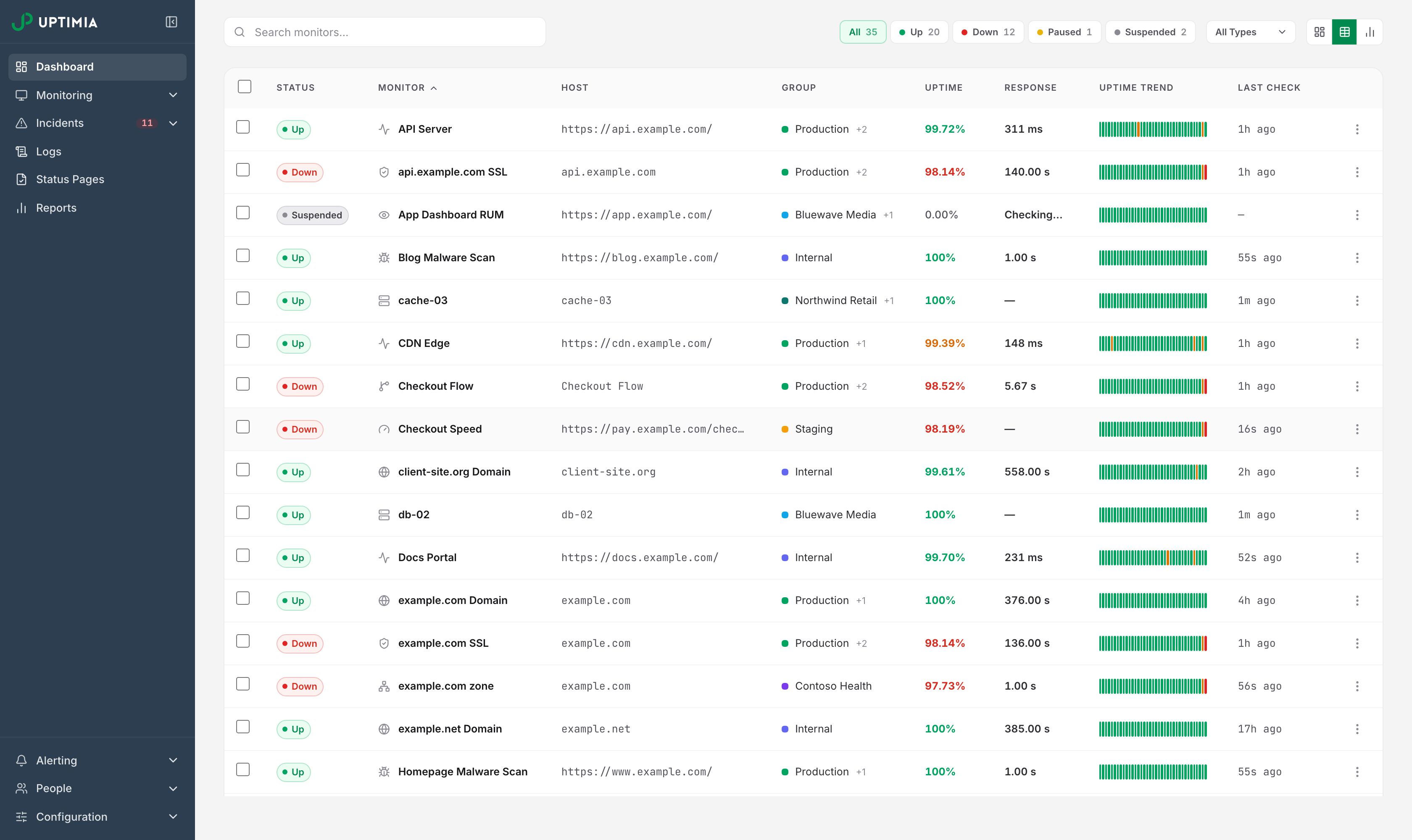
Table is sortable and denser. Its columns:
| Column | What it shows |
|---|---|
| Checkbox | Selects the row for a bulk action; the header checkbox selects the visible page |
| Status | Up, Down, Degraded, Paused, Maintenance or Suspended pill |
| Monitor | Family icon and name, plus a step count on transaction monitors. Sortable |
| Host | The address being checked |
| Group | First group's swatch and name, with +n when the monitor is in more |
| Uptime | Availability over the selected range, colored by health. Sortable |
| Response | Average response time over the range. Sortable |
| Uptime trend | The availability strip for the range |
| Last check | Relative time since the last stored result. Sortable |
| Actions | The row menu |
Graph gives each monitor one row with a small response-time chart from the last 24 hours. Each chart is scaled to that monitor's own range, so the heights cannot be compared between rows.
Reading the Numbers
Uptime prints as 100% when the range is perfect, and to two decimals otherwise. Below 95% it is red, below 99.5% amber, otherwise green.
Response picks its unit by size rather than monitor type. 1,000 ms and above prints in seconds to two decimals, anything below in milliseconds, and a monitor that has never returned a result shows Checking… while the list polls every 10 seconds until the first result lands. Heartbeat and server monitors show —. An inbound ping and an agent sample have no round trip to time. Real User monitors keep reading Checking… however long they have been collecting.
Last check reads 44s ago, 4m ago, 2h ago, 3d ago; a paused monitor shows —.
Uptime trend is one box per time bucket across the selected range, sized to keep the strip under 48 boxes. Buckets run hourly for a day, and up to weekly for a long range. Green is a fully available bucket. Amber is partial, red none, violet maintenance. Hover a box for its real time span, its availability percentage, and the up/down/maintenance split when it spans more than one state. A box is painted as maintenance only when a window covers the majority of it and no downtime occurred in it, so a 30-minute window can never hide a real outage.
Row Actions
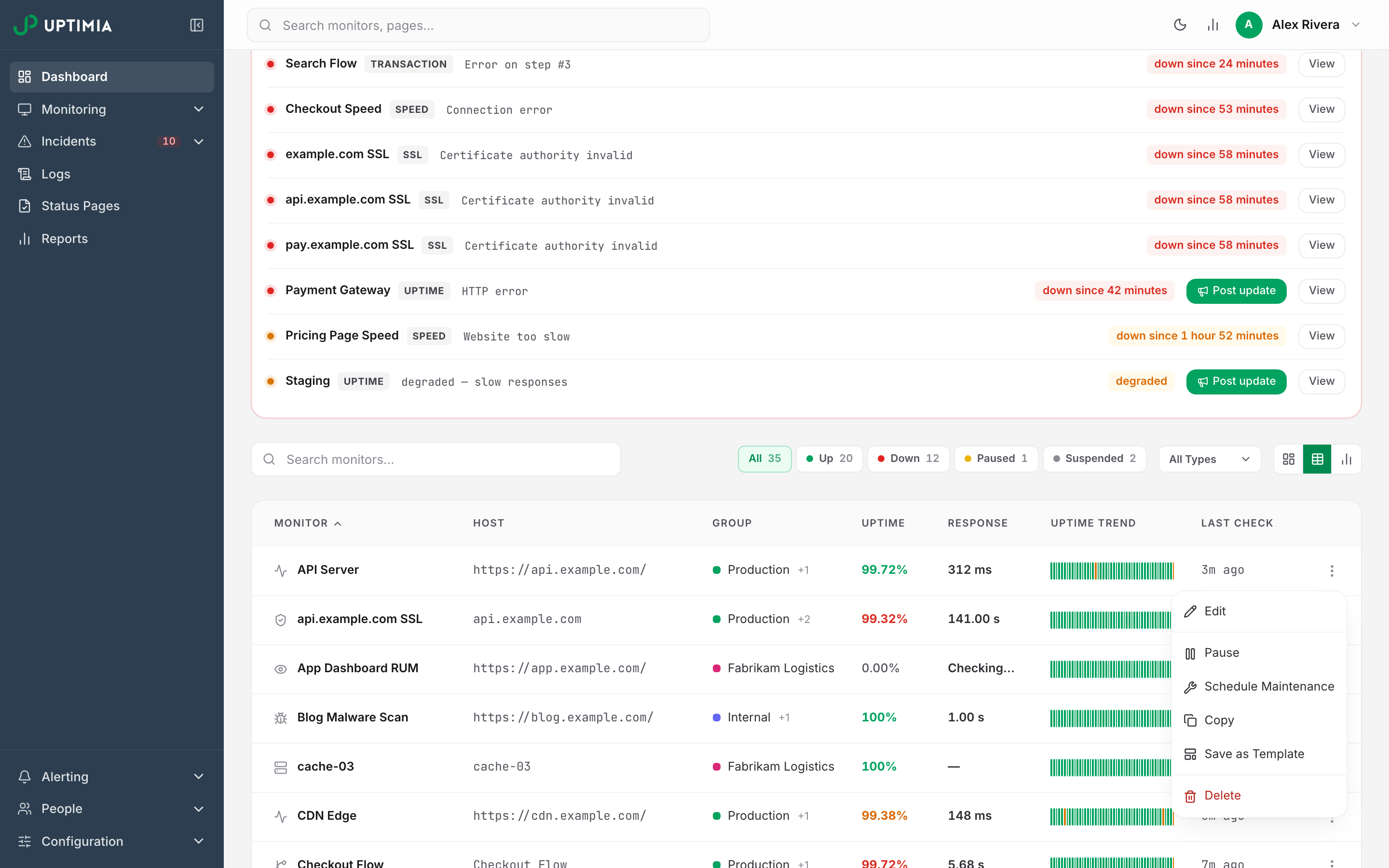
The three-dot menu on any card or table row offers:
| Action | When it appears |
|---|---|
| Edit | Always; opens that family's editor |
| Pause / Resume | Pause on a running monitor, Resume on a paused one. Neither appears while the monitor is in maintenance |
| Schedule Maintenance / End Maintenance | Schedule normally, End while a window is running |
| Copy | Uptime monitors only |
| Save as Template | Every family except server and transaction, and only for roles holding monitor management |
| Delete | Always, behind a confirmation |
Only Save as Template is hidden from a role without monitor management. Every other item is drawn for every role, including Read-only. Uptimia still refuses the change itself, so a Read-only seat gets an error rather than a paused, copied or deleted monitor.
Warning: Deleting a monitor removes it and all of its history permanently. There is no undo and no restore.
No action sets a monitor's status by hand: status is only ever the result of a check. Saving and reusing a template is covered in Monitor Templates.
Acting on Several Monitors
Tick the checkbox on any card or row and a bar appears above the list reading n selected. Pause and Resume sit on the bar; More opens the rest. The bar offers only what is valid for the whole selection:
- Pause, when nothing selected is paused.
- Resume, when everything selected is paused.
- Schedule Maintenance, when nothing is in a window.
- End Maintenance, when everything is in a window.
- Delete, always.
Every action confirms first, and Clear drops the selection.
Recent Activity
Recent activity lists the newest incidents in scope, up to 20, and each row gives the monitor name, the error, when it started, the family, and either the duration or a red ongoing badge. Incident history opens the full log, and an ongoing incident on a status-page monitor offers the same Post update shortcut as the attention band. Incidents covers the incident record itself.
The Setup Journey
With no monitors at all, the dashboard replaces the Overview and the list with a three-question form:
- The address to watch.
- Which checks to run. Uptime is fixed on; Speed, SSL certificate and Domain expiry start on, and Malware starts off.
- Where alerts go: your login email, plus an optional phone number for SMS.
A live preview beside the form shows what the dashboard will become. Start monitoring creates each selected check as its own monitor with default settings, and the first checks run within the minute. A footer strip links to the editors for the families the form does not cover: transactions, APIs, real users, DNS, cron jobs and heartbeats, servers.
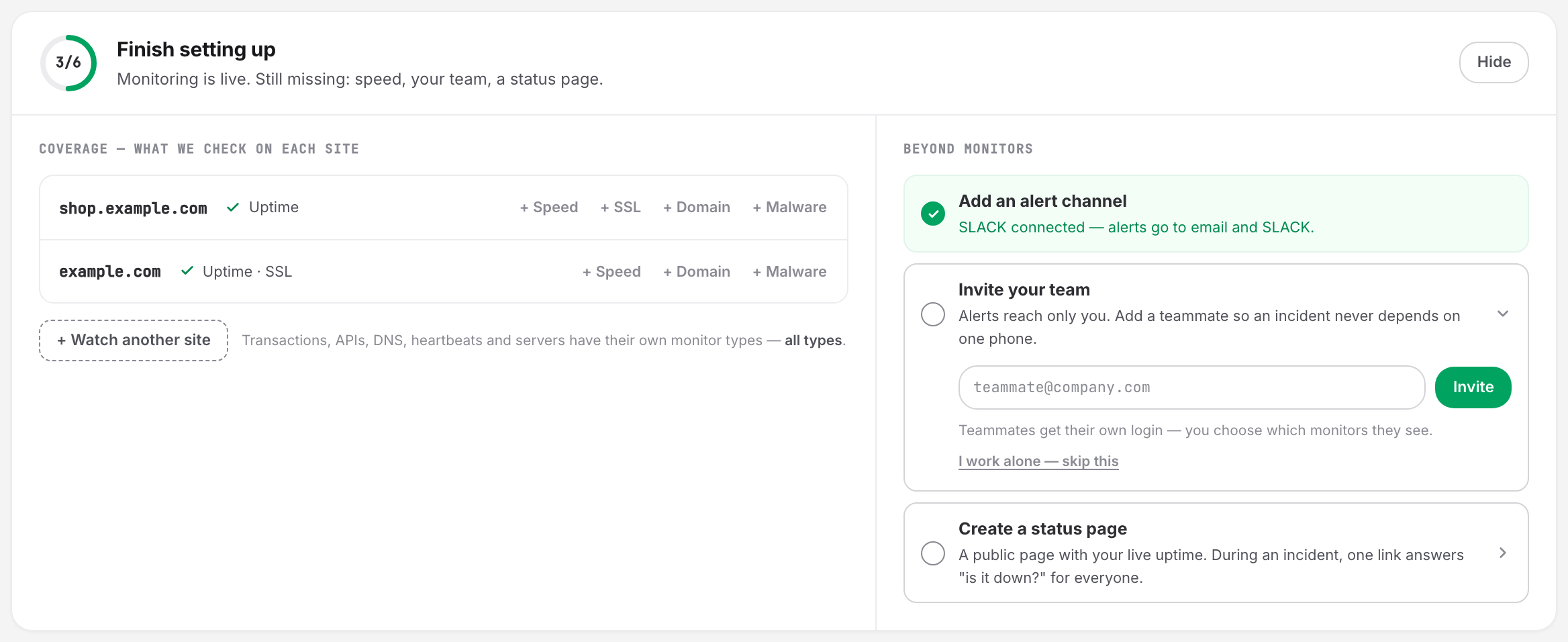
Once the first monitor exists, a Finish setting up rail appears above the group tabs, with a six-step progress ring: a first monitor, a speed monitor, an SSL monitor, an alert channel beyond email, a team member, and a status page. The rail lists each host you watch under Coverage — what we check on each site. Missing checks appear there as one-click chips. + Watch another site adds a new host's first monitor from a single field. Three expandable cards finish the rest inline: add an SMS or WhatsApp number, invite a team member by email, create a status page by name. You can skip Invite your team and Create a status page.
Hide collapses the rail into a Setup 3/6 pill next to the Dashboard heading, which reopens it. Only owners and admins see the rail, and accounts predating the feature never see it. First-run setup is covered in Getting Started with Uptimia.
Where Plan Usage Lives
Plan usage sits in the top bar, not on a dashboard card. Click the bar-chart icon to open Plan Usage. It lists your plan and one row per pool: Uptime Monitors, Advanced Monitors, SSL Monitors, Domain Monitors, Virus Monitors, Real User Monitors, RUM Pageviews, SMS Credits and Users. Change Plan goes to the subscription page; the numbers behind each pool are in Plan Limits and Quotas.