
Create an account, verify the email address, and run the one-screen setup that creates your first monitors. Then add a monitor and a contact by hand. The Dashboard covers reading the screen you land on, and each monitor family has its own article once you move past the first one.
Before You Start
- An email address you can open right now. Until it is verified, no alert leaves the account and most monitor types refuse to save.
- A URL to monitor. Uptimia accepts
yourwebsite.comorhttps://yourwebsite.com. - Nothing to install. The trial runs for 30 days and asks for no card.
Step 1: Create Your Account
- Go to the Uptimia sign-up page. The card is headed Sign up, with the subtitle "Start your 30-day free trial. No commitment. Cancel anytime."
- To use a social account, click Google or GitHub. Both sit above the form, separated from it by the or sign up with email divider.
- Otherwise fill in Name*, Email* and Password*. Your email address is also your sign-in username.
- Click Start my free trial.
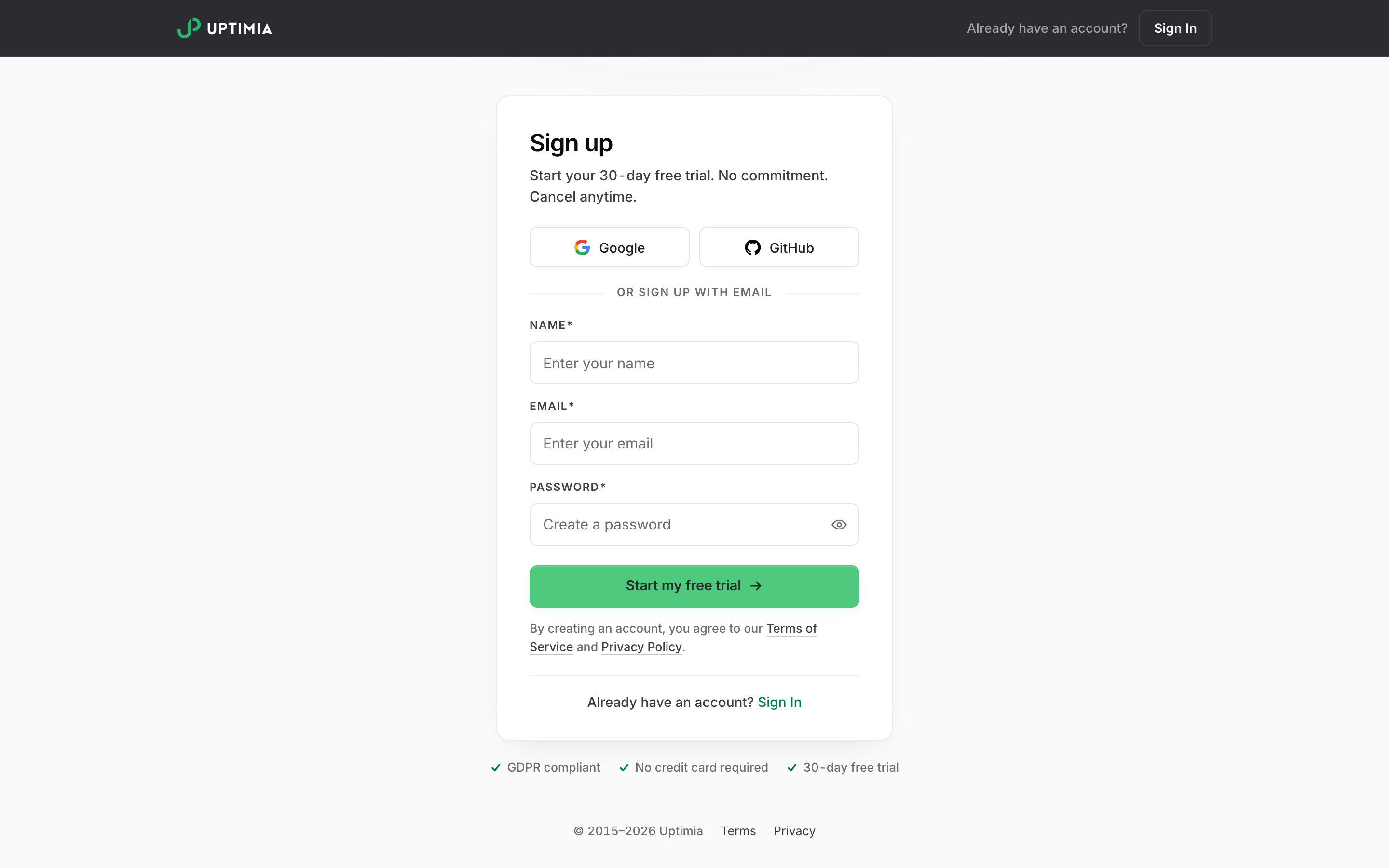
Passwords must be at least 8 characters, up to 1,000. The field's hint reads "Must be at least 8 characters." A shorter password is rejected before the form is submitted, with the message "Password must be at least 8 characters."
The sign-up form uses an Altcha proof-of-work widget, a challenge your browser solves in the background rather than a picture puzzle. If a script blocker or a corporate proxy stops it loading, the form is rejected with "Verification is still loading. Please wait a moment and try again." Allow uptimia.com scripts and reload the page.
New accounts start on the 30-day trial. The trial runs at the top check cadence and includes the on-call features, and when it ends without a plan change the account drops to Free rather than locking. See When Your Trial Ends.
Step 2: Verify Your Email Before Anything Else
Uptimia sends a verification email as soon as you sign up. Open it and click the link. Until you do, 4 things stay blocked:
| What you try | What happens while the email is unverified |
|---|---|
| Create or edit an Uptime, Speed, SSL, Domain, Virus or Real User monitor | The save is rejected with "Please verify your email address." |
| An incident fires | Every queued notification for the account is skipped. Nothing is delivered on any channel |
| A scheduled report is due | The account is skipped for that run |
| Pay for a plan | The payment is rejected |
While the address is unverified, an amber banner sits above the top bar of the control panel: Verify your email to receive alerts. The same line continues with your own signed-in address: "Alert notifications are paused until you confirm you@example.com." If the original email never arrived, click Resend verification email in that banner. You can resend 3 times an hour. Beyond that, Uptimia answers "Please wait a moment before requesting another email."
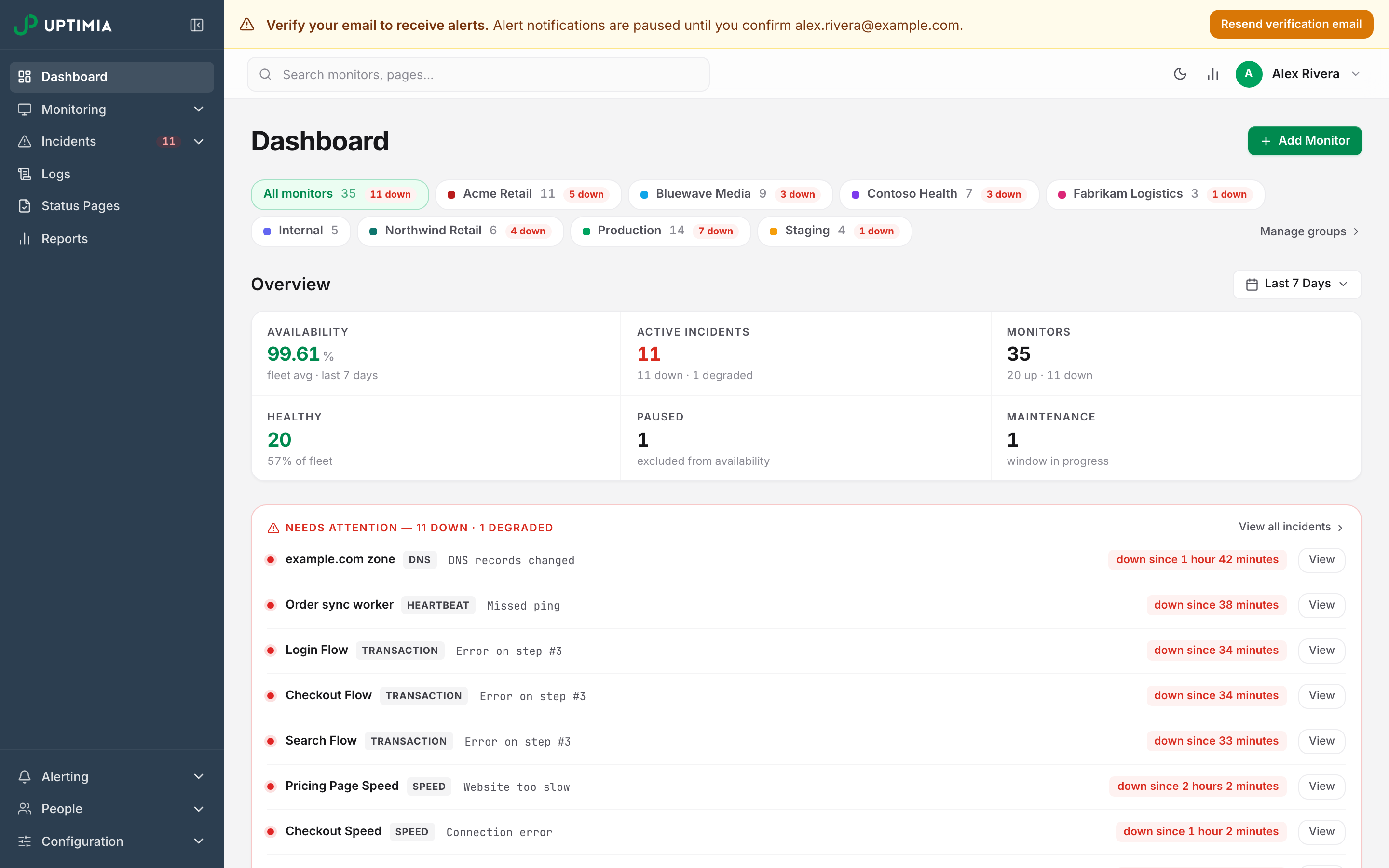
Only the account owner sees the banner. Verification belongs to the owner account, so an invited team member cannot clear it and is never asked to.
Step 3: Run the Setup Screen
Straight after sign-up you land on the setup screen. It is one card with 3 numbered sections, all on screen at once, and you submit it once.
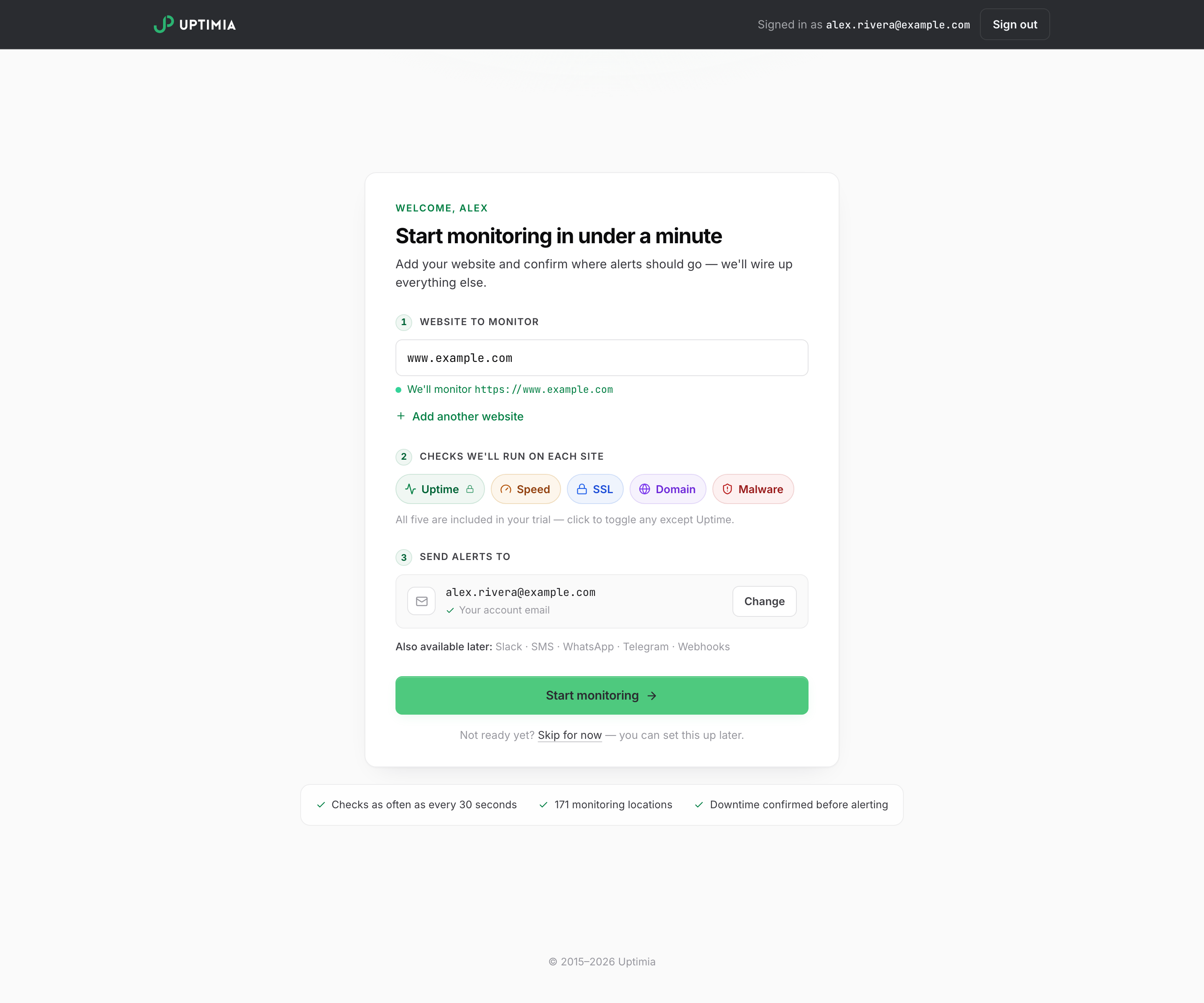
1. Website to monitor. Type or paste a URL. Valid entries confirm underneath with "We'll monitor https://yourhost". Click Add another website for more, up to 5. At the cap the card says "Up to 5 websites during setup — you can add more from the dashboard anytime."
2. Checks we'll run on each site. 5 toggle pills: Uptime, Speed, SSL, Domain, Malware. All 5 are on by default. Click any pill to turn it off, except Uptime, which is locked on and carries a padlock (its tooltip reads "Always included"). A pill you switch off produces no monitor.
3. Send alerts to. Pre-filled with your account email and shown collapsed as a confirmation row. Click Change to open the editor. There you can replace the address, click Add another email for more recipients, and click Send a test alert to prove delivery before you commit. Test alerts go only to an address you own.
Click Start monitoring. The card flips to a launch view that lists each website × check type as it goes live. It ends with a "You're live" summary of how many checks are running and where alerts go, and offers Go to your dashboard.
To leave setup without creating anything, click Skip for now under the button. It takes you to the dashboard, and the setup screen does not open again, so you add monitors from there instead.
What the Setup Screen Creates
Setup creates one monitor per selected check pill, per URL. Uptime is always created. Speed, SSL, Domain and Malware are created only if you left the pill on and your plan still has allowance for that family. Once the remaining allowance for a type reaches 0, that type is skipped. For Speed, the allowance comes from the shared Advanced checks pool. Setup also creates the contacts you entered, so every monitor it makes has a recipient from its first check.
The setup screen runs once, for trial accounts that have not yet created an uptime monitor. Once your first uptime monitor exists, it stops appearing. On a paid or Free plan it never opens at all. Per-family allowances are in Plan Limits and Quotas.
What You See on the Dashboard First
Fresh monitors appear immediately at 100% with a status of up, because nothing has failed yet. Until the first probe result lands, the response-time figure reads Checking…. The monitor list refreshes itself every 10 seconds while any monitor is still unchecked, then stops.
There is no interactive tour. An account with no monitors gets a setup hero on the dashboard. Once monitors exist, a Finish setting up rail sits above the live dashboard and lists the remaining first-week jobs for Owner and Admin seats: a second alert channel, a team member, a status page. The Dashboard covers both.
Adding a Monitor Yourself
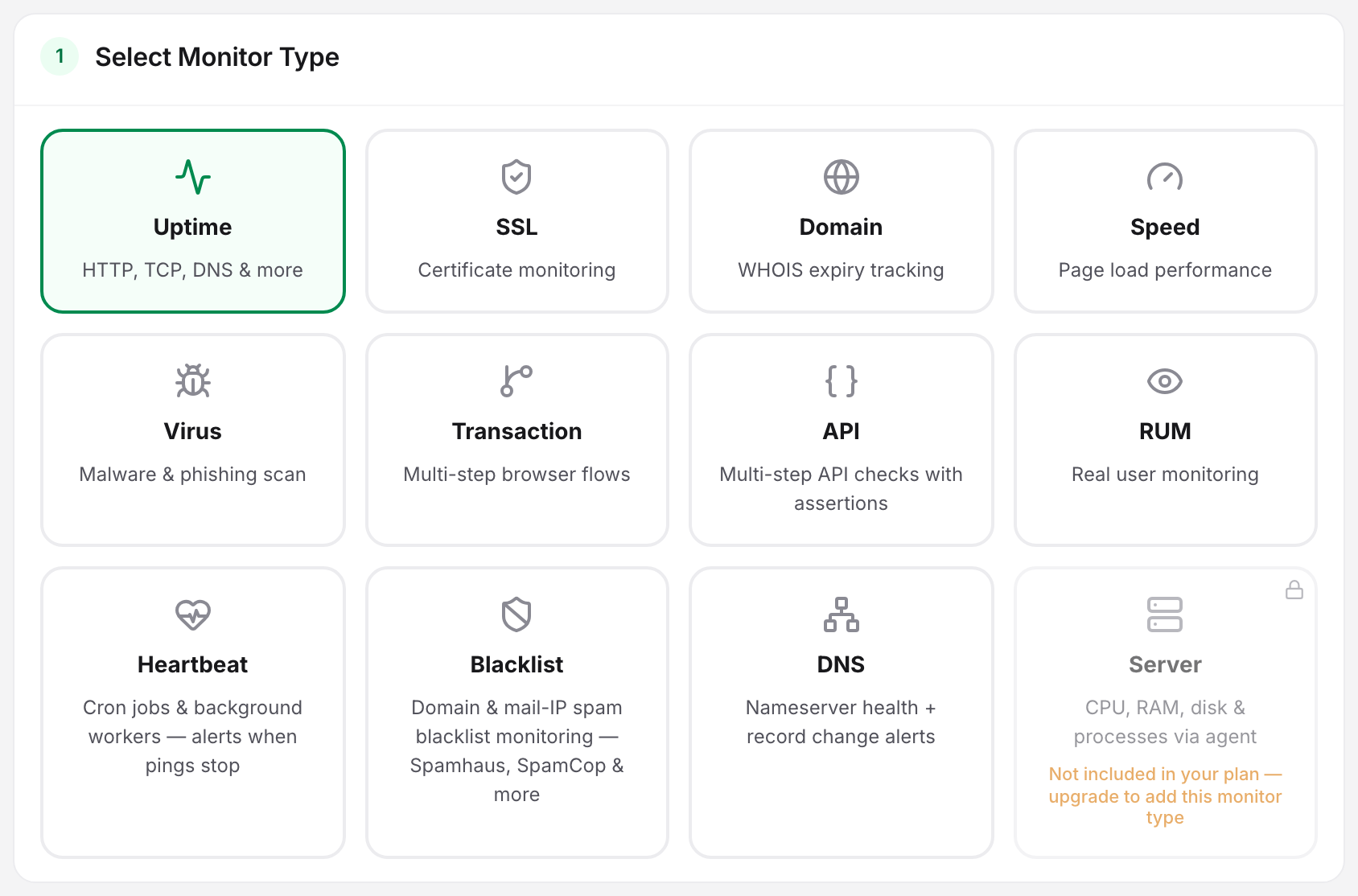
The setup screen covers 5 check types. The other 7 families (Transaction, API, Real User, DNS, Heartbeat, Server and Blacklist) are created from their own editors.
- Click Add Monitor in the dashboard header.
- Pick the monitor type. The type tile shows a lock and the reason if your plan has no allowance left for it.
- Enter Monitor Name and the target field for that type: Website URL for uptime, URL for speed, Hostname for SSL, Domain Name for domain, Zone / domain for DNS.
- Set Check frequency and Alert delay in the Notification Settings section.
- In the Alerting section, select the contacts that should be paged.
- Choose the probe locations, or leave the default.
- Click Save Monitor. Uptimia starts checking on the schedule you set.
Uptime Monitoring is the field reference for the most common type; Monitor Statuses explains the badge that appears afterwards.
What Blocks a Save
The editor validates as you type. The Summary card shows Ready to save when nothing is wrong. When something is wrong it shows Before you can save, a clickable list of the problems, and an issue count in the save bar. Clicking an issue jumps to the field. These are the blockers a new account hits most:
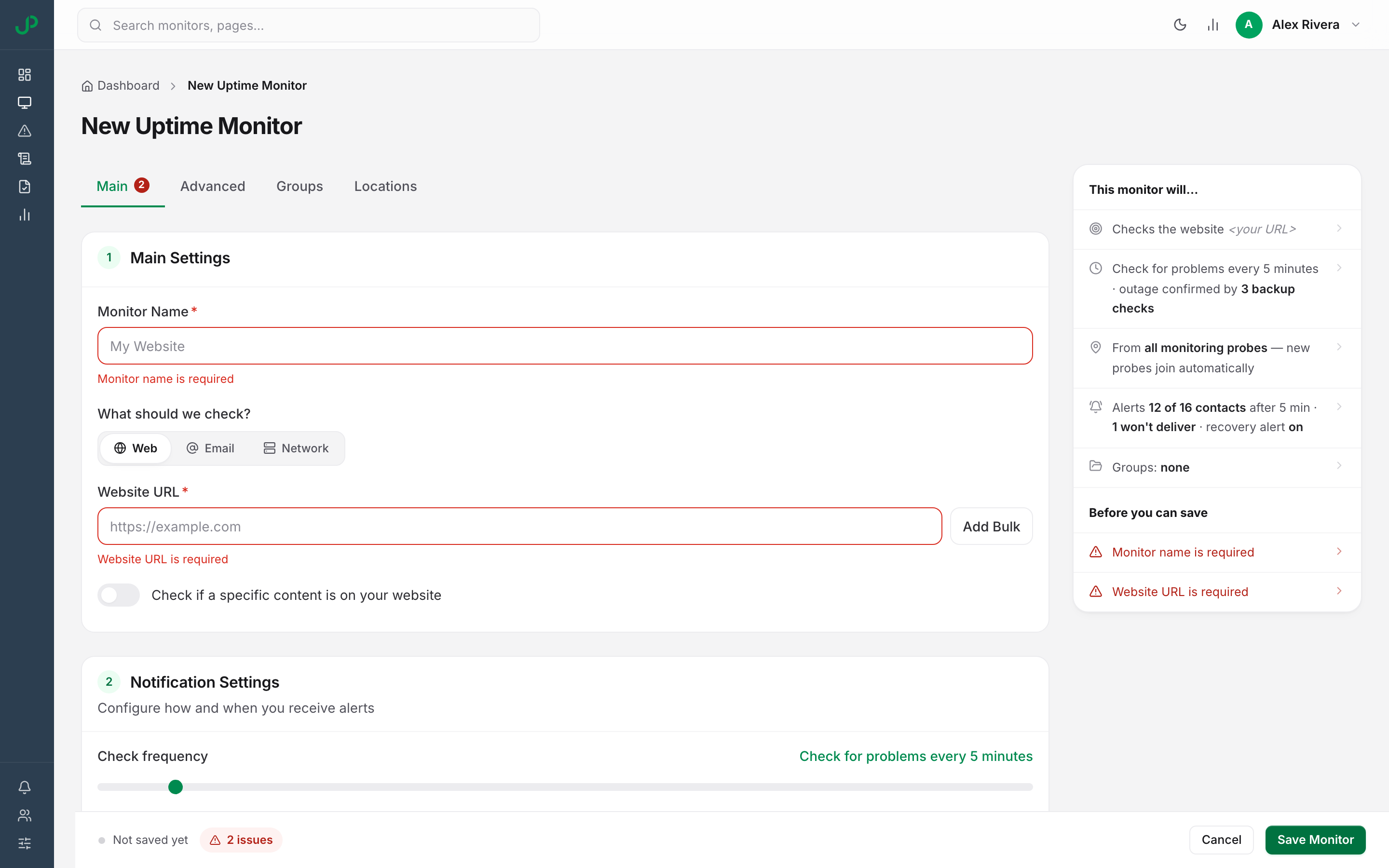
| Message | Cause | Fix |
|---|---|---|
| Monitor name is required | The name field is empty | Name the monitor |
| Website URL is required | No target entered | Enter the URL or host for the type you picked |
| You already use this monitor name — pick another one | Name collides with another monitor of the same type on your account | Choose a different name |
| At least one alert recipient is required | No contact selected in the Alerting section | Select a contact, or create one first |
| The selected recipients resolve to no contacts — add a contact first | A team or auto-include row is selected but it currently resolves to nobody | Add a contact to that team |
| Verify your e-mail address before creating monitors — the save is rejected until you do | The account email is unverified | Verify the address, then reload the editor |
| At least 6 probes required — N selected | A custom location selection is below the floor | Add probes, or switch to all probes |
A monitor cannot be saved with an empty recipient list.
Adding a Contact
A contact is one destination on one channel. Email and SMS take a typed value. The other 10 channels attach an integration you set up first.
- Go to Alerting → Contacts. The page is headed My Contacts.
- Click + Add contact.
- Choose the channel, enter the destination, and save.
- A new contact needs no confirmation step. Email and SMS contacts are stored already confirmed, so Uptimia sends no code and asks for none. You can pick the contact as a recipient straight away. Older SMS rows may still carry an Unconfirmed badge, and those rows have a Verify button on the Contacts page that texts a code, charged against your SMS credits.
The delivery queue drops unconfirmed contacts, so they never receive alerts. Contacts and Alerting covers every channel and the other reasons a selected contact still will not be paged.