
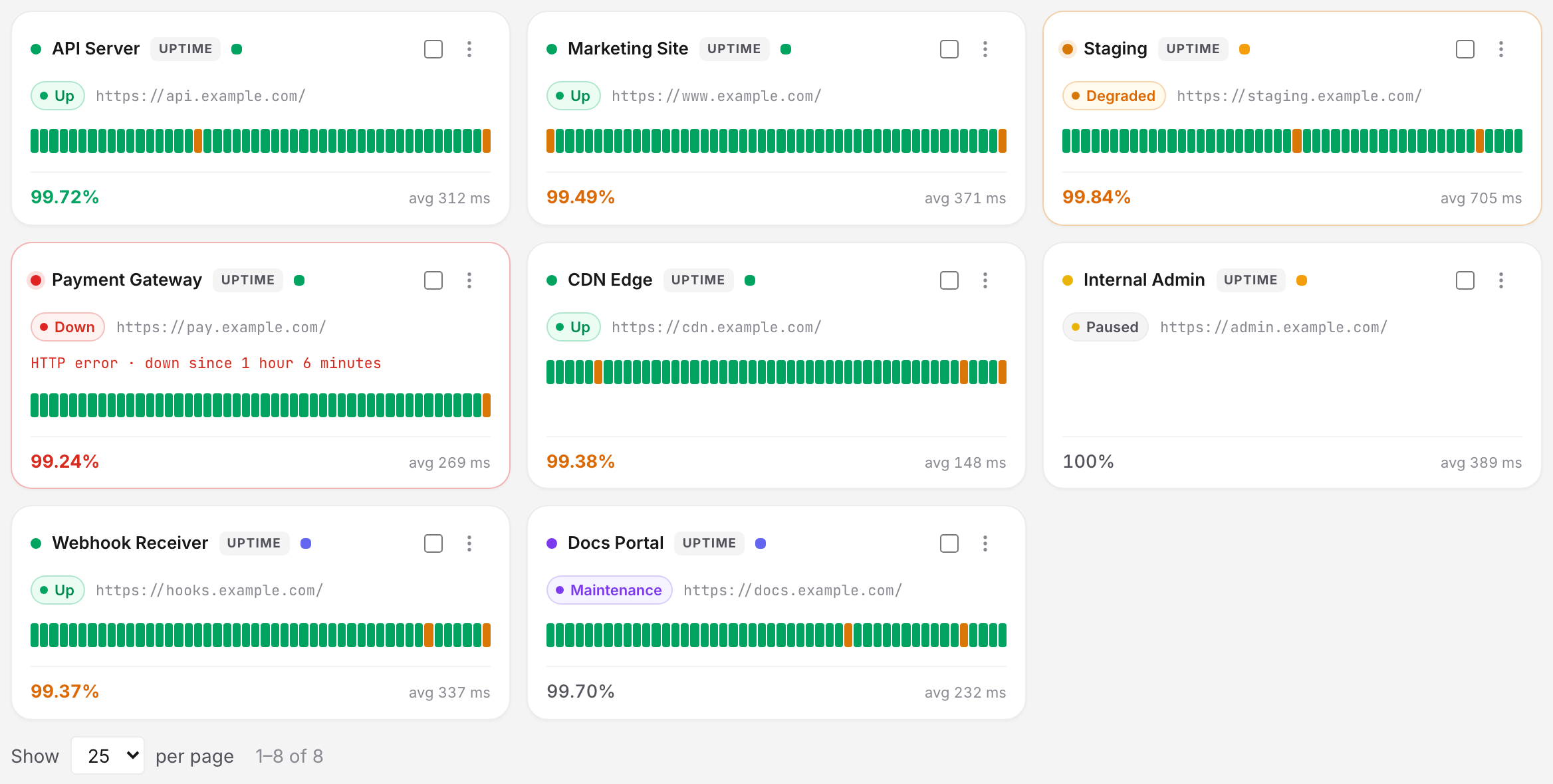
Every monitor carries one status, drawn as a colored pill on the dashboard and as a badge beside the monitor's name on its own page. There are six. Two of them, Degraded and Suspended, mean something the color alone will not tell you. If a monitor has stopped checking or stopped alerting, Why a Monitor Stopped Checking names the cause.
Every Status
| Status | Color | What it means | What to do |
|---|---|---|---|
| Up | green | The last check succeeded and no incident is open | Nothing |
| Down | red | A critical incident is open: the thing being checked failed | Open the monitor and read the incident |
| Degraded | amber | Dashboard pill only: the monitor's last check failed and Uptimia is re-checking it from backup probes before confirming the outage | Wait one check cycle; it resolves to Up or Down |
| Paused | gray pill with a yellow dot | Someone paused the monitor. No checks run, no alerts fire | Resume it from the monitor's row menu, or leave it |
| Maintenance | violet | A maintenance window covering this monitor is running | Nothing. On most families a line under the monitor name gives the window and its end time |
| Suspended | gray | The monitor is over your plan's limit for its type | Move to a plan that covers it; deleting other monitors does not lift the flag on its own |
On a monitor's own page the amber badge reads Trouble, and it means an open trouble-severity incident. The DNS and blacklist pages spell the two severities Critical and Trouble rather than Down and Up. The dashboard's amber pill is a different signal. Degraded is a failed check waiting on confirmation from the backup probes, so a monitor sitting on a Trouble incident shows red Down in the dashboard list, or green Up if it is a server monitor.
How Uptimia Picks the Status
A monitor can be several things at once: paused, over the plan limit, and inside a maintenance window. One status wins, in this order:
- Suspended, which outranks everything.
- Paused and Maintenance.
- Degraded, when the last check failed and Uptimia is still confirming it from backup probes.
- Up, when the last check succeeded.
- Down.
A monitor that is both paused and inside a maintenance window renders either of those two, and which one you see varies by screen. The other four levels are consistent everywhere.
Four families add a neutral state outside the six, for a monitor that has never produced a result. None of them is green, because nothing has been measured yet.
| Monitor family | Neutral state | Shown until |
|---|---|---|
| Heartbeat | Pending first ping | you send the first ping |
| API | Pending | the monitor runs for the first time |
| Blacklist | Pending · first sweep | the first sweep finishes |
| DNS | Waiting for first sweep… | the first sweep finishes |
Trouble: Which Checks Produce It
The dashboard pill follows the monitor's check status rather than the incident's severity. That is why a monitor carrying an amber Trouble badge still reads Down on the dashboard, or Up if it is a server monitor.
Every incident Uptimia opens is stamped either critical or trouble. Critical means the thing being checked failed. Trouble means it still works and a limit you set was crossed, which turns the badge on the monitor's page amber. Severity belongs to the incident rather than the monitor, so the same monitor can raise a trouble incident one week and a critical one the next.

| Monitor family | Opens a critical incident | Opens a trouble incident |
|---|---|---|
| Uptime | Any confirmed failed check | None (an amber dashboard pill here is the Degraded backup-confirmation state) |
| Transaction | A failed step | None |
| API | A failed request or assertion | None |
| Heartbeat | A missed ping | None |
| Server | The agent stops reporting (offline) | Any threshold alert (CPU, memory, disk, load, swap, process count, inodes or network I/O) |
| Speed | The page fails to load | Average load time over your threshold; a web-vitals budget breached; a watched page element failing while the page stays up |
| Real User | Visitor traffic stops | Average speed dropped; traffic volume dropped; JavaScript errors over your percentage |
| SSL | Certificate expired, or expiring within 45 days | Certificate expiring, but more than 45 days out |
| Domain | Registration expired, or expiring within 3 days | Registration expiring, but more than 3 days out |
| DNS | Every nameserver unreachable; a change in a record group set to critical (A/AAAA/CNAME, MX and NS are critical by default) | One nameserver unreachable; serial drift between servers; a parent/child delegation mismatch; a server not answering authoritatively; a change in a group set to trouble (SPF/DMARC/CAA by default) |
| Virus | Malware, social engineering or unwanted software found | None |
| Blacklist | A listing on a major-tier list (critical by default), and any re-listing within 7 days of a verified delisting | A listing on a standard-tier list (trouble by default) |
The SSL and domain thresholds are family constants, and your alert lead time is a separate setting. Each SSL and domain monitor has its own Expiry warning lead time, picked from a fixed list of seven values that runs from 1 day up to 90 days. The default is 7 days. No alert opens until expiry falls inside that lead time. The family's own threshold then decides the severity: 45 days for SSL, 3 days for domain. With the default 7-day lead time an SSL monitor always opens a critical incident when it alerts, because 7 days sits inside the 45-day critical band. A domain monitor opens a trouble incident on days 7 to 4 and a critical one at 3 days out.
An info-tier blacklist listing leaves the status alone. Uptimia records it and counts it on the monitor's page. It opens no incident and alerts nobody, so the monitor stays Up. Each tier's severity is a per-monitor setting: the editor's blacklist card lets you set Major and Standard to Critical or Trouble.
Why a Degraded Monitor Still Counts as Healthy
Degraded monitors are counted in the dashboard's Healthy cell. A page that loads in 4 seconds instead of 2 is a slowdown, and counting it as an outage would bury the real outages. The count is repeated in the Active Incidents sub-line, which reads 3 down · 2 degraded, or 2 degraded when nothing is down.
One place breaks that pattern. The status filter chips below the summary sort a degraded monitor under Down, because the chip counts split on up-or-not, which puts the Healthy cell and the Down chip on opposite sides of the same monitor. There is no Degraded chip.

Paused
Pausing is your own switch, from a monitor's row menu (Pause / Resume) or from the bulk action bar after selecting rows. It stops the checks: the monitor leaves the check queue, and a check that is already running is thrown away instead of counted. Whatever was already queued goes quiet. Any down alert that has not gone out yet is deleted. The incident's escalation ladder and alert-group membership stop, so a ladder cannot keep paging a monitor nobody is checking.
Pause never touches the plan. Resuming needs no upgrade and is never refused.
Maintenance
A monitor is in Maintenance while a window covering it is running. Uptimia stops checking it for the duration. A probe result that arrives anyway is dropped, so it cannot be logged, open an incident or fire an alert.
The two inbound families are the exception. A heartbeat still logs its pings and a server monitor keeps recording the readings its agent sends, so their charts keep filling and only the alerting goes quiet.
On uptime, SSL, speed, domain, transaction, virus and server pages, a line under the monitor's name reads Under maintenance until · . That line links to Maintenance. The DNS, blacklist, API, heartbeat and RUM pages show only the violet Maintenance badge. Scheduling is covered in Maintenance Windows.
Suspended: A Plan Limit, Never a Failing Check
A suspension comes from billing, never from a failed check. Your plan can drop in a few ways: you downgrade, your trial ends and the account moves to Free, or a failed-payment sequence reaches its end. Uptimia then reconciles each monitor family against the new limit and suspends the excess. It keeps the oldest monitors and suspends the newest ones over the line, then emails you a list of the monitors it suspended. Suspended monitors are not deleted and their history is not touched.
Uptimia stops checking a suspended monitor and stops alerting on it. Nothing on the monitor clears the flag. Moving back up to a plan that covers them reactivates them, oldest first, and Uptimia emails you to say the monitors are running again. Reactivation only ever clears the suspension: a monitor you had paused yourself stays paused. Per-family limits are in Plan Limits and Quotas.
What Each Status Does to Your Numbers
| Status | Checks run | Alerts fire | Counts in the dashboard's fleet Availability |
|---|---|---|---|
| Up | Yes | — | Yes |
| Down | Yes | Yes | Yes, the incident consumes downtime seconds |
| Trouble (amber badge) | Yes | Yes | Yes, a trouble incident consumes downtime seconds too |
| Paused | No | No | No, the Paused cell's sub-line says "excluded from availability" |
| Maintenance | No | No | Yes, but the maintenance window is left out of both the downtime and the total time |
| Suspended | No | No | No |
Real User monitors are excluded from the fleet Availability average whatever their status, because they report visitor timings rather than availability.
Trouble is the surprise here. A trouble incident is counted in downtime seconds exactly like a critical one, so a speed monitor sitting amber over a vitals budget does move its availability percentage. The arithmetic behind all of this is in How Uptime Is Calculated.
Filtering the Dashboard by Status
The chip row under the summary filters the monitor list: All, Up, Down, Paused, Maintenance, Suspended and No recipients. Each chip carries a live count for the monitors in view, and a chip whose count is zero is hidden, so a missing Suspended chip means nothing is suspended. Clicking an active chip clears the filter. The six summary cells above are clickable too and drive the same filter.

No recipients filters on coverage, not status: it selects monitors that would page nobody if they went down, because no contact, team or escalation policy is attached. A monitor can be green, healthy and on that list at the same time. Fix it from the monitor's Alerting card.