
An incident is Uptimia's record of one problem on one monitor: when it was confirmed, what the error was, which probes saw it, how long it lasted, and who was alerted. Incidents open and close automatically; you never create one by hand. Individual check results, one row per check per probe, live in Monitoring Logs.
How Incidents Are Created
An incident opens when a monitor confirms a problem and closes the moment it passes again. All twelve families produce incidents, each with its own word for what one is. "Down" appears only where a service stopped answering.
| Monitor family | What opens an incident | State word on monitor pages |
|---|---|---|
| Uptime | HTTP error, timeout, connection failure, keyword mismatch, port or protocol failure | Down |
| Transaction | A step in the recorded journey failed | Down |
| API | A request or assertion in the chain failed | Down |
| Heartbeat | No ping arrived before the schedule plus grace expired | Down |
| Server | A CPU, memory, swap, disk, inode, load, process or network rule breached, or the agent stopped reporting | Down |
| Speed | Page too slow, Vitals over budget, a tracked element failing, or the page unreachable | Slow · Vitals over budget · Element failing · Down |
| SSL | Certificate expired, chain or protocol problem, or the host unreachable | Certificate problem · Down |
| Domain | Registration expiring or expired | Expiry warning |
| DNS | A record changed against the baseline, or nameservers failed to answer | Alert active |
| Virus | Malware, social engineering or unwanted software detected | Threat detected |
| Blacklist | The domain or IP address appeared on a spam blocklist | Listed |
| Real User (RUM) | Traffic stops, traffic volume drops, average speed drops, JavaScript-error rate spikes | Down |
Speed and SSL each produce more than one kind of incident, told apart by the error they report: a certificate problem and a host that never answered are separate events, and the wording follows the error. The incidents pages label the Real User family RUM.
Confirmation Before an Incident Opens
For Uptime, SSL, Speed, Transaction and Domain monitors, one failing check is not enough. Uptimia dispatches backup checks from other, distinct probes. The incident opens only once enough of them also report down. The Outage confirmation setting is per monitor, on the editor's Advanced tab, range 1–3, default 3, and recovery runs faster than detection: one passing backup check recovers the monitor whatever the threshold is. Virus, Blacklist, Heartbeat, Server and Real User monitors have no such control. API monitors count the primary run as one of the observations, so a threshold of 1 opens the incident from the first failing run. DNS skips the confirming round at 1. The full per-family counting rules are in How Uptimia Monitoring Works.
Severity, Maintenance and Paused Monitors
Every incident carries a severity: critical or trouble. The incident lists and status badges call the second one degraded, the incident page's own severity badge reads Trouble, and both severities consume downtime in your availability figure. The vocabulary is in Monitor Statuses.
A check result that arrives while a monitor is inside a maintenance window is dropped on arrival: no log row, no incident, no alert. See Maintenance Windows.
Paused monitors are excluded from both account-wide incident pages. An open incident on a paused monitor stays open and stored, hidden here until you unpause. The monitor's own Incidents card still lists it.
Active Incidents
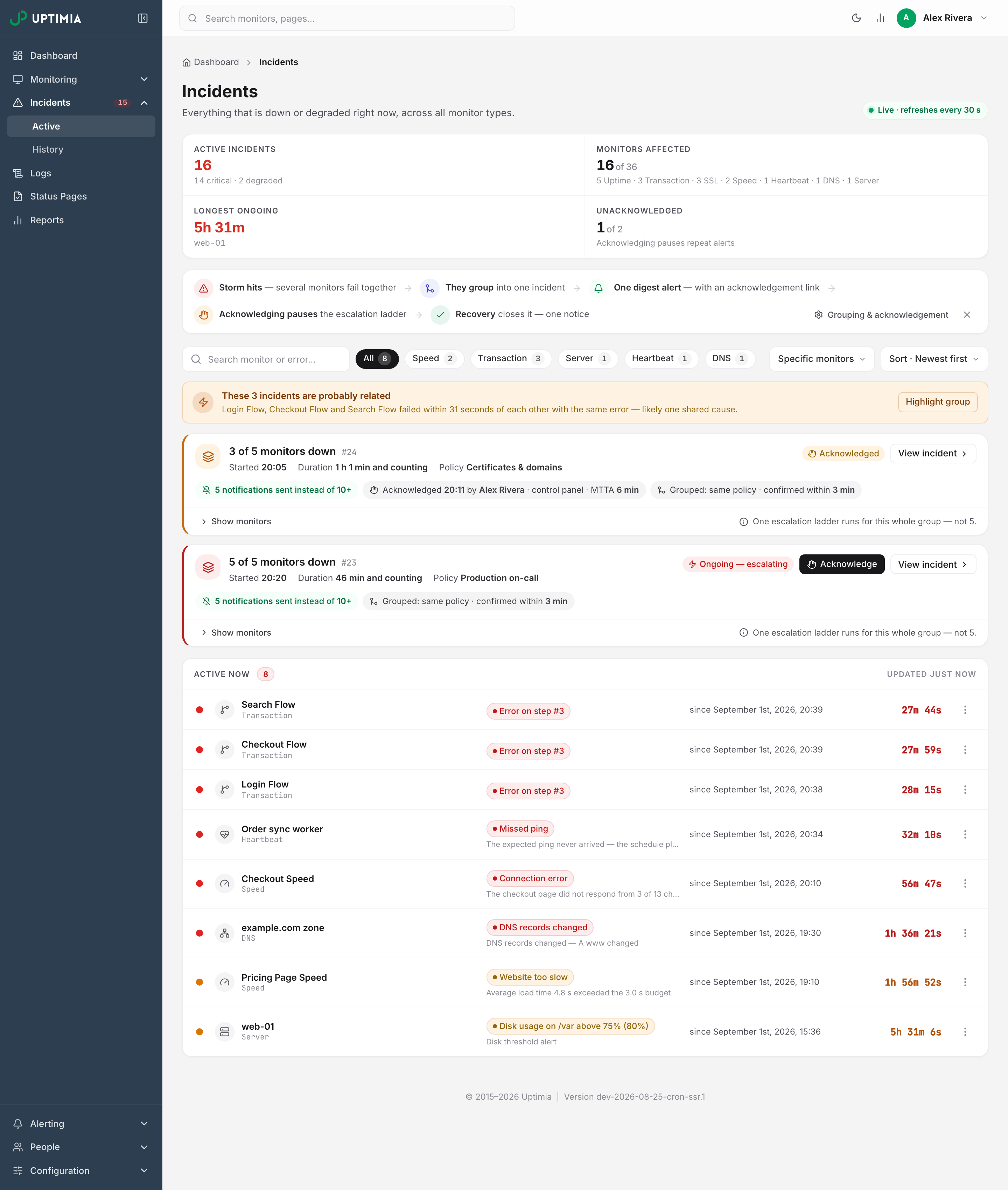
Go to Incidents → Active. The page lists everything down or degraded right now, across every monitor type, and it refreshes every 30 seconds, as the header's Live · refreshes every 30 s pill says. Each row's duration ticks up every second. Four tiles sit above the list:
| Tile | What it shows |
|---|---|
| Active incidents | Total open incidents, with a N critical · N degraded split underneath |
| Monitors affected | Distinct monitors failing, N of M against your fleet, broken down by type |
| Longest ongoing | The live duration of the oldest open incident, and its monitor name |
| Unacknowledged | Open alert groups nobody has acknowledged, N of M |
Filtering the Active List
Filters are one row above the list.
- Search matches the monitor name or the error text.
- Type chips: All, plus one chip per type that currently has an incident, each with its count. Clicking the active chip clears it.
- Specific monitors: a pill dropdown grouped by type, a checkbox per monitor, All monitors at the top to reset.
- Sort: Newest first, Oldest first or Longest down.
All four apply instantly, with no page reload.
The Correlation Banner
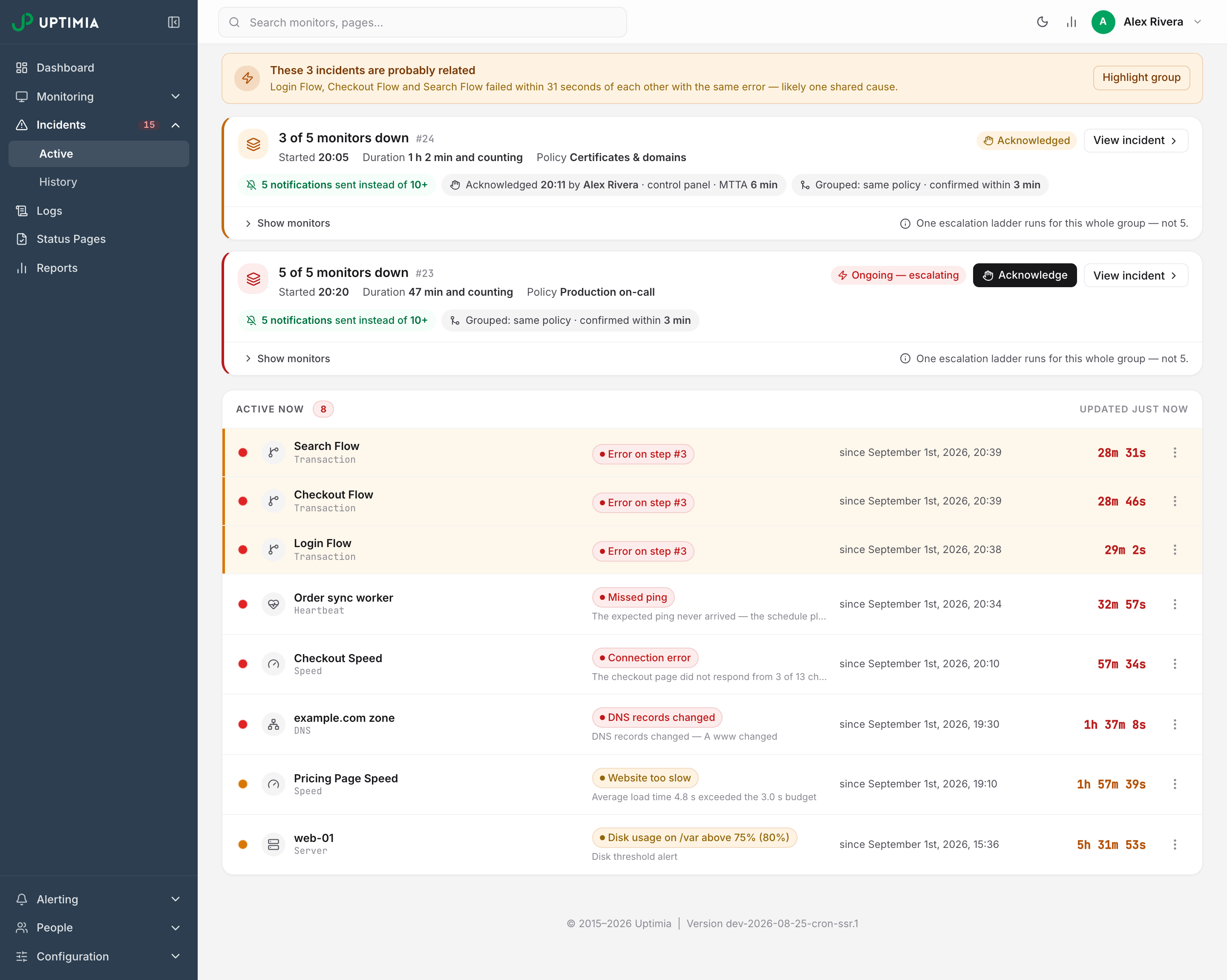
Sometimes three or more ungrouped incidents report the exact same error inside a 3-minute span, and an amber banner then appears above the list: "These N incidents are probably related". It names the monitors and the span, and Highlight group marks the member rows. One shared cause is the usual explanation: a resolver, an upstream provider, a shared load balancer.
Alert Group Cards
Incidents on monitors that have an escalation policy attached leave the flat table. Uptimia wraps them in an alert group and renders a card above the table, headed "N of M monitors down". The card carries the policy name, a chip reading "3 notifications sent instead of 40+", an Acknowledge button and a View incident link to the group page. The whole storm gets one digest, one ladder and one recovery alert.
Creating the escalation policy that produces alert groups needs the Professional plan or above, though a trial clears that gate for its whole run, and a policy created earlier keeps grouping and acknowledging after a downgrade. On an account with no escalation policy, and on any monitor set to All at once, every incident stays in the flat table. The mechanism is Alert Groups; the workflow is Acknowledging Incidents and MTTA.
Rows in the Active Table
Each row carries a pulsing severity dot (red critical, amber degraded), the monitor name and type, the error as a badge, the time it started (shown as since <timestamp>), and the live duration. Clicking the row opens the incident. The kebab menu holds View details, Post status update and Open monitor. There is no Delete: open incidents cannot be deleted.
Incident History
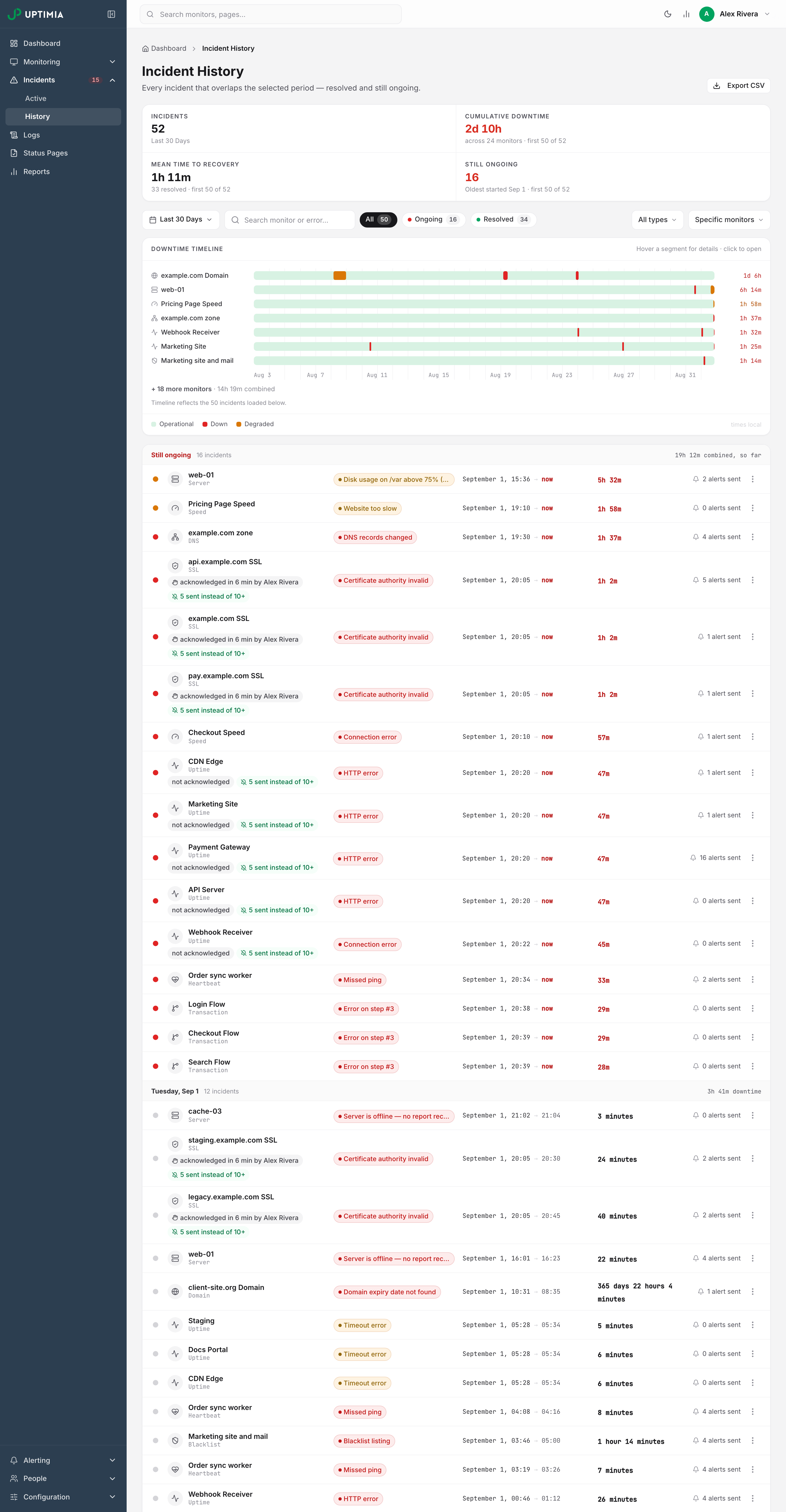
Go to Incidents → History. History shows every incident that overlaps the selected period, resolved and ongoing alike: an incident that started before the window and ran into it is included, and its bar has an open left edge. Its four tiles differ from the active ones:
| Tile | What it shows |
|---|---|
| Incidents | Total matching the window, counted across every page |
| Cumulative downtime | Summed incident time, and how many monitors it spans |
| Mean time to recovery | Average duration of the resolved incidents, and how many were averaged |
| Still ongoing | Incidents with no end time yet, and when the oldest started |
Each of the last three covers only the incidents on the current page, and says so when more pages exist. Widen the range and the page size before reading them as account totals.
Your plan sets the monitoring-history window: Free 7 days, Trial 30 days, Basic 90 days, Professional 365 days, Enterprise 730 days. Nothing is deleted at that boundary. Upgrading widens what you can read immediately and retroactively. The incident pages do not clamp the range you pick, so a wider range can reach further back here than the charts on a monitor's own page. See Data and Log Retention.
Filtering History
The date range picker comes first in the filter row: the window drives everything below it. Next come a search box, the status chips All · Ongoing · Resolved with counts, an All types dropdown listing only the types present, and the Specific monitors pill. Picking monitors reloads the whole list. Search, status and type narrow only the page you are looking at.
The Downtime Timeline
Above the list, a per-monitor swimlane draws the range as horizontal bars: red critical, amber degraded, one lane per monitor, sorted by total downtime, with the top seven lanes showing and a + N more monitors expander underneath. Hovering a segment gives the error and times. Clicking it opens that incident. Day gridlines and a legend (Operational · Down · Degraded) run below. When history spans more than one page, a line under the chart states which incidents it reflects.
Reading the History List
The list is grouped by the day the incident started, newest first, with a Still ongoing group pinned above everything. Each day header carries its incident count and downtime subtotal.
| Column | What it shows |
|---|---|
| Severity dot | Red critical, amber degraded, gray once resolved |
| Monitor | Name (links straight to the monitor) with its type underneath |
| Error | The error that opened the incident, as a badge |
| When | start → end, or start → now while it is still running |
| Duration | The final duration, or a live-ticking counter while ongoing |
| Alerts sent | How many notifications went out for this incident |
Rows from an alert group carry two extra chips. The first is the acknowledgment: who acked it and the MTTA in minutes, or "not acknowledged — recovered before step N". The second reads "N sent instead of M+", and the per-recipient breakdown lives on the incident page's Timeline card.
The kebab menu holds View details, Post status update, Open monitor and Delete. History paginates at 50 rows per page, switchable to 20 or 100.
The Incident Page
You can open an incident from a row, from the kebab's View details, or from a swimlane segment. Each one opens as a full page of its own rather than a slide-out drawer. An incident on its own opens that incident's page; an incident inside an alert group opens the group's page, where the whole storm is described together.
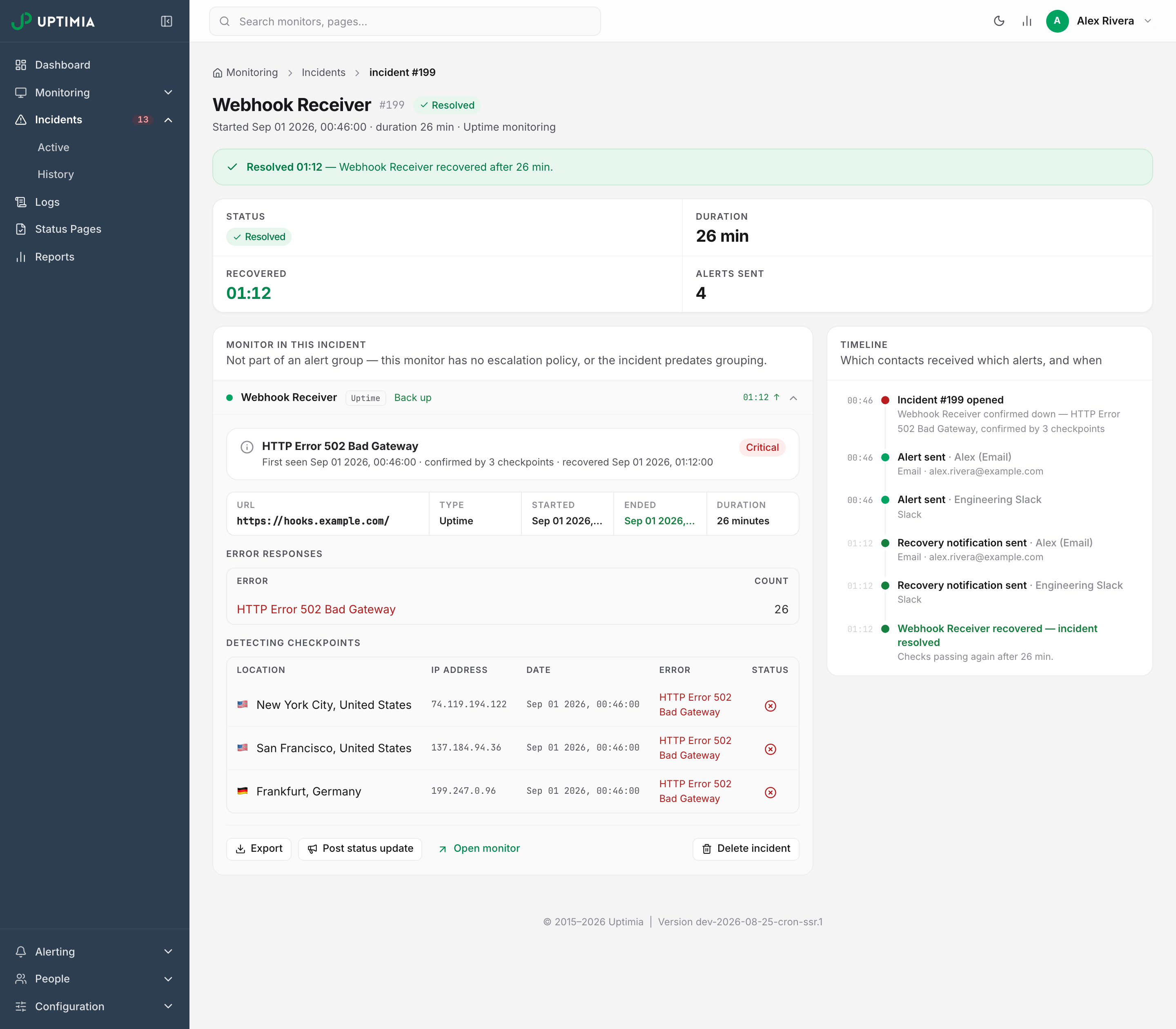
The page opens with the monitor name, the incident number, and a status badge reading Ongoing — critical, Ongoing — degraded or Resolved. If the monitor carries notes, an amber Monitor notes callout sits directly under the head, above the stat strip, so whoever is responding sees it without scrolling. A stat strip follows: Status, Duration, Detected (or Recovered once it is over) and Alerts sent.
Below that, the root-cause analysis renders every section the incident has data for and omits the rest:
| Section | What it holds |
|---|---|
| Initial error callout | The error, when it was first seen, how many probes confirmed it, and a Critical or Trouble badge |
| Facts strip | URL, type, started, ended, duration |
| Error responses | Each distinct error seen, with an occurrence count |
| Detecting checkpoints | Per probe: location with flag, IP address, timestamp, error, pass/fail mark |
| Transaction steps | Per-step results with the failing step marked, plus step screenshots |
| Screenshot at failure | The captured page, where the family produces one |
| Evidence | Response headers, response body and traceroute, each collapsible |
| Keywords | The keywords the check was matching |
Alongside it, a Timeline card lists which contacts received which alerts and when: the incident opening, each alert with its channel and destination, and the recovery. Virus, Real User, server, heartbeat and blacklist incidents record no detecting probes, so they show no Detecting checkpoints table. On a speed incident the table appears only when the incident is critical, meaning the page was unreachable. A slow, over-budget or failing-element incident shows none. No incident page carries a response-time chart.
Actions on an Incident
The actions footer sits at the bottom of the root-cause panel.
| Action | What it does | Who sees it |
|---|---|---|
| Export → Download PDF | The Root Cause Analysis as Root-Cause-Analysis.pdf |
Everyone |
| Export → Download HTML | The same report as Root-Cause-Analysis.html |
Everyone |
| Export → Create public link | A URL that opens the report without signing in, with a Copy button | Owner, Admin, Editor |
| Post status update | A status-page update pre-filled from this incident | Owner, Admin, Editor; Uptime, Speed and Transaction only |
| Open monitor | Jumps to the monitor's detail page | Everyone |
| Delete incident | Removes the record permanently, behind a confirmation | Owner, Admin, Editor; only once the incident has ended |
While an incident is running, the footer says Delete becomes available once the incident ends in place of the button. On monitor types other than uptime, speed and transaction, the Post status update button is disabled and explains why: "Status updates are available for uptime, speed and transaction incidents."
Warning: Deleting an incident cannot be undone, and it removes the incident from your history, your exports and your availability record.
Exporting Incidents
The whole filtered list. On History, click Export CSV. The file is UptimiaIncidents.csv. It honors the date range and the monitor filter and, like the page, excludes paused monitors. The Active page has no CSV button, so export from History. The columns are listed in Exporting Your Data.
One incident. Use the Export dropdown on the incident page for PDF or HTML, or Create public link for a link that anyone can open without an Uptimia account. Turning these into a write-up is Running an Incident Postmortem.
Going From a Monitor to Its Own Incidents
Most monitor detail pages carry an Incidents card listing the eight most recent incidents. Its footer link, View all incidents, opens Incidents → History with the monitor filter already applied. On the Server page the card lists ten instead of eight and labels its link View all N incidents, while the Real User page lists its incidents in a full table with no link.
Below the Incidents card, a log card does the same for check results, opening the logs page pre-filtered to that monitor, headed Check log on most families, Sweep log on DNS and Ping log on heartbeat. Every family's page carries both cards except Real User. Unlike the account-wide pages, the Incidents card keeps listing incidents while the monitor is paused.