
Acknowledging an incident says "I've got it". It pauses the escalation ladder without closing the incident, so nobody else gets paged while you work. You can acknowledge from the control panel, or from a signed one-tap link in the alert itself that needs no sign-in. Alert Groups documents the settings that turn the link on and set the resume.
Before You Start
- Acknowledgment applies to incidents on monitors with an escalation policy attached. A monitor alerting All at once has no ladder to pause and no acknowledgment surface. Policies are created on the Professional plan and above; the trial runs at full capability.
- Every role that can see alerting may acknowledge and un-acknowledge, Read-only included. Uptimia treats being on call as an operational act rather than account configuration. Accounting / Billing seats have no monitoring access at all.
- Changing the two acknowledgment settings needs the Owner, Admin or Editor role.
What Acknowledging Does
Acknowledging pauses the whole incident's escalation: pending steps and repeat rounds stop. It also removes that incident's queued but unsent alerts, such as a digest held back by a recipient's alerting hours. Uptimia leaves messages already in delivery alone, and it never removes a recovery alert.
What continues:
| Keeps running | Detail |
|---|---|
| Monitoring | Checks continue at the monitor's usual frequency, and nothing on the monitoring side pauses |
| The incident | Acknowledging pauses the paging only. The incident stays open until the monitors recover |
| The recovery alert | Everyone who was paged still gets the all-clear |
| Join updates | You are still told when more monitors join a grouped incident, and the usual escalation line is replaced by "Acknowledged by {name} at {time} — escalation stays paused" |
A second acknowledgment changes nothing; the first one stands. If two people acknowledge at the same moment, Uptimia records one acknowledgment and shows both who holds it.
Acknowledging in the Control Panel
- In the sidebar, open Incidents and choose Active.
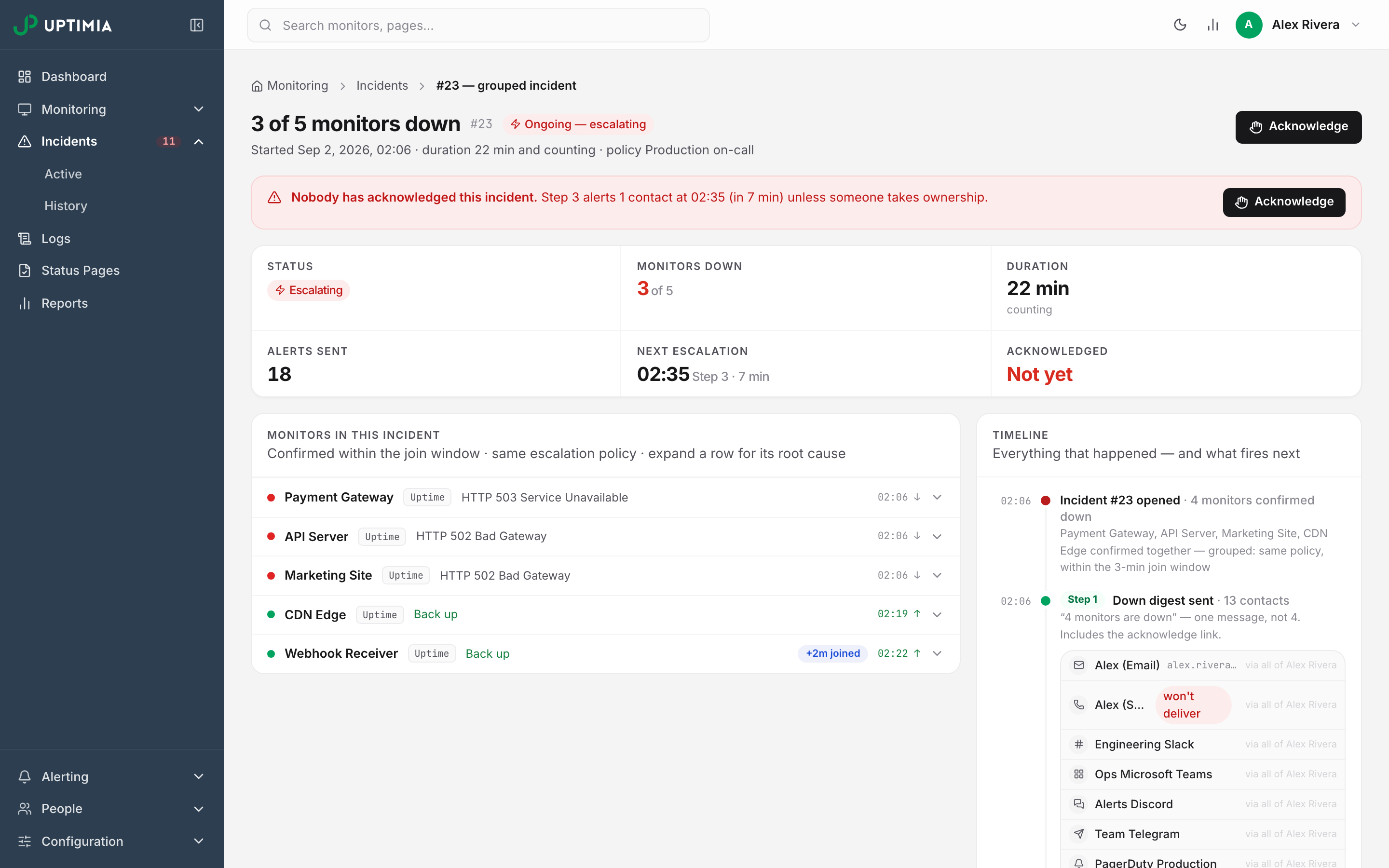
- Find the incident and click Acknowledge on its card, next to the status badge.
You can also open the incident with View incident and use the button in its header.
An open, unacknowledged incident carries a red banner: Nobody has acknowledged this incident. The banner then names which step pages how many contacts, and at what time, unless someone takes ownership. After you acknowledge, the banner turns amber. It reads Acknowledged 09:46, then your name, the route it came through, and the MTTA, with Un-acknowledge on the right.
Acknowledging From the Alert Itself
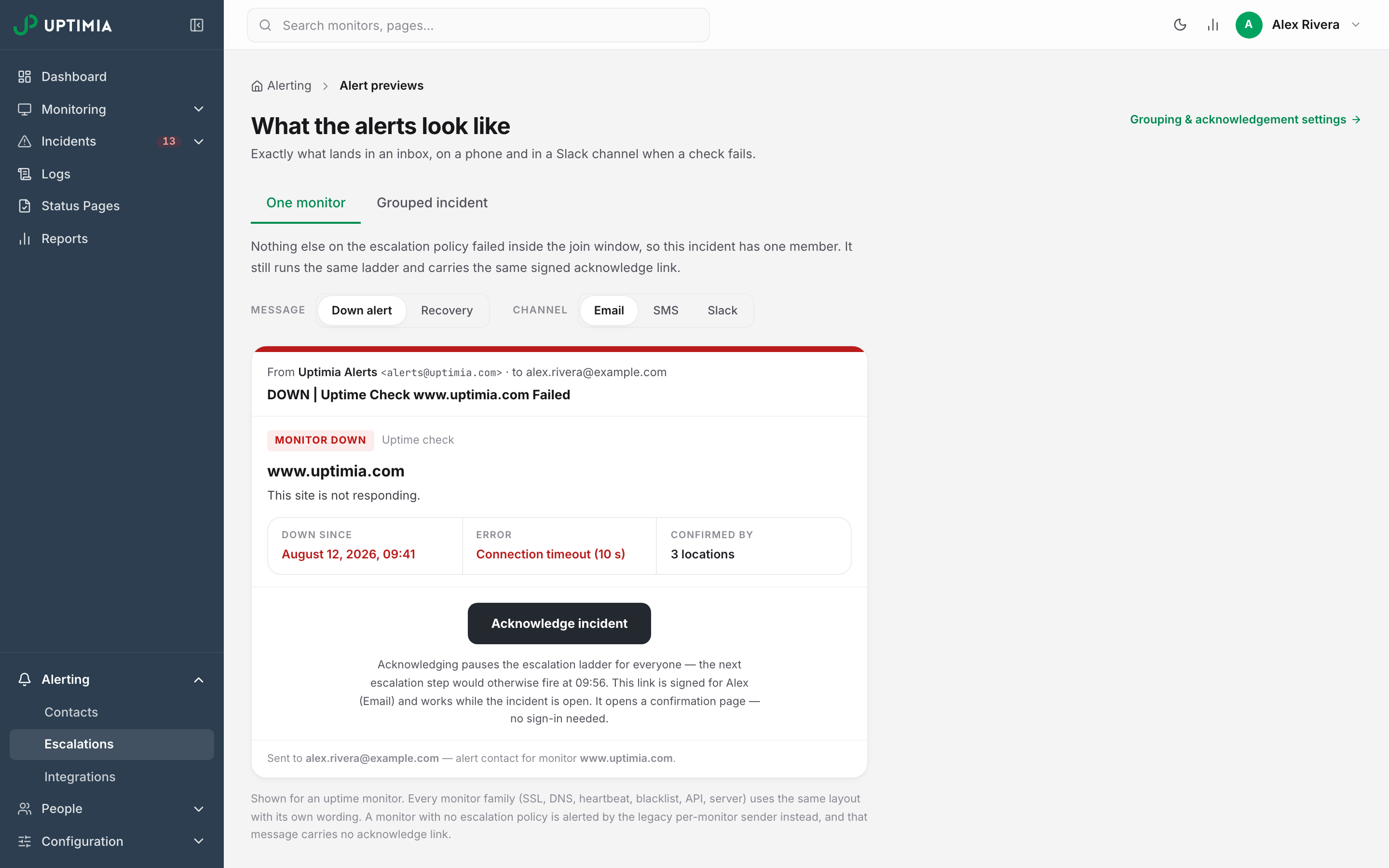
While an incident is open and unacknowledged, every down alert on a channel that can carry one includes an acknowledgment link. The link points at Uptimia's own site. Opening it needs no sign-in and no Uptimia account. Holding the link is enough.
The link opens a confirmation page rather than acknowledging on the spot. The page shows the incident summary and one Acknowledge incident button, and the acknowledgment happens only when you press it. That split exists because mail security gateways and chat clients prefetch links automatically: a prefetched link must never silence a live escalation.
Each link is tied to one incident, one recipient and one account, and to the current round of acknowledgment. Un-acknowledging starts a new round and retires the old links. The link carries no expiry date, and it works only while all three of these hold:
- The incident is still open and still unacknowledged.
- The account still has link acknowledgment enabled.
- The contact it was sent to still exists.
Recovery alerts never carry a link.
Which Channels Carry the Acknowledge Link
| Channel | Carries an acknowledge link |
|---|---|
| Email, SMS, Twilio | Yes |
| Slack, MS Teams, Discord, Telegram, Mattermost | Yes |
| Webhook | No |
| PagerDuty | No |
| WhatsApp, Status Page (Atlassian Statuspage) | No |
Webhook and PagerDuty are machine and log pipelines, and their payloads get copied into ticketing systems, chat mirrors and archives, so neither can silence the ladder. The webhook payload still reports who acknowledged the incident and when. The PagerDuty event carries the incident summary only. Acknowledge a PagerDuty-routed incident from the control panel, or from the link in any human channel on the same policy.
What the Page Says, State by State
| The page says | What happened | What to do |
|---|---|---|
| Acknowledge this incident? | The link is valid and the incident is open and unacknowledged | Press Acknowledge incident |
| Acknowledged — escalation is paused | Your acknowledgment was recorded. The page shows "Time to acknowledge: N min" | Nothing. Follow the control-panel link if you want the detail |
| Already acknowledged by {name} at {time} | Somebody got there first, or you opened an older alert for the same incident | Nothing. The ladder is already paused |
| This incident is already resolved | Every monitor recovered before you opened the link | Nothing. The recovery alert has gone out |
| Acknowledge-by-link is disabled for this account | The account owner turned off Acknowledge from alert links | Acknowledge in the control panel |
| This link is invalid or has expired | The incident was un-acknowledged (which kills every link already sent), the contact was deleted, or the link was damaged in transit (copied or cut short) | Use the link in your most recent alert, or the control panel |
| This request couldn't be verified | The acknowledgment was submitted from another site rather than from the page itself | Open the link from your alert again and confirm there |
| Too many attempts | The rate limit tripped: 30 requests per 15 minutes from one IP address, and 30 confirmations per 15 minutes for one incident | Wait a few minutes, or acknowledge in the control panel |
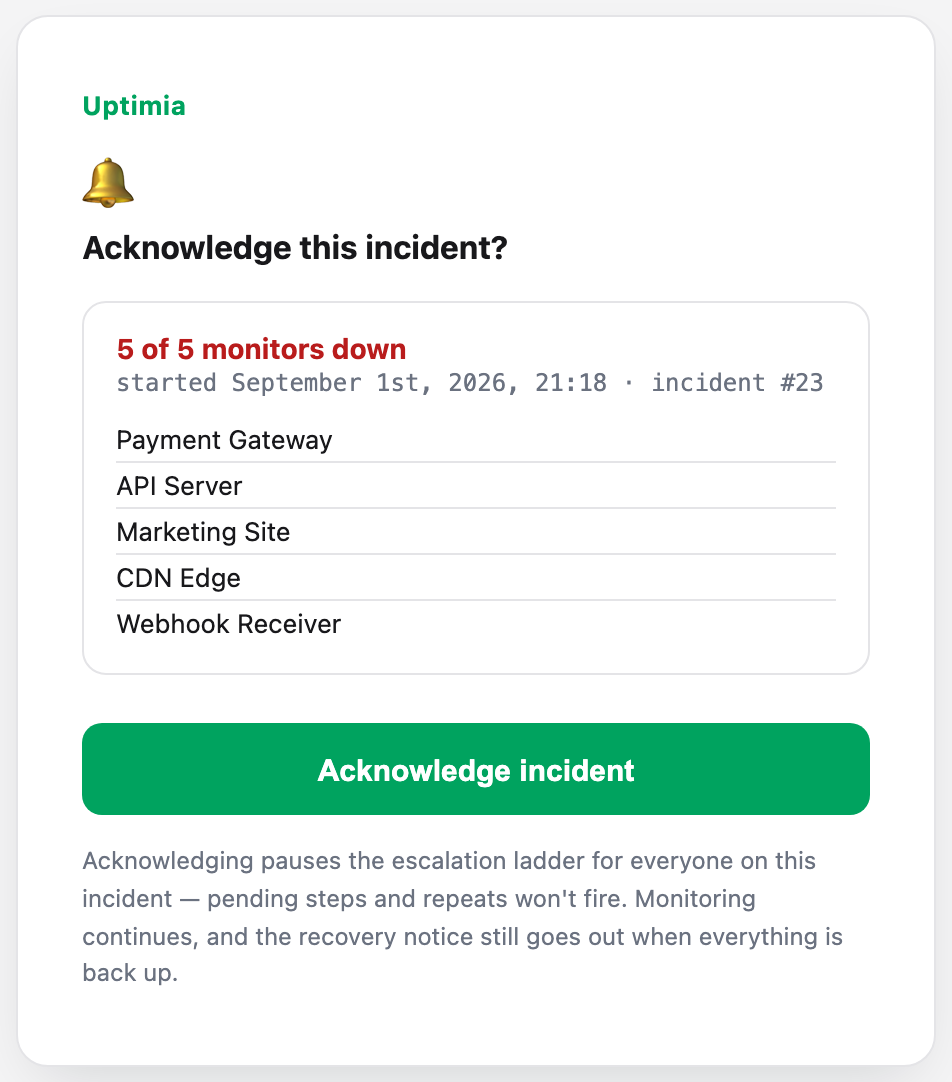
Only the first of those states carries a button. The already-acknowledged card, for example, drops the monitor summary and the button. It leaves an icon, the headline Already acknowledged by {name} at {time}, and one line: Escalation is paused for this incident. Monitoring continues and everyone who was alerted will still get the recovery notice.
What the Link Reveals to Whoever Opens It
The page is written for a recipient who may be reading it on a phone, from an email you also forwarded. It shows monitor names (the first 5, then a "+N more" count), how many of them are down, the time the incident started, and the incident number. Nothing else.
Contact addresses, phone numbers, the other recipients and account data never appear on the page. A link acknowledgment is credited to the contact's name, never its address. A nameless contact shows as "Alert recipient". Uptimia tells browsers not to store these pages and tells search engines not to list them, so they stay out of search results and browser caches.
Un-Acknowledging
Un-acknowledging is control-panel only. Open the incident and click Un-acknowledge in the acknowledgment banner.
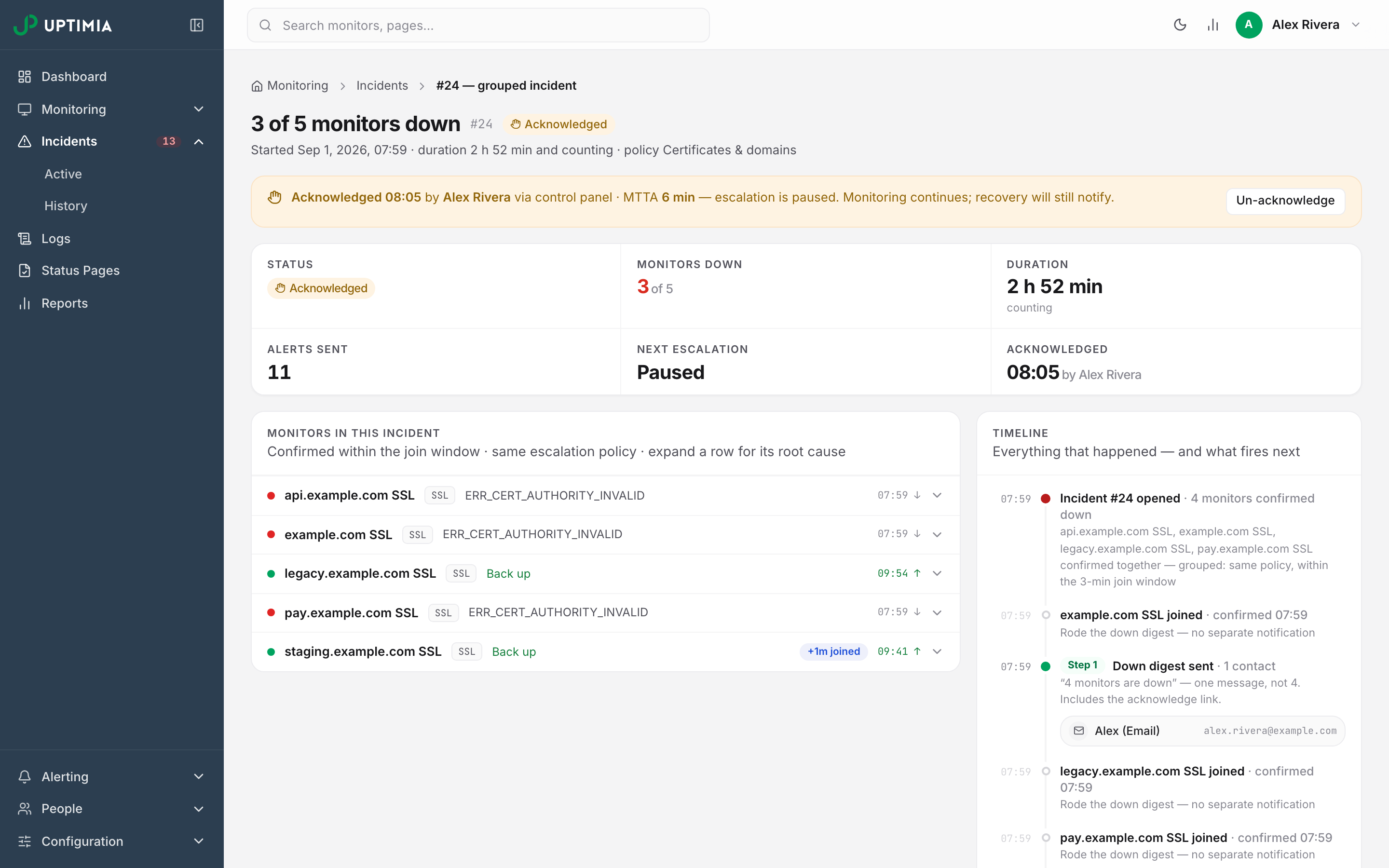
Un-acknowledging clears the acknowledgment and re-arms the ladder from the step it was paused on, and a step whose scheduled time passed while the incident was paused fires immediately. It also invalidates every acknowledgment link already sent for that incident. A recipient who opens an old one sees This link is invalid or has expired. The next alert carries a fresh link.
Bounded Auto-Resume
An incident that is acknowledged and then forgotten would escalate to nobody. If still down after acknowledgement restarts the paused ladder when the incident is still open that long after you acknowledged. The options are Never (default), after 30 min, after 1 h and after 2 h. The setting lives with the other alerting settings (see Alert Groups).
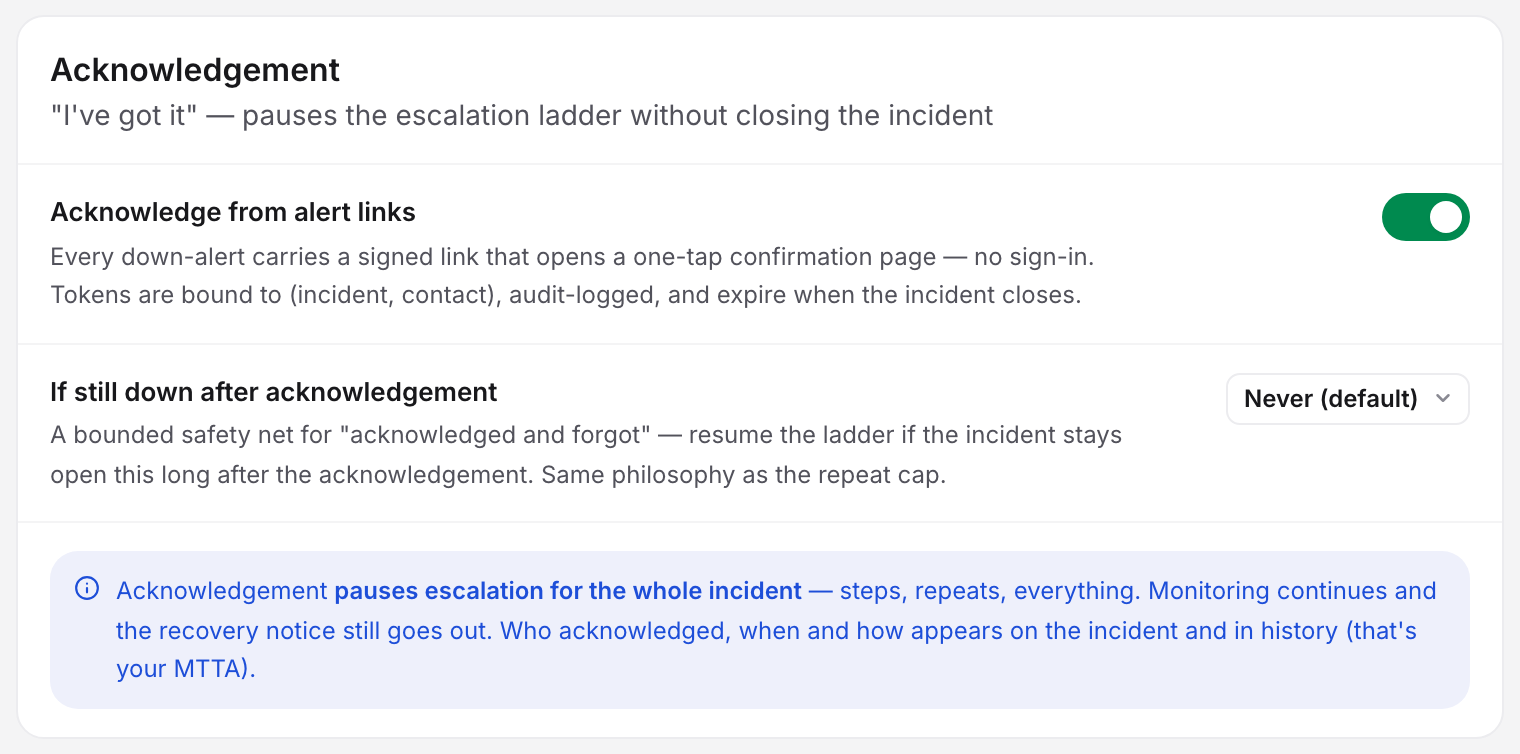
Uptimia fixes the deadline when you acknowledge, so changing the setting during a live incident does not move it. When the ladder resumes, the incident page says so: Acknowledged 09:46 … — still down after the acknowledgement, so the ladder resumed 10:46. You can acknowledge a resumed incident again, which pauses it once more from wherever the ladder has reached.
MTTA: What It Measures
MTTA is the mean time to acknowledge. For one incident it is the whole minutes between the confirmed start and the acknowledgment, rounded down and never negative.
The confirmed start is the point where the outage passed its alert delay and Uptimia began paging. The clock does not wait for a particular message to be delivered. So a recipient whose alerting hours held the message back gets an MTTA that covers their off-duty hours. MTTA measures how long a human took to respond.
Where it appears:
| Screen | How it reads |
|---|---|
| Incident card on Incidents | A chip: Acknowledged 09:46 by Jane Doe · control panel · MTTA 5 min |
| Incident page stat strip | An MTTA cell in minutes once the incident is resolved, or — if nobody acknowledged it. While the incident is open, the strip carries an Acknowledged cell reading Not yet until someone takes it, and the MTTA sits in the amber banner |
| Incidents → History | A chip on the row: acknowledged in 5 min by Jane Doe |
| Incidents → History, never acknowledged | not acknowledged — recovered before step 2: the incident closed before the ladder reached that step |
| Incidents KPI strip | An Unacknowledged tile counting open incidents nobody has taken |
MTTA stops at the acknowledgment, so it carries no repair time and no outage length. Duration and downtime are separate figures on the same screens. See Incidents.
The Acknowledge Link Says the Incident Is Already Acknowledged
Most often somebody on the same policy pressed it first, and the page names them and the time. The ladder is paused, so there is nothing left to do.
Two other causes produce the same card. Opening an older alert for an incident you already acknowledged shows it, because a plain acknowledgment does not invalidate links already sent. An incident that auto-resumed and was then acknowledged again shows the current acknowledgment, not yours.
To see who holds it and change it, open the incident in the control panel. The banner carries the name, the time, the route and Un-acknowledge.