
After an outage you have to write up what happened, and often prove it to a customer, a hosting provider or an auditor. Uptimia holds most of the evidence already:
- the incident record, with the probes that detected it
- the individual check that failed
- the alerting timeline, with who was paged and when someone acknowledged
- the note you left on the monitor
Collect them in the order below. If you only need to know which button produces CSV and which produces a PDF, read Exporting Your Data instead.
Before You Start
- Every role that can see monitors can open an incident and download its PDF or HTML. Create public link, Delete incident and Post status update need Owner, Admin or Editor.
- Your plan sets how far back you can read: Free 7 days, Basic 90 days, Professional 365 days, Enterprise 730 days, Trial 30 days. See Data and Log Retention.
- Acknowledgment, MTTA and grouped-incident timelines exist only for monitors with an escalation policy attached. Creating a policy requires the Professional plan or above. On Free and Basic an incident still records the alerts it sent, but there is no ladder to narrate.
What Uptimia Can and Cannot Tell You
Uptimia records what a probe saw from outside your infrastructure. It cannot read your server logs, stack traces or database state, so the postmortem's "why" still comes from your side. Uptimia settles three things: the when, the from where, and the who was told.
Five boundaries decide whether the evidence you need still exists:
| Boundary | What it means for a postmortem |
|---|---|
| Maintenance, paused and suspended monitors | Results that arrive while a monitor is in a maintenance window, paused or suspended are dropped on arrival: no log row, no incident, no alert. The period is a gap in the record. Nothing was logged there, passing or failing. |
| Real User monitors | Produce no check rows at all, so there is nothing to open, export or share. |
| Server monitors | Agent samples are kept for 24 hours. Open an older server check and the drawer says "This check's metrics are no longer available — agent samples are kept for 24 hours." Pull server evidence the same day. |
| Deleted incidents | Deleting an incident is permanent, and the button appears only once the incident has ended. Export before you delete. |
| Your readable window | On a monitor's own history a request for a longer range is silently raised to your plan's floor. Upgrading widens that window on the next request, with no backfill and no waiting. It cannot bring back rows the nightly cleanup has already deleted. Uptime check logs are the one family where an upgrade can reach less far back than the new window. See Data and Log Retention. |
Reconstruct the Timeline
- Go to Incidents → History and set the date range that covers the outage.
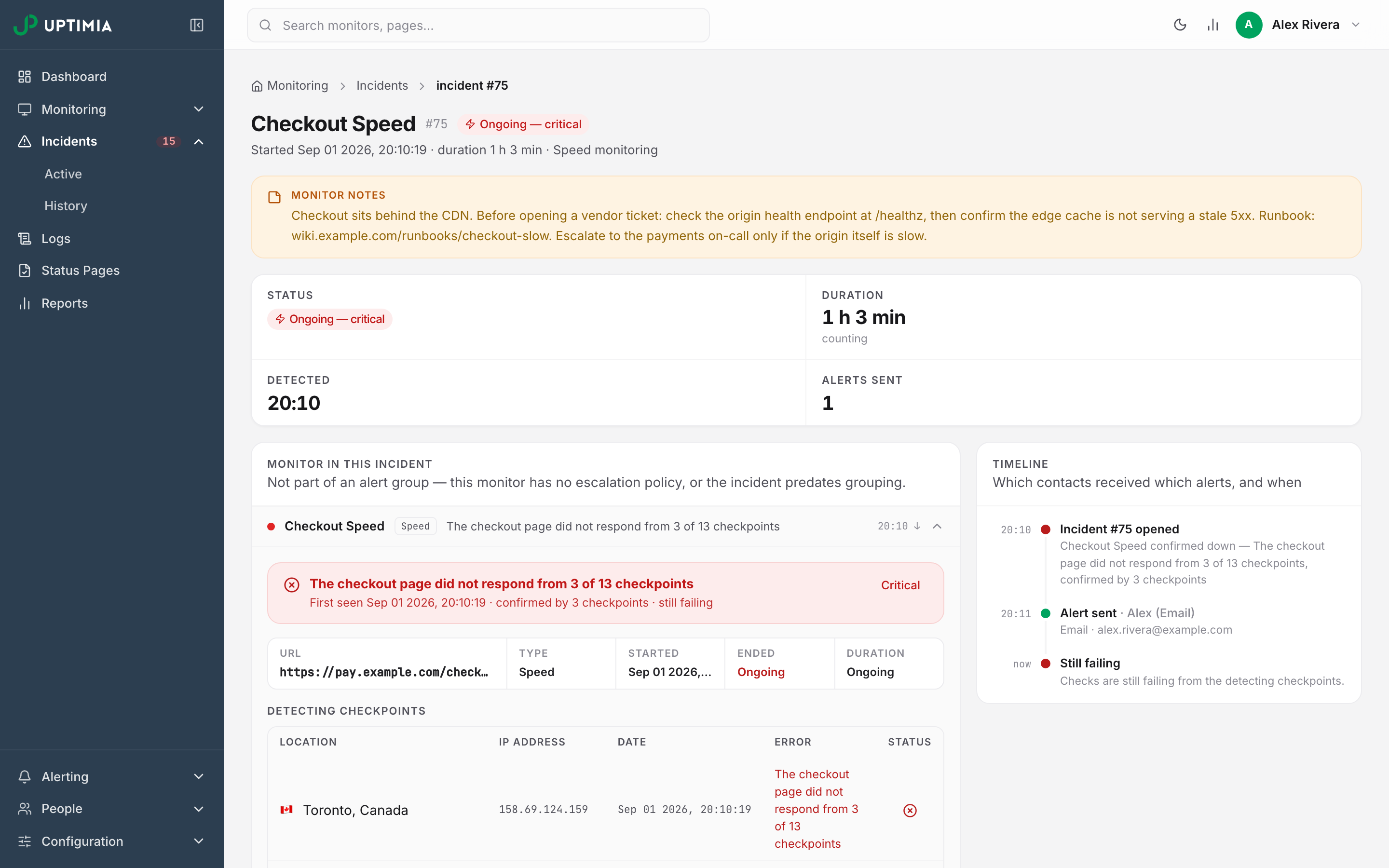
- Click the incident. It opens as its own page, unlike the check detail drawer. If the incident was part of an alert group you are redirected to the group page, which carries the richer timeline.
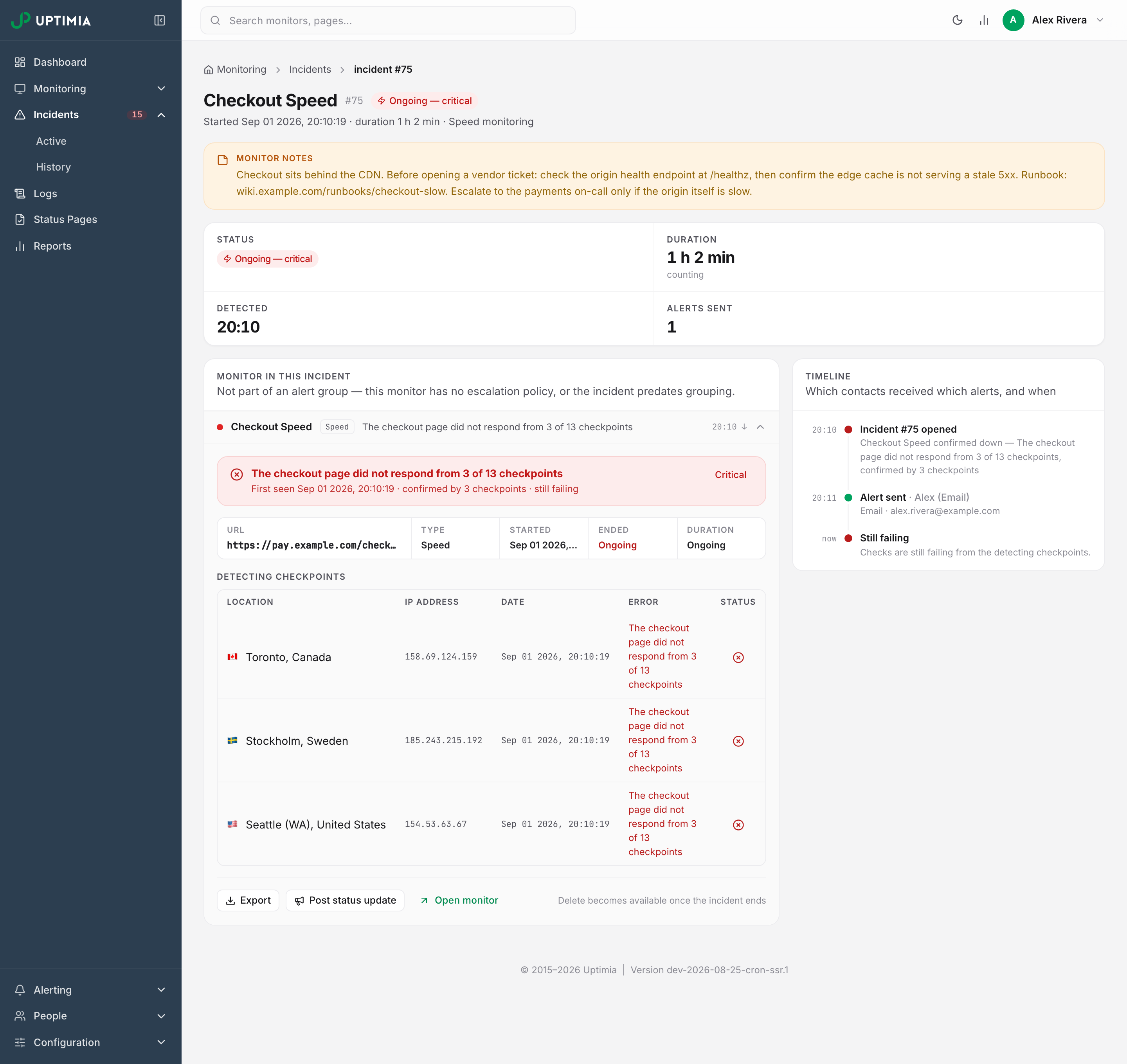
- Read the stat strip: Status, Duration, Detected or Recovered, and Alerts sent.
The monitor row under Monitor in this incident (Monitors in this incident once a group holds more than one) is already expanded on a single-monitor incident. On a grouped one, click a row. The root-cause panel inside opens with the first error. A sub-line gives when the failure was first seen, how many probes confirmed it and when it recovered. Under that sits a facts strip of URL, Type, Started, Ended and Duration, and then:
- Error responses: each distinct error and how many times it occurred. Only uptime incidents collect this tally. A Speed or Transaction panel goes straight to the Detecting checkpoints table.
- Detecting checkpoints: one row per probe that saw the failure, with Location, IP address, Date, Error and Status. This is the table a hosting provider or CDN will ask for, because it shows the failure was seen from several networks at once.
- Evidence: collapsible Response headers, Response body and Traceroute blocks, plus Transaction steps, Step screenshots, Screenshot at failure and Keywords for the families that produce them.
Every timestamp in an incident or check export uses your account's time zone. The live clock labels on the incident page use the browser's time zone: Detected, Recovered and the timeline rows. Quote the export when the reader is somewhere else, since the screen shows only your own browser's clock.
For the individual checks either side of the failure, go to Logs, filter to the monitor and the time range, and turn on Failures first. That gets you the passing check before the outage, the first failing one and the recovery. Monitoring Logs covers that surface; Incidents covers the incident record itself.
Read the Alerting Side
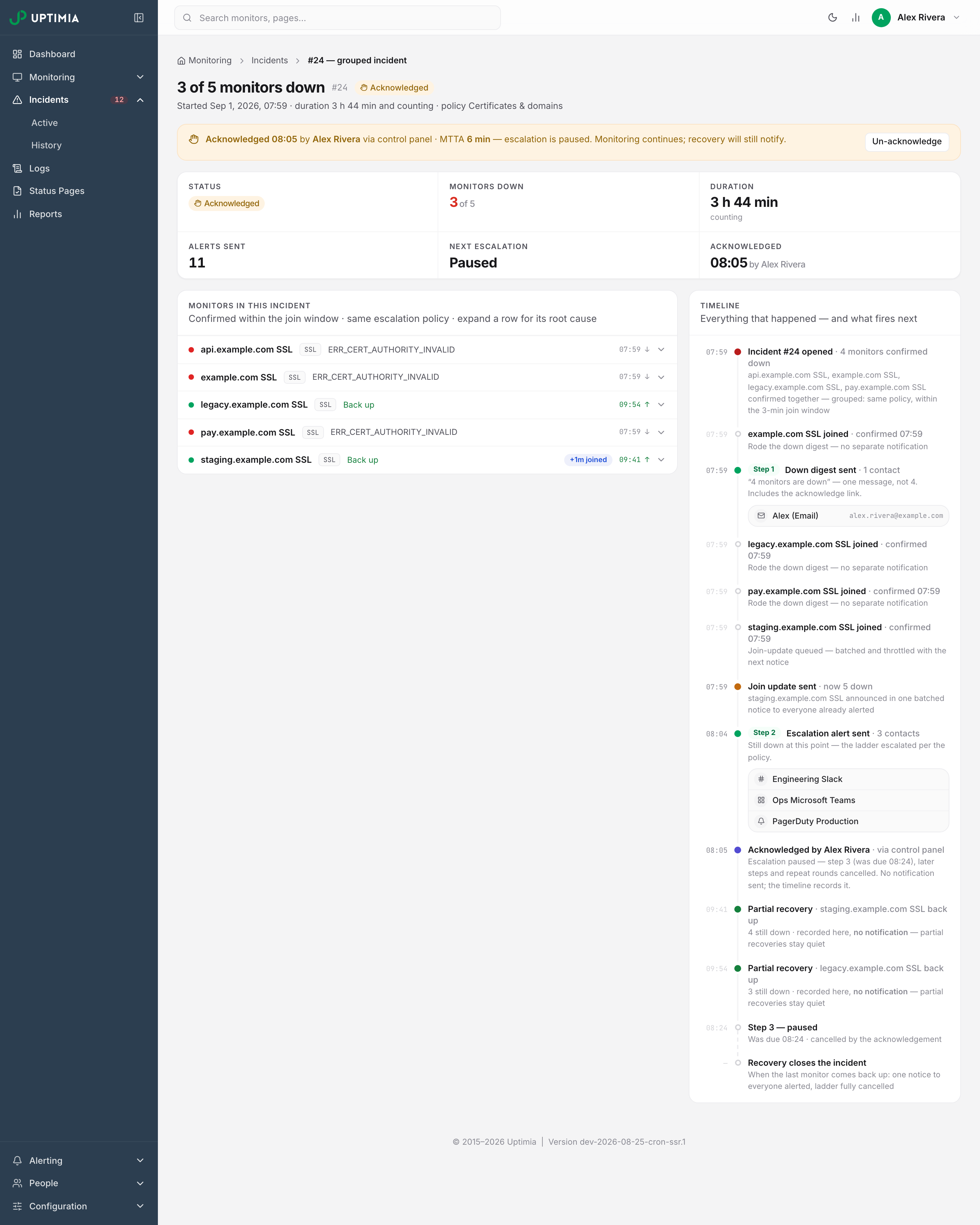
The Timeline card records the response. On a single incident it lists which contact received which alert and when. On a grouped incident it runs through the whole ladder, oldest first:
- Down digest sent, tagged Step 1, with the contacts it reached. On a group that holds only one monitor the same row reads Down alert sent.
- A joined row for each monitor that failed inside the join window, either riding the digest or announced in a batched Join update sent.
- Escalation alert sent, tagged Step 2, Step 3 and onward, or Repeat 1 for a repeat round, each listing the contacts that rung reached.
- Acknowledged by: the responder and the source, with a sub-line naming the step the acknowledgment canceled.
- Partial recovery: recorded, with no alert sent.
- The final recovery row, with the one recovery alert that went to everyone who had been alerted.
While an incident is still open, steps that have not fired yet appear as dashed rows reading "Step 2 — fires 09:56 · in 12 min". That is how you tell a rung that fired from one that was only armed.
Two fields answer how fast your team reacted. Acknowledged gives the clock time and who took it. MTTA counts the whole minutes from the moment the incident was confirmed to the acknowledgment, rounded down. The banner names the source. It reads control panel when someone clicked Acknowledge in Uptimia. It reads alert link (<recipient name>), naming the person, when they used the one-click link in an alert. An incident with no escalation policy shows no MTTA, and its card says so: "Not part of an alert group — this monitor has no escalation policy, or the incident predates grouping." The mechanics are in Acknowledging Incidents and MTTA.
Pull One Failing Check as Evidence
A hosting provider or CDN will often accept a single check as the artifact.
- Open the check from Logs, or from the Check log card on the monitor's page. The check detail drawer opens.
- Click Export.
- Choose Download PDF, Download HTML or Create Public Link.
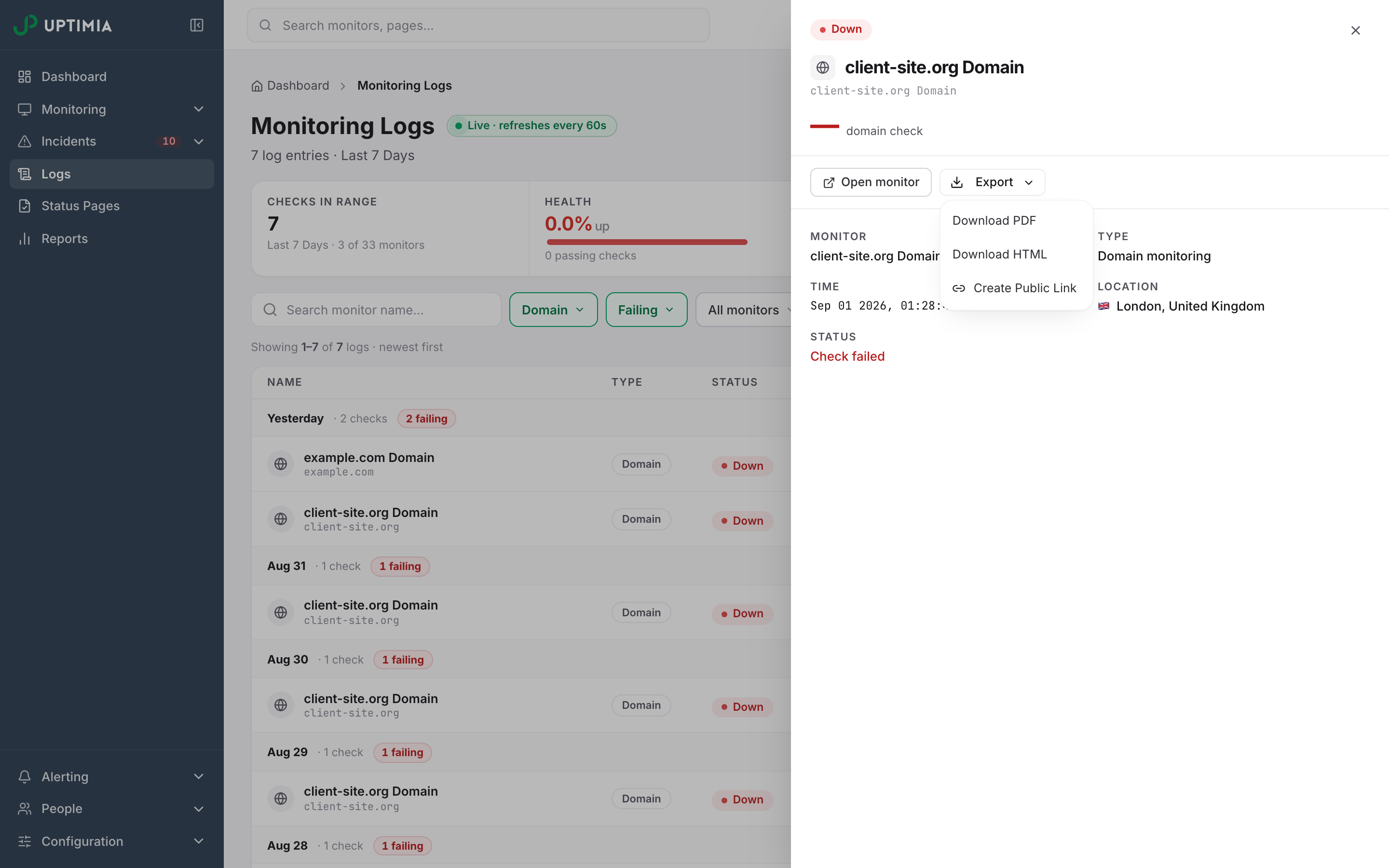
The file downloads as Monitoring-Log.pdf or Monitoring-Log.html, a standalone snapshot of that one check. It carries:
- the status verdict and error
- the Check details group: the URL, protocol, checked-at time, response time and the probe that ran it
- the family's own facts, such as certificate issuer and validity for SSL, registration dates for Domain, and signal and lateness for Heartbeat
- the response captured at that check
Eleven monitor families can be exported this way. Real User is the exception: it produces no check rows, so there is no check to open and no export to take.
Export the Incident and the Filtered History
For the incident itself, use the Export menu in the footer of the root-cause panel: Download PDF, Download HTML, and Create public link for Owner, Admin and Editor seats. The file is named Root-Cause-Analysis.pdf or Root-Cause-Analysis.html.
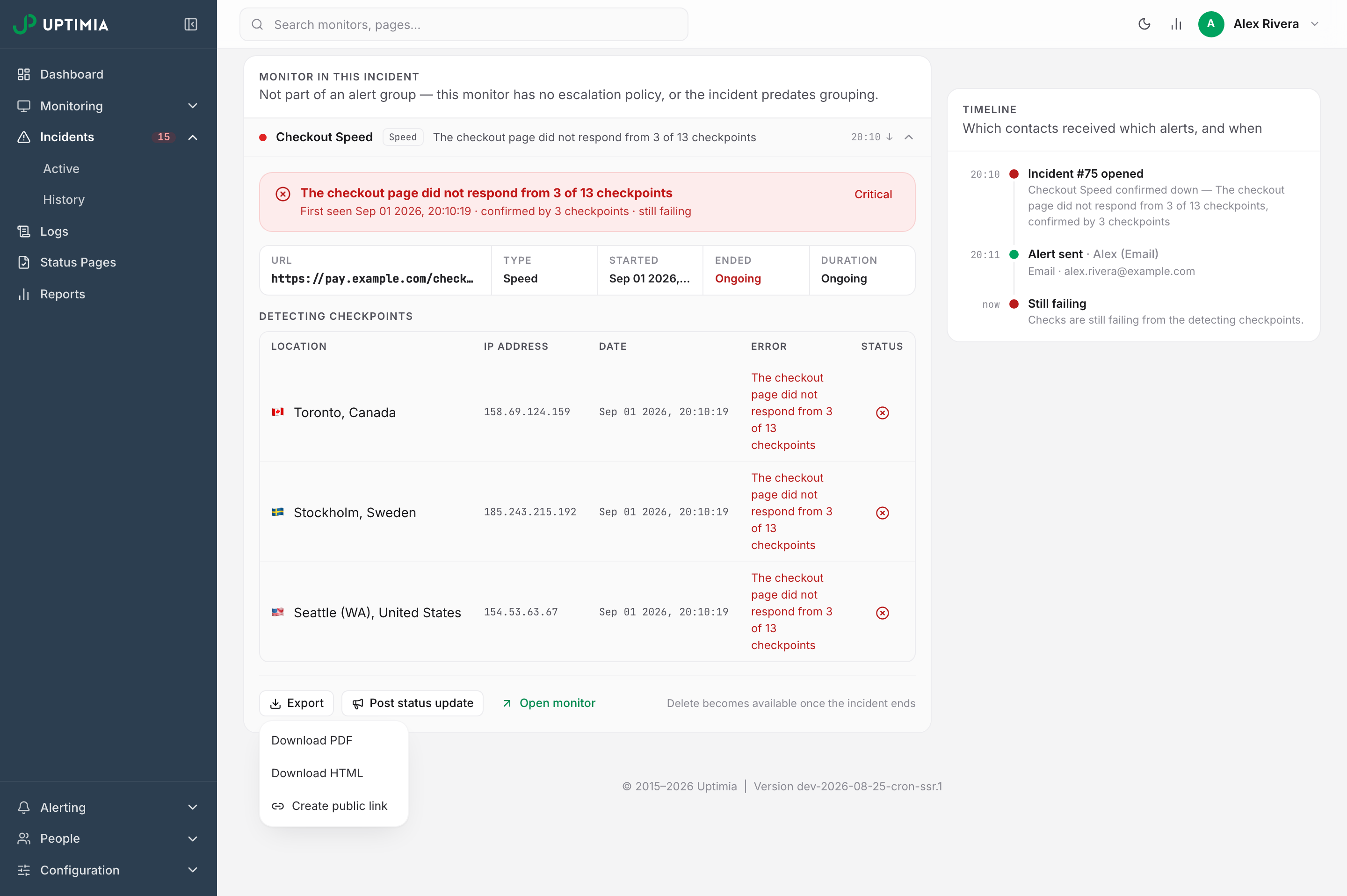
Uptimia rebuilds the whole incident on the server: every member monitor, its root-cause evidence, and the full event timeline including the escalation rungs. The footer is stamped "This is a point-in-time snapshot of incident #N", followed by the capture time and the time zone it is printed in. The PDF version opens every collapsible evidence block, so no evidence stays hidden.
For the incident set rather than one incident, go to Incidents → History and click Export CSV. The download follows the date range and monitor filters you have applied. There is no CSV button on the Active view: the export is history-based. Exporting Your Data lists the columns.
Add Context That Survives
A note on the monitor is the one piece of postmortem context you can write before the next incident. Set it in the monitor editor on the Advanced tab under Notes, up to 500 characters. Server monitors keep it in the Server Name card. The note then appears in four places: an amber Monitor notes callout on the incident detail page, the member panels of a grouped incident, alert emails, and webhook payloads. Write it for the responder at 03:00: which provider to call, which backup job to check first, the runbook URL.
Note: The note does not travel into the PDF, HTML or public-link export. It never reaches status pages, Slack, SMS or any channel other than email and webhooks. Full coverage is in Monitor Notes.
Share With People Who Have No Account
Create public link saves a static HTML copy of the document at its own web address. Its filename carries a random 32-character hash, and the chip below the button copies the full address. Anyone holding that URL can read it: there is no sign-in, no password and no expiry sweep. Treat a link you hand out as permanent.
Know what you are handing over:
- A check export redacts one thing. A Heartbeat monitor's ping URL is masked to its last four characters, because that token is the monitor's only credential. Everything else appears in full: the monitored URL, the probe, and the response captured at that check.
- An incident export redacts nothing. For a grouped incident the timeline's recipient boxes name each contact and print their email address or phone number, up to twelve per box.
Warning: before sending an incident public link outside your team, download the HTML and check the timeline recipient boxes. If they carry contacts you do not want to disclose, send the check-level export instead: it carries the failure evidence and no recipients.
Close the Loop
If the incident was visible to customers, post the closing update on your status page. The Post status update button in the root-cause panel footer pre-fills a thread from the incident. It works on Uptime, Speed and Transaction incidents only. Elsewhere the button is grayed out, with the hint "Status updates are available for uptime, speed and transaction incidents."
If the work that follows is planned, schedule a maintenance window for it. Monitors leave the check queue for the duration, so the remediation does not become the next incident in your history.
A Postmortem Built From These Exports
| Section of your writeup | The artifact that proves it |
|---|---|
| Detection time and duration | Incident detail stat strip: Detected, Duration, Recovered |
| Blast radius | Grouped incident: the member list under Monitors in this incident, each row expanded to its Started time. The Monitors down counter shows only while the incident is still open. |
| Where it was visible from | The Detecting checkpoints table: location, IP and per-probe error |
| What the endpoint returned | Error responses table plus the Evidence blocks, or one check export |
| Response speed | Acknowledged and MTTA, plus the fired rungs in the timeline |
| Who was paged, and who was not | Timeline recipient boxes on each fired step |
| Context the responder had | The Monitor notes callout |
| The record for the ticket | Root-Cause-Analysis.pdf for the incident, Monitoring-Log.pdf for the single check, and the history CSV for the pattern |