
Your monitor is green again and the incident is still sitting on the public status page. That is deliberate. A monitor coming back up ends the incident, and the thread you published about it stays open: Uptimia moves it to a Monitoring state, posts one system line saying the service is back, and waits for your closing word.
What Happens the Moment a Monitor Recovers
When the monitor recovers, Uptimia does all of this to the open incident thread, one time only:
- Stamps it as recovered and records the time.
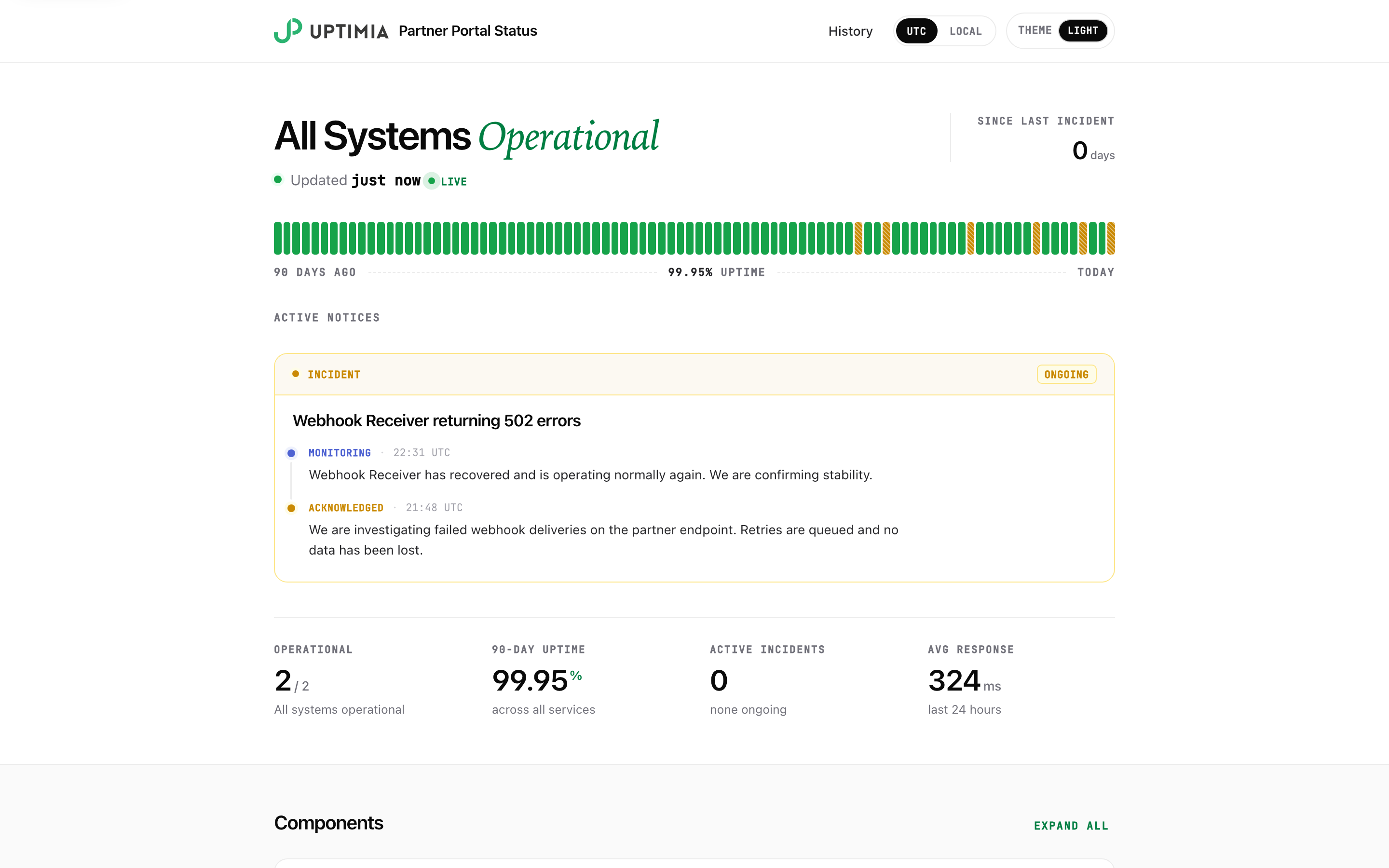
- Moves its stage to Monitoring, so an amber Ongoing notice replaces the red outage banner and sits above services that are green again. That notice's latest update is tagged Monitoring.
- Posts one system update: "<Monitor name> has recovered and is operating normally again. We are confirming stability."
- Sends no subscriber email for that update.
- Leaves the thread open.
The public page updates immediately. Visitors see the change on the page they already have open.
First, Check the Dashboard's Close-Out List
Go to Dashboard. A recovered incident that is still open appears in the Needs attention card. In the card heading, Uptimia counts these incidents: Needs attention — 1 to close out. The row shows the monitor name with a green dot, the line Recovered 31m ago — add a closing update for customers?, and two buttons: Add closing update and Dismiss. The same pair appears on the incident's row in Recent activity.
If the incident is listed, post a closing update or dismiss it. If it is missing from the list, jump to The Incident Is Not in the Close-Out List.

Option 1: Post the Closing Update
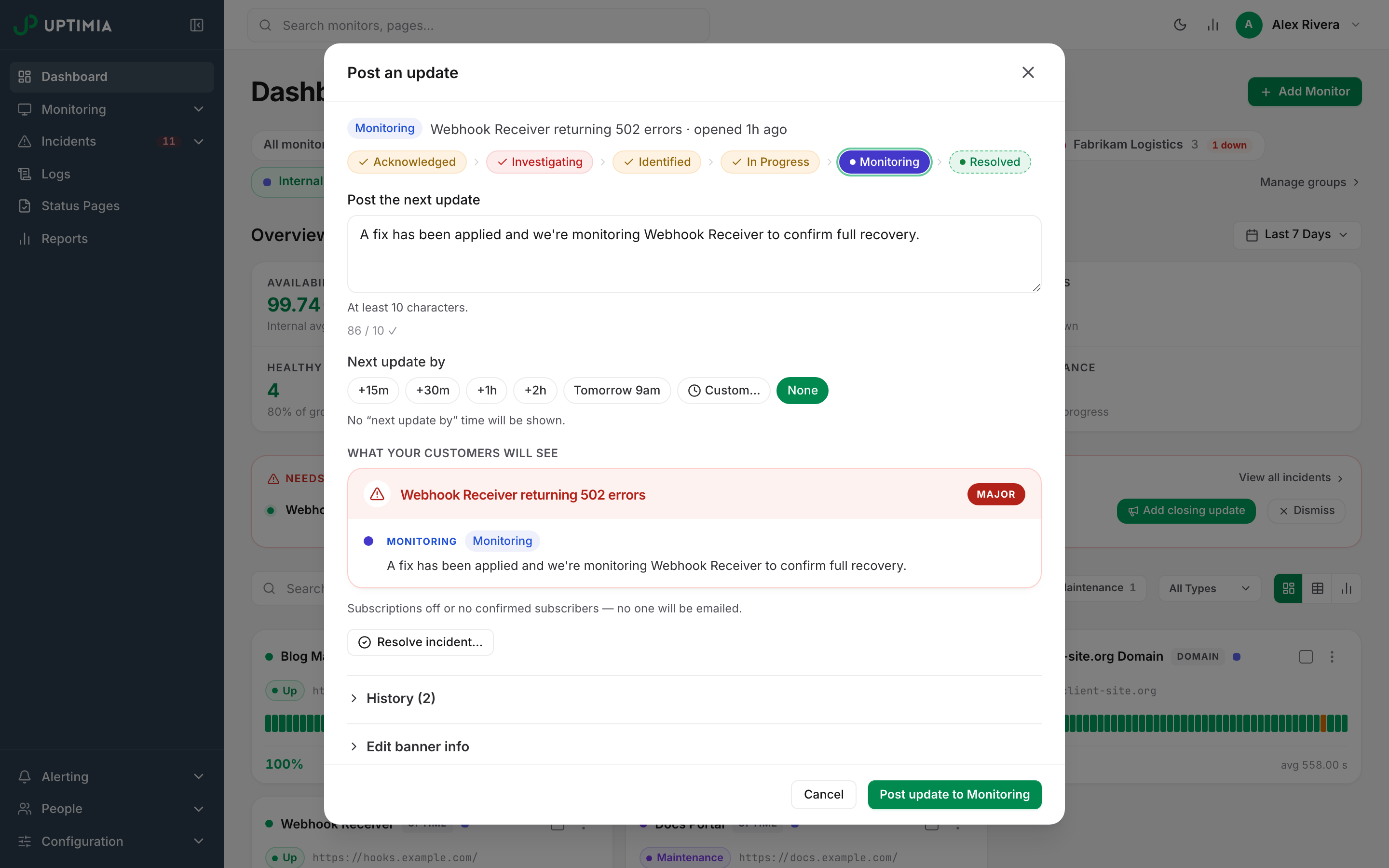
Your customers see this update. Click Add closing update. The thread opens in edit mode with its current stage badge, a stage stepper, and a Post the next update box.
- Pick Resolved in the stage stepper.
- Write what happened and what you did, in the message box. It needs at least 10 characters.
- Check the What your customers will see preview.
- Post it.
Uptimia sends no email for the system recovery line, so your update is the only mail confirmed subscribers get about the end of the incident.
Resolve incident… at the bottom of the same screen does it all in one step: a short panel headed Resolve this incident opens, carrying a pre-written closing message you can rewrite. Resolve & close posts one final update and closes the thread.
Why Posting "Monitoring" Keeps It in the List
Posting Monitoring (or any stage other than Resolved) says the work is still going: the service looks fine, and you are still watching. Uptimia restarts the thread's 24-hour clock and keeps it in the close-out list. Only Resolved closes the thread and removes it from the list.
Option 2: Dismiss It Silently
Use this when the outage was too short to be worth a public note. Click Dismiss and confirm. The prompt reads "Dismiss this incident with no public update? It will be silently resolved."
Uptimia resolves the thread with no new update and no email. The thread moves to the Closed tab and into the page's incident history. The system recovery line is its last word there.
If You Do Nothing for 24 Hours
Uptimia resolves an untouched close-out after 24 hours of silence. Nothing is published and nobody is emailed. The thread closes.
The clock runs from the last activity on the thread, not from the recovery. Every update you post restarts it. An incident you are actively managing with Monitoring updates is never closed out from under you. That automatic close-out has no timer of its own, so Uptimia resolves the thread only when somebody next opens the dashboard and loads the close-out list. A stale incident can therefore linger past the 24 hours.
A Flapping Outage Stays One Thread
When a monitor goes down, recovers and fails again, Uptimia opens a fresh incident record each time. The public thread is not recreated: recovery moves it into the close-out state, a new failure pulls it straight back out, and it is never shown as recovered while the service is down. Your title, summary and every update you posted stay on the page across the whole episode. Post update reuses the same open thread.
One flapping morning produces one public incident, and it ends when you resolve it. The individual up-and-down records behind it are in Incidents.
The Incident Is Not in the Close-Out List
Most common first.
No thread was ever published for it. You write incident threads yourself. Uptimia does not open one automatically when a monitor goes down. If nobody posted an update during the outage, there is nothing on the public page and nothing to close, though the page did show the monitor as down for as long as it was down.
It was already closed. Someone posted a Resolved update or dismissed it, or 24 hours of silence closed it. Look in the Closed tab under Status Pages → Updates.
Your dashboard is scoped to a monitor group. With a group scope active, the close-out list shows only monitors in that group. Clear the scope.
The monitor's family does not produce incident threads. Only Uptime, Speed and Transaction incidents can carry one. SSL, domain, DNS, blacklist, virus, heartbeat, API, server and Real User monitors never produce a public thread, so a recovered incident on one of them has nothing to close.
When to Contact Support
Contact support if a recovered incident stays on the public page after you posted a Resolved update, or if the close-out list shows an incident whose thread you cannot open. Include:
- The status page.
- The monitor name.
- The time the monitor recovered.
- The time you posted the closing update.
- The public URL where the incident is still visible.