
Turn on subscriptions for a status page and a Subscribe button appears on it. A visitor enters an email address and confirms it from their inbox. From then on, Uptimia emails them every status update you post to that page.
Subscribers are the public audience for one page. Recurring reports sent to your own contacts are a different feature. See Scheduled Reports.
Before You Start
- Turning subscriptions on and managing the roster needs an Owner, Admin or Editor seat. A Read-only member does not get the Manage subscribers action.
- Subscriptions are available on every plan, Free included. Only the number of status pages and password protection are plan-bound.
- The Subscribers roster appears on a saved page. Create the page first, then reopen it.
What Subscribers Get
Email is the only subscription channel: no SMS subscription, no RSS or Atom feed, no per-visitor webhook.
Post an update to a thread on that page and each confirmed subscriber gets one email. That holds for the update that opens the thread, each update in the middle, and the closing one. A monitor on the page that goes down or recovers on its own emails nobody. The page's live status changes by itself, while subscriber email follows what you write.
Subscriptions are per page. Someone who subscribes to 2 of your pages is 2 subscriber rows, and unsubscribing from one leaves the other alone.
Turning Subscriptions On
- Go to Status Pages and open the page.
- In the Email subscriptions card, set Enable email subscriptions to on.
- Save the page.
The toggle is off on a new page. Its helper line states the scope: "Show a Subscribe button on the public page so visitors get notified by email when you open or update incidents and maintenance."
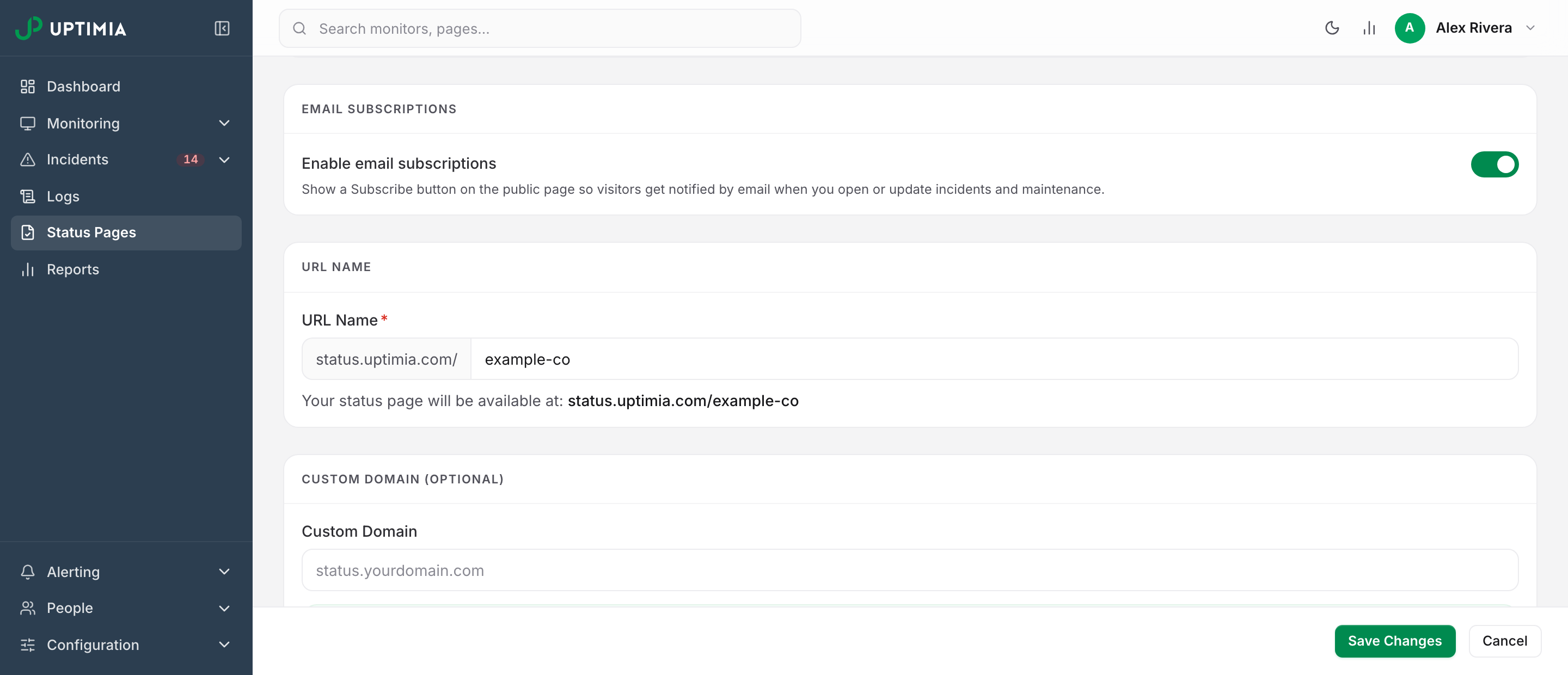
Switching the toggle back off removes the Subscribe button and stops all mail immediately, including an update you posted seconds earlier that has not gone out yet. The subscriber rows are kept. Turning the toggle back on resumes mail to the same people without asking them to confirm again.
On the pages list, the Subscribers column shows the confirmed count for each page, or a Subscriptions off badge.
How a Visitor Subscribes
The public page's header carries a Subscribe button that opens a small form:
- Heading: Get status updates
- Line: "We'll notify you when an incident is created, updated, or resolved."
- An email field, and a Notify me button.
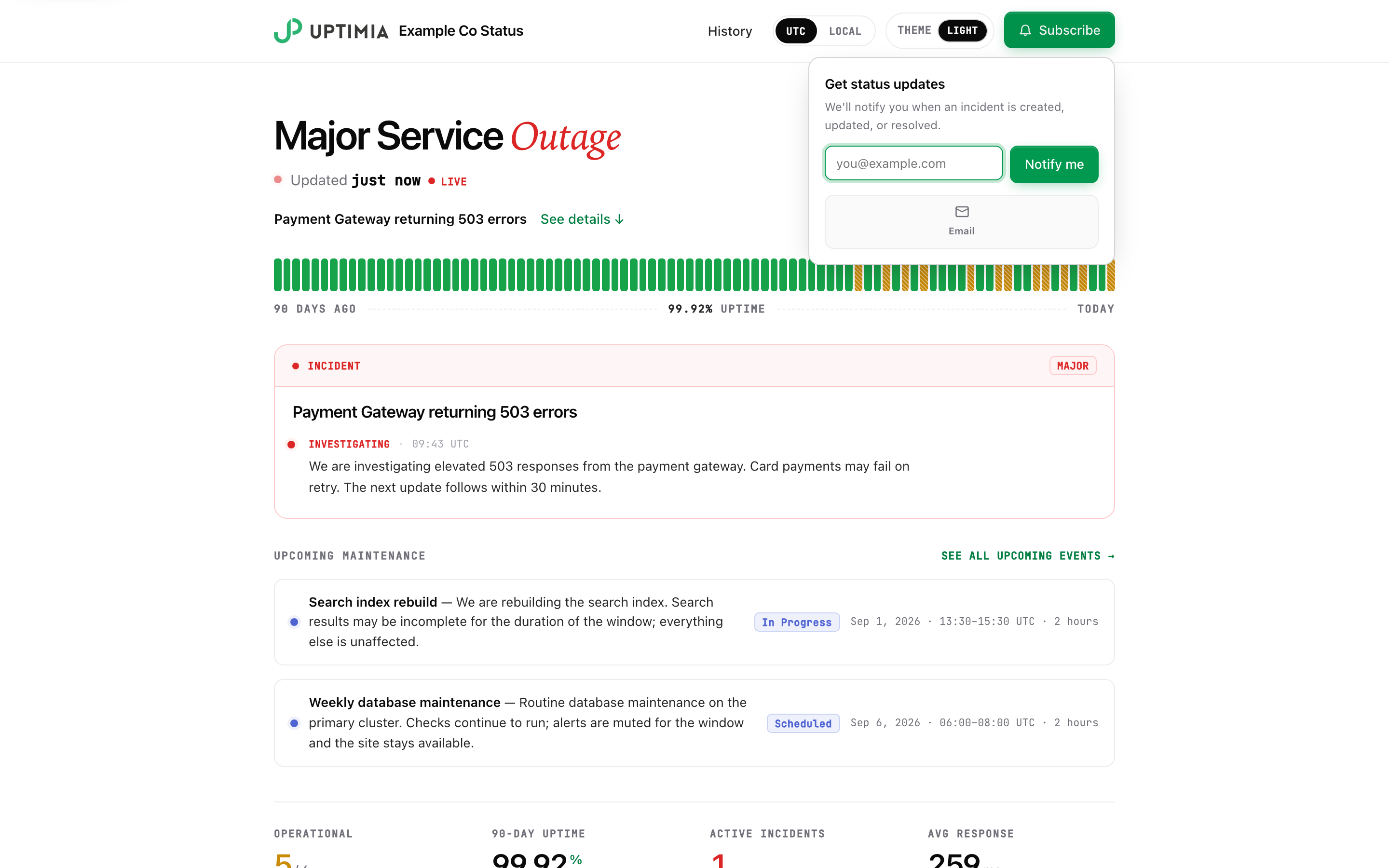
Sign-up is double opt-in, so an address is never added by someone else typing it in:
- The visitor submits the form. The page answers "Almost there — check your inbox to confirm your subscription."
- Uptimia emails that address, subject Confirm your subscription to
<page name>status updates, with a Confirm subscription button and the same link in plain text. The email carries your page's custom logo if it has one. - Clicking the link confirms the row: "Your subscription is confirmed. You will be notified of status changes."
Until that click the row sits in the roster as Pending. It receives nothing. A pending address that submits the form again gets the same confirmation link re-sent rather than a second row. Uptimia answers an address that is already confirmed with "You are already subscribed to this status page." and a malformed one with "Please enter a valid email address."
The confirmation link opens on the same domain the visitor subscribed on, so someone who signed up on your own domain confirms there too. Later notification emails link to the page's main address, which is its custom domain if you set one.
Which Updates Generate Email
Each update you post emails the confirmed subscribers of the pages it belongs to.
| Thread type | Which pages are emailed |
|---|---|
| Incident | Every page of yours whose structure contains an affected monitor; when the thread names specific pages, only those |
| Maintenance | Same as Incident |
| Status update | The one page the thread was posted to |
An incident thread on a monitor that appears on 3 of your pages emails the subscribers of all 3. Ticking pages under Publish to overrides that. The update then emails exactly the pages you ticked, whether or not they list the monitor, and an incident whose monitor sits on no page with nothing ticked emails nobody.
Editing the text of an update that is already published does not re-send it; to mail a correction, use the Re-notify subscribers about this correction toggle in the Edit banner info disclosure. Turning it on posts a fresh update reading "Correction: …", and a fresh update is mail. Posting a non-closing update to a thread you had already closed reopens it and notifies subscribers again; the modal warns you first. Thread mechanics are in Status Pages.
Posting an update never waits on a mail server. Email starts going out about a minute after you post, in batches of up to 50 updates per run, and each subscriber is marked once their mail is sent, so an interrupted run resumes where it stopped instead of mailing everyone twice.
What the Email Contains
The subject is [<page name>] <thread title> — <stage>, for example [Acme Status] Checkout errors — Resolved. Inside the email:
- A colored stage badge.
- A facts box with the elapsed duration, the affected monitors by name, and the next-update time if you set one.
- The update you wrote.
- A timeline of the earlier updates on the thread.
- A View status page button.
The footer explains why they got it and carries an Unsubscribe from these updates link.
How Timestamps Are Shown
In a notification email, Uptimia renders every time in the page's display time zone and labels it with that zone. That holds for the context line, the maintenance window, the next-update time and each timeline entry. The zone is your account's configured zone, unless the page's Timezone UTC setting is on, which pins the page and its emails to UTC. The public page follows the same rule. A subscriber sees one set of times in both places.
Managing the Subscriber List
Open the page and scroll to the Subscribers card. The Manage subscribers action in the page's row menu on the list jumps straight to it.
The card header counts the list: Subscribers (12 total · 9 confirmed · 3 pending). Each row shows the address, the date it confirmed or was requested, a Confirmed or Pending badge, and a Remove link. Past 8 rows a search box appears. Export CSV downloads the whole list with 4 columns: email, status, subscribed, confirmed.
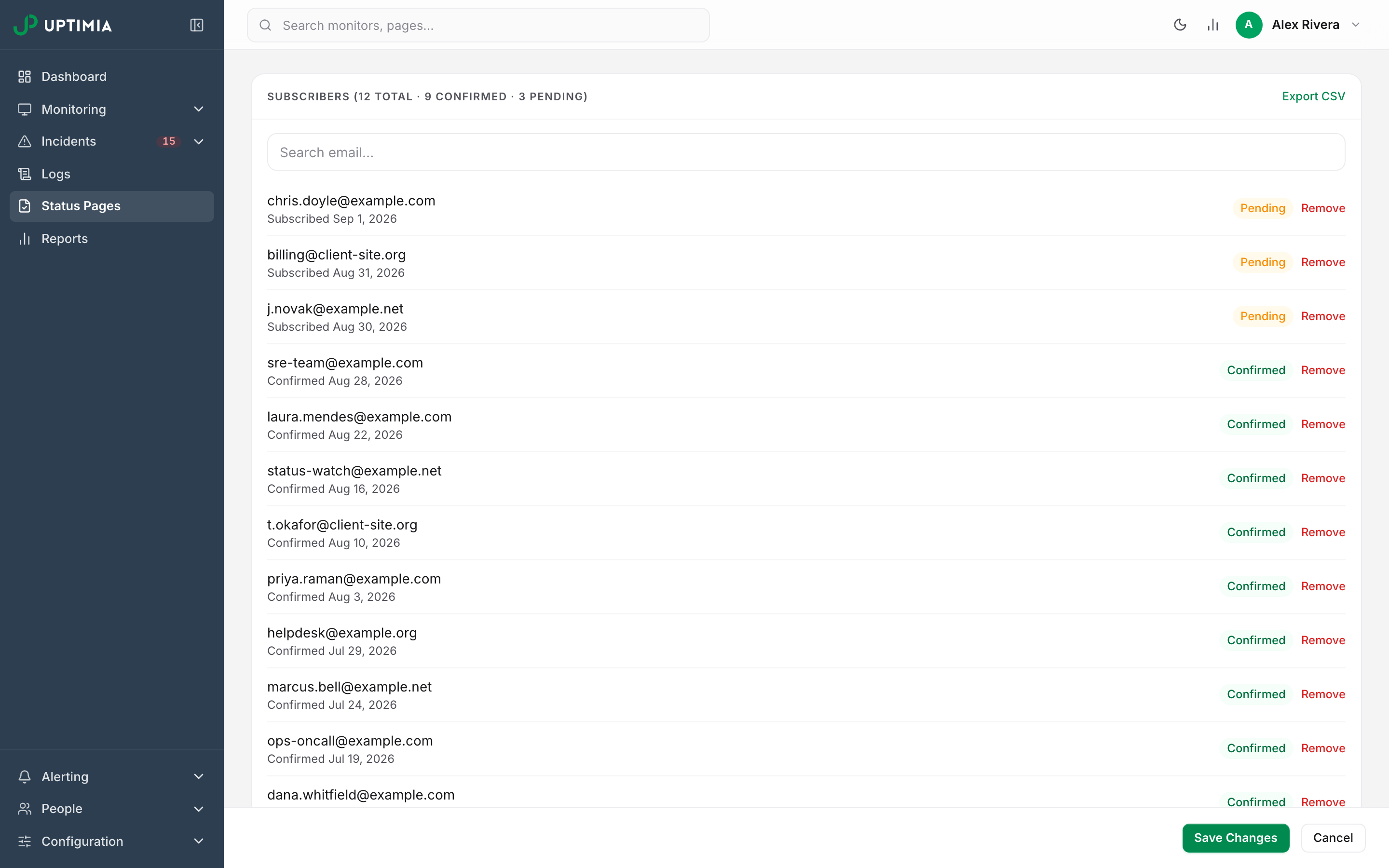
Warning: Remove deletes the subscriber outright and cannot be undone. The address stops receiving updates and would have to subscribe and confirm again. The confirmation modal names the address before you commit.
Knowing Your Reach Before You Post
The status-update modal tells you who a post will reach before you send it. Once you have picked what the update is about, it applies the same page-matching rule the notifications use and reads This will email N confirmed subscribers across <page> (N), naming each contributing page and its count. When nothing qualifies it says "Subscriptions off or no confirmed subscribers — no one will be emailed."
Pending subscribers are never counted, and a page with the toggle off contributes zero.
Subscribing on a Password-Protected Page
The subscribe form sits on the page. On a password-protected or private page, a visitor has to get past the gate before they can use it. Confirmation and unsubscribe links are the exception: they carry their own one-time link and work without the password. See Status Page Visibility.
Unsubscribing
Every notification email carries an Unsubscribe from these updates link, and the plain-text version repeats it. One click removes the row: no sign-in, no password, no confirmation step. The page answers "You have been unsubscribed and will no longer receive updates." and the address disappears from your roster.
Abuse Protection
The subscribe form is public, so sign-ups are limited in 2 ways:
| Limit | Window | Scope |
|---|---|---|
| 10 sign-ups | 1 hour | One IP address |
| 3 sign-ups | 1 day | One email address, across all status pages |
The per-address cap stops someone using your page to bomb a victim's inbox with confirmation mail. A throttled submission gets the same "Almost there" response as a real one, so it gives nothing away. The form also carries a hidden field that only bots fill in, and a submission that fills it gets the normal answer and is stored nowhere.
Troubleshooting
The Confirmation Email Never Arrived
Check the Subscribers card first. A Pending row means the submission was accepted and the mail was sent. Look in spam and quarantine, and check the address for a typo. No row at all means the submission was rejected or throttled, and the visitor sees the same message either way. If they have tried fewer than 3 times today, have them retry after an hour from a different connection. Past 3 attempts on the same address, they have hit the per-address cap, which follows the address to any connection and any page, so those attempts have to age out of the 24-hour window first. A wrong address cannot be corrected from your side: remove the row and have them subscribe again.
Subscribers Are Not Getting Update Emails
Work down this list, most common first.
- The toggle is off. The pages list shows a Subscriptions off badge on that row. Nothing is emailed while it is off, including updates already queued.
- They are still Pending. Only confirmed rows are emailed. The roster header counts both.
- The update was posted to a different page. A status-update thread emails only the page it was posted to. Check the reach line in the modal before you post.
- No page displays the affected monitor. An incident or maintenance thread that names no pages under Publish to reaches a page only when that page shows the affected monitor. Add it to a section, or tick the page under Publish to.
- They unsubscribed. An unsubscribe deletes the row, so the address is absent from the roster.
A Recovered Monitor Did Not Email Anyone
Recovery does not email anyone. Uptimia posts one system Monitoring note on the thread saying the service is back, and the monitor's own status flips on the page. That system line stays out of the subscriber queue. Subscribers hear nothing until you post a closing update to the thread yourself. See Closing a Recovered Incident Thread.