
Your status page can answer on an address you own, status.yourcompany.com, instead of status.uptimia.com/your-slug. Save the domain in the status page editor and add one DNS record at your provider. From there Uptimia verifies the record, publishes the site on that host, and issues an HTTPS certificate. The certificate renews itself. Status Pages covers building the page itself: its sections, monitors, settings and updates.
Before You Start
- Saving a custom domain needs an Owner, Admin or Editor seat.
- Custom domains are not plan-gated on the trial or on any paid plan. The field, the provisioning and the certificate are identical.
- The Free plan is the exception. A Free account's status page returns 404 on its own
status.uptimia.com/your-slugaddress and on any custom domain. The domain still provisions, but the page will not serve until the account moves to a trial or a paid plan. - One domain per status page, and a domain can be claimed once across Uptimia. Uptimia's own zones cannot be claimed at all.
Step 1: Save the Domain in the Status Page Editor
- Go to Status Pages and open the page you want to publish.
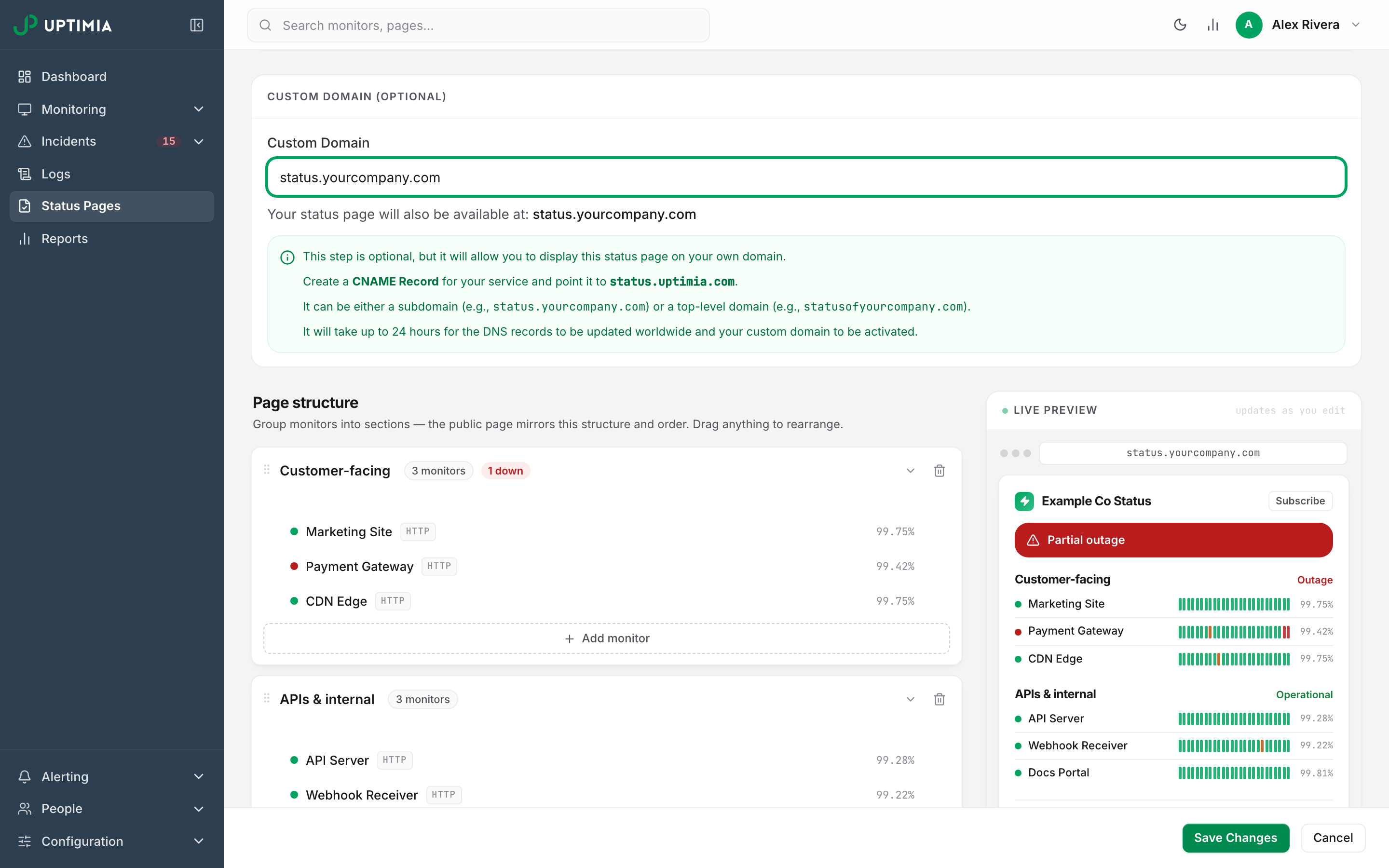
- Scroll to the Custom Domain (Optional) card.
- Type the exact host you intend to use, such as
status.yourcompany.com, in Custom Domain. Lowercase letters, numbers, dots and dashes only. - Click Save Changes at the bottom of the editor. A page you have not saved yet shows Create Status Page instead.
The card's info box restates the CNAME target for your account. Copy the CNAME target out of that box rather than one from anywhere else.
Three values are rejected on save:
| Message | Cause |
|---|---|
| Please enter a valid domain name (e.g. status.yourdomain.com) — lowercase letters, numbers, dots and dashes only. | The value is not a valid hostname. A protocol, a path, a port or a trailing dot will do it |
| The custom domain you are trying to use is already taken | The same host is saved on another status page, yours or another account's |
| That domain is reserved and cannot be used as a custom status-page domain. | The host is inside an Uptimia-owned zone, or it is the CNAME target itself |
Step 2: Create the DNS Record
Sign in to wherever the domain's DNS is hosted (your registrar, Cloudflare, Route 53) and add one record:
| Domain shape | Record | Name / host | Value |
|---|---|---|---|
Subdomain, e.g. status.yourcompany.com |
CNAME | status |
the CNAME target shown in the editor |
Apex / root, e.g. statusofyourcompany.com |
A | @ |
the address listed in the setup email Uptimia sends |
If the record is not yet pointing at Uptimia when the first check runs, Uptimia emails the owner both DNS options, with the exact values for your account, under the subject Finish setting up yourdomain. Use those values. Create the record before you save and the first check passes straight through: the only email you get is yourdomain is live.
A CNAME record cannot sit on an apex domain. That is a DNS rule. For an apex you have two options, and Uptimia accepts both: a plain A record pointing at Uptimia's status-page address, or your provider's ALIAS, ANAME or CNAME-flattening feature aimed at the CNAME target. Do not add a second, conflicting record for the same host. The editor's info box offers a top-level domain as a CNAME option; ignore that for an apex and use one of the two records above instead.
The certificate covers exactly the host you saved. A certificate for yourcompany.com leaves www.yourcompany.com uncovered, and a status page holds one custom domain. Point one host at Uptimia and redirect the other at your own end.
Step 3: Wait for Uptimia to Provision the Domain
You are done. Uptimia now moves the domain through three stages:
| Stage | What is happening | How long |
|---|---|---|
| Waiting for DNS | Uptimia is waiting for your record to point at it. It checks again at most every 5 minutes | Until DNS propagates: up to 24 hours, set by your provider's TTL |
| Issuing the certificate | Your record now points at Uptimia. Uptimia publishes the site on that host and gets the Let's Encrypt certificate | Usually under a minute |
| Live | The page answers on https://yourdomain with a valid certificate |
— |
Uptimia retries a failed attempt by itself, once an hour, for as long as the domain stays saved. Uptimia renews the live certificate before it expires, with no action from you.
The editor shows no provisioning badge and no status light to refresh. You learn the domain is live from the email, or by loading the address. Once active, the page answers on both the custom domain and its original status.uptimia.com/your-slug address.
The Emails Uptimia Sends
All five go to the account owner's email address.
| Subject | When | What it contains |
|---|---|---|
| Finish setting up yourdomain | Once, the first time the domain is found not pointing at Uptimia | Both DNS options (the CNAME and the A record) with the exact values for your account |
| yourdomain is live | The certificate was issued and the page is serving | The link, and a note that the certificate renews automatically |
| Action needed: yourdomain DNS | An active domain stopped being reachable. Repeats every 2 days while it stays that way | The records to restore and the date the domain will be disabled |
| yourdomain disabled | 7 days after an active domain became unreachable | The records to restore, and that Uptimia will re-enable the domain by itself |
| yourdomain restored | A disabled domain became reachable again and was re-issued | The link |
If the Domain Later Stops Pointing at Uptimia
Uptimia re-checks an active domain every 6 hours. It treats the domain as reachable if DNS still points at Uptimia, or if the address still loads your Uptimia status page. So Uptimia does not tear down a domain by mistake when it sits behind Cloudflare or another proxy and public DNS shows the proxy's address.
When it is genuinely unreachable, the reminder email goes out every 2 days and the site keeps serving, and only after 7 days without reachability does Uptimia disable the domain. Fix the record after that and Uptimia detects it on the next 6-hour pass, re-issues the certificate and emails you. There is nothing to re-save and no ticket to open.
Changing or Removing the Domain
Editing the field to a different host starts the new one back at the waiting-for-DNS stage and queues the old host's site configuration and certificate for automatic removal. Clearing the field does the same and leaves the page reachable at its status.uptimia.com/your-slug address. The old URL stops working once teardown runs.
Re-saving the same domain changes nothing. Uptimia already re-checks a pending or failed domain on its own schedule.
If the Domain Doesn't Go Live
Work down this list, most likely cause first.
The record does not resolve to Uptimia yet. A typo in the host, a record left on the wrong name, or a TTL that has not expired. Check it from a machine outside your network:
dig +short status.yourcompany.com
You should see the CNAME target, or Uptimia's address for an apex A record. If you see your web server, your CDN or nothing at all, the record is the problem.
A proxy sits in front of the record during first issuance. Some DNS providers can proxy traffic; Cloudflare's orange cloud is the common one. When the proxy is on, public DNS shows the proxy's address instead of Uptimia's, so the record never counts as pointing at Uptimia, the domain stays at the waiting-for-DNS stage and no certificate is attempted. Set the record to DNS-only. Turn the proxy back on once the domain is live, if you want it. A proxy on an already-active domain is fine and does not trigger the disable path.
The domain is already claimed. The save was rejected with The custom domain you are trying to use is already taken. The same host sits on another of your status pages, or on another account's. Clear it there first.
The domain is inside a reserved zone. The save was rejected with That domain is reserved and cannot be used as a custom status-page domain. Uptimia's own zones, and the CNAME target host itself, are never claimable. Use a host in a domain you control.
A CAA record blocks Let's Encrypt. If the zone carries a CAA record naming other certificate authorities, issuance fails at the authority, not at Uptimia. Add letsencrypt.org to the CAA set, or remove the restriction.
An apex with a literal CNAME. Some providers accept the record and then serve it in a way no resolver honors. Switch to an A record, or to the provider's ALIAS/ANAME feature.
The record is right but the page is blank. That is a page-content problem. A domain that was not set up would not serve the page at all. Check the page's sections in the editor.
How to Verify It Worked
- The yourdomain is live email has arrived.
https://yourdomainloads the page with a valid padlock.- The certificate is issued for your host, not a proxy hostname.
- The page renders its sections and monitors.
When to Contact Support
Provisioning retries itself, so a wait is normal and a ticket is rarely the answer. Contact support if the domain is still not serving several hours after dig shows it resolving to Uptimia from outside your network, with the proxy off and no CAA restriction in the zone.
Include the exact domain, the status page it belongs to, the output of your dig lookup, and the certificate error your browser shows.