
Uptimia has twelve monitor families. The three surfaces that publish or cover monitors in bulk each accept a different subset: a DNS monitor is missing from the status-page picker, a heartbeat monitor never lands in a scheduled report, and a server monitor cannot be picked by type in a maintenance window. Each of those gaps is deliberate.
The Twelve Monitor Families
Uptime, Transaction, API, Heartbeat and Server cover availability, Speed and Real User cover experience, and SSL, Domain, DNS, Virus and Blacklist cover domain and trust. Monitoring Overview explains what each one watches.
Quick Reference: Family by Surface
| Family | On a status page | Status update thread | Scheduled report | Maintenance, by type |
|---|---|---|---|---|
| Uptime | ✓ | ✓ | ✓ | ✓ |
| SSL | ✓ | — | ✓ | ✓ |
| Speed | ✓ | ✓ | All monitors only | ✓ |
| Transaction | — | ✓ | ✓ | ✓ |
| Domain | — | — | ✓ | ✓ |
| Virus | — | — | ✓ | ✓ |
| Real User | — | — | ✓ | ✓ |
| Blacklist | — | — | All monitors only | ✓ |
| Heartbeat | — | — | — | ✓ |
| DNS | — | — | — | ✓ |
| API | — | — | — | ✓ |
| Server | — | — | — | All, group or individual |
What a Status Page Can Display
A status page section accepts Uptime, SSL and Speed monitors. The editor's monitor picker (the supported path) offers only those three. A page assembled from a script can hold a monitor of another family, so a page you did not build in the editor may show one.
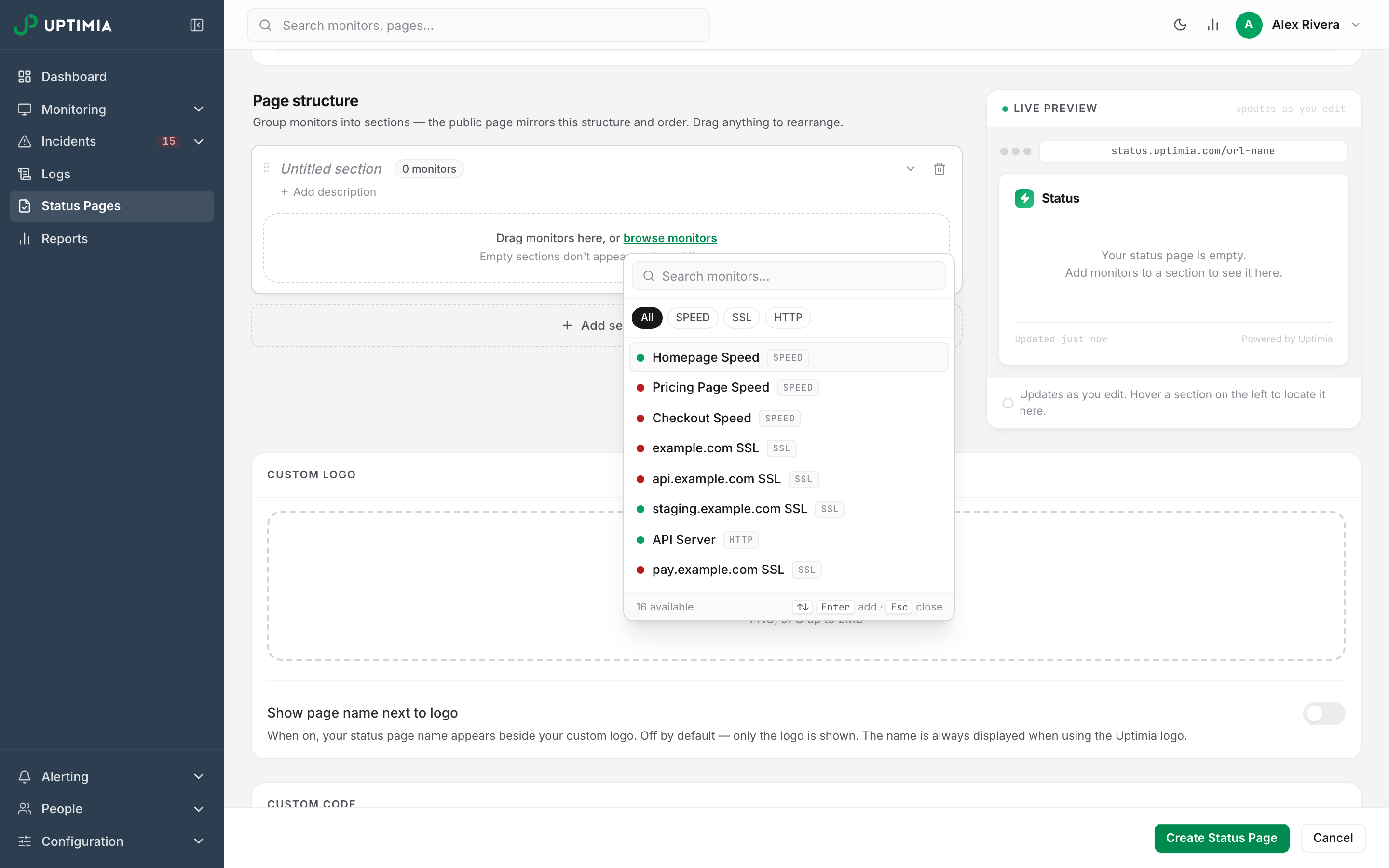
The same three-family set gates the Announce on status pages toggle in the maintenance modal. A window that covers other families, whether scoped by type or hand-picked, cannot announce: the notice would bind to no component on any page.
What a Status Update Thread Can Cover
An incident thread is the public post-and-update timeline you attach to a live outage. It accepts Uptime, Speed and Transaction incidents only.
The thread set is narrower than the status-page display set in one direction and wider in the other. SSL monitors are shown on status pages but cannot be the subject of a status update. On the incidents list, the row menu for an incident on any other family replaces the action with a grayed-out label: Post status update (uptime, speed & transaction only). Those other families are SSL, domain, virus, server, Real User (RUM), heartbeat, blacklist, DNS and API. Transaction goes the other way. It can carry a thread even though the page's monitor picker leaves transaction monitors out.
For a family that cannot carry its own thread, post a Status update thread on the status page instead. You write it by hand. It binds to no monitor, so you can describe any incident in it.
What a Scheduled Report Can Cover
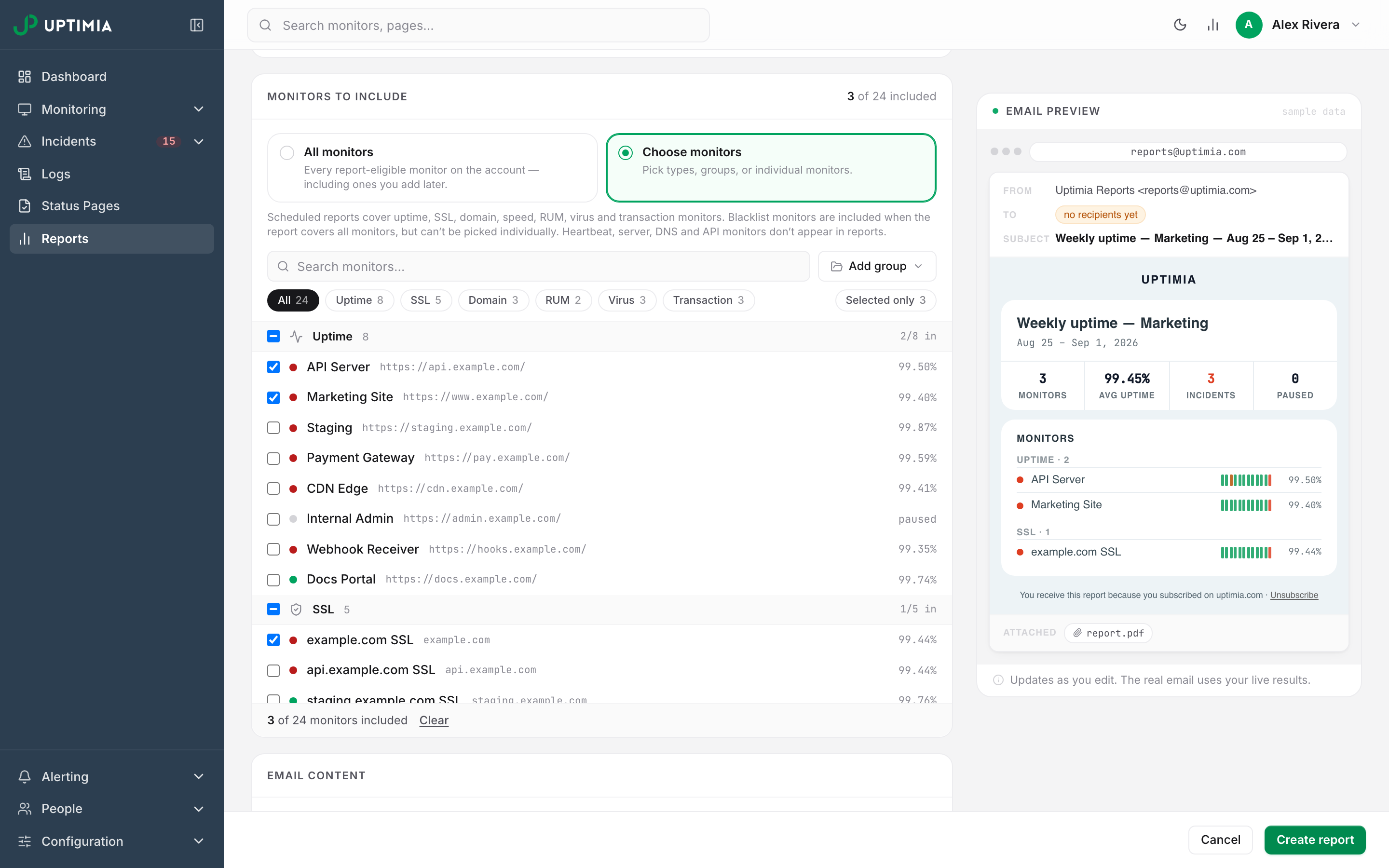
A scheduled report covers eight families. On the Monitors to include card, the hint line under the three choice tiles names seven of them: Uptime, SSL, Domain, Speed, RUM, Virus and Transaction. The picker below that line lists only six, leaving Speed out: Uptime, SSL, Domain, RUM, Virus and Transaction. In the control panel, a Speed monitor reaches a report only when the report is set to All monitors. The report email renders one section per family that has monitors in scope.
The Blacklist Exception
Blacklist monitors are the eighth family. The report email gives them their own Blacklist Monitoring section, with listing and listing-free counts. In the control panel, though, they arrive only when the report is set to cover All monitors: there is no all-blacklist rule to switch on and no blacklist row in the picker. That is what the card's hint line means when it says blacklist monitors "can't be picked individually".
Heartbeat, Server, DNS and API monitors do not appear in a scheduled report at all, under any selection.
What a Maintenance Window Can Select by Type
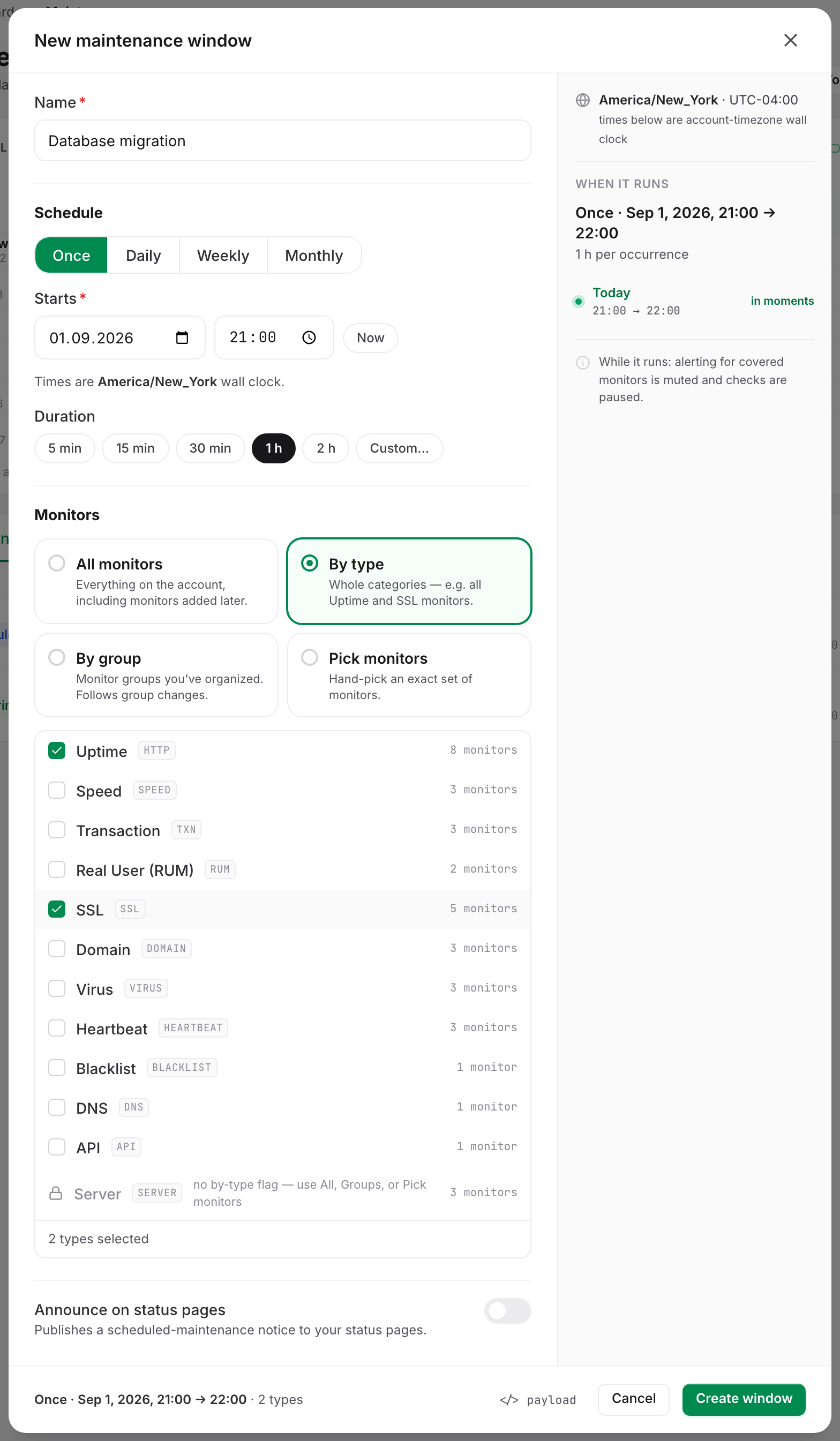
The By type card in the maintenance modal lists eleven families: Uptime, Speed, Transaction, Real User (RUM), SSL, Domain, Virus, Heartbeat, Blacklist, DNS and API. Pick one and it covers the whole family. Monitors of that type created after the window was saved are covered too.
The Server Exception
Server is the twelfth row and it is disabled, reading no by-type flag — use All, Groups, or Pick monitors. A whole-family server rule cannot be saved. Cover server monitors one of three other ways:
- All monitors: every monitor on the account, servers included.
- By group: a monitor group that contains the servers.
- Pick monitors: select the individual server monitors by name.
If Your Monitor Type Isn't Covered
- You want a heartbeat, DNS, API or server monitor on a public page. It cannot be a page component. Post a Status update thread on the page when you need to say something about it, or point the audience at the uptime monitor that fronts the same service.
- You want a heartbeat, server, DNS or API monitor in a weekly report. Reports will not carry it. Export the data instead, or read the family's own history in the control panel.
- You want blacklist monitors in a report without covering everything. Set the report to All monitors. In the control panel that is the only selection that includes them. A report built from a script can attach blacklist monitors one at a time (see Getting Started with the Uptimia API).
- You want maintenance on server monitors. Use All monitors, a group, or pick them individually. The coverage is identical to a by-type rule; only the shorthand is missing.