
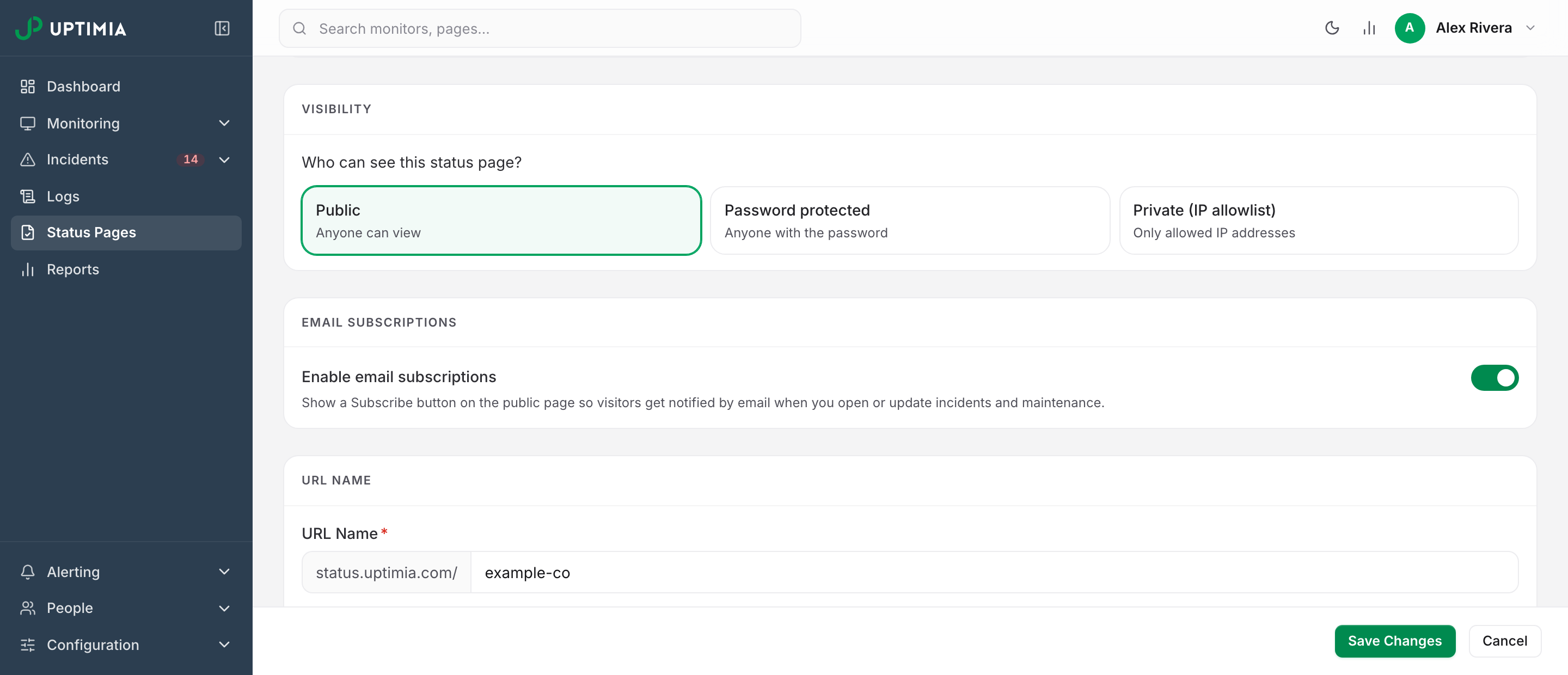
Every status page is public until you change it. The Visibility card in the status-page editor offers three modes: Public, Password protected and Private (IP allowlist). Each one changes what an unauthorized visitor gets instead of the page.
Status Pages covers building the page itself: sections, monitors, content toggles and threads.
Before You Start
- Editing visibility needs an Owner, Admin or Editor seat. A Read-only member cannot open the editor.
- Password protection and private pages need any plan other than Free. Basic, Professional, Enterprise and the Trial all qualify. On Free, both cards are disabled and the editor shows: "Password protection and private pages require a paid plan. Upgrade to restrict who can view this status page."
- Everything else on a status page is ungated and saveable on every plan, Free included: custom domain, custom logo, and removing the "Powered by Uptimia" footer link. All three come with the same caveat. While the account is on Free, the public page is not served at all, and every visitor gets a 404 until the account is on a trial or a paid plan.
The Visibility Modes
| Mode | Editor card label | Who can view the page | What everyone else gets |
|---|---|---|---|
| Public | Public: "Anyone can view" | Anyone with the address | — |
| Password | Password protected: "Anyone with the password" | Anyone who enters the shared password | The gate page with a password form |
| Private | Private (IP allowlist): "Only allowed IP addresses" | Anyone connecting from a listed IP address or range | "This status page is private" |
To set one, go to Status Pages in the sidebar, open the page, and pick a card in the Visibility section. Visibility saves with the rest of the page. There is no separate save.
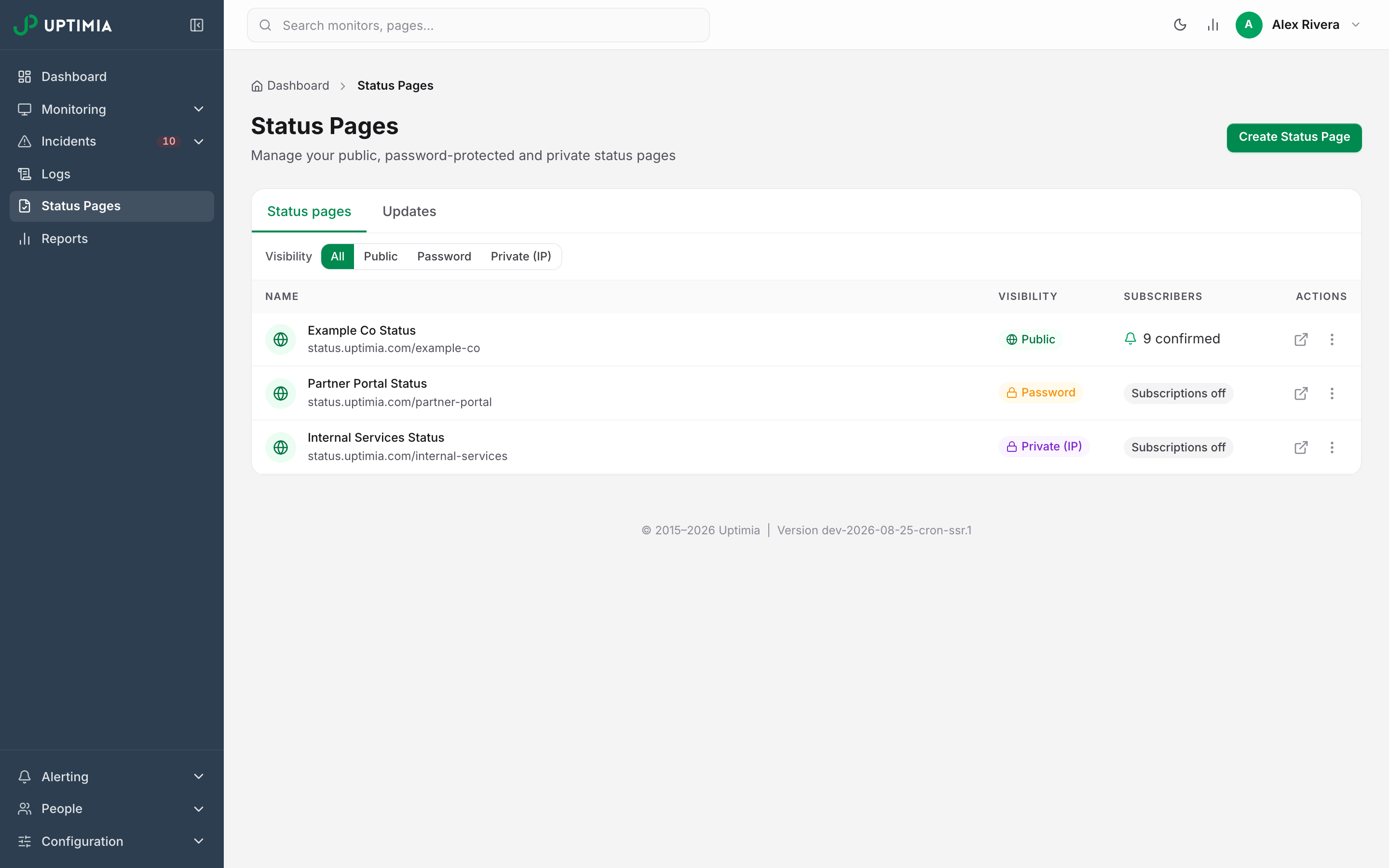
The pages list carries the same vocabulary. Each row shows a Visibility column badge reading Public, Password or Private (IP). A Visibility filter above the table narrows the list to one mode.
Public: The Default
A public page serves all of its content to everyone, with no cookie and no gate. Uptimia marks it indexable, which invites search engines to list it rather than merely leaving them unblocked. No saved visibility setting means public.
Either protected mode reverses that. Uptimia serves a gated page as private and non-indexable, so neither a search engine nor a shared cache (a company proxy, a CDN) keeps a copy of it.
Password Protected: One Shared Password
Password mode puts one shared password in front of the whole page. Everyone who should see the page gets the same string from you, because there are no per-viewer accounts and no per-viewer passwords.
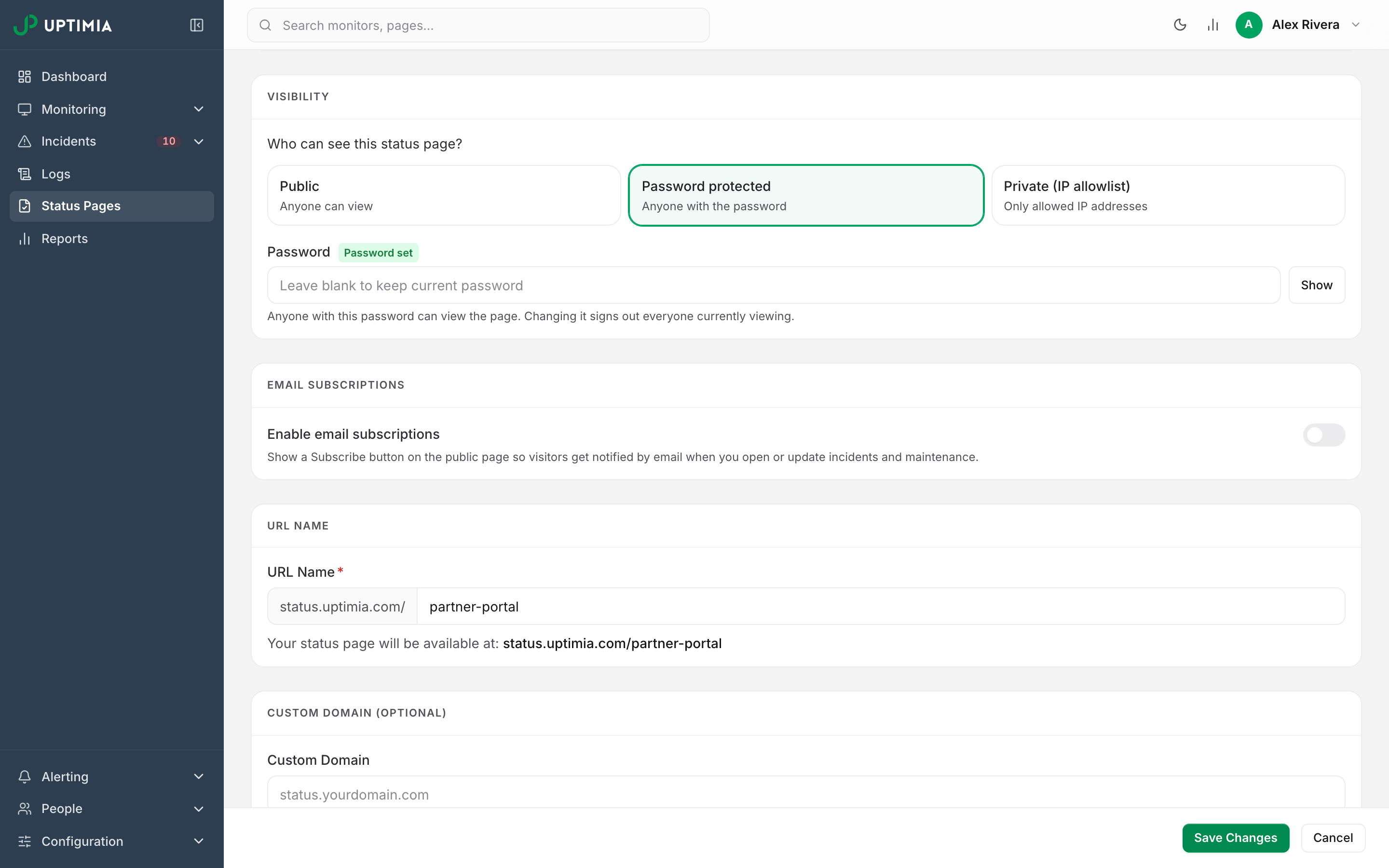
Select Password protected, type the password into the Password field, and save.
| Rule | Behavior |
|---|---|
| Minimum length | 10 characters. Type a shorter one over a password that already exists and the editor refuses the save: "The password must be at least 10 characters." |
| Storage | Hashed with bcrypt. Once saved, nothing can read it back, not the editor and not any other part of Uptimia. You see only a Password set badge saying one exists. |
| Rotating | Type a new password over the old one. The field's placeholder reads Leave blank to keep current password, so saving the page with the field empty keeps what is stored. |
| Effect of rotating | Every visitor currently viewing the page is signed out at once. The editor states it: "Changing it signs out everyone currently viewing." |
| Removing | Switch the card back to Public. Protection is dropped and every outstanding access grant is revoked. |
| Enabling without one | Selecting Password protected and saving with no password ever set is refused: "Set a password of at least 10 characters to enable password protection." The editor shows that same message when fewer than 10 characters are typed on a page that has no password yet. A page is never protected with no password. |
A Show / Hide button next to the field reveals what you typed, so you can read the password back before you send it.
What a Visitor Sees
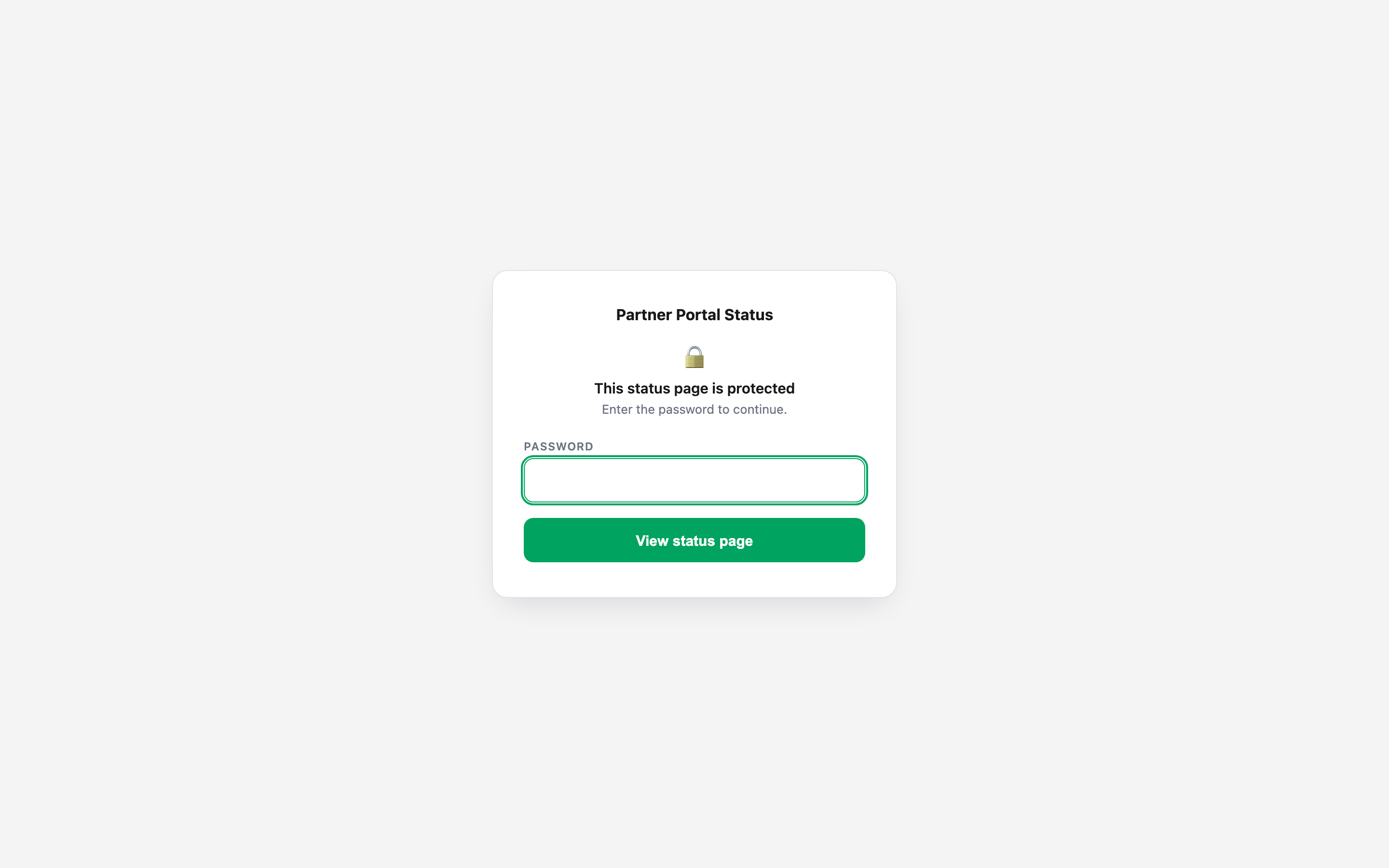
A visitor who has not unlocked the page gets a branded gate instead of the page, showing your page logo, or the page name if there is no logo. Under it come the headline This status page is protected, the line "Enter the password to continue.", a Password field and a View status page button. A wrong password re-renders the same screen with Incorrect password underneath.
The gate carries no JavaScript on any host, yours included, so custom code saved on the page cannot run on the screen where the password is typed. It does honor the Footer Link toggle, so a white-labeled page stays unbranded on the way in.
The 12-Hour Access Cookie
A correct password unlocks the page in that browser for 12 hours. The unlock carries no password material, and it is tied to the one page it was issued for and to the current version of that page's password. So:
- Unlocking one page never unlocks another on the same host.
- Rotating or removing the password invalidates every cookie already issued.
- After 12 hours the visitor is asked again.
- The grant lives in the browser, so the same person on a phone and a laptop enters the password twice.
To drop the cookie deliberately, either to re-test the gate or to lock a shared machine, visit /<url-name>/lock on the page's own host. It clears the cookie and returns you to the page, which challenges you again.
Private: Allowing Specific IP Addresses and Ranges
Private mode has no password. The page is served only to visitors whose IP address is in the allowlist.
Select Private (IP allowlist) and fill the Allowed IP addresses / ranges box:
- One entry per line, or comma-separated.
- IPv4 and IPv6 addresses, and CIDR ranges of either:
203.0.113.7,198.51.100.0/24,2001:db8::/32. - The list cannot be empty. Saving an empty one is refused with "Add at least one allowed IP address or range for a private page."
- An entry that is not a valid address or range is refused with "Invalid IP address or range: " followed by the entries that failed.
Duplicates are removed and the list is stored one entry per line.
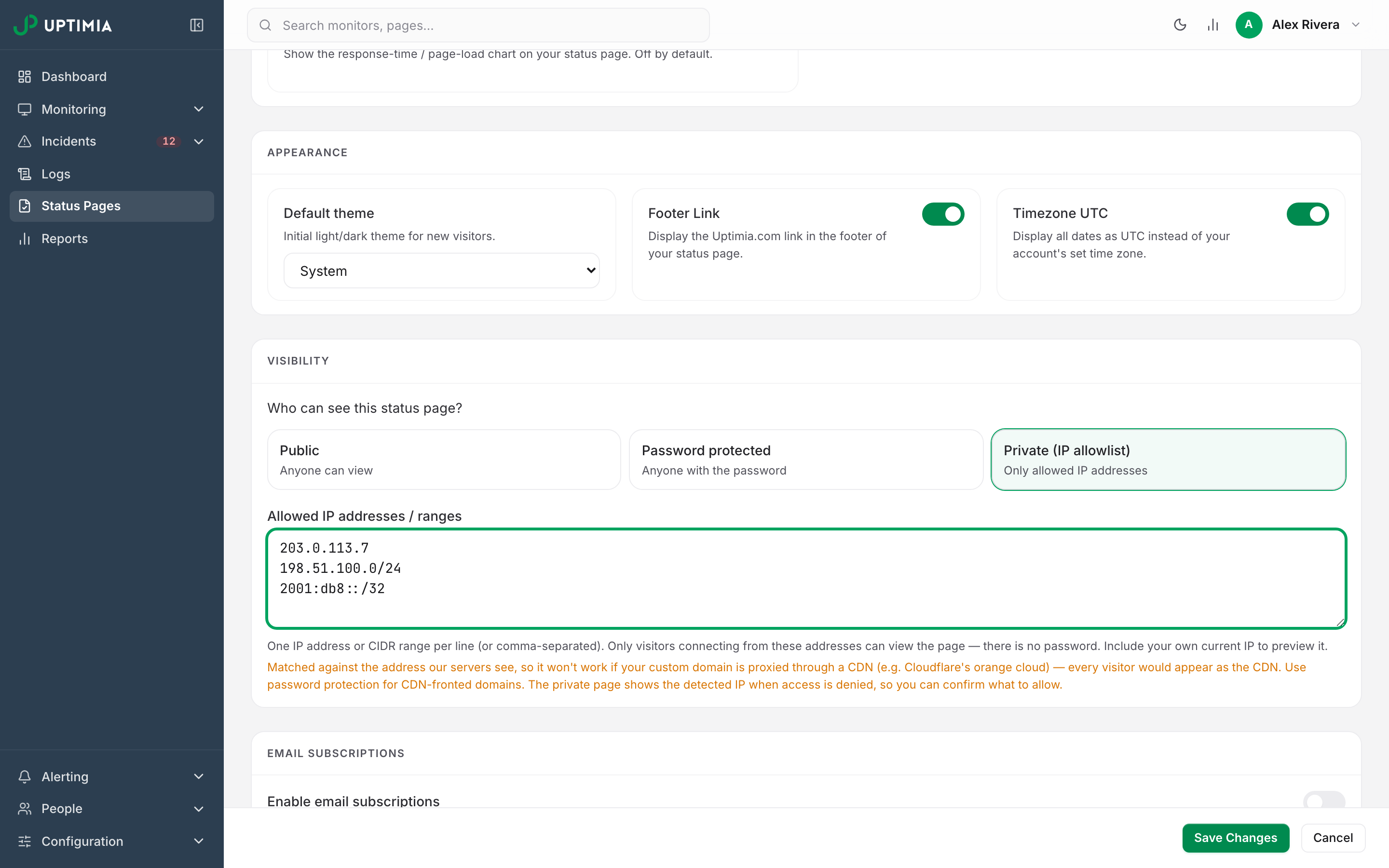
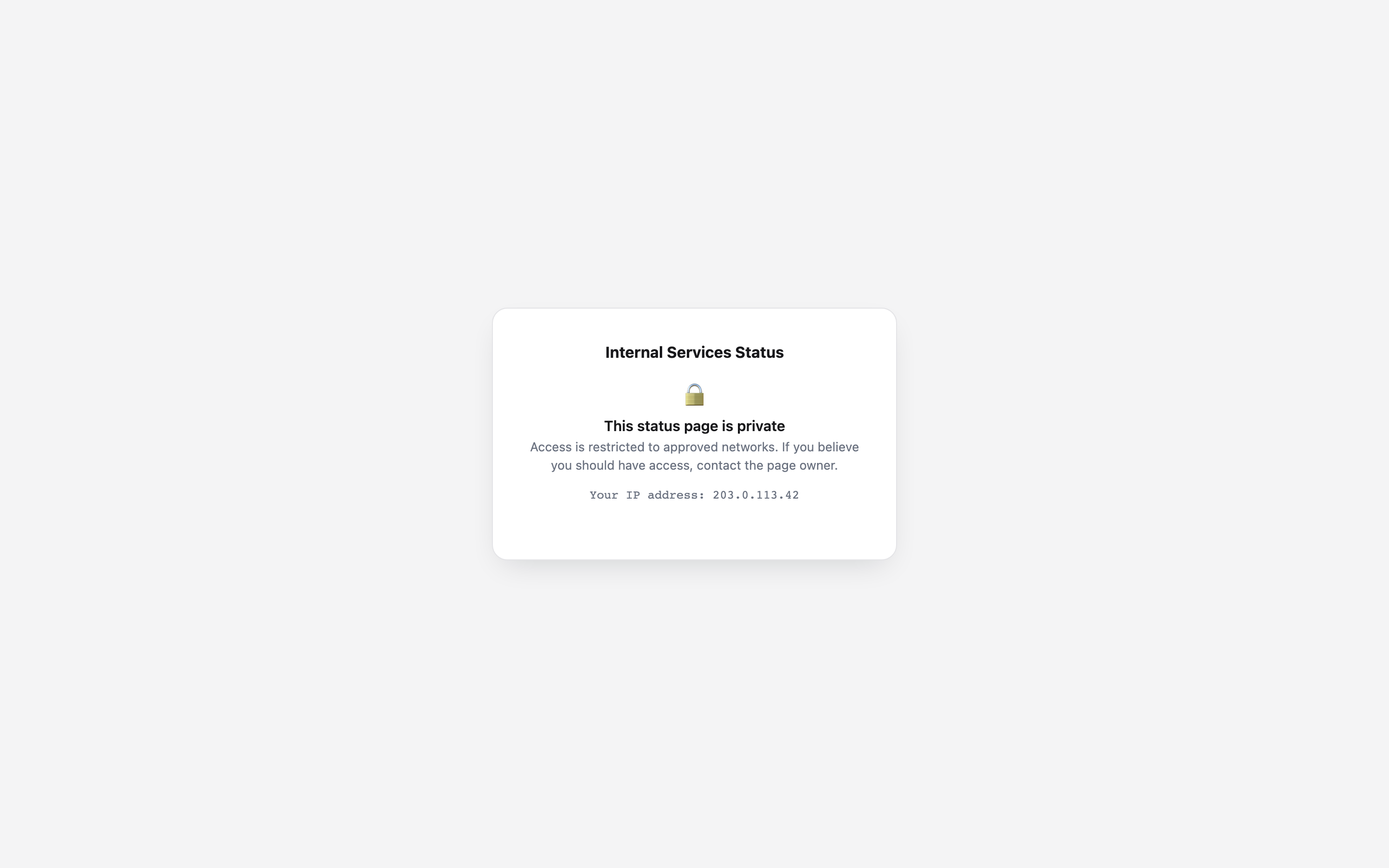
Include your own current address, or you will lock yourself out of the page you protected. A denied visitor's gate prints the address the server saw on a Your IP address line. That is exactly the value to add.
Warning: The allowlist is matched against the address Uptimia's servers see, so if your custom domain is proxied through a CDN, such as Cloudflare's orange cloud, every visitor arrives as the CDN. Either everyone is allowed or nobody is. Use password mode on a CDN-fronted domain.
Which Plans Can Turn Protection On
Protection that is already saved keeps running on every plan, Free included, though on Free Uptimia serves a not-found page instead of the page behind it. The plan decides only who can switch protection on:
| Plan | Can set password or private |
|---|---|
| Free | — |
| Basic | ✓ |
| Professional | ✓ |
| Enterprise | ✓ |
| Trial | ✓ |
The plan gate covers creation, not enforcement. A protected page's account can drop to Free, through a canceled plan or an expired trial. The gate keeps running: an unauthorized visitor still gets the same gate screen. But the page behind it stops being served. Uptimia serves a not-found page for every status page whose owner is on Free, so even a visitor with the right password or a listed IP address gets nothing. The account also loses the ability to change the protection. Setting a new password, turning a page private, rotating a password, and editing an allowlist are all refused. Removing protection is permitted on any plan, so billing never locks you out of your own page.
What Stays Reachable Behind a Gate
The gate runs on the subscribe form and on four content pages: the page itself, its incident history, a single status update, and upcoming maintenance.
Subscription confirmation links and unsubscribe links stay open on purpose and work without unlocking. They carry their own one-off token and arrive by email.
The subscribe form itself is gated. A visitor who has not unlocked gets the ordinary "Almost there — check your inbox to confirm your subscription." response, and nothing is stored, so the form gives nothing away. It rarely comes up: the gate replaces the page the Subscribe button lives on. See Status Page Subscribers.
Brute-Force Protection
Unlock attempts are capped twice, and a submission is counted whether the password was right or wrong:
| Limit | Window | Scope |
|---|---|---|
| 10 attempts | 15 minutes | One IP address against one page |
| 60 attempts | 15 minutes | One page, from all addresses |
A throttled visitor, a wrong password, a submission from another site, and a request against a page that is not password-protected all get the identical Incorrect password gate, so an outsider has nothing to measure. When a colleague says the password stopped working, have them wait 15 minutes and try once, carefully, before you assume you sent the wrong string.
Choosing Between Password and IP Allowlist
| Use password protection when | Use the IP allowlist when |
|---|---|
| The audience is people: customers, resellers, an enterprise account team | The audience is a network: an office, a VPN, a bastion host |
| The audience changes, and you do not control their connections | The set of source addresses is stable and you control it |
| The page is behind a CDN or a proxy | The page resolves straight to Uptimia |
| You accept that the password can be forwarded | You want access that cannot be forwarded |
Neither mode makes a page a secure document store. A password can be shared, and an allowlist trusts the network. For monitoring targets your probes cannot reach at all, see Monitoring Behind a Firewall.
Troubleshooting
Save Fails With "Requires a Paid Plan"
The account is on Free, either from the start or after a downgrade or an expired trial. The editor refuses the save and shows the upgrade message. Upgrade the plan, or leave the page public. Rotating the password of an already-protected page counts as a change and is refused the same way. Removing protection is not.
You Cannot Open Your Own Private Page
Open the page in a browser. The denial screen prints Your IP address. Add that value to the allowlist and save. If it changes every day, as it does on a residential connection with a dynamic address, add the range your provider uses, or switch to password mode.
The Allowlist Contains Your Address and Still Denies You
Most common first:
- The domain is proxied through a CDN, so every request arrives from the CDN's address rather than yours. The gate's printed IP confirms it in one look.
- You added an IPv4 address and your browser reached the page over IPv6, which is a different address entirely. Add both.
- The range's mask is narrower than you meant.
/32on IPv4 is a single host, not a network.
The Gate Says "This Status Page Is Unavailable"
That screen means the page is set to password mode with no password stored, and Uptimia refuses to serve it rather than serve it unprotected. Open the page in the editor and either set a password or switch the card to Public. Contact support with the page name if the editor shows a password already set.