
Report emails, down and recovery alert emails, the From name on those emails and the status page all carry your logo, your colors and your domain. That covers most of what a client sees. Four things still say Uptimia: the sending address, the opt-out link, the English copy and the host the logo loads from.
Before You Start
- Creating or duplicating a branding theme requires the Professional plan or above. Applying, editing and deleting an existing theme are open on every plan. The 30-day trial clears the gate.
- The Custom Sender name requires the Professional plan or above, plus the trial. It is set on your account, not per client.
- You need the Owner, Admin or Editor role. Read-only and Accounting / Billing seats cannot open Branding Themes or the status page editor.
What a Client Sees, and What You Can Change
| Surface | What you can change | What stays Uptimia's |
|---|---|---|
| Scheduled report email | Logo, 14 colors, From name | Sending address, subject wording, layout, fonts, language |
| Down and recovery alert email | Logo, 14 colors, From name | Sending address, opt-out link, subject wording (fixed per check type), layout, language |
| SMS alert | Sender ID (the From name) | Delivery route and credit accounting |
| Public status page | Logo, page name, your own domain, the footer Powered by line | The hosted page's own URL: status.uptimia.com/your-slug keeps answering alongside your custom domain |
| Status page subscriber email | The page's logo, and the logo's link target | Colors, footer, Uptimia byline |
| Alert group digest email | Logo and colors of the anchor monitor's theme | Everything a single alert keeps |
Two surfaces are never rebranded: account-level mail to you (billing, security, plan and lifecycle notices), and the control panel itself.
Plan Requirements at a Glance
| Capability | Free | Basic | Professional | Enterprise |
|---|---|---|---|---|
| Create or duplicate a branding theme | — | — | ✓ | ✓ |
| Apply an existing theme to a report or a monitor | ✓ | ✓ | ✓ | ✓ |
| Edit, re-logo or delete an existing theme | ✓ | ✓ | ✓ | ✓ |
| Custom Sender (the From name on alert emails and SMS) | — | — | ✓ | ✓ |
| Status page on your own domain | ✓ | ✓ | ✓ | ✓ |
| Status page custom logo | ✓ | ✓ | ✓ | ✓ |
| Turn off the footer Powered by line | ✓ | ✓ | ✓ | ✓ |
| Status pages you can publish | 1 | 1 | 10 | Unlimited |
A Free account can save a custom domain, a logo and the footer toggle, but its public status pages return 404 while the plan is Free. A page only serves on the trial or a paid plan.
The trial runs at the top of this table, with 10 status pages and every white-label capability switched on. An expired trial drops to Free, and the creation gates return.
The last row decides an agency's plan. A page per client means Professional or above: Basic publishes one page in total, and a Free account's page does not serve. Full quota detail is in Plan Limits and Quotas.
Setting Up One Theme Per Client
A branding theme is a name, a logo and 14 email colors. Themes belong to the account rather than to the seat that made them, so every Owner, Admin and Editor works from the same gallery.
- Go to Configuration → Branding Themes.
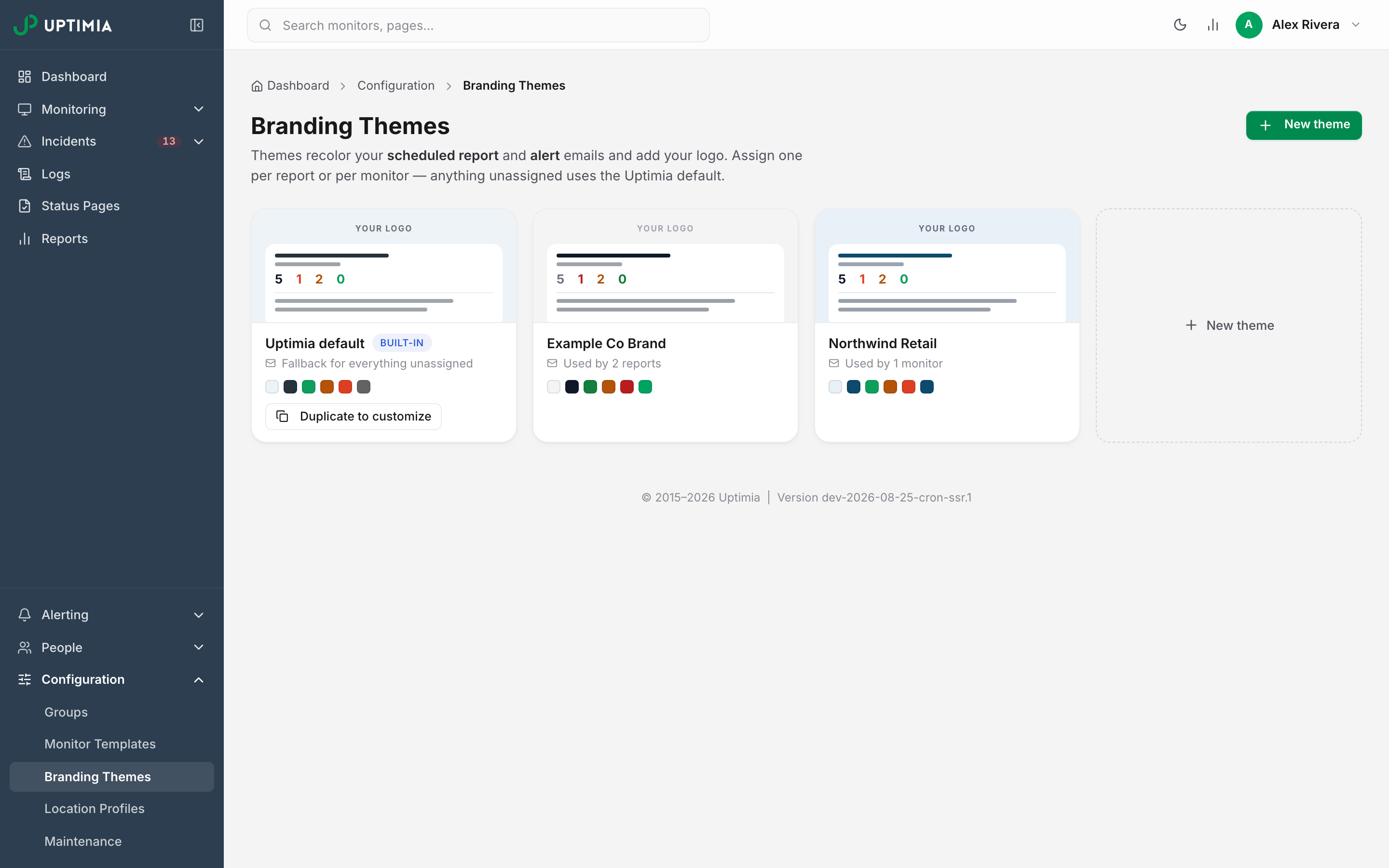
- On the pinned Uptimia default card, click Duplicate to customize. The editor opens pre-loaded with the default palette.
- Enter the client's name in Theme name. Keep it exact: if you never upload a logo, this string is what the email header prints instead of a logo.
- Upload the client's logo. PNG, JPG and SVG are accepted, up to 2 MB. The header is built for 200 x 34 pixels.
- Click Match colors to logo to generate a palette from the logo's dominant color, or pick one of the six presets and adjust from there.
- Click Create theme.
Below Professional, the New theme button and the editor are still reachable. The save is what fails, with the message White-label branding is available on the Professional plan and above.
Each card carries a live usage line, "Used by N reports · M monitors". It is a quick way to spot a theme you never assigned. The line counts scheduled reports and nine of the monitor families, leaving DNS, blacklist and API monitors out of the tally, so a theme used only by those three still reads "Not in use yet". Color fields, presets, the legibility guard and the preview modes are in Branding Themes.
Assigning a Theme to a Report and to a Monitor
A theme does nothing until something points at it. Each assignment point takes one theme.
- On a scheduled report: open the report and set Email theme. The default is Default, which sends the Uptimia palette.
- On a monitor: open the monitor editor's Advanced tab, find the Email Branding Style card, and set Branding Template. The default option is Default (Uptimia Branding). Eleven of the twelve families carry that card. Server monitors are the exception: their editor has no Advanced tab and no Branding Template, so a server alert sends on the Uptimia default unless you assign the theme another way.
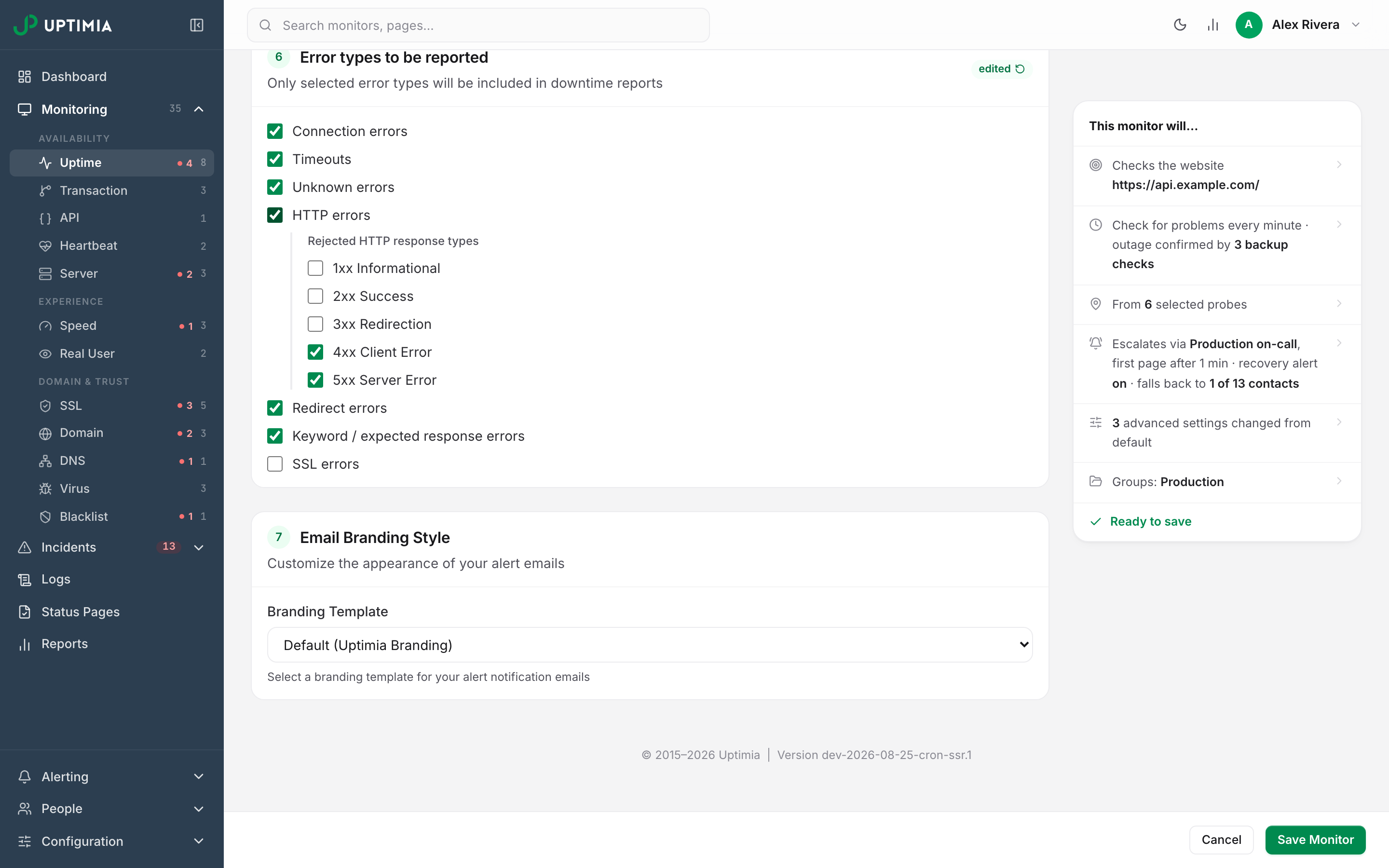
A new monitor starts on the Uptimia default until you set its Branding Template, so make that the last step of your monitor-creation routine. Auditing it across a fleet is covered in Running Uptimia for Many Client Sites.
Branded Report Emails
A scheduled report sent under a theme is recolored end to end: header logo, subject line, date line, the four summary figures, the incident and healthy tables, and the maintenance strip. The Custom Sender does not reach the subject line. Report subjects come from a fixed set, such as "Weekly uptime report" or "Daily uptime report for July 3rd, 2026", and none of them contains the word "Uptimia" to replace.
The footer changes more than its colors. Under a theme, these are suppressed: the Uptimia byline, the Privacy and Terms links, the "Notification settings" link and the affiliate block. The header logo also stops linking to uptimia.com. Only the unsubscribe link survives. Schedules, recipients and the public snapshot link are covered in Scheduled Reports.
Branded Down and Recovery Alert Emails
Alert emails use the same theme and the same suppressed footer. In the delivered email, the status badge takes its background from the theme's negative, positive or warning color, and its text flips between white and dark automatically so it stays readable on your palette. The in-app preview shows that color as plain text rather than as a filled badge.
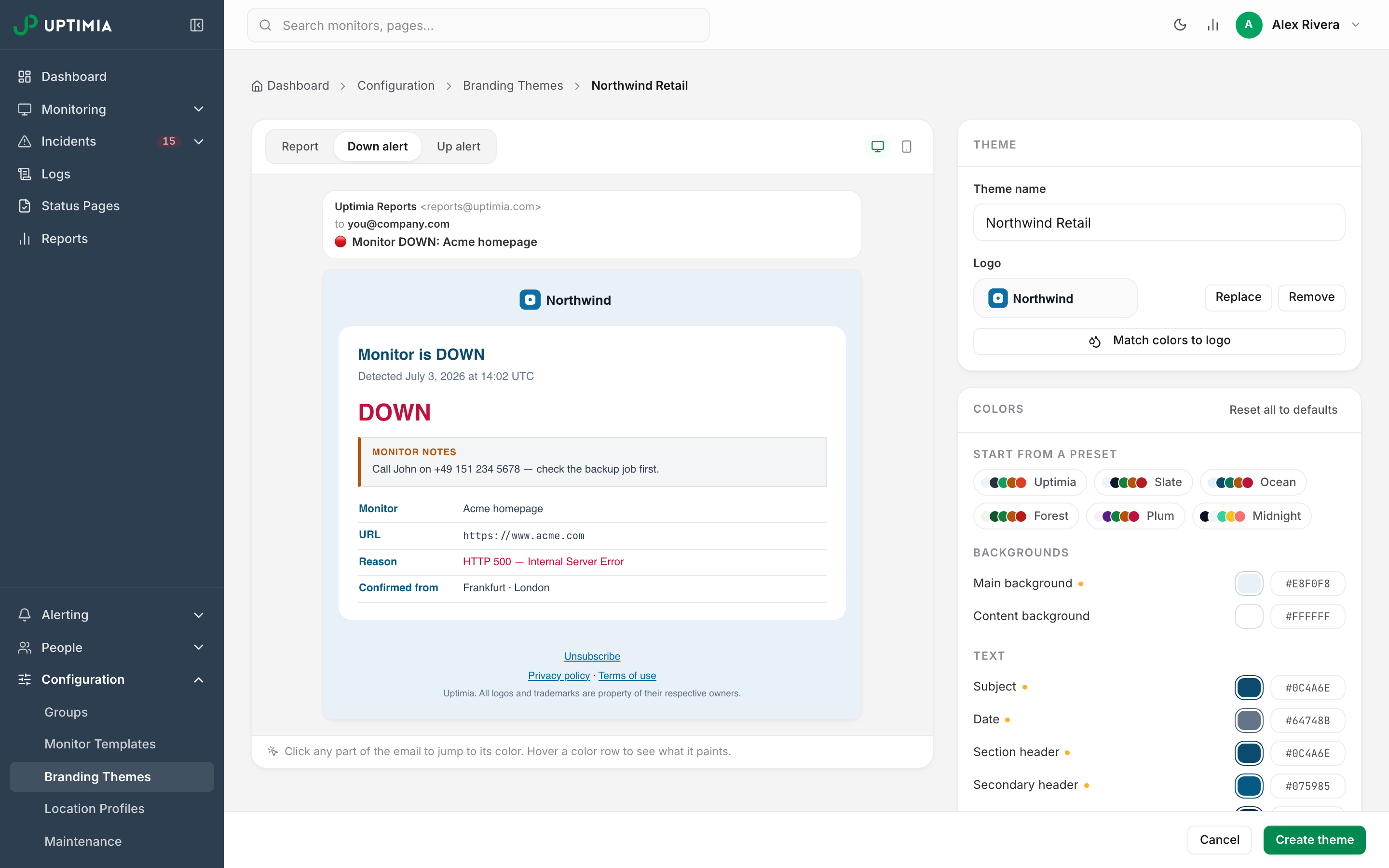
Uptimia drops the Go to my account auto-login button from any alert that carries a branding theme or a Custom Sender. That button opens an automatic sign-in link on Uptimia's own domain, which would undo the rebrand. It is minted only for the account owner's or a team member's own address, so an alert to a client's mailbox never carried it.
Treat the in-app preview as a color check. It renders a full footer with Privacy policy, Terms of use and an Uptimia line for every theme, while the delivered email under a theme keeps only the unsubscribe link.
Setting the From Name Your Clients See
The Custom Sender name is the display name on alert emails and the sender ID on alert SMS. It is one value for the whole account, so put your agency name in it rather than one client's.
- Go to the avatar menu (top right) → Settings.
- In Custom Sender, enter the name. Hint text under the field reads "Used as the From name in alert emails. Leave blank to use default."
- Click Save Changes.
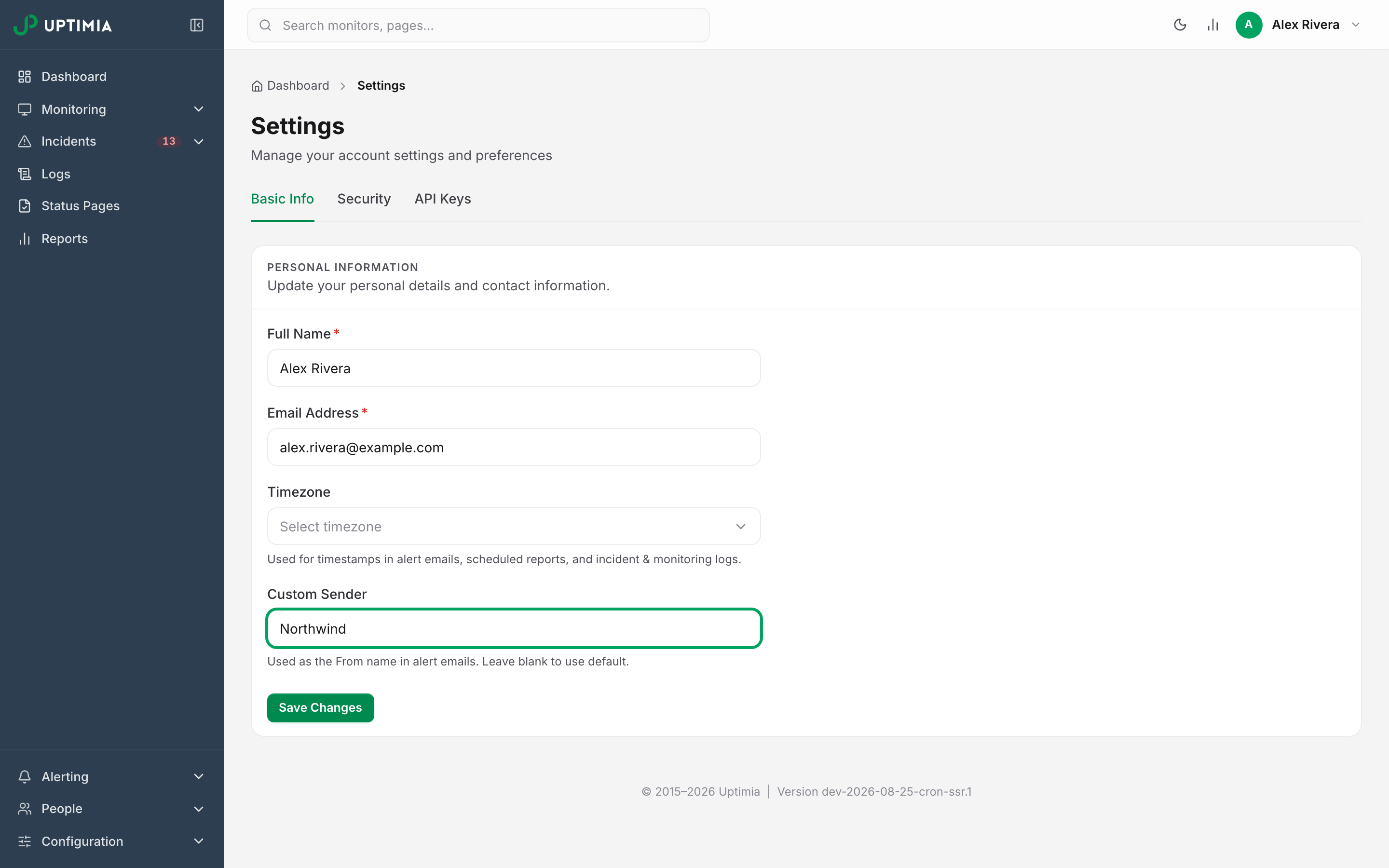
The value must be 3–11 characters, letters, numbers and spaces only. That is an SMS sender-ID constraint, and it applies to email too because one field drives both channels. A longer value, or one that contains punctuation, is refused and the name is not saved.
The name applies to scheduled report emails, down and recovery alert emails, alert SMS, and the word "Uptimia" inside those subject lines. Billing, security, password and plan-lifecycle mail to you still goes out under the Uptimia identity, so account notices stay recognizable even when your client-facing mail carries an agency name. Full field reference in Account Settings.
Note: The field's disabled-state hint reads "Upgrade to a paid plan to use a custom sender name." The enforced gate is Professional and above, plus the trial. Basic is a paid plan and does not clear it.
Status Pages on Your Own Domain and With Your Own Logo
The status page is the surface with the least Uptimia left in it, and nothing here is plan-gated except the number of pages.
- Custom Logo takes PNG or JPG up to 2 MB. SVG is accepted for branding themes but not here. The Show page name next to logo toggle decides whether the page name prints beside it.
- Custom Domain (Optional) takes a subdomain such as
status.yourclient.comor a whole domain. The editor prints the CNAME target to point it at, and notes that worldwide DNS propagation takes up to 24 hours. - Footer Link is a page setting under Appearance. The editor describes it as "Display the Uptimia.com link in the footer of your status page." It defaults to on, so turning it off is a deliberate step per page.
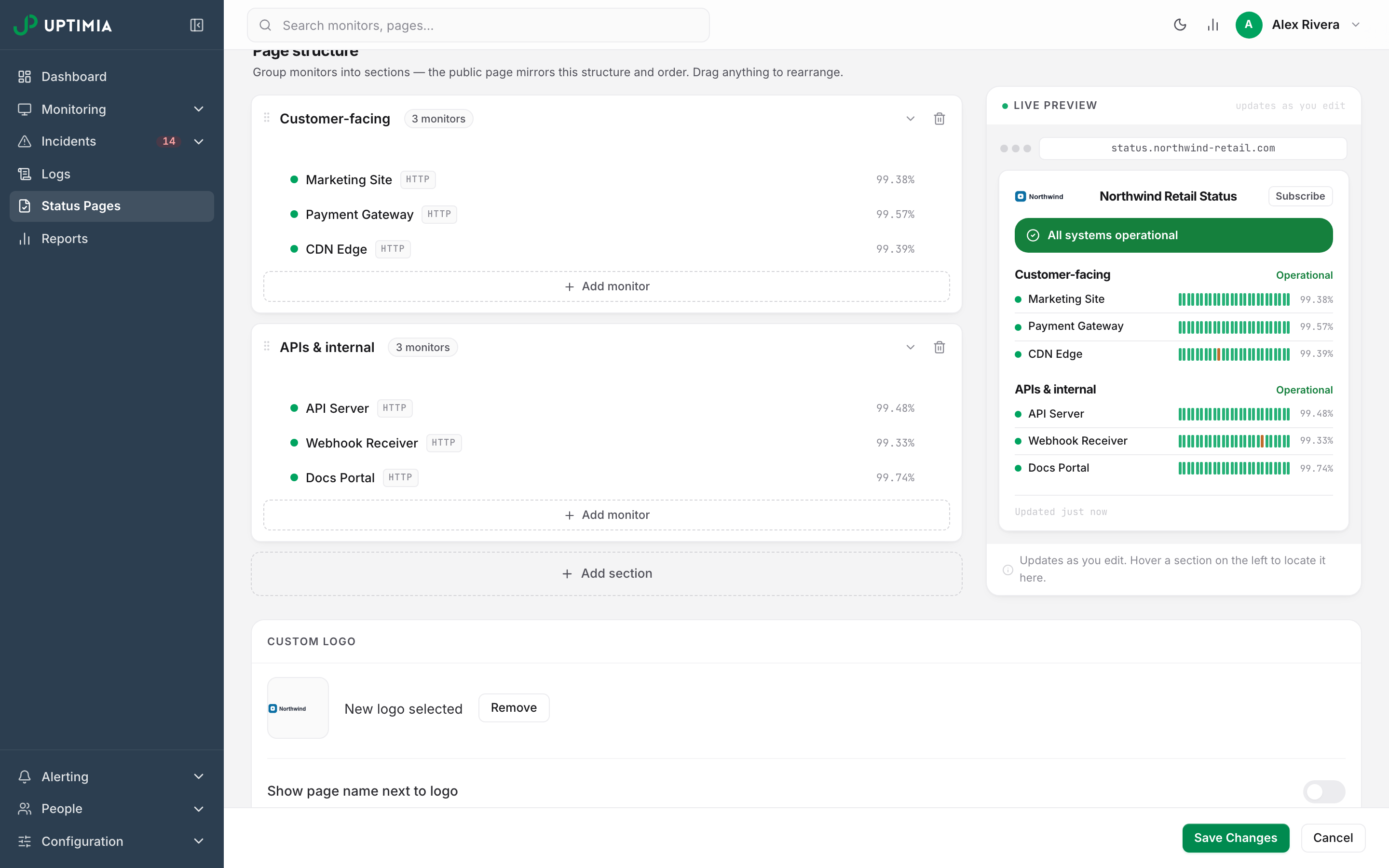
DNS records, the activation states and the certificate timeline are in Status Page Custom Domain. The rest of page configuration is in Status Pages.
What Still Says Uptimia, and Why
Four things survive every white-label setting. Tell a client before they find them.
| What | Where it shows | Why it cannot be changed |
|---|---|---|
| The opt-out link | The footer of every branded report and alert email | It is the recipient's per-contact unsubscribe. The white-label frame suppresses the rest of the footer and keeps this one link. It also travels in the message's own unsubscribe header, so mail apps such as Gmail and Outlook can offer their own one-click unsubscribe. |
| The sending address | The From address, and Reply-To on every email | Messages send from support@uptimia.com, or support@eu.uptimia.com for EU-region accounts. The address is pinned to the relay that signs the message, so the mail passes authentication checks (DKIM and DMARC). The Custom Sender changes the display name in front of it, not the address. |
| English | All report and alert email copy | The alert and report email path carries no translations, so a client who works in another language reads English. |
| The image host | The web address the logo is loaded from, in a branded email | Theme logos are served from static.uptimia.com. Recipients see the rendered image; anyone reading the message source sees the host. |
Mention the opt-out link during client onboarding. A client who clicks it is suppressed as a contact: the contact stays selected on every monitor and silently stops receiving anything. The one visible sign is a red won't deliver badge beside that contact in the monitor's recipients list, so check there first when a client says the alerts stopped.
If You Downgrade
The Professional gates are creation gates. On a downgrade to Basic or Free:
- Existing themes keep being applied to reports and alert emails. Nothing reverts to the Uptimia palette.
- You can still edit an existing theme, replace its logo and delete it.
- You cannot create a theme or duplicate one. Duplicating counts as creating, so a grandfathered theme cannot be fanned out into new ones.
- A saved Custom Sender is retained but stops being applied at send time. Alerts go out as "Uptimia" again until you return to Professional.
- A downgrade does not un-publish anything. An account that drops from Professional to Basic keeps every page it already has serving. Uptimia re-checks the allowance when you save: you cannot create another page, and while you are above the new limit you cannot save edits to an existing one either. Free is the exception: while an account sits on Free, every public status page on it returns 404, custom domain included. Custom domains, logos and the footer-link toggle are stored untouched throughout, and they come back the moment you subscribe again.
Limitations to Plan Around
- One theme per report and one per monitor. There is no group-level or account-level default beyond the built-in Uptimia theme, and no bulk assignment.
- An alert group digest wears one theme, the anchor monitor's. When incident grouping bundles several monitors into one digest, the theme comes from the monitor that opened the group. A group spanning two clients therefore carries one client's branding. Scope escalation policies per client to keep groups from crossing.
- Status page subscriber emails are only half branded. Confirmation and update mails carry the page's own logo, linked to the page. They always render on the default Uptimia theme, with the full Uptimia footer.
- Email layout, fonts and sizes are fixed. Colors and the logo are the whole surface. Sections and content cannot be moved or removed.
- No test send for alerts. The theme editor's preview is in-app only, and nothing sends a themed alert to a real inbox. Proof of that comes from the first real incident. A themed report you can check: point a scheduled report at your own address and use Send Immediately on the reports list, which delivers it outside its schedule.
- The control panel is never white-labelled. A client who needs to see data without seeing Uptimia gets a status page or a scheduled report, not a seat.