
Your plan, your invoice details, your saved cards and every invoice you have been issued live behind four tabs. Plan-change mechanics live in Changing Your Plan: the credit, the scheduled downgrade and the acknowledgment box.
Before You Start
- Only two roles can open the billing area: the Owner and the free Accounting / Billing seat. Admin, Editor and Read-only members never see it. See The Accounting and Billing Seat.
- Open the avatar menu in the top right, then Plans & Billing. An Accounting / Billing seat gets a two-item sidebar instead, Plans and Billing, and lands on the Subscription page at sign-in.
The Billing Tabs
Every billing screen shows the same tab bar, starting with Plans.
| Tab | What is on it |
|---|---|
| Plans | Plan, usage, cycle toggle, plan cards, comparison table, cancel control |
| Billing Info | The details printed on every invoice, plus the currency selector |
| Payment Methods | Saved cards, the default marker, and a PayPal card if you pay that way |
| Billing History | Every invoice, paid or unpaid, with PDF download and regeneration |
The Subscription Page
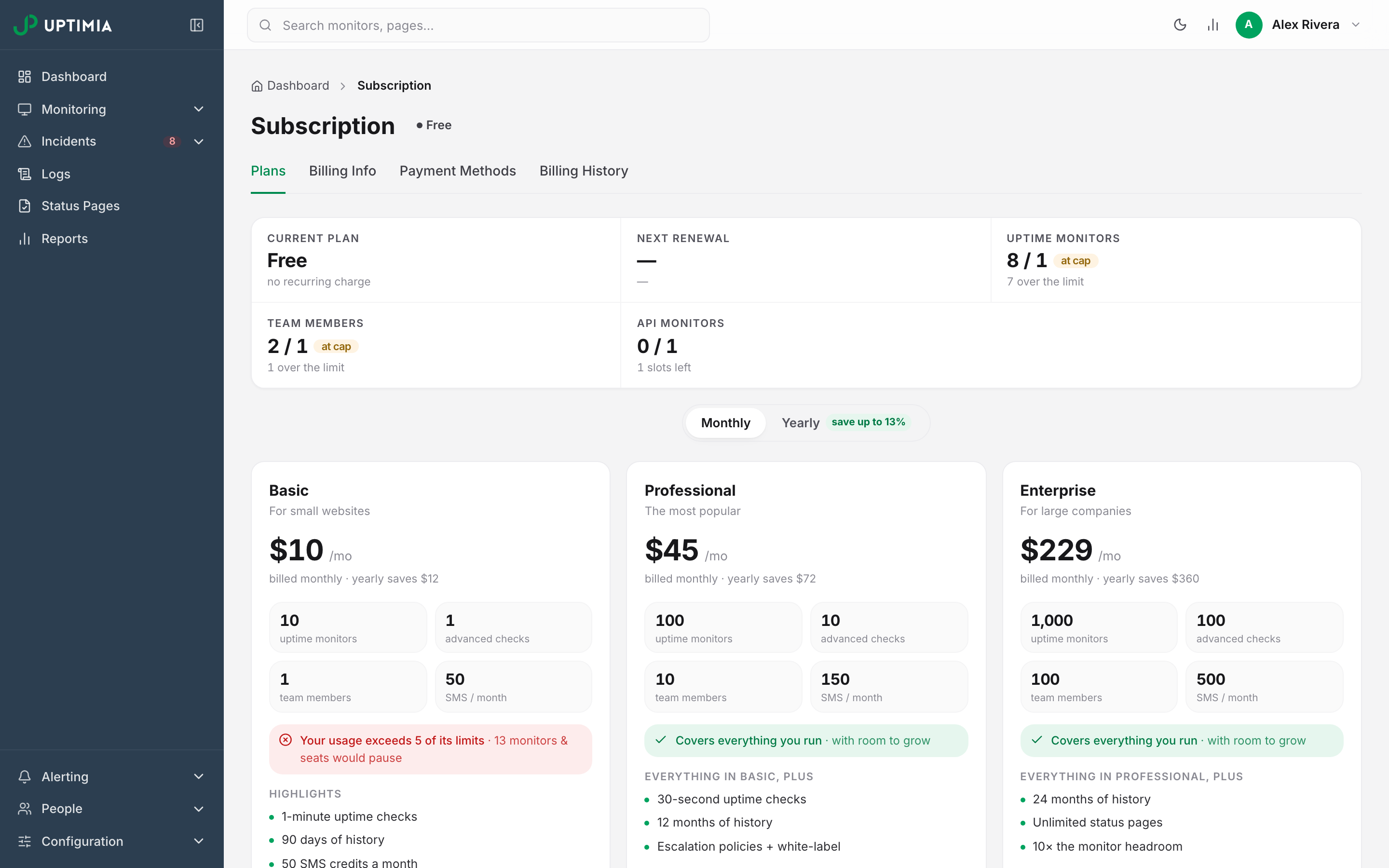
The page is headed Subscription, with a badge next to the title showing your plan name and billing cycle and a subline reading renews <date> · <amount> on <card>. On a Free account the badge reads Free and there is no subline. The first two cells of the usage strip below then read no recurring charge and —.
The Usage Strip
Up to six cells sit under the tab bar. The first two are fixed: Current plan (with the recurring amount and cycle) and Next renewal (with the date, the days remaining and the card). The other four are your quotas closest to their ceilings, tightest first.
Each pool cell reads used / limit. A pool at 90% or more of its limit gets a chip showing the percentage; a pool at its ceiling gets an at cap chip. The subline names the headroom: N slots left, N seats free, or N over the limit. Advanced checks breaks itself down as speed N · transaction N. SMS used and RUM pageviews say resets at renewal. The per-plan numbers behind every pool are in Plan Limits and Quotas.
Banners
Up to four alerts appear between the tab bar and the usage strip.
| Banner | When it appears | What it says |
|---|---|---|
| Cancellation scheduled | You canceled a card subscription and the paid period has not ended | Subscription ends on <date>. Your monitors stay active until then. Carries a Reactivate subscription button |
| Scheduled downgrade or cycle switch | A change is queued for your renewal | …scheduled for <date> — nothing changes until then. Carries an Undo button |
| Legacy Pricing | Your account is on a closed pricing cohort | You are on legacy pricing. Changing your plan will move you to current pricing. |
| Custom price | An agreed price is set on your account | You have a custom price of <amount>/month. Contact support before changing plans. |
A fifth panel is headed You're at <plan>'s caps. It appears when a pool is full or near full, but never on a Free account and never on legacy pricing. The panel names the two tightest pools and states what the cheapest plan that clears every pool raises them to. A Review <plan> button leads to checkout.
The Billing Cycle Toggle
A Monthly / Yearly pill toggle sits above the plan cards, with a save up to N% badge on the yearly side. It starts on your current cycle, and it changes only what the cards and the comparison table quote, plus the cycle the plan buttons carry into checkout. Touching it charges nothing.
The Plan Cards
Three cards: Basic, Professional and Enterprise. Each shows a subtitle (For small websites, The most popular, For large companies), the monthly price, and a four-cell grid: uptime monitors, advanced checks, team members and SMS per month. With Yearly selected, the price shown is the yearly total divided by 12, with the annual figure and the saving underneath.
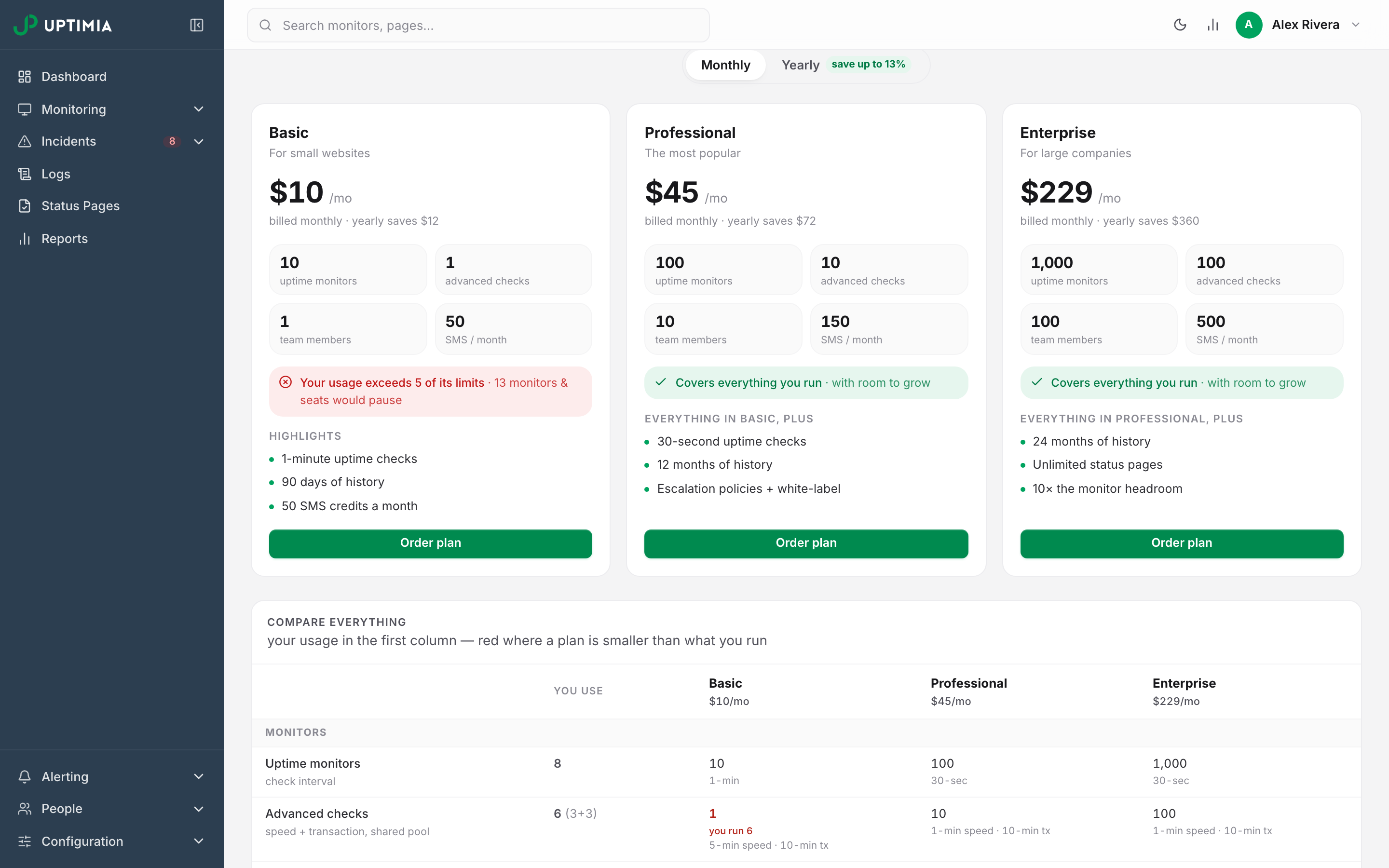
Prices are the same figure in either billing currency: Basic is $10 or €10 a month, never a converted amount.
| Plan | Monthly | Yearly, billed once | Yearly, per month |
|---|---|---|---|
| Basic | 10 | 108 | 9 |
| Professional | 45 | 468 | 39 |
| Enterprise | 229 | 2,388 | 199 |
Under the numbers, each card carries a fit line computed from your usage against that plan's limits:
| Fit line | Meaning |
|---|---|
| Covers everything you run · with room to grow | No pool is over, none is at 90% |
| You're at N of its caps today | Your current plan only: lists the crowded pools |
| Your usage exceeds N of its limits · N monitors & seats would pause | That plan is smaller than what you run |
The button at the bottom of each card depends on that plan's relation to yours. On a Free account, every card reads Order plan. On a paid plan:
| Card | Button |
|---|---|
| A higher plan than yours | Upgrade to <Plan> |
| A lower plan than yours | Downgrade to <Plan> |
| Your own card | Switch to yearly · save <amount> or Switch to monthly billing |
A legacy-pricing account sees Switch to <Plan> on every other card. Each button carries a one-line note: instant · credit for your unused days, starts at your renewal, or takes effect at your renewal — no charge today. On a PayPal subscription the notes change and cycle switches are unavailable.
Compare Everything
The card below the plan cards is a full matrix. Its first data column is headed You use and holds your own numbers. A cell turns red where a plan is smaller than what you run, with you run N underneath. Your current plan's column is tinted.
Rows are grouped:
- Monitors: uptime, advanced checks (speed + transaction, shared pool), SSL, domain, virus, Real User Monitoring, server, heartbeat, blacklist, DNS and API. The uptime and advanced rows also print each plan's check interval.
- History: one Monitoring history row; the windows are in Data and Log Retention.
- Alerting: SMS credits, alert integrations, escalation policies, white-label alerts.
- Team & sharing: team members, status pages, daily reports, white-label reports.
Two rows are commonly misread. Speed and transaction monitors draw on one shared pool. A plan showing 1 advanced check gives you one page-speed monitor or one browser transaction, not one of each.
Escalation policies, white-label alerts and white-label reports are ticked from Professional up and dashed on Basic. They are gated at creation, so Basic buys none of them.
The footer counts how many pools Basic would be smaller than, and closes with SMS isn't compared: credits reset every cycle.
How Plan Changes Work
The last card on the page holds four tiles:
| Tile | When it takes effect |
|---|---|
| Upgrade | Instant |
| Downgrade | At renewal, or instant on PayPal |
| Switch monthly ↔ yearly | At renewal |
| Cancel | At period end |
The tiles are filled in with your own plan name and renewal date. Changing Your Plan covers each in full.
Canceling and Reactivating
The Cancel subscription link sits in the footer of that same card, and it is the only cancel control on the page. It opens a Cancel Subscription modal whose confirm button reads Cancel at period end.
Cancellation takes effect when your current period ends. You keep full access until that date, monitors keep running, and only then does the account move to Free. Uptimia emails a confirmation carrying that date.
On a card subscription the Cancellation scheduled banner stays at the top of the page until then. Its Reactivate subscription button restores the subscription with no immediate charge.
A PayPal subscription is canceled at PayPal straight away. The paid period still runs out, but the page shows no banner and no Reactivate subscription button.
The Checkout Page
Every plan button opens a checkout page, not a modal. It is headed for the change you picked: Upgrade to Professional, Downgrade to Basic, Switch to yearly billing or Order Enterprise, with a Back to plans link on the right.
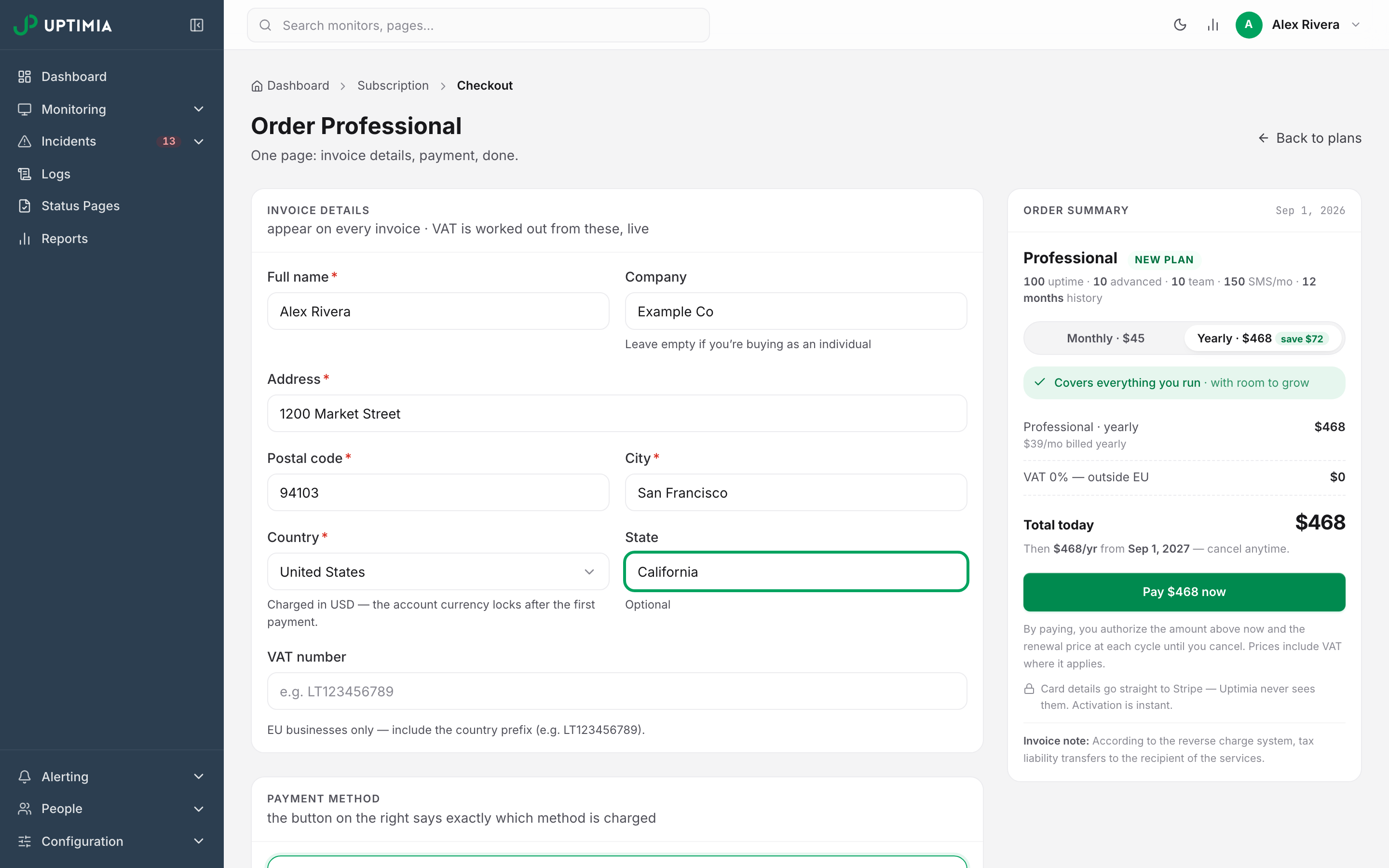
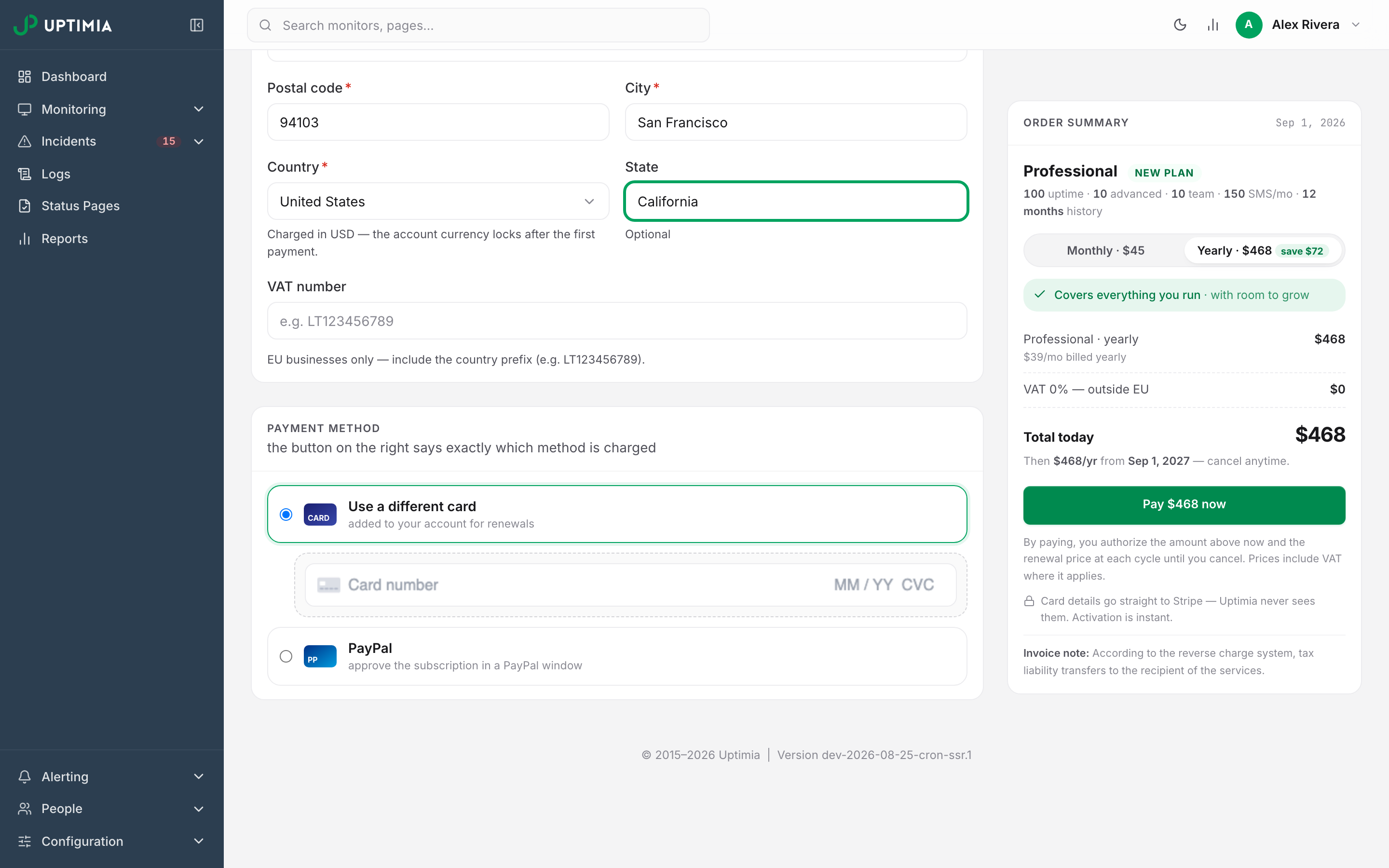
The left column holds two cards. Invoice details takes your full name, company, address, postal code, city and country. It works out VAT live as you type, and adds a State field when the country is the United States. A VAT number field appears once Company is filled in.
The VAT hint depends on your country. In the EU it names the rate your country charges and confirms 0% reverse charge will apply once a VAT ID is entered, while in Germany it says domestic sales can't reverse-charge instead. Outside the EU it reads EU businesses only — include the country prefix (e.g. LT123456789).
Payment method offers your default saved card, a new card, and PayPal where it is available for that plan.
The right column is the order summary:
- the plan and cycle
- a credit line reading Credit — N unused <Plan> days on a card upgrade
- a Charged today line where the answer is zero
- a VAT row
Under it the confirm button says exactly what happens, and there is no terms checkbox:
| Button | What it does |
|---|---|
| Pay <amount> now | Charges that amount today |
| Confirm upgrade — <amount> today, covered by credit | Applies the upgrade now; the credit covers it, so the amount is zero |
| Schedule downgrade — nothing charged today | Queues the downgrade for your renewal |
| Confirm switch — nothing charged today | Queues the cycle change for your renewal |
Amounts are shown in your account's billing currency. A downgrade to a plan smaller than your current usage adds an acknowledgment box listing each pool that is over, and the button stays disabled until you tick it. If required details are missing, the page says so: Fill in the required invoice details first — name, country, address, postal code, city.
Billing Info
These fields print on every invoice. Address, Postal Code, City and Country are required; Company Name, State / Province and VAT Number are optional. A VAT number must carry its 2-letter country prefix, or you get Enter a valid VAT number (e.g., DE123456789). Changing it clears the previous verification, and an estimated-rate panel appears while you edit. Click Save Billing Info.
The Currency selector offers USD and EUR. It is always there, but grayed out once the currency is locked. Locking happens in either of two ways: your first payment settles, or the account is already on EUR.
Note: Moving from USD to EUR is possible while the account is unpaid, and saving an EU billing country makes that move on its own. Moving from EUR back to USD is refused at any time.
Payment Methods
Click Add Payment Method to open the Choose your payment method modal, enter the card, then click Process Payment. The card is then on file for future charges. It does not start or change a subscription.
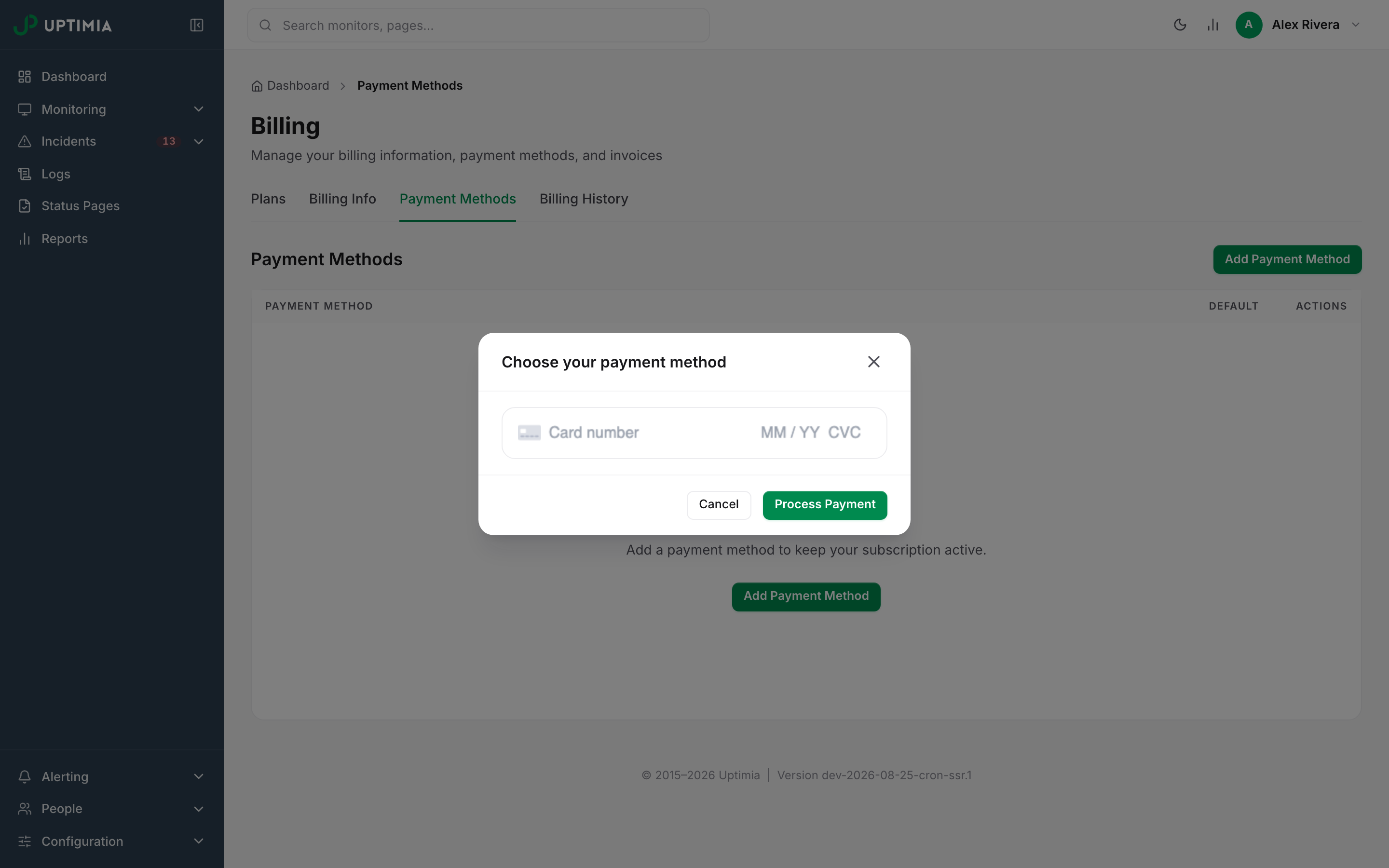
The table has three columns: Payment Method, Default and Actions. Payment Method names the brand (Visa, Mastercard, American Express or Discover) with the last four digits and the expiry.
The kebab menu offers Set as Default and Delete. Set as Default is disabled on the card that already is the default, and Delete is disabled on the default card while other cards remain.
If you pay by PayPal, a card headed PayPal with a Connected badge appears beneath the table. PayPal subscriptions are not rows in this table; you manage them from the Subscription page.
Three errors can stop a card from being added:
| Message | Cause |
|---|---|
| You must verify your email before making a payment. | The account email is unverified |
| You have made too many requests. Please try again in 15 minutes. | Too many attempts in a short window |
| We have detected irregular activity on your account. Please contact support for further assistance. | The daily attempt limit for your IP address was reached |
Warning: deleting your only card leaves the subscription with nothing to charge at renewal. The confirmation modal says so before you commit. The deletion cannot be undone.
Billing History
Every invoice is listed here, paid and unpaid alike, newest first, 25 to a page.
| Column | What it holds |
|---|---|
| Date | The invoice date |
| Reference | The invoice reference number |
| Plan | The plan the invoice was issued for |
| Amount | The amount, in the invoice's own currency |
| Status | A Paid or Unpaid badge |
| Actions | A kebab menu |
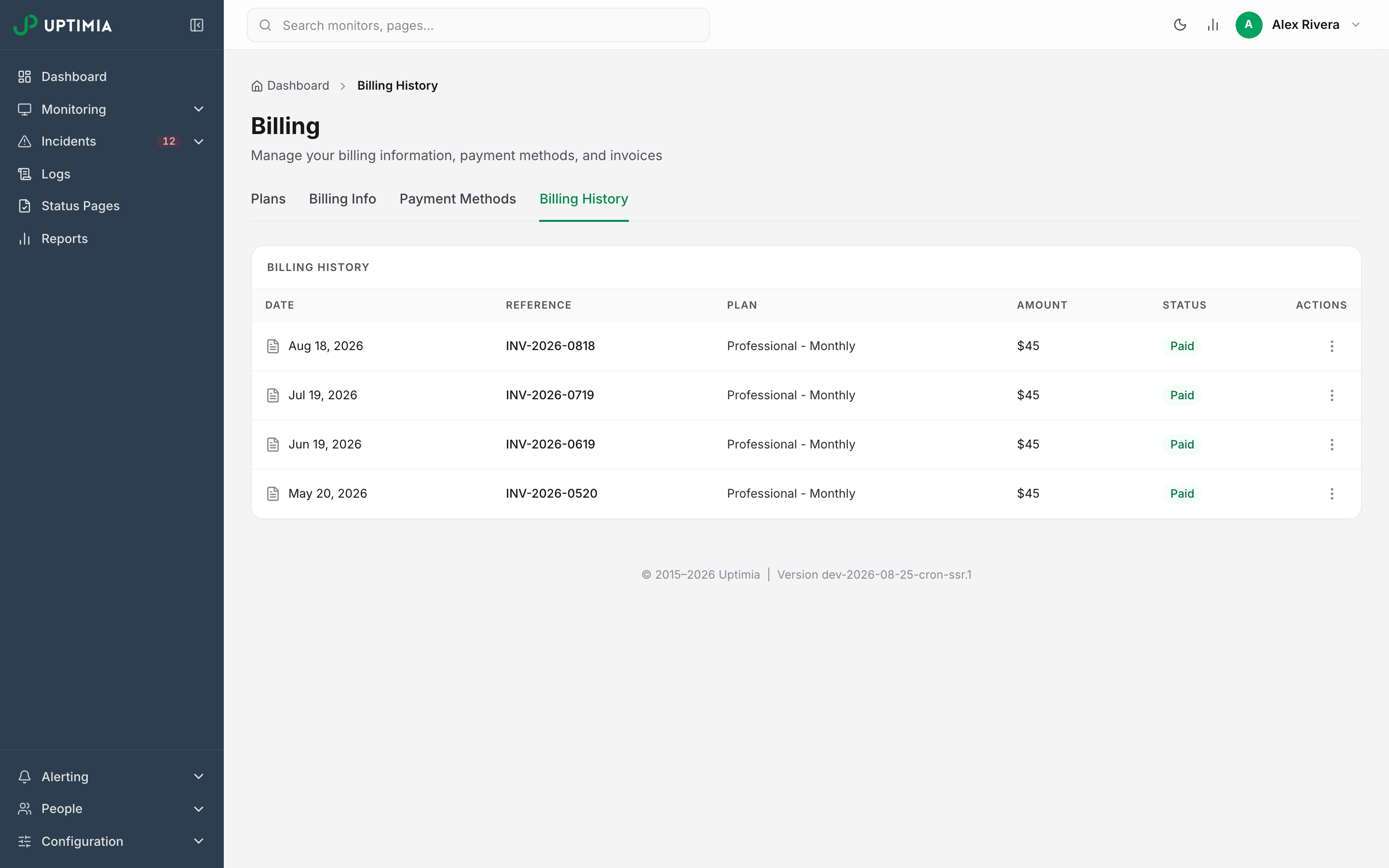
The kebab offers Download PDF and Regenerate Invoice. Regenerating builds a fresh PDF from your current billing details, so it is the fix for an invoice issued before you corrected your address, company or VAT number. Invoices dated before 1 January 2026 cannot be regenerated: the attempt returns Invoices created before January 2026 cannot be regenerated. A row with no PDF shows No actions available instead of the two items.
Understanding Your Bill explains why a given invoice reads the way it does: proration, credits, dunning retries and who receives the mail.
A retired tier called Advanced still exists for grandfathered accounts, hidden from the plan cards. It can appear on your plan badge and on old invoices without being something you can buy. Agreed pricing above Enterprise is in Enterprise and Custom Pricing.