
Settings is where you change your name, email address, time zone and password. The same page is where you turn on two-factor authentication, set the sender name that appears on your alerts, and manage API keys. Settings acts per identity. A team member who opens it edits their own profile and never the account owner's, and the tabs they see depend on their role. Deleting the account and minting a restricted API key each have their own article.
Opening Settings
Open the avatar menu in the top right of the control panel and choose Settings. The page opens on Basic Info, with three tabs across the top.
| Tab | Who sees it |
|---|---|
| Basic Info | Every role |
| Security | Every role |
| API Keys | Owner and Admin only |
API keys are credentials. The third tab is open to the Owner and Admin roles only. An Editor, Read-only or Accounting / Billing member never sees the tab, and following a direct link to it lands them back on their own home page. The restriction holds outside the control panel too: their session cannot read the account's key list by any route. The full matrix is in User Roles and Permissions.
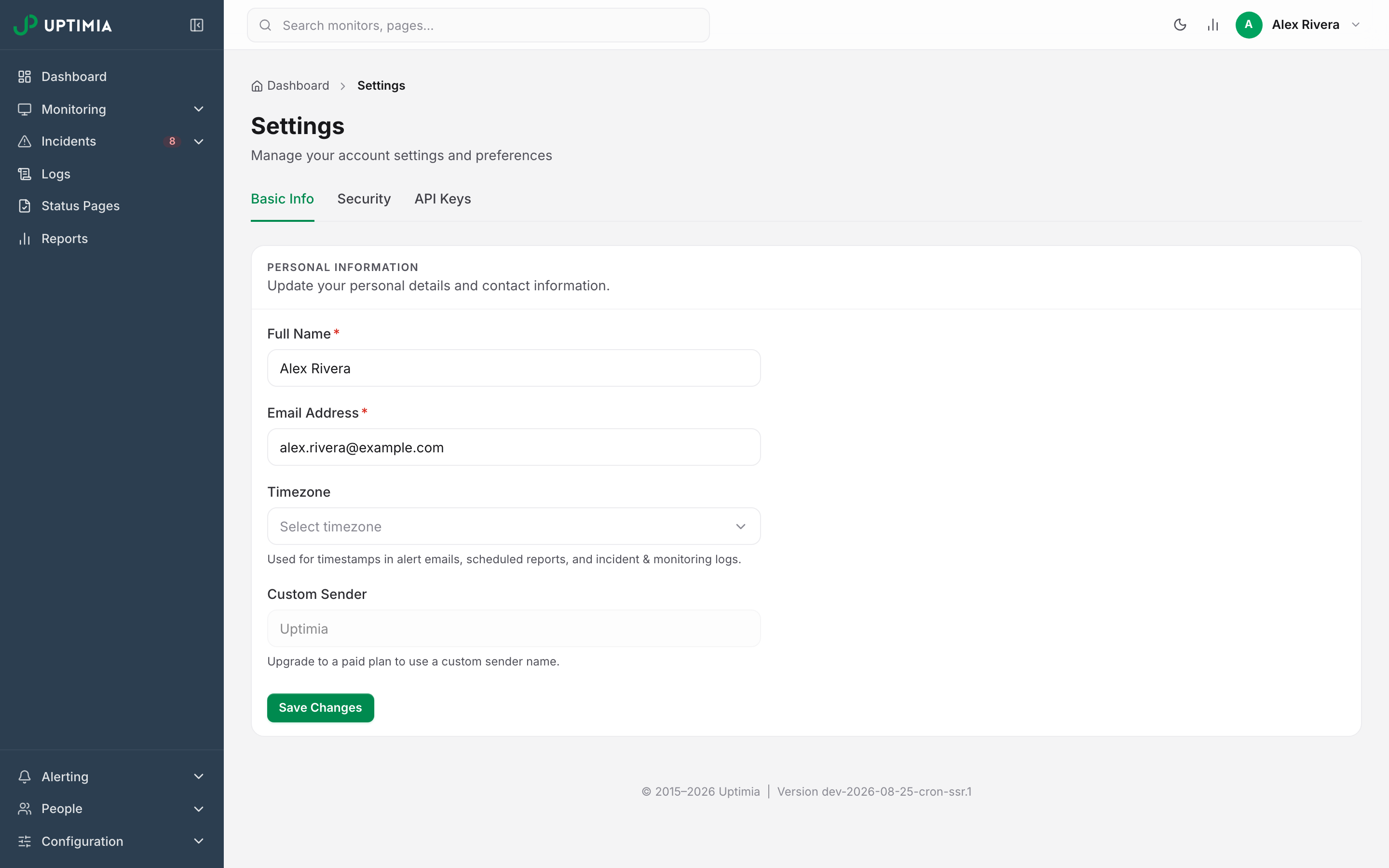
Basic Info
The Personal Information card holds four fields. Click Save Changes to apply them.
| Field | What it does | Default | Limits |
|---|---|---|---|
| Full Name | Your display name in the control panel and in emails sent from the account. | Your signup name | Required |
| Email Address | Your sign-in address and the account's primary contact address. | Your signup address | Required; must be unique and its domain must have valid MX records |
| Timezone | The zone timestamps are rendered in. | Not set. New accounts show Select timezone, and Uptimia renders timestamps in Eastern Time (US & Canada) until you choose one | Searchable list; Uptimia rejects a time zone code outside 0–127 |
| Custom Sender | The From name on alert emails and the sender ID on alert SMS. | Uptimia |
3–11 characters, letters, numbers and spaces only; Professional and above, plus the trial |
Your time zone controls timestamps in alert emails, scheduled reports, and server-rendered incident and monitoring logs. Your browser renders some relative times in its own zone instead.
Changing Your Email Address
Edit the address and a Current Password field appears below it. Enter your password and save. Uptimia sends a security notice to the old address and a verification link to the new one, then marks the account unverified until you click that link. The full flow, its error messages and its side effects are in Changing Your Account Email.
Accounts created through a social sign-in have no password to confirm, so the field never appears for them. Team members cannot change their email address at all. The field is disabled with the hint Email cannot be changed by operators.
Custom Sender
Custom Sender replaces "Uptimia" as the From name on alert emails, and it replaces the sender ID on alert SMS that are not transactional. It needs Professional or Enterprise. The trial has it too, and on Free and Basic the field is disabled, with the hint Upgrade to a paid plan to use a custom sender name.
- Leaving the field blank on an eligible plan stores the literal name
Uptimiarather than clearing the setting. The sender name on your alerts is the same either way, so there is nothing to undo. - Setting any sender other than
Uptimiasuppresses the Go to my account button in alert emails. A monitor that uses a branding theme suppresses the same button. Branding Themes covers the rest of the branding surface.
A sender that is too short, or that carries anything other than letters, numbers and spaces, is refused with Custom sender must be 3-11 alphanumeric characters. A sender longer than 11 characters is refused with Custom sender name must be 11 characters or fewer.
Security
The Security tab stacks four cards: Change Password, Two-Factor Authentication, Email Preferences and the red-bordered Delete Account.
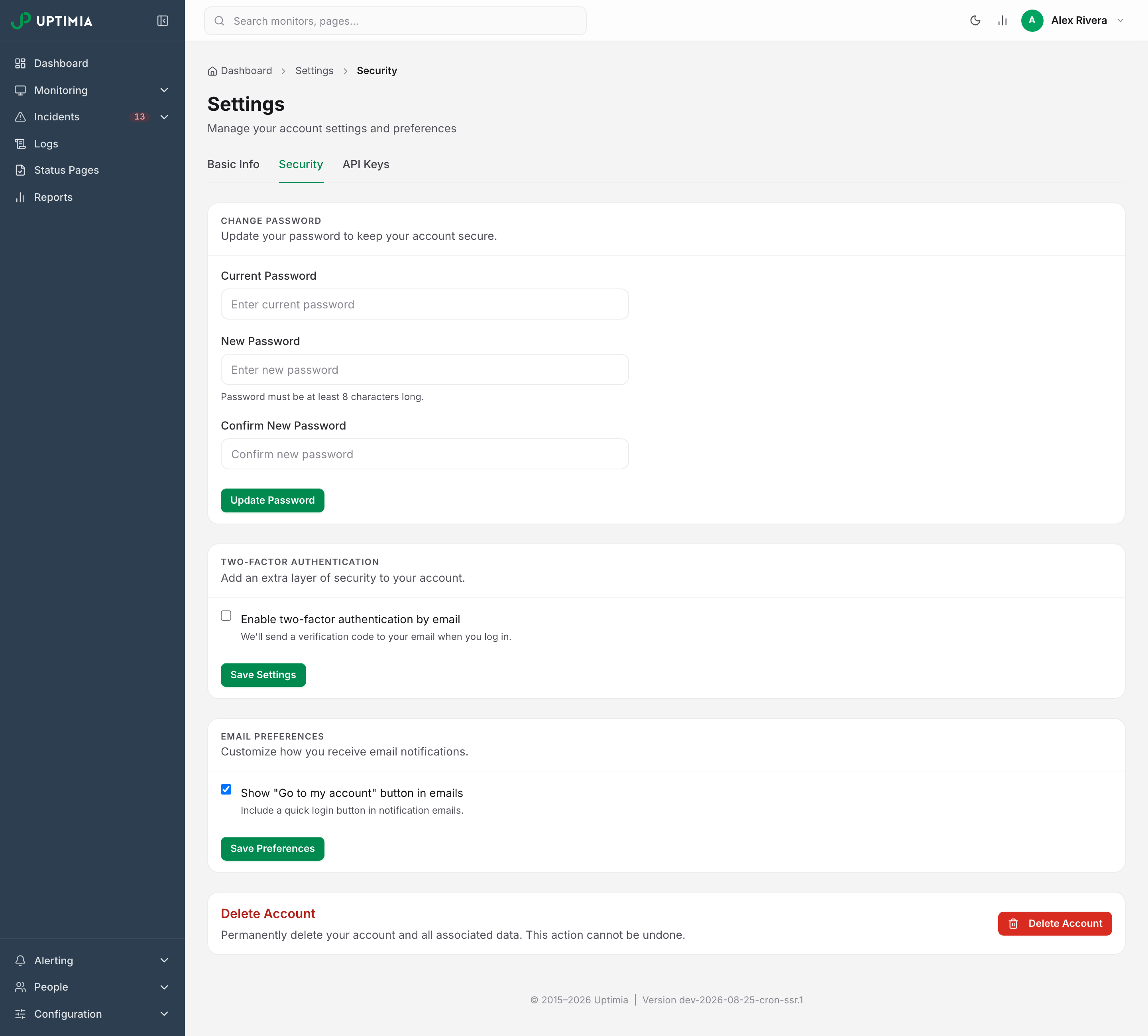
Changing Your Password
- Enter your Current Password.
- Enter a New Password. The minimum is 8 characters.
- Repeat it in Confirm New Password.
- Click Update Password.
A successful change signs out every other active session for your identity and keeps the one you are working in, and there is no sessions list or per-session sign-out control. So a password change is how you boot a session you no longer trust: a shared laptop, a stolen phone. Uptimia emails a confirmation of the change.
If you cannot supply the current password, sign out and use the Forgot password link on the sign-in page. That path is documented in Signing In and Resetting Your Password.
Two-Factor Authentication
Uptimia's second factor is a code emailed to the address on the identity that is signing in. Tick Enable two-factor authentication by email and click Save Settings. No password is needed to turn it on.
Turning it off is a security downgrade, so it requires your password:
- Untick Enable two-factor authentication by email. A Current Password field appears.
- Enter your current password.
- Click Save Settings.
Saving with the password field empty is refused with Enter your current password to disable two-factor authentication. A wrong password is refused with Incorrect or missing password. Two-factor authentication was not disabled. Accounts created through a social sign-in have no password and skip the field.
The toggle only ever affects the identity you are signed in as. If a member is locked out of their own factor, the Owner or an Admin resets it from People → Users, not from this page. Two-Factor Authentication covers the sign-in experience, the attempt limits and the reset.
Email Preferences
Show "Go to my account" button in emails controls whether notification emails carry a one-click sign-in button. It is off by default. Tick it and click Save Preferences to add the button. A custom sender or a monitor branding theme suppresses it regardless of this toggle.
The preference lives on the account owner's record. A team member's save is refused; only the account owner can change it.
Deleting Your Account
Delete Account at the bottom of the tab opens a confirmation modal that asks for your password. Deletion is permanent: monitors stop and are purged, sessions and API keys are destroyed, and the personal data on the account is anonymized. Uptimia cancels an active Stripe or PayPal subscription first. No separate cancellation, no further charge.
Warning: Deleting your account cannot be undone, and there is no restore path. Read Deleting Your Account before you start.
API Keys
An API key authenticates requests to the Uptimia API from your own scripts and integrations. The Owner and Admins manage keys on the API Keys tab.
Generating a Key
- Go to Settings → API Keys and click Generate New Key. On an account with no keys yet, a No API keys yet panel replaces the table; its Generate First Key button opens the same page.
- Enter a Key Name. The name is how you identify the key later, so name it for the integration that will hold it.
- Click Save.
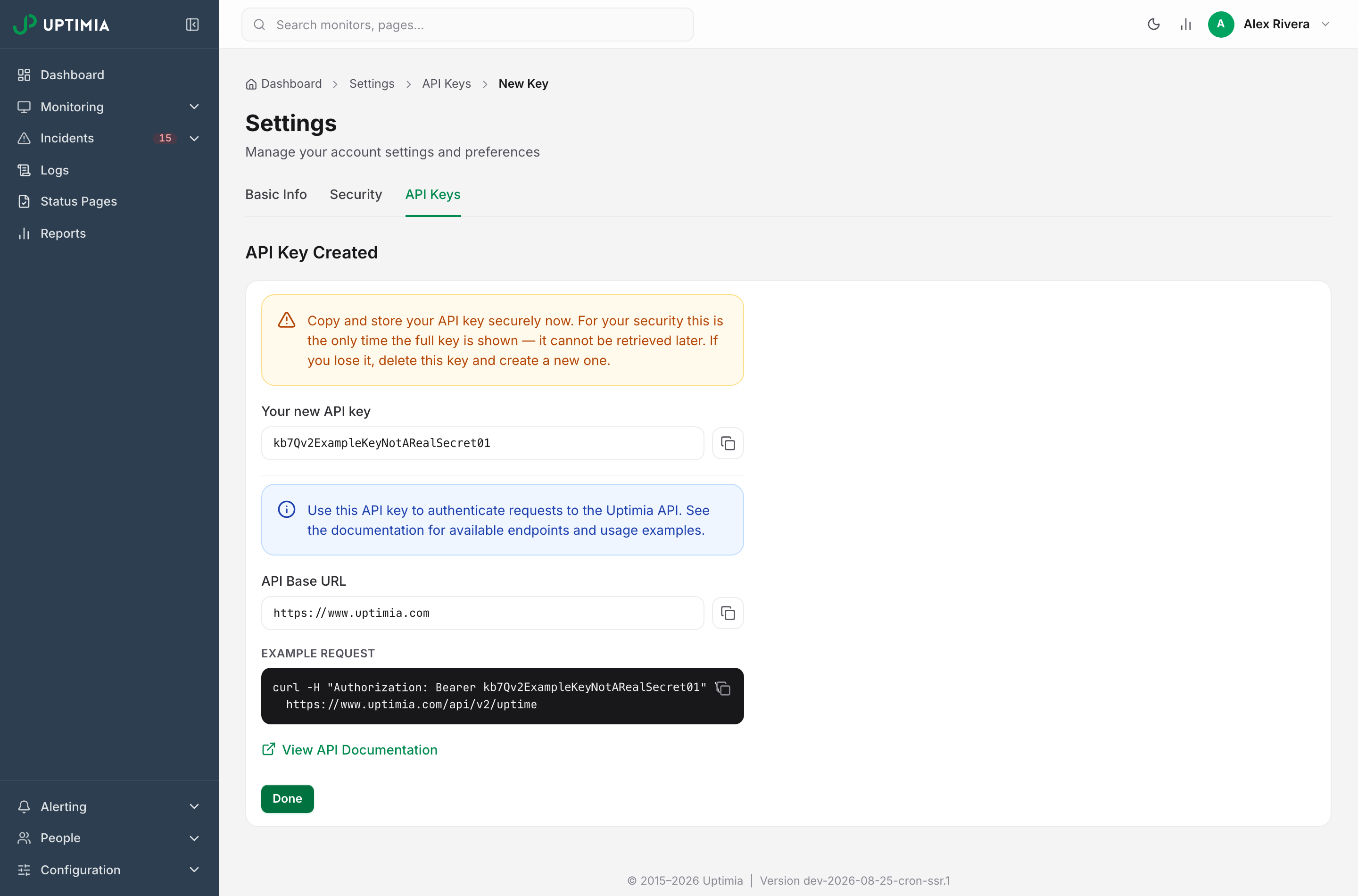
Uptimia then shows the API Key Created screen, the only place the full key is ever displayed. Copy it with the button beside the field and store it wherever the integration will read it from. Then click Done.
Every later view of that key (the table and the edit page) shows it masked to its last 4 characters, and there is no reveal control anywhere in the interface. If you lose a key, delete it, generate a new one, and update the integrations that used the old one. Uptimia emails the account owner whenever a key is created.
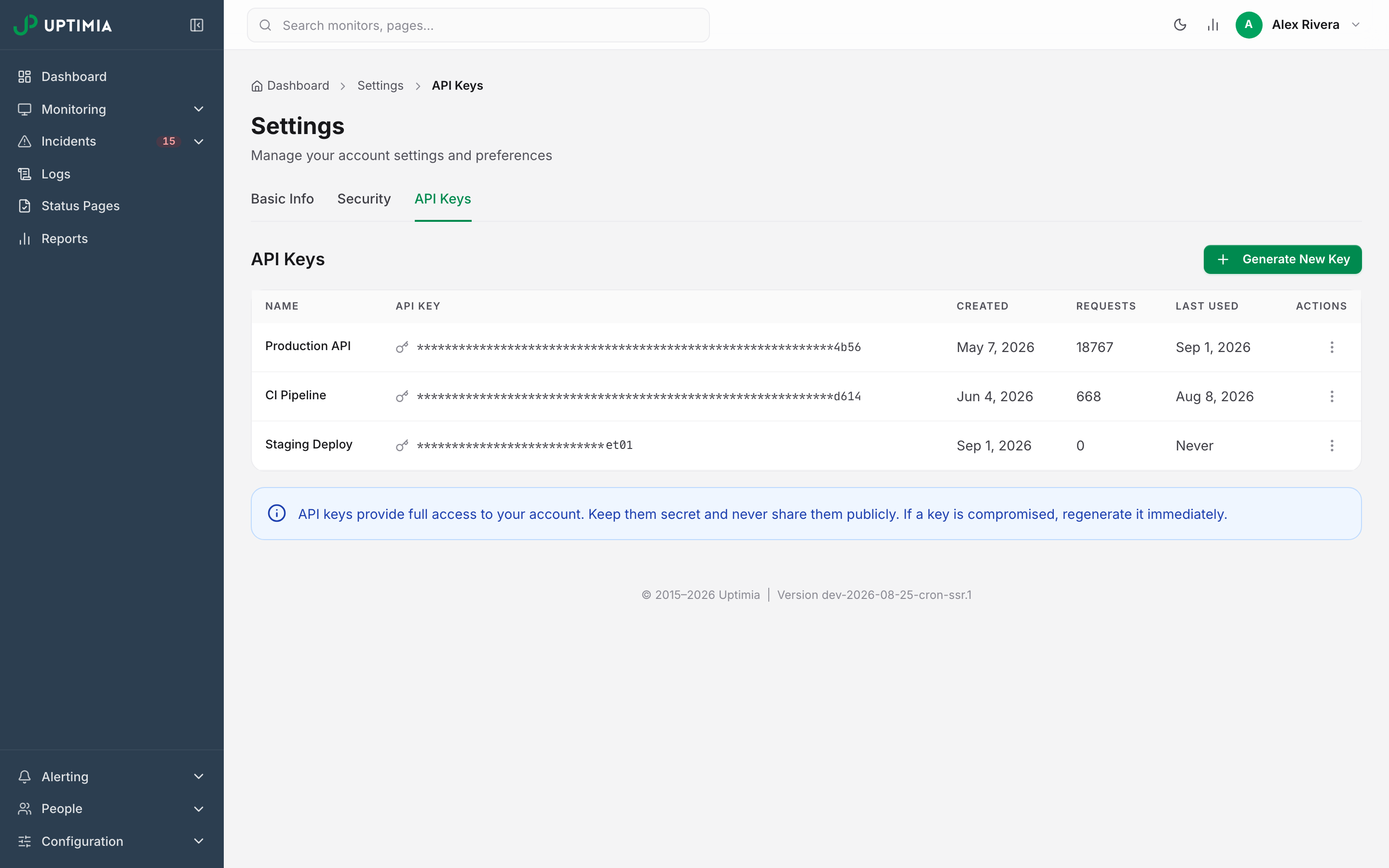
The API Keys Table
| Column | What it shows |
|---|---|
| Name | The name you gave the key |
| API Key | The masked secret: asterisks and the last 4 characters |
| Created | The date the key was generated |
| Requests | How many API requests the key has authenticated |
| Last Used | The date of the most recent request, or Never |
| Actions | The ⋮ menu, which offers Delete |
Renaming and Deleting a Key
Click anywhere on a key's row to open its Edit API Key page. Change Key Name and click Save. The page also shows the masked key with the hint The full key is shown only once, at creation, and cannot be retrieved later.
To delete, open the ⋮ menu on the row and choose Delete. The confirmation names the key and states that any integration using it will stop working. Deletion is immediate and the key cannot be restored: a request made with it afterwards is rejected.
What an API Key Can Do
A key created from an Owner session carries full owner authority: every API operation the account can perform.
A key created from a team member's session carries that member's role and monitor-group scope, so every request made with it is enforced exactly as that member's own would be. Demoting the member narrows the key at once, and removing the member kills it: the request then fails rather than falling back to owner authority. That is the mechanism behind a read-only or group-limited key, and Read-Only and Group-Limited API Keys walks through it.
The API Base URL
The Create API Key and Edit API Key pages both carry an API Documentation card. It holds the API Base URL in a copyable field, a ready-made example request, and a link to the hosted reference at developers.uptimia.com.
The base URL is host-aware. A key only works against the host it was created on. If your account is on a separate edition (one served from its own host rather than www.uptimia.com or uptimia.com), the card shows that host instead and warns that keys created there do not work against www.uptimia.com. Copy the base URL from the card rather than typing one from memory.
Getting Started with the Uptimia API covers authentication, versions and rate limits.
What Team Members Can Change Here
Every role can open Basic Info and Security, but a team member's Settings page acts on their own record. The Owner can do everything in this table.
| Action | Team member |
|---|---|
| Change own full name | Yes |
| Change own password | Yes |
| Manage own two-factor authentication | Yes |
| Change the account email address | No, the field is disabled |
| Change Timezone or Custom Sender | No, these are account fields. The controls are still enabled, but the save keeps the owner's value and the field snaps back |
| Set the Go to my account email preference | No, the save is refused |
| Open the API Keys tab | Admins only |
| Delete the account | No |
A member whose role blocks an action gets a message naming the role: Your role (Read-only) doesn't allow this. Ask the account owner or an Admin to do it, or to change your role. Adding and re-roling members is in Inviting Team Members.