
Uptimia signs you in with an email address and password, or with Google or GitHub. If you forgot your password, the reset link on the sign-in page sets a new one and signs you straight in, with no second sign-in step at the end. If a reset still does not get you back in, read Account and Login Recovery.
Signing In
- Open the sign-in page (
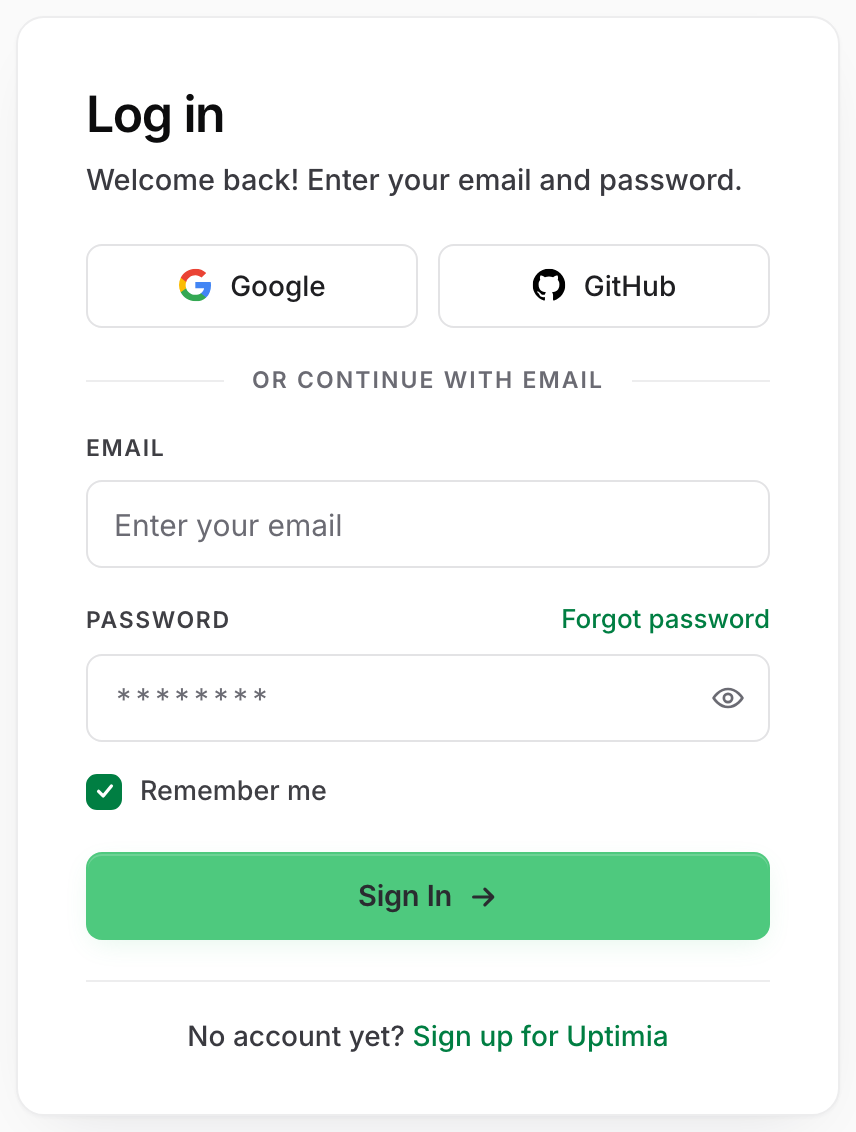
/signin) on uptimia.com. The heading reads Log in. - Enter your address in Email and your password in Password. The eye icon at the end of the password field shows what you typed.
- Click Sign In. You land on the dashboard.
A wrong address and a wrong password produce the same message: Wrong email or password.
Signing In With Google or GitHub
If you created your account with a social provider, use that same provider's button every time: the Google and GitHub buttons sit above the or continue with email divider, at the top of the card.
You can add a password to a social account. After that, you can sign in either way. Open the avatar menu (top right) → Settings, then the Security tab, where the Change Password card on a social account shows no Current Password field, because there is no existing password to confirm. Fill in New Password and Confirm New Password, using at least 8 characters, then click Update Password.
Staying Signed In
Remember me is ticked by default, so untick it before signing in on a shared or public computer.
- Remember me covers the account owner only. Uptimia never remembers a team member's sign-in, so members sign in again when their session ends, whether or not the box was ticked.
- Changing or resetting your password rotates the token the cookie is checked against, so every browser that was remembering you has to sign in again. To sign out everywhere, change your password. See Securing a Lost Device.
If Two-Factor Authentication Is On
Once your password is accepted you land on a page headed Two-factor authentication. It reads "Please check your e-mail and enter the 6-digit security code we just sent you." The code is 6 numeric digits, and whitespace is ignored, so a code pasted as 481 502 or with a trailing space still verifies.
Two-factor authentication is set per person, not per account. Uptimia asks for a code only when the identity you are signing in as has it enabled, and the code goes to that identity's own mailbox. A team member is challenged by their own setting and gets the code at their own address. The account owner turning 2FA on does not put team members behind a code.
You get 5 attempts per sign-in, and Resend code shares that budget rather than refreshing it. The fifth wrong code is still answered with "That code is incorrect." The next submit, or a click of Resend code, answers "Too many attempts. Please sign in again to get a new code.", and you start again from the sign-in page. The pending sign-in itself lasts 1 hour. After that the screen says "Your sign-in request expired. Please sign in again.", which does not mean the code was wrong. Once the hour is up, no code can be sent or checked for that browser. For enrolling, disabling and resetting the factor, see Two-Factor Authentication.
Resetting a Forgotten Password
- On the sign-in page, click Forgot password. The link sits beside the Password label, not at the bottom of the card.
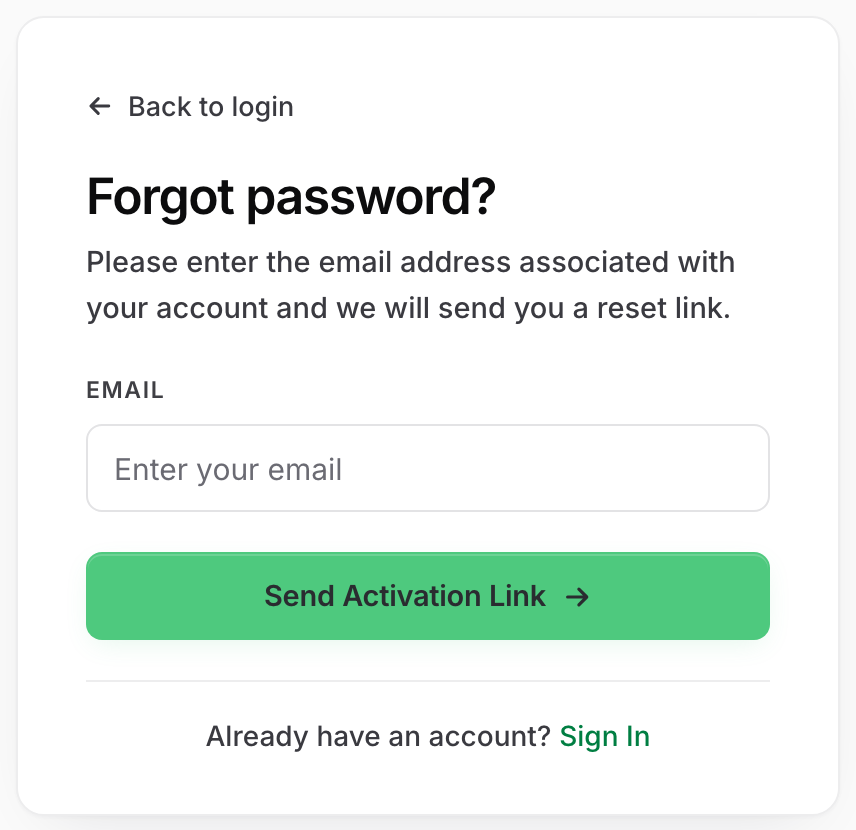
- Enter your account address and click Send Activation Link.
- Read the confirmation: "Please check your email and follow the instructions." It appears for any address that belongs to an Uptimia account, whether or not an email was actually sent. If the form answers We could not find any account with this e-mail address. instead, the address you typed is not one Uptimia holds. Check it for a typo, and try the address the account was created with.
- Open the email titled Uptimia password reset link and click Reset password.
- On the Set new password page, enter the new password twice: in Password and Confirm password.
- Click Reset password. Uptimia signs you in and takes you to the dashboard. If your identity has two-factor authentication enabled, you go to the code step first.
The Rules Behind the Reset
| Rule | What happens |
|---|---|
| Link lifetime | A reset link works for 24 hours from the moment it is requested. After that the page shows Invalid or expired link with a Request new reset link button. |
| Earlier links | Requesting another reset does not disable a link you already have. Any link from the last 24 hours still works. |
| Resend cooldown | One reset email per account every 5 minutes. A second request inside that window reports success and sends nothing. |
| Requests per hour | 5 forgot-password requests per hour per IP address. Over that, the form answers "Too many requests. Please try again later." |
| New password | At least 8 characters, and the two fields must match. |
| On completion | Uptimia signs out every session on the account, rotates the remember-me token, clears the failed-sign-in counter, and marks the address as verified. |
Warning: the sign-out on completion covers the whole account, not just your own browsers. If you are the account owner, finishing a reset also ends your team members' sessions. They each have to sign in again.
When the Reset Email Doesn't Arrive
The confirmation message is the same whether or not an email was sent, so work through these in order.
You Asked Again Within 5 Minutes
A second request for the same account inside 5 minutes returns the success message and sends nothing. Wait 5 minutes, then request once.
Your Address Has Never Been Verified
Uptimia skips an account whose email address was never verified, so the request reports success and no reset link is sent. If you still know your password, sign in and click Resend verification email in the banner at the top of the control panel (3 sends per hour), then run the reset. If you cannot sign in at all, contact support.
Changing your account email resets verified status and deletes any outstanding reset links, so a reset link you requested earlier stops working. See Changing Your Account Email for the full sequence.
The Hourly Request Cap Is Spent
Past 5 forgot-password requests per hour per IP address the form returns "Too many requests. Please try again later." instead of the success message, so you can see this one has happened. Wait an hour, or try from a different network.
Mail Filtering
Check spam, junk and promotions, plus any quarantine your provider runs. Search for Uptimia password reset link. Corporate filters are the common cause when nothing else on this list applies. Ask your IT team to allow mail from both uptimia.com and eu.uptimia.com. The reset email comes from [email protected], and accounts in the EU billing region get it from [email protected], so an allowlist carrying only uptimia.com can miss it.
"Too Many Failed Attempts" After Repeated Sign-Ins
After 5 consecutive failed sign-ins, Uptimia locks the identity. The lock window runs from the last failure and grows with each further failure: 5 minutes after the fifth attempt, 6 minutes after the sixth, and so on. Every attempt during the lock counts. Retrying makes the wait longer, and even the correct password is refused while the lock is up. Trying it extends the window like any other attempt.
The message is "Too many failed attempts. Please try again later." A separate per-IP ceiling of 20 sign-in attempts per 15 minutes produces "Too many attempts. Please try again later."
Wait out the window. Then sign in once with the correct password. A successful sign-in clears the counter, and so does a completed password reset.