
Your email address is how you sign in to Uptimia, and the address Uptimia verifies the account against. Changing it takes three things:
- your current password
- a domain that can receive mail
- one click on the verification link Uptimia sends to the new address
Until you open that link the account counts as unverified, and alert delivery is paused. If you cannot sign in at all, start at Signing In and Resetting Your Password.
Before You Start
- Only the account owner can change the account email. When a team member is signed in, the Email Address field is grayed out and shows the hint "Email cannot be changed by operators."
- Have your current account password ready. An account created through Google or GitHub that has never set a password is exempt.
- The new address must be on a domain that accepts mail. Uptimia looks up the domain's MX records live and rejects a domain that has none.
Changing the Address
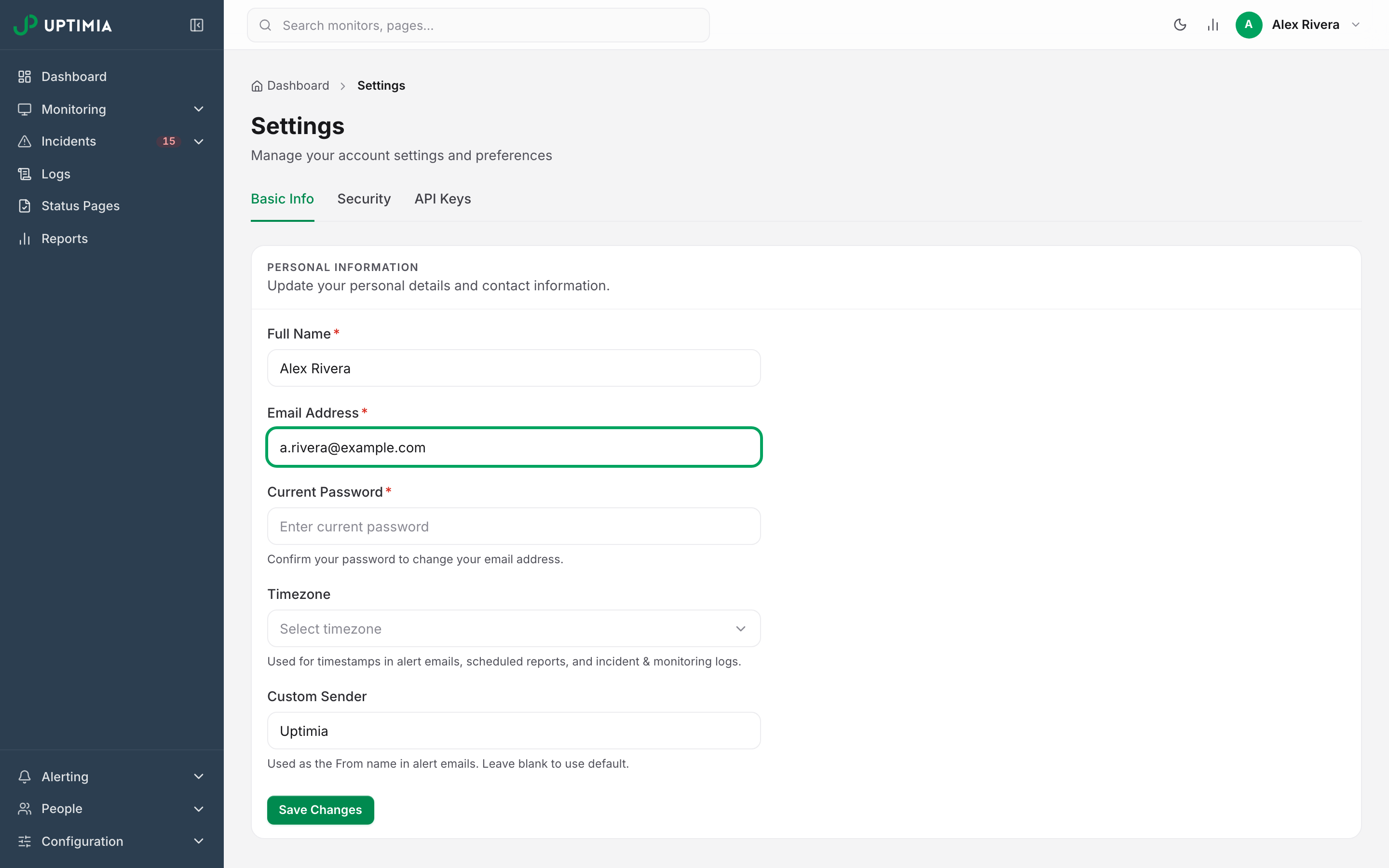
- Open Settings from the avatar menu (top right). You land on the Basic Info tab.
- In the Personal Information card, edit Email Address to the new address.
- Enter your password in Current Password. This field appears as soon as the address differs from the stored one.
- Click Save Changes.
From that moment the new address is your sign-in identity, and the old one no longer signs you in.
The Errors You Can Hit
Uptimia runs four checks when you save, in this order:
- The address must be shaped like a real email address.
- A live MX lookup on the new domain.
- Uniqueness across Uptimia accounts.
- Your current password.
| Message | What it means | What to do |
|---|---|---|
| Invalid email address | The address is malformed, or its domain has no MX record and cannot receive mail | Correct the typo. If the address is right, confirm the domain publishes MX records before retrying |
| Email address is already in use | Another Uptimia account already uses that address | Use a different address, or delete the other account first |
| Enter your current password to change your email address | The Current Password field was left empty | Fill it in and save again |
| Incorrect current password | The password did not match | Retype it. If you no longer have it, reset it first, then change the email |
The MX lookup runs only when the owner changes the email. Saving a new name, time zone or custom sender never triggers it.
What Happens When the Change Saves
Saving does all of this at once:
- A verification link goes to the new address, subject Verify your new email address. Opening it confirms the address.
- A security notice goes to the old address, subject Your account email is being changed, naming the new address.
- Your verified status resets to unverified, which pauses alerting account-wide.
- Every outstanding password-reset link for the account is deleted. A reset email you requested minutes earlier stops working.
Alerting Is Paused Until You Verify
While the account is unverified, the pause is account-wide and covers more than email. A suppressed alert is gone for good, so a queued alert that lands in this state never goes out at all.
| What stops | Detail |
|---|---|
| Downtime and recovery alerts | Every channel (email, SMS, Slack, webhooks and the rest), for every monitor, old and new |
| Scheduled reports | Skipped for the whole account on their next run |
| Creating or editing an Uptime, Speed, SSL, Domain, Virus or Real User monitor | Refused with "Please verify your email address." Heartbeat, DNS, Blacklist, API, Server and Transaction monitors still save. They page nobody while alerting is paused |
| Plan purchases and reports sent on demand | Refused for the same reason |
Warning: verify the new address now. Uptimia also refuses a password reset while the account is unverified, and the forgot-password request returns its usual success message while sending no email, so an unverified address plus a forgotten password can lock you out.
Open the verification link and everything above resumes at once. The link works only once. Changing your address creates a new link, so any verification link sent before the change stops working. Resending never creates a new link. Every resent copy carries the current one, under the subject Uptimia email verification, so an earlier resend still works.
Resending the Verification Email
While the account is unverified, an amber banner sits above the top bar on every control-panel page. It reads Verify your email to receive alerts. Alert notifications are paused until you confirm .
Click Resend verification email in that banner. The button reports "Verification email sent to ."
Resends are capped at 3 per hour for the account. Past that, the banner answers "Please wait a moment before requesting another email." and sends nothing. Wait out the hour rather than clicking again.
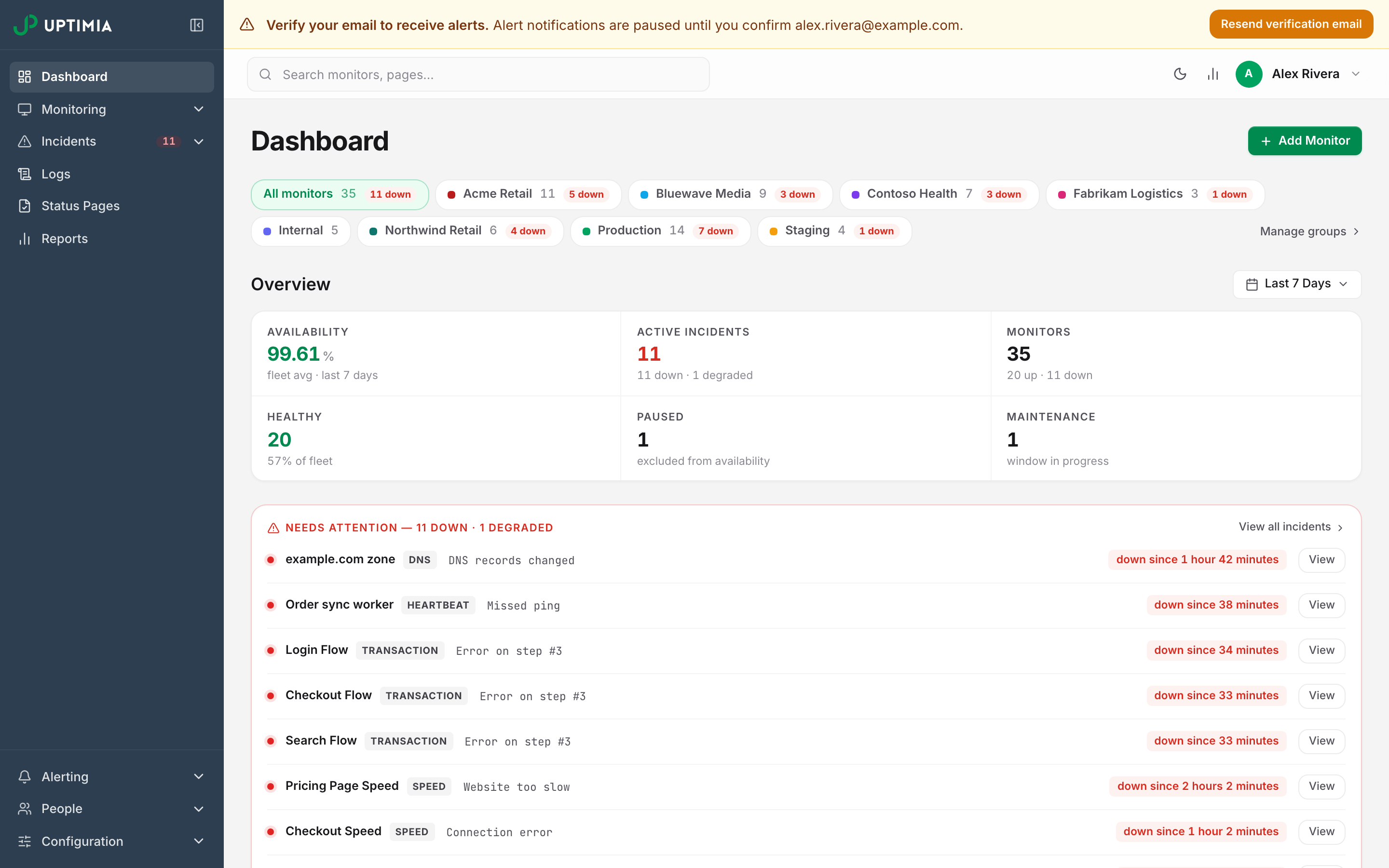
Team members never see this banner: verification belongs to the owner account, and a team member cannot change it.
If the Email Change Was Not You
The notice to the old address exists so a takeover is visible. If one arrives and you did not change your address, contact [email protected] immediately. If you can still sign in, change your password from the Security tab first. That signs every other session out. Then turn on Two-Factor Authentication.