
A contact is one alert destination (an inbox, a phone number, a Slack channel, a webhook endpoint) owned by one member of your account. You create contacts at Alerting → Contacts, then attach them to the monitors that should wake that destination. Who Gets Alerted covers who is paged when several contacts point at the same place.
Before You Start
- Every role except Accounting / Billing can open Alerting → Contacts. Creating, editing and deleting needs Owner, Admin or Editor. A Read-only seat is refused.
- A Billing seat cannot own a contact: assigning one returns "Billing seats never receive monitor alerts and can't own contacts".
- Every channel except Email and SMS attaches an integration profile, so connect that integration first. See Integrations Overview.
What a Contact Is
A contact holds four things: a name, an owner, a channel and a destination. The owner matters at alert time. An alerting schedule decides when that destination may be woken, and Uptimia reads that schedule from the person the contact belongs to, or from that person's team override.
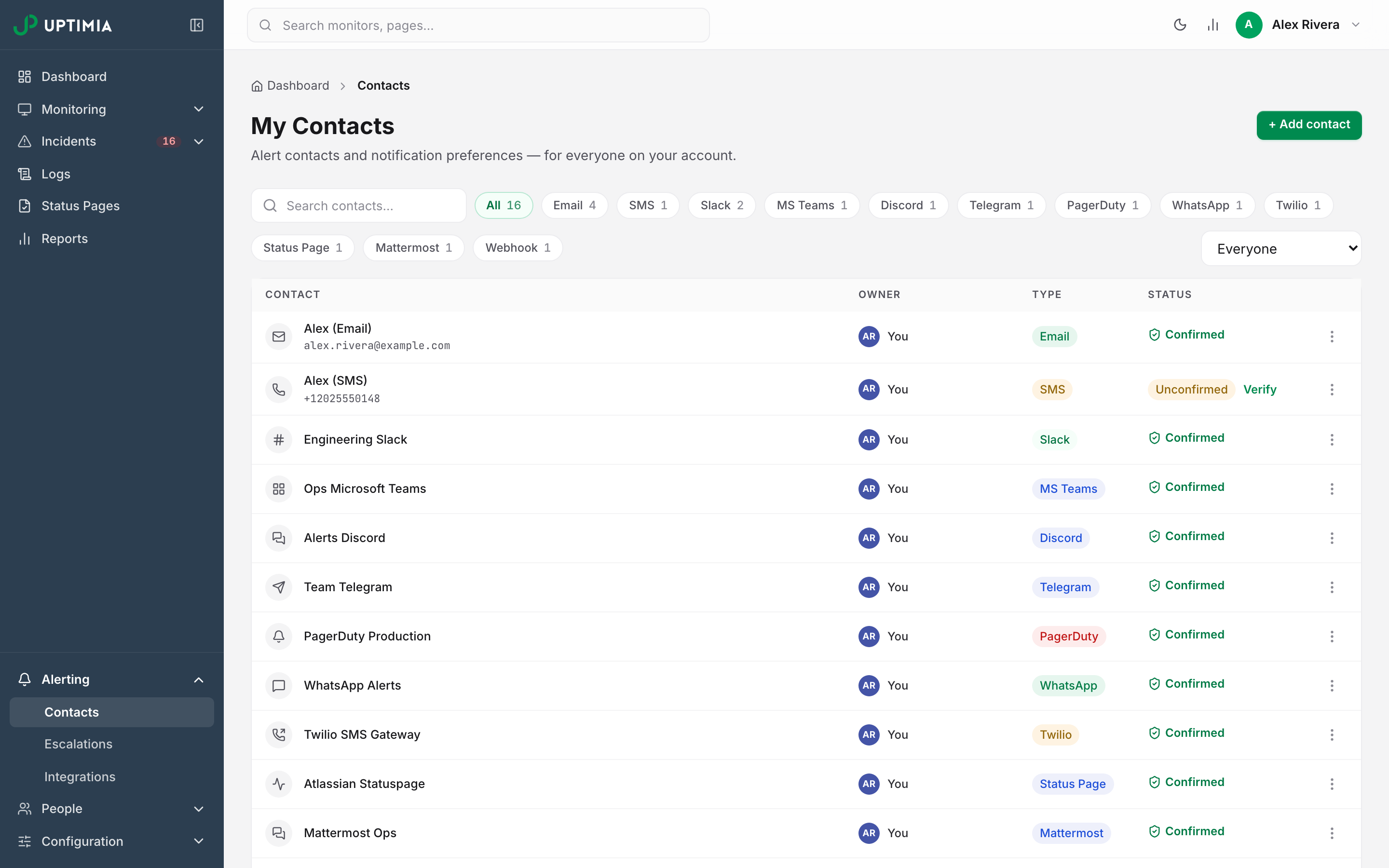
The list at Alerting → Contacts is headed My Contacts. The account owner sees every contact; a team member sees and edits only the contacts they own.
On an account with no contacts yet, a three-step walkthrough replaces the toolbar and table. It covers one contact per destination, attaching them to monitors, and an out-of-window alert held and then delivered. Its Add Contact → button opens the same modal as the page header does.
The Channels
Email takes an address you type; SMS takes a phone number in international format, starting with +. Each of the other ten takes a connected integration profile of its own kind, and Twilio's is your own Twilio account. One profile can back several contacts.
| Channel | Can carry an acknowledgment link |
|---|---|
| ✓ | |
| SMS | ✓ |
| Slack | ✓ |
| MS Teams | ✓ |
| Discord | ✓ |
| Telegram | ✓ |
| Mattermost | ✓ |
| Twilio | ✓ |
| PagerDuty | — |
| Webhook | — |
| — | |
| Status Page | — |
Webhook and PagerDuty are machine pipelines: they get the alert facts, never a signed acknowledgment link. WhatsApp and Atlassian Statuspage carry no link either. Acknowledging Incidents and MTTA covers what that link does.
Status Page means Atlassian's hosted statuspage.io product, not Uptimia's own status pages.
Twitter/X is retired. No sender exists behind it, the type is gone from the allowlist, and a queued alert on a leftover Twitter row is logged once and then dropped. Delete any Twitter contact you still hold, and move that announcement to a public status page.
Adding a Contact
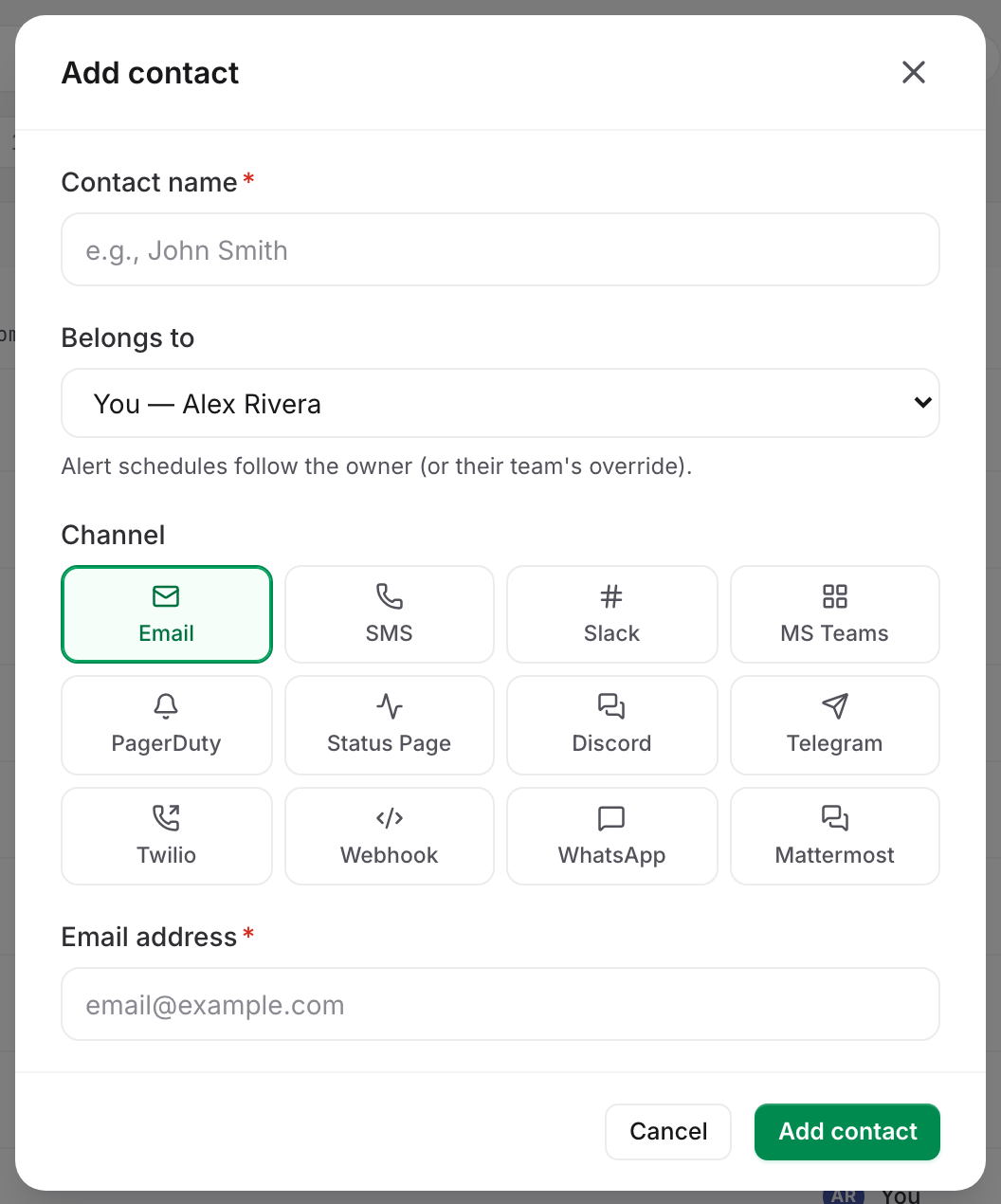
- Go to Alerting → Contacts and click + Add contact.
- Enter a Contact name.
- Pick the person in Belongs to.
- Click a tile in the Channel grid.
- Enter the Email address or Phone number, or pick a profile under Connected channel integration.
- Click Add contact. The contact can receive alerts from that moment.
Field Reference
| Field | What it does | Default | Limits |
|---|---|---|---|
| Contact name | The label you see in the recipients panel and in alert history. | Empty | Required; without one you get "Give the contact a name" |
| Belongs to | The owning member, whose alerting schedule governs when this destination may be paged. | The account owner's row is preselected; a contact an Admin or Editor adds is still stored against that member | Any alertable member; Billing seats are not listed |
| Channel | The delivery channel, picked from a 12-tile grid. | One of the twelve above | |
| Email address / Phone number | The destination of an Email or SMS contact. | Empty | Required; a number must start with + |
| Connected channel integration | The integration profile this contact delivers through. | The first profile of that channel | Shown for the ten integration channels |
Email and SMS destinations must be unique within the account, but the other ten channels have no such rule, so two contacts can point at one Slack profile. Uptimia then collapses them into a single message.
Errors You May See
| Message | Cause | Fix |
|---|---|---|
"Please enter an international phone number (starting with a + sign)" |
The SMS number has no country prefix | Re-enter as +15550123 |
| "Your phone number or country is not supported" | The country is outside the SMS network's coverage | Use email, a chat channel, or your own Twilio profile |
| "This contact has already been used" | An email or SMS contact on that exact destination exists | Edit the existing contact instead |
| "No channel integration connected yet" | You picked a channel with no profile behind it | Connect the integration, then reopen the modal |
Verification and the Status Column
Every contact created or edited in the control panel is written as confirmed, so it is alert-eligible immediately and shows Confirmed in the Status column. Verification has one job. It proves an SMS number is reachable before a real alert depends on it.
The delivery queue drops every alert to an Unconfirmed contact, on every monitor. To clear that badge on an older row, use Verify for SMS; on any other channel, open the contact and save it, which marks it confirmed.
To verify an SMS number:
- Click Verify in the Status cell of the unconfirmed SMS row.
- Read the six-digit code from the text message.
- Type it into the code box that replaced the button and click OK.
Verification is SMS-only. Requesting a code for another channel succeeds and sends nothing. Each code costs a credit, like an alert, and at a zero balance the request is refused. Codes are throttled to 1 per minute and 5 per hour, counted against the destination number rather than the contact row, and past either limit the request is refused until the limit clears. The credit rules, refills and country coverage are in SMS Alerts.
Finding a Contact
The toolbar carries a Search contacts… box that matches name and destination. Type filter chips follow, each showing a count and starting with All, then an owner filter set to Everyone by default. The table shows the channel icon, the name and destination, the Owner, the type badge and the verification status.
Attaching Contacts to a Monitor
You choose recipients per monitor, in the Alerting card near the bottom of the monitor editor's Main tab. Real User, Heartbeat, Blacklist and DNS monitors have no Check frequency slider and no Alert delay. On those four, the Notification Settings card above is dropped. Alerting is the only card there. Blacklist sets its own sweep cadence on the Lists & alerts card, and Heartbeat sets its expected interval and grace period on the Schedule card.
- Open the monitor editor and stay on the Main tab.
- Scroll to the Alerting card.
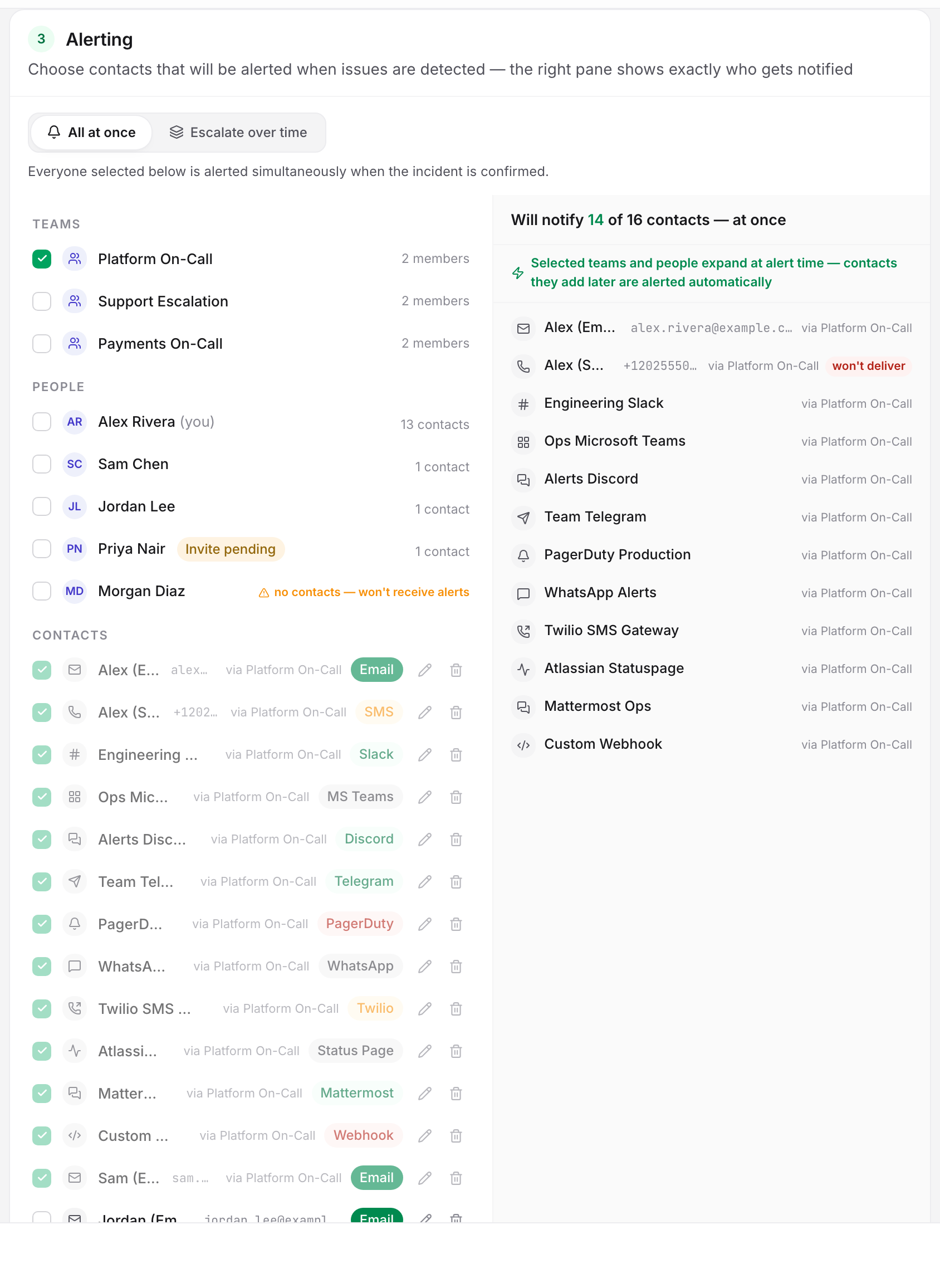
- Tick recipients in the left pane.
- Read the right pane: it is the resolved list of exactly who will be notified.
- Save the monitor.
On a single-user account the left pane is the All my contacts row, marked current & future, then one row per contact. With more than one member it becomes two groups, People and Contacts, so you can pick a person or one destination, and a third group, Teams, sits above them once the account has at least one team. A seat whose invite is unaccepted is labeled Invite pending. It is still a real recipient. Deselect it if you do not want it paged.
The right pane is headed Will notify N of M contacts — at once, or all N contacts while the auto-include row is on. A red won't deliver badge marks every row the delivery queue will drop, for one of three reasons: unconfirmed, opted out, or a duplicate of a destination another selected contact already covers. Who Gets Alerted explains all three.
At least one recipient is required. Clearing every recipient blocks the save with "At least one alert recipient is required", and the monitor keeps the recipients it already had. Scheduled reports follow the same rule, and a selection that resolves to nobody is refused with "The selected recipients resolve to no contacts — add a contact first".
Add Contact at the foot of the left pane adds, edits and deletes contacts without leaving the editor.
When the Monitor Uses an Escalation Policy
Once your account has one escalation policy, the Alerting card gains a mode switch: All at once and Escalate over time. The second replaces the recipients panel with a policy select and a preview of the ladder.
While a monitor is set to Escalate over time, the people paged come from the policy, resolved the moment each step fires, rather than from the monitor's own list. That list stays required and stays live. It is the fallback Uptimia uses when the grouping and escalation layers cannot take the incident. If a whole ladder reaches nobody, Uptimia pages the account owner as a last resort. See Escalation Policies.
You can also do everything on this page from a script; see Getting Started with the Uptimia API.
Editing, Reassigning and Deleting
Open the kebab menu at the end of a row for Edit contact and Delete. An edit changes the name, owner, channel and destination, and the save button reads Save changes. Only the account owner can move a contact to a different person in Belongs to.
Deleting asks twice: confirm in the Delete "name"? modal, then a toast offers Undo for 6 seconds. Nothing is deleted until that window elapses.
Warning: Deleting a contact removes it from every monitor's recipient list, from every scheduled report, and from the recipient list of every escalation-policy step. Undo restores the row on screen only while the toast is still up; after that the removal cannot be reversed by re-creating the contact.
Your Alerting Schedule
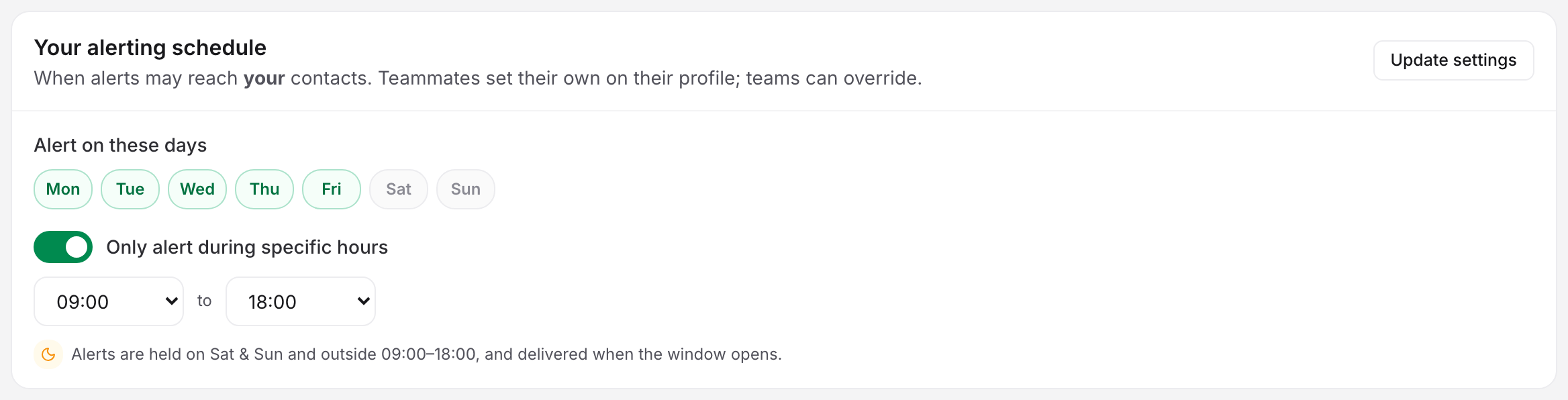
Below the table sits the Your alerting schedule card, with an Update settings button in its header. The card reads positively. Under Alert on these days, a highlighted day is a day you will be alerted, and deselecting one blocks it; Only alert during specific hours adds a window, set to 09:00 to 18:00 when you switch it on.
This card sets your schedule, governing the contacts you own, while team members set theirs on their own profile and a team can override its members. An alert raised outside a window is held, then delivered when the window next opens. It is never dropped. Block all seven days and your own contacts are never alerted; the recipients panel warns you under the resolved list.
Alerting Schedules, Quiet Hours and Time Zones covers the window shapes, per-recipient time zones and the team override.