
When a monitor detects a problem, Uptimia turns that event into an alert and delivers it to the people and tools you choose. Five things sit between the failed check and the delivered message: a delay, a grouping layer, a routing rule, a schedule and a send queue. Each channel's own setup lives in its own article, linked from here.
How an Alert Flows
- The incident opens. A monitor records that your site, endpoint, certificate or job has a problem. The incident exists from this moment, whether or not anyone is alerted.
- The alert delay elapses. Uptimia waits the monitor's configured delay before notifying anyone, so a single blip does not page you. The incident is confirmed at that point.
- Grouping takes the incident, if it can. On a monitor with an escalation policy attached, Uptimia offers the incident to the alert-grouping layer first. If it joins or opens a group, that group sends one digest and runs one ladder for every monitor in the storm.
- Routing. With an escalation policy, recipients come from the policy, step by step. Without one, Uptimia alerts every contact selected on the monitor at once.
- The alerting schedule is applied. Uptimia reads each recipient's own days-and-hours window on that recipient's own clock, holds any alert raised outside the window, and delivers it when the window next opens.
- Delivery. The queue sends each message on its channel, retries a failure, and drops recipients it is barred from sending to.
- Acknowledgment (optional). On a monitor with an escalation policy, a responder acknowledges the incident from the control panel or from a signed no-login link in the alert. That pauses the escalation ladder without closing the incident, and records the time to acknowledge. Alerts from a monitor set to All at once carry no acknowledgment link.
- Recovery. When the problem clears, Uptimia sends a recovery alert to everyone who was paged. The toggle is on by default.
Two gates sit in front of all of this. Alerts go out only once your account email is verified: until then queued notifications are deleted rather than sent. The contact must also be confirmed, and since contacts are confirmed on save, that second gate bites only older SMS contacts whose code was never entered.
The Channels
Twelve channels can receive alerts. Email and SMS take a typed value; the other ten attach an integration profile you configure once and reuse across contacts.
| Channel | Carries a storm digest | Carries an acknowledgment link |
|---|---|---|
| ✓ | ✓ | |
| SMS | ✓ | ✓ |
| Slack | ✓ | ✓ |
| MS Teams | ✓ | ✓ |
| Discord | ✓ | ✓ |
| Telegram | ✓ | ✓ |
| Mattermost | ✓ | ✓ |
| Twilio | ✓ | ✓ |
| PagerDuty | ✓ | — |
| Webhook | ✓ | — |
| — | — | |
| Status Page (Atlassian Statuspage) | — | — |
Webhook and PagerDuty receive the digest but never an acknowledgment link. WhatsApp and Atlassian Statuspage cannot carry a multi-monitor digest, so during an alert storm those two channels fall back to a single per-monitor alert for the monitor that opened the group.
Uptimia no longer offers Twitter/X as an alert channel. It was retired on 2026-08-10, cannot be created, and a leftover queued message on one is logged and dropped rather than delivered. Pick a replacement from the table under Choosing a Channel.
Choosing a Channel
| Use case | Channel |
|---|---|
| Day-to-day awareness | |
| Urgent, can't-miss | SMS, or Twilio with your own account |
| Team visibility in chat | Slack, MS Teams, Discord, Telegram or Mattermost |
| Paging an on-call rotation in another tool | PagerDuty |
| Public incident communication | A status page, or Atlassian Statuspage |
| Feeding another system | Webhook |
For a monitor you can't afford to miss, combine two channels with different failure modes: Slack for the team and SMS for whoever is on call.
Manage integrations at Alerting → Integrations. Once you have at least one, the page renders a table of connected integrations, and the grid of channel cards appears only on the empty state and on the Add Integration screen. Test sits in each row's actions menu.
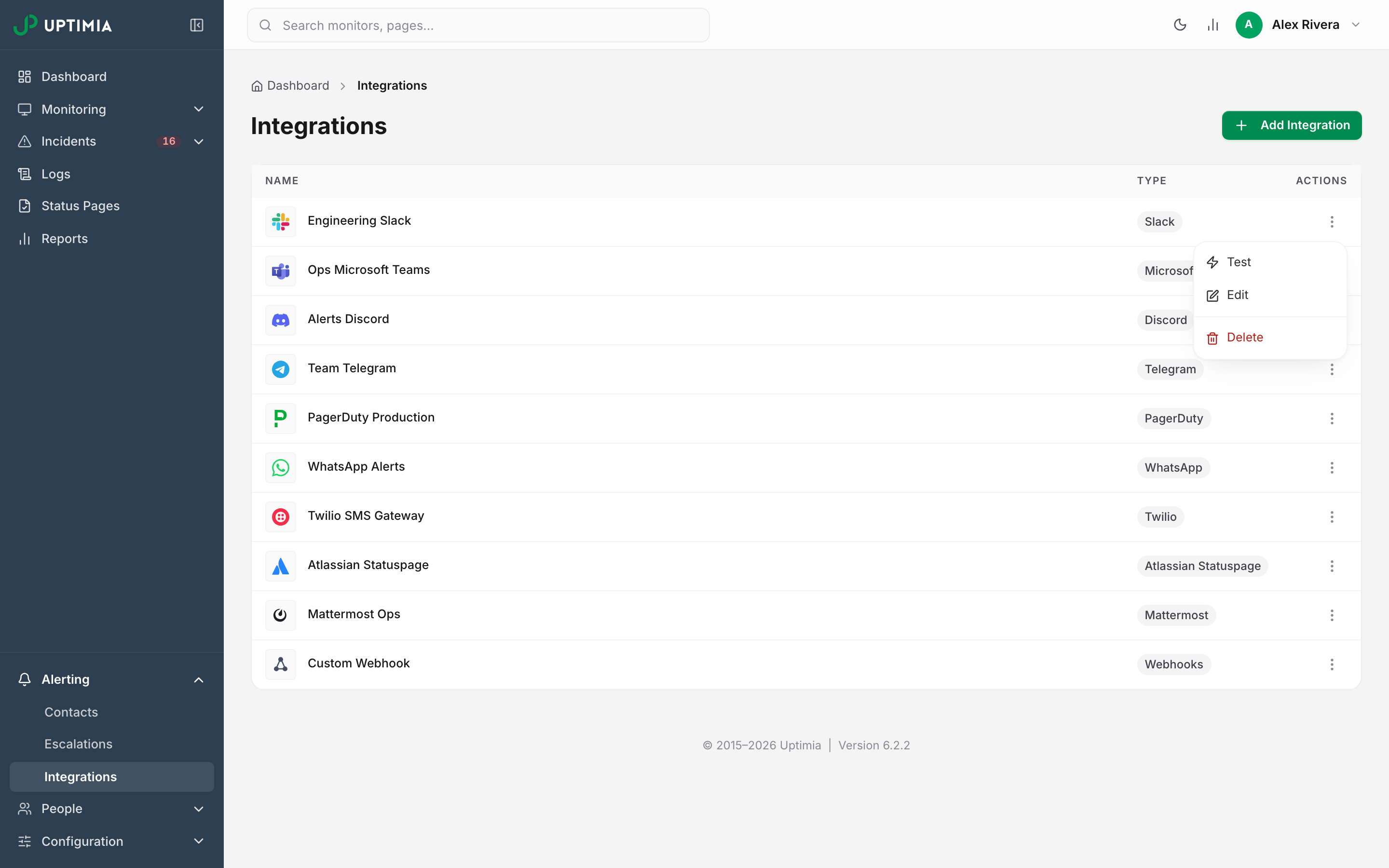
An account that connected Twitter/X before it was retired still sees the row here; it can be opened and deleted, but not re-created.
Cross-Cutting Controls
These sit outside any one channel and apply whatever the alert is delivered on.
| Control | Where it lives | Default | Range |
|---|---|---|---|
| Alert delay | The monitor editor's Notification Settings card | 5 minutes | 0–30 minutes |
| Recovery alert (Alert when the website comes back up) | Same card, or the Alerting card on Heartbeat, Blacklist and DNS | On | On / off |
| Alerting schedule (days and hours) | Yours: Alerting → Contacts. A team member's: People → Users → their row → Edit access & profile | All days, no window | Per recipient |
| Recipient selection | The monitor editor's Alerting card | — | At least 1 required |
| Escalation policy | The Alerting card's mode control | Off (All at once) | 1–10 steps |
| Incident grouping and acknowledgment | Alerting → Escalations → Grouping & acknowledgement | Grouping on, ack links on | Account-wide |
Alert delay runs from 0 to 30 minutes on the slider. Under the slider, a label names the value you have picked: at 0 it reads Instantly notify when problems occur. Real User monitors, Heartbeat, Blacklist and DNS monitors have no delay slider: their own cards decide when a problem counts.
Recovery alerts are on by default for every family except Real User. The toggle's label follows the family. On a Domain monitor it reads Alert when domain is no longer expiring soon; on a Heartbeat monitor, Alert when the job recovers.
Alerting schedules defer an alert to the recipient's next open window. Uptimia reads that window on the recipient's own clock, so under a London-based account a team member in Sydney whose window is 09:00–17:00 is paged during Sydney business hours. Blocking all 7 days is the one setting that means never alert this recipient. The mechanics are in Alerting Schedules, Quiet Hours and Time Zones.
You pick Recipients in the Alerting card at the bottom of the monitor editor's Main tab. Notification Settings and Alerting are the last two cards there, except on Real User, Heartbeat, Blacklist and DNS monitors, which have no Notification Settings card at all. On Heartbeat, Blacklist and DNS the recovery toggle sits inside the Alerting card instead, and Real User monitors have no recovery toggle. There is no separate Alerting tab.
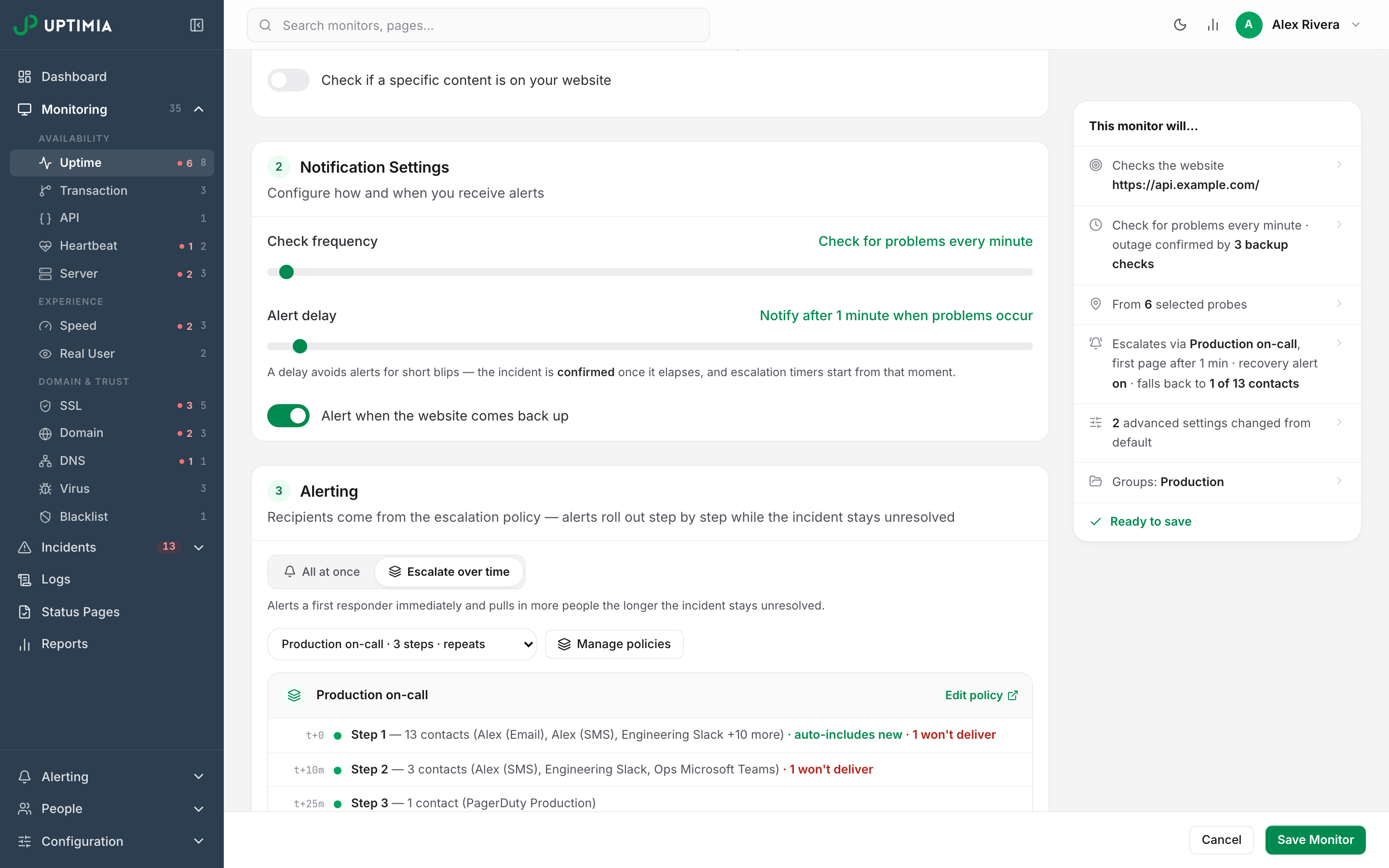
A monitor cannot be saved without at least one recipient, and selecting someone only makes them eligible for an alert. Switching the card to Escalate over time replaces that picker with the policy selector. The recipient list stays stored and is still required to save; it is only hidden while escalation is on. See Who Gets Alerted.
Escalation, Grouping and Acknowledgment
Three account-level features shape alerting beyond a single monitor's settings, and all three need the Professional plan or above to create. The trial clears the gate, and an existing policy keeps working after a downgrade.
Escalation policies are a reusable ladder: alert one person now, add more people the longer the incident stays unresolved, and repeat a bounded number of times. Attach a policy to a monitor by switching its Alerting card from All at once to Escalate over time. A ladder that completes having reached nobody pages the account owner as a last resort, ignoring the owner's own schedule. See Escalation Policies.
Alert groups merge a storm. When several monitors sharing a policy fail inside a join window, Uptimia sends:
- one down digest
- throttled join updates as more monitors fall in
- one escalation ladder
- one recovery alert to everyone who was paged
Grouping is on by default and touches only monitors that have an escalation policy attached. See Alert Groups.
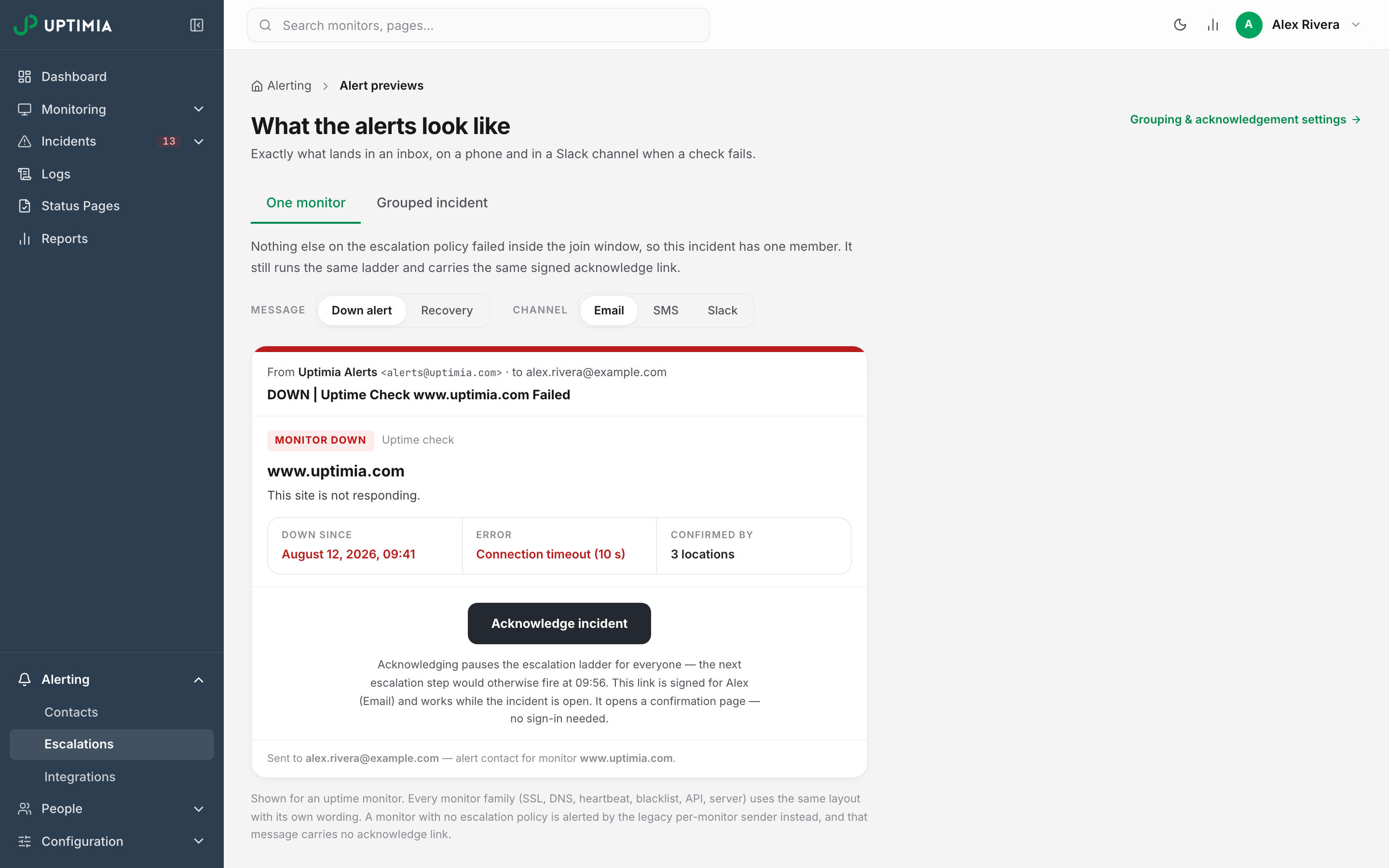
Acknowledgment lets a responder take ownership: it pauses the ladder, leaves the incident open, and records how long it took someone to respond. It works from the control panel or from a signed link in the alert that needs no login. See Acknowledging Incidents and MTTA.
Two account-wide pages sit beside the policy list at Alerting → Escalations. Grouping & acknowledgement holds the account rules. Alert previews shows what a down alert, a join update and a recovery look like on email, SMS and Slack before you rely on them.
Delivery Reliability
- A failed send is retried, then dropped. The queue re-schedules it with a growing gap between attempts: up to 5 retries after the first, the last landing 15 minutes in. The schedule is the same on every channel, and Integrations Overview documents it.
- Two contacts on the same destination collapse into one alert. Two contacts on the same Slack integration produce one message; two different integrations produce two.
- A recipient who used the opt-out link in an alert email is dropped silently on every monitor, and on every contact row on the account that carries that email address. The recipient still shows as selected, which is why this is the most common cause of "the contact is right there and gets nothing".
- A recovery alert is never sent without its down alert. If an outage never crossed the alert delay, the lone "up" is dropped rather than sent with nothing to resolve.
Who Gets Alerted documents the resolution rules behind the collapse and the opt-out. To diagnose an alert that fired but never landed, read Alert Emails or SMS Not Arriving.
Note: An SMS confirmation code costs 1 SMS credit, exactly like an alert SMS. At a zero balance the request is refused with You have no SMS credits left. Confirmation codes are charged against your SMS credit balance. Codes are also rate-limited per destination number: 1 per minute, 5 per hour. A brand-new account cannot send SMS during its first 5 minutes.
If You Are Getting Too Many Alerts
Correct alerts arriving too often is a tuning problem. Raise the alert delay, turn on grouping, use acknowledgment to stop a ladder, or schedule a maintenance window for planned work. Work through the knobs in order in Getting Fewer, Better Alerts.