
An Uptimia API key carries the role and the monitor-group scope of the seat that created it, and Uptimia re-checks both on every request, so you can issue a key that reads but never writes, or one that sees only one client's monitors. The seat sets the ceiling. Account Settings covers creating and deleting an ordinary owner key. Getting Started with the Uptimia API covers authenticating and making calls.
Before You Start
- You need to be the Owner or an Admin to invite a team member.
- The limited seat mints its own key, so that seat needs its own password. Plan for the member, or a shared mailbox you control, to complete the invite.
- Each non-billing seat counts against your plan's user limit. The limit counts team members besides you, the owner: Free 1, Basic 1, Professional 10, Enterprise 100, and 50 during the trial. Accounting / Billing seats are free and uncapped. See Plan Limits and Quotas.
Where a Key's Authority Comes From
Where the key was minted decides what it can do:
| Key minted by | Authority it carries |
|---|---|
| The account owner, from Settings → API Keys | Full account authority. No role checks apply |
| An Admin seat, from Settings → API Keys | Admin authority: everything except billing and account-owner actions |
| An Editor seat, through the credentials endpoint | Editor authority: monitors, alerting, status pages and reports; no team, billing or API-key access |
| A Read-only seat, through the credentials endpoint | Read-only authority: it can read (GET) anything that seat is allowed to see, and change nothing |
| A seat limited to monitor groups | The same role, narrowed to the monitors in those groups |
An Editor or Read-only seat cannot reach the API Keys tab (avatar menu, top right → Settings → API Keys), which is Owner and Admin only. Those seats get their key from POST /api/v2/auth/token instead.
Step 1: Create the Seat the Key Should Inherit
- Go to People → Users.
- Click Invite teammate.
- Enter the Email address. Use an address you can receive mail at; a shared mailbox is fine for a service seat.
- Set the role to Read-only for a key that can only read, or Editor for one that can create and change monitors.
- Under Monitor access, leave All monitors selected, or choose Only specific groups and pick the groups the key should reach. A group created later is not added to an existing scope. Re-open the member's access and pick that group, or the key will not see the monitors filed into it.
- Click Send invite.
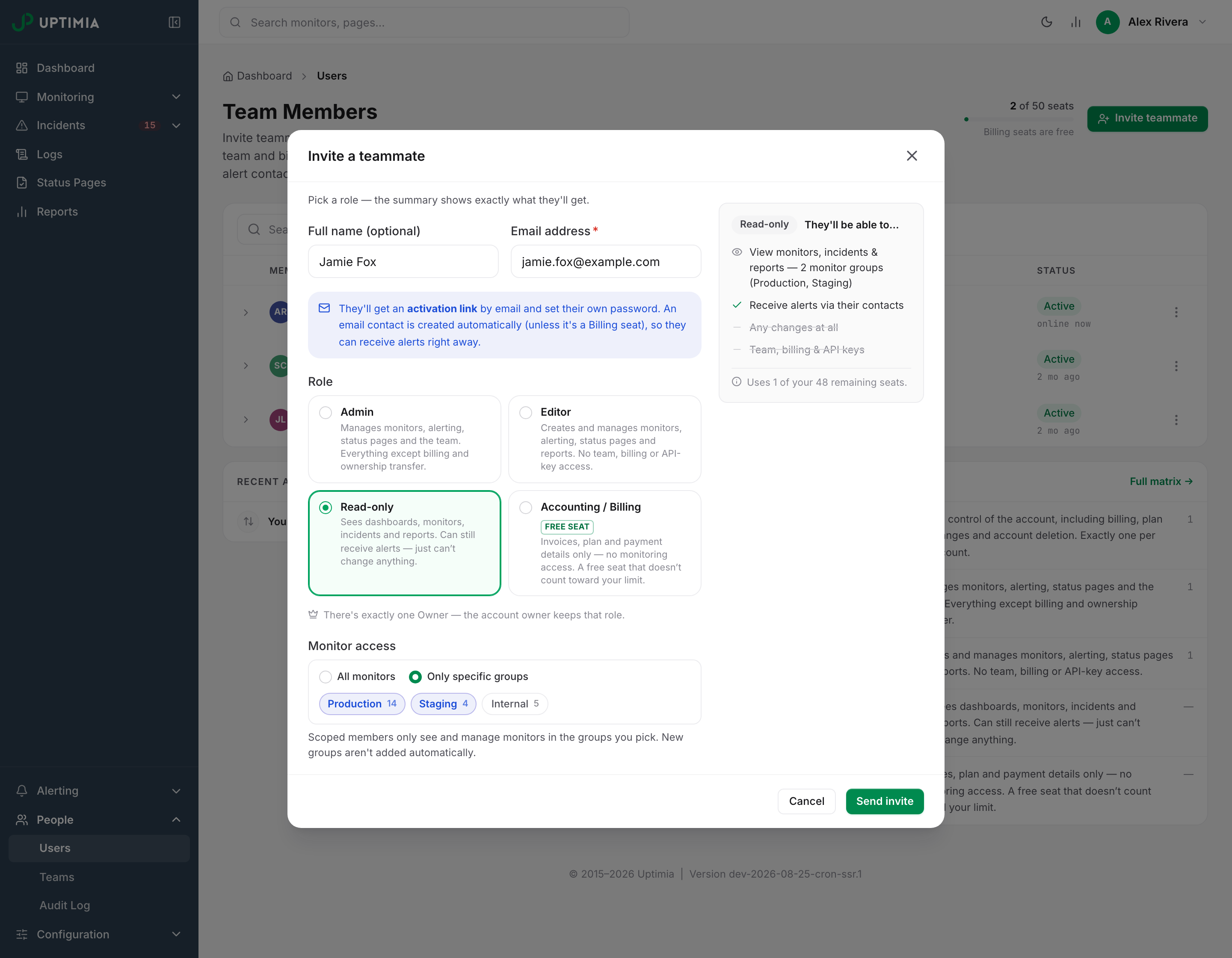
Only Editor and Read-only seats can be limited to groups. Admins always reach every monitor, and an Accounting / Billing seat never sees monitoring at all.
To script the same thing, POST /api/v2/users with an owner or Admin key:
curl -sS -X POST https://www.uptimia.com/api/v2/users \
  -H "Authorization: Bearer $UPTIMIA_OWNER_KEY" \
  -H "Content-Type: application/json" \
  -d '{"email":"status-dashboard@example.com","full_name":"Status dashboard",
       "role":"viewer","scope_groups":[77,81]}'
The role values are admin, editor, viewer (shown as Read-only) and billing. Omitting role creates a Read-only seat. If a group id does not belong to your account, Uptimia refuses the call with the error invalid_scope_groups.
Warning: Inviting a non-billing seat also creates an email contact at that address, filed under that member. No existing monitor starts paging it on its own: All my contacts — current & future covers only the account owner's own contacts, though the new contact is selectable as a recipient on every monitor from then on. If the seat exists only to hold an API key, delete that contact in Alerting → Contacts.
Step 2: Let the Seat Finish Its Setup
The invited member opens the invite link from their email. The link signs them in and shows the Finish Account Setup modal, where they enter a Full Name and a Password of at least 8 characters. Until that is done the seat has no password and Step 3 cannot work.
If the invite email is lost, an Owner or Admin can re-send it, or copy the link out of the member's row menu on People → Users. Treat that link as a credential: it signs the holder in.
Step 3: Mint the Key From That Identity
Exchange the seat's own email and password for a key:
curl -sS -X POST https://www.uptimia.com/api/v2/auth/token \
  -H "Content-Type: application/json" \
  -d '{"email":"status-dashboard@example.com","password":"…",
       "device_name":"Grafana read-only"}'
{
  "data": {
    "api_key": "nH4pQ2rXbK7yTf0LmA9sVd3EgW6cZuJ1",
    "user_id": 4821,
    "operator_id": 39
  }
}
Do not add an Authorization header to this call. If the request carries an old key, Uptimia rejects it before processing. device_name is optional and becomes the key's name in the account's API keys list, truncated at 100 characters; leave it out and Uptimia stores Mobile app.
Things to plan for:
- The full secret is shown once. Every later read masks all but the last 4 characters. Store it now.
- Every successful call mints a new key. Call it once per integration, not once per run, or the key list fills up.
- Two-factor authentication is enforced per seat. If the seat has 2FA on, the first call answers 401
2fa_requiredand emails a 6-digit code. Re-send the same email and password withcodeadded. You can try a code 5 times. - The owner is emailed each time a key is created, including through this endpoint.
- The endpoint allows 20 attempts per 15 minutes per IP, and the account itself locks out after 5 consecutive failures.
Checking Which Kind of Key You Got
operator_id in the response is the answer. A number means a seat key carrying that seat's role and scope. null means an owner-authority key.
The API keys list does not show which seat minted a key, so for a key you already hold, prove it with a request instead:
GET /api/v2/api-keysreturns200for an owner or Admin key and403for anything narrower.- Any write with a Read-only key returns
403withcode: "forbidden"and arequired_capabilityfield naming the missing permission. The message reads "Your role (Read-only) doesn't allow this. Ask the account owner or an Admin to do it, or to change your role." - A group-limited key answers
404for a monitor outside its groups. An id outside the key's groups looks like it does not exist.
Role and Scope Changes Take Effect Immediately
Uptimia resolves the seat live on every request, so there is nothing to re-issue after a change:
| What you change | Effect on the key |
|---|---|
| Change the seat's role | The key runs at the new role from the next request |
| Change the seat's monitor groups | The key's visible monitors change from the next request |
| Remove the seat | The key fails closed: 401 invalid_api_key. It never falls back to owner authority |
| Delete the account | Its keys stop authenticating |
Revoking a Key
Open the avatar menu (top right) → Settings, go to the API Keys tab, open the key's row menu and click Delete, or call DELETE /api/v2/api-keys/{id} with an owner or Admin key. The key stops working on the next request. Removing the team member revokes every key that seat minted, and that is the fastest way to cut off an integration whose secret leaked.
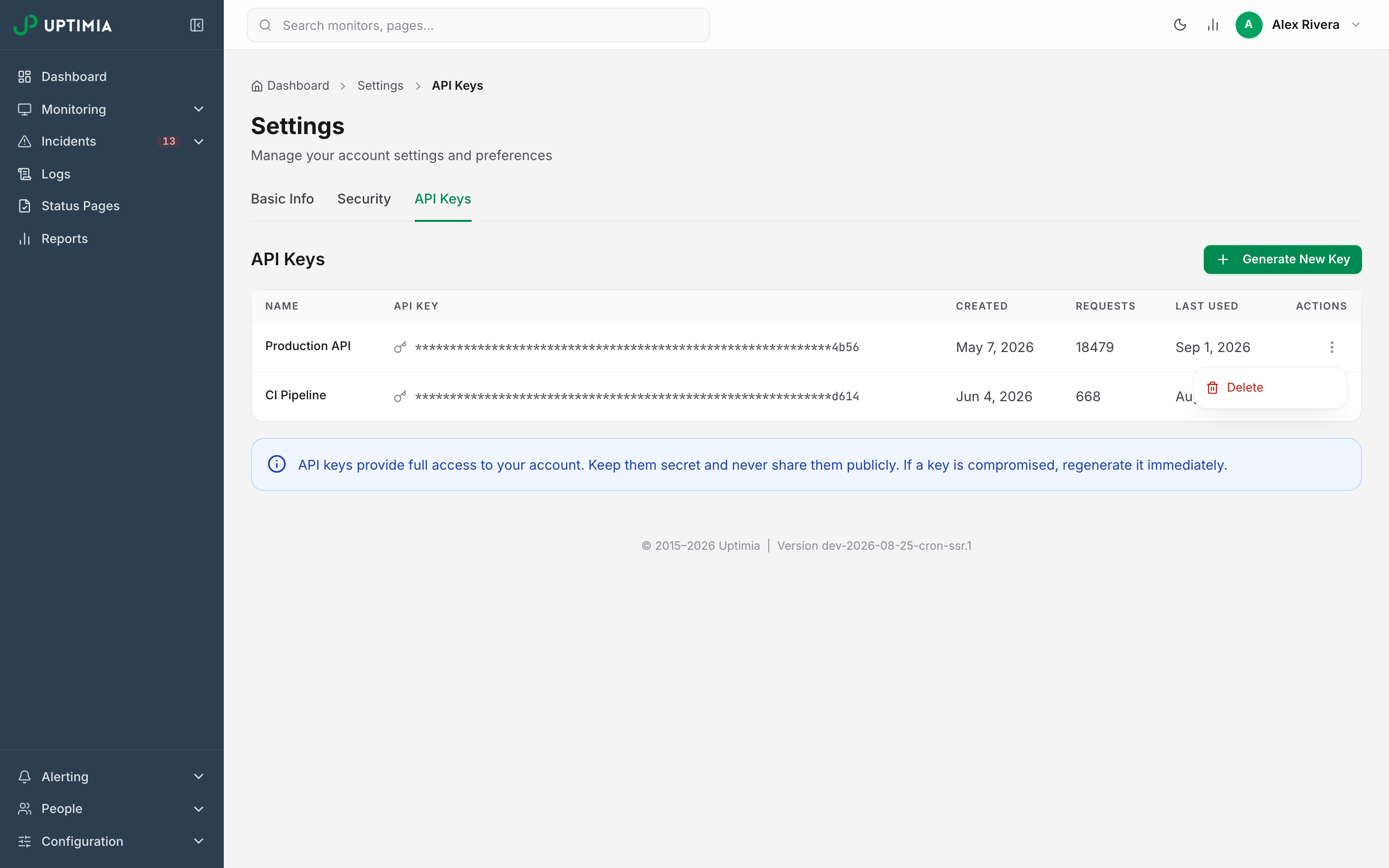
The note under the list, "API keys provide full access to your account", describes an owner key; a key minted by a limited seat carries only that seat's role and monitor-group scope.
Good Practice
- One key per integration, named for it, so you can revoke one thing without breaking the rest. The list shows each key's Created, Requests and Last Used so an unused key is easy to spot.
- Pick the narrowest role that works. A dashboard that only reads needs a Read-only seat.
- Scope by group when you manage several clients, so a key for one client cannot list another's monitors. See Limiting a Member to Monitor Groups.
- A key only authenticates against the host it was created on. Find the API Base URL under Settings → API Keys: open a key's row, or the Generate New Key screen. Send your requests there. The wrong host rejects a valid key with
invalid_api_key. See Getting Started with the Uptimia API. - Store the secret as a protected secret (a password manager or a secrets store), never in source control or a ticket. If a key is exposed, delete it and mint a new one.