
You can limit an Editor or Read-only team member to named monitor groups, so they see and work with only the monitors in those groups. Uptimia enforces the limit on every read and every write. The member cannot widen it or switch it off.
Before You Start
- Only the account Owner and Admin members can set a member's monitor access.
- The groups have to exist first. Create them under Configuration → Groups and put monitors in them before you scope anyone.
- Only Editor and Read-only can be scoped. Admins always see every monitor, and an Accounting / Billing seat sees no monitoring at all.
What Scoping Enforces
Out-of-scope monitors are absent from every list and picker; Uptimia never shows them grayed out. Opening one by its ID returns the same not-found answer as a monitor that was never created, so nobody can find hidden monitors by guessing.
| Surface | What a scoped member gets |
|---|---|
| Monitor lists, per type | Only monitors in their groups |
| Monitor detail, editor, check log, incidents | In-scope monitors only; anything else reports as not found |
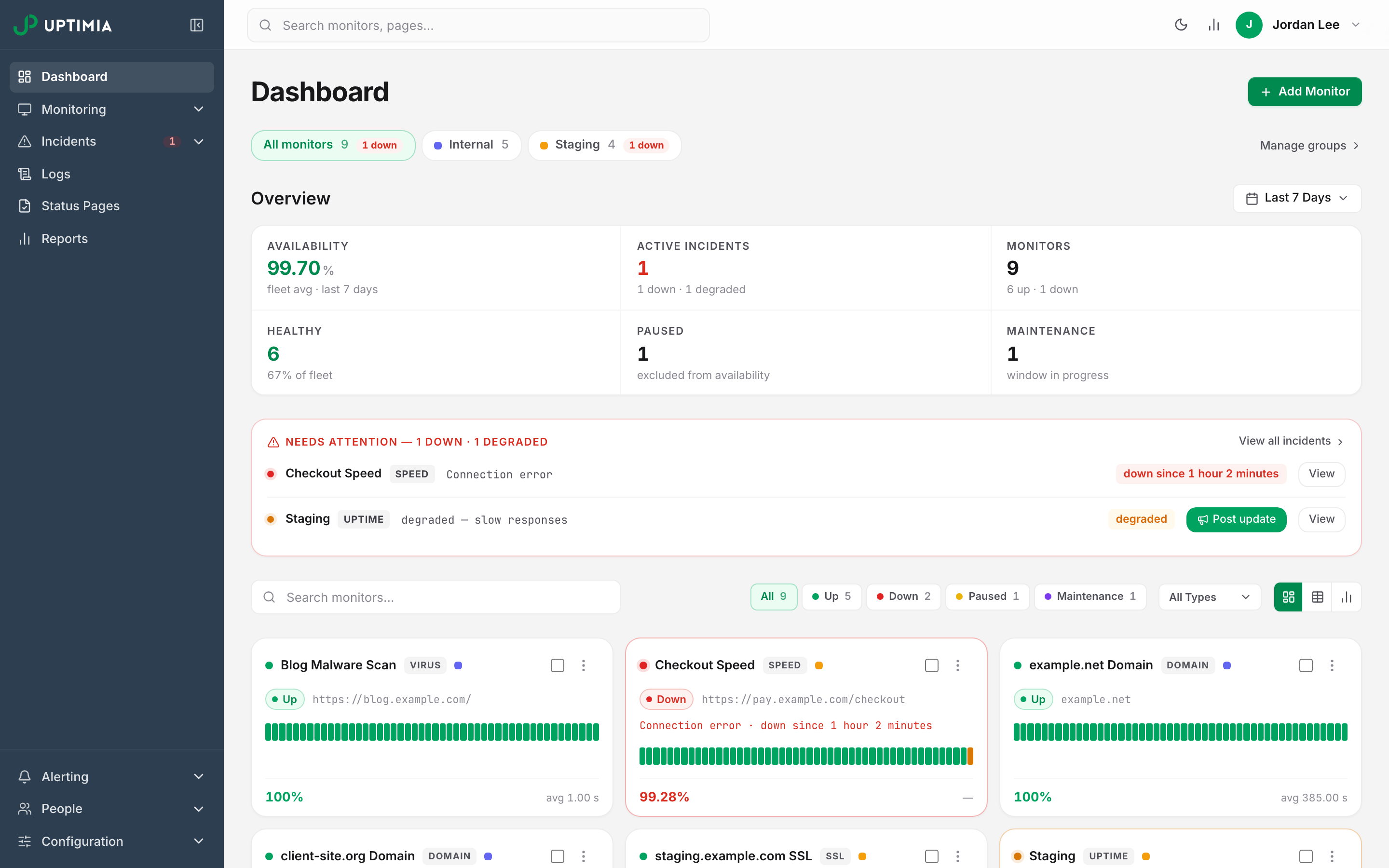
| Dashboard and its group scope bar | Their groups only, with counts and availability computed from those monitors |
| Global search | In-scope monitors only |
| Monitoring Logs and incident exports | In-scope rows only |
| Configuration → Groups | Their groups only: other groups are not listed, and their names and counts are not leaked |
| Maintenance windows | Scoped, and the selection modes narrow to By group and Pick monitors |
| Status pages and scheduled reports | Scoped; a write naming an out-of-scope monitor is rejected |
| Monitor templates | A template is hidden when the monitor it was saved from is out of scope |
Alert contacts and alert teams are outside this boundary. Recipient pickers hold people rather than monitors, so a member's monitor scope does not narrow the choice of who gets the alert. Real User Monitoring is scoped like every other monitor type.
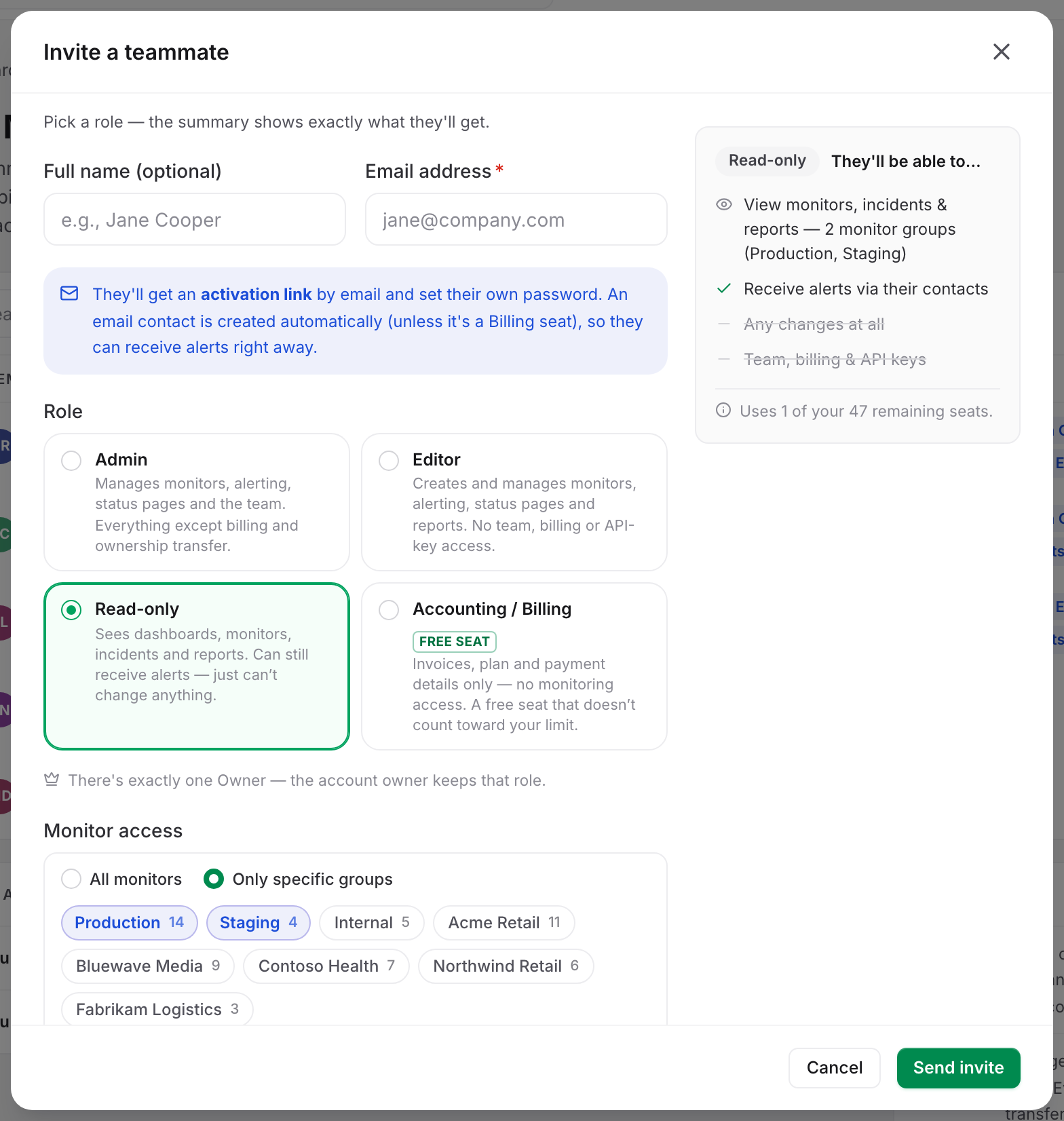
Scoping Someone as You Invite Them
- Go to People → Users and click Invite teammate.
- Enter the email address and pick Editor or Read-only. The Monitor access control appears.
- Select Only specific groups.
- Click the groups this person should see. Each chip shows the group's monitor count.
- Click Send invite.
If you choose Only specific groups but tick no group, Uptimia refuses the invite: "Pick at least one monitor group — or switch back to all monitors."
Changing an Existing Member's Monitor Access
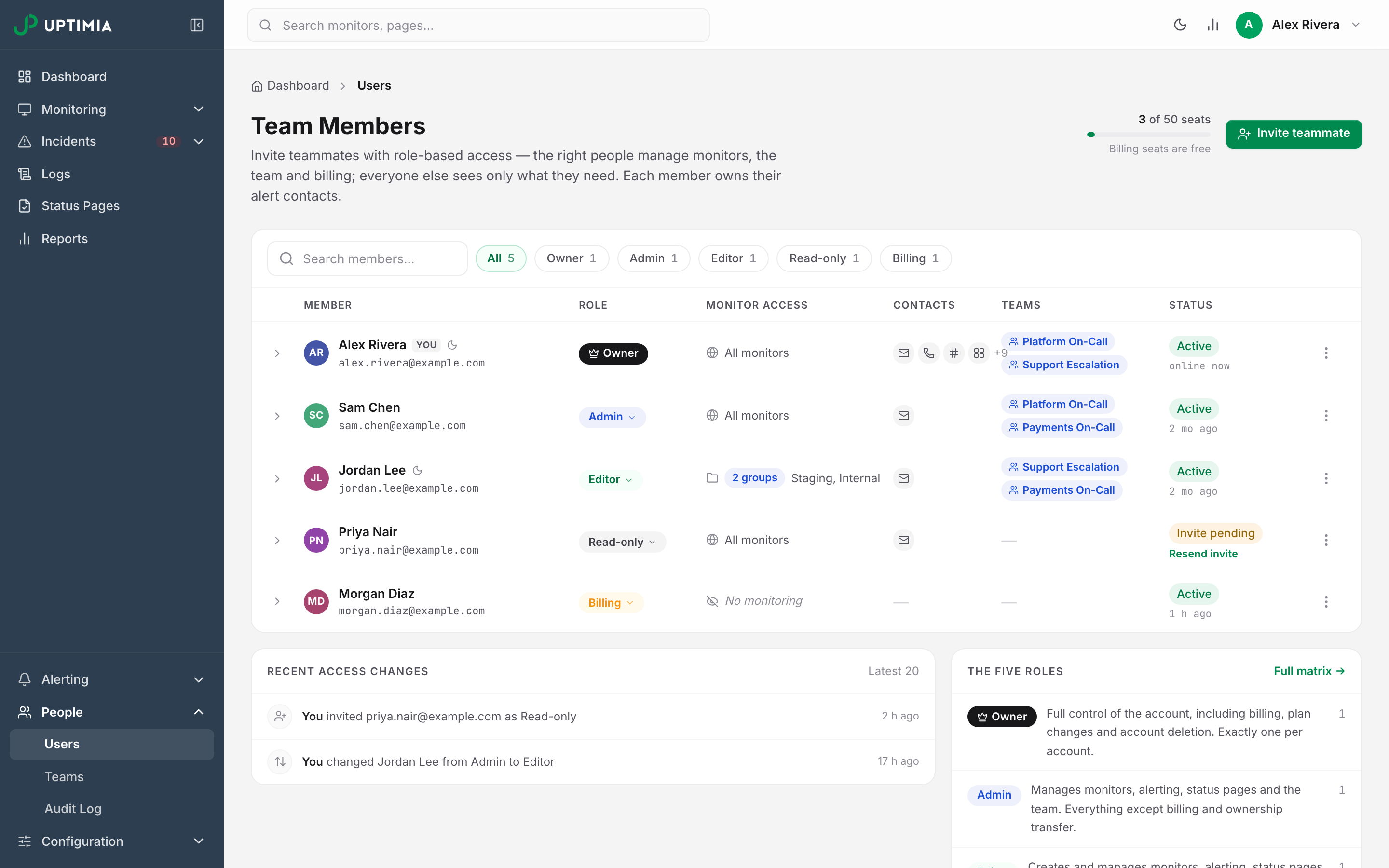
- Go to People → Users.
- Open the member's kebab menu and click Edit access & profile.
- Set Monitor access to Only specific groups, or back to All monitors to lift the limit.
- Adjust the group selection and click Save changes.
The change takes effect the next time the member loads a page; they don't need to sign out. The roster's Monitor access column then reads N groups with the group names. An unscoped seat reads All monitors, and a Billing seat reads No monitoring.
A group you create later is not added to anyone's existing scope, and the picker says so.
Promoting a scoped member to Admin lifts the limit and clears the selection. Uptimia stores no monitor groups on an Admin or an Accounting / Billing seat, so the old scope is gone for good. Moving them back to Editor from the role badge leaves them on All monitors, able to see every monitor on the account. To put the limit back, open Edit access & profile and set Monitor access again after the role change.
A Monitor in No Group Is Invisible to a Scoped Member
Uptimia evaluates scope through group membership, so a monitor that belongs to no group matches nobody's scope. It stays fully visible to you, to Admins and to API keys the Owner created. It is absent for every scoped member.
Before you scope anyone, check that every monitor they are meant to work on is in one of their groups. A monitor can belong to more than one group, so overlap is fine.
Monitors a Scoped Member Creates Join Their Own Groups
A scoped Editor can create monitors. When they save one, Uptimia keeps only the groups they picked that sit inside their scope, and if none of the picked groups survive that filter, it files the monitor into their whole scope instead. So a scoped Editor always sees the monitors they create.
On a new monitor, the Groups selection is pre-filled with the author's scope groups, so the form shows what the save will do.
Editing an existing monitor does not remove the groups the member cannot see. A scoped Editor who saves a monitor that also sits in a hidden group leaves that membership in place.
Groups Themselves Are Scoped
Uptimia filters the group list down to a scoped member's own groups, so the names and monitor counts of every other group stay private.
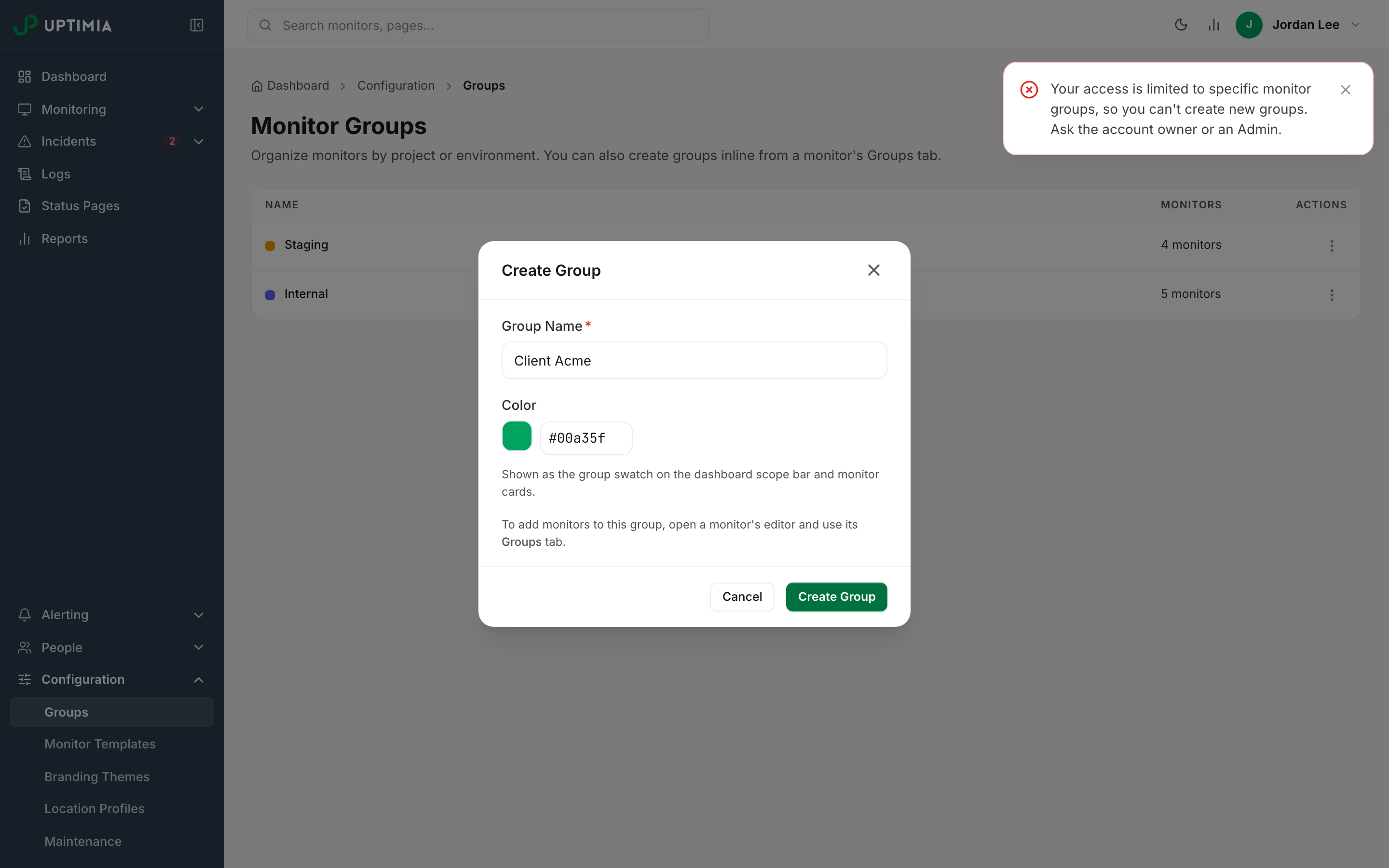
A scoped member cannot create groups. The Create Group button is still on the page, and the refusal comes when they save: "Your access is limited to specific monitor groups, so you can't create new groups. Ask the account owner or an Admin." If they try to rename, recolor or delete a group outside their scope, Uptimia gives them the same not-found answer as a group that was never created.
Group membership stays an Owner and Admin concern. If a scoped member needs a new group, they ask you for it, and you add it to their scope.
Maintenance, Status Pages and Reports
Maintenance windows are scoped, and the monitor-selection step is narrowed to match. Uptimia offers a scoped member only By group and Pick monitors. All monitors and By type are hidden, because both reach past their groups and the save would be rejected.
Status pages and scheduled reports read the same scoped monitor list in their pickers, and their writes reject an out-of-scope monitor. A scoped member can build a status page or a report for their own client without seeing anyone else's.
Who Is Never Scoped
| Identity | Why |
|---|---|
| Account Owner | Full account authority by definition |
| Admin members | The role always sees every monitor and every group |
| Accounting / Billing seats | Never reach monitoring at all, so there is nothing to scope |
| API keys minted by the Owner | They carry owner authority |
| Uptimia support acting on your account | Support authority, recorded in your activity log |
| An Editor or Read-only member left on All monitors | No groups selected means no limit |
Uptimia treats a stored role it does not recognize as Read-only, and scopes it.
Scope Carries Into API Keys
An API key minted from an Editor or Read-only seat runs as that seat, with the same role and the same monitor-group scope, so demoting or re-scoping the member changes what the key can reach immediately. Removing the member stops the key working. This is the only way to issue a group-limited API key. See Read-Only and Group-Limited API Keys.
Using This for Client Work
Agencies use one group per client. Put every monitor for a client in that client's group. Then invite the client's engineer as an Editor or Read-only, scope them to that one group, and they get their own dashboard, their own logs, their own incidents and their own status page, with no evidence that the other clients exist. The wider playbook (templates, per-client reports, maintenance and branding) is in Running Uptimia for Many Client Sites.
Scoping happens at the group level, never per monitor, so a monitor that two clients should never share must not sit in a group both of them hold.