
Accounting / Billing is one of the five Uptimia roles: someone on it opens invoices, the plan and payment details, and nothing else, with no monitors, no incidents and no alerting. The seat is free. It never counts against your plan's seat limit. For the full capability matrix across all five roles, see User Roles and Permissions.
Before You Start
- You need to be the account Owner or an Admin to invite anyone.
- The seat is available on every plan, including Free.
- The person you invite needs an email address they control. They set their own password from an activation link.
What the Accounting / Billing Seat Is For
The seat exists so a finance person can pull an invoice without a login that also lets them delete a monitor. In the invite modal it is the role card labeled Accounting / Billing, tagged Free seat, described as:
Invoices, plan and payment details only — no monitoring access. A free seat that doesn't count toward your limit.
Everywhere else in the control panel the seat carries the short label Billing. That covers the role badge on a member's row, the role menu, and the filter chips on the roster.
Billing Seats Don't Count Against Your Seat Limit
Your plan's seat limit counts team members other than the account owner: current pricing gives 1 seat on Free, 1 on Basic, 10 on Professional and 100 on Enterprise. On the 30-day trial you get 50 seats. Neither the owner nor a Billing seat counts against that number.
- The seat meter on People → Users reads "N of M seats" with the note "Billing seats are free" underneath it. A Billing seat never moves that number.
- Uptimia skips the seat check for a Billing-seat invite, so the invite succeeds on a Basic account whose single seat is already filled. In the invite modal the summary panel reads "Free — Billing seats don't count toward your N-seat limit." Here N is your plan's own seat count, so on that Basic account it reads "your 1-seat limit".
The full limits for every plan are in Plan Limits and Quotas.
Inviting Your Accountant or Bookkeeper
- Go to People → Users.
- Click Invite teammate.
- Enter their Full name (optional) and Email address.
- Under Role, select Accounting / Billing. The right-hand panel updates to show what they will get.
- Click Send invite.
Uptimia confirms with "Invite sent to jane@company.com — free Billing seat, no monitoring access." The invitee gets an activation link by email and sets their own password. Until they do, their row on the roster shows as a pending invite and they receive no billing email.
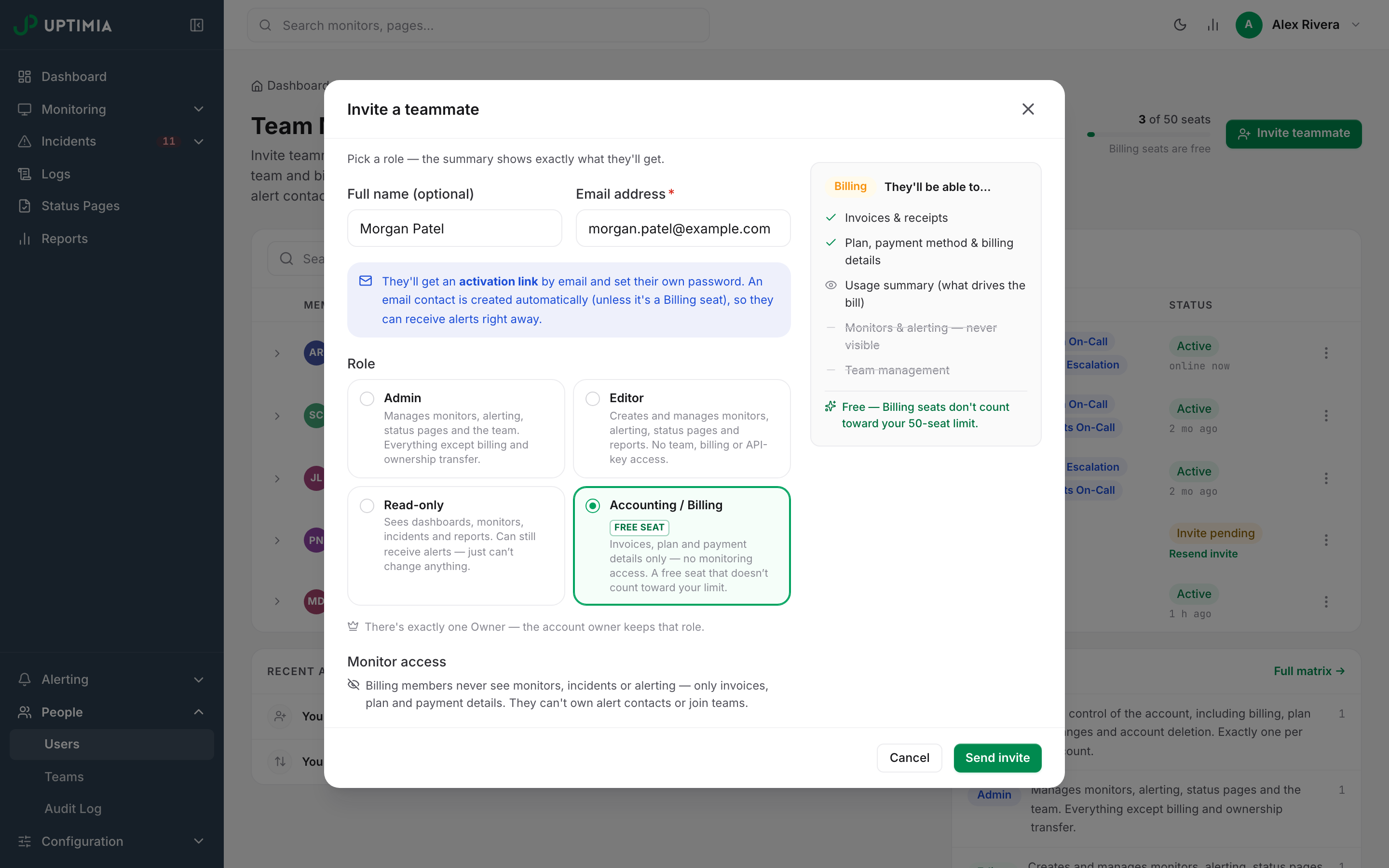
Unlike every other role, a Billing seat gets no email contact created automatically, because it can never receive monitor alerts. The invite modal's blue banner says as much: a contact is created for a new member "unless it's a Billing seat".
What a Billing Seat Can See
A Billing seat gets its own two-item sidebar and lands on Plans when it signs in:
| Sidebar item | What is there |
|---|---|
| Plans | The current plan, the usage strip that drives it, the plan cards and the monthly/yearly toggle |
| Billing | Billing Info, Payment Methods and Billing History as tabs |
The billing pages carry four tabs across the top: Plans, Billing Info, Payment Methods and Billing History. From the avatar menu a Billing seat can also open Settings and change their own name and password. API Keys is owner and Admin only.
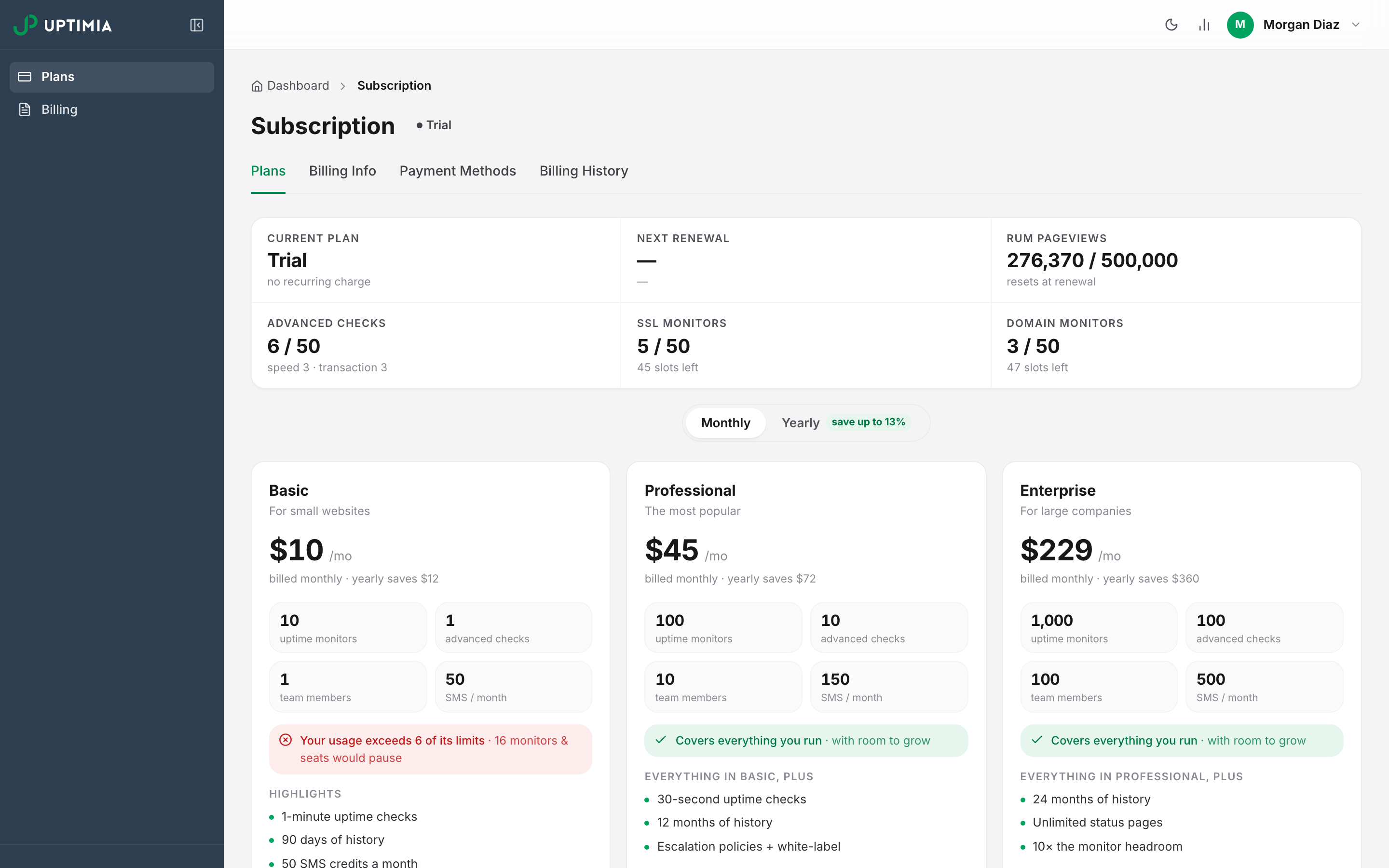
The seat is not read-only. Someone on it can change the plan, start a checkout, cancel the subscription, add and remove payment methods, and edit the billing address and VAT number. Deleting the account is out of reach: only the Owner can do that.
Note: Uptimia has no view-only billing role. An accountant on this seat can change the plan and cancel the subscription. To keep those out of their hands, leave billing with the Owner and forward invoices by hand.
Which Billing Emails They Receive
Every billing message goes to the account owner and to every activated Billing seat. List the same address twice and Uptimia mails it once, even if the two spellings differ in capital letters. A pending invite is skipped. Uptimia never sends a billing document to an address that has not proven it controls the mailbox.
These go to the owner and every activated Billing seat:
| When | |
|---|---|
| Order confirmation | A plan is bought |
| Invoice for plan N | Each invoice, with the PDF attached |
| Your plan is now N | An upgrade completes |
| Your scheduled plan change | A downgrade is scheduled to renewal |
| Your subscription has been cancelled | Cancellation is confirmed |
| Your Uptimia access ends soon | A canceled subscription approaches its end date |
| Your payment did not go through | A charge fails |
| Payment retry reminders | Each time Uptimia retries a charge that failed |
| Your payment went through | A failed charge is recovered |
| Your refund has been processed | A refund is issued |
| Credit card expiry warning · expires this week · expiration notice | The card on file is expiring or has expired |
| A new card was added · A card was removed | A payment method changes |
Some billing emails carry a sign-in button: Update my payment info on a failed charge, Resume my subscription on a cancellation, Go to my account on an upgrade. Each button is minted for the one person it was sent to. Your accountant's button signs your accountant in, never you. Invoices, order confirmations and refund confirmations carry no button.
The owner alone gets the account-level notices that are not billing documents: the suspension notice, the monitors-reactivated notice and win-back offers. For why a given charge looks the way it does, see Understanding Your Bill.
What a Billing Seat Never Gets
Uptimia enforces every row below.
| Capability | Billing seat | What you see if you try |
|---|---|---|
| Receive monitor alerts | Never | It owns no alert contacts, so a recipient picker that still lists it flags the row no contacts — won't receive alerts |
| Own an alert contact | No | "Billing seats never receive monitor alerts and can't own contacts" |
| Join an alerting team | No | "Billing seats never receive monitor alerts and can't join teams" |
| See monitors, incidents, logs | No | Any other page redirects to Plans |
| Monitor-group scoping | Not applicable | Only Editor and Read-only members can be scoped |
| Manage the team | No | People does not exist for them |
| API keys | No | The API Keys section of Settings is not reachable |
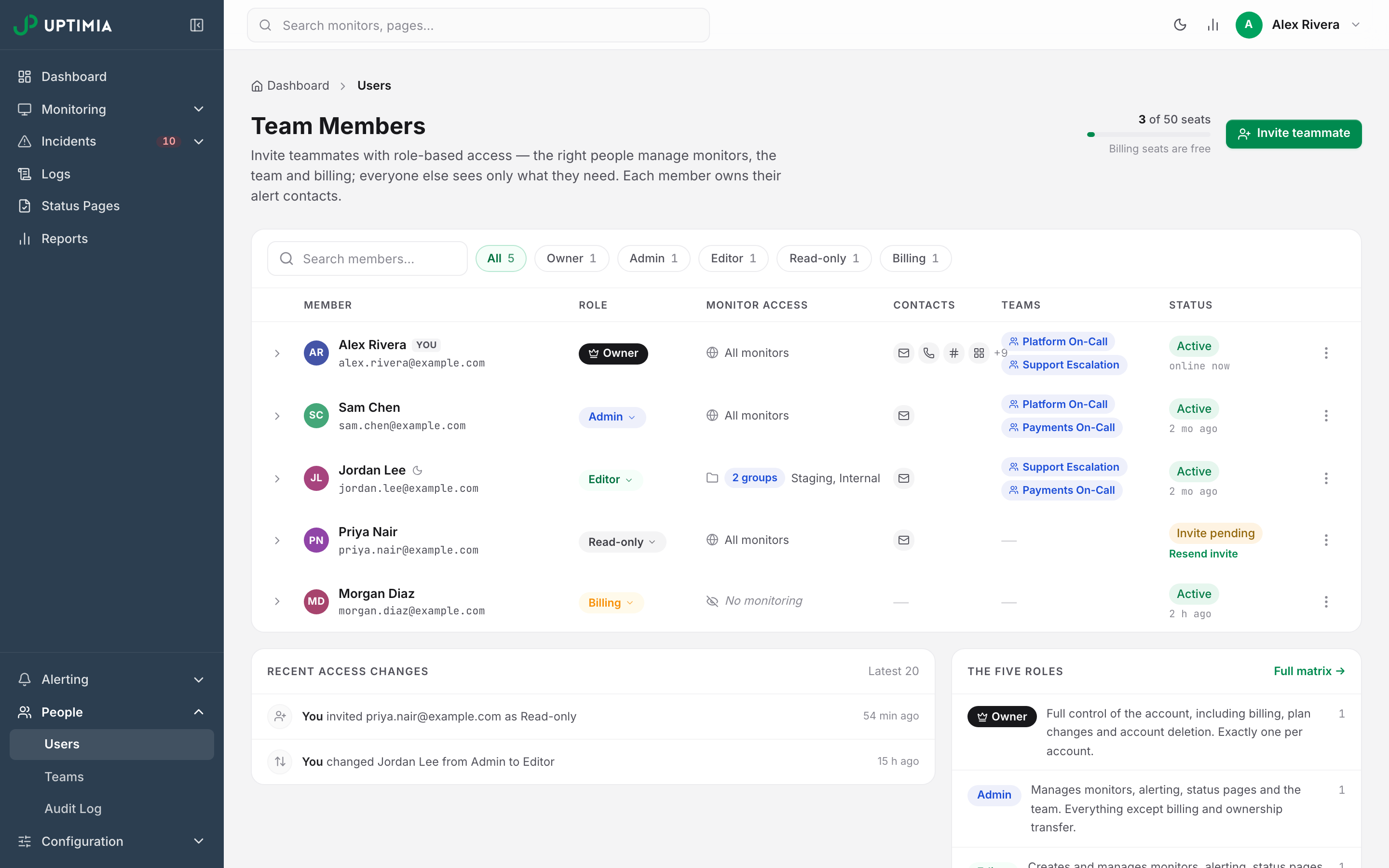
On the People → Users roster a Billing seat's row shows No monitoring in the monitor-access column and a dash under contacts.
Converting an Existing Team Member to a Billing Seat
Moving someone who already works in the account into the Billing seat is destructive. It is the one role change Uptimia stops to confirm:
Billing seats hold no monitoring access: their alert contacts are deleted and they are removed from every team. Moving them back later does not restore either.
Warning: Confirming that modal deletes the member's own alert contacts, removes them from every alerting team, clears their monitor-group scope, and strips their references from monitor recipient lists, scheduled-report recipients and escalation-policy steps. Nothing is archived. None of it comes back if you change your mind. If the person is currently on call, write down their contacts first. A safer option is to invite the accountant as a new seat and leave the existing member alone.
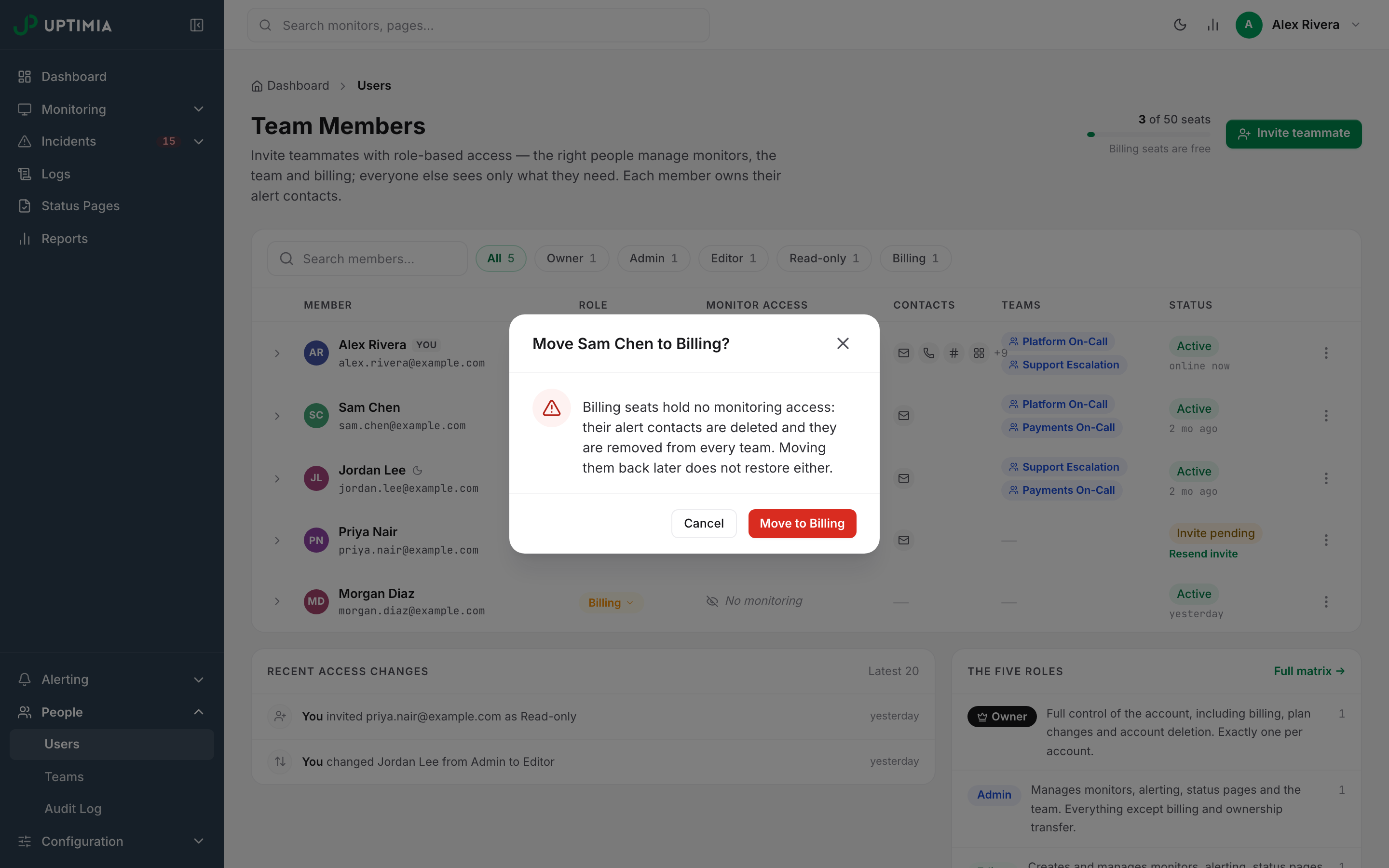
To do it anyway: on People → Users, click the member's role badge, choose Billing, and confirm. The Edit access & profile modal makes the identical change, but saves without asking. Use the role badge so the confirmation appears.
Moving Someone Back Out of the Billing Seat
Change their role from the same badge. There is no confirmation on the way out, because nothing more is destroyed. Two things still apply:
- The seat becomes chargeable again, so Uptimia re-checks your plan limit. On a full account the change is refused with "You exceeded the maximum number of users. Please upgrade your plan to create more users." Free a seat or upgrade first.
- Their old contacts and team memberships stay gone. Recreate the contacts they need (Contacts and Alerting), then add them back to any alerting teams they belonged to (Teams and Multi-User Access).
Removing a Billing Seat
Open the row's kebab menu on People → Users, choose Remove from account, and confirm when asked: Uptimia then revokes their access and emails them that it happened. They stop receiving billing email at once. If they never activated the invite, the menu offers Revoke invite instead, which stops the activation link working.
Common Questions
How many Billing seats can I have? Your plan's seat count does not limit them: the seat check does not apply to a Billing-seat invite.
Can they see how many monitors we run? They see the usage strip on the Plans page: the counters that decide which plan fits. They cannot open a monitor, a log or an incident.
Does the seat need its own email address? Yes. It has to be an address no other Uptimia login already uses, and it has to be able to receive the activation link. Inviting a seat on the owner's own address is refused with "This e-mail has already been used".