
A team member is a person who signs in to your Uptimia account with their own email and password, under a role you choose. An invite needs nothing but their email address. The role you pick alongside it decides what they can do, and the full capability matrix is in User Roles and Permissions.
Before You Start
- Only the account Owner and Admin members can invite, edit or remove team members. Editors and Read-only members do not see the page.
- You need a free seat on your plan, unless you are inviting an Accounting / Billing seat, which is always free.
- If you plan to limit the invitee to certain monitors, create the monitor groups first. The scope picker only offers groups that already exist.
Sending an Invite
- Go to People → Users. The page is headed Team Members.
- Click Invite teammate. The Invite a teammate modal opens.
- Enter the Email address. This is the only required field.
- Enter a Full name (optional). Leave it blank and the roster shows the email address until they accept.
- Pick a Role. The rail on the right updates live with a They'll be able to… summary of exactly what that role gets.
- Set Monitor access. Leave it on All monitors, or choose Only specific groups and tick the groups. The All monitors / Only specific groups choice is live for Editor and Read-only only. For Admin and Accounting / Billing the field is still there, but it states what that role reaches.
- Click Send invite. Uptimia emails the activation link straight away.
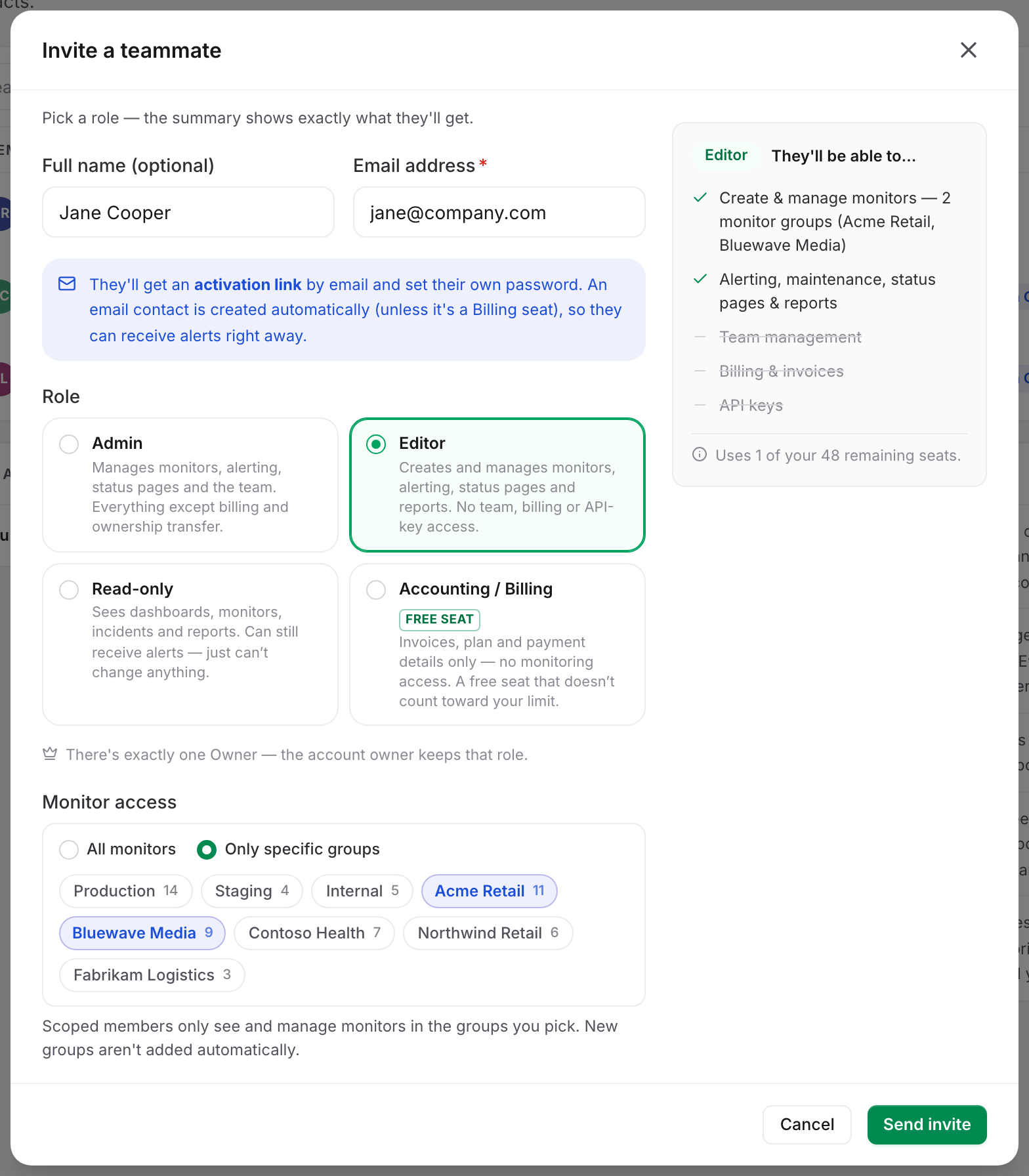
The invite form has no alerting schedule field. Set a member's quiet hours after they exist, from the same modal in edit mode.
Choosing a Role at Invite Time
The Owner is the account row itself and is never assignable, which leaves four roles to pick from.
| Role | What the seat gets |
|---|---|
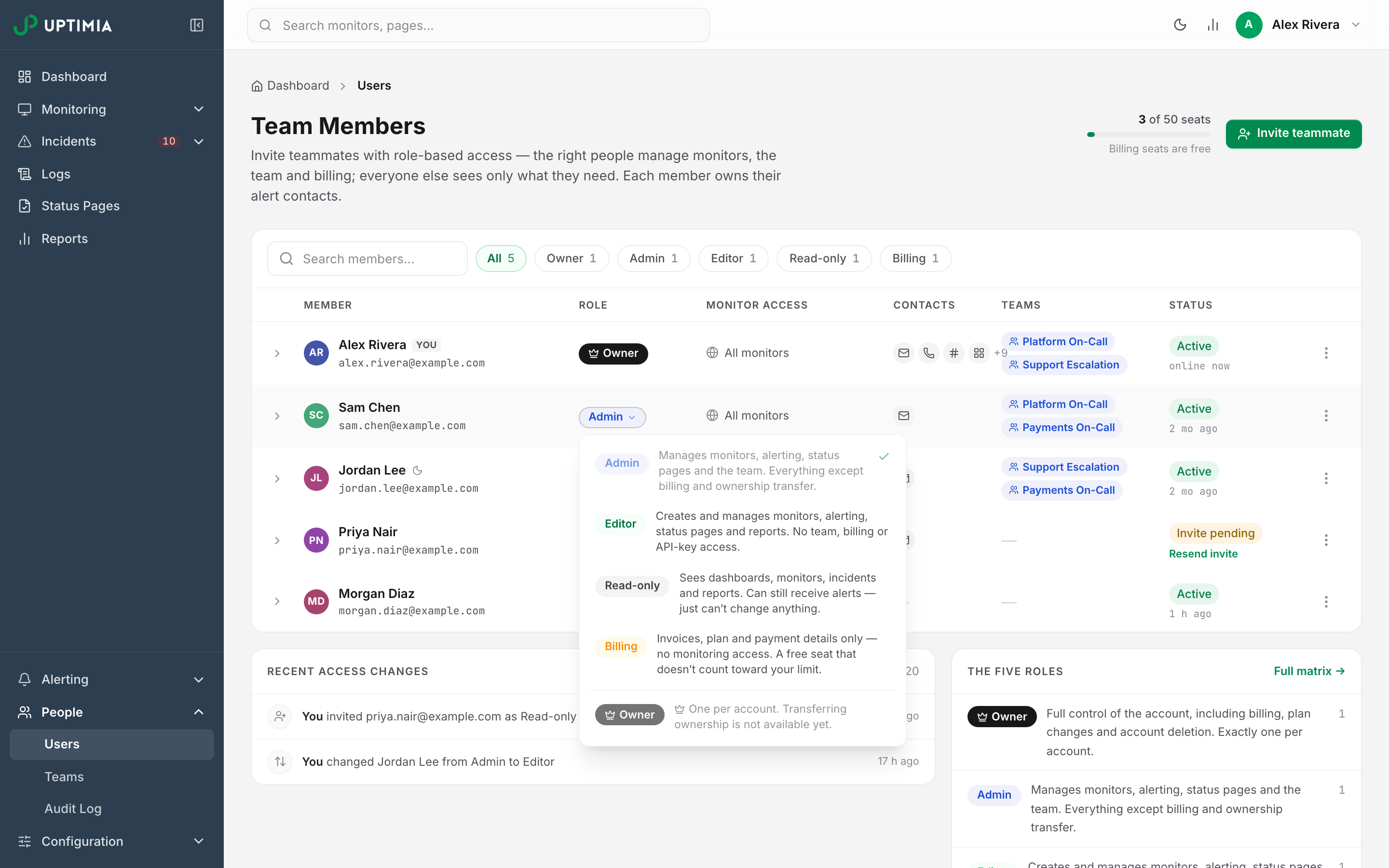
| Admin | Manages monitors, alerting, status pages and the team. Everything except billing and ownership transfer. |
| Editor | Creates and manages monitors, alerting, status pages and reports. No team, billing or API-key access. |
| Read-only | Sees dashboards, monitors, incidents and reports. Can still receive alerts, but can't change anything. |
| Accounting / Billing | Invoices, plan and payment details only (no monitoring access). A free seat that doesn't count toward your limit. |
If no role is chosen, the seat is created as Read-only, so an invite that omits a role never silently hands out manage rights. A member invited from a script without a role lands on Read-only too.
A role change takes effect straight away. No sign-out is needed. You can change a role later in one click, from the role badge on their row.
Limiting the Invitee to Specific Monitor Groups
Set Monitor access to Only specific groups and that member sees only monitors in those groups, everywhere in the app: the monitor list, detail pages, logs, incidents, the dashboard, search and exports. An out-of-scope monitor answers as if it does not exist. The picker's own hint spells this out: new groups are not added to a member's scope automatically.
Only Editor and Read-only can be scoped. Admins always see everything, and Billing seats see no monitoring at all. The full procedure is in Limiting a Member to Monitor Groups.
Inviting a Free Accounting / Billing Seat
Pick Accounting / Billing in the role picker, where it carries a Free seat tag, and send the invite as normal. The seat is never counted in the used of max seats meter and skips the plan seat check, so your accountant costs you nothing.
A Billing seat lands on the plan page instead of the dashboard, with a two-item sidebar (Plans and Billing). It owns no alert contacts, cannot join an alert team and never receives a monitor alert, so Uptimia skips the automatic email contact it would otherwise create from the invite address. Details are in The Accounting and Billing Seat.
Warning: Moving an existing member into the Billing role deletes their alert contacts and removes them from every team. Moving them back later does not restore either. Changing the role from the badge on their row asks you to confirm first. Saving the same change from Edit access & profile does not. The teardown is identical either way.
What the Invitee Receives
The activation email tells them a co-worker added their address to an Uptimia account and carries an Activate my access button. One click signs them straight in and opens a Finish Account Setup modal asking for Full Name, Password (at least 8 characters) and Confirm Password. After Start Using This Account, they sign in with their own email and password from then on.
Warning: The activation link is a sign-in credential. It logs the bearer in without a password and bypasses two-factor authentication. It stays valid until the member sets their password, so treat Copy invite link as you would a password and use Revoke invite if a link is exposed.
For everyone except a Billing seat, the invite also creates an email contact on the invitee's address, so you can pick them as an alert recipient right away. That contact delivers alerts whether or not they have accepted yet. A seat showing Invite pending is a live alert target, so de-select it if you don't want it paged.
Reading the Team Members List
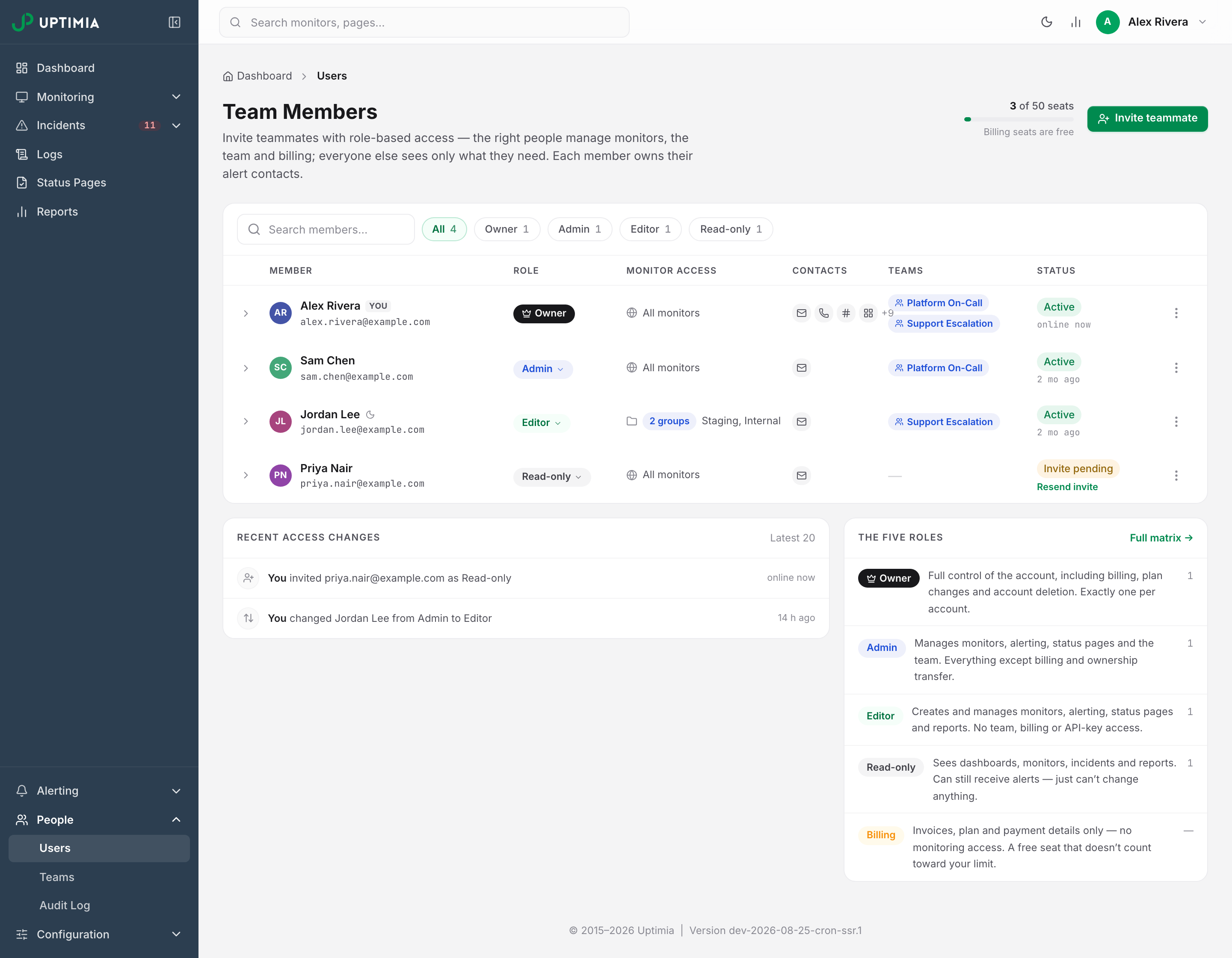
The roster lives on People → Users.
| Column | What it shows |
|---|---|
| Member | Avatar, the member's name (or their email address when the invite carried no name), a You tag on your own row, and a moon icon when quiet hours are set. A nameless invite shows hasn't accepted the invite yet on the second line in place of the email |
| Role | The role badge. Click it to change the role in one step |
| Monitor access | All monitors, N groups with the group names, or No monitoring for a Billing seat |
| Contacts | Channel icons for the member's alert contacts, or None in amber |
| Teams | Chips for every alert team the member belongs to |
| Status | Active with a relative last-seen time, or Invite pending with an inline Resend invite link |
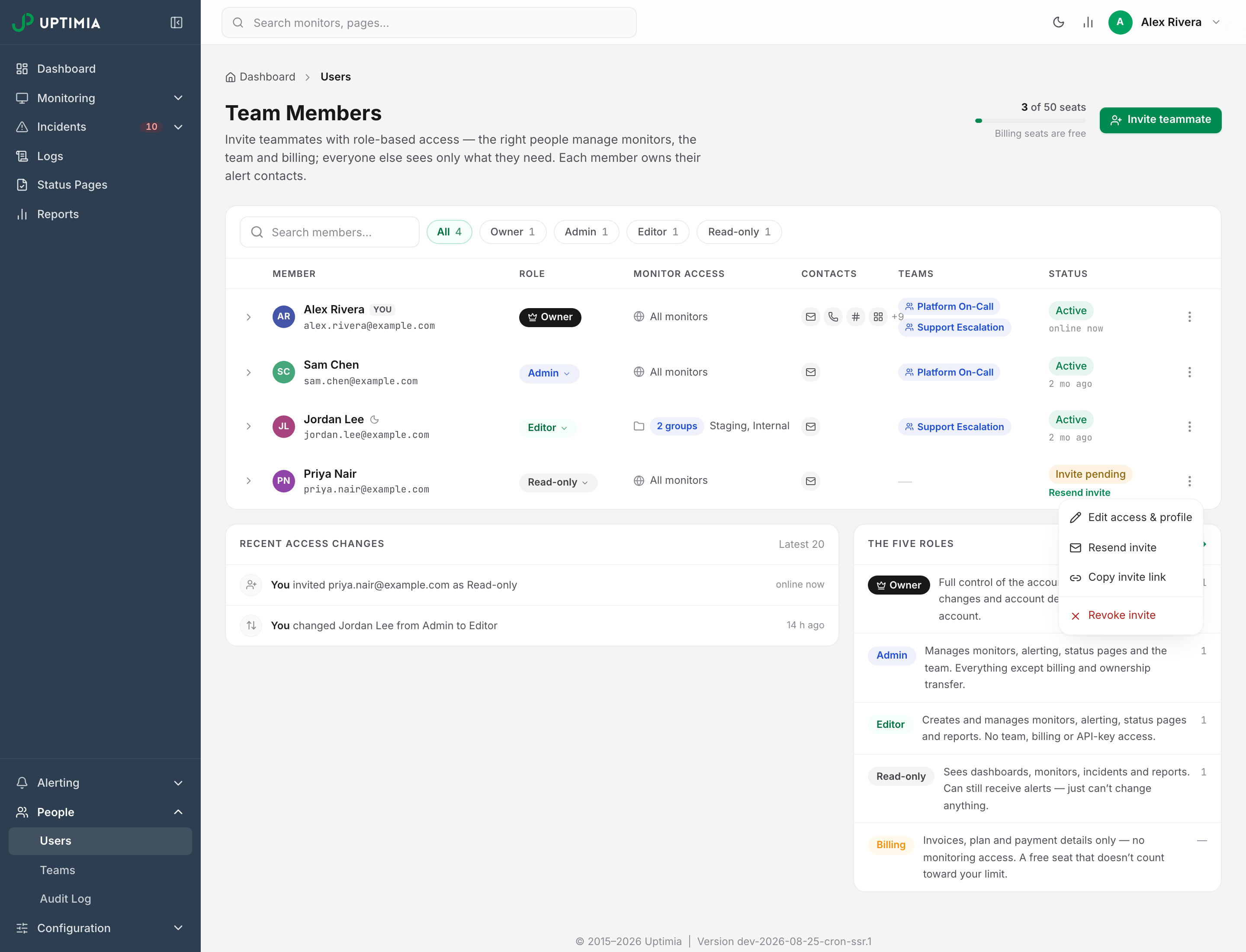
| Actions | The three-dot menu: Edit access & profile and Remove from account, plus Resend invite, Copy invite link and Revoke invite while the invite is still pending |
Click a row to expand it and see that member's contacts and schedule summary. The page head carries a seat meter reading used of max seats with the footnote Billing seats are free.
When the Activation Email Doesn't Arrive
Work down this list; the first two steps are self-service.
- Ask the member to check their spam or junk folder.
- Open the row's three-dot menu and click Resend invite. The same activation email goes out again, reusing the original token. The inline Resend invite link in the Status cell does the same thing.
- If mail is being blocked entirely, click Copy invite link and send the URL over a channel you trust. The link signs its bearer in without a password, so treat it as you would a password.
- If the address is wrong, open Edit access & profile, correct the email and save, then resend.
- If the invite should not stand, click Revoke invite. The link stops working and you can invite the address again later.
Resend, copy-link and revoke are available to the Owner and Admins, and only while the member is still pending. Once they have set a password the menu offers Remove from account instead.
Changing Access, Resetting 2FA and Removing a Seat
Edit access & profile opens the same modal as the invite, with the name, email, role, monitor-group scope and alerting schedule all editable.
Two-factor authentication is per-identity. Each member turns their own on from the avatar menu (top right) → Settings → Security, their codes go to their own mailbox, and your setting never applies to anyone else. See Two-Factor Authentication.
A member who loses access to that mailbox can't complete the challenge. The Owner and Admins get Reset two-factor auth on that member's row: Uptimia turns the factor off so they can sign in and re-enroll, emails them that it happened, and writes the reset to the audit trail. The button is offered only for a member who has 2FA on, never for yourself and never for the Owner.
Remove from account takes the member's alert contacts and every team membership with them, and any API key that seat minted stops working. Uptimia asks you to confirm, then holds the deletion behind a 6-second Undo toast.
Uptimia writes every invite, resend, revoke, role change, scope change, 2FA reset and removal to Recent access changes under the roster. That is the team's own trail, kept for 12 months and visible to the Owner and Admins. It is a separate feed from the Account Activity Log, which records monitor, maintenance-window, alerting-team and monitor-template changes and carries no team access changes.
Seat Limits
The Owner lives outside this count, so the numbers below are team members in addition to you.
| Seats | Free | Basic | Professional | Enterprise | Trial |
|---|---|---|---|---|---|
| Team members besides the Owner | 1 | 1 | 10 | 100 | 50 |
Accounting / Billing seats are exempt: they are never counted in the meter and never checked against the limit.
With the seats full, the invite modal refuses before you send it: "Seat limit reached — free a seat or upgrade the plan. (Billing seats are always free.)" Moving a member out of the Billing role re-runs the check later, and that move can be refused with "You exceeded the maximum number of users. Please upgrade your plan to create more users." Inviting an address already used on the account is refused with "This e-mail has already been used". Full quotas are in Plan Limits and Quotas.