
Two-factor authentication adds a one-time code to your Uptimia sign-in, so a stolen password on its own is not enough to get in. The code arrives by email; there is no authenticator app and no hardware key. Each identity carries its own setting: you turn it on for your own seat, the code goes to the mailbox on that seat, and turning it on as the account owner leaves every team member's sign-in exactly as it was.
Before You Start
- Two-factor authentication is available on every plan and to every role, including a Read-only and an Accounting / Billing seat.
- Codes go to the email address on the identity that signs in, so you need working access to that mailbox.
- Turning it off requires your current password. A Google or GitHub account that has never set a password is exempt.
How the Factor Works
When two-factor authentication is on for your identity, signing in happens in two stages: you enter your email and password as usual, and only then does the code step start. Uptimia emails a 6-digit code, holds you on a verification page, and keeps the sign-in pending until you type that code in. Until then you are not signed in.
The factor is stored on the identity that signs in, one setting per identity:
| Who is signing in | Whose setting decides | Where the code is sent |
|---|---|---|
| The account owner | The owner's own setting | The owner's account email |
| A team member (any role) | That member's own setting | That member's own email address |
An owner with two-factor authentication on and three members with it off means one protected sign-in and three unprotected ones. Each member has to turn it on themselves.
Turning Two-Factor Authentication On
- Open the avatar menu (top right) and click Settings.
- Open the Security tab.
- In the Two-Factor Authentication card, tick Enable two-factor authentication by email.
- Click Save Settings. A 2FA enabled confirmation appears.
Enabling asks for no password. Every later sign-in with that identity goes through the code step.

Signing In With a Code
After Uptimia accepts your password, you land on a page headed Two-factor authentication, which reads "Please check your e-mail and enter the 6-digit security code we just sent you." Enter the code in Security code and click Continue.
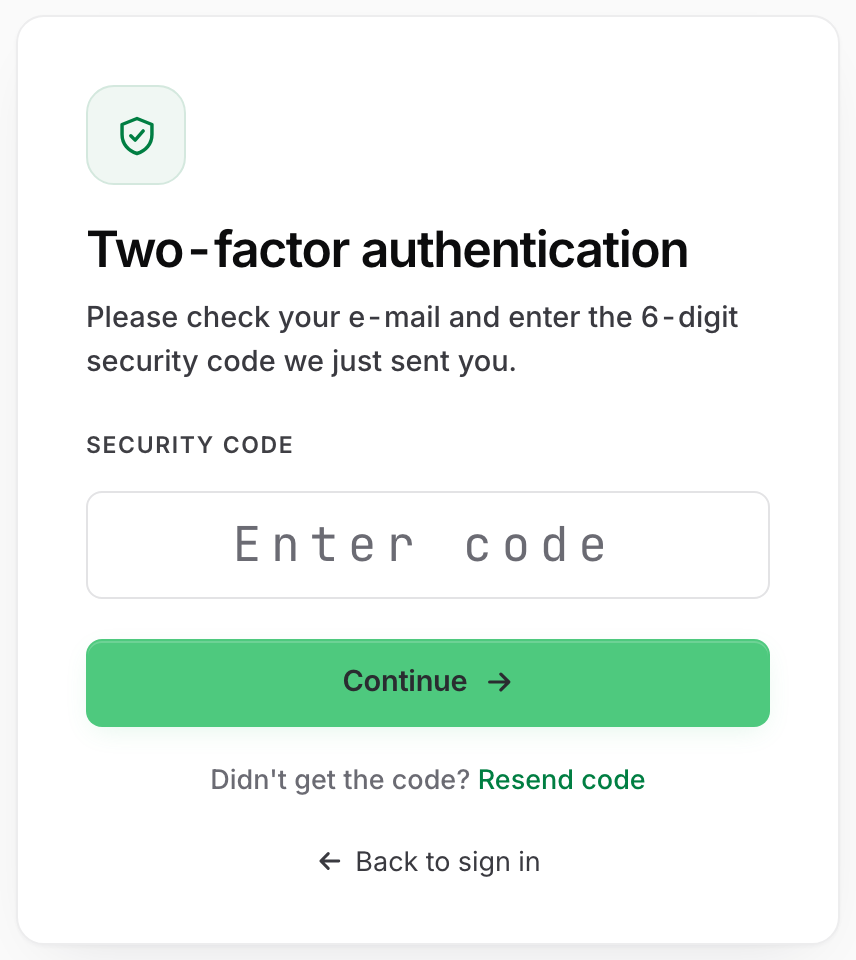
Four rules decide what happens on that page.
The code is 6 numeric digits. The field presents a numeric keypad on a phone, so a code never contains a letter.
Whitespace is stripped, wherever it falls. A code pasted as 481 502 still verifies, and so does one carrying the trailing space or non-breaking space that webmail adds. For the same reason the field sets no maximum length. Paste it as it came.
You get 5 attempts per sign-in, and Resend code shares them. The Didn't get the code? Resend code link sends a fresh code and invalidates the previous one, and it leaves the attempt budget where it was, so no amount of resending buys you a sixth try. When the budget is spent, the form closes and the resend link disappears.
The pending sign-in lasts 1 hour. Mail servers that greylist routinely delay a first delivery by 15 to 60 minutes, and a late code still has to work.
Read the message on screen rather than asking for another code. The three failures mean different things:
| Message | What it means | What to do |
|---|---|---|
| That code is incorrect. | Wrong code, and you have attempts left | Re-enter it, or use Resend code |
| Too many attempts. Please sign in again to get a new code. | The 5 attempts for this sign-in are spent | Start a fresh sign-in; resending cannot revive it. The same message on the fresh sign-in means you hit the separate ceiling of 30 two-factor requests per 15 minutes from one IP address. Wait 15 minutes, then try again |
| Your sign-in request expired. Please sign in again. | The 1-hour pending sign-in lapsed | Start a fresh sign-in; the code was not the problem |
Turning Two-Factor Authentication Off
Uptimia treats disabling as a security downgrade, so it asks for your password. Unticking the box alone saves nothing.
- Open the avatar menu (top right) → Settings, then the Security tab.
- In the Two-Factor Authentication card, untick Enable two-factor authentication by email. A Current Password field appears, hinted "Confirm your password to disable two-factor authentication."
- Enter your current password.
- Click Save Settings. A 2FA disabled confirmation appears.
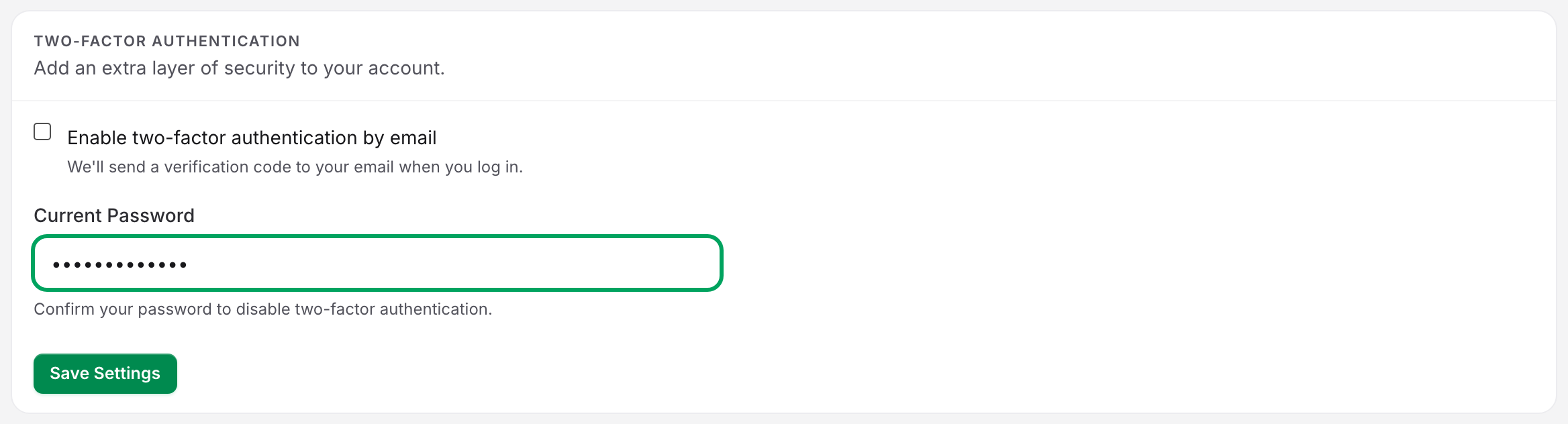
If you leave the field empty, nothing is saved: the page answers Enter your current password to disable two-factor authentication. A password that does not match returns Incorrect or missing password. Two-factor authentication was not disabled., and the factor stays on.
An account created through Google or GitHub that has never set a password never sees the Current Password field. There is nothing to confirm against. If you would rather have that confirmation, set a password first from the Change Password card on the same page.
The Confirmation Email
Uptimia emails the identity that made the change, on and off alike. The subject is Two-factor authentication enabled or Two-factor authentication disabled. The body ends with a line telling you to contact support if you did not make the change.
Warning: An unexpected Two-factor authentication disabled email means someone else is in your account. Change your password immediately. See Securing a Lost Device.
Two-Factor Authentication for Team Members
Every seat manages its own factor from the same place: the avatar menu (top right) → Settings → Security tab. On a team member's seat the card's subtitle reads "Add an extra layer of security to your sign-in." rather than "to your account".
A member cannot change anyone else's factor. Every Security page reaches one identity's setting: the one signed in.
A member's codes go to their own mailbox. A member who loses that mailbox is locked out of their own seat, while the rest of the account signs in as usual.
Resetting a Locked-Out Member's Factor
The account Owner and any Admin can clear a member's factor without contacting support:
- Go to People → Users.
- Open the kebab menu on the member's row.
- Click Reset two-factor auth.
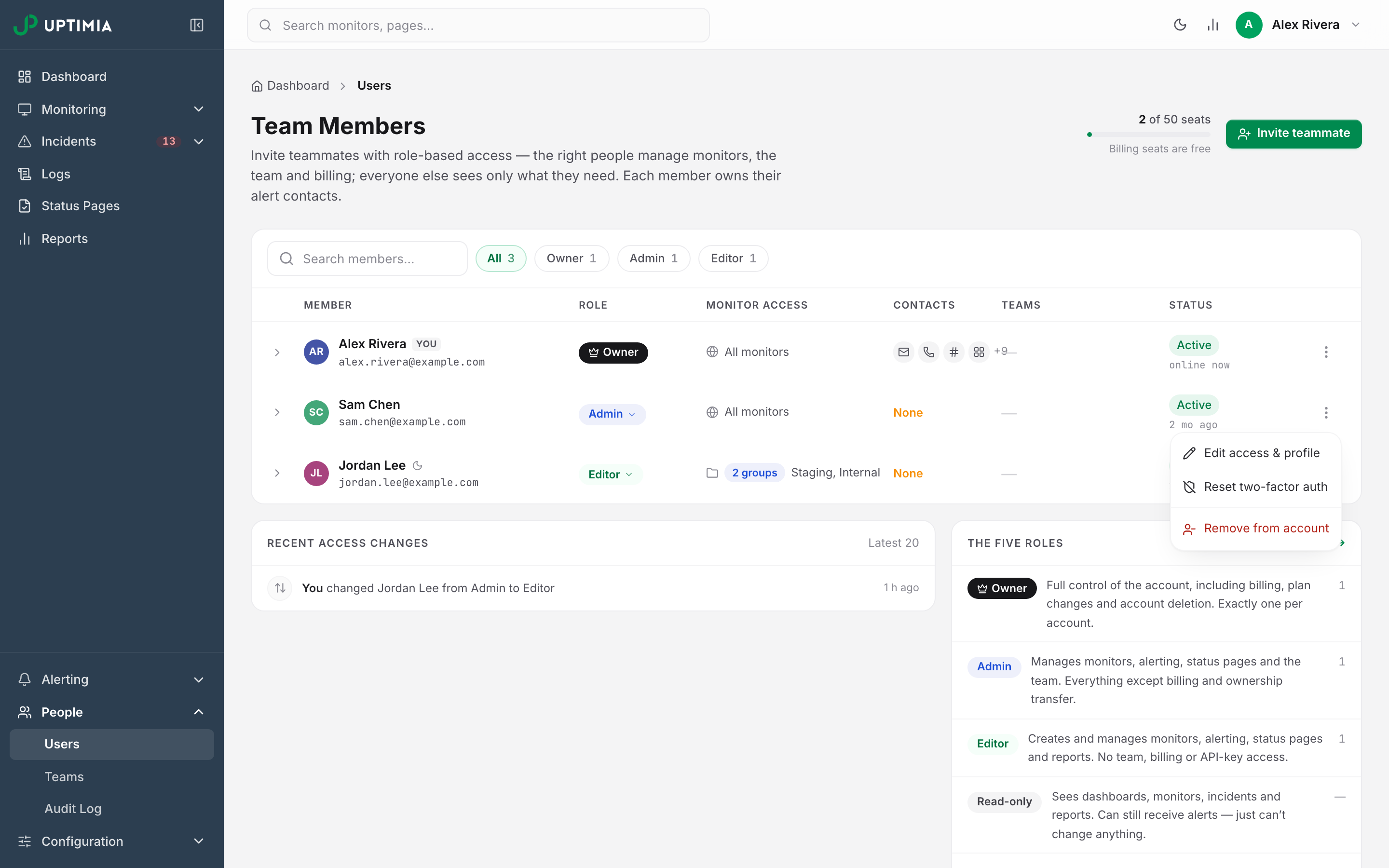
The item appears only for an activated member who has the factor on, never on your own row or the owner's. Uptimia turns the member's factor off, emails them that it happened, and logs it in the Recent access changes card on the same page. The member then signs in with their password alone and can enroll again.
No one else on the account can clear the owner's factor, so an owner who loses that mailbox has to reach support. Account and Login Recovery covers that path.
Anything on this page can also be done from a script; see Getting Started with the Uptimia API.
What Uptimia's Two-Factor Authentication Does Not Include
The second factor is email-only. Authenticator apps are not supported, including TOTP codes from Google Authenticator or Authy, and neither are hardware security keys, SMS codes, or SAML and single sign-on. There are also no backup or recovery codes. A member recovers when the Owner or an Admin uses Reset two-factor auth on their row; the owner recovers through support.
The factor is exactly as strong as the mailbox it delivers to, so protect that mailbox with its own second factor.